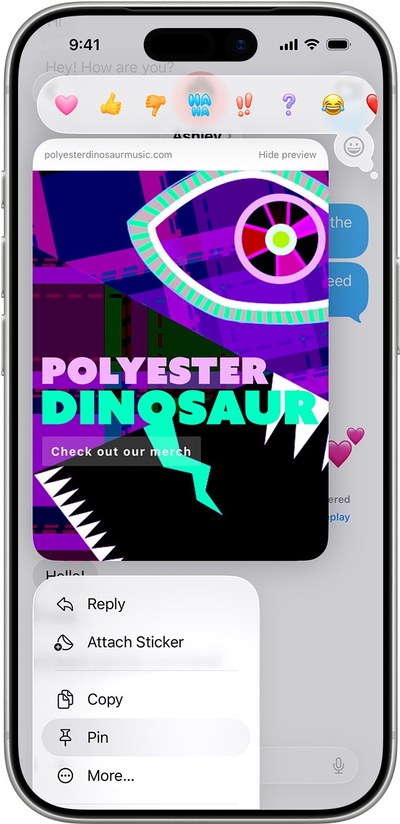
Shared with You appears inside the main Library in Photos on an iPhone or iPad running iOS 18 or later, and under View > Shared with You on a Mac.
This guide covers where to look on each device and iOS version, how to switch the feature back on, and why shared photos sometimes do not appear.
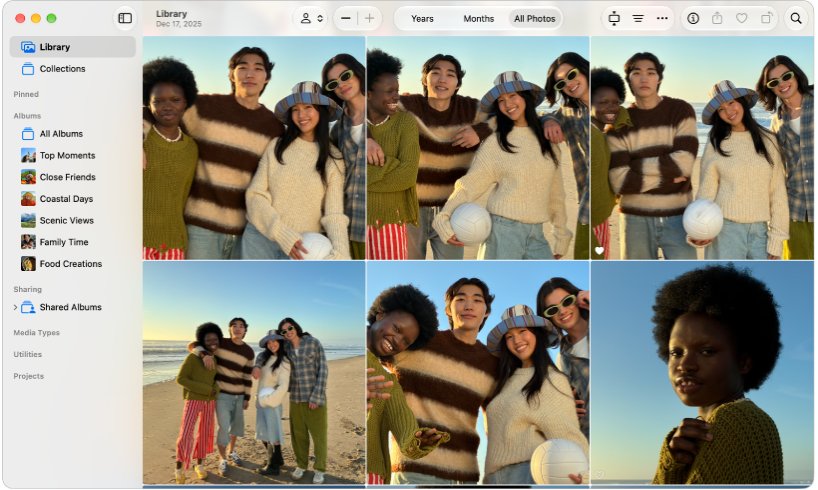
Where is Shared with you in Photos on iPhone, iPad and Mac?
The location depends on your device and software version, which is why it can look like it disappeared. Find your device below.
| Your device | Where to look | What you should see |
|---|---|---|
| iPhone or iPad on iOS or iPadOS 18 and later | Photos > Library | Shared photos and videos mixed into your photo grid, by default |
| iPhone or iPad with a For You tab | Photos > For You, then scroll down | A Shared with You section with photos from Messages |
| Mac | Photos > Library in the sidebar, then View > Shared with You | A checkmark beside the menu item, and items others shared with you |
| Any iPhone or iPad | Messages > the conversation > the name or icon at the top | Everything that person has sent you, sorted by type |
Some Apple help text still mentions the For You tab. If your Photos app shows Library and Collections in its place, use the Library steps below.
What is shared with you on iPhone?
Shared with You collects what people send you in the Messages app and places it in the matching app. A photo goes to Photos, and a link goes to Safari.
| Question | Answer |
|---|---|
| Where does the content come from? | The Messages app only |
| Who can it come from? | People in your contacts |
| Which apps show it? | Photos, Music, Apple TV, News, Podcasts and Safari on iPhone and iPad |
| Which Mac apps show it? | Photos, Safari, News, Podcasts, Books, Notes, Freeform, Reminders, the Apple TV app, iWork apps and others |
| Does it stay in Messages too? | Yes. Hiding it from Shared with You leaves it in the conversation |
How to see Shared with you photos in the iPhone library
Photos and videos shared with you in Messages appear in the library automatically. If you never see them, a view option may be hiding them.
- Open the Photos app and make sure Library is selected.
- On iOS 18, swipe down on the photo grid first.
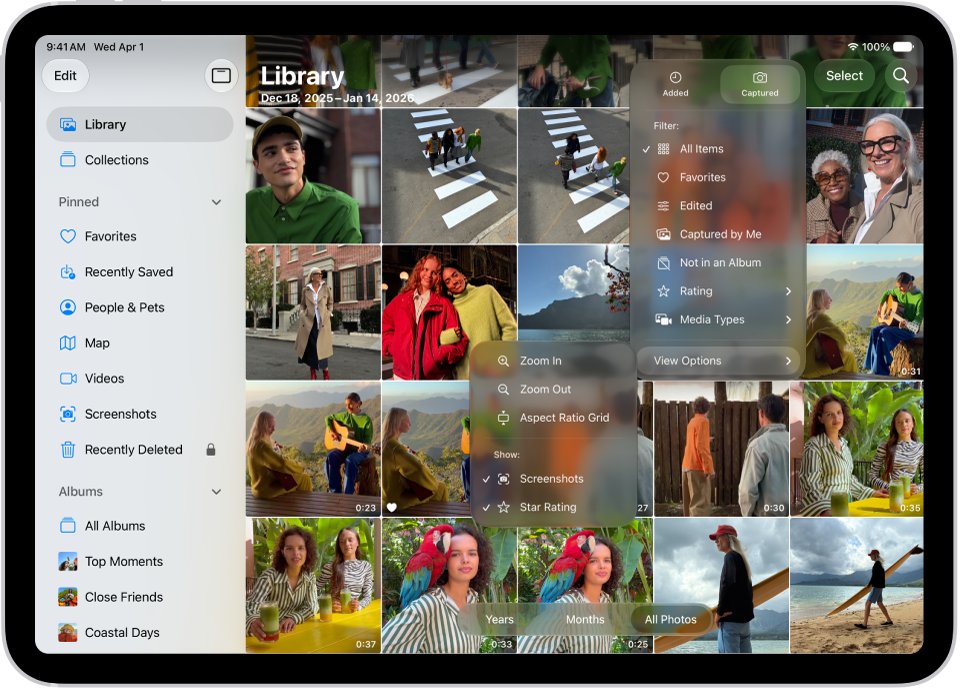
- Tap the sort and filter icon, then tap View Options.
- Check the Shared with You option. Tapping it switches between hiding and showing these items.
- Return to the grid and tap Remove Filters if a filter is still applied.
- Scroll to the date the photo arrived in Messages.
The same View Options menu is on iPad. Sorting by the date added can also help, because a shared photo may have been taken long before you received it.
How to see Shared with you in Photos on Mac
- Open the Photos app on your Mac.
- Click Library in the sidebar.
- Choose View > Shared with You in the menu bar so a checkmark appears next to it.
- Look through the library for the items others have shared with you.
Check the setting in Messages too if nothing appears. Open Messages > Settings, click Shared with You and confirm that Photos is selected.
Where is Shared with you on older iOS versions of Photos?
These steps apply to an older iPhone or iPad whose Photos app still has a For You tab at the bottom.
- Open the Photos app.
- Tap the For You tab.
- Scroll down to Shared with You.
- Swipe through any collage, because several photos from one message are grouped together.
How to find Shared with you photos in Messages
Messages is the fallback that works on every version. It lists what one person sent you, even when Photos shows nothing.
| iOS version | Steps | What you should see |
|---|---|---|
| iOS 26 and later | Open the conversation, tap the contact or group icon at the top, swipe left, then tap Photos | All photos in that conversation |
| iOS 18 | Open the conversation, tap the name at the top, then scroll to Shared with You | The items that person shared |
| Mac | Open the conversation, click the contact or group icon, then click Photos | All shared images in that conversation |
If a category does not appear on iPhone, nothing of that type came through in the conversation, which can happen when photos and videos fail to send in iMessage.
Shared with you vs Shared Albums vs iCloud Shared Photo Library
These names sound alike, but each one is a separate feature with its own location. Match what you remember to the row that fits.
| What you remember | Feature | Where to find it |
|---|---|---|
| Someone texted you a photo | Shared with You | Photos > Library, or the Messages conversation |
| You were invited to an album with comments | Shared Albums | iPhone: Collections > Shared Albums. Mac: Shared Albums under Sharing in the sidebar |
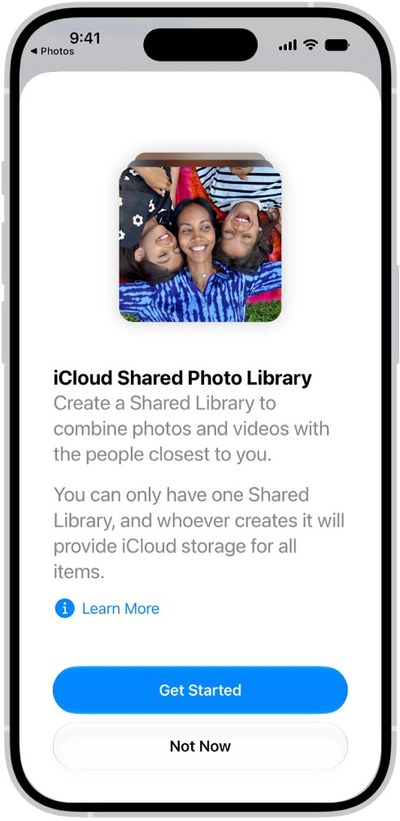
| Family photos that everyone adds to and edits | iCloud Shared Photo Library | Mac: View, then choose the library or Both Libraries. iPhone: Collections display options |
| Someone sent an iCloud link | iCloud link | Open the link in the message. iCloud links can also share photos with people without an Apple account |
| Someone sent a Google link | Google Photos | Open the link, because Google Photos share links open in Google's service |
Where are Shared Albums in Photos?
If you were looking for an album rather than a photo from a text, these are the steps you want.
Open Shared Albums on iPhone
Shared Albums sit in the Collections tab.
- Open the Photos app and tap Collections.
- Tap Shared Albums, then tap an album to open it.
- Tap Activity to see new photos, reactions and comments.
Open Shared Albums on Mac
Shared Albums sit under Sharing in the sidebar.
- Open the Photos app and click Shared Albums in the sidebar.
- If it is missing, hold the pointer over Sharing and click the arrow that appears.
- Double-click an album to open it.
How to turn on Shared with you for Photos
| Device | Steps | What to turn on |
|---|---|---|
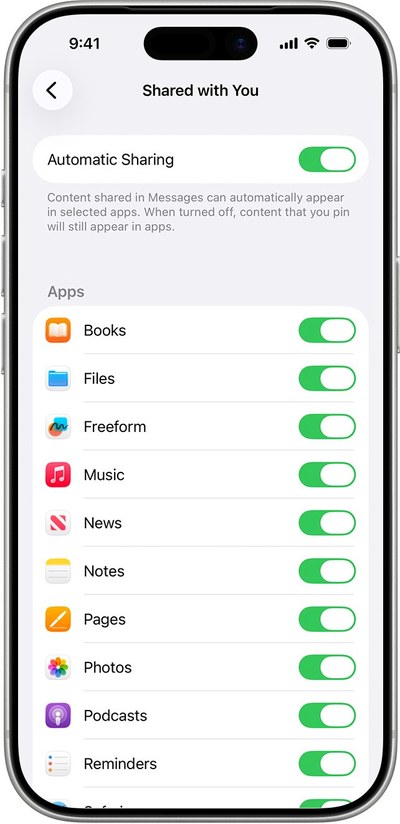
| iPhone on iOS 18 and later | Settings > Apps > Messages > Shared with You | Automatic Sharing, then Photos |
| iPhone on iOS 17 | Settings > Messages > Shared with You | Automatic Sharing, then Photos |
| Mac | Messages > Settings > Shared with You | Click Turn On, then select Photos |
On a Mac, Apple notes that an image a friend sends you also appears in your photo library when this is on for Photos.
What does Show in Shared with you mean?
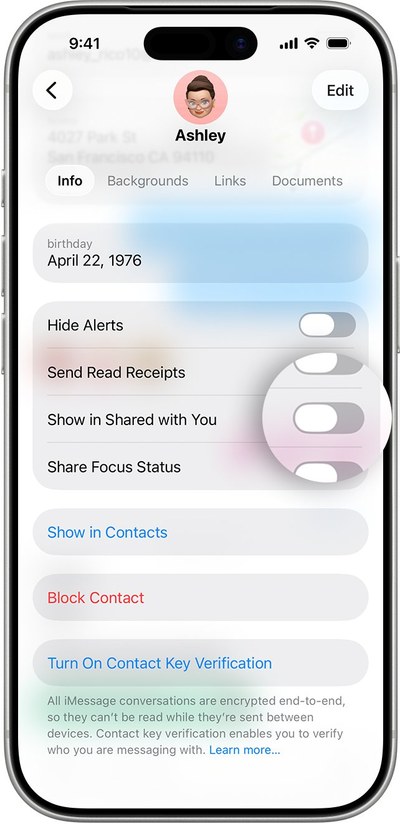
Show in Shared with You decides whether one conversation feeds your other apps. With it on, what that person or group sends appears in Photos and the other supported apps. With it off, the content stays in the Messages thread and stops appearing in the Shared with You section.
To change it, open the conversation and tap the name at the top, then switch Show in Shared with You and tap Done. On a Mac, click the contact or group icon and select Show in Shared with You. On iOS 26 and later, the switch is under Info and is labeled Shared with You.
How to save Shared with you photos to your library
Save any photo you want to keep, and iCloud Photos can back it up once it is in your library. Several photos from one message appear as a collage (two to three items) or a stack (four or more).
- Open the Messages app and go to the conversation.
- Tap a stack to open it and swipe through the photos, if there is one.
- Tap the save icon next to the photo or stack.
- Open Photos to find the saved copy in your library.
How to remove Shared with you photos from Photos
Choose how far you want this to go. Each option below leaves the original message in place.
- To hide all of them from the library, tap the sort and filter icon, tap View Options and tap Shared with You.
- To remove one item, touch and hold its thumbnail in the Shared with You section and tap Remove. The options vary by app.
- To stop one person's content, turn off Show in Shared with You in that conversation.
- To stop Photos completely, go to Settings > Apps > Messages > Shared with You and turn off Photos.
Shared with you not showing in Photos
Shared with You is empty even though someone sent photos
Content only appears when the sender is in your contacts.
- Open the conversation in Messages.
- Tap the name at the top and add the person to your contacts.
- Ask the person to send a photo again, then look in Library.
Photos from one person never appear
Show in Shared with You is off for that conversation.
- Open the conversation in Messages.
- Tap the name or the contact icon at the top of the thread.
- Turn on Show in Shared with You, then tap Done. On iOS 26 and later, tap Info and turn on Shared with You.
No shared photos appear from anyone
Automatic Sharing or the Photos switch is off, or the library is hiding these items.
- Go to Settings > Apps > Messages > Shared with You.
- Turn on Automatic Sharing and Photos.
- In Photos, open View Options and make sure Shared with You is not hidden.
Library shows only some photos
A filter is still applied to the photo grid.
- Open Photos and tap the sort and filter icon.
- Tap Remove Filters to return to the full library.
- Scroll to the date you received the photo.
Shared with you in Photos FAQ
What is Shared with You?
Shared with You is an Apple feature that takes content people send you in Messages and shows it in the matching app. Photos go to the Photos app, links to Safari, and songs to Music. It only works for senders in your contacts.
What is shared with you on iPhone?
On iPhone, it collects content from your Messages conversations in apps like Photos, Music, News, Podcasts, Apple TV and Safari. In recent versions of Photos, shared items appear in your Library by default, and View Options lets you hide them.
What does Show in Shared with You mean?
It is a per-conversation switch. When on, what that person or group sends can appear in Photos and other apps. When off, the content stays in the Messages thread and leaves the Shared with You section.
Why can't I find Shared with You in Photos?
Recent versions of Photos do not use a For You tab, so shared items are in your Library. Look there, then check View Options, then Settings > Apps > Messages > Shared with You. The sender also needs to be in your contacts.
How do I reply to someone from Shared with You?
Open the item in the Shared with You section of the app, tap the From [Name] label near it, write your reply and tap Send. The reply goes through Messages, so the conversation stays in one place.
Can you pin photos in Shared with You?
No. Apple says photos can be saved to your library but not pinned. Pinning works for other shared content such as links. Touch and hold that content in the Messages thread and tap Pin to keep it easy to find.
Does turning off Shared with You delete my photos?
No. Turning off Show in Shared with You leaves the content in the Messages thread and only removes it from the Shared with You section. Photos you already saved to your library stay there.