When WhatsApp freezes a few seconds after opening on an iPhone running iOS 16.5, force close it, update WhatsApp from the App Store, update iOS, and make sure the iPhone has free storage.
This guide covers those fixes in order, plus how to offload and reinstall WhatsApp without deleting its data, and what to do if the freeze returns.
Fix WhatsApp freezing after opening on iPhone
Try each step, then open WhatsApp to see whether it still freezes. Stop as soon as it works.
- Swipe up from the bottom of the screen and pause to open the app switcher, then swipe WhatsApp up to force it to close.
- Restart the iPhone, then open WhatsApp again.
- Open the App Store, tap your profile icon, then tap App Updates and update WhatsApp if an update is listed.
- Open Settings > General > Software Update and install any iOS update shown.
- Open Settings > General > iPhone Storage and free space if storage is almost full.
An app that freezes at launch is often blocked by low storage or an outdated build. Memory and storage are the first causes WhatsApp names for app crashes.
Why WhatsApp freezes on iOS 16.5
| Cause | What you notice | Fix |
|---|---|---|
| Outdated WhatsApp build | Freeze started after an iOS update, or WhatsApp shows an update prompt | Update WhatsApp in the App Store |
| iOS 16.5 is out of date | Software Update lists a newer iOS version | Install the latest iOS your iPhone supports |
| Low storage | "Storage Almost Full" alert, or little free space in iPhone Storage | Free space in iPhone Storage |
| Damaged app install | Freeze returns after restart and updates | Offload WhatsApp, then reinstall it |
| WhatsApp no longer supports the iOS version | App asks you to update iOS or stops opening | Update iOS; check WhatsApp's supported operating systems list |
Force close WhatsApp and restart your iPhone
A force close clears a stuck WhatsApp session. A restart clears the rest of the system.
- From the Home Screen, swipe up from the bottom and pause in the middle of the screen. On an iPhone with a Home button, double-click the Home button.
- Swipe right or left to find WhatsApp.
- Swipe up on the WhatsApp preview to close it.
- If the whole iPhone is frozen on an iPhone with Face ID, press and quickly release volume up, press and quickly release volume down, then press and hold the side button until the Apple logo appears.
- Open WhatsApp and wait a full minute before tapping anything.
Update WhatsApp and iOS on iPhone
WhatsApp updates carry bug fixes for crashes on specific iOS versions. iOS 16.5 is not the latest release, so install whatever newer iOS your iPhone offers.
- Open the App Store and tap your profile icon.
- Tap App Updates, then tap Update next to WhatsApp.
- Back up the iPhone with iCloud or a computer before updating iOS.
- Plug the iPhone into power and connect to Wi-Fi.
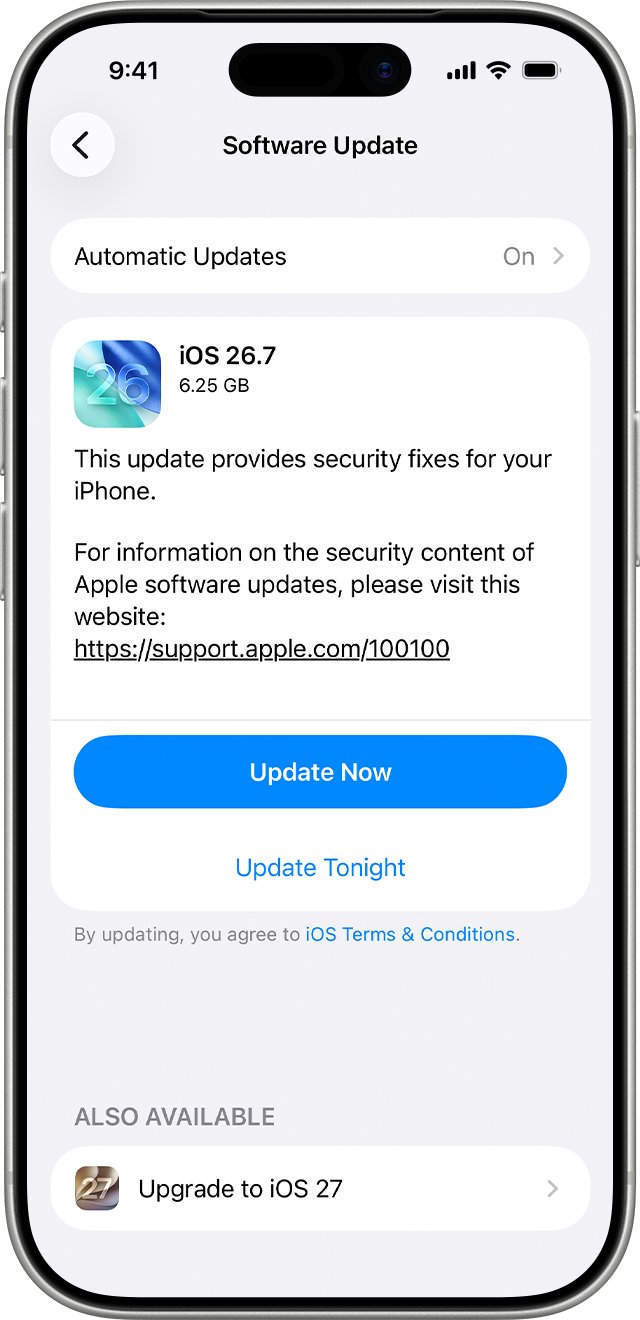
- Open Settings > General > Software Update.
- Tap Download and Install and follow the onscreen instructions.
If the update needs more space, tap Continue to let iOS remove apps temporarily. They reinstall automatically once the update finishes.
Free up iPhone storage for WhatsApp
- Open Settings and tap General.
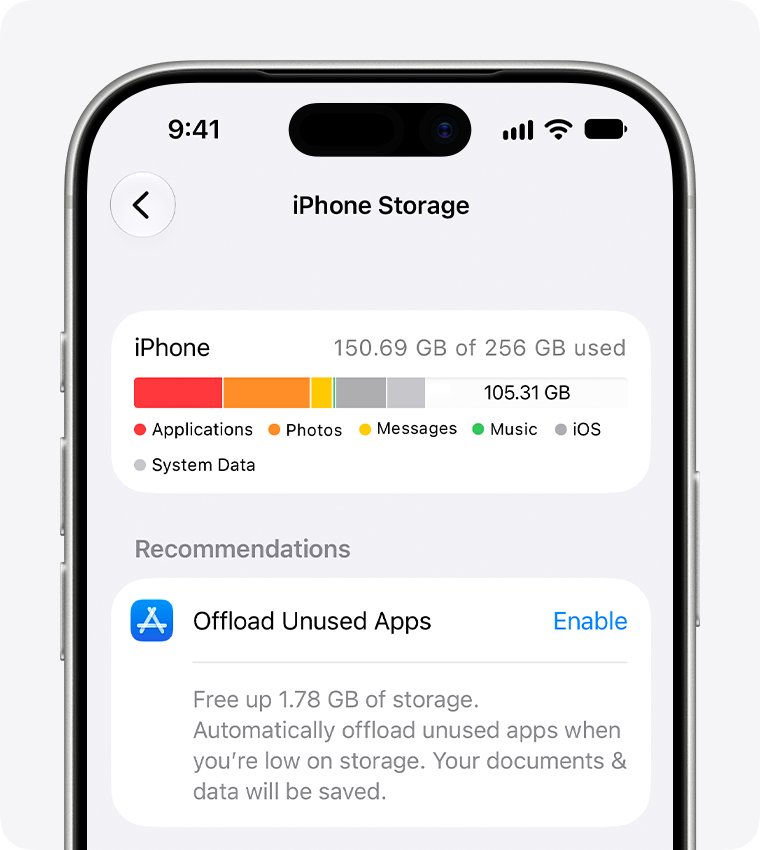
- Tap iPhone Storage and check the available space at the top.
- Tap Show All under recommendations and tap Enable on any that apply.
- Delete apps you no longer use and downloaded videos you have already watched.
- Back up photos and videos to iCloud, then remove them from the iPhone.
- Tap WhatsApp in the list to see how much space it and its data use.
Offload and reinstall WhatsApp without losing chats
Offloading removes the WhatsApp app but keeps its documents and data on the iPhone. Reinstalling then replaces a damaged app install. Deleting the app instead removes its data, so make a WhatsApp chat backup first if you go that route.
- Open Settings > General > iPhone Storage.
- Tap WhatsApp.
- Tap Offload App, then confirm.
- Tap the WhatsApp icon with the cloud symbol on the Home Screen to reinstall it.
- Open WhatsApp once the download finishes.
Confirm WhatsApp no longer freezes
- Open WhatsApp and leave it on the Chats screen for at least a minute.
- Open a chat with recent photos or videos and scroll through it.
- Close WhatsApp, reopen it, and confirm it responds straight away.
- Open Settings > General > Software Update and confirm no further update is waiting.
WhatsApp still freezing on iPhone: fixes
WhatsApp freezes again after an update
The new build has a fault on your iOS version, or the install is damaged.
- Offload WhatsApp, then reinstall it from iPhone Storage.
- Check the App Store for a newer WhatsApp update over the next few days.
The whole iPhone freezes when WhatsApp opens
The system is stuck, not only the app.
- Force restart the iPhone with volume up, volume down, then hold the side button until the Apple logo appears.
- Free storage in Settings > General > iPhone Storage before opening WhatsApp again.
Software Update shows no update for iOS 16.5
The iPhone may already run the last iOS it supports, or a VPN blocks the update servers.
- Turn off any VPN or proxy and check Software Update again.
- Update from a Mac with Finder or a PC with the Apple Devices app.
WhatsApp still freezes after every fix
A fault the app developer has to fix.
- Contact WhatsApp support from the WhatsApp Help Center.
- Mention the iPhone model, the iOS version and the WhatsApp version.
WhatsApp freezing on iPhone FAQ
Why does WhatsApp freeze a few seconds after I open it?
The usual causes are an out-of-date WhatsApp or iOS build, low iPhone storage, or a damaged app install. Force close the app, update WhatsApp and iOS, free storage, then offload and reinstall WhatsApp if it still freezes.
Will offloading WhatsApp delete my chats?
No. Offloading removes the app but keeps its documents and data on the iPhone. When you reinstall it, WhatsApp opens with your data in place. Deleting the app is different and removes its data.
Does WhatsApp still work on iOS 16?
WhatsApp lists the iOS versions it supports on its About supported operating systems page in the WhatsApp Help Center. If your iPhone can update past iOS 16.5, update it to stay on a supported release.
How do I update WhatsApp on iPhone?
Open the App Store, tap your profile icon, then tap App Updates. Tap Update next to WhatsApp. If no update is listed, you already have the latest version available for your iOS release.
How much free storage does WhatsApp need?
WhatsApp asks that your phone has storage space available for it to work properly. Check free space in Settings, General, iPhone Storage, and remove unused apps, videos or photos when the iPhone shows a Storage Almost Full alert.
Should I delete and reinstall WhatsApp to fix freezing?
Try offloading first, because it keeps the app's data. Delete and reinstall only after you have a recent WhatsApp chat backup, since deleting the app removes data stored in it.