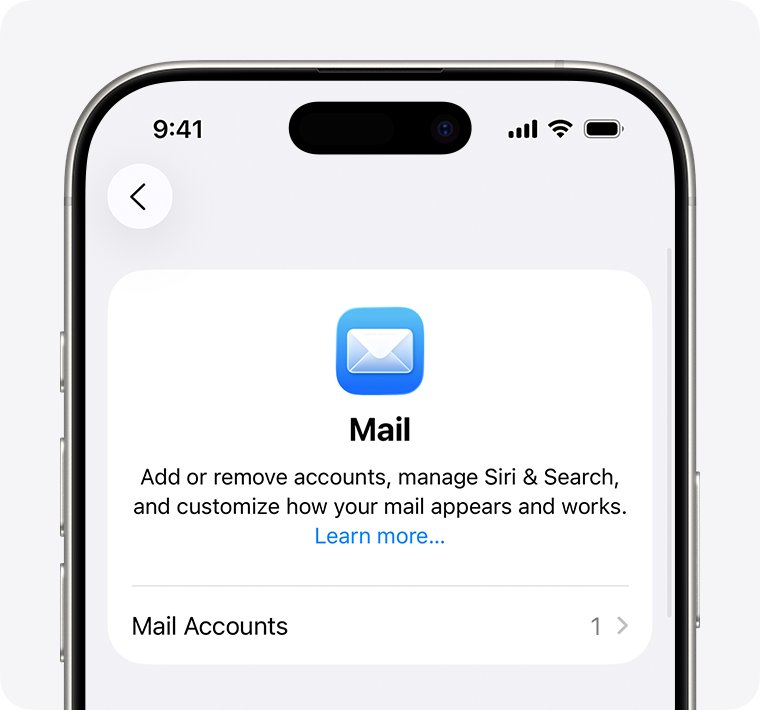
To fix "This message has not been downloaded from the server", confirm the email still exists in your provider's webmail, then turn the account off and on again in Settings > Apps > Mail > Mail Accounts so Mail fetches the message body again.
This guide covers the iPhone and iPad Mail app first, then Mail on Mac, with provider notes for Gmail and iCloud and a checklist for when a message will not come back.
Fix "this message has not been downloaded from the server" on iPhone
Mail shows this line when it has the message header but not the body. Most cases clear once Mail reconnects to the account and downloads the body again.
- Open your provider's webmail in a browser and confirm the message is still there. If it is gone from webmail, skip to the recovery section below.
- Connect your iPhone to a working Wi-Fi network.
- Go to Settings > Apps > Mail > Mail Accounts and tap the affected account.
- Turn off Mail for that account (for iCloud, turn off Use on this iPhone).
- Wait a few seconds, then turn the same switch back on.
- Open the Mail app, find the message and tap it again to download the body.
Turning an account off and on only removes it from the iPhone temporarily. Messages on an IMAP or iCloud server stay on the server.
What the "message has not been downloaded" error means in iPhone Mail
The Mail app downloads message lists and message bodies separately. The error means the body never reached the device, or Mail can no longer find it on the server.
| Likely cause | What is happening | Where to fix it |
|---|---|---|
| Weak or blocked connection | Mail started the download but the connection dropped or a VPN interfered | Internet connection checks |
| Fetch paused | Low Power Mode turns off email fetch, and Automatically fetches only on Wi-Fi while charging | Fetch New Data and Low Power Mode |
| Message moved or deleted elsewhere | Another device or webmail moved the message, so Mail's local copy points at nothing | Check the server in webmail |
| Sign-in expired | The provider stopped accepting the saved password | Re-enter the password or sign in again |
| Damaged local cache | Mail's stored copy of the account is out of step with the server | Turn the account off and on, or delete and re-add it |
| Low storage | The device has no room for new message bodies or attachments | Free up storage |
Quick fixes to try first for iPhone Mail download errors
- Close the Mail app: on iPhone X and later, swipe up from the bottom and pause, find Mail, then swipe up on its preview. On iPhone SE or iPhone 8 and earlier, double-click the Home button first.
- Reopen Mail and tap the message again.
- Restart your iPhone: press and hold a volume button and the side button until the power-off slider appears, drag the slider, wait 30 seconds, then hold the side button until the Apple logo appears.
- Open Apple's System Status page at apple.com/support/systemstatus and check that iCloud Mail shows as available if you use an iCloud address.
Check your internet connection for iPhone Mail
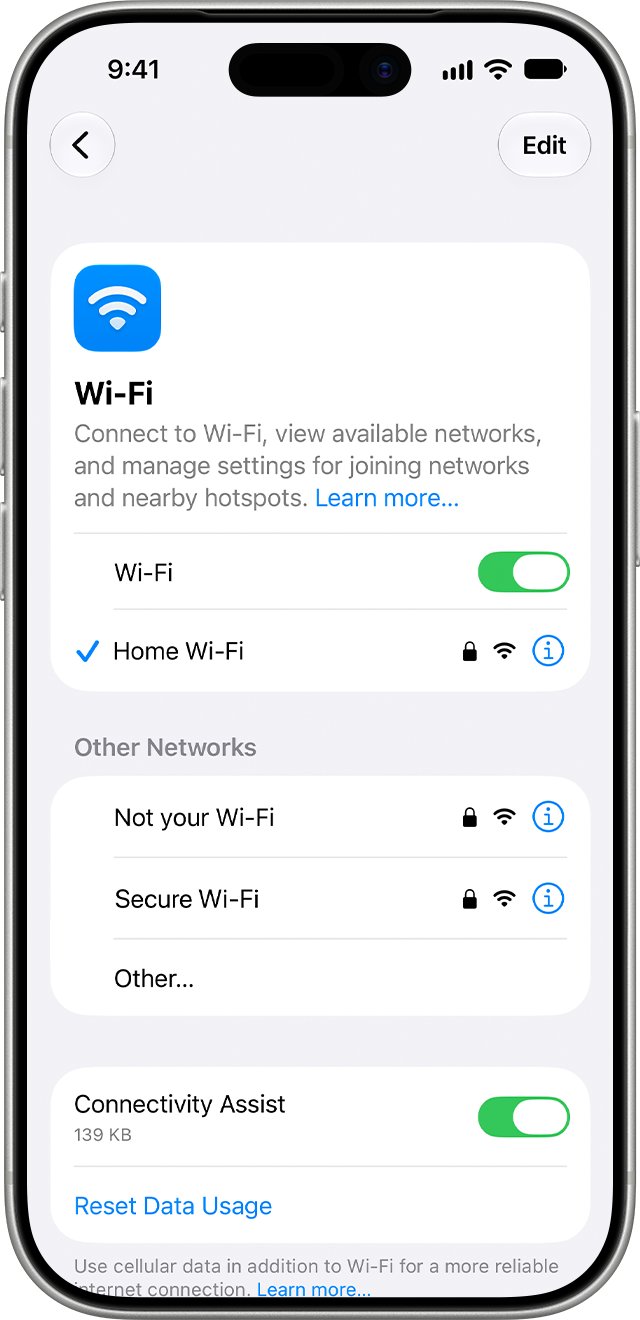
- Go to Settings > Wi-Fi, make sure Wi-Fi is on and a blue checkmark sits next to your network.
- Make sure Airplane Mode is off.
- Switch between Wi-Fi and cellular: turn Wi-Fi off and try the message on cellular data, then the other way round.
- Go to Settings > Cellular, scroll to the app list and make sure Mail is turned on. When it is off, Mail uses Wi-Fi only.
- In Settings > Cellular > Cellular Data Options > Data Mode, check whether Low Data Mode is selected; it pauses background tasks when you are off Wi-Fi.
- If you use a VPN app, disconnect it temporarily and try the message again. Apple notes VPN and proxy connections can stop an iPhone from reaching Apple's servers, and a mail server is no different.
Disconnect the VPN, do not delete it. Reconnect once the message has downloaded.
Update iOS or iPadOS to fix Mail not downloading messages
- Back up your device with iCloud or your computer.
- Plug the device into power and connect to Wi-Fi.
- Go to Settings > General > Software Update.
- If an update is available, tap Download and Install and follow the onscreen instructions.
- After the restart, open Mail and tap the message again.
Check Mail fetch and sync settings on iPhone
Accounts that do not support push rely on the fetch schedule. Automatically, the default, downloads new data only when the iPhone is charging and on Wi-Fi.
- Go to Settings > Apps > Mail > Mail Accounts > Fetch New Data.
- Under Fetch, pick a timed schedule if you want Mail to check more often than Automatically allows.
- Go to Settings > Battery (then Power Mode on iPhone 15 or later) and turn off Low Power Mode, which turns off email fetch while it is on.
Low Power Mode also switches off automatically once the battery charges to 80% or higher.
Remove and re-download the message in iPhone Mail
Moving a message makes Mail request it again from the server. This works for IMAP and iCloud accounts, where folders live on the server.
- Open the message list in Mail and tap Select.
- Select the affected message, tap the move button at the bottom and choose another mailbox such as Archive.
- Open that mailbox and tap the message. If the body loads, move it back to the inbox.
- If it still fails, open the message from search instead of the inbox: search for the sender or subject and tap the result.
- If the message was deleted by mistake, tap the back button until you see Mailboxes, open Trash, tap the message, then move it to another mailbox.
Check whether the message still exists on the email server
- Open your provider's webmail in a browser (iCloud Mail at icloud.com, or your provider's own site).
- Search for the sender or subject.
- Check the Trash or Deleted folder and any archive folder as well as the inbox.
- If the message is in webmail, the server copy is fine and the problem is on the device; continue with the account steps below.
- If it is not in webmail, Mail on the iPhone has nothing left to download; go to the recovery section.
Re-enter your email password or reauthenticate the account on iPhone
Gmail no longer supports apps that ask you to share your Google password. Use Sign in with Google when you add a Gmail account; iPhones and iPads with iOS 11 or later do not need a Google app password.
- Go to Settings > Apps > Mail > Mail Accounts and tap the affected account.
- Look for an account error message or a prompt to sign in, and enter the current password if asked.
- If you changed the password on the provider's website, sign in again with the new one.
- If the provider requires an app password for older clients, create it on the provider's account page and enter it in place of your normal password.
- For Gmail, remove the account and add it again with Sign in with Google if the password prompt keeps returning.
Delete and re-add the email account on iPhone
Deleting an account removes it and its locally stored mail from the iPhone, not from the provider. Copies stay on the server for IMAP, Exchange and iCloud accounts.
- If the account is POP, check webmail first: a POP account may have removed messages from the server after downloading them.
- Go to Settings > Apps > Mail > Mail Accounts and tap the account.
- Tap Delete Account (or Sign Out for an iCloud account) and confirm.
- Restart the iPhone.
- Go back to Settings > Apps > Mail > Mail Accounts > Add Account.
- Choose your provider, enter your address and password, and tap Save.
- Open Mail and wait for the inbox to finish downloading before you open the message.
Reset network settings on iPhone to fix Mail downloads
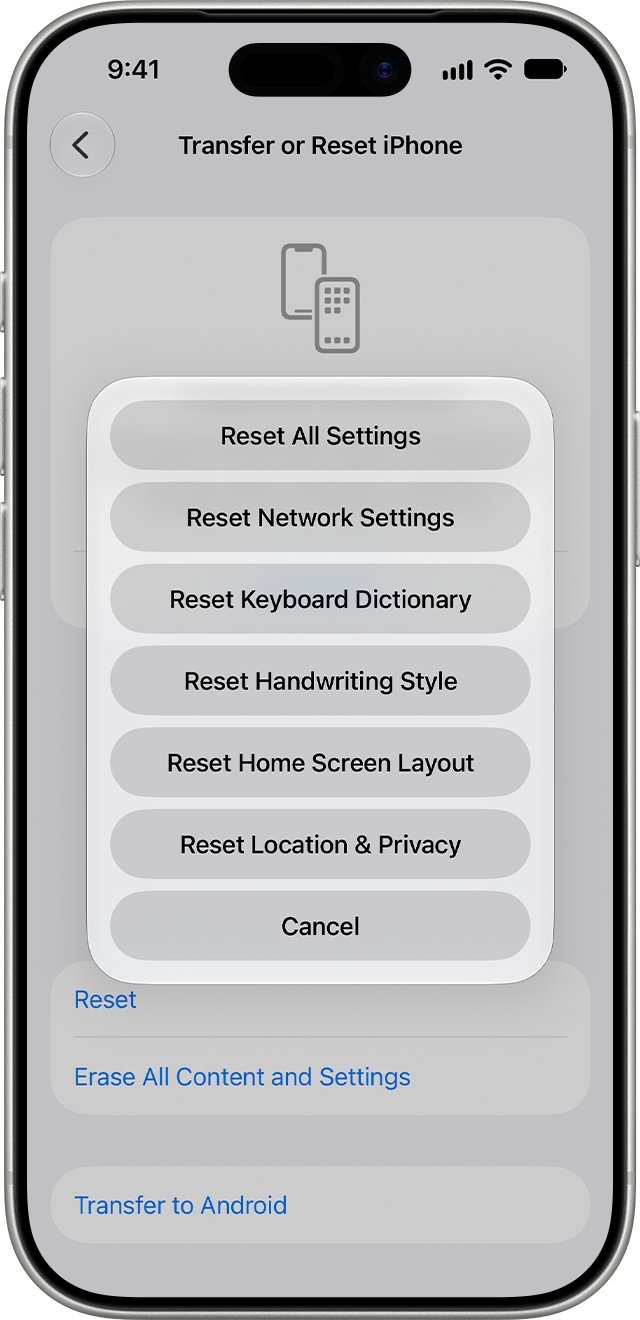
Use this only when the other fixes fail. It removes all Wi-Fi networks and passwords, cellular settings, and VPN and APN settings.
- Open Settings > General.
- Tap Transfer or Reset iPhone, then tap Reset.
- Tap Reset Network Settings and confirm with your passcode.
- Rejoin your Wi-Fi network after the iPhone restarts.
- Open Mail and tap the message again.
On a work or school network, ask the IT team before you reset, because their configuration is removed too.
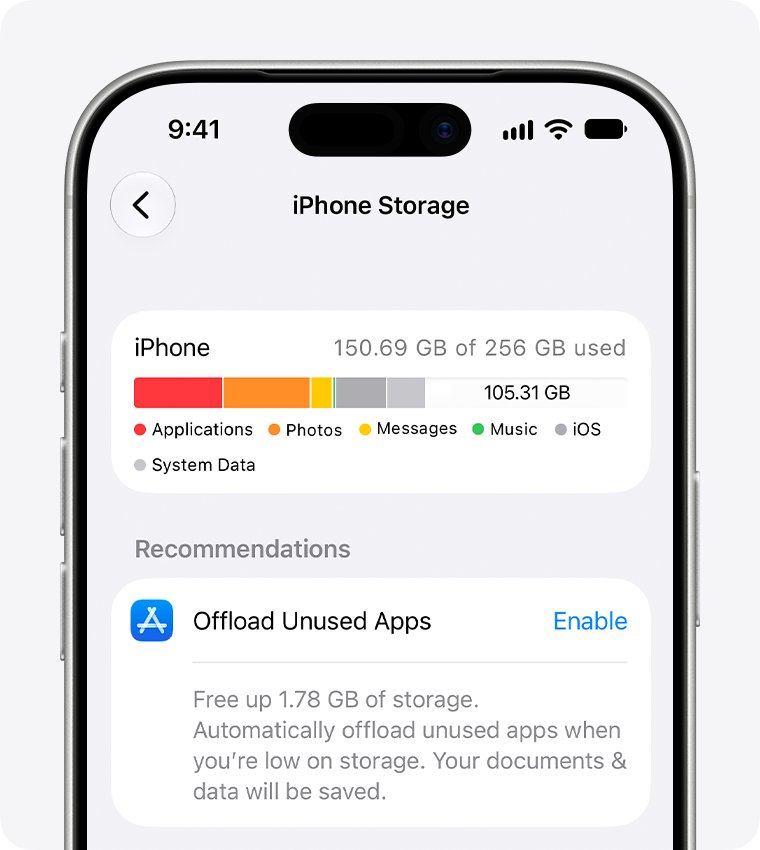
Free up storage on your iPhone so Mail can download messages
- Go to Settings > General > iPhone Storage.
- Check the bar at the top; Mail counts emails and their attachments.
- Tap Show All under the recommendations and enable the ones that suit you, such as offloading unused apps.
- Delete large videos or apps you no longer need.
- Open Mail and tap the message again once there is free space.
Fix "message has not been downloaded" in Mail on Mac
Mail on Mac shows the same symptom when its local copy of an account falls out of step with the server. Disabling and re-enabling the account forces a fresh connection.
- Check the message in webmail first so you know the server copy exists.
- In Mail, choose Mail > Settings, then click Accounts.
- Select the account and deselect Enable this account, then select it again to take the account offline and back online.
- If the message still fails, move any messages you want to keep into a mailbox under On My Mac in the sidebar.
- Select the account in Accounts and click the remove button. If the account is used by other apps, go to Apple menu > System Settings > Internet Accounts, select it and turn Mail off.
- Choose Mail > Add Account, enter the address and follow the prompts.
- Wait for the inbox to finish downloading, then open the message again.
Apple's Mail guide confirms that removing an account removes its messages from the Mac only. Copies stay on the account's mail server.
Provider-specific tips for Gmail, iCloud and other IMAP accounts
| Provider | What to check | Why it matters |
|---|---|---|
| Gmail | Add the account with Sign in with Google, not a typed password | Gmail no longer supports apps that need your Google username and password |
| Gmail | IMAP needs no switch | Since January 2025, IMAP is always on for personal Gmail accounts |
| iCloud Mail | Apple's System Status page and Use on this iPhone in the account settings | An outage or a disabled account stops all downloads |
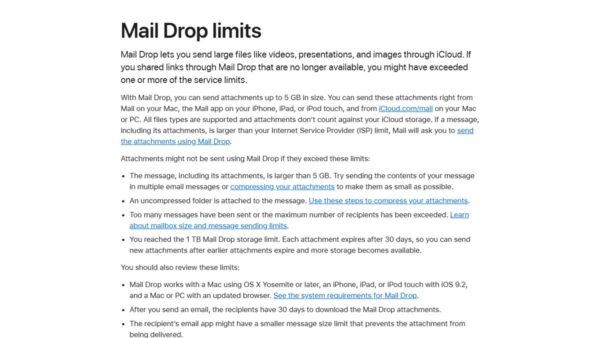
| iCloud Mail | Recover from Trash within 30 days | iCloud does not keep deleted messages longer than 30 days |
| POP accounts | Webmail before deleting the account from Mail | POP can remove server copies after download, so re-adding the account may not bring them back |
| Work Exchange or other IMAP | Account sign-in and any app password your provider requires | Expired credentials stop new message bodies from loading |
Mistakes that delete email when iPhone Mail won’t download a message
| Avoid | Why |
|---|---|
| Deleting a POP account before checking webmail | Messages that only exist on the device go with it |
| Emptying Trash while troubleshooting | A message moved by another device may be sitting there |
| Erasing the whole iPhone | Mail errors are account or connection problems; a full erase is not needed |
| Uninstalling security apps to test | Disconnecting a VPN is enough to rule it out |
When the email cannot be recovered from the server
If the message is missing from webmail, its Trash folder and every other device, Mail cannot download it again; ask the sender to resend it. The error only says the body is not on the device. Once the server copy is permanently deleted (iCloud keeps deleted messages for 30 days at most, and POP may remove server copies after download), no setting on the iPhone or Mac can rebuild it. Check a Mac that downloaded the message earlier, or a Time Machine backup of that Mac, before giving up.
How to check iPhone Mail downloaded the full message
- Open the message and confirm the full body shows, not just the header and the error line.
- Tap any attachment and confirm it opens.
- Send yourself a test email from webmail and check that it arrives and opens on the iPhone.
- Go to Settings > General > iPhone Storage and confirm the Mail figure has grown, which shows message bodies are being stored.
Best long-term fixes to stop iPhone Mail download errors
| Setting | Where | Effect |
|---|---|---|
| Push or a timed fetch | Settings > Apps > Mail > Mail Accounts > Fetch New Data | Mail downloads new mail without waiting for Wi-Fi and charging |
| Cellular data for Mail | Settings > Cellular | Mail can download when you are away from Wi-Fi |
| Automatic updates | Settings > General > Software Update > Automatic Updates | Mail fixes arrive without you checking |
| Free storage | Settings > General > iPhone Storage | Room for message bodies and attachments |
| IMAP instead of POP | When you add the account | Messages stay on the server and re-download after a reset |
| Sign in with Google for Gmail | When you add the account | Avoids password-based sign-in failures |
Why are my email messages not downloading on iPhone?
Why are my email messages not downloading?
Fetch is set to Automatically, Low Power Mode has turned fetch off, or Mail has no cellular access.
- Turn off Low Power Mode in Settings > Battery.
- Set Push or a timed schedule in Settings > Apps > Mail > Mail Accounts > Fetch New Data.
- Turn on Mail in the app list under Settings > Cellular.
Why is my phone not downloading messages from one account only?
That account's sign-in has expired or its local copy is out of step with the server.
- Open the account in Settings > Apps > Mail > Mail Accounts and re-enter the password if prompted.
- Turn the account's Mail switch off and on.
- If it still fails, delete and re-add the account after checking webmail.
This message has been partially downloaded
The connection dropped before the full body or its attachments arrived.
- Join a stable Wi-Fi network.
- Close and reopen Mail, then tap the message again.
- Check free space in Settings > General > iPhone Storage.
Why is it not downloading on iPad?
The same Mail app and settings apply on iPadOS.
- Follow the iPhone steps; the menus are the same in Settings > Apps > Mail.
- Update iPadOS in Settings > General > Software Update.
Fast troubleshooting checklist for "message has not been downloaded"
| What you see | Do this | Why |
|---|---|---|
| One message fails, others open | Move it to another mailbox and back | Forces Mail to fetch the body again |
| Message missing in webmail too | Check Trash, then ask the sender to resend | Nothing is left on the server |
| All new mail fails | Check Wi-Fi, cellular data for Mail and Low Power Mode | Mail cannot reach the server |
| One account fails | Re-enter the password or toggle the account off and on | Sign-in or cache problem |
| Still failing after all of that | Delete and re-add the account (after checking POP mail in webmail) | Rebuilds the local copy from the server |
| Network problems in every app | Reset network settings | Clears damaged Wi-Fi, VPN and APN settings |
| Error on a Mac | Disable and re-enable the account in Mail settings | Takes the account offline and online |
"This message has not been downloaded" iPhone Mail FAQ
What does "This message has not been downloaded from the server" mean?
It means Mail has the message header but not its body. The body either never reached the device or Mail can no longer find it on the server, usually after a dropped connection, an expired sign-in or the message being moved elsewhere.
Why are my email messages not downloading on iPhone?
The usual causes are Low Power Mode, which turns off email fetch, a fetch schedule set to Automatically, which downloads only on Wi-Fi while charging, or cellular data being off for Mail. Check all three in Settings.
Why is my phone not downloading messages from iCloud?
Check Apple's System Status page for an iCloud Mail outage, then make sure Use on this iPhone is on for the iCloud account in Settings > Apps > Mail > Mail Accounts. Turning it off and on again forces a fresh download.
Will deleting my email account from iPhone delete my emails?
No, not for IMAP, Exchange or iCloud accounts. Deleting the account removes it from the iPhone only, and the messages stay on the server. POP accounts are different, so check webmail before you remove one.
How do I fix "This message has not been downloaded" on iPad?
Use the same steps as on iPhone. Check the message in webmail, turn the account off and on in Settings > Apps > Mail > Mail Accounts, check Low Power Mode and fetch settings, and update iPadOS.
Why is it not downloading even on Wi-Fi?
A VPN, an expired password or full storage can block downloads even on good Wi-Fi. Disconnect the VPN, re-enter the account password if prompted, and free space in Settings > General > iPhone Storage.
Does Low Power Mode stop email from downloading?
Yes. Apple lists turning off email fetch among the features Low Power Mode limits. Push accounts still receive mail, but fetch accounts wait until you turn Low Power Mode off or the battery charges to 80%.
Can I get back an email that says it has not been downloaded?
Only if a copy still exists somewhere. Check webmail, its Trash folder, and any other device that downloaded the message. If none has it, ask the sender to resend it.