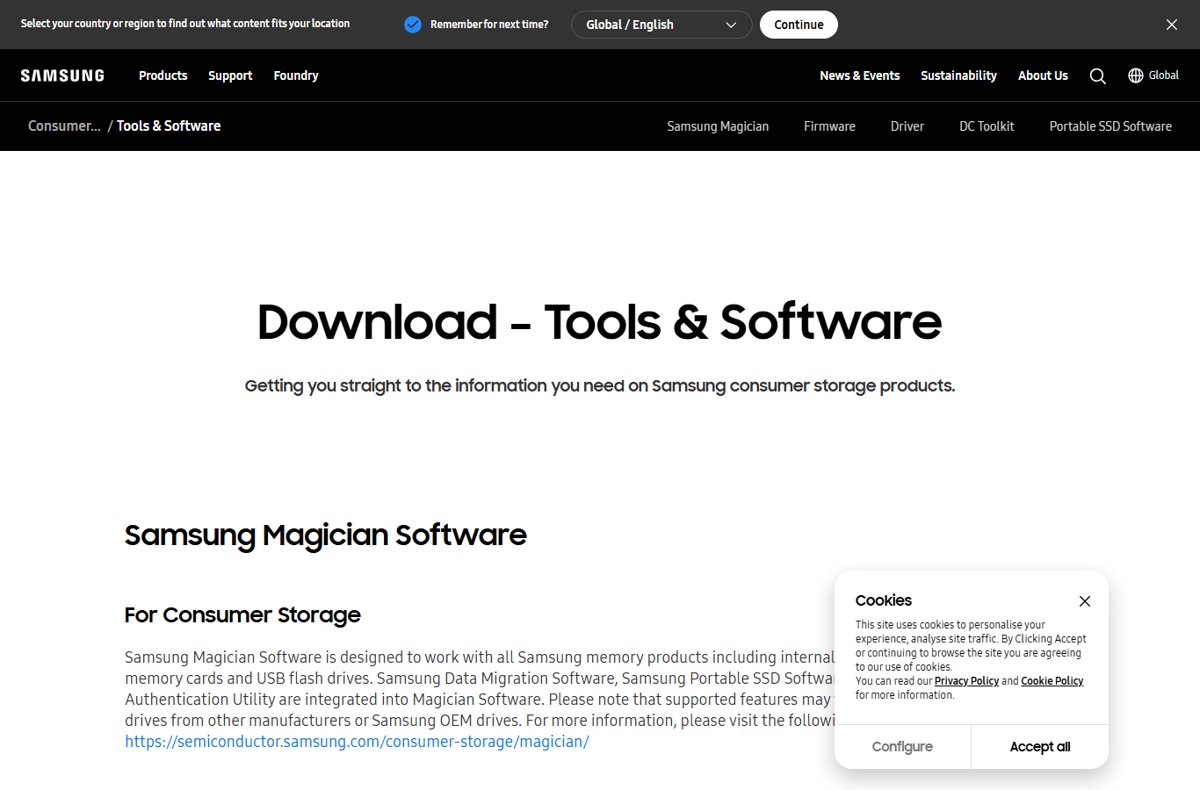
Samsung no longer ships Samsung Data Migration as a separate program; Samsung states that Samsung Data Migration Software is integrated into Magician Software, so Samsung Magician is the tool to use on Windows 11.
This guide covers the supported cloning route in Magician, the Windows-side alternatives when Magician cannot do the job, how to prove the new SSD boots, and fixes for drives that are not detected or migrations that stall.
The fastest way to migrate to a Samsung SSD on Windows 11
Samsung describes the feature as: transfer your OS, apps and files from your current storage device to your Samsung drive.
- Install the new Samsung SSD, or connect it through a USB-to-NVMe or USB-to-SATA enclosure.
- Get Samsung Magician for Windows from Samsung's own tools page at semiconductor.samsung.com; the current build is 9.0.1.
- Open Samsung Magician and select Data Migration.
- Select the device that holds your current operating system as the source.
- Select the new Samsung SSD as the target drive for duplication.
- Pick the volume to duplicate from the original drive.
- Select Start and leave the PC alone until Magician reports that the migration finished.
Nothing is written to the source drive, so the original disk still boots if the clone turns out wrong.
Which method should you use?
| Your situation | Use this | Why |
|---|---|---|
| New drive is a Samsung SSD and you want Windows, apps and files moved as-is | Data Migration in Samsung Magician | Samsung's own supported route; copies the OS, apps and files to the Samsung drive |
| New drive is not a Samsung SSD | Clean install of Windows 11, then Windows Backup restore | Magician's supported features vary outside Samsung drives |
| You want a clean Windows without old clutter carried over | Clean install, then restore folders and settings from Windows Backup | Restores folders, installed-app pins and settings without copying the old system |
| You only need documents, photos and videos moved | Sync those folders with OneDrive through Windows Backup | Folder backup covers Desktop, Documents, Pictures, Videos and Music |
| The source disk still uses MBR and the PC boots in UEFI mode | Run MBR2GPT on the source disk first, then migrate | Converts MBR to GPT without deleting data so the cloned disk can boot UEFI |
| You are moving to a whole new PC rather than a new drive | Windows Backup, then sign in during Windows setup | PC-to-PC transfer is no longer available; Microsoft points to Windows Backup instead |
Understanding Samsung Data Migration
Samsung Data Migration was a standalone cloning utility for Samsung SSDs. It is no longer offered on its own.
| Question | What Samsung states |
|---|---|
| Is Samsung Data Migration still a separate download? | No. Samsung Data Migration Software, Samsung Portable SSD Software and the Memory Card/UFD Authentication Utility are integrated into Magician Software. |
| What replaces it? | The Data Migration feature inside Samsung Magician, listed alongside Drive Health, Diagnostic Scan and Secure Erase. |
| What does the feature do? | It transfers your OS, apps and files from your current storage device to your Samsung drive. |
| What can the target drive be? | A new Samsung SSD. The source can be an HDD or an SSD. |
| Which Magician build is current? | Samsung Magician 9.0.1 for Windows, with a matching macOS build and an Android build. |
| Does it work with other brands? | Samsung says supported features may vary when used with drives from other manufacturers or Samsung OEM drives. |
Never install a copy of the old standalone installer from a mirror or download portal. The supported build only comes from Samsung's own site.
Preparing for Migration
Check these before the new SSD arrives, so the migration is not the step that discovers a problem.
| Requirement | Detail | How to check |
|---|---|---|
| A Samsung SSD as the target | Magician's Data Migration targets a new Samsung SSD | Model is printed on the drive label |
| Samsung Magician for Windows | Version 9.0.1 | Samsung's consumer storage tools page |
| Operating system | Samsung lists Windows 10 (32-bit/64-bit) for Magician 9; for Windows 8.1 and lower Samsung says to use Magician 7.3 | Settings > System > About |
| A physical connection for the new drive | An empty M.2 slot, a free SATA port, or a USB enclosure | Samsung's SSD upgrade guide covers both NVMe and SATA installation |
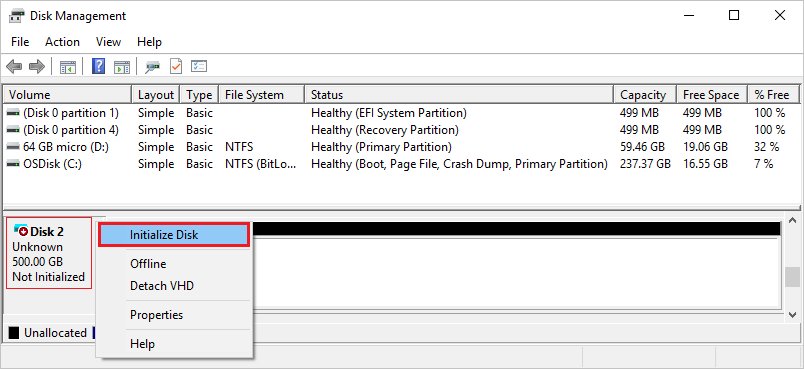
| The new drive visible to Windows | A brand new disk shows as Offline or uninitialized until you initialize it | Create and format hard disk partitions (Disk Management) |
| Administrator rights | Initializing a disk needs membership of the Administrators or Backup Operators group | Settings > Accounts > Your info |
| A separate backup | A clone is not a backup; the source disk is the only copy while the clone runs | Windows Backup or an external drive copy |
| BitLocker state | Protection must be suspended before an MBR-to-GPT conversion, and encrypted volumes block that conversion | Settings > Privacy & security > Device encryption |
To initialize the new SSD: open Create and format hard disk partitions as administrator, right-click the disk and select Online if it is offline, then right-click it and select Initialize Disk. Confirm the disk, keep the default GUID Partition Table (GPT) partition style, and select OK.
The Migration Process
Samsung's SSD upgrade guide reduces the migration to four choices: source device, target drive, volume, start.
- Connect the new Samsung SSD and confirm Windows sees it in Create and format hard disk partitions.
- Close open applications and sign out of anything that writes continuously, such as a running backup.
- Open Samsung Magician and select Data Migration.
- Select the device with your current OS as the source.
- Select the new Samsung SSD as the target drive for duplication.
- Pick the volume to duplicate from the original drive; the system volume is the one holding Windows.
- Select Start and leave the migration running without putting the PC to sleep.
- Wait for Magician to report completion, then shut the PC down rather than restarting it.
Shutting down first lets you change the boot order or remove the old drive before Windows sees two identical system volumes.
Convert an MBR system disk to GPT before you migrate
A clone of an MBR disk boots only in legacy BIOS mode. MBR2GPT.EXE converts the disk to GPT without modifying or deleting data on it.
mbr2gpt.exe /validate /disk:0 /allowFullOS/validate checks the layout without changing anything. /disk:0 names the disk number shown by Get-Disk | ft -Auto. /allowFullOS lets the tool run inside full Windows instead of Windows PE. Swap /validate for /convert once validation passes. The tool sits in Windows\System32 on every supported version of Windows.
You should see: MBR2GPT: Validation completed successfully
Validation fails if the disk has more than three primary partitions, has an extended or logical partition, or carries an encrypted volume (return code 6). After a successful conversion, switch the firmware to boot in UEFI mode before the PC will start again.
Migrate with Windows Backup when Magician cannot clone the drive
This is the route when the new drive is not a Samsung SSD, or when you want Windows 11 installed fresh instead of copied.
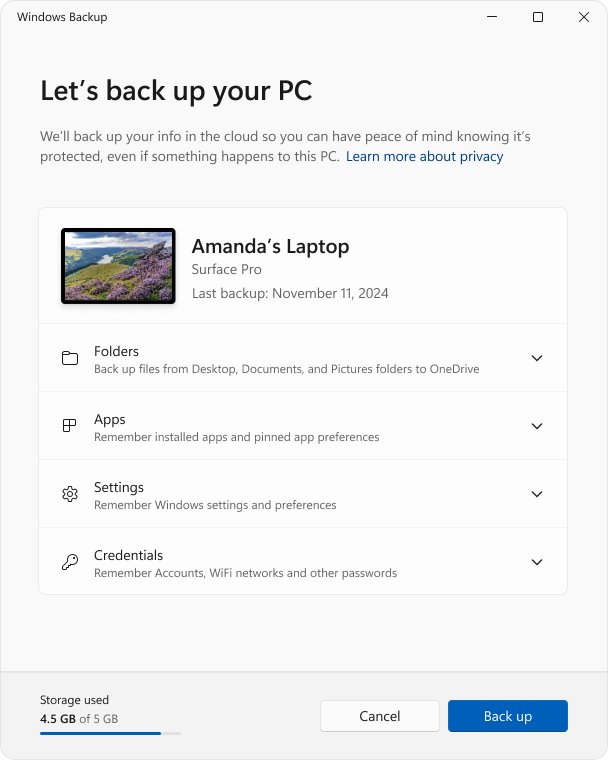
- On the old drive, select Start, type
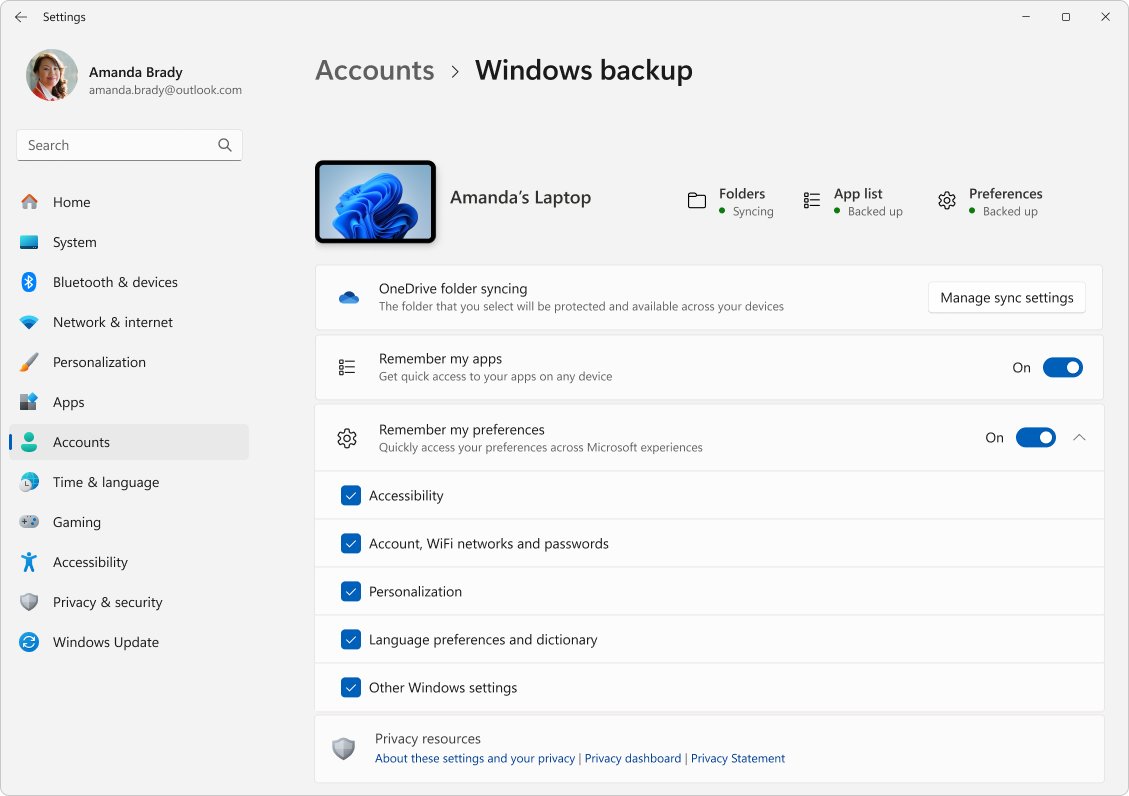
backupand open Windows Backup. It also sits under Settings > Accounts > Windows backup. - Sign in with a personal Microsoft account; work and school accounts are not supported for this backup.
- Expand Folders and turn on Desktop, Documents, Pictures, Videos and Music.
- Turn on Installed apps, Accessibility, Accounts, Wi-Fi network and passwords, Personalization, Language preferences and Other Windows settings.
- Select Back up and wait for it to finish.
- Install the new drive and install Windows 11 on it.
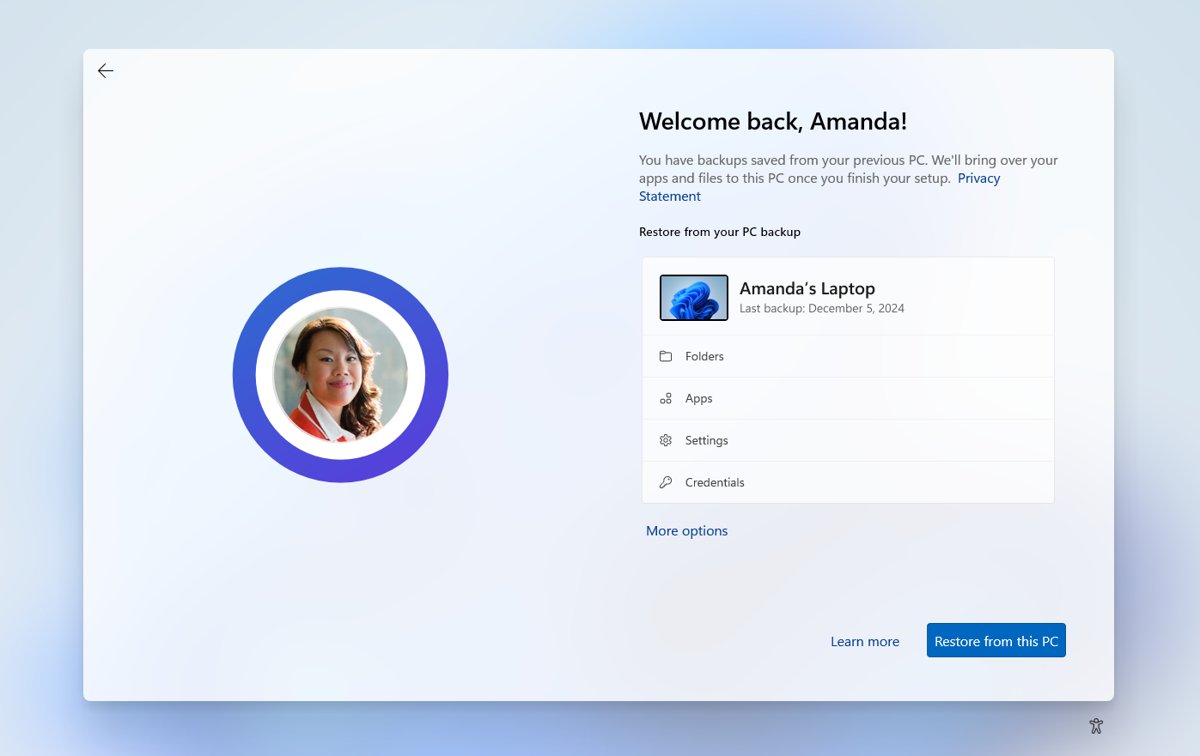
- During Windows setup, sign in with the same Microsoft account used for the backup, then choose your backup when setup offers to restore it.
Files that live outside those folders are not covered. Copy them to an external drive first, which is the route Microsoft names for large transfers where cloud upload is impractical.
Post-Migration Steps
Prove the new SSD boots on its own before the old drive is wiped or removed for good.
- Shut the PC down and disconnect the old drive, or move the new SSD to the primary slot.
- Start the PC and enter the firmware setup screen, then set the Samsung SSD as the first boot device.
- Let Windows 11 start and confirm it reaches the desktop from the Samsung drive.
- Open Settings > System > Storage and confirm the capacity matches the new SSD, not the old one.
- Open your Desktop, Documents and Pictures folders and open one large file from each to confirm the data survived the copy.
- Open Samsung Magician, check Drive Health and run S.M.A.R.T Check on the new drive.
- Run Performance Benchmark in Magician to record the read and write speeds, and set a power mode under Performance Optimization.
- Reconnect the old drive only after the new SSD has booted cleanly at least once.
Magician's Over Provisioning option sets aside unallocated space on the new SSD, and Genuine Authentication confirms the drive is a genuine Samsung SSD; it needs an internet connection.
Troubleshooting Common Issues
Drive not detected
A new disk is offline or uninitialized, so nothing in Windows lists it as a target.
- Select Start, type
Create and format hard disk partitions, right-click the result and select Run as administrator > Yes. - If Disk Management will not open elevated, open Computer Management as administrator and go to Storage > Disk Management.
- Find the new disk in the lower pane. If it reads Offline, right-click it and select Online.
- Right-click the disk and select Initialize Disk, keep GUID Partition Table (GPT) and select OK.
- If it is still missing, shut down and reseat the M.2 card or the SATA and power cables, then check the firmware setup screen lists the drive.
- Reopen Samsung Magician so it rescans for attached drives.
Error messages during transfer
Files locked by a running program, or a volume that Magician cannot read while it is in use.
- Close every open application, including browsers, sync clients and backup software.
- Pause OneDrive sync from the taskbar icon so it stops writing during the copy.
- Restart Windows, then reopen Samsung Magician before opening anything else.
- Run Diagnostic Scan in Magician against the source drive to rule out a failing disk.
- Start Data Migration again from the first screen rather than resuming.
Migration stalls or fails
The PC slept mid-copy, the target is smaller than the data being copied, or the source disk has bad sectors.
- Open Settings > System > Power & battery and set Screen and sleep to Never for the duration.
- Compare the used space on the source volume against the capacity of the Samsung SSD; the data must fit.
- Delete or move large files off the source volume, then empty the Recycle Bin.
- Connect a laptop to mains power before restarting the migration.
- If the drive is connected over USB, move it to an internal M.2 or SATA port and try again.
Files missing post-migration
Only the selected volume was duplicated, so data on a second partition or a second physical disk was never in scope.
- Open Create and format hard disk partitions and check whether the missing files lived on another volume.
- Reconnect the old drive and confirm the files are still there before assuming they were lost.
- Copy the remaining volumes across manually in File Explorer, or run Data Migration again and pick that volume.
- Check the folders covered by Windows Backup in Settings > Accounts > Windows backup if they were synced to OneDrive.
- Keep the old drive untouched until every missing file has been accounted for.
Read-only file status
The volume is offline, has no drive letter, or is a BitLocker-protected volume that has not been unlocked.
- Open Create and format hard disk partitions as administrator and right-click the volume.
- Select Online if the disk is offline.
- Select Change Drive Letter and Paths and assign a letter if the volume has none.
- Open Settings > Privacy & security > Device encryption and unlock or suspend protection on an encrypted volume.
- Reopen the folder in File Explorer and try saving a small test file.
The cloned SSD will not boot
The disk uses MBR while the firmware boots in UEFI mode, or the boot order still points at the old drive.
- Open PowerShell and run
Get-Disk | ft -Autoto read the Partition Style column for each disk. - If the system disk reads MBR, run
mbr2gpt.exe /validate /disk:<number> /allowFullOSfrom an elevated Command Prompt. - Run the same command with
/convertonce validation reports success. - Switch the firmware to boot in UEFI mode after the conversion completes.
- Set the Samsung SSD first in the boot order and start the PC again.
- If the conversion returns code 6, suspend BitLocker on the encrypted volume and repeat it.
Official pages worth keeping open
- Samsung consumer storage tools — The only supported source for Samsung Magician and SSD firmware.
- Samsung Magician — Feature list, supported models and the Data Migration description.
- Samsung SSD upgrade guide — NVMe and SATA installation steps plus the four migration choices.
- Back up and restore with Windows Backup — What Windows Backup covers and how the restore runs during setup.
- MBR2GPT — Syntax, disk prerequisites and return codes for the MBR-to-GPT conversion.
- Initialize new disks — Disk Management steps for a disk that shows as offline or uninitialized.
Frequently Asked Questions
Where is the Samsung Data Migration download for Windows 11?
There is no separate Samsung Data Migration download any more. Samsung states that Samsung Data Migration Software is integrated into Magician Software, so download Samsung Magician 9.0.1 from Samsung's consumer storage tools page and use its Data Migration feature.
Does Samsung Data Migration work on Windows 11?
The cloning feature does, as part of Samsung Magician. Samsung's tools page lists Windows 10 (32-bit/64-bit) for Magician 9 and does not name Windows 11 separately, so check the supported OS note on that page before installing.
What is the difference between Samsung Magician and Samsung Data Migration?
Samsung Magician is the full drive management app, covering Drive Health, S.M.A.R.T Check, Diagnostic Scan, Secure Erase and benchmarking. Data Migration is one feature inside it, and it is where the old standalone migration tool ended up.
Is there a Samsung data migration tool for Windows 10?
Yes, the same one. Samsung Magician 9.0.1 lists Windows 10 (32-bit/64-bit) among its supported operating systems, and the Data Migration feature works there exactly as it does on newer builds.
Can Samsung Data Migration still be used on Windows 7?
Not through Magician 9. Samsung says that for Windows 8.1 and lower you should use Magician 7.3. Windows 7 is long out of support, so the safer plan is to upgrade the operating system first, then migrate.
Does Samsung migration software work with non-Samsung SSDs?
The target drive is meant to be a new Samsung SSD. Samsung notes that supported features may vary when used with drives from other manufacturers or Samsung OEM drives, so use a clean Windows install and a Windows Backup restore instead.
Does Data Migration copy Windows and installed apps?
Yes. Samsung describes the feature as transferring your OS, apps and files from your current storage device to the Samsung drive. It duplicates the volume you select, so anything on a second volume needs a separate pass.
Do I need to initialize the new SSD before migrating?
A brand new disk shows as Offline or uninitialized and will not appear as a target until it is initialized. Open Create and format hard disk partitions as administrator, right-click the disk, select Initialize Disk and keep the default GPT style.
Why does the cloned drive fail to boot?
Usually the boot order still points at the old drive, or the disk uses MBR while the firmware boots in UEFI mode. Check the partition style with Get-Disk | ft -Auto, convert with MBR2GPT if needed, then set the firmware to UEFI.
What can I use instead of cloning to move to a new PC?
Use Windows Backup. Microsoft's PC-to-PC transfer feature is no longer available and the documentation points to Windows Backup and restore instead: back up folders and settings, then sign in with the same Microsoft account during Windows setup.
Bottom Line
Install Samsung Magician 9.0.1 from Samsung's own tools page and run Data Migration there; treat any standalone Samsung Data Migration installer as out of date. Samsung folded the migration tool into Magician, so that is the only build receiving support and model compatibility updates. Where the target is not a Samsung SSD, a clean Windows 11 install with a Windows Backup restore is the route Microsoft documents.