To use Google Wallet, add a debit or credit card in the app, then unlock your NFC-equipped Android phone and hold its back near the payment reader until a blue check mark appears.
This guide covers setup, tap to pay on phones and Wear OS watches, online checkout, passes and tickets, security, a lost phone, and fixes for the problems readers hit most.
How to Use Google Wallet to Tap & Pay
These steps assume a card is already in Google Wallet. If it is not, follow the setup section below first, then come back here.
- Look for the contactless symbol or the Google Pay symbol on the card terminal at checkout.
- Wake and unlock your phone. You do not need to open the Google Wallet app.
- Hold the back of your phone near the payment reader for a few seconds.
- Wait for the blue check mark on your screen, which confirms the payment was accepted.
- If the terminal asks for a PIN or signature, complete it the same way as with a physical card.
Google Wallet pays with your default card. The payment goes through the same card network, so it appears on your card statement like any other purchase.
Which way to pay with Google Wallet fits your device
| Your situation | Use this | Why |
|---|---|---|
| Android 9 or later phone with NFC, in a store | Tap to pay with the phone | The fastest route; no app to open |
| Wear OS smartwatch paired to your phone | Open Google Wallet on the watch and hold it to the reader | Leaves your phone in your pocket |
| Shopping online or in an app | The Buy with GPay button, or card autofill in Chrome | Uses the same saved cards without typing numbers |
| Computer or laptop | The Google Wallet website at wallet.google.com | Manage cards and passes and view transactions; it cannot tap in stores |
| iPhone | No tap to pay through Google Wallet | The Wallet app needs Android; contactless Google Wallet payments need an Android phone with NFC |
| India | Google Wallet for passes and IDs, Google Pay for payments | Google splits the two: Wallet stores credentials, Google Pay handles sending money and mobile recharges |
Introduction to Google Wallet
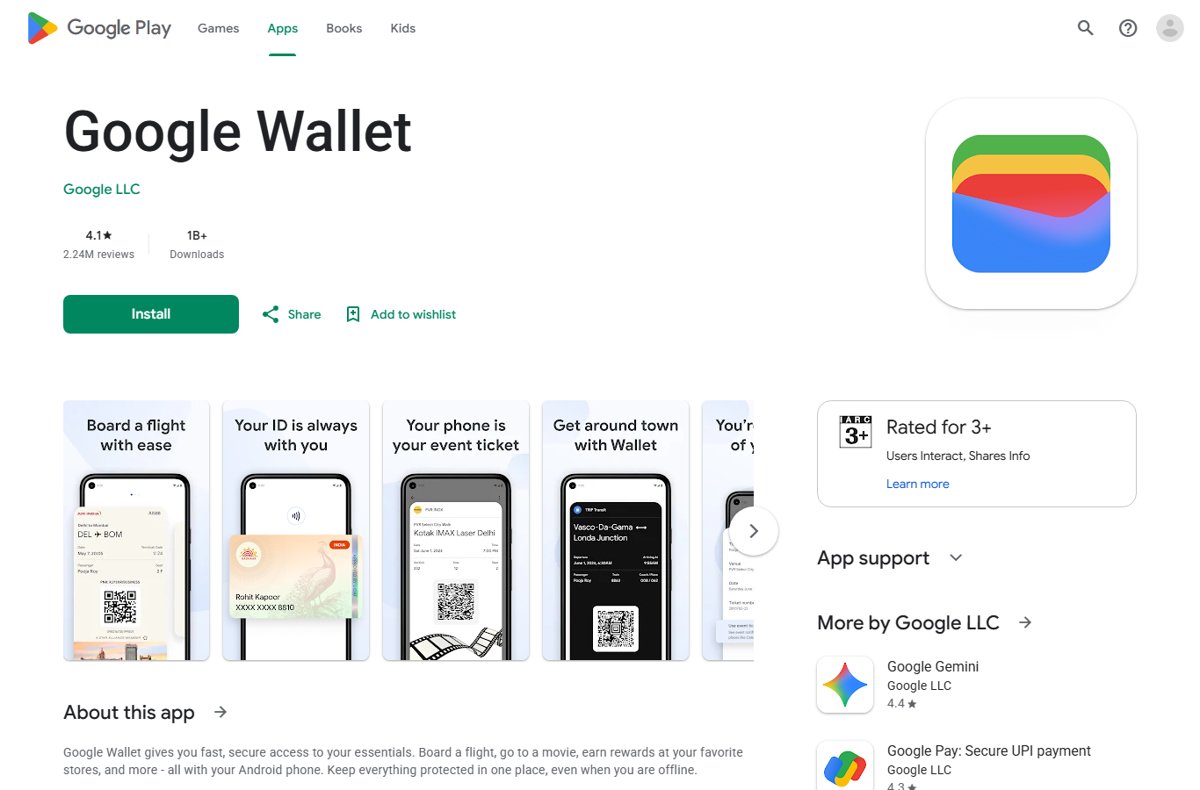
Google Wallet is Google's app for storing payment cards and everyday passes on Android. It is free for all users.
| Question | Answer |
|---|---|
| What it stores | Debit and credit cards, boarding passes, event tickets, gift cards, loyalty cards, transit passes and, in some regions, digital IDs |
| How it differs from Google Pay | Google Wallet holds your cards and credentials; Google Pay is the payment service used for sending money and mobile recharges |
| Where it works | Over 80 countries and regions, though not every feature is offered in each one |
| What it costs | Nothing; Google Wallet is free of charge |
| Where to get it | The Google Play Store on Android phones |
| Where you tap | Any store terminal that accepts Google Pay or shows the contactless symbol |
What you need before you set up Google Wallet
| Requirement | Detail | Why it matters |
|---|---|---|
| Android version | Android 9 or higher | Google cannot deliver security updates to older versions |
| NFC | An Android phone with Near Field Communication | Contactless payments use NFC to talk to the reader |
| Screen lock | A PIN, pattern, password or biometric lock | Required for in-store payments; removing it removes your cards |
| Google Account | A personal Google Account; age limits vary by country | Wallet stores your cards against this account |
| Personal profile | Not a work profile | Work profiles are not supported |
| Unmodified phone | Not rooted | Rooted devices cannot use the app |
| Up-to-date software | Current Google Play services and Google Wallet version | Older versions may fail to add cards or pay |
Check your Android version in Settings before you install. Phones below Android 9 cannot run the app at all.
Setting Up Google Wallet
Setup takes a few minutes. Keep your physical card nearby, because your bank may ask you to verify it.
- Open the Google Play Store, search for Google Wallet and install or update it.
- Open Google Wallet and sign in with your Google Account.
- Set a screen lock if the app asks for one.
- Tap Add to Wallet, then tap New credit or debit card.
- Scan the card with the camera or enter the details by hand, then accept your bank's terms.
- If asked to verify the card, pick an option from the list, such as a text code from your bank.
- Open your phone's Settings, search for NFC and make sure it is turned on.
- In the same settings search, look up default payment or contactless payments and choose Google Wallet.
Settings labels for NFC and contactless payments differ between Pixel, Samsung and other brands, which is why searching Settings is the reliable route. Google's help centre lists which phones support contactless payments at support.google.com/wallet/answer/12200245.
How to open Google Wallet quickly at the register
You do not need to open the app for an ordinary card payment. These shortcuts help when you want a pass, a different card or a ticket.
| Phone | Shortcut | How to set it |
|---|---|---|
| Android 12 or later | Wallet tile in Quick Settings | Unlock the phone, swipe down twice from the top and tap Wallet |
| Android 12 or later | Wallet button on the lock screen | Tap Wallet at the bottom right of the lock screen, then unlock |
| Samsung | Double press the side key | Settings > Advanced features > Side key, turn on Double press, choose Open app and select Google Wallet |
| Samsung | Lock screen shortcut | Touch and hold the lock screen, tap Plus, select Google Wallet, then tap Done |
| Any phone | Show or hide the lock screen button | Settings > Display > Lock screen, then switch Show wallet on or off |
Using Google Wallet on Wearables
Wear OS watches can pay with the cards in your Google Wallet. The watch needs its own screen lock and must connect to the internet over Wi-Fi or LTE at least once every three days.
- Open the Google Wallet app on your watch.
- Hold the watch face over the contactless reader.
- Wait for the sound or vibration that confirms the payment.
- For transit on Wear OS 4 or later, open Google Wallet on your phone, tap your profile picture, then Wallet settings.
- Under Express pay, tap Transit and turn on Express pay for transit.
- At the gate, turn your wrist and hold the watch face close to the reader; a blue check mark confirms the fare.
Express pay for transit only works while the watch is on your wrist and was unlocked within the last 24 hours. Your default card is charged unless you change it before tapping.
How to pay online and in apps with Google Wallet
- At checkout, look for the Buy with GPay button.
- Tap it and choose the saved card you want to use.
- Confirm the purchase with your screen lock or Google Account if asked.
- In Chrome, turn on autofill for payment methods so saved Google Wallet cards appear in card fields.
In the US, the Google Wallet website can also turn on virtual card numbers for online payments, so merchants never see your real card number.
Managing Payment Methods and Cards
You can manage cards in the phone app or on the Google Wallet website. Removing a card on the website also removes it from your Google Account.
| Task | In the Google Wallet app | On wallet.google.com |
|---|---|---|
| Add another card | Tap Add to Wallet > New credit or debit card | Click Payment methods > Add payment method > Add credit or debit card |
| Pay with a card other than the default | Open Google Wallet and tap the card before you hold the phone to the reader | Not available; tapping happens on the phone |
| Update an expired card | Follow the card prompt in the app | Click Payment methods, select the card, then Edit or Fix now |
| Remove a card | Tap the card, then Remove payment method > Remove | Click Payment methods, select the card, then Remove |
| Review purchases | Open the card to see recent activity | View transactions made with Google Wallet |
Website changes usually sync to the app only when the card already exists in both places. If a card still shows on your phone after removing it online, remove it in the app too.
Leveraging Additional Features
Payment cards are only part of Google Wallet. Each pass type below is added through Add to Wallet or an Add to Google Wallet button from the airline, venue or store.
| Pass type | How to add it | How to use it |
|---|---|---|
| Boarding pass or event ticket | Tap Add to Google Wallet after buying, or screenshot the barcode and tap Add to Google Wallet on the screenshot notification | Hold the phone to the ticket reader, or show the barcode from View more passes |
| Loyalty card | Add to Wallet > Loyalty card, then search for the program | Tap the card, tap the barcode for full screen and let the cashier scan it |
| Gift card | Add to Wallet > Gift card, then scan the card or type the details | Show the barcode at checkout; Google Play gift cards are not supported |
| Transit pass | Buy it in Google Wallet or your transit system's app, then open Wallet and tap the pass to activate it | Tap at the gate; not every transit system supports Wallet |
| Digital ID | Add it from the app where your region supports IDs | Present it where accepted; IDs are managed in the app only |
Supported boarding passes update with gate changes and departure times on the lock screen. Within 30 days you can add up to 10 gift cards in total and 5 per merchant.
How to check a Google Wallet payment went through
- Watch for the blue check mark on the phone, or the sound or vibration on a watch, when you tap.
- Check that the terminal or cashier shows the payment as approved.
- Open Google Wallet and tap the card you used to see the recent transaction.
- On a computer, sign in at wallet.google.com and review the transaction list.
- Compare the amount with your bank or card statement a day or two later.
Navigating Security Features and Privacy
| Protection | What it does |
|---|---|
| Virtual card number | Stores send and see a randomly generated number, not your real card number |
| Encryption | Your payment information and transactions are protected with industry-leading encryption |
| Screen lock | Required for in-store payments, so a locked phone cannot pay |
| No card details on the device | Google Wallet does not store your card details on the phone itself |
| Privacy controls | Pass data, notifications and linked passes are managed in Wallet settings and the website |
| Fraud reporting | Unauthorized charges can be reported to Google within 120 days |
What to do if your phone with Google Wallet is lost or stolen
A locked phone cannot make in-store purchases, and your real card number is not stored on it. Act quickly anyway.
- Use Google's find, lock or erase a lost Android device tools to lock the phone.
- Erase the phone if you will not get it back; erasing removes your credit and debit cards from the device.
- If you think someone has access to your Google Account, secure it through Google Account help.
- Report any unauthorized Google Wallet charges to Google within 120 days.
- Once you have a new phone, install Google Wallet and add your cards again.
Troubleshooting Common Issues
Your version of Android doesn't support Google Wallet
Google Wallet needs Android 9.0 or higher.
- Check your Android version in Settings.
- Install any system update your phone offers.
- If the phone cannot reach Android 9, use a newer phone for tap to pay.
Nothing happens when you hold the phone to the reader
NFC is off, Google Wallet is not the default payment app, or the terminal is not contactless.
- Unlock the phone before you tap.
- Search Settings for NFC and turn it on.
- Search Settings for contactless payments and set Google Wallet as the default.
- Move the phone slowly over the reader; the NFC antenna is usually on the back.
- Confirm the terminal shows the contactless or Google Pay symbol.
Your cards disappeared from Google Wallet
Removing the screen lock deletes payment cards from the phone.
- Set a PIN, pattern or password in your phone's security settings.
- Open Google Wallet and tap Add to Wallet > New credit or debit card.
- Add each card again and complete verification.
The card will not add or asks for verification
Your bank must confirm the card before it can be used.
- Choose a verification option from the list, such as a text or email code.
- Check the card number, expiry date and billing address for typos.
- Contact your bank if it does not support Google Wallet or blocks the verification.
Google Wallet will not install or open
The phone is rooted, you are in a work profile, or the software is out of date.
- Switch to your personal profile rather than a work profile.
- Update Google Play services and Google Wallet from the Play Store.
- Use an unrooted phone; Google Wallet does not run on rooted devices.
You can't sign in to your Google Account
Google Wallet needs a working Google Account sign-in.
- Use Google's account recovery page to reset your password.
- Sign in again inside Google Wallet once recovery succeeds.
Best Practices for Secure and Efficient Use
| Practice | Reason |
|---|---|
| Keep a strong screen lock and never share your PIN | Anyone who can unlock the phone can tap to pay |
| Turn on 2-Step Verification for your Google Account | The Wallet website can require it to show payment information in the US |
| Never give a card number, password or code to someone who contacts you | Google never asks for these by email, text or phone |
| Add a second card | A backup card saves the purchase if your bank declines the first |
| Set up a lock screen or side key shortcut | Passes and tickets open in one press at the gate |
| Review transactions regularly | Fraud must be reported within 120 days |
Future Outlook: The Evolving Landscape of Google Wallet
If you have an NFC Android phone on Android 9 or later, set Google Wallet as your default payment app and add at least one card and your regular passes now. Google keeps moving more into Wallet: digital IDs, Wallet for kids, express transit on watches, a universal shopping cart and online order tracking all appear in its help centre, and each one builds on the same card and account you set up today.
Frequently Asked Questions
What is Google Wallet?
Google Wallet is Google's free Android app for storing payment cards, boarding passes, event tickets, loyalty cards, gift cards, transit passes and, in some regions, digital IDs. It lets you tap to pay in stores and pay online with the same saved cards.
How does Google Wallet work?
When you tap your phone on a contactless reader, Google Wallet sends a virtual card number over NFC instead of your real card number. The store charges that number and your bank bills your card as normal, and a blue check mark confirms the payment.
How do I use Google Wallet to pay in store?
Unlock your phone and hold its back near the payment reader until the blue check mark appears. You do not need to open the app first. The store terminal must show the contactless or Google Pay symbol.
How do I use Google Wallet on a Samsung phone?
Install Google Wallet from the Play Store, add your card and set Google Wallet as the default payment app, then tap to pay like any Android phone. You can also set a double press of the side key to open Google Wallet under Settings > Advanced features > Side key.
Can I use Google Wallet on an iPhone?
No. The Google Wallet app needs Android 9 or later, and Google states that contactless payments with Google Wallet need an Android phone with NFC. On an iPhone or any computer browser, you can still manage your cards and passes on the Google Wallet website.
How do I use Google Wallet to pay for gas?
Tap your unlocked phone on the pump's card reader if it shows the contactless or Google Pay symbol, then follow the pump prompts. If the pump has no contactless reader, pay inside the station by tapping at the register instead.
How do I use Google Wallet online?
Choose the Buy with GPay button at checkout and pick a saved card, or turn on payment autofill in Chrome so your Google Wallet cards fill card fields. In the US, the Wallet website can also create virtual card numbers for online purchases.
Can I use Google Wallet on a laptop?
You can manage Google Wallet on a laptop at wallet.google.com, where you add or remove cards, manage passes and view transactions. A laptop cannot tap to pay in stores, and online purchases use the Buy with GPay button or Chrome autofill.
How do I use Google Wallet in India?
In India, Google Wallet is used for boarding passes, tickets, loyalty cards and your Aadhaar card. Google separates it from Google Pay, which is the app for sending money and mobile recharges.
Why use Google Wallet?
Google Wallet lets you pay without handing over your real card number, keeps tickets and loyalty cards on one screen, and stops working for payments whenever your phone is locked. It is also free, with no fee charged to users.