To share your location on Google Maps, open the Maps app on your phone, tap your profile picture or initial, then Location sharing > New share, choose how long to share and pick a contact.
This guide covers the real-time share on Android and iPhone, sharing with people who have no Google Account, what you can and cannot do from a desktop, ETA sharing, directions, Plus Codes and fixes when sharing stops.
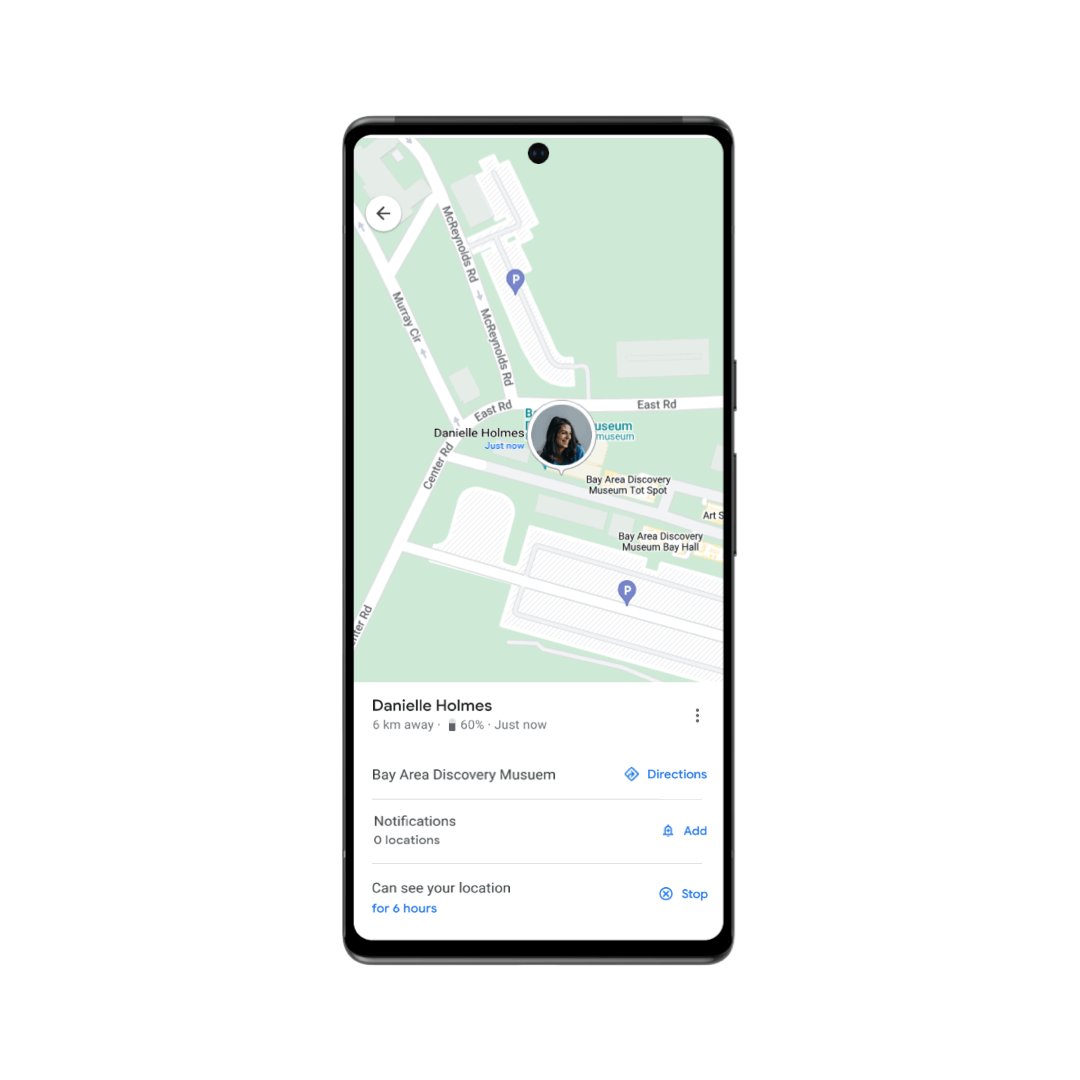
How to share location on Google Maps: step-by-step
These steps are the same in the Google Maps app on Android phones, Android tablets, iPhone and iPad. Sharing real-time location on mobile devices is the only way to start a live share.
- Open the Google Maps app and make sure you are signed in to your Google Account.
- Add the person's Gmail address to your Google Contacts if they are not there yet.
- Tap your profile picture or initial, then Location sharing.
- Tap New share.
- Choose how long you want to share your location.
- Tap the profile of the person you want to share with, and allow Google Maps access to contacts if it asks.
- Tap Share.
The other person now sees your name, photo, recent location, battery level and whether the phone is charging. Your location keeps updating even when you are not using Google apps.
Sharing real-time location on mobile devices
A live share only updates while the phone can report its position. Set these phone settings once, then start the share.
- On Android, open Settings > Location and turn on Use location.
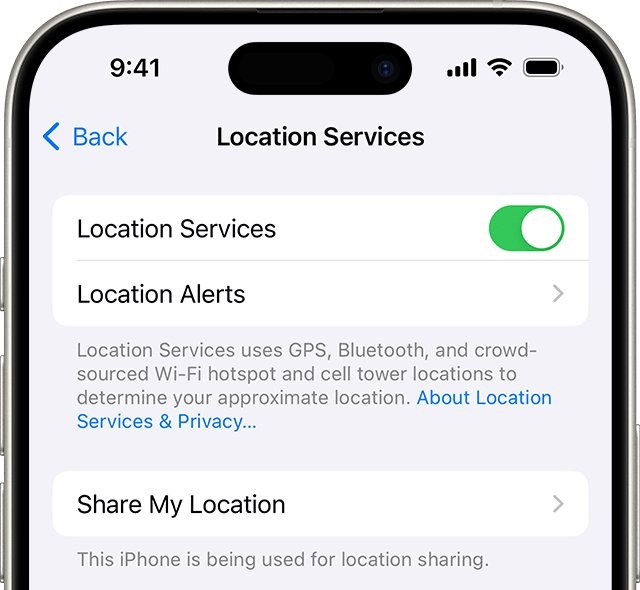
- On iPhone or iPad, open Settings > Privacy & Security > Location Services and make sure Location Services is on.
- Scroll to Google Maps, tap it and select Always so Maps can use your location in the background.
- Leave Precise Location on for Google Maps; with it off, people see only your approximate position.
- Open Google Maps and start the share with Location sharing > New share.
Location sharing methods compared
| What you want to send | Use this in Google Maps | How long it lasts |
|---|---|---|
| Your live location to a Google user | Location sharing > New share | The duration you pick, or Until you turn this off |
| Your live location to someone with no Google Account | New share > Copy to clipboard (Android) or Add people (iPhone) | Up to 24 hours |
| Your position while driving, walking or cycling | Share trip progress during navigation | Ends when you arrive or stop navigation |
| A single place or a dropped pin | Tap the place name or address > Share | A fixed link, no live updates |
| A route to follow | Directions > More > Share directions | A fixed link |
| A precise spot with no street address | Copy the Plus Code | A fixed code |
Why is sharing your location on Google Maps confusing?
Google Maps has three features that all look like location sharing, and Google Location Sharing itself is also a separate Google Account setting used by Messages, Find Hub, Family Link and Personal Safety.
| What causes confusion | What is actually happening |
|---|---|
| The Location Sharing setting shows as off | It stays off by default and cannot be turned on until you first share with someone in a Google app |
| Sharing works on one phone but not another | Location Sharing is device and account specific, so each signed-in device has its own setting |
| Turning off Maps' location permission did not stop the share | App location permissions and Incognito mode in Google Maps do not stop or pause Location Sharing |
| The share stopped after a day | Link shares last up to 24 hours; a contact share needs Until you turn this off to run indefinitely |
| You cannot find New share on a computer | Real-time sharing has to start from a mobile device |
How to share Google location permanently
A contact share can run with no end date, which is how families and couples usually keep each other on the map.
- Open Google Maps and tap your profile picture or initial.
- Tap Location sharing > New share.
- Under the duration choices, select Until you turn this off.
- Pick the contact, or swipe right under Suggestions, tap More and enter their name, phone number or email.
- Tap Share.
The person needs a Gmail account. A link share cannot be made permanent.
How to share location on Google Maps without a Google account
To send your live location to someone who has no Google Account, share it as a link. Anyone with the link can see your real-time location for up to 24 hours.
- Open Google Maps, tap your profile picture or initial, then Location sharing > New share.
- On Android, tap Copy to clipboard, then paste the link into an email, text or messaging app.
- On iPhone or iPad, tap Add people.
- On iPhone, tap Message to send it through iMessage, or More options to choose another app such as email.
Sharing your location on desktop
You cannot start a real-time share from a computer; Google requires a mobile device for that. On a desktop browser you can still see people who share with you, hide them and stop your own shares.
- Open Google Maps in a browser on your computer.
- Click Menu, then Location sharing.
- Choose a person to find them on your map.
- Click Hide on map to remove them temporarily, or hover over the hide icon and click Show on map to bring them back.
- To stop your own share, open myaccount.google.com > People & sharing > Location Sharing and click Stop next to the person.
Google Maps advanced tips and features: share your ETA
Trip progress shares your destination, estimated arrival time and current location while you navigate by car, on foot or by bicycle.
- Open Google Maps on your phone and set a destination.
- Start navigation, then swipe up on the information card.
- Tap Share trip progress.
- Select the person you want to share with and tap Share.
- To end early, swipe up on the information card and tap Stop sharing; the share also ends when you arrive or stop navigation.
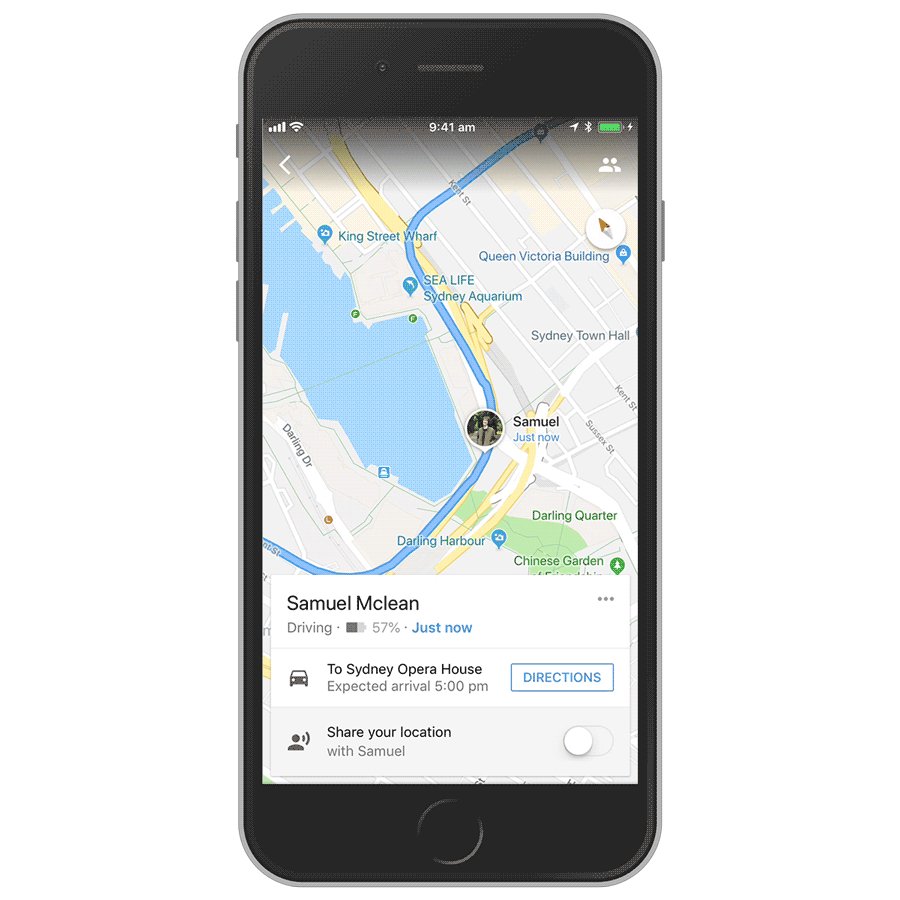
Sharing directions with others
Directions and single places are shared as fixed links. They show the route or the spot, not your live position.
- On a phone, tap Directions, enter your locations and choose a route.
- At the top right, tap More > Share directions and choose the app to send them with.
- To share a place instead, search for it or touch and hold the map to drop a pin, tap the place name or address at the bottom, then tap Share.
- On a computer, click Directions, choose a route, click Share, then Send a link > Copy link for email or text.
- To put a map on a web page, click Embed a map > Copy HTML.
From a computer you can also click Send to phone to push directions to your own phone, or print Google Maps directions for a paper copy.
How to share your location with a Plus Code in Google Maps
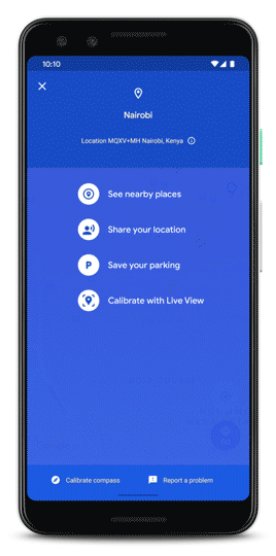
A Plus Code is a short digital address, such as JJXX+HR8, Seattle, that pins an exact spot like a side entrance. These steps are for the Android app.
- Open Google Maps and tap the blue dot that shows your location.
- Swipe up on the Your Location panel until you reach the Plus Code section.
- Tap Copy code.
- Paste the code into the messaging app of your choice.
- For another spot, touch and hold the map to drop a pin, tap the panel at the bottom and tap the Plus Code to copy it.
The person can paste the Plus Code into the Google Maps search box to land on the same spot.
Sharing via third-party messaging apps
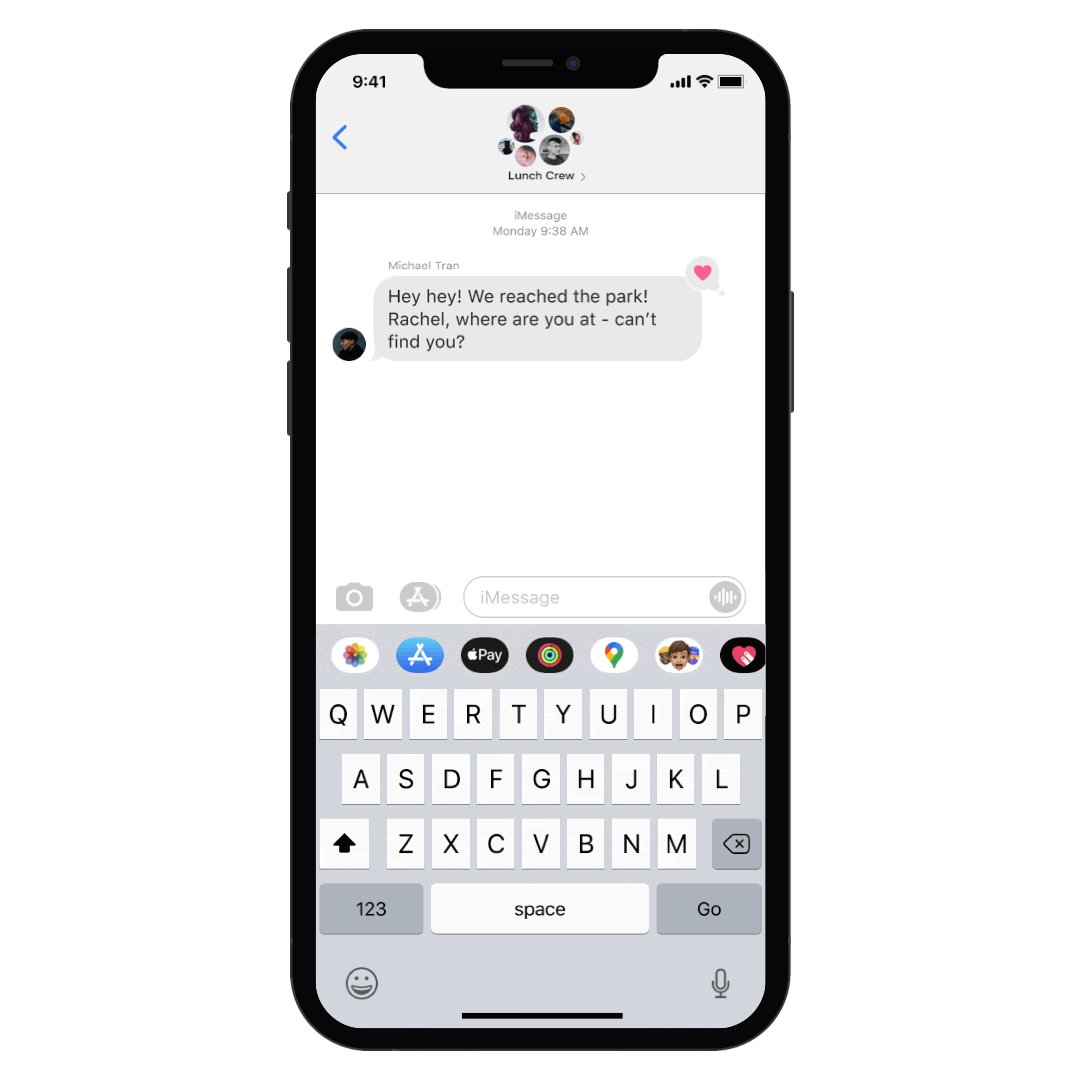
A Google Maps location link pasted into any messaging app works for the recipient, and iPhone users can send a live share from inside iMessage.
- In Messages on iPhone, open a conversation and tap Apps, then the app drawer and Add.
- Tap Manage, turn on Google Maps and tap Done.
- Tap Apps, open the app drawer and select Google Maps.
- Choose a real-time share, which starts at one hour and can be extended to three days, or a one-time snapshot of where you are.
- Tap Send; to end a live share, tap Stop on the message thumbnail.
Alternative ways to share your location
Google Maps is not the only option. Pick the tool the other person already uses.
| Alternative | Works between | What it shares |
|---|---|---|
| Google Maps link share | Any phone or computer with a browser | Live location for up to 24 hours |
| WhatsApp Live Location | WhatsApp users on Android and iPhone | Real-time location in an individual or group chat |
| Apple Find My | Apple devices only | Ongoing location with other Apple users |
| Google Messages and Find Hub | People signed in to a Google Account | Location through Google Location Sharing |
| A pin or Plus Code | Anyone who can open a link or text | One fixed spot |
On an iPhone that only shares with other Apple users, you can share location on iPhone with Find My instead of Google Maps.
Privacy and security considerations
Location Sharing works even when Timeline is off, so turning off your Google Maps Timeline does not hide you from people you share with.
| What people you share with can see | What you control |
|---|---|
| Your name and photo | Who gets a share, one person at a time |
| Your device's recent location, even when Google apps are not open | How long each share lasts |
| Battery level and whether the phone is charging | Whether each person may create notifications about you |
| Arrival and departure times, if they add a Location Sharing notification | Stopping a share, or blocking someone from requesting your location |
| Sometimes a nearby business instead of your exact address | Pausing all sharing on Android with Use Location Sharing |
How to stop sharing location on Google Maps
- Open Google Maps, tap your profile picture or initial, then Location sharing.
- Tap the profile of the person you no longer want to share with.
- Tap Stop.
- To pause every share on Android, open Settings > Location > Location services > Google Location Sharing and turn off Use Location Sharing.
- To refuse a request, tap No, or tap Block so that person cannot ask again.
Turning off Location Sharing does not remove earlier shares; stop each person to end them. Unblock someone from Location sharing > More > Blocked users > Remove.
Tips for better location sharing
Small settings decide how accurate the dot on the other person's map is.
| Tip | Why it helps |
|---|---|
| Turn on Improve Location Accuracy on Android (Settings > Location > Location services > Location Accuracy) | Wi-Fi and sensor data place you better indoors and near tall buildings |
| Keep mobile data or Wi-Fi on | Location Sharing needs an active internet connection |
| Stay signed in to the same Google Account in Maps | Location Sharing is tied to the account and the device |
| Ask viewers to use More > Refresh on your icon | It pulls your latest position instead of the last one shown |
Is Google Maps location sharing safe?
It is as safe as the list of people you share with. These best practices for location sharing keep that list short and deliberate.
| Practice | Why it matters |
|---|---|
| Use a time-limited share for one-off meetups | The share ends on its own |
| Keep Until you turn this off for close family only | An open-ended share runs until you stop it |
| Review the Location sharing list every few months | Remove people who no longer need your location |
| Decide per person whether they may create notifications about you | Notifications reveal arrival and departure times |
| Tap Block on requests from people you do not know | They can no longer ask for your location |
Troubleshooting common issues with Google Maps location sharing
Start with the warning message Google Maps shows when you open Location sharing.
Google Maps location sharing stops after 24 hours
A link share expires after 24 hours, or the account's age has not been verified.
- Verify your age in your Google Account.
- Start a new share with Location sharing > New share and choose Until you turn this off.
- Share with the person's Gmail address rather than a link.
Location sharing on Google Maps is not available
Sharing is blocked in your country or region, by your Google Workspace administrator, by age limits, or by a parent through Family Link.
- Read the warning message shown when you open Location sharing.
- Ask your administrator to turn on Location Sharing for a work or school account.
- Ask the parent who manages the account to allow it in Family Link.
Still not working? Try these fixes
If the share started but the other person cannot see you properly, work through these.
Shared location not updating on Google Maps
Device location is off, Maps cannot reach the internet, or Maps is limited to While Using the App on iPhone.
- On Android, open Settings > Location and turn on Use location.
- On iPhone, open Settings > Privacy & Security > Location Services, check it is on, tap Google Maps and select Always.
- Check the phone has a mobile data or Wi-Fi connection.
- Ask the viewer to tap your icon, then More > Refresh.
Can't find the person to share with
Their Gmail address is not in your Google Contacts, or Maps has no access to contacts.
- Add their Gmail address to Google Contacts.
- Allow Google Maps access to your contacts when asked.
- Use More under Suggestions to enter their name, phone number or email, or send a link instead.
Google Maps location sharing frequently asked questions
How does Google location sharing work?
You choose a person and a duration in Google Maps, and they see your name, photo, real-time location, battery level and charging status. The share keeps updating your device's recent location even when you are not using Google apps, until it expires or you stop it.
How do I share my location on Google Maps on Android?
Open the Google Maps app, tap your profile picture or initial, then Location sharing and New share. Choose how long to share, tap the person's profile, allow contact access if asked, and tap Share. You must be signed in to your Google Account.
How do I share my location on Google Maps on iPhone?
The steps match Android. Open Google Maps, tap your profile picture or initial, then Location sharing and New share. Pick a duration and a contact and tap Share. In Settings, set Google Maps location access to Always so the share keeps updating.
Can I share my location on Google Maps from a desktop?
No. Google requires a mobile device to share your real-time location. On a computer you can see people who share with you through Menu and Location sharing, hide or show them, and stop your own shares from your Google Account.
How do I turn on Google location sharing?
Start a share in Google Maps with Location sharing and New share. The Location Sharing setting is off by default and cannot be turned on until you share your location with someone in a Google app. You also need device location turned on.
Can I share my location with someone who doesn't have Google Maps?
Yes. Share it as a link from New share, using Copy to clipboard on Android or Add people on iPhone. The person can open the link without a Google Account and see your real-time location for up to 24 hours.
How do I share my Google location by email?
Create a link share in Google Maps, then paste the link into an email. On iPhone, tap Add people, then More options and pick your mail app. For a route, use Share directions or, on a computer, Send a link and Copy link.
How do I stop sharing my location on Google Maps?
Open Google Maps, tap your profile picture or initial, then Location sharing. Tap the person and tap Stop. On Android you can pause every share by turning off Use Location Sharing under Settings, Location, Location services and Google Location Sharing.
Is Google Maps location sharing real-time?
Yes. A Location sharing share shows your real-time position, and viewers can refresh it from your icon. Shared directions, dropped pins and Plus Codes are different: they send a fixed spot or route that does not move with you.
Does Google Maps location sharing work between iPhone and Android?
Yes. The Google Maps app has the same Location sharing feature on Android, iPhone and iPad, so a share started on either platform shows up for the other person in Google Maps. A link share works in any browser.
Can someone track me on Google Maps without my knowledge?
Only if your phone is sharing with them. Open Location sharing in Google Maps to see everyone who has your location, and tap Stop next to anyone you do not recognise. Incognito mode does not stop an existing share.