Click inside the app you want full screen, then press the F11 key once; on most laptops you hold Fn and press F11 instead.
This guide covers which Windows 10 apps respond to F11, how to press it on laptops and keyboards without an F11 key, and what to do when it does nothing.
How to use the F11 key to enter full-screen mode in Windows 10
F11 only works on the window that has focus, so the first step matters more than the key itself.
- Open the app you want to fill the screen, such as Google Chrome or Microsoft Edge.
- Click once inside the page or window so it becomes the active window.
- Press F11 at the top of the keyboard.
- If your laptop changes the volume or brightness instead, hold Fn and press F11.
- Press F11 again to return to the normal window.
In Chrome, you can also hold Esc to leave full-screen mode. In Edge, F11 works as an on and off toggle.
F11 key purpose and functionality on Windows 10
F11 is a function key, and Windows 10 has no single system-wide meaning for it. Each app decides what F11 does, and Microsoft's own Surface keyboard notes say the same: function key behaviour differs from app to app.
Browsers and a few Microsoft apps use F11 as a full-screen toggle. Many other desktop programs ignore it or use it for something unrelated.
| App on Windows 10 | What F11 does | How to leave |
|---|---|---|
| Google Chrome | Turns full-screen mode on | Press F11 again or hold Esc |
| Microsoft Edge | Enter full screen (toggle) | Press F11 again |
| File Explorer | Maximizes or minimizes the active window | Press F11 again |
| Windows Terminal | Toggles full screen (Alt + Enter does the same) | Press F11 or Alt + Enter again |
| Other desktop programs | Set by each program; often nothing | Use the program's own View menu |
How to press F11 on a laptop, desktop keyboard or Surface
Where F11 lives depends on the keyboard. Match your hardware to a row below.
| Your keyboard | How to send F11 | Why |
|---|---|---|
| Full-size desktop keyboard | Press F11 on its own | The top row sends F1 to F12 by default |
| Laptop with media icons on the top row | Hold Fn, then press F11 | The top row sends volume or brightness first |
| Microsoft keyboard with an F Lock key | Press F Lock so its light is on, then press F11 | Light on means standard F1, F2 functions work |
| Surface keyboard or Type Cover | Press Fn, then the top-row F11 key | Press Fn again so the LED turns off to go back |
| Keyboard with no F11 key at all | Remap a spare key to F11 with PowerToys Keyboard Manager | F1 to F24 can be mapped; the Fn key usually cannot |
How to press F11 on a laptop with the Fn key
Many laptops print a second icon, such as a speaker or a sun, on the F11 key. Pressing the key alone runs that icon's action, not F11.
- Find the Fn key, usually at the bottom left of the keyboard near Ctrl.
- Click inside the browser or app you want full screen.
- Hold down Fn.
- Press F11 while still holding Fn, then release both keys.
- If your laptop has an Fn lock key, turn the lock on so the top row sends F1 to F12 without holding Fn.
Fn lock keys differ by maker and model, so check the keyboard section of your laptop's manual for the exact key. On Microsoft's All in One Media Keyboard, press Fn and Caps Lock together to turn Fn Lock on.
How to press F11 without an F11 key on Windows 10
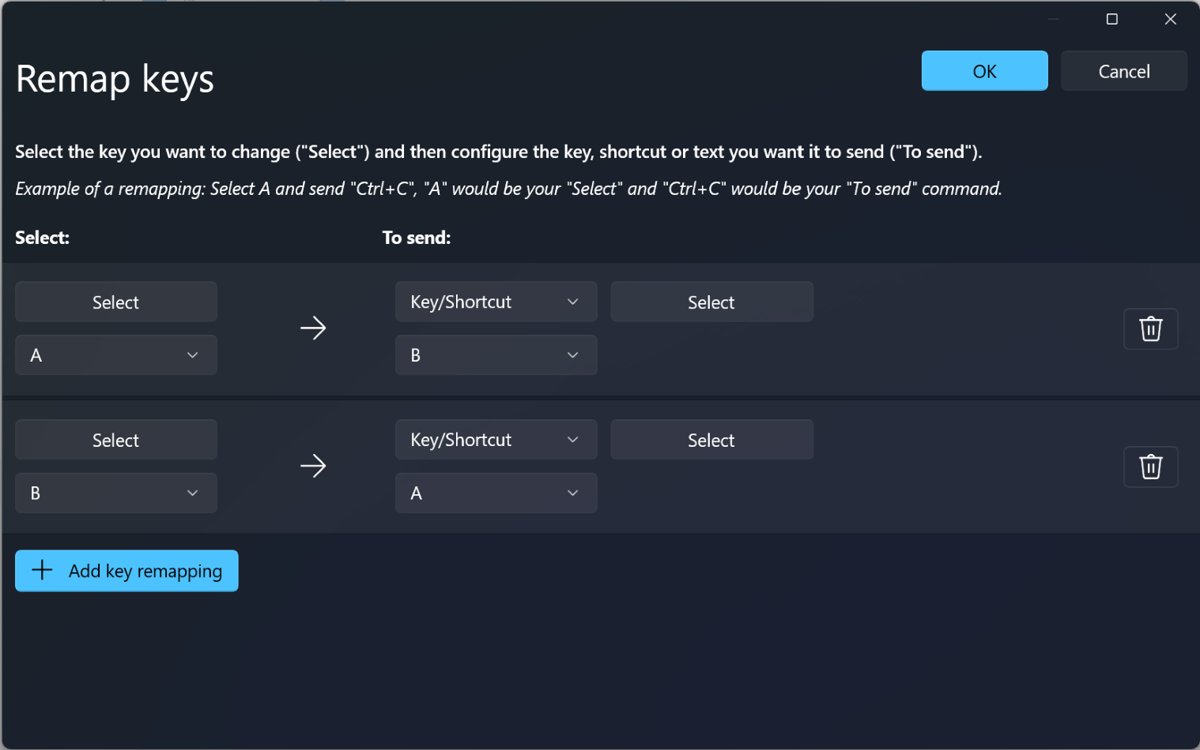
Compact and tablet keyboards sometimes drop the function row. Microsoft's free PowerToys app for Windows 10 and 11 can turn a key you rarely use into F11.
- Install Microsoft PowerToys and open its Settings window.
- Select Keyboard Manager in the left pane and turn it on.
- Select Remap a key.
- Select Add key remapping.
- In the Select column, choose the spare key, such as Scroll Lock or Pause.
- In the To send column, choose F11, then select OK.
- Click inside a browser and press the spare key to test it.
The remap only works while PowerToys is running in the background. The Fn key itself cannot be remapped on most keyboards, so pick a regular key.
How to use F11 on Windows 10 for non-browser applications
Outside browsers, F11 works in a short list of apps. Use these steps for the two built-in ones that respond to it.
- Press Windows + E to open File Explorer, then press F11 to maximize the window.
- Press F11 again in File Explorer to return to the previous size.
- Open Windows Terminal and press F11 or Alt + Enter to toggle full screen.
- For Microsoft Store apps, press Windows + Shift + Enter to make the active app full screen.
- For any other program, open its View menu and look for a full-screen option before trying F11.
Windows Terminal also has a focus mode that hides the tabs and title bar without going full screen.
F11 full-screen mode beyond browsers: video players, games and File Explorer
Video sites, media players and games mostly ignore F11 and use their own keys. Pressing F11 there usually fills the browser, not the video.
| Where you are | Full-screen key or setting | Exit |
|---|---|---|
| YouTube in a browser | Press F while the video has focus | Press F again or Esc |
| Browser page around a video | F11 fills the whole browser window | F11 again |
| PC games | The game's own display or video settings | Change the same setting back |
| File Explorer | F11 maximizes or minimizes the window | F11 again |
| Microsoft Store apps | Windows + Shift + Enter | Same shortcut again |
Chrome can also show PDFs in full screen from its built-in PDF viewer, which helps when you read long documents.
Alternatives to F11 for full-screen or maximized windows in Windows 10
A maximized window still shows the taskbar and title bar, while full screen hides them. When F11 does nothing in an app, a maximized window is usually the closest result.
| What you want | Use this | Result |
|---|---|---|
| Fill the screen, keep the taskbar | Windows + Up arrow | Maximizes the active window |
| Undo a maximize or snap | Windows + Shift + Down arrow | Restores the window |
| Full height, same width | Windows + Shift + Up arrow | Stretches the window top to bottom |
| Microsoft Store app full screen | Windows + Shift + Enter | Hides the app's title bar |
| Mouse only | Select the Maximize button on the title bar | Maximizes the window |
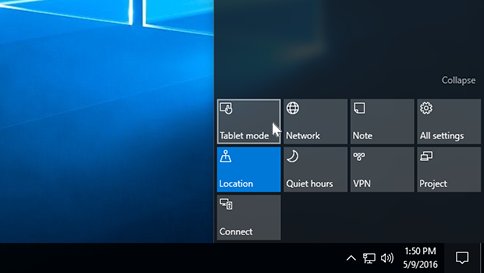
| Touch device | Turn on Tablet mode in Action center | A touch-friendly layout |
| Desktop looks too small or blurry | Set Display resolution to the (Recommended) value | The desktop fills the panel correctly |
If you also use a Windows 11 PC, you can go full screen on Windows 11 with the same F11 key plus a few newer shortcuts.
How to tell F11 full-screen mode is on in Windows 10
- Look at the bottom of the screen: the taskbar should be gone.
- Look at the top: the tabs, address bar and title bar should be hidden in Chrome or Edge.
- Move the mouse to the very top edge; a browser shows its controls or an exit button there.
- If the title bar and taskbar are still visible, the window is only maximized, not full screen.
Windows 10 full-screen tips: hide the taskbar, tablet mode and kiosk mode
These additional settings enhance the full-screen experience on Windows 10, or make a maximized window feel closer to full screen.
| Tip | Where to set it in Windows 10 | Effect |
|---|---|---|
| Hide the taskbar | Right-click the taskbar > Taskbar settings > Automatically hide the taskbar in desktop mode | The taskbar slides away until you point at it |
| Tablet mode | Action center > Tablet mode tile | A more touch-friendly interface |
| Add the Tablet mode tile | Settings > System > Notifications & actions > Edit your quick actions | Puts the tile back in Action center |
| Sharper desktop | Settings > System > Display > Display resolution | Choose the (Recommended) value |
| Kiosk mode (Assigned Access) | Windows 10 Pro, Enterprise or Education | One app or Microsoft Edge runs full screen above the lock screen |
| Spare key as F11 | PowerToys Keyboard Manager | A key you do not use sends F11 |
Vivaldi shows a press-Esc banner each time it enters full screen, and you can turn off that Vivaldi message if it gets in the way.
How to exit F11 full-screen mode on Windows 10
- Press F11 again, or Fn + F11 on a laptop.
- In Chrome, hold Esc for a moment if F11 is out of reach.
- In Windows Terminal, press Alt + Enter.
- In a Microsoft Store app, press Windows + Shift + Enter again.
- For a maximized window, press Windows + Shift + Down arrow to restore it.
Troubleshooting F11 full-screen toggling on Windows 10
F11 is not responding at all
The wrong window has focus, or the app does not use F11.
- Click inside the browser page, not the taskbar or desktop.
- Press F11 once and wait a second for the animation.
- Test F11 in Chrome or Edge to confirm the key itself works.
- If nothing happens anywhere, try another keyboard to rule out a faulty key.
F11 changes volume or brightness instead
The laptop's top row sends media actions first.
- Hold Fn and press F11.
- On a Microsoft keyboard, press F Lock so its light is on.
- On a Surface, press Fn before the top-row key.
F11 works in browsers but not in other applications
Each program decides what F11 does, and many ignore it.
- Open the program's View menu and look for a full-screen option.
- For a Microsoft Store app, press Windows + Shift + Enter.
- If the app has no full-screen mode, press Windows + Up arrow to maximize it.
Full-screen mode exits automatically
Another key press, a pop-up or a switch to another window takes focus away.
- Avoid pressing Esc in Chrome; holding it leaves full screen.
- Close notifications or pop-ups that grab focus.
- Press F11 again after returning to the window.
F11 key on Windows 10 FAQ
How do I press F11 on a laptop?
Hold the Fn key and press F11 at the top of the keyboard. Most laptops send volume or brightness from that key first, so Fn is needed to send the real F11 signal unless an Fn lock is turned on.
How do I press F11 on an HP laptop?
On an HP laptop, hold Fn and press F11 if the key shows a media icon. Some models can lock the function row so F11 works alone; the keyboard section of your model's manual names the exact key.
How do I press F11 without an F11 key?
Use Microsoft PowerToys Keyboard Manager to remap a spare key, such as Scroll Lock, to F11. The remap applies while PowerToys runs. For a plain maximize instead, press Windows + Up arrow.
How do I press F11 on a desktop PC keyboard?
Press the F11 key once on its own. Full-size desktop keyboards send F1 to F12 directly. If your keyboard has an F Lock key, make sure its light is on, because light off sends alternate commands instead.
How do I press F10 on a laptop?
Hold Fn and press F10, the same way as F11. If your laptop has an Fn lock turned on, press F10 alone. On a Surface keyboard, press Fn, then the top-row F10 key.
How do I press Alt + F11 on a laptop?
Hold Alt and Fn together, then press F11. The Fn key turns the top-row key into F11, and Alt adds the modifier. With Fn lock on, press Alt + F11 without Fn.
How do I press F12 with Windows 10?
Press F12 on a desktop keyboard, or Fn + F12 on most laptops. What F12 does depends on the app that has focus, since Windows 10 gives function keys no single system-wide action.
How do I do F11 on Windows 11?
F11 works the same way on Windows 11: click the app and press F11, or Fn + F11 on a laptop. Windows 11 also keeps Windows + Shift + Enter for full-screen Store apps.
How do I press F2 on Windows 11?
Press F2 on a desktop keyboard, or hold Fn and press F2 on a laptop. In File Explorer, F2 renames the selected file or folder.
Bottom line: when to use F11 on Windows 10
Use F11, or Fn + F11 on a laptop, for full screen in Chrome, Edge, File Explorer and Windows Terminal, and Windows + Up arrow everywhere else. Only some apps treat F11 as a full-screen toggle, while Windows + Up arrow maximizes any normal window on Windows 10.


Chromium Edge gets Classic Edge’s FullScreen mode - Techdows
[…] Google Chrome, Classic Edge has a secret fullscreen mode feature built-in. When you enter fullscreen mode by pressing F11 or by clicking the icon in the menu, when you hover over the top, browser frame […]