To edit your name on Facebook, open Settings and privacy > Settings > Accounts Centre > Profiles, pick your account, select Name, then save the new name.
This guide covers the desktop and app steps, the 60-day limit, name rules, Page names, nicknames and what to do when Facebook refuses the change.
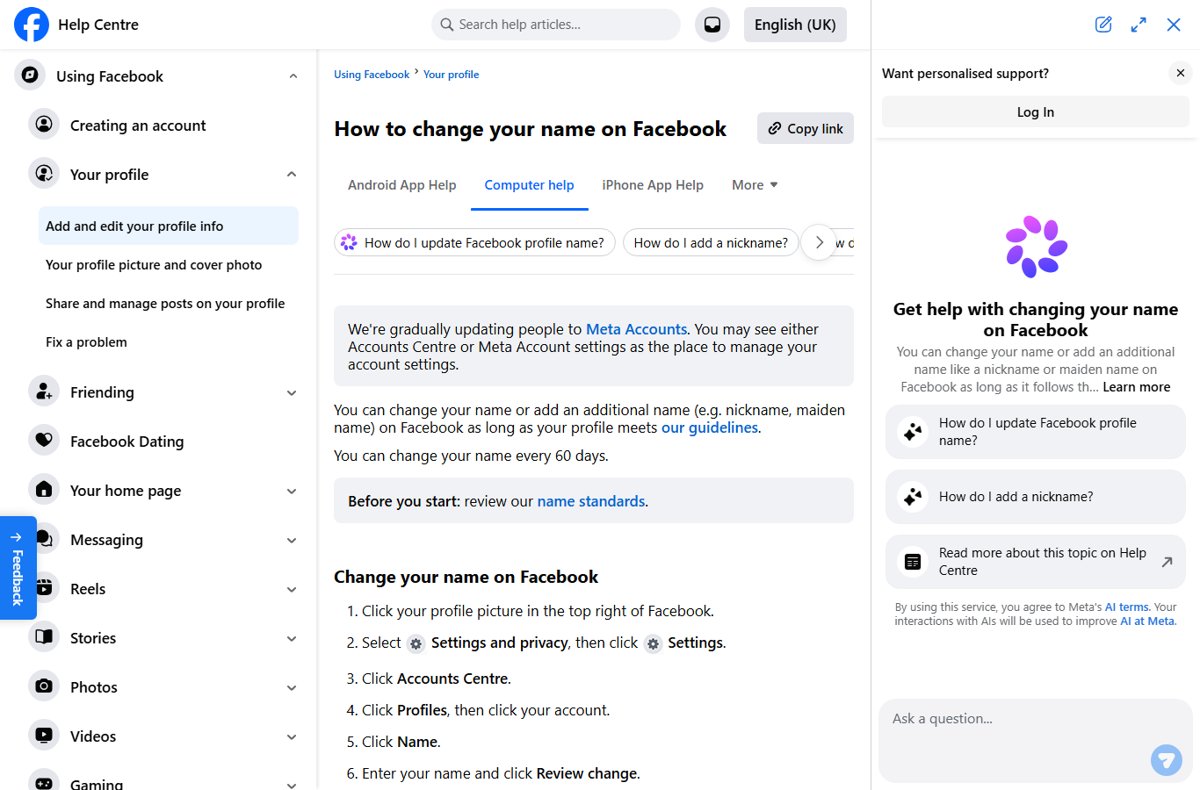
How to edit your Facebook name on desktop/laptop
These steps work in any desktop browser at facebook.com. Some accounts show Meta Account settings instead of Accounts Centre, because Meta is moving people to Meta Accounts gradually; the name option sits in the same place.
- Click your profile picture in the top-right corner of Facebook.
- Select Settings and privacy, then click Settings.
- Click Accounts Centre.
- Click Profiles, then click your Facebook account.
- Click Name.
- Type your first, middle (optional) and last name, then click Review change.
- Check how the name will appear and click Save changes.
The 60-day clock starts the moment you save, so check the spelling on the review screen before you confirm.
How to change your Facebook name on mobile devices (iOS & Android)
Meta publishes the same path for the Facebook app on iPhone and on Android. The only difference from desktop is that you start from the Menu instead of your profile picture.
- Open the Facebook app and tap Menu.
- Scroll down and tap Settings and privacy, then tap Settings.
- Tap Accounts Centre.
- Tap Profiles, then tap your Facebook account.
- Tap Name.
- Enter the new name and tap Review change.
- Tap Save changes.
The name change is not available on Facebook's basic mobile version in a mobile browser. Use the app or a desktop browser instead.
Which Facebook name setting should you change?
Facebook keeps several kinds of name in different places. Pick the row that matches what you actually want to change.
| What you want | Change this | Where it lives |
|---|---|---|
| Your main profile name (first and last) | Profile name | Settings > Accounts Centre > Profiles > Name |
| Show a nickname, maiden name or professional name alongside it | Other names | Profile > About > Names > Add other names |
| Rename a business, brand or fan page | Page name | Switch to the Page > Settings > Page setup > Name |
| Use a short version of your first name, such as Bob for Robert | Profile name | Allowed as a first or middle name when it is a variation of your real name |
| Keep the same name on Facebook and Instagram | Profile name in Accounts Centre | Accounts Centre lists both accounts under Profiles |
Why might you need to change your Facebook name?
Facebook expects the name people call you in everyday life. These are the common reasons that name changes, and the setting that handles each one.
| Reason | Best option | Note |
|---|---|---|
| Marriage or divorce | Change the profile name, and add the previous surname under Other names | Old friends can still find you by the other name |
| Legal name change | Change the profile name | Facebook may ask for ID that shows the new name |
| Spelling mistake from sign-up | Change the profile name | Counts toward the 60-day limit like any other change |
| You go by a nickname | Use the nickname as first or middle name, or add it as another name | Only a variation of your real name works as a first name |
| You work under a professional name | Add it under Other names | Choose the name type and tick Show at top of profile |
| You want a name for a business | Create or rename a Page | Profiles are for individual people only |
Important considerations before changing your Facebook name
Read these before you press Save changes. The first one catches most people.
| Rule | What it means for you |
|---|---|
| 60-day limit | After a change, you cannot change your name again for 60 days |
| Name standards | No symbols, numbers, unusual capitalisation, repeated characters or punctuation |
| One language | Characters from multiple languages in one name are refused |
| No titles | Professional or religious titles such as Dr or Rev are not allowed |
| No phrases | Words or phrases in place of a name are refused, as are offensive words |
| ID match | The name should appear on an ID or a document from Facebook's ID list |
| Instagram link | Accounts in the same Accounts Centre that share a first and last name are easier to find through recommendations |
How to change your Facebook name using a Page or business account
A Page name change is a request that Facebook reviews, not an instant edit. You need Facebook access to the Page; people with task access cannot request a name change.
- Log in to Facebook and click your profile photo in the top right.
- Click See all profiles, then select the Page you want to switch to.
- Click the Page photo in the top right, then click Settings and privacy > Settings.
- Click Page setup, then click Name.
- Below General Page settings, click Edit next to the Page name.
- Type the new Page name and click Review change.
- Enter your password, then click Request change.
Renaming a Page does not change its username or web address. Those are edited separately.
Additional Facebook features related to names
Other names let you show a nickname, maiden name or professional name without replacing the name on your ID. They are managed from your profile's About tab, not from Accounts Centre.
- Click your profile picture in the top right, then click your name to open your profile.
- Click About, then click Names.
- Click Add other names below Other names.
- Choose a type from the Name type list, such as nickname or maiden name.
- Enter the other name.
- Tick Show at top of profile if you want it shown next to your full name.
- Click Save.
Facebook also lets you add a name pronunciation to your profile and edit a language-specific version of your name.
How to check your new Facebook name is live
- Click your profile picture, then click your name to open your profile.
- Confirm the new name appears in large text at the top of the profile.
- Open Settings and privacy > Settings > Accounts Centre > Profiles and check the name listed under your Facebook account.
- If you added another name with Show at top of profile ticked, confirm it appears beside your full name.
If the old name still shows and no error appeared, you may have skipped Save changes on the final screen. Repeat the steps and finish on that button.
How to revert or remove your Facebook name change
A profile name change cannot be undone with one click. To go back to the old name, repeat the name-change steps once the 60-day limit has passed. Another name, by contrast, can be removed at any time.
- Open your profile and click About.
- Click Names.
- Click Edit to the right of the other name you want to change.
- Click Remove, then click Remove again to confirm.
- To restore your previous main name, wait until 60 days have passed, then follow the desktop or mobile steps above and type the old name.
Additional tips for a successful Facebook name change
| Tip | Why it helps |
|---|---|
| Use the name printed on an ID or on an item from the ID list | A confirmation request is easier to pass |
| Write it in normal capitalisation, such as Maria Lopez | Unusual capitalisation is refused |
| Keep the whole name in one alphabet | Mixed-language characters are refused |
| Put a nickname in the first or middle name field only if it is a variation of your real name | Other nicknames belong under Other names |
| Double-check the review screen | A typo locks you out of further changes for 60 days |
| Match the name on your Instagram account in Accounts Centre | Shared names help people find you through recommendations |
Troubleshooting common issues when editing your Facebook name
Name change not allowed, or you cannot edit your name after the limit
You already changed your name within the last 60 days.
- Note the date of your last name change.
- Wait until 60 days have passed since that date.
- Repeat the steps from Accounts Centre > Profiles > Name.
- If you need a nickname shown before then, add it under About > Names > Add other names instead.
Name not meeting guidelines
The name contains something the name standards refuse.
- Remove any numbers, symbols, extra punctuation or repeated letters.
- Remove titles such as Dr, Mr or Pastor.
- Write the name in one alphabet with standard capitalisation.
- Click Review change again.
Facebook requests identification or asks you to confirm your name
Facebook wants proof that the name is the one you use in everyday life.
- Log in and follow the on-screen instructions in the confirmation message.
- Upload an ID, or another item from Facebook's ID list such as a membership card or letter, that shows the name.
- Expect some features to be unavailable until the name is confirmed or edited.
Cannot find name settings
Your account uses Meta Account settings, or you are on a basic mobile browser.
- Look for Meta Account settings where Accounts Centre would normally appear.
- Open Profiles there and select your Facebook account.
- If you use a basic mobile browser, switch to the Facebook app or a desktop browser, because the option is not offered there.
No option to edit a Page name
Your Page access does not allow it, the name changed recently, or the Page has limits.
- Check that you have Facebook access to the Page, not task access.
- Ask whether another admin renamed the Page recently.
- Check whether the Page is a regional Page included in a global Page, because those names cannot be changed.
Important privacy and security tips for your Facebook name
| Fact | What to do about it |
|---|---|
| Your name is part of your public profile and is always public | Choose a name you are comfortable having found in Facebook and web search, even by people who browse Facebook without an account |
| Other names stay visible in About and in search even when not shown at the top | Only add names you want people to search for |
| Pretending to be someone else is not allowed | Never use a celebrity or another person's name |
| Profiles are for individuals only | Create a Page for a business, organisation or idea |
| Someone you want to avoid can still see a public name | Block that person if you do not want them to see your name or profile |
Frequently asked questions (FAQs)
How do I edit my name on my Facebook profile?
Click your profile picture, then go to Settings and privacy > Settings > Accounts Centre > Profiles, select your account and click Name. Enter the new name, click Review change and then Save changes. Your next change is possible after 60 days.
How do I edit my name in the Facebook app?
Tap Menu, then Settings and privacy > Settings > Accounts Centre > Profiles. Tap your account, tap Name, enter the new name, tap Review change and tap Save changes. The steps are the same on iPhone and Android.
Where is the name setting in Facebook settings?
The name setting sits inside Accounts Centre, under Profiles and then your Facebook account. Some accounts show Meta Account settings instead of Accounts Centre while Meta moves people to Meta Accounts. The Name option is in the same place in both.
Can I edit my name on Facebook after the limit?
No. Facebook allows one name change every 60 days, and the option stays blocked until that period ends. You can still add a nickname or maiden name under About > Names in the meantime, because other names live in a separate setting.
Why can't I edit my name on Facebook?
The usual reasons are a change within the last 60 days, or a name that breaks the name standards with numbers, symbols, titles or mixed languages. Facebook may also ask you to confirm your name with ID before it accepts the change.
Can you change your Facebook name to a nickname?
Yes, if the nickname is a variation of your real name, such as Bob for Robert. It can go in the first or middle name field. Any other nickname belongs under Other names, where you can choose to show it next to your full name.
How does changing your name on Facebook work?
You type the new name, preview it with Review change, and confirm with Save changes. The change starts a 60-day wait before the next change, and may trigger a request to confirm the name with ID.
How do I change my Facebook Page name?
Switch into the Page through See all profiles, then open Settings and privacy > Settings > Page setup > Name. Click Edit, enter the new name, click Review change, enter your password and click Request change. The username stays the same.
Editing your Facebook name: final thoughts
Change your main name only in Accounts Centre, and put nicknames, maiden names and professional names under Other names. The main name is locked for 60 days after each change and may need ID, while other names can be added or removed at any time.