To factory reset an Oculus Quest, turn the headset off, hold the power and volume down (-) buttons until the boot screen appears, then select Factory Reset and confirm with Yes.
The same steps work on Meta Quest 2, Quest 3, Quest 3S and Quest Pro; this guide also covers the phone app route, backups, what gets erased and fixes when the boot screen will not load.
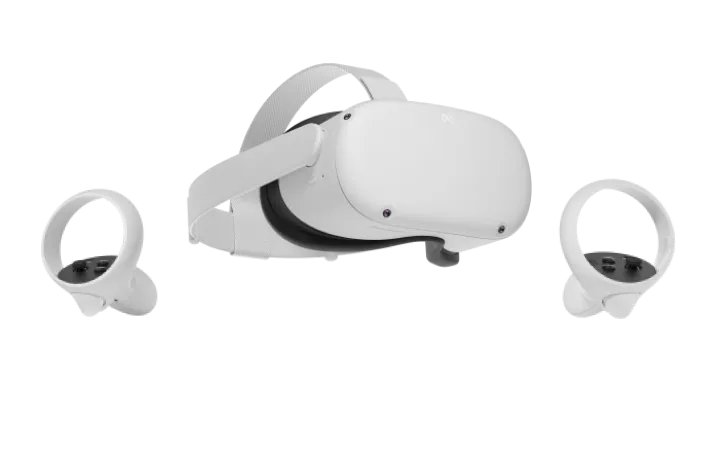
How to factory reset Oculus Quest
This is the reset Meta documents for the headset itself. It works even when the headset will not boot to the home screen, because it runs from the boot menu.
Charge the headset to at least 50% first; Meta asks for that before any factory reset.
- Turn off the headset completely.
- Hold the power button and the volume down (-) button at the same time until the boot screen loads.
- Press the volume buttons to highlight Factory Reset, then press the power button.
- Press the volume buttons to highlight Yes, then press the power button to confirm.
- Wait while the headset erases itself and restarts to the first-time setup screen.
If the boot screen does not appear, charge the headset and try again. A reset cannot be undone, so read the backup section first if the headset still works.
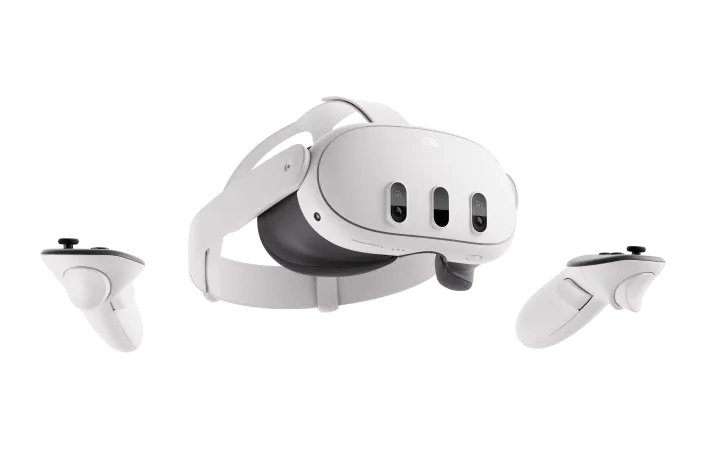
Which reset method should you use?
| Your situation | Use this | Why |
|---|---|---|
| Headset is with you, working or not | Power + volume down boot menu | Works on any Quest model, even when the headset will not start normally |
| Headset is paired to your phone and nearby | Meta Horizon app | Lets you start the reset from the phone without the button combination |
| Headset is lost or stolen | Remote reset from your Meta account | Erases your account and data from a headset you no longer have |
| Headset is slow, freezing or an app misbehaves | Restart or update first | Meta treats a factory reset as the last resort |
| Organisation-managed (work or school) headset | Boot menu, or ask your admin | Admins can wipe or release managed devices remotely |
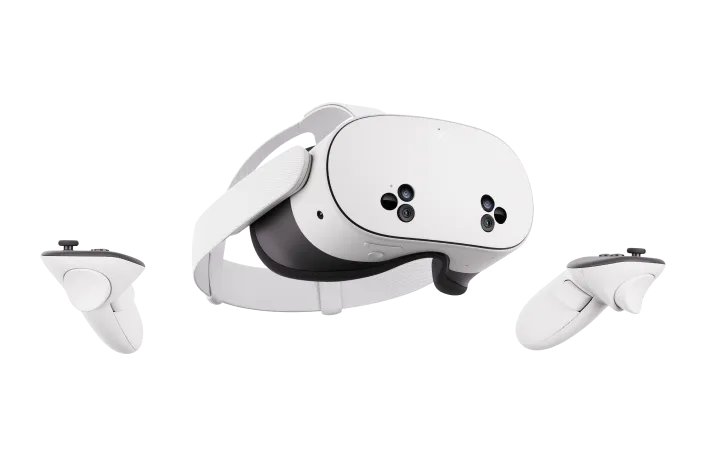
What to do before selling or giving away your Quest
Do these steps while the headset still works. They protect your saves, your media and your account before the wipe.
- Press the Meta (or Oculus) button on the right controller, select Quick controls > Settings > General > Cloud backup, and turn the Cloud backup toggle on.
- Check which of your apps support cloud backup at
secure.oculus.com/my/cloud-backupon a computer. - If you use end-to-end encrypted backup, note your encryption PIN; Meta cannot reset it or restore the backup without it.
- Connect the headset to a Windows PC with a USB-C cable, allow access in the headset, and copy photos and videos from Internal shared storage > Oculus > Screenshots and VideoShots.
- Charge the headset to at least 50%.
- Run the factory reset from the boot menu or the app so the buyer gets a headset without your account.
Your purchases stay on your Meta account after the reset, so you can download them again on your next headset.
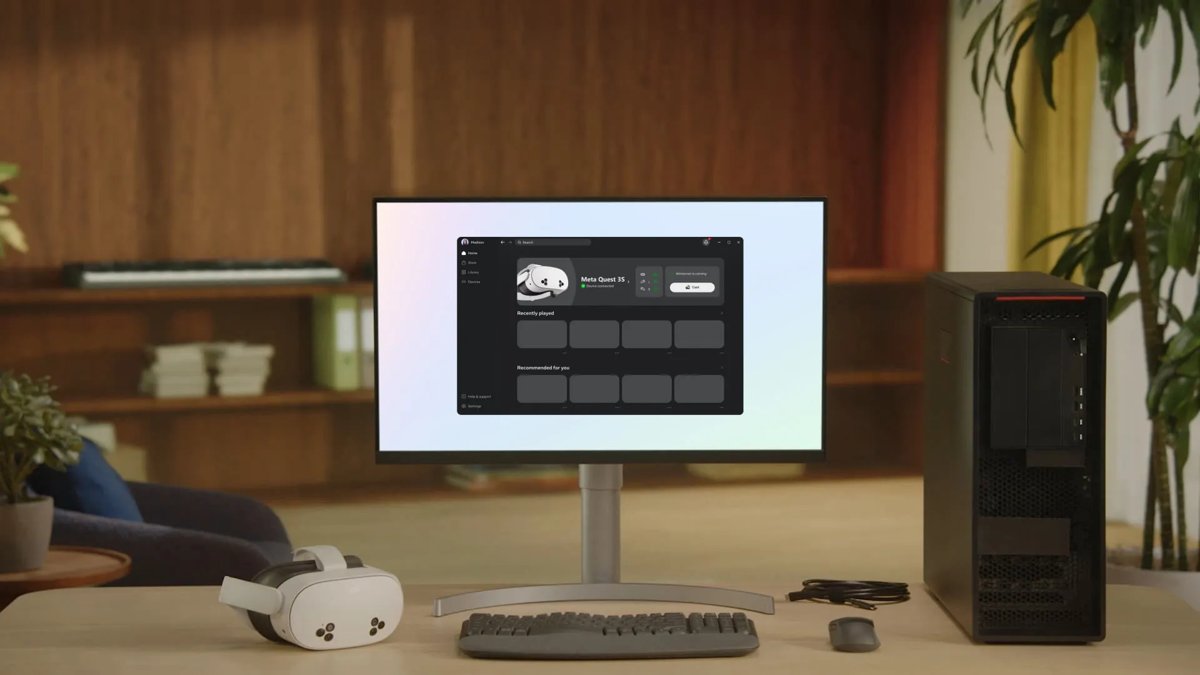
Factory reset Oculus Quest 2 without the headset buttons: Meta Horizon app
Meta lists the Meta Horizon phone app as the second way to factory reset a Quest. The phone must be signed in to the same Meta account and paired with the headset.
- Turn on the headset and keep it near your phone.
- Open the Meta Horizon app on your phone.
- Open your devices list and select the paired headset.
- Open the headset's settings and choose the factory reset option.
- Confirm the reset; the headset erases itself and restarts to setup.
If the app cannot find the headset, use the boot-menu method instead. It needs no phone, no Wi-Fi and no working home screen.
How to tell the Oculus Quest factory reset worked
- Put the headset on after it restarts; it should show the first-time setup screen instead of your home environment.
- Follow the setup prompts and sign in with your Meta account, or leave it at this screen if you are selling it.
- Open your library and reinstall your games; purchased content is still on your account.
- Launch a game that supports cloud backup and check that your progress returns.
What a factory reset actually does to your Quest
| Item | After a factory reset | How to keep it |
|---|---|---|
| Account information on the headset | Erased | Sign in again during setup |
| Downloaded games and apps | Erased from the headset | Reinstall from your library |
| Games you bought | Kept on your Meta account | Nothing to do |
| App progress and settings | Erased from the headset | Turn on cloud backup before the reset |
| Photos and videos you captured | Erased | Copy them to a computer first |
| System settings | Back to original | Set them again after setup |
Meta describes the reset as irreversible. There is no recycle bin or undo after you confirm Yes.
When a factory reset is the right call
| Situation | Factory reset? | Reason |
|---|---|---|
| Selling, gifting or returning the headset | Yes | Removes your account and data for the next owner |
| Headset lost or stolen | Yes, remotely | Protects your account and personal information |
| Problem persists after a restart and a software update | Yes | Meta recommends the reset only after those steps |
| One app crashes or runs badly | No | Clear that app's data or reinstall it instead |
| Storage is full | No | Delete apps or files in Settings > General > Storage |
| Headset bought second-hand and disabled as lost or stolen | No | Meta cannot re-enable it; contact the seller |
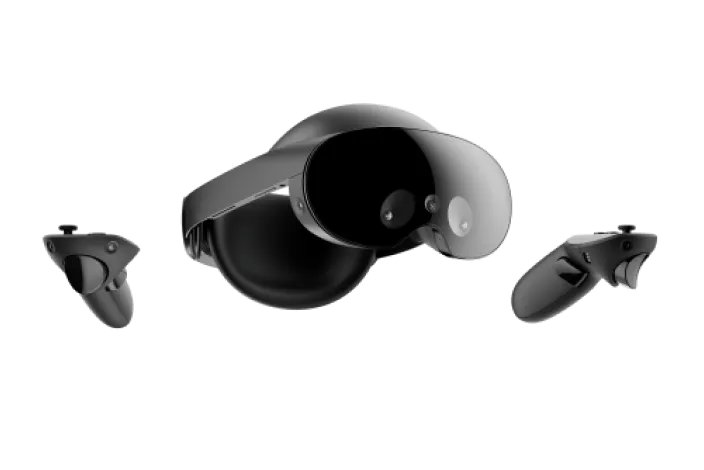
Alternatives to a full factory reset
| Alternative | How to do it | What it fixes |
|---|---|---|
| Restart the headset | Hold power until the Power off screen appears, then select Restart | Sluggish menus and minor glitches |
| Force restart | Hold power for at least 30 seconds, wait 30 seconds, then press power if it does not turn back on | A frozen or unresponsive headset |
| Update the system software | Use Meta's software update tool on a computer with 2 GB free and the USB-C cable | Slow performance and unresponsive apps, without erasing data |
| Clear storage on individual apps | Open Settings > General > Storage and select Delete next to an app or file | Full storage and a single broken app |
The update tool supports Meta Quest 2, Quest 3S, Quest 3 and Quest Pro, and Meta says updating does not affect app progress or settings.
Oculus Quest still not working after a reset? Try these next
The boot screen will not open when holding power and volume down
The battery is too low, or the headset was not fully off.
- Charge the headset for a while with the original charger.
- Hold power for 30 seconds to force it off.
- Hold power and volume down (-) together again until the boot screen loads.
Quest freezes or stays unresponsive after the factory reset
The system software needs a repair install.
- Open Meta's software update tool on a computer.
- Select your model and connect the headset with the USB-C cable.
- Follow the tool's prompts to update the headset software.
Game progress is missing after the reset
Cloud backup was off, or the game does not support it.
- Reinstall the game from your library.
- Check
secure.oculus.com/my/cloud-backupto see whether the game backs up. - Enter your end-to-end encryption PIN if setup asks for it.
A second-hand headset shows errors and will not set up
Meta remotely disabled a headset reported lost or stolen.
- Contact the person or retailer you bought it from.
- Keep your proof of purchase; Meta cannot re-enable a disabled headset.
Oculus Quest factory reset FAQ
How do I factory reset my Oculus Quest 2?
Turn the Quest 2 off, hold power and volume down (-) until the boot screen loads, highlight Factory Reset with the volume buttons, press power, then select Yes. You can also start the reset from the Meta Horizon app on a paired phone.
How do I factory reset an Oculus Quest 3 or Quest 3S?
Use the same boot-menu method: switch the headset off, hold power and volume down (-) together, choose Factory Reset, then Yes. Charge it to at least 50% first and turn on cloud backup if you want to keep game progress.
How do I reset the original Oculus Quest 1?
The original Quest uses the same power and volume-down boot menu. Turn it off, hold both buttons until the boot screen appears, select Factory Reset, then confirm Yes. It is not listed in Meta's software update tool, so the boot menu is the main recovery option.
How do I factory reset a Meta Quest Pro?
Turn the Quest Pro off, hold power and volume down (-) until the boot screen loads, select Factory Reset and confirm Yes. The Meta Horizon app can also start the reset when the headset is paired to your phone.
Can I factory reset an Oculus Quest 2 without the phone app?
Yes. The boot-menu method needs only the headset buttons: power and volume down. It works without a phone, Wi-Fi or a working home screen, which makes it the fix for a headset that will not start normally.
Can I factory reset an Oculus Quest 2 from a PC?
No factory reset runs from a PC. A computer can run Meta's software update tool over USB-C to repair the system software without erasing data. For a full wipe, use the headset's boot menu or the phone app. A PC is mainly for Meta Quest Link and copying media.
Will a factory reset delete my purchased games?
No. Purchases stay on your Meta account and can be downloaded again. The reset removes the installed copies, account information and local data from the headset, so turn on cloud backup to keep app progress.
How do I fully reset an Oculus Quest 2 before selling it?
Turn on cloud backup, copy your photos and videos to a computer, charge to 50%, then run Factory Reset from the boot menu. The headset restarts to first-time setup with your account removed.
What do I do if the boot menu will not open?
Charge the headset and try again. Meta notes the boot screen may not load on a low battery. Force it off by holding power for 30 seconds, then hold power and volume down (-) together until the boot screen appears.
Does a factory reset fix Oculus Quest tracking problems?
Sometimes, but Meta treats the reset as the last resort. Restart the headset and update its software first; both can clear software faults without erasing anything. Reset only if the problem persists after those steps.
Quick summary: how to factory reset Oculus Quest
Use the power and volume-down boot menu to factory reset any Quest, after turning on cloud backup and copying your photos. It works on every model, needs no phone or working home screen, and your purchased games stay on your account for reinstalling. You can also cast your Quest to a computer screen once setup is done.