To force a copy of a Google Form, make the copy yourself with Make a copy, share that copy with the person as Editor, then transfer ownership so the new form is theirs and your original stays untouched.
Google's Forms help documents no special force-copy link, so this guide covers the routes Google does document: copying and handing over a form, sharing editor access so people copy it themselves, importing questions, and choosing between responder and collaborator links.
The fastest way to force a copy of a Google Form
These steps give another person a separate form that they own. Nothing they change afterwards touches your original or its responses.
- Open the form at forms.google.com.
- At the top right, click More, then click Make a copy. Google's shared instructions for Docs, Sheets, Slides and Forms describe the same command as File > Make a copy.
- Type a name for the copy, choose where to save it, then click Ok.
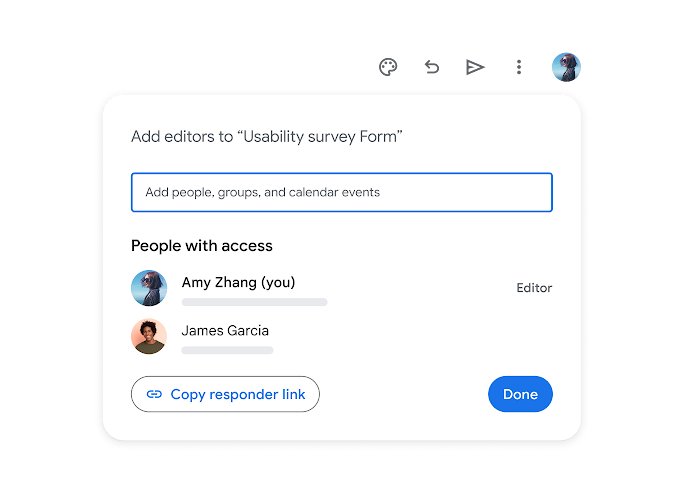
- In the new copy, click Share, enter the person's name or email, click the Down arrow and select Editor, then click Send.
- Click Share again. Under People with access, click the Down arrow next to their name.
- Select Transfer ownership, then click Yes.
Google requires editor access before ownership can move, which is why step 4 comes first. Keep your original form private, and the other person now has a copy they control.
Understanding the need to force a copy of a Google Form
A shared form is one live file. Everyone with editor access works on the same questions, the same settings and the same responses, so a shared original is a poor way to hand out a starting point.
| What happens | Shared original (Editor access) | Separate copy |
|---|---|---|
| Question edits | Every edit changes your live form | Edits stay in their copy |
| Responses | Collaborators can see and manage your responses | The copy collects its own responses |
| Response spreadsheet | Collaborators automatically get access to a new response spreadsheet | They link their own spreadsheet |
| Response storage settings | Collaborators can change where responses are saved | They choose their own response destination |
| Ownership | You stay the owner | They can be made the owner |
The table is why teachers, trainers and team leads hand out copies rather than editor links. A copy is a template; an editor link is shared control of your live form.
Why not just share the Google Form link?
A Google Form has two kinds of access, and neither one creates a copy. Since Google's 2024 update, the Share dialog grants people either Responder or Editor access, and each role opens a different view of the form.
| What you want the other person to do | Share this | What they get |
|---|---|---|
| Fill in the form | The responder link from Copy responder link | The fill-in page only, with no way to edit or copy the form |
| Help you build or run this exact form | Editor access (a collaborator) | Full edit control of your live form and its responses |
| Get their own version to adapt | A copy you made, then ownership transferred | A separate form they own |
| Build a copy themselves | Editor access on a spare copy, never your live original | They click Make a copy in the edit view |
| Reuse only some questions | Editor access to a source form | They pull questions in with Import questions |
A responder link cannot force a copy, because responders never see the editing view where Make a copy lives. That is the most common reason a "template" link fails.
Methods to force a copy of a Google Form
Use this method when many people need their own version. Instead of making each copy yourself, share a spare copy that people copy from, so your live form never has shared editors.
- Open your form and click More > Make a copy. Name it clearly, for example "Template – do not edit".
- In the template copy, click Share.
- Enter the names of the people or Google Groups who need the template.
- Click the Down arrow next to their names and select Editor.
- Optional: click Add expiration, select a date in the calendar and click Done, so their access to the template ends automatically.
- Click Send.
- Tell recipients to open the template and click More > Make a copy before changing anything.
Each recipient's copy is a new file in their own Drive, and Google Drive makes you the owner of files you create. Anyone who edits the template instead of copying it changes it for everyone, so the expiration date limits the damage.
Method 2: Import questions into your own form
Use this when someone only needs a set of questions, not the whole form. The recipient needs access to the source form so it appears in their import list.
- In Google Forms, open the form you want to add questions to.
- At the right, click Add question, then Import questions.
- Click the form with the questions you want and click Select.
- On the right, tick the box next to each question you want to add.
- Click Import questions.
Imported questions become part of the form you imported them into, so you can edit them there like any other question.
Method 3: Use an organisation template gallery
Work and school accounts can use templates, and Google's Learning Center describes creating your own template and submitting it to your organisation's template gallery. Opening a template always creates a copy, which is the closest Google comes to a built-in forced copy.
- Sign in with your Google Account for work or school.
- Go to the Google Forms home screen.
- At the top right, click Template Gallery.
- Click the template you want to use.
- Edit the copy that opens. The gallery template itself stays unchanged.
Template features differ between work or school accounts and personal accounts, and submitting to the gallery depends on your administrator. If your gallery has no custom section, use the direct-answer method instead.
Best practices for distributing "force a copy" links
Most problems with shared templates come from access that outlives its purpose. These habits keep your original clean and your copies separate.
| Practice | Why it matters | Where to set it |
|---|---|---|
| Never give Editor access to your live form for copying | Editors can change questions, settings and responses | Share a spare template copy instead |
| Add an expiration date to template access | Access ends without you remembering to remove it | Share > Down arrow > Add expiration |
| Share with a Google Group for large classes or teams | One entry covers everyone and follows the group's membership | Share > enter the group name |
| Fix the response spreadsheet separately | Form permission changes do not sync to an already linked sheet | Update sharing on the form and the sheet |
| Send the responder link to people who only answer | The responder link cannot expose the edit view | Share > Copy responder link |
| Check who can see the owner details | Link sharing shows your name and email as the owner | Use a shared account or group if that matters |
How to check the copy is really separate
A copy and a shared original look identical on screen. Check ownership and sharing before you tell anyone to start editing.
- Open the copy and look at its title. It should be the name you typed, not the original's name.
- Click Share and read the list under People with access.
- Confirm the recipient is listed as the owner if you transferred ownership, or as Editor if you did not.
- Open your original form, click Share and confirm the recipient is not listed there.
- Make a small test edit in the copy, then reopen your original and confirm the edit is not there.
If the recipient appears on your original's People with access list, they are editing your live form. Remove their access and send them a copy instead.
Troubleshooting common Google Form copy issues
The recipient sees "You need access"
They lack permission, or they are signed in to a Google Account that was not given access.
- Ask them to click Request access on the "You need access" page.
- Approve the request, or click Share and add their email with the right role.
- If they use several accounts, ask them to switch to the account you shared with and open the link again.
- For a work or school form, share with their specific account or group, because such forms are limited to the organisation by default.
The link opens the questions to answer, with no Make a copy option
You sent the responder link, which only opens the fill-in page.
- Open the form and click Share.
- Add the person and select Editor on a spare template copy, not your live form.
- Send them the form from the Share dialog rather than the responder link.
- Ask them to open it and click More > Make a copy.
Responders in a partner organisation can no longer open a copied form
Google removed trusted-domain access to restricted forms on September 8, 2025, and upgraded older forms by December 2025.
- Open the form and click Share at the top right.
- Add the responders as individuals, a Google Group or a target audience.
- Select Responder for them and click Send.
- Check the form shows Published at the top right.
Former collaborators can still see responses in the spreadsheet
Permission changes on a form do not sync to a response spreadsheet that already exists.
- Open the linked response spreadsheet.
- Click Share and remove or downgrade the former collaborators.
- Repeat the change on the form itself so both match.
Force a copy of a Google Form: frequently asked questions
What is a forced copy?
A forced copy is a way of sharing a file so the recipient ends up with their own copy instead of access to your original. For Google Forms, the documented way to get that result is to make the copy yourself and transfer its ownership to the other person.
How do I make a force copy link for a Google Form?
Google's Forms help documents no force-copy link. The closest documented setup is a spare template copy shared as Editor, with an expiration date, and an instruction to click More > Make a copy. A responder link cannot do this, because it never shows the edit view.
How do I make a copy of a Google Form?
Open the form, click More at the top right, then Make a copy. Type a name, choose where to save it and click Ok. The copy is a new file in your Drive, and edits to it never change the original.
How do I force a copy of a Google Doc?
Make the copy with File > Make a copy, share it with the person as Editor, then transfer ownership from the Share dialog. Google also documents File > Make a copy for the recipient if you share a template document with them.
How do I force a copy on Google Slides?
Use the same routine as Docs. Open the presentation, click File > Make a copy, type a name and click Ok. Share the copy, or let recipients copy a template presentation you have shared with them.
How do I force a copy on Google Sheets?
Open the spreadsheet and click File > Make a copy, then share or transfer the new file. In Sheets, Docs and Slides, owners can also untick which roles can download, copy and print from the Share dialog's Settings.
Can someone copy my Google Form from the responder link?
No. A responder link opens only the fill-in page, which has no editing menu and no Make a copy command. People need Editor access to a form before they can copy it.
Forcing a copy of a Google Form: final thoughts
Make the copy yourself, share it as Editor and transfer ownership whenever one person needs their own version of a Google Form. It is the only route built entirely from features Google documents, it never exposes your live form or its responses, and the recipient ends up owning a form they can change freely.
For large groups, share a spare template copy with an expiration date and ask people to click Make a copy. Keep the responder link for people who only answer. Word templates sent by email work the same way: make a copy of the Word document and send the copy, not your master file.