To add the EA app to your desktop, install it from ea.com/ea-app, press the Windows key, find the EA app in the app list and drag it onto the desktop to create a shortcut.
This guide covers downloading and installing the EA app, signing in, pinning it to the taskbar or Start, fixing installation problems and removing it cleanly.
How to put the EA app on your desktop
If the EA app is already installed, this takes a few seconds. Skip to the install section below if it is not.
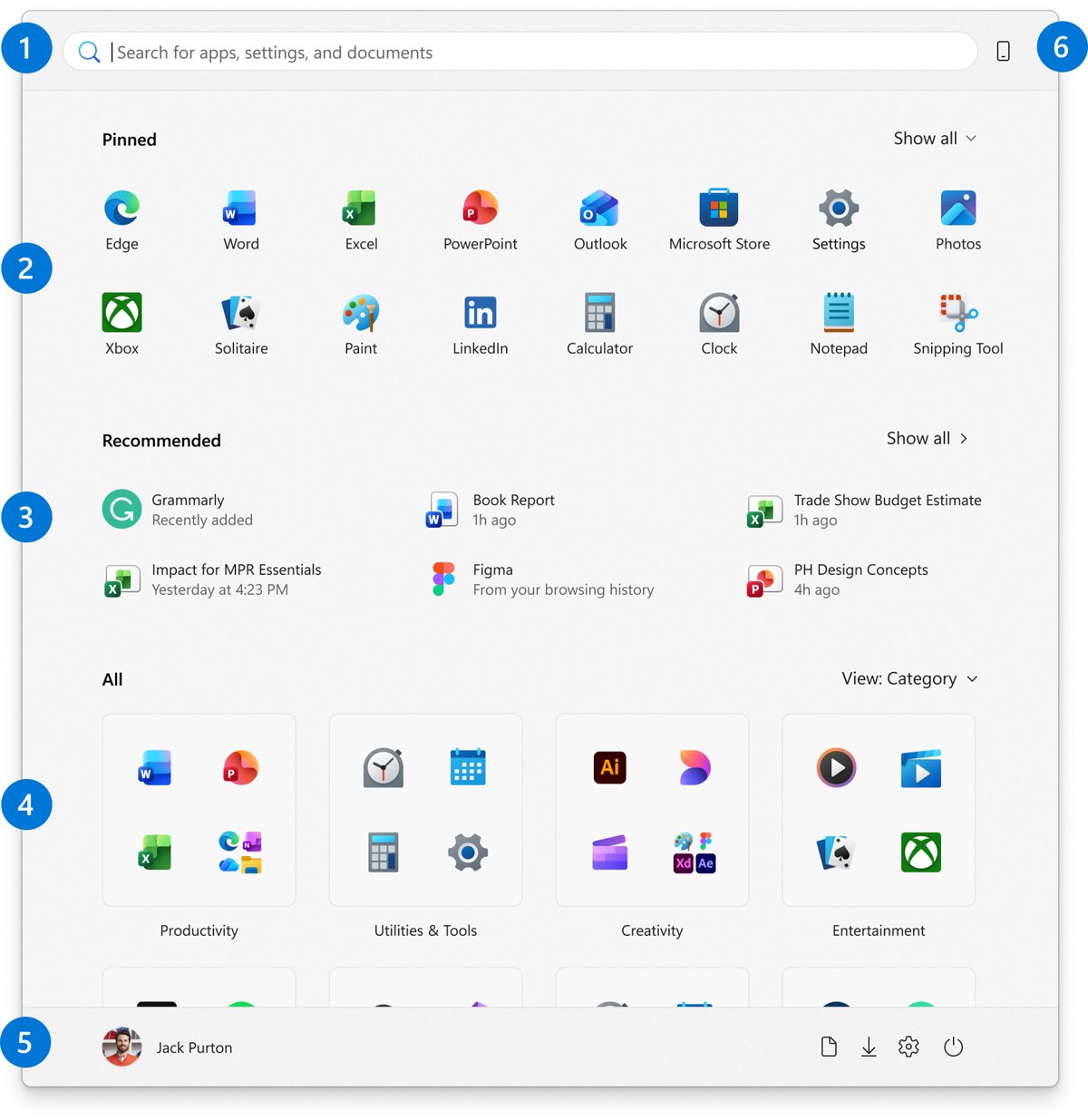
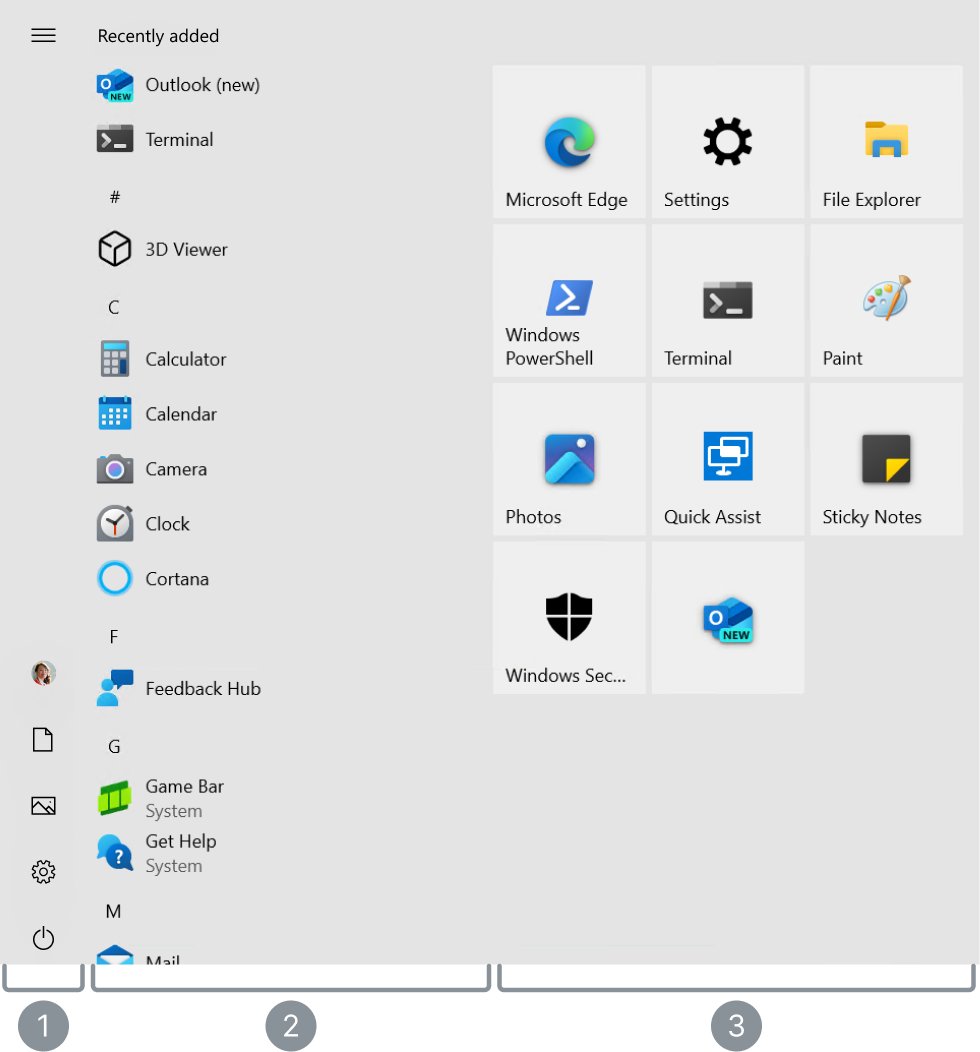
- Press the Windows key to open Start.
- In Windows 11, select All to show every installed app; in Windows 10 the list appears straight away.
- Scroll to the EA app in the alphabetical list.
- Left-click the app name and drag it onto an empty part of your desktop.
- Release the mouse button; an EA app shortcut appears on the desktop.
The same drag method works for any installed program, for example to add Slack to the desktop.
Which shortcut should you create?
| You want to | Use this | Why |
|---|---|---|
| Double-click an icon on the desktop | Drag from Start > All to the desktop | Creates a normal desktop shortcut |
| Open it in one click while other windows are open | Pin to taskbar | The taskbar is always visible |
| Keep it at the top of the Start menu | Pin to Start | Keeps the desktop uncluttered |
| Launch EA games from Steam or Epic | Install the EA app anyway | EA says the EA app is required to play EA games on PC |
Understanding the EA App and Its Benefits
| Fact | Details |
|---|---|
| What it is | Electronic Arts' PC and Mac launcher for downloading, playing and managing EA games |
| What it replaced | Origin, on both PC and Mac |
| Price | Free to download; games and subscriptions are bought separately |
| Account link | Connects your EA Account across gaming platforms to import friends lists |
| Library | Browse new releases and manage your whole EA game collection in one place |
| Steam and Epic games | EA titles bought on those stores still need the EA app; launching them prompts you to install it |
Prerequisites for Installing the EA App
| Requirement | Details |
|---|---|
| System requirements (Windows) | A 64-bit PC running Windows 10 or Windows 11 |
| System requirements (Mac) | macOS Catalina or newer |
| Necessary accounts | An EA Account ID and password; that is all the app needs to sign in |
| Necessary permissions | A Windows account allowed to install programs, or an administrator who can approve the prompt |
| Additional preparations | A stable internet connection and free disk space for the app plus the games you plan to install |
Step-by-Step Guide to Downloading the EA App
Download only from EA's own website. Copies from download portals can be outdated or bundled with other software.
- Open your web browser, such as Microsoft Edge or Chrome.
- Visit the official EA website at
https://www.ea.com/ea-app. - Locate the download buttons on the EA app download page.
- Initiate the download by selecting the Windows download; the file is named
EAappInstaller.exe. - Open your Downloads folder when the download finishes.
Installing the EA App on Your Desktop
- Step 1: Download the EA app installer as described above.
- Step 2: Run the installer by double-clicking
EAappInstaller.exe, and select Yes if Windows asks for permission. - Step 3: Follow the installation prompts: accept the terms and conditions, and choose any installation preferences offered.
- Wait for the installer to complete the installation.
- Step 4: Launch the EA app from the installer or from Start.
Once it is installed, return to the first section to add the desktop shortcut.
Setting Up and Logging into the EA App
Download and install the EA app first, then sign in. Your EA Account ID and password are all you need.
- Open the EA app from the desktop shortcut.
- Enter your EA Account ID or email address and your password.
- Complete any verification EA asks for on screen.
- If you have no EA Account yet, choose the option to create one and follow the prompts.
- Wait for your game library to load.
Additional tips: if you played through Origin before, sign in with the same EA Account so your library carries over.
Customizing Settings and Preferences in the EA App
EA changes the app's layout with updates, so the exact labels can move. These are the areas to look at once you open the settings menu from the app's main menu.
| Area | What to check |
|---|---|
| Opening the settings menu | Open the app's main menu and select Settings |
| Adjusting general preferences | Look for start-up and language options |
| Managing download and installation options | Look for the game install location and update options |
| Personalizing the interface | Look for notification and display options |
| Saving changes and exiting | Close the settings view when done, then restart the app if a change asks for it |
Pin the EA app to the taskbar or Start
- Type EA in the search box on the taskbar.
- Right-click the EA app in the results.
- Select Pin to taskbar or Pin to Start.
- If the EA app is already open, you can instead right-click its icon on the taskbar and select Pin to taskbar.
- To remove it later, right-click the pinned icon and select Unpin from taskbar.
How to check it worked
- Look for the EA app icon on your desktop.
- Double-click it and confirm the EA app opens to the sign-in screen or your library.
- Check Settings > Apps > Installed apps and confirm the EA app is listed.
Troubleshooting Common Installation Issues
The installer will not run or stops straight away
The PC does not meet the system requirements, such as a 32-bit Windows or a version older than Windows 10.
- Check system requirements: open Settings > System > About and confirm a 64-bit operating system.
- Update Windows if it is older than Windows 10.
- Run the installer again.
Installation fails with a permissions error
Your account cannot install programs.
- Right-click
EAappInstaller.exeand select Run as administrator. - Enter an administrator password if Windows asks for one.
- Follow the prompts to finish.
Security software blocks the installer
Antivirus or firewall software has flagged or quarantined the download.
- Do not disable your antivirus or firewall, even temporarily.
- Check that the file came from
https://www.ea.com/ea-app. - Open your security software's quarantine or blocked list and allow only the official EA installer.
- Run Windows Security on the file if you are unsure where it came from.
A previous install conflicts with the new one
Existing software from a failed or older installation is still present.
- Open Settings > Apps > Installed apps.
- Uninstall any earlier EA app entry.
- Restart the PC and run a freshly downloaded installer.
The installer appears corrupt
A broken or partial download, or leftover temporary files.
- Delete the old installer from your Downloads folder to clear the temporary files it created.
- Download a fresh copy from EA's website.
- Run the new installer.
The EA app is installed but will not open
The installation is damaged.
- Use the Windows repair tool: open Settings > Apps > Installed apps, select More next to the EA app, then Advanced options and Repair if shown.
- If repair is not offered, open Control Panel > Programs > Programs and Features, right-click the EA app and select Repair or Change.
- If that fails, uninstall and reinstall the app.
- Contact support through
https://help.ea.com/en/contact-us/if it still will not open.
Updating and Maintaining the EA App
| Task | How |
|---|---|
| Checking for updates | Close and reopen the EA app, then accept any app update it offers |
| Automating updates | Look in the app's download settings for automatic game update options |
| Maintaining the EA app | Keep Windows updated, keep free disk space for game patches, and repair the app from Installed apps if it misbehaves |
| Reinstalling cleanly | Uninstall, restart, then install the latest copy from ea.com/ea-app |
Uninstalling the EA App if Necessary
- Step 1: Close the EA app, including any EA icon in the system tray.
- Step 2: Use the built-in uninstall method: select Start > Settings > Apps > Installed apps.
- Find the EA app, select More > Uninstall, and follow the prompts.
- If it is not listed there, open Control Panel > Programs > Programs and Features, right-click the EA app and select Uninstall/Change.
- Step 3 (optional): remove remaining files, such as the desktop shortcut, by deleting them manually.
- Step 4: Restart your computer.
Uninstalling the EA app does not delete your EA Account or your purchases.
Additional Tips for Optimal Use of the EA App on Desktop
| Tip | Why |
|---|---|
| Download only from ea.com | Avoids fake or bundled installers |
| Install games on your fastest drive | Shorter load times |
| Use one EA Account everywhere | Keeps your library and friends list in one place |
| Keep the app updated | Older versions can stop games from launching |
| Pin it to the taskbar as well as the desktop | Reachable even when windows cover the desktop |
Frequently asked questions
How do I put the EA app on my desktop?
Press the Windows key, select All in Windows 11, find the EA app and drag it onto the desktop. Windows creates a shortcut that you can double-click to open the app.
How do I get the EA app on Windows?
Go to https://www.ea.com/ea-app in your browser, download the Windows installer, and run EAappInstaller.exe. The app needs a 64-bit PC running Windows 10 or Windows 11.
How do I install the EA app?
Download EAappInstaller.exe from EA's website, double-click it, approve the Windows permission prompt and follow the on-screen steps. Sign in with your EA Account ID and password when it opens.
How do I add the EA app to Steam?
You do not need to. EA games bought on Steam still require the EA app, and launching one from Steam prompts you to install it if it is missing. The two launchers work alongside each other.
How do I add an app to the taskbar in Windows 11?
Type the app's name in the taskbar search box, right-click it in the results and select Pin to taskbar. If the app is already open, right-click its taskbar icon and choose Pin to taskbar.
How do I add games to the EA app?
Sign in with the EA Account that owns the games, and they appear in your library. Linking your EA Account to other gaming platforms brings in your connected games and friends.
How do I get the EA app to work?
Confirm your PC runs 64-bit Windows 10 or 11, then repair the app from Settings > Apps > Installed apps > Advanced options. If repair is not available, uninstall it, restart and reinstall the latest version from ea.com.
Is the EA app free?
Yes. The EA app is free to download for Windows and Mac. You pay only for the games and any EA subscription you choose.
Conclusion
Install the EA app from ea.com/ea-app, then drag it from Start > All to the desktop and pin it to the taskbar too. Two shortcuts take seconds to create and make the app reachable whether the desktop is visible or covered by windows.