Microsoft has retired Wallet in Edge, so you now reach your saved passwords, payment cards and personal info in Edge under Settings > Passwords and autofill, signed in with the same Microsoft account you used for Wallet.
This covers where each former Wallet section lives now, on PC and phone, plus passkeys, Password Monitor, sync, import, export and the fixes for data that seems to be missing.
The fastest way to open your Wallet data in Edge
Microsoft's support page "Wallet is retired in Microsoft Edge" (checked September 2026) says your stored passwords, payments and personal information remain intact. They simply moved into Edge settings.
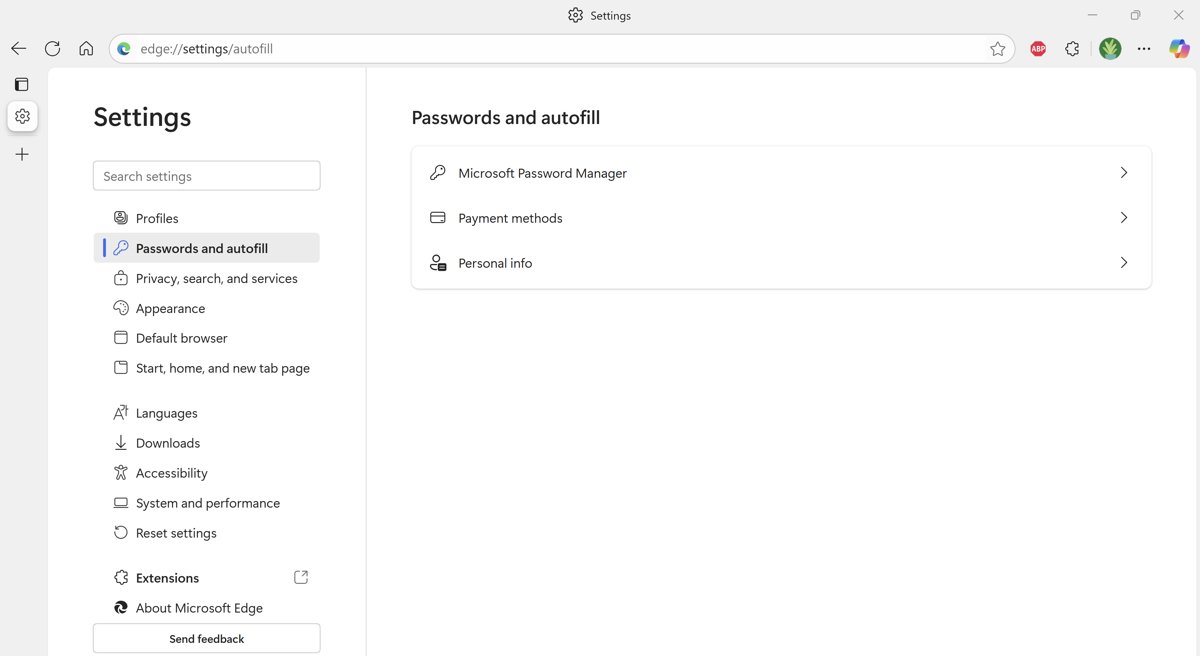
- Open Microsoft Edge on your PC.
- Sign in with the same Microsoft account you used with Wallet.
- Select Settings and more (the three dots in the upper-right corner).
- Select Settings > Passwords and autofill.
- Open Microsoft Password Manager for passwords, or the payment or personal info entries on the same page for cards and addresses.
Microsoft also gives edge://settings/profiles as a direct address to start from. Anything you stored under Wallet's Memberships section, such as airline membership numbers, is no longer accessible.
What Microsoft Wallet Is
Microsoft Wallet was a hub inside Microsoft Edge that gathered passwords, payment cards, personal info, memberships and extras such as donations in one page. Microsoft retired it "to better simplify our offerings", and the retirement applies to both PC and mobile users.
Use this table to find where each former Wallet section went.
| Former Wallet section | Where it is now | Status |
|---|---|---|
| Passwords | Settings > Passwords and autofill > Microsoft Password Manager | Kept; data intact |
| Payment methods (cards) | Settings > Passwords and autofill, payment info | Kept; data intact |
| Personal info (name, address, phone) | Settings > Passwords and autofill, personal info | Kept; data intact |
| Passkeys | Microsoft Password Manager in Edge, and Windows Settings > Accounts > Passkeys | Kept |
| Memberships (airline and loyalty numbers) | Nowhere | No longer accessible, per Microsoft |
| Donations | Nowhere | Removed; the WalletDonationEnabled policy is deprecated because the feature was removed |
| E-tree | Nowhere in Wallet | The EdgeWalletEtreeEnabled policy was deprecated in Edge 149 (June 4, 2026) |
There is no separate "Windows wallet" app to find on your computer. The data was always stored in Edge and your Microsoft account, which is why it survived the retirement.
How To Access Microsoft Wallet Data In Microsoft Edge
Wallet no longer opens as its own page, so every route below ends in the Passwords and autofill settings. Pick the one that matches what you are doing.
| Your situation | Use this route | Why |
|---|---|---|
| You want everything: passwords, cards and addresses | Settings and more > Settings > Passwords and autofill | The section Microsoft names as Wallet's replacement |
| You like typing addresses | Type edge://settings/profiles in the address bar, then select Passwords and autofill |
The direct address Microsoft gives on the retirement page |
| You only want passwords, fast | Press Alt + F, then select Passwords | The Edge menu lists Passwords directly |
| You only want the password toggle settings | Type edge://settings/passwords |
Microsoft's Password Monitor page gives this address for password settings |
| You are already on a site with a saved login | Select the key icon in the address bar | Since Edge 152 (August 27, 2026) it opens credential details, copy buttons and notes; controlled rollout |
Old bookmarks to edge://wallet pages no longer lead to Wallet, so replace them with one of the routes above.
How To Access Microsoft Wallet Data On iPhone, iPad, And Android
Microsoft states the Wallet retirement applies to mobile users too. Your data appears in the Edge app once you sign in and sync with the same Microsoft account.
- Install Microsoft Edge for iOS or Android from the App Store or Google Play.
- Open the Edge app, tap your profile image, then tap Accounts.
- Tap your account and then Sign in to sync; use Add Account if it is not listed.
- Tap More options > Settings, then tap your profile image and Sync.
- Make sure passwords and autofill data are switched on, then tap Done.
- Go back to Settings and open the passwords or autofill entries to view what synced.
Two phone limits are worth knowing: you cannot export saved passwords from Edge for Android or iOS, and Microsoft's sync page does not list payment info among the data types that sync on mobile, although it does for the computer.
How To Sign In And Choose The Right Profile
Former Wallet data appears only in a profile signed in with the account that stored it. Microsoft Password Manager in Edge is only available when you sign in with a personal Microsoft account profile; with a work or school account, your IT admin may restrict features.
- Select the profile icon in the top-right corner of Edge.
- If you see Manage profile settings, you are already signed in; check the account shown is the one you used with Wallet.
- Otherwise choose that account from the list, or select Add new account.
- Select Sign in to sync data.
- To switch accounts later, select your profile image, then another profile or Set up a new profile.
Since Edge 152 you can also sign in to Edge on Windows and macOS with an Apple account. Wallet data lived in your Microsoft account, so sign in with that account to see it.
How To Manage Saved Passwords
These steps come from Microsoft's "View or edit your passwords in Microsoft Password Manager" page. Edge may ask for your device PIN or password before it shows anything.
- Select Settings and more > Settings > Passwords and autofill > Microsoft Password Manager.
- Select the right arrow next to the password you want.
- Select the eye icon to view it, entering your device PIN or password if asked.
- Select Edit, make your changes, then select Save.
- To stop Edge offering to save new logins, select Settings and more > Passwords and turn Ask to save passwords and passkeys off.
- To delete every saved password at once, go to Privacy, search, and services > Clear browsing data > Choose what to clear, check Passwords, and select Clear now.
Editing a password in Edge does not change it on the website; change it on the site first, then update Edge to match. Turning off Ask to save passwords and passkeys does not delete anything already saved. For a middle ground between one entry and all of them, mass deleting Edge passwords is the option.
How To Use Password Monitor And Security Checks
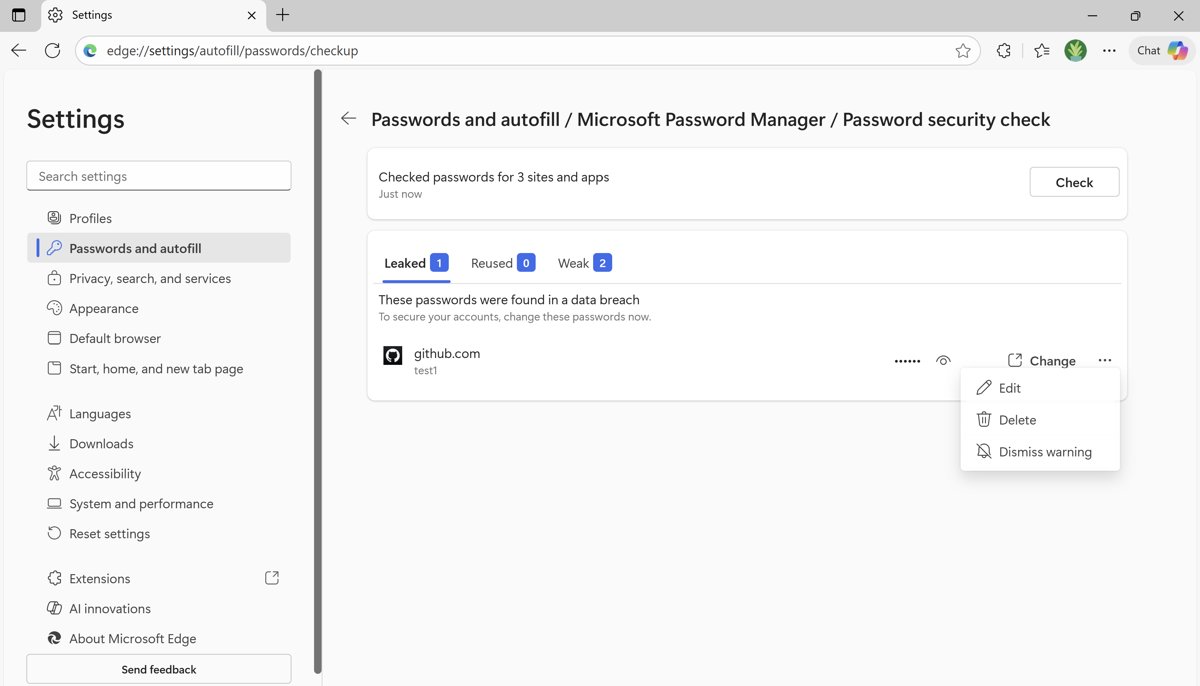
Password Monitor compares your saved passwords with a database of known leaked credentials and lists matches on the Password security check page. If you are signed in and syncing passwords, Microsoft says it turns on automatically.
- Make sure you are signed in to Edge with a Microsoft account or a work or school account.
- Go to Settings > Passwords and autofill > Microsoft Password Manager > More settings and turn on Scan passwords for leaks.
- Open Settings > Passwords and autofill > Microsoft Password Manager > Password security check.
- Select Check to scan every saved password again;
edge://settings/autofill/passwords/checkupopens the same page. - For each unsafe entry, select Edit to go to that site and change the password.
- Select Dismiss warning for entries you no longer use, and Restore warning to bring one back from the ignored list.
A flagged password was leaked by some other website or app, not by Edge. Microsoft says only you know which of your saved passwords are compromised, not Microsoft.
How To Manage Passkeys In Microsoft Password Manager
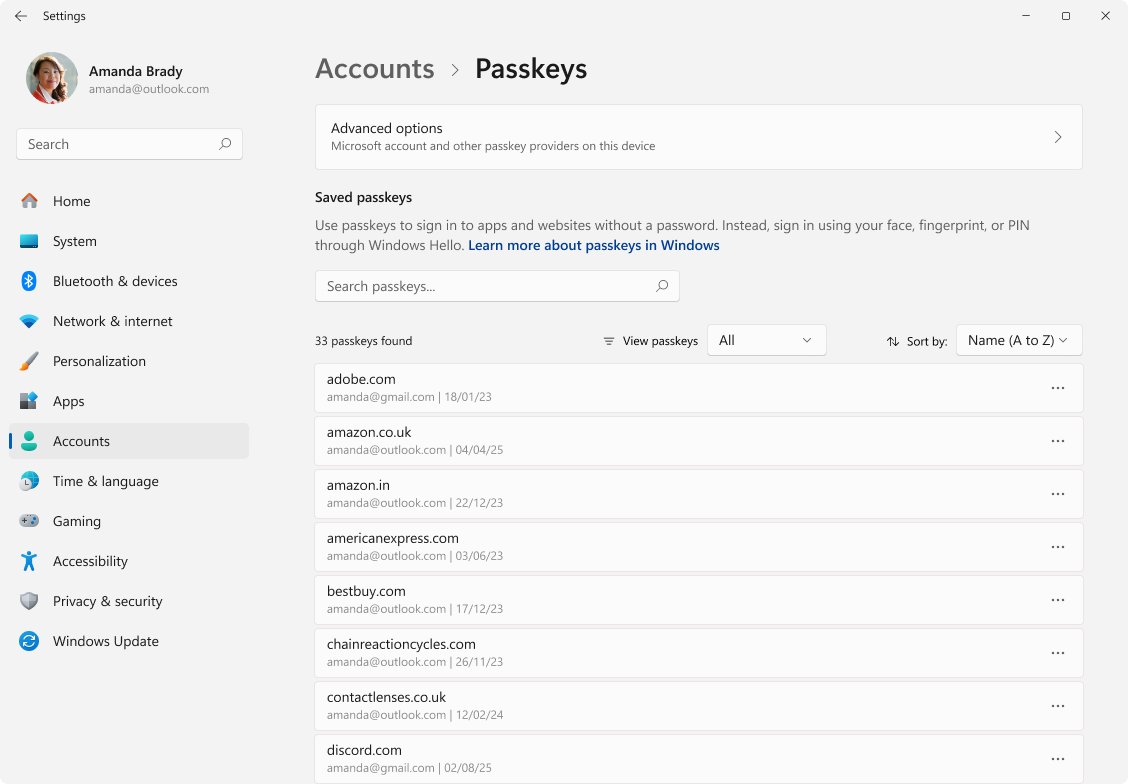
Wallet never had its own passkey store; Edge saves passkeys to Microsoft Password Manager, which supports passkeys from Edge 145 on Windows and macOS. Where you manage one depends on where it was saved.
- Sign in to Edge with a personal Microsoft account profile; Windows only shows Microsoft Password Manager passkeys after that.
- Open Windows Settings > Accounts > Passkeys to see passkeys saved on this device.
- Select the … button next to a device-bound passkey and choose Delete passkey to remove it.
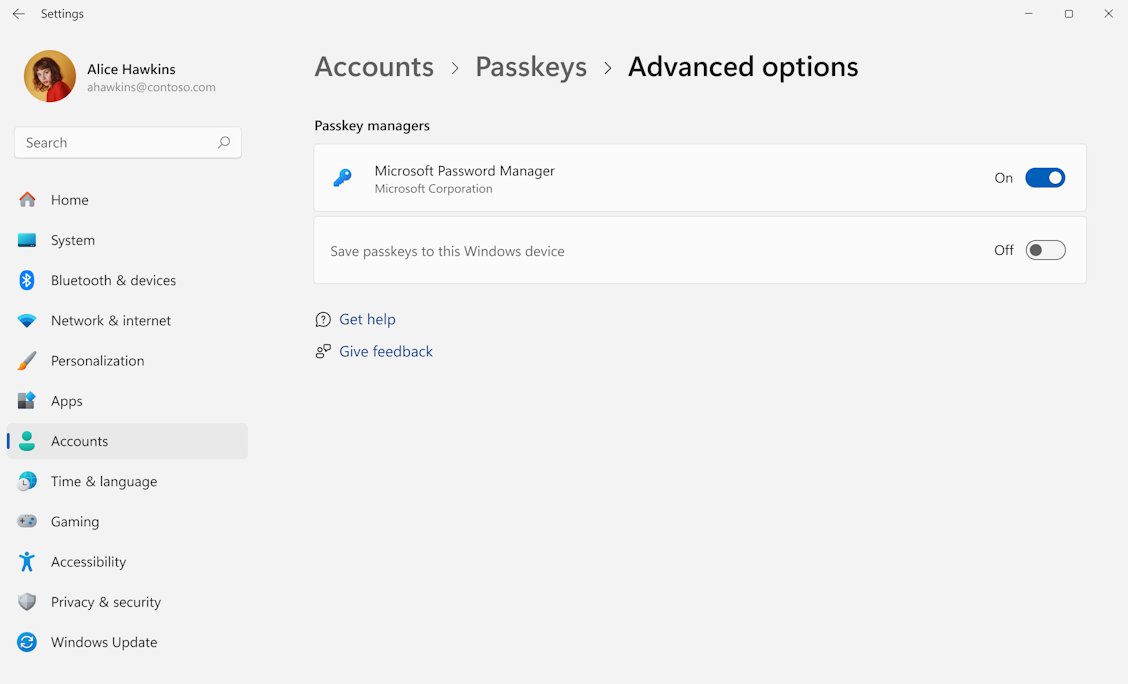
- Select Accounts > Passkeys > Advanced options to see Microsoft Password Manager and other passkey services, and turn each on or off.
- To manage passkeys for your Microsoft account itself, sign in at account.live.com/proofs/manage, where you can rename or remove each one.
Add a new sign-in method before you remove a passkey from your Microsoft account. Removing all security info puts the account into a 30-day restricted state.
How To Manage Personal Information For Autofill
Your name, addresses and phone numbers from Wallet's Personal info section sit in the same Passwords and autofill area. Since Edge 144 (January 16, 2026), Edge asks before it saves an address you type into a form, instead of saving it silently.
- Select Settings and more > Settings > Passwords and autofill.
- Open the personal info entry to see your saved names, addresses and phone numbers.
- Select an entry to edit it, or remove entries you no longer use.
- Add a new address the simple way: fill it in on a checkout form and accept Edge's prompt to save it.
- Turn the save-and-fill toggle for personal info off if you do not want Edge to fill forms.
Microsoft's sync page says autofill form entries such as name, address and phone number sync on both computer and mobile when sync is on.
How To Manage Payment Cards In Microsoft Edge
Cards you saved in Wallet are now under payment info in Passwords and autofill. Edge can keep a card on this device only, or in your Microsoft account so it works on any device where you sign in.
- Go to Settings > Passwords and autofill and open Payment info.
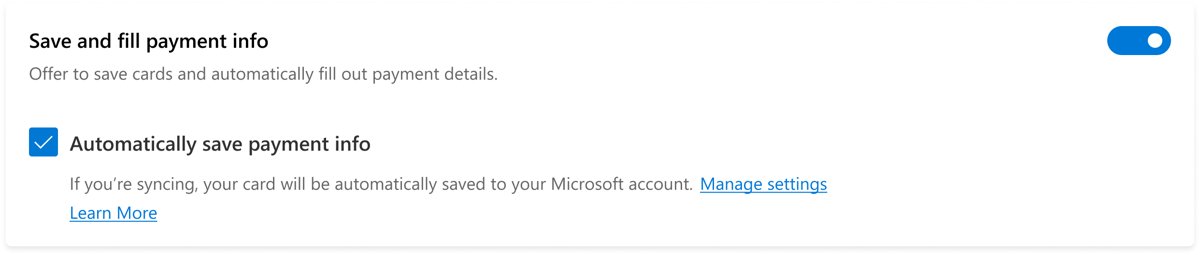
- Turn on Save and fill payment info so Edge fills saved cards at checkout.
- Check Automatically save payment info if you want Edge to offer to save new cards.
- To save a card, choose Save when Edge prompts you at checkout on a shopping site.
- To keep cards in your Microsoft account, also turn on payment sync on the Profiles > Sync page.
- Open a saved card to edit it or remove it.
Microsoft does not store your CVV; it is used only to authorize the card. Saving cards to a Microsoft account is available in the US, Australia, the UK, Canada, Denmark, France, Japan, Mexico, South Korea and Brazil, and some regions see a $1 validation charge that is refunded.
How To Sync Wallet Data Across Devices
Sync is what carries your former Wallet data to a new PC or phone. On a computer, Microsoft lists passwords, autofill form entries and payment info among the data types that sync.
- Sign in to Edge with your Microsoft account as shown above.
- Select More options > Settings > Profiles > Sync.
- Turn on the toggles for passwords, addresses and more, and payment info.
- On your phone, open More options > Settings, tap your profile image, then Sync and turn on the same types.
- Sign in with the same account on every device you want the data on.
Clearing browsing data while signed in and syncing removes it from all synced devices, so export passwords first if you only mean to clean one PC.
How To Import Passwords From Another Browser Or Password Manager
Edge imports passwords directly from Google Chrome, or from a CSV file that another browser or password manager exported. Chrome users can export that file from Chrome's redesigned Password Manager if a direct import is not an option.
- Select Settings and more > Settings, and in the Profiles settings select Import browser data.
- To import from Chrome, select Import next to Import data from Google Chrome, choose Passwords under Choose what to import, and select Import.
- To import a file instead, go to Other import locations and select Import next to Import passwords now.
- In the Import from menu, select Passwords CSV file.
- Select Choose file, pick the CSV file, and select Open.
- Select Done when the notification says the import is complete.
Imported passwords join your existing saved passwords. Delete the CSV file afterwards, because it holds every password in plain text.
How To Export Or Back Up Saved Passwords
Export works only in Edge on a desktop computer; Edge for Android and iOS cannot export saved passwords. Syncing to your Microsoft account is already a cloud backup, so export is mainly for moving to another manager.
- Open Microsoft Edge on your computer.
- Select Settings and more, or press Alt + F, and select Passwords.
- Select the three-dot menu on the passwords page and then Export passwords.
- Select Export to confirm, and verify with your device sign-in if asked.
- Choose where to save the CSV file.
- When you are done with the file, select it and press Shift + Delete to delete it permanently.
Anyone who can open the CSV file can read every password in it. Deleting it does not affect the passwords stored in Edge.
How to check your Wallet data came across
- Open Settings > Passwords and autofill > Microsoft Password Manager and confirm the number of saved passwords looks right.
- Open one entry and reveal it with the eye icon to prove your device sign-in works.
- Check payment info for the last four digits of the cards you expect.
- Check personal info for your current address.
- Visit a site you log in to often and confirm Edge offers to fill the login.
- Run Password security check and note how many passwords it flags.
If passwords are there but cards or addresses are not, check the payment and address toggles under Profiles > Sync.
How To Protect Your Saved Passwords And Payment Info
Edge now protects saved passwords with your device sign-in, such as Windows Hello or macOS Touch ID. The custom primary password option was removed on June 4, 2026, and anyone still using it was moved to device authentication automatically.
- Select Settings and more > Settings > Passwords and autofill > Microsoft Password Manager.
- Select More settings.
- Make sure the Autofill passwords and passkeys toggle is on.
- Select Prompt for the device sign-in options before viewing or filling website password.
- Authenticate with Windows Hello, Touch ID or your device password to confirm.
- Leave Scan passwords for leaks on so Password Monitor keeps checking.
Also protect the Microsoft account that holds everything: add a passkey or another strong sign-in method in your account security settings, and lock your PC whenever you step away.
How To Fix Common Microsoft Wallet Problems
Start with the account. Most missing-data cases are a different profile, a work account, or sync switched off.
Wallet does not open, or I cannot find Microsoft Wallet
Microsoft retired Wallet in Edge; its page no longer exists on PC or mobile.
- Open Settings and more > Settings > Passwords and autofill instead.
- Replace any old
edge://walletbookmark withedge://settings/profiles. - Remove any Wallet shortcut pinned to the toolbar or taskbar and pin the settings page instead.
My saved passwords, cards or addresses are missing
Edge is signed in with a different account than the one used with Wallet, or sync is off.
- Select the profile icon and check which account is signed in.
- Switch to, or sign in with, the Microsoft account you used with Wallet.
- Open Settings > Profiles > Sync and turn on passwords, addresses and payment info.
- Wait a few minutes, then check Passwords and autofill again.
My Memberships and airline numbers are gone
Microsoft says Memberships data is no longer accessible after the Wallet retirement.
- Look up each number in the airline's or retailer's own app or account.
- Store it in a password entry's notes, which the key icon supports from Edge 152, or in another place you control.
Microsoft Password Manager is missing or greyed out
You are signed in with a work or school account, and IT has restricted it; or a policy disables it.
- Open
edge://policyand look for PasswordManagerEnabled or AutofillCreditCardEnabled set by your organization. - Use a personal Microsoft account profile for personal passwords.
- Ask your IT admin if the work profile needs the feature.
Passwords or cards do not show on my new device
Sync data is stuck or out of date on that device.
- Go to Settings > Profiles > Sync and select Re-sync data to this device.
- If that fails, select Still having sync problems? Try another option, then Reset sync.
- Sign out and back in to Edge, then check again.
I cannot export passwords on my phone
Edge for Android and iOS does not support password export.
- Sync passwords to your Microsoft account from the phone.
- Sign in to Edge on a desktop computer with the same account.
- Export from the desktop using the steps above.
Microsoft Wallet Vs. Microsoft Account Payment And Security Pages
Edge's autofill data and your Microsoft account settings are different places, and people often look in the wrong one.
| What you want to manage | Where to go | Notes |
|---|---|---|
| Website passwords and passkeys saved while browsing | Edge > Settings > Passwords and autofill > Microsoft Password Manager | Needs a personal account profile |
| Cards Edge fills at checkout | Edge > Settings > Passwords and autofill, payment info | Stored on the device or in your Microsoft account |
| Addresses and phone numbers for forms | Edge > Settings > Passwords and autofill, personal info | Syncs as autofill form entries |
| Passkeys and sign-in methods for your Microsoft account itself | account.live.com/proofs/manage | Rename or remove each passkey here |
| Passkeys stored on this Windows PC | Windows Settings > Accounts > Passkeys | Advanced options lists passkey providers |
| Payment methods for Microsoft purchases and subscriptions | Your Microsoft account at account.microsoft.com | Separate from the cards Edge fills on other sites |
Best Practices For Managing Passwords And Personal Info
These habits come straight from what Microsoft's own pages recommend or warn about.
| Habit | Why it matters |
|---|---|
| Change every password Password Monitor flags | Microsoft says flagged passwords are public and no longer safe, however strong they are |
| Use Edge's generated passwords | Microsoft says browser-generated passwords are not more prone to leaks, and random ones beat reused ones |
| Keep device sign-in on for autofill | It stops anyone at your unlocked browser from viewing or filling passwords |
| Delete exported CSV files with Shift + Delete | The file holds every password unprotected |
| Update the site first, then Edge | Editing a password in Edge does not change it on the website |
| Review saved addresses and cards now and then | Old entries keep appearing in autofill suggestions |
| Keep a copy of important membership numbers yourself | Wallet's Memberships data could not be moved when Wallet retired |
Frequently Asked Questions
How do I access Microsoft Wallet?
You no longer can, because Microsoft retired Wallet in Edge. Your passwords, payment cards and personal info are intact and live in Edge under Settings > Passwords and autofill. Sign in with the same Microsoft account you used with Wallet to see them.
How do I access my Microsoft Wallet passwords?
Open Edge, select Settings and more > Settings > Passwords and autofill > Microsoft Password Manager. Select the arrow next to a login and the eye icon to reveal it. Edge may ask for your device PIN or password first.
How do I access my wallet in Microsoft Edge?
Go to Settings and more > Settings > Passwords and autofill, or type edge://settings/profiles and select Passwords and autofill. That section replaced Wallet and holds passwords, payment info and personal info on both PC and mobile.
Where is Microsoft Wallet on my computer?
There is no Wallet app or folder on Windows. Wallet was a page inside Microsoft Edge, and its data is stored in Edge and your Microsoft account. Find it in Edge under Settings > Passwords and autofill.
How do I access Windows wallet?
Windows has no separate wallet to open. The Microsoft Wallet that held passwords and cards was part of Edge and has been retired. Use Edge's Passwords and autofill settings, or Windows Settings > Accounts > Passkeys for passkeys saved on the PC.
How do I use Microsoft Wallet to pay?
Wallet itself is gone, but Edge still fills saved cards at checkout. Turn on Save and fill payment info under Payment info in Edge settings, then pick a saved card when a checkout form appears. You enter or confirm the CVV, which Microsoft does not store.
How do I add to Microsoft Wallet?
Add items through Edge instead. Accept Edge's prompt to save a password when you sign in, save a card when you check out, or save an address when you fill a form. Passwords can also be imported from Chrome or a CSV file.
How do I manage Microsoft Wallet?
Manage each former Wallet section in Edge under Settings > Passwords and autofill: Microsoft Password Manager for passwords and passkeys, plus payment info and personal info. Sync settings under Profiles > Sync control which of them follow you to other devices.
What happened to my Microsoft Wallet memberships?
Microsoft says information stored under Memberships, such as airline membership numbers, is no longer accessible after the Wallet retirement. Passwords, payments and personal info were kept. Recover membership numbers from each airline or loyalty program's own account.
How do I access Microsoft Wallet on my phone?
Install Edge for iOS or Android, tap your profile image > Accounts, and sign in to sync with the Microsoft account you used for Wallet. Your synced passwords and autofill data then appear in the Edge app's settings. Exporting passwords is not possible on mobile.
Is Microsoft Password Manager the same as Microsoft Wallet?
No. Microsoft Password Manager is the password and passkey part of Edge, and it continues after Wallet's retirement. Wallet was a wider hub that also showed cards, personal info and memberships; those cards and addresses now sit beside Password Manager in Passwords and autofill.