The MuseScore Studio download for Windows 11, Windows 10 and Mac comes free from musescore.org, and 4.7.5 is the current stable release. You can install it through the Muse Hub installer or take the standalone file that skips Muse Hub.
MuseScore Studio is open source under the GNU GPL, with no account or subscription needed. Linux gets an AppImage for x64 and ARM64, plus Snap and Flatpak packages.
This guide covers which file to pick, installing on each platform, adding MuseSounds, updating, and fixing a copy that will not start.
Check the MuseScore Studio system requirements
The requirements table on musescore.org lists minimum and recommended hardware. MuseSounds add a large chunk of storage on top of the app itself.
| Field | Value |
|---|---|
| Software | MuseScore Studio |
| Developer | MuseScore Ltd (Muse Group) |
| Latest version | 4.7.5, released September 8, 2026 |
| Licence | Free and open source, GNU GPL |
| Windows | Windows 10 or higher, 64-bit |
| macOS | macOS 11 or higher; Muse Hub needs macOS 12 or higher |
| Linux | Distributions released in 2022 or later, with fuse2 for the AppImage |
| Architecture | 64-bit on Windows; x64 and ARM64 AppImages on Linux |
| Storage (SSD) | 500 MB free, 15 GB with MuseSounds |
| Memory | 8 GB, 16 GB recommended |
| Processor | 4 cores, 8 recommended |
| Display | 1280×720, or a scaled equivalent |
| File size | Not published by musescore.org |
| Official download source | musescore.org |
| Last verified | 2026-09-25 |
Press Windows + R, type winver and select OK to read your Windows version.
Which MuseScore Studio download do you need?
musescore.org offers two routes on Windows and Mac. The Muse Hub installer adds the Muse Hub manager, which also delivers MuseSounds. The standalone file installs MuseScore Studio alone.
| Your machine and goal | Take this | Note |
|---|---|---|
| Windows 11 or 10, with MuseSounds playback | Muse Hub installer on musescore.org | Muse Hub requires Windows 10 or higher |
| Windows 11 or 10, notation only | MuseScore Studio 64-bit without MuseHub | Installs the app on its own |
| Windows, run from a USB drive | MuseScore Studio Portable EXE | No system-wide install |
| Mac on macOS 12 or later | Muse Hub installer on musescore.org | Adds MuseSounds and effects |
| Mac on macOS 11 | MuseScore Studio without MuseHub | Muse Hub needs macOS 12 |
| Linux on an Intel or AMD PC | AppImage x64 | Needs fuse2 |
| Linux on an ARM64 board or laptop | AppImage ARM64 | Needs fuse2 |
Older releases, including MuseScore 3.6.2, stay listed under Older versions on the same page.
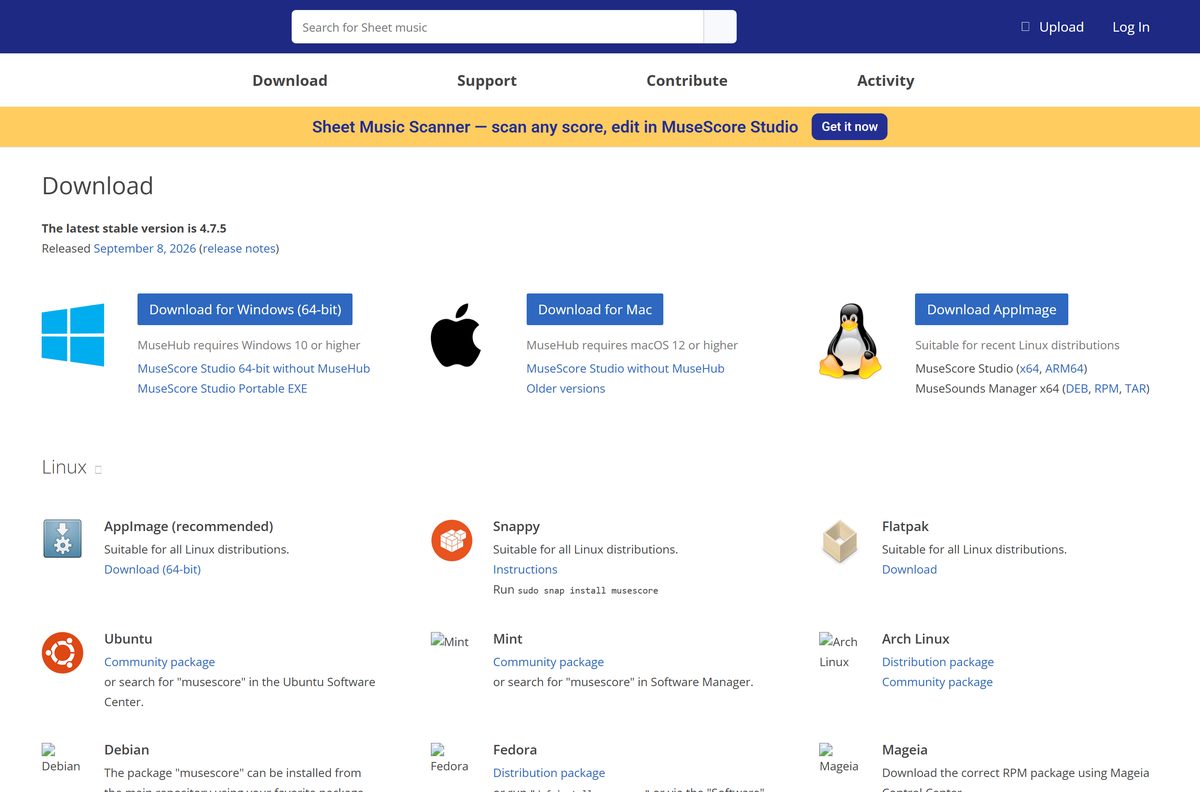
Download MuseScore Studio from musescore.org
Every official build starts on musescore.org. A copy from a download portal is a repackaged file the developers do not maintain.
- MuseScore Studio download page — Muse Hub installers for Windows and Mac, plus every standalone build
- Windows 64-bit without Muse Hub — standalone Windows installer
- Windows Portable EXE — runs from any folder
- macOS without Muse Hub — standalone disk image
- Linux AppImage x64 — recommended Linux build
- Linux AppImage ARM64 — for ARM64 hardware
- Release notes for the current version — changes and fixes in this update
- MuseScore Studio Handbook — official user manual
The current update adds new fretboard diagrams for guitars and fixes macOS notarization, which had broken the QuickLook plugin.
Should you install MuseScore Studio with Muse Hub or without it?
MuseSounds are the realistic playback libraries. On Windows and macOS they install only through Muse Hub, so the choice comes down to playback.
Take the Muse Hub installer if you want MuseSounds playback; take the standalone file for notation and basic playback only. Muse Hub installs MuseScore Studio, the MuseSounds libraries and effects plugins, and keeps them updated. The standalone build skips all of that, uses less disk space, and runs on macOS 11, which Muse Hub does not support.
Plan for 15 GB of free space if you add MuseSounds.
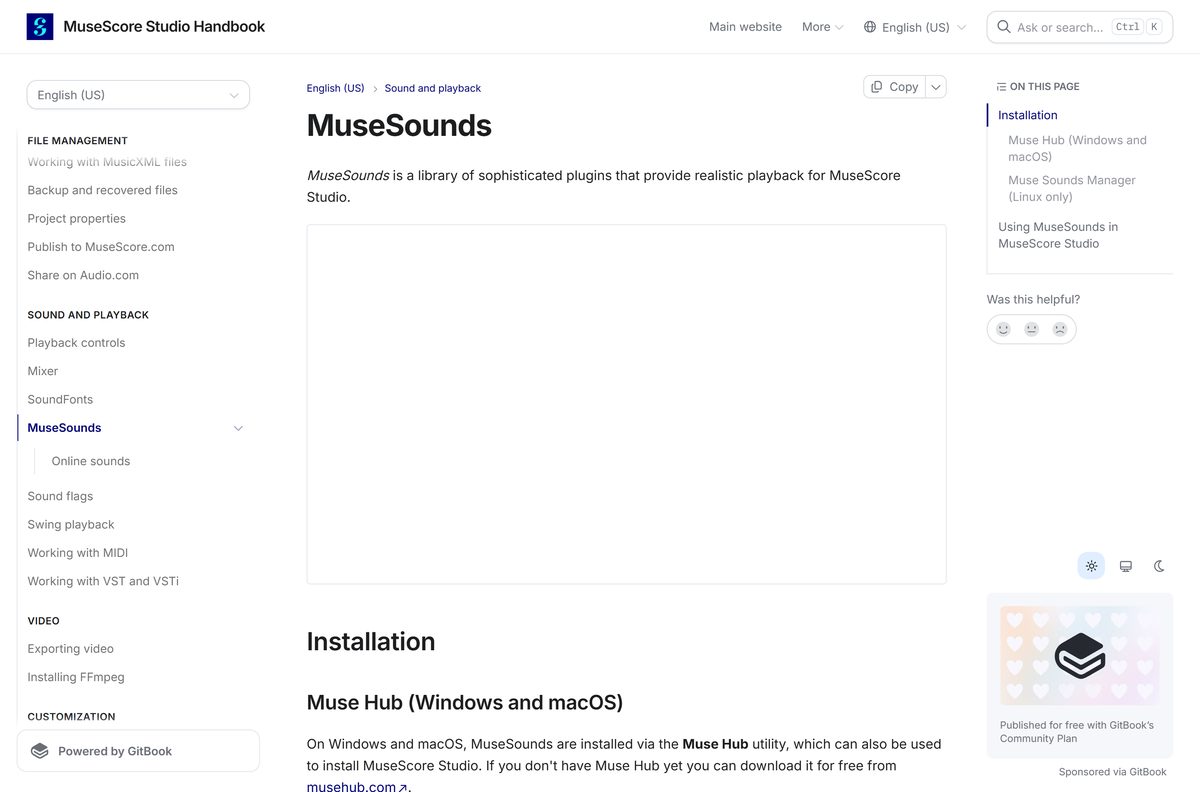
How to install MuseScore Studio on Windows 11 and 10
Both Windows routes start on the same page. Pick one method and follow its steps.
Install with Muse Hub
- Open the MuseScore Studio download page.
- Select Download for Windows (64-bit) to save MuseScore_Studio_Installer_via_MuseHub.exe .
- Double-click the file and select Yes at the User Account Control prompt.
- Let the installer set up Muse Hub and MuseScore Studio.
- Open Muse Hub from the system tray, or press Win + B to focus it.
- Select the Apps tab and confirm MuseScore Studio shows as installed.
- Select Open beneath the MuseScore Studio icon to launch it.
Install without Muse Hub
- Open the MuseScore Studio download page.
- Select MuseScore Studio 64-bit without MuseHub under the Windows button.
- Double-click the saved file and select Yes at the User Account Control prompt.
- Follow the setup wizard and keep the default install folder.
- Select Finish when setup completes.
- Launch MuseScore Studio from the Start menu.
The program file usually sits at C:\Program Files\MuseScore 4\bin\MuseScore4.exe .
Which MuseScore Studio download do you need for your Mac?
Open the Apple menu and select About This Mac to read your macOS version. Then match it to a row.
| Your Mac | Take this | How it installs |
|---|---|---|
| macOS 12 or later, wants MuseSounds | Muse Hub installer | Drag Muse Hub to Applications, open it, select Apps, then Free under MuseScore Studio |
| macOS 12 or later, notation only | MuseScore Studio without MuseHub | Open the disk image and drag the app to Applications |
| macOS 11 | MuseScore Studio without MuseHub | Muse Hub needs macOS 12, so use the standalone disk image |
Muse Hub asks for folder access and other permissions during setup. Grant them, or the app install stalls.
After install, select Open beneath the MuseScore Studio icon in Muse Hub to launch it.
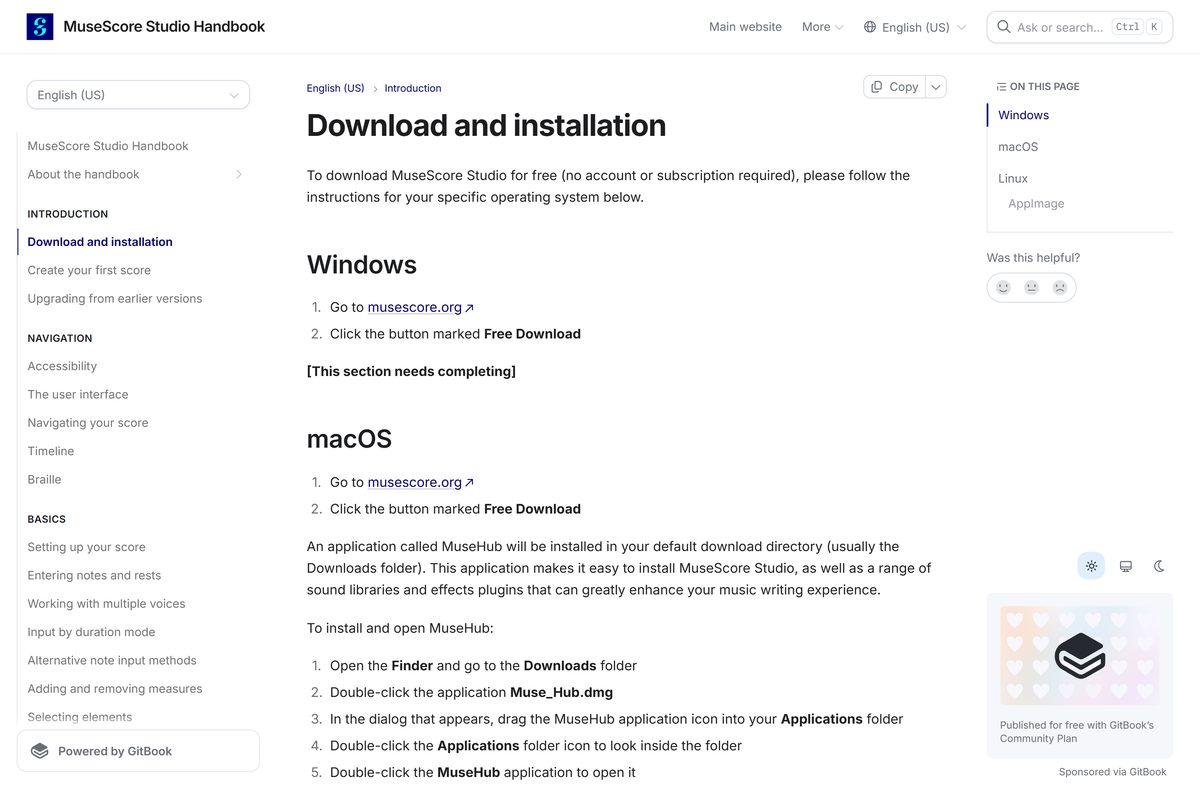
Install MuseScore Studio on Linux with the AppImage or Snap
The AppImage is the recommended Linux build and runs on any distribution from 2022 onward with fuse2 installed. The install command adds a menu entry and file associations.
- Download the x64 AppImage or the ARM64 AppImage.
- Right-click the file and select Properties, then open the Permissions tab.
- Tick Allow executing file as program in Nautilus-based file managers, or Is executable in Dolphin.
- Close the dialog, right-click inside the folder and select Open in Terminal.
- Type ./[file name] install and press Enter.
- Launch MuseScore Studio from your application menu.
- Run sudo snap install musescore instead if you prefer the Snap package.
Flatpak and distribution packages for Debian, Fedora, Arch, openSUSE and others are listed on the same download page.
Run MuseScore Studio without installing it
The Portable EXE keeps the program and its settings in one folder. It suits a USB drive or a PC where you lack admin rights.
- Download the MuseScore Studio Portable EXE from musescore.org.
- Run the file and choose a destination folder, such as your USB drive.
- Open that folder once extraction finishes.
- Double-click the MuseScore Studio launcher to start the app.
- Save scores inside the same drive if you move between computers.
The portable copy does not add MuseSounds, since those come through Muse Hub.
Is MuseScore Studio free?
There is no trial and no paid edition of the notation app.
Yes. MuseScore Studio is free and open source on Windows, macOS and Linux. musescore.org describes it as a GNU GPL licensed open-source program, and the handbook states it downloads with no account or subscription. Muse Hub is free too.
Any site asking payment for MuseScore Studio is reselling a free program. Take it from musescore.org instead.
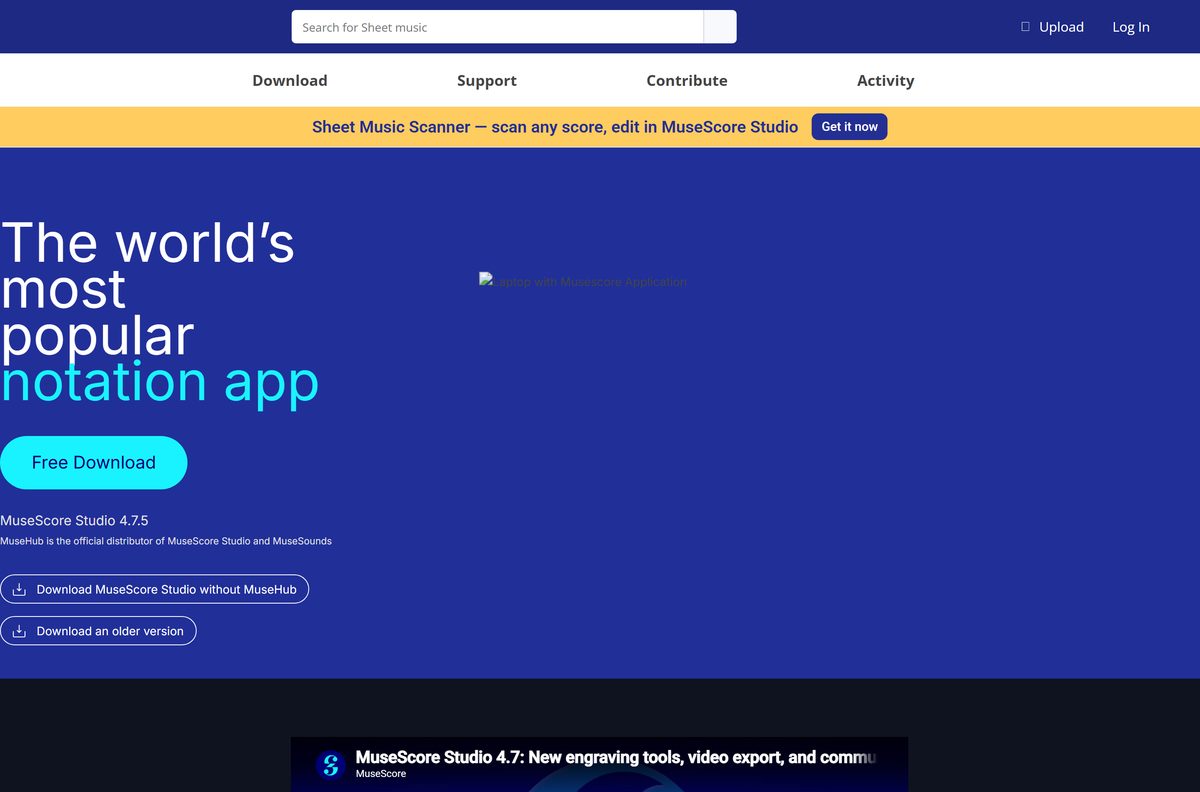
How to check your MuseScore Studio version and update it
Updates arrive through Muse Hub or as a new download from musescore.org, depending on how you installed.
- Open a Command Prompt and run “C:\Program Files\MuseScore 4\bin\MuseScore4.exe” -v to print the installed version.
- Compare it with the stable version named on the download page.
- Open Muse Hub and select the Apps tab if you installed through it.
- Install the MuseScore Studio update when Muse Hub lists one.
- Download the newer standalone file from musescore.org if you installed without Muse Hub.
- Run the new installer; your score files stay where you saved them.
Coming from MuseScore 3? Old scores open, but engraving changes mean they will not look identical.
Fix MuseScore Studio not installing or opening
Most failures trace back to an old OS version, a missing Linux library, or corrupted preferences.
Muse Hub will not install on an older Mac
Muse Hub needs macOS 12 or higher.
- Open the Apple menu and select About This Mac.
- Download MuseScore Studio without MuseHub if the Mac runs macOS 11.
- Drag the app to Applications and open it from there.
The AppImage does nothing on Linux
The AppImage needs fuse2 and the executable permission.
- Install the fuse2 package from your distribution’s repository.
- Set the file as executable in Properties > Permissions.
- Run ./[file name] install from a terminal in the same folder.
MuseScore Studio crashes or freezes at startup
Corrupted preferences stop the app from loading. A reset keeps your score files.
- Close MuseScore Studio completely.
- Press Win + R and select Browse.
- Select MuseScore4.exe under Program Files\MuseScore 4\bin and select Open.
- Add a space and -F after the closing quote, then select OK.
- On a Mac, run /Applications/MuseScore\ 4.app/Contents/MacOS/mscore -F in Terminal.
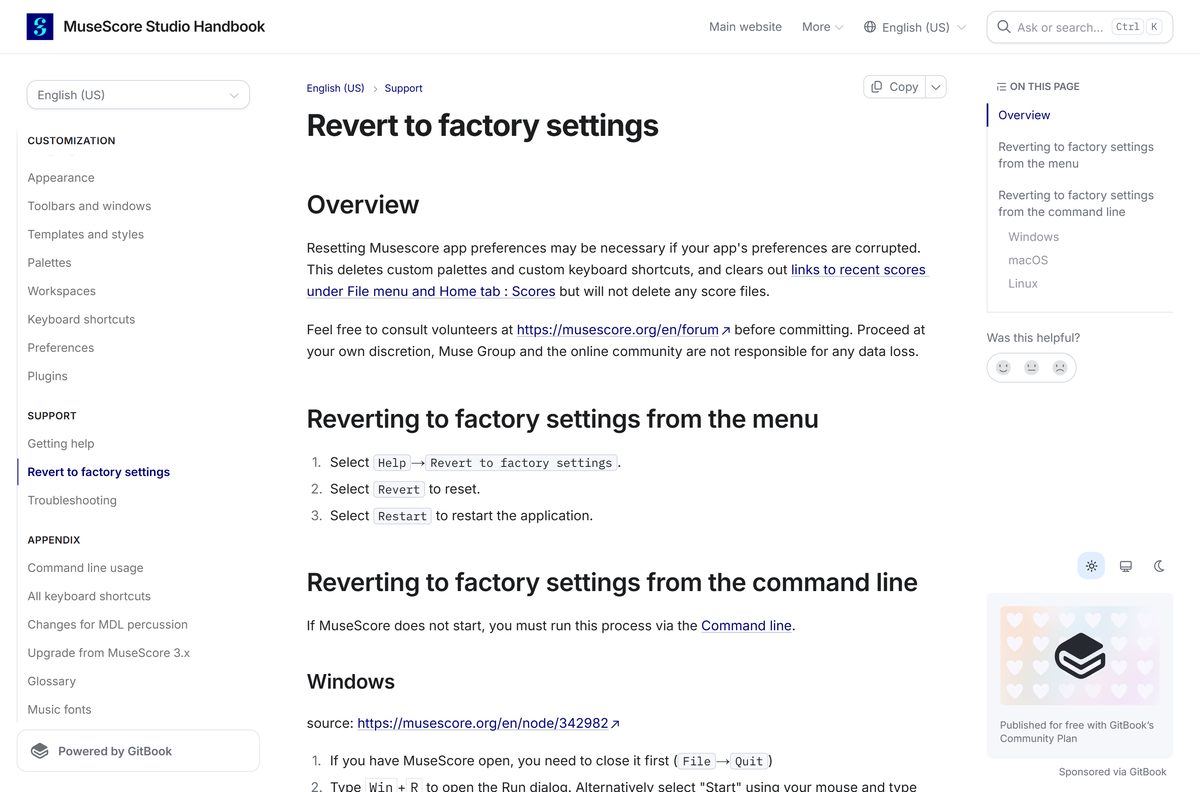
- Use Help > Revert to factory settings instead if the app still opens.
MuseSounds do not play
The score still uses a different playback profile.
- Open View > Playback setup.
- Select MuseSounds under Profiles.
- Leave Set as default for new scores ticked and select OK.
How to uninstall MuseScore Studio
Uninstalling removes the program but leaves your scores. Preferences stay behind unless you delete them.
- Open Settings > Apps > Installed apps on Windows 11, or Apps & features on Windows 10.
- Select the three dots beside MuseScore Studio, then Uninstall.
- Uninstall Muse Hub from the same list if you no longer need MuseSounds.
- Delete %APPDATA%\MuseScore and %LOCALAPPDATA%\MuseScore to clear leftover settings.
- Drag the app from Applications to the Trash on a Mac.
- Delete ~/Library/Application Support/MuseScore/MuseScore4/ on macOS for a clean slate.
- On Linux, delete the AppImage, its menu entry and its link in ~/.local/bin .
Frequently asked questions
Is the MuseScore Studio download free?
Yes. MuseScore Studio is free and open source under the GNU GPL on Windows, macOS and Linux. It needs no account or subscription, and the Muse Hub manager that delivers MuseSounds is free as well.
Where is the official MuseScore Studio download page?
musescore.org/en/download. It carries the Muse Hub installers for Windows and Mac, the standalone builds without Muse Hub, the Windows Portable EXE, and the Linux AppImages for x64 and ARM64.
What is the latest version of MuseScore Studio?
Version 4.7.5, released on September 8, 2026. It adds new fretboard diagrams for guitars, fixes macOS notarization and the QuickLook plugin, and fixes crashes when opening or importing scores.
How big is the MuseScore Studio download?
musescore.org does not list a file size for its installers. Plan for 500 MB of free SSD space for the app itself, and 15 GB if you add the MuseSounds playback libraries through Muse Hub.
Does MuseScore Studio work on Windows 11?
Yes. The download page lists Windows 10 or higher, which includes Windows 11. Both the Muse Hub installer and the 64-bit standalone installer run on it, along with the Portable EXE.
Is there a MuseScore Studio download for Mac?
Yes. musescore.org offers a Muse Hub installer for macOS 12 or higher and a standalone disk image without Muse Hub. The standalone build is the route for Macs still on macOS 11.
Does MuseScore Studio support 64-bit and ARM64?
The Windows builds are 64-bit. Linux gets separate AppImages for x64 and ARM64. The Mac download page offers one standalone disk image rather than separate Intel and Apple Silicon files.
Is there a MuseScore Studio offline installer?
Yes, the standalone file. MuseScore Studio 64-bit without MuseHub installs the app on its own, and the Portable EXE runs with no install at all. The Muse Hub route downloads the app through Muse Hub.
Do you need Muse Hub to use MuseScore Studio?
No. Muse Hub is optional. You need it only for MuseSounds and effects plugins on Windows and macOS. Linux users get MuseSounds through Muse Sounds Manager, a DEB or RPM package for x64.
Is MuseScore Studio safe to download?
Yes, when it comes from musescore.org. The program is open source, and its code is public. Copies on download portals are repackaged by third parties, so take the installer from the official page.
Why won’t MuseScore Studio install or open?
Check the OS first: Windows 10, macOS 11 or a 2022 Linux release is the minimum, and Muse Hub needs macOS 12. On Linux, install fuse2. If the app crashes at launch, reset it with the -F option.
Can MuseScore Studio open MuseScore 3 scores?
Yes. Scores from MuseScore 3 and earlier open in MuseScore Studio, but engraving changes to beams, slurs, ties and spacing mean they will not look identical to the original layout.