You can install Jupyter Notebook free on Windows 11, Windows 10 and Mac with one command: pip install notebook . Run jupyter notebook afterwards and the app opens in your web browser, ready for a new notebook.
Prefer a single installer that brings Python and the data science libraries along? Anaconda includes Jupyter Notebook 7.5.7 out of the box, and the Jupyter documentation recommends it for beginners.
This guide covers both routes, the Mac setup, updates, a browser-only option and fixes for the usual command-not-found errors.
Which Jupyter Notebook download do you need?
Match your situation to a row. Both routes install the same notebook package from Project Jupyter.
| Your situation | What to get | Command |
|---|---|---|
| Python already installed on Windows 11 or 10 | pip install notebook | pip install notebook |
| No Python yet and you want a light setup | Python from python.org | Install Python, then pip install notebook |
| You want Python, Jupyter and pandas in one installer | Anaconda Distribution | jupyter notebook from Anaconda Prompt |
| Windows 10 PC | Use the pip route, since Anaconda requires Windows 11 23H2 or later | py -m pip install notebook |
| You only want to try it | Jupyter in the browser | Nothing to install |
Download Jupyter Notebook from the official sources
Project Jupyter publishes the install command on jupyter.org. Every link below goes to the project or to the vendor that distributes it.
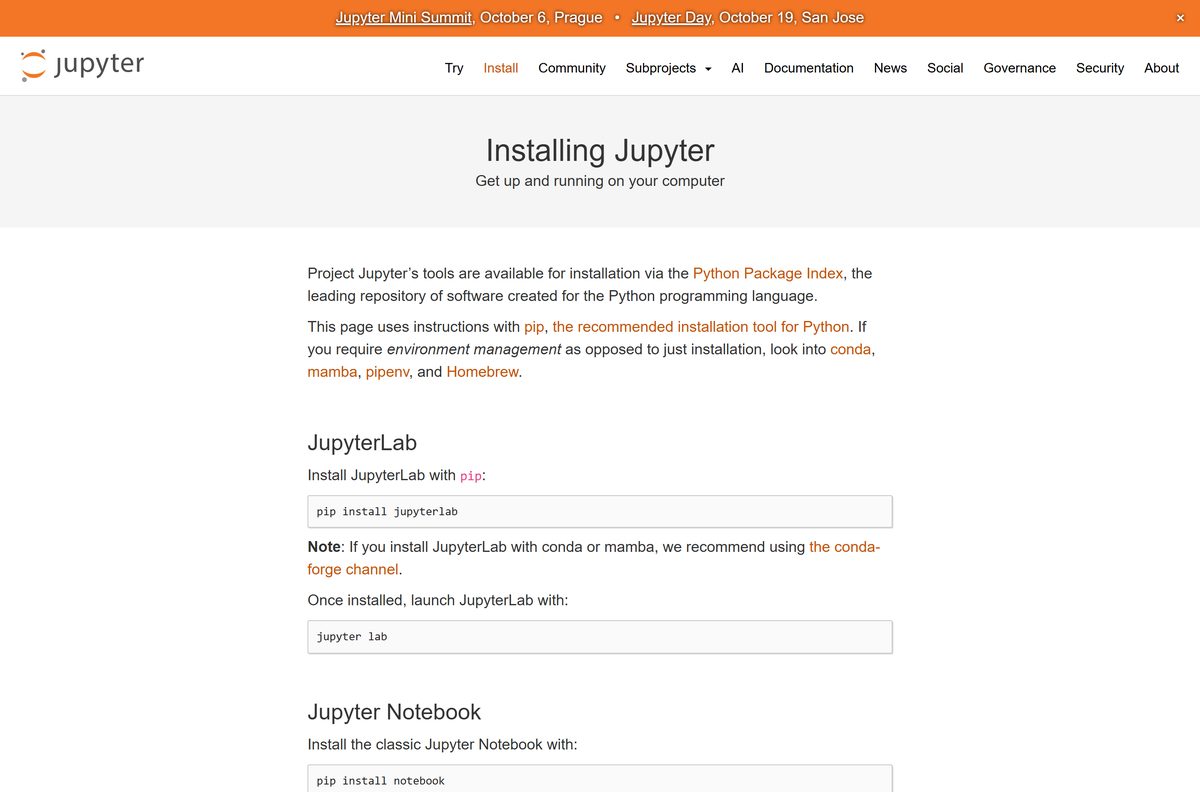
- Jupyter install page — the official pip commands for Notebook, JupyterLab and Voilà
- Python for Windows and Mac — needed first for the pip route
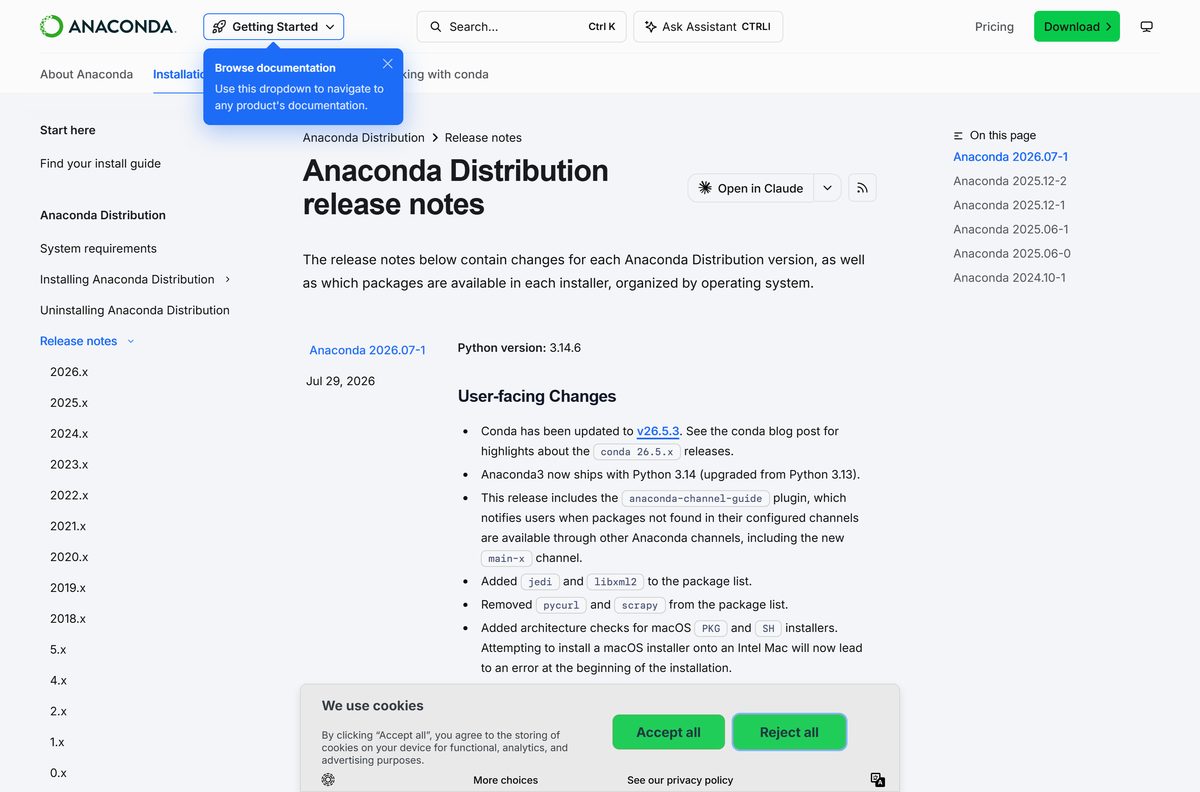
- Anaconda Distribution — bundles Python 3.14.6 and Notebook 7.5.7
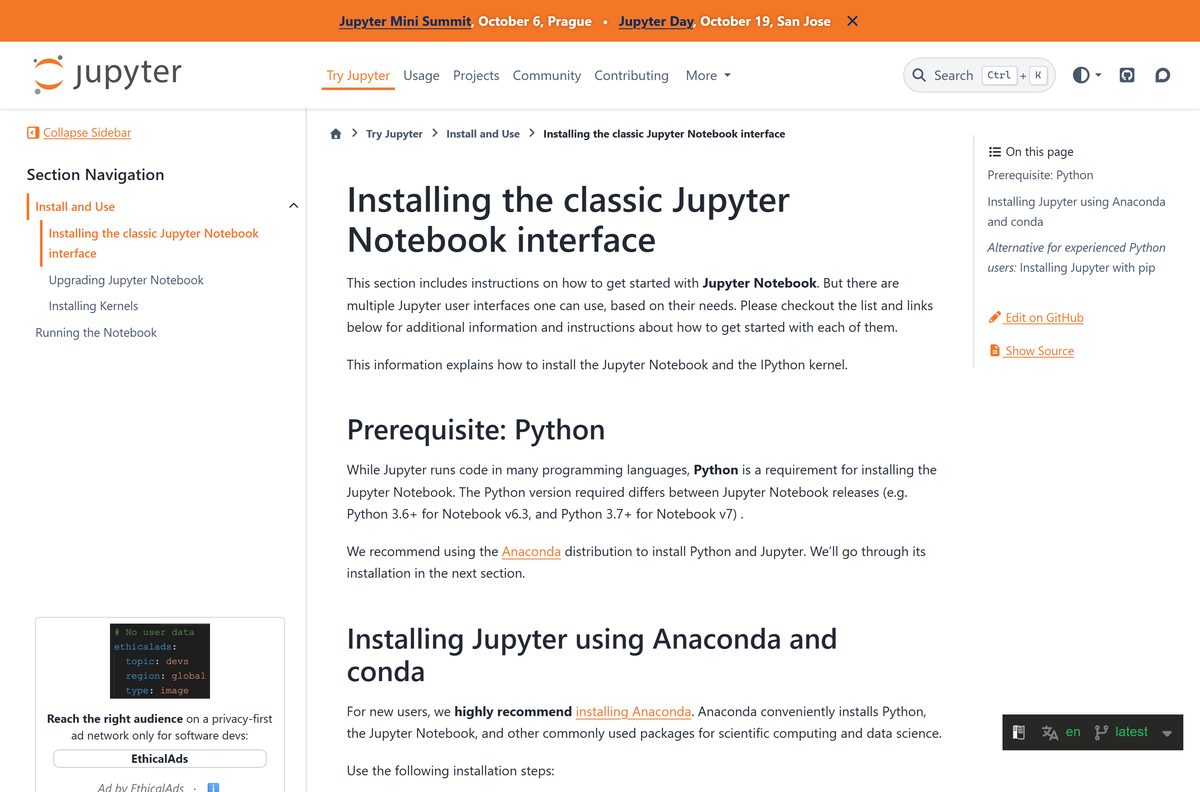
- Jupyter Notebook installation guide — Project Jupyter’s own install documentation
- Try Jupyter online — runs in the browser with no install
Need Python first? The Python download guide picks the right installer for your PC.
How to install Jupyter Notebook on Windows 11 and 10 with pip
This route takes about five minutes and works on Windows 10 as well as Windows 11.
- Install Python from python.org/downloads and tick Add python.exe to PATH in the installer.
- Press Windows + R, type cmd and select OK.
- Run py -m pip install –upgrade pip to bring the package installer up to date.
- Run py -m pip install notebook and wait for Successfully installed to appear.
- Run jupyter notebook to start the server.
- Wait for your default browser to open the Files view at http://localhost:8888 .
- Select New > Notebook, then pick the Python 3 kernel.
If the pip command itself is missing, the pip guide restores it in one step.
Install Jupyter Notebook with Anaconda
The Anaconda Distribution installs Python, Jupyter Notebook, JupyterLab and hundreds of data packages together. It needs at least 5 GB of free disk space.
- Download the installer for your system from anaconda.com/download.
- Run the installer and accept the default options.
- On Windows, open Start, search for Anaconda Navigator and open it. On a Mac, open Launchpad and click Anaconda-Navigator.
- On the Home page, find the Jupyter Notebook tile and select Launch.
- Or open Anaconda Prompt (Windows) or Terminal (Mac) and run jupyter notebook .
Installer sizes, licence terms and the Windows 11 requirement are in the Anaconda download guide.
Which Jupyter Notebook setup do you need on your Mac?
Open the Apple menu and select About This Mac to see your chip.
| Your Mac | What to install | Command |
|---|---|---|
| Apple silicon, macOS 12.1 or later | Anaconda Distribution | jupyter notebook |
| Apple silicon, want a light setup | Python from python.org | python3 -m pip install notebook |
| Intel Mac | Python from python.org | python3 -m pip install notebook |
| Want to keep packages separate | Create a virtual environment first | python3 -m venv .venv, then source .venv/bin/activate |
Anaconda 2026.07-1 ships its Mac build for Apple silicon only, so Intel Macs use the pip route.
Is Jupyter Notebook free?
Yes. Jupyter Notebook is free, open-source software under the modified BSD license, for personal and commercial work. Project Jupyter is a non-profit project and sells no edition, subscription or licence key. Python and pip cost nothing either. Anaconda publishes its own terms of service for the distribution, so check them before installing it on company machines.
Choose between Jupyter Notebook and JupyterLab
Install Jupyter Notebook if you want one document per browser tab and a simple layout. Install JupyterLab with pip install jupyterlab if you want files, terminals and notebooks side by side. Both open the same .ipynb files and use the same kernels, so you can switch later without converting anything. Anaconda installs both, and you start JupyterLab with jupyter lab .

How to check your Jupyter Notebook version and update it
- Open Command Prompt, Anaconda Prompt or Terminal.
- Run jupyter –version and read the notebook line.
- Update a pip install with pip install -U notebook .
- Update everything Jupyter-related with pip install -U jupyter .
- In Anaconda, run conda update jupyter instead.
- Restart the server with jupyter notebook so the new version loads.
Check the Jupyter Notebook system requirements before you install
The notebook itself is a Python package, so the real requirement is a working Python on your system.
| Field | Value |
|---|---|
| Software | Jupyter Notebook |
| Developer | Project Jupyter |
| Latest version | 7.5.7 (in Anaconda 2026.07-1); pip fetches the newest release |
| Licence | Free and open source (modified BSD) |
| Install command | pip install notebook |
| Windows | Windows 11 and Windows 10 with Python; Anaconda needs Windows 11 23H2 or later, 64-bit |
| macOS | Any Mac with Python; Anaconda needs macOS 12.1 or later on Apple silicon |
| Linux | Any distribution with Python; Anaconda needs glibc 2.28 or newer |
| Architecture | Platform independent; Anaconda builds for x64, Apple silicon and Linux aarch64 |
| Disk space | 5 GB minimum for Anaconda |
| Official source | jupyter.org/install |
| Last verified | 2026-09-24 |
What Jupyter Notebook can open and run
| Item | Support |
|---|---|
| Notebook files | .ipynb, an open JSON-based document format |
| Languages | More than 40, including Python, R, Julia and Scala, through kernels |
| Output | HTML, images, videos, LaTeX and custom MIME types |
| Sharing | Email, Dropbox, GitHub and the Jupyter Notebook Viewer |
| Other kernels | Jupyter kernel install guide |
Run Jupyter Notebook in your browser without installing it
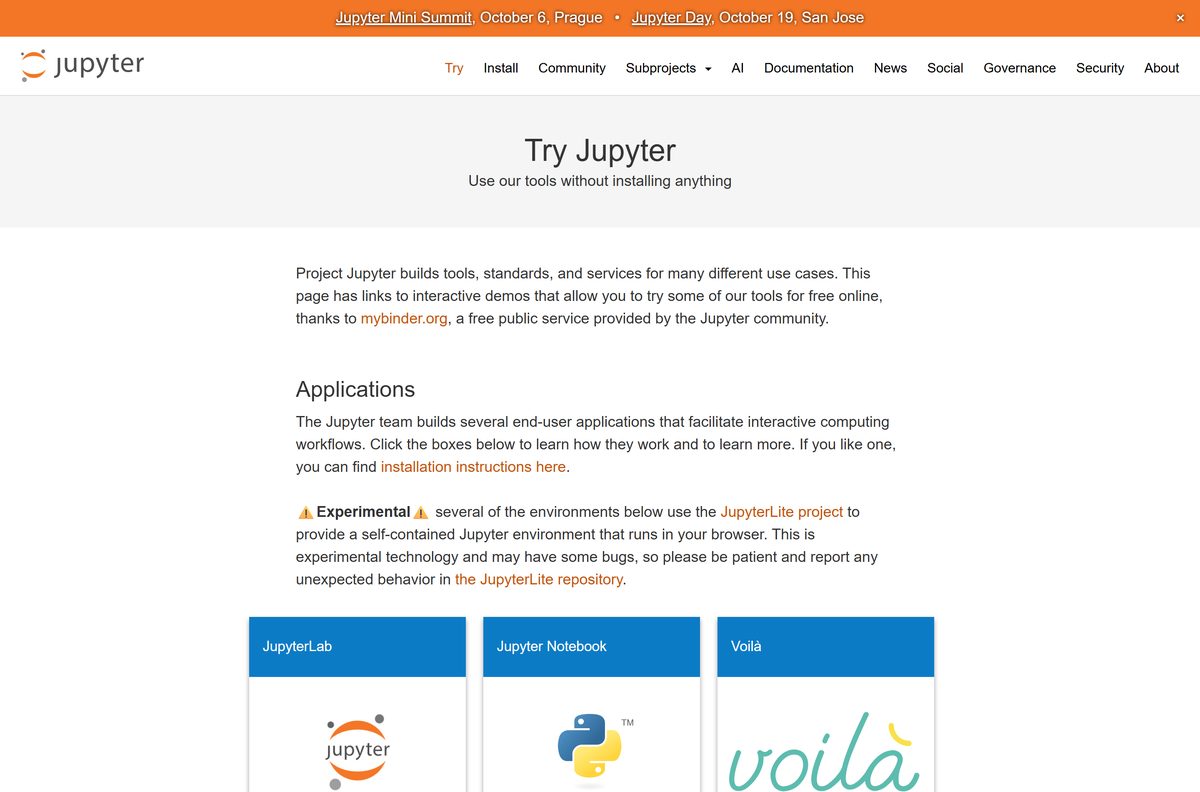
The online version runs on JupyterLite, which Project Jupyter labels experimental. Keep important work in a local install.
- Open jupyter.org/try in any browser.
- Select the Jupyter Notebook tile.
- Wait for the notebook interface to load in the tab.
- Type code into a cell and press Shift + Enter to run it.
- Download your notebook before closing the tab, because the session is temporary.
How to start Jupyter Notebook in your project folder
The server shows the folder it started in, so launch it from the highest folder that holds your notebooks.
- Open File Explorer and go to your project folder.
- Click the address bar, type cmd and press Enter.
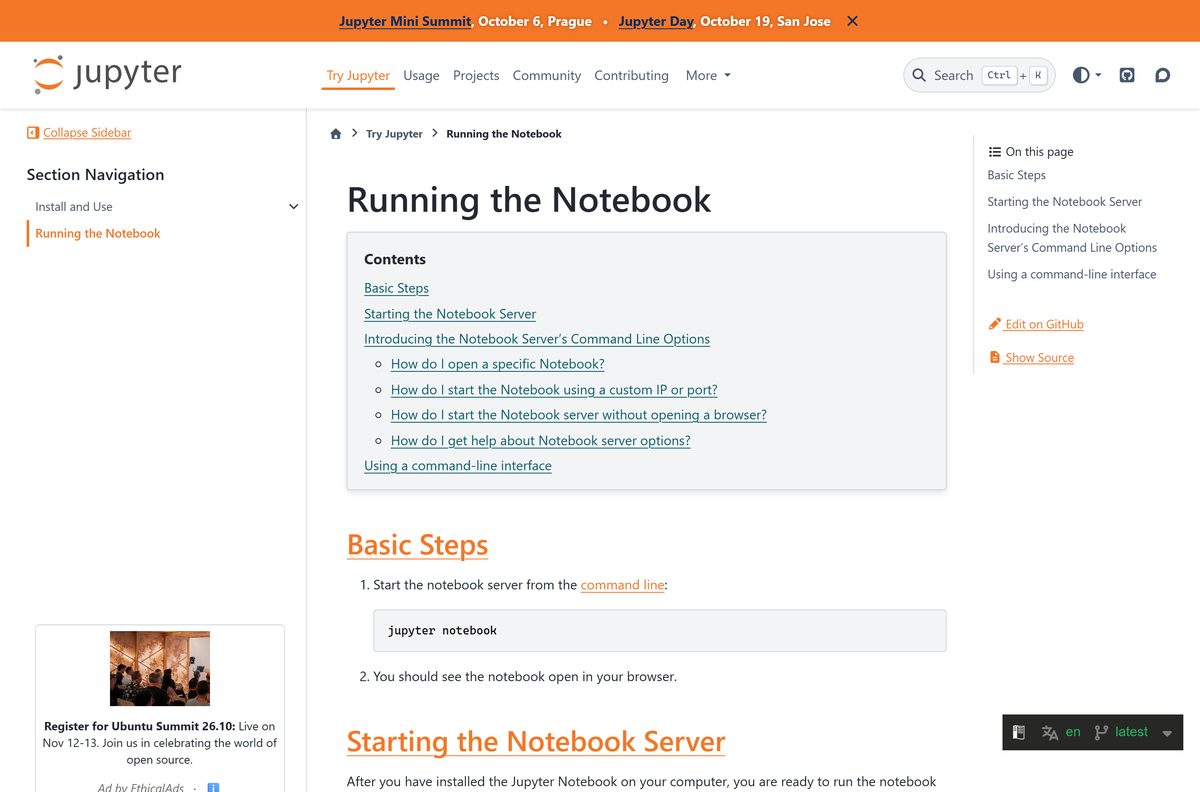
- Run jupyter notebook to open that folder in the browser.
- Run jupyter notebook –port 9999 to use a different port.
- Run jupyter notebook –no-browser to start the server without opening a tab.
- Press Ctrl + C twice in the terminal to stop the server and all kernels.
Fix Jupyter Notebook not installing or not starting
“‘jupyter’ is not recognized as an internal or external command”
The Python Scripts folder is not on PATH.
- Run py -m notebook instead, which does not depend on PATH.
- Re-run the Python installer, select Modify and tick Add Python to environment variables.
- Close every terminal window, open a new one and run jupyter notebook again.
“‘pip’ is not recognized”
pip is missing or not on PATH.
- Run py -m pip install notebook instead.
- If that fails too, run py -m ensurepip –upgrade and follow the pip guide.
The browser does not open
No default browser is set, or the server started with --no-browser.
- Look in the terminal for the http://localhost:8888 address.
- Copy the full address, including everything after it, into your browser.
Port 8888 is already in use
Another notebook server is still running.
- Read the terminal output, because the server picks the next free port automatically.
- Stop the old server with Ctrl + C, or start on a fixed port with jupyter notebook –port 9999 .
How to uninstall Jupyter Notebook
- Open the terminal you installed it from.
- For a pip install, run pip uninstall notebook and type y to confirm.
- For Anaconda, run conda remove notebook in Anaconda Prompt.
- Run jupyter –version to confirm the notebook line is gone.
- To remove Anaconda itself, follow the Anaconda guide.
Frequently asked questions
Is Jupyter Notebook free?
Yes. Project Jupyter releases it as open-source software under the modified BSD license, free for everyone to use, including at work. No paid edition or licence key exists.
Is there a Jupyter Notebook .exe for Windows?
No. It is a Python package, so you install it with pip install notebook or get it inside Anaconda. Both routes put a jupyter notebook command on your PC that opens the app in your browser.
Do I need Anaconda to use Jupyter Notebook?
No. Python from python.org plus pip install notebook is enough. Anaconda is optional and adds Python, JupyterLab and data science libraries in one larger installer.
Can I use Jupyter Notebook offline?
Yes. Once installed, the server runs on your own machine at http://localhost:8888, so notebooks open and run without an internet connection.
Does Jupyter Notebook work on a Mac?
Yes. Run python3 -m pip install notebook after installing Python, or install Anaconda on an Apple silicon Mac with macOS 12.1 or later.
What is the latest Jupyter Notebook version?
Anaconda 2026.07-1 ships Notebook 7.5.7. A fresh pip install notebook always fetches the newest release available at that moment.
How do I check which version I have?
Open a terminal and run jupyter –version . It lists the notebook package alongside the other Jupyter components installed in that environment.
Can I try it without installing anything?
Yes. The jupyter.org/try page runs Jupyter Notebook in your browser for free. It suits quick experiments, while a local install suits real projects.