You can get the Creality Print download for Windows 11, Windows 10 and Mac free from Creality’s download center. Creality Print is Creality’s own slicer, and it prepares models for and sends jobs to Creality 3D printers.
This guide covers which file to pick, how to install and set it up, the Linux AppImage, system requirements, and fixes for blank pages and slicing crashes.
Which Creality Print download do you need?
The download center shows four buttons under Creality Print. Match your computer to a row, then select that button.
| Your computer | Select this button | Build |
|---|---|---|
| Windows 11 or Windows 10 PC, 64-bit | Windows | 64-bit .exe |
| Mac with an M1, M2, M3 or M4 chip | macOS (Apple) | arm64 .dmg |
| Mac with an Intel processor | macOS (Intel) | x86_64 .dmg |
| 64-bit Linux desktop | Linux | x86_64 AppImage, one release behind |
| 32-bit Windows, Windows 7 or 8, macOS 10.15 or older | No supported build | Creality Print system requirements |
Every build is 64-bit. Creality states that 32-bit systems are not compatible.
Download Creality Print from the official site
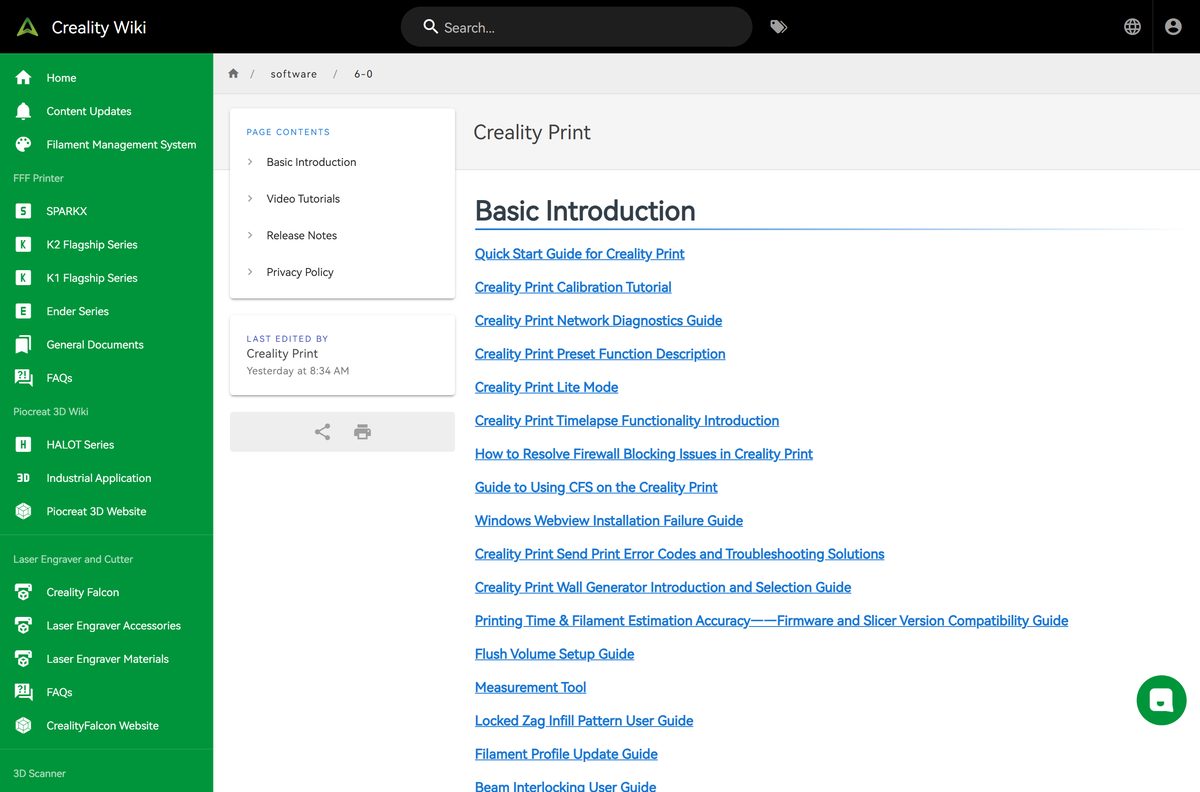
Creality links every current build from its own download center. The release notes and setup guides live on the Creality wiki.
- Creality Print download center — Windows .exe, macOS (Apple) and macOS (Intel) .dmg, Linux AppImage, older versions
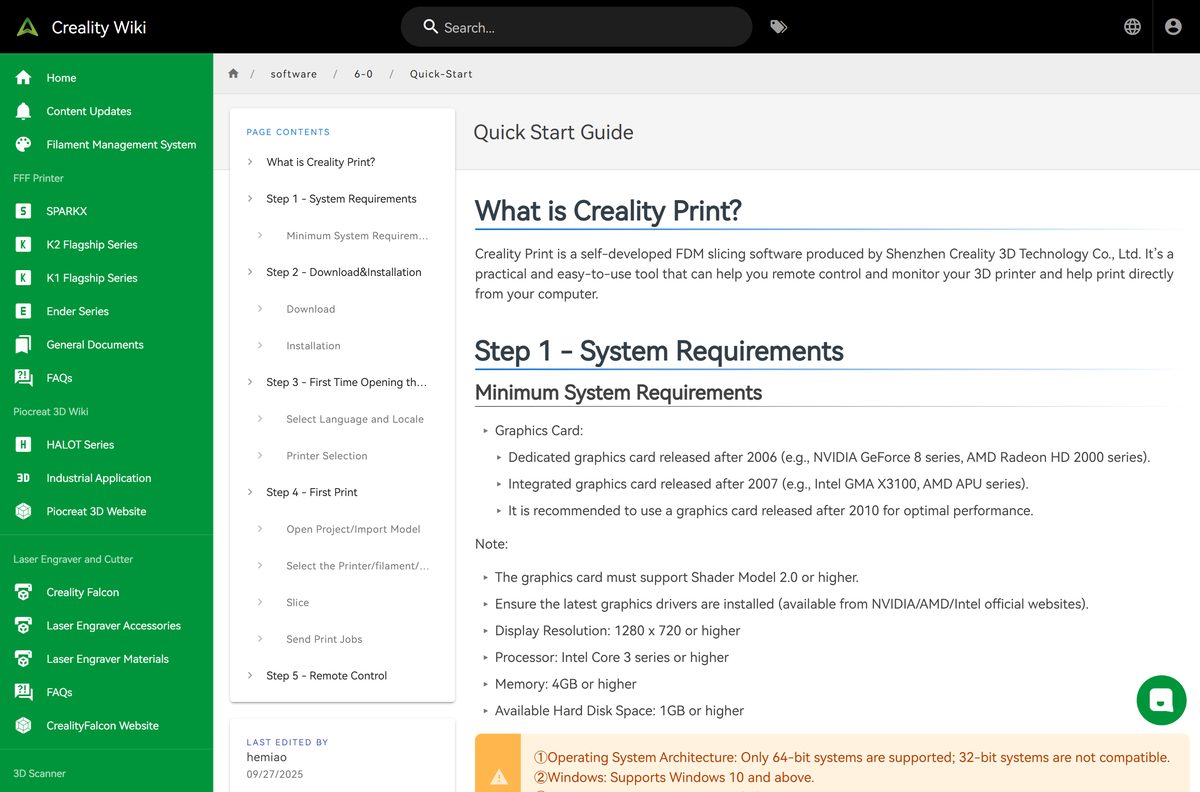
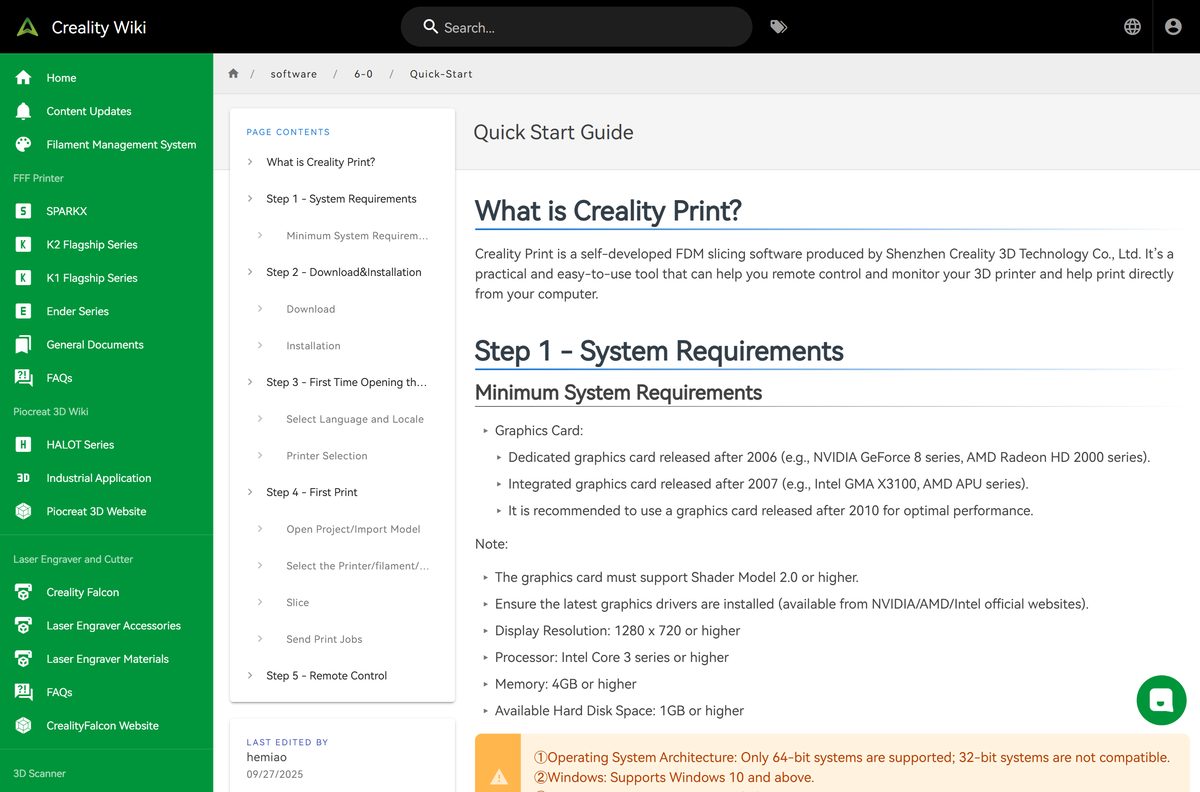
- Creality Print Quick Start Guide — system requirements, first launch and first print
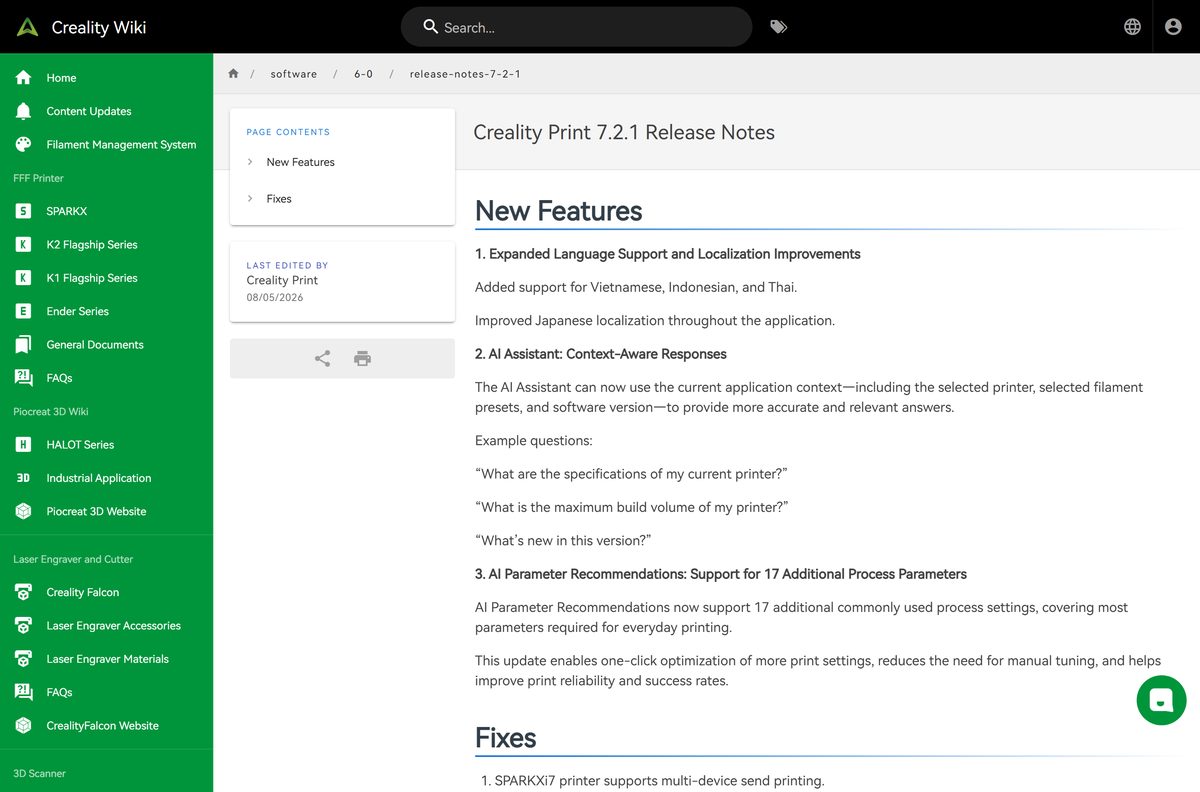
- Creality Print 7.2.1 release notes — new languages, AI Assistant changes and fixes
- Creality Print wiki index — tutorials, troubleshooting guides and every release note
Select Older Versions on the download page to roll back to an earlier 6.x or 7.x build.
How to install Creality Print on Windows 11 and 10
The Windows download is a standard setup program. The first launch then asks for a language and at least one printer.
- Open creality.com/download and find Creality Print at the top of the software list.
- Select Windows to download the CrealityPrint_7.2.2.5483_Release.exe file.
- Open the file from your Downloads folder.
- Select Yes if User Account Control asks for permission.
- Follow the setup wizard and keep the default folder under C:\Program Files\Creality.
- Open Creality Print from the desktop shortcut or the Start menu.
- Select your preferred language and locale.
- Choose the printers and nozzles you own, selecting at least one printer.
- Import a model and select Slice to confirm everything works.
You can add more printers later. The slicer needs at least one printer profile before it slices anything.
Which Creality Print download do you need for your Mac?
Open the Apple menu and select About This Mac. The Chip or Processor line tells you which button to use.
| About This Mac says | Select | Start here |
|---|---|---|
| Chip: Apple M1, M2, M3 or M4 | macOS (Apple) | Creality download center |
| Processor: Intel | macOS (Intel) | Creality download center |
| macOS 10.15 Catalina or older | Upgrade to macOS 11 or later first | Creality Print system requirements |
Open the downloaded .dmg and drag Creality Print into the Applications folder to install it.
Run Creality Print on Linux without installing it
The Linux build is an AppImage, a single file that runs in place without a package manager.
- Open creality.com/download and select Linux under Creality Print.
- Move CrealityPrint-V7.2.1.5476-x86_64-Release.AppImage to a folder such as ~/Applications.
- Open a terminal in that folder.
- Run chmod +x CrealityPrint-V7.2.1.5476-x86_64-Release.AppImage to make the file executable.
- Run ./CrealityPrint-V7.2.1.5476-x86_64-Release.AppImage to start the slicer.
- Choose your language and add at least one printer.
The Linux build trails Windows and Mac by one release. Version 7.2.1 fixed a crash on exit and preset editing on Linux.
Is Creality Print free?
Yes. Creality Print is a free download on Windows, Mac and Linux, with no licence key and no purchase step on the download center. Creality gives the slicer away for its own K-series, SPARKX and Ender printers. Any site that charges for Creality Print, or wraps it in its own installer, is not Creality.
Should you install Creality Print 7.2.2 or roll back to an older version?
Install the current 7.2.2 build unless a specific printer workflow broke after an update. Version 7.2.2 fixes local network video playback on the K2, K2 Pro and K2 Plus, and 7.2.1 added Vietnamese, Indonesian and Thai, context-aware AI Assistant answers and AI recommendations for 17 more print settings. Use Older Versions on the download center only to roll back after a regression.
Check whether your computer meets the Creality Print system requirements
Creality publishes minimum requirements only. Complex multi-color models slice faster on a newer processor and graphics card.
| Field | Value |
|---|---|
| Software | Creality Print |
| Developer | Shenzhen Creality 3D Technology Co., Ltd. |
| Latest version | V7.2.2.5483, released September 6, 2026 (Linux: V7.2.1.5476) |
| License | Free download |
| Windows | Windows 10 and above, 64-bit |
| Mac | macOS 11 and above, Apple silicon or Intel |
| Linux | x86_64 AppImage |
| Architecture | 64-bit only; 32-bit systems are not compatible |
| Processor | Intel Core 3 series or higher |
| Memory | 4 GB RAM or higher |
| Graphics | Shader Model 2.0 or higher; a card from 2010 or later recommended |
| Display | 1280 x 720 or higher |
| Disk space | 1 GB or more free |
| Offline installer | Yes, every package is a full installer |
| Official download | creality.com |
| Last verified | 2026-09-25 |
Install the newest graphics driver from NVIDIA, AMD or Intel before the first launch. Creality lists current drivers as a requirement.
What Creality Print can open
| File type | How to open it | Notes |
|---|---|---|
| 3mf, cxprj projects | File → Open Project | Only one project can be open at a time |
| stl, obj models | Import Model on the toolbar | Several models can go into one project |
| stp, step CAD models | Import Model on the toolbar | Imported alongside mesh models |
Version 7.2 added color OBJ import with automatic filament mapping for multi-color prints.
Fix Creality Print not installing or crashing on Windows 11 or 10
The Add Printer page is blank
The Windows WebView component did not install or has failed.
- Open the Windows WebView Installation Failure Guide on the Creality wiki.
- Download the WebView patch package linked there.
- Install the patch into the same folder as Creality Print.
- Restart Creality Print.
- Try the older patch on the same page if the page still stays blank.
Creality Print crashes or freezes when you select Slice
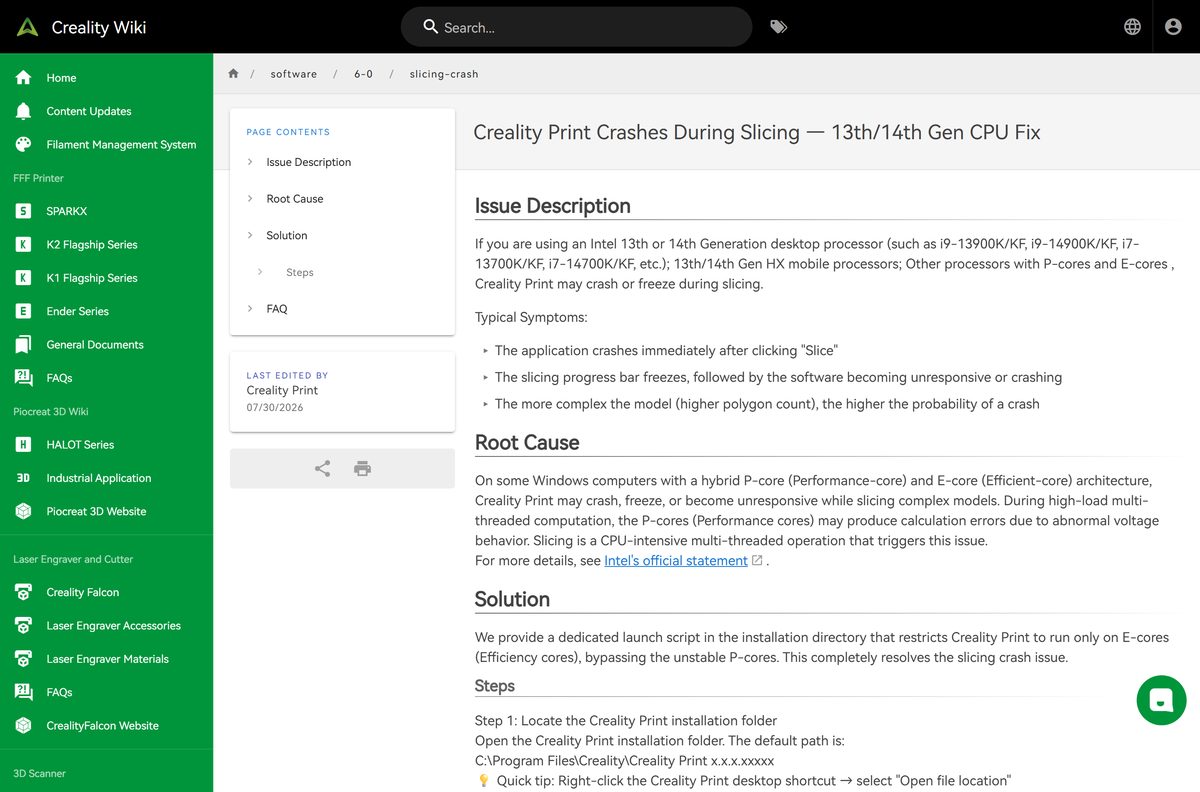
Intel 13th and 14th Gen processors with P-cores and E-cores can miscalculate under heavy multi-threaded load.
- Right-click the Creality Print desktop shortcut and select Open file location.
- Find run_creality_on_e_cores.bat in the installation folder.
- Double-click it to start Creality Print on the efficiency cores only.
- Right-click the file and select Send to → Desktop (create shortcut) for everyday use.
The installer will not run on an older PC
Creality Print needs 64-bit Windows 10 or later.
- Open Settings → System → About.
- Check that System type reads 64-bit operating system.
- Upgrade to Windows 10 or Windows 11 before you run the installer again.
How to uninstall Creality Print
- Close Creality Print.
- Open Settings → Apps → Installed apps on Windows 11, or Settings → Apps → Apps & features on Windows 10.
- Find Creality Print in the list.
- Select the ⋯ menu, then Uninstall, and confirm.
- Delete any leftover Creality Print folder under C:\Program Files\Creality.
- On a Mac, drag Creality Print from Applications to the Trash.
Each version installs into its own numbered folder, so remove old versions one by one if you upgraded several times.
Should you use Creality Print or another slicer?
Use Creality Print if you own a Creality printer. It carries Creality’s own printer profiles, CFS multi-color support and direct sending to K-series machines. For a printer from another brand, UltiMaker Cura from ultimaker.com is a free, open-source slicer for Windows, Mac and Linux with profiles for many manufacturers.
Frequently asked questions
Is Creality Print free?
Yes. Creality Print is a free download from the Creality download center on creality.com, with no purchase or licence key asked for. The same free installer works with Creality’s K, Ender and SPARKX printers.
Where is the official Creality Print download page?
The official page is creality.com/download. Creality Print sits at the top of the software list, with separate buttons for Windows, macOS (Apple), macOS (Intel) and Linux, plus an Older Versions list.
Does Creality Print work on Windows 11?
Yes. Creality supports Creality Print on Windows 10 and above in 64-bit form, which includes Windows 11. A 32-bit Windows installation cannot run it.
How big is the Creality Print download?
Creality does not print an installer size on its download page. Plan for disk space instead: Creality’s minimum requirement is 1 GB of free space on the drive where you install the app.
Is there an offline installer for Creality Print?
Yes. The Windows .exe, the macOS .dmg files and the Linux AppImage are complete packages, so installation runs without a connection. Cloud printing, remote camera view and the AI features need the internet.
Is Creality Print available for Mac?
Yes. Creality ships two Mac builds: macOS (Apple) for M-series Macs and macOS (Intel) for older Intel Macs, both as .dmg files. Creality Print needs macOS 11 or later.
Is there a 32-bit or ARM64 version of Creality Print?
There is no 32-bit version, because Creality Print supports 64-bit systems only. Apple silicon Macs get a native arm64 build, while Windows gets a single installer with no separate ARM build listed.
Is the Creality Print download safe?
Yes, when you start from creality.com/download. The buttons there point to Creality’s official release files. Avoid sites that repackage the free slicer inside their own installer or ask you to pay for it.
What is the latest version of Creality Print?
Creality Print V7.2.2.5483, released on September 6, 2026, is the newest build on the download center for Windows and Mac. It fixes local network video playback on the K2, K2 Pro and K2 Plus.
Why won’t Creality Print install or work properly?
The usual causes are a 32-bit or pre-Windows 10 system, a missing WebView component that leaves the Add Printer page blank, or an Intel 13th or 14th Gen processor crashing during slicing. Each has a fix on Creality’s wiki.
Can I use Creality Print on Linux?
Yes. The download center lists a Linux x86_64 AppImage. The newest Linux build is V7.2.1.5476 from August 4, 2026, one release behind the Windows and Mac builds.
What files can Creality Print open?
Creality Print opens projects in 3mf and cxprj formats and imports stl, obj, stp and step models. Only one project can be open at a time, but you can import several models into it.