You can install the ClickUp download on Windows 11, Windows 10, Mac and Linux in a few minutes. Every build comes from clickup.com/download, and the app costs nothing to install.
On Windows the download button opens the free Microsoft Store listing. Mac users get a small installer, and Linux users get a single AppImage file. Phones, tablets and the Apple Watch get their own store apps.
Below are the official links with their sizes, the install steps for each system, what the Free Forever plan covers, the paid prices, and fixes for an app that will not install or open.
Which ClickUp download do you need?
Match the device in front of you to a row. All three desktop builds carry the same release.
| Your device | What to get | Size |
|---|---|---|
| Windows 11 or 10 PC | ClickUp in the Microsoft Store | 153 MB |
| Mac, Intel or Apple silicon | ClickUp Mac Installer.zip | 619 KB installer |
| Linux PC on x86_64 | ClickUp AppImage | 150 MB |
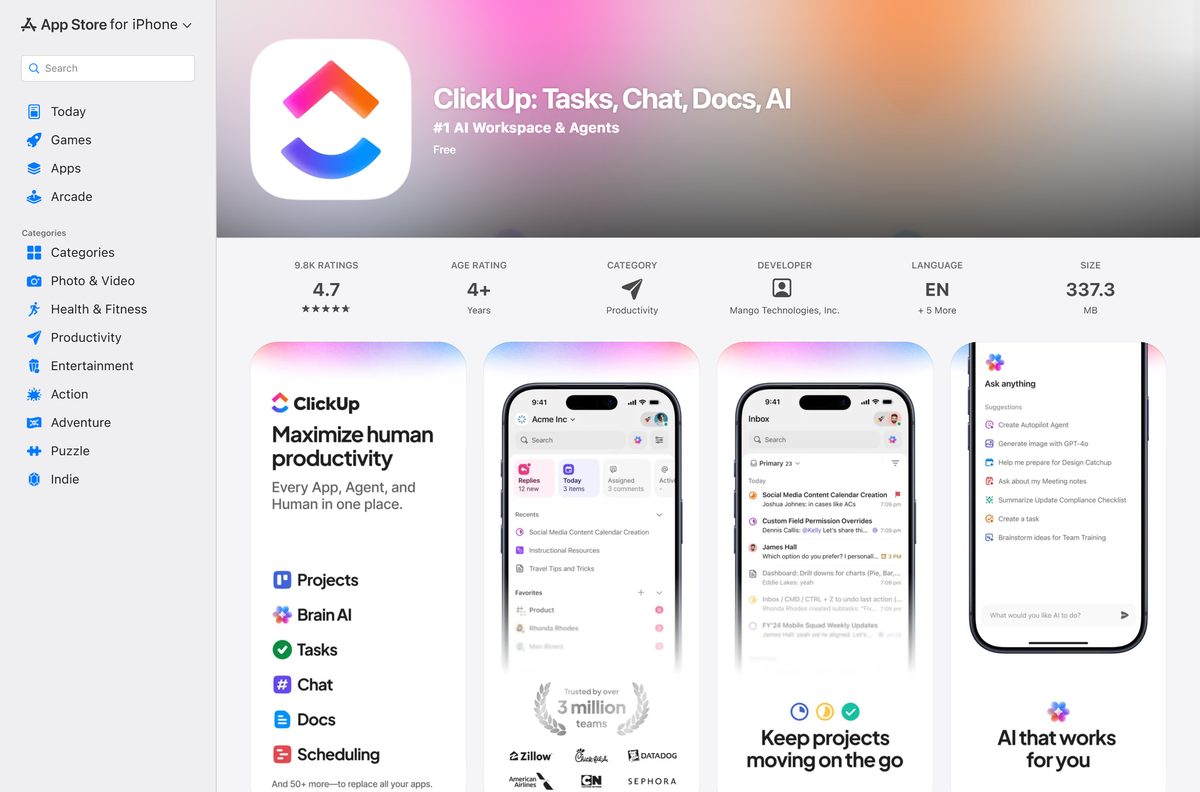
| iPhone, iPad or Apple Watch | ClickUp on the App Store | 337.3 MB |
| Android phone or tablet | ClickUp on Google Play | Varies by device |
| Chromebook or a PC without install rights | Sign in at app.clickup.com | No download |
Press Windows + Pause and read System type if you are unsure whether the PC runs 64-bit Windows.
Download ClickUp from the official links for Windows 11 and 10
The Windows button on the vendor download page leads to the Microsoft Store. The Mac and Linux files come from the company’s own download host.
- ClickUp for Windows 11 and 10 (Microsoft Store) — 153 MB · Free, published by ClickUp, x64 package
- ClickUp for Mac — 619 KB · Installer that fetches the full app
- ClickUp for Linux — 150 MB · Single self-contained file for x86_64 PCs
- ClickUp download page — Every desktop, mobile and extension link in one place
- ClickUp for iPhone, iPad and Apple Watch — Free, iOS 17.4 or later
- ClickUp for Android — Free on Google Play
The same page also lists Brain MAX, a separate AI desktop app. It does not replace the main workspace app.
How to install ClickUp on Windows 11 and 10
The Microsoft Store handles the download and the install, so there is no setup file to keep.
- Open clickup.com/download in any browser.
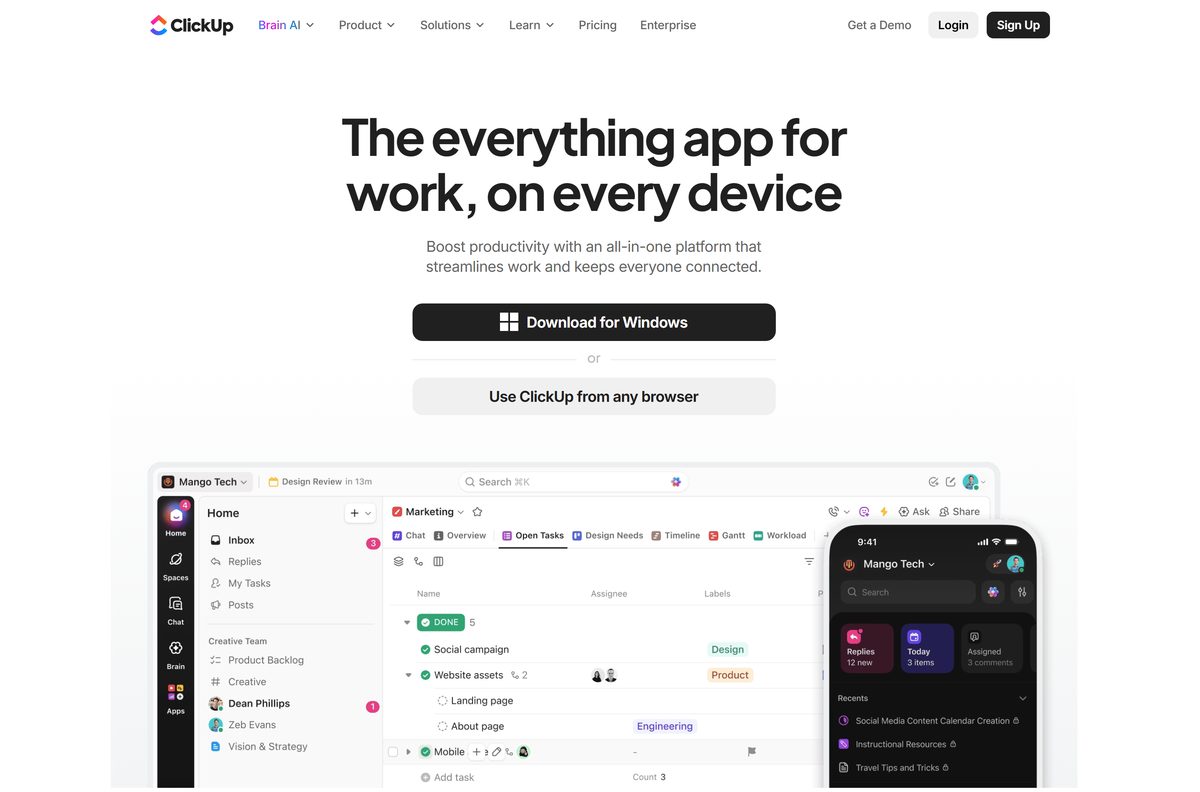
- Select Download for Windows, which opens the ClickUp listing in the Microsoft Store.
- Check that the publisher reads ClickUp and the price reads Free.
- Select Get and allow the Store app to open if the browser asks.
- Wait while the Store downloads the 153 MB package and installs it.
- Select Open, or find ClickUp in the Start menu.
- Sign in to your Workspace, or create a free account on the Free Forever plan.
A first launch loads your Workspace from the server, so keep the PC online until the sidebar fills in.
Which ClickUp download do you need for your Mac?
Open the Apple menu and select About This Mac to read your chip and macOS version. The desktop app needs macOS 10.16 (Big Sur) or later.
| Your Mac | What to get | How it installs |
|---|---|---|
| Any Mac on macOS Big Sur or later | ClickUp Mac Installer.zip | Open the zip, then double-click Install ClickUp |
| macOS older than Big Sur | Sign in at app.clickup.com | Runs in the browser, no install |
| iPhone or iPad next to the Mac | The App Store listing | Tap Get; needs iOS 17.4 or later |
The Mac installer is only 619 KB because it pulls the app during setup, so stay online until ClickUp appears in Applications.
If you receive a .dmg file instead, as ClickUp describes for M1 and M2 Macs, open it and drag the app into Applications.
Run ClickUp on Linux from the AppImage
The Linux build is one self-contained AppImage for x86_64 PCs. It runs from wherever you save it, with no package manager involved.
- Download the Linux AppImage from the official download page.
- Move desktop-3.5.343x86_64.AppImage into a folder you keep, such as ~/Applications .
- Right-click the file, open Properties, and tick Allow executing file as program.
- Or open a terminal in that folder and run chmod +x desktop-3.5.343x86_64.AppImage .
- Double-click the file, or run ./desktop-3.5.343x86_64.AppImage in the terminal.
- Sign in to your Workspace when the window opens.
Some distributions will not launch an AppImage until you install AppImageLauncher, which ClickUp names as the fix.
Is ClickUp free?
Downloading costs nothing on every platform. What you pay for is the plan behind the Workspace.
Start on Free Forever, and move to Unlimited when the 60MB storage cap or the single form starts to pinch. Free Forever has no time limit and allows unlimited tasks and unlimited free plan members, with collaborative Docs, Kanban boards, sprints, calendar view, two-factor authentication and 24/7 support. It caps storage at 60MB and allows one form. Unlimited removes those caps and adds Gantt charts, time tracking, guests and Chat for $7 per user per month billed yearly, or $10 billed monthly. Business adds advanced dashboards, 5K automations a month and Google SSO for $12 yearly or $19 monthly. Enterprise is quoted by sales.
AI is priced separately: Brain AI is $9 and Everything AI is $28 per user per month on yearly billing, per the pricing page.
Should you install the ClickUp desktop app or use the browser?
Both reach the same Workspace and the same data. The difference is what the desktop build adds around the window.
Install the desktop app if you live in ClickUp all day; stay in the browser if you rely on Chrome extension integrations. The desktop app adds system-wide shortcuts: Ctrl + E creates a task from any program and Ctrl + J opens the AI Command Bar, with Cmd in place of Ctrl on a Mac. It also keeps a local Clipboard History on Shift + Ctrl + C, can launch at startup, and opens Zoom, Figma, Notion and MS Teams links in their own apps. Integrations that depend on a Chrome extension do not work in the desktop app, and some embedded content opens in the browser instead.
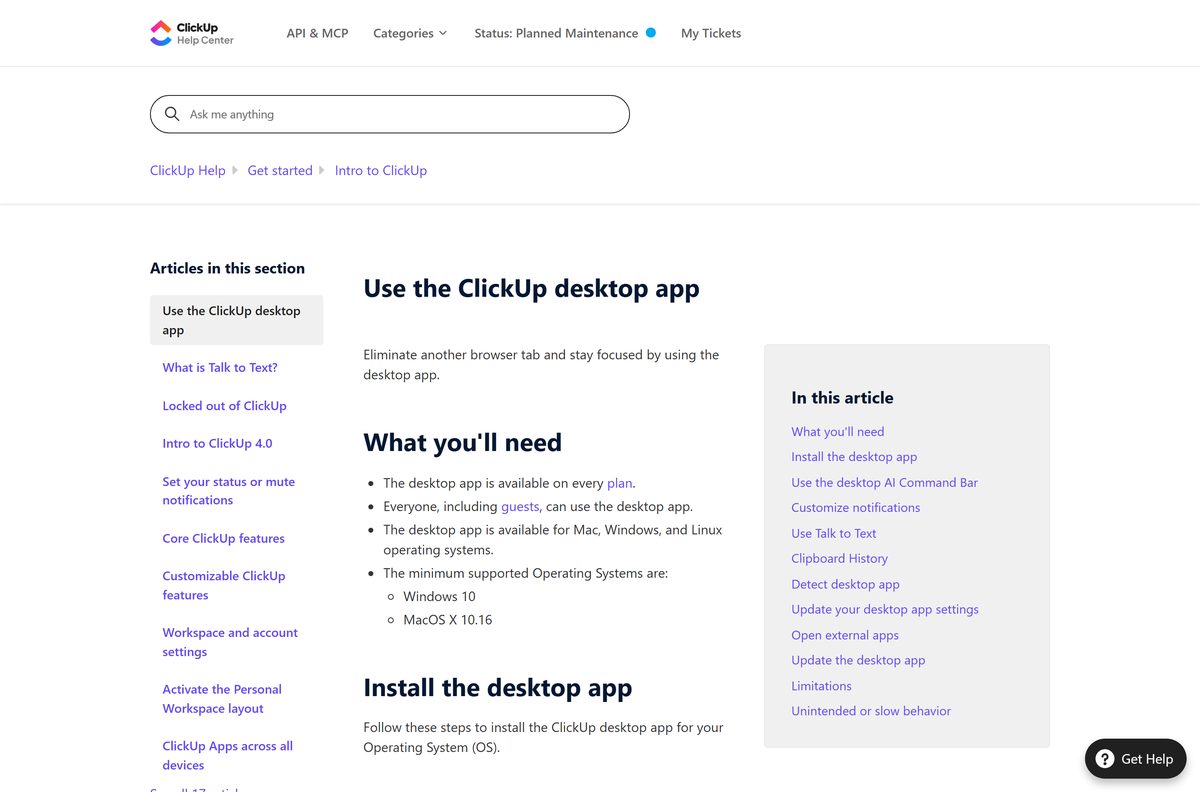
The desktop app is available on every plan, and guests can use it too.
How to check your ClickUp version and update it
Version 3 and later checks for updates on its own. Check the number when a feature looks different from the browser.
- Open the ClickUp desktop app.
- Select the File menu on Windows, or the app menu on a Mac.
- Select ClickUp, then About ClickUp to see the version number.
- Return to the same menu and select Check for updates.
- Follow the prompts in the popup to install a newer build.
- Re-pin the app to the taskbar or Dock if the old icon still opens the previous version.
If you still run version 2, an in-app message prompts you to move to version 3.
Check the ClickUp system requirements before you install
The floor is low. Any PC running a supported Windows release has room for the desktop build.
| Field | Value |
|---|---|
| Software | ClickUp desktop app |
| Developer | Mango Technologies, Inc. (ClickUp) |
| Latest version | 3.5.343 |
| License | Free to download; Free Forever plan, paid plans from $7 per user per month |
| Supported OS | Windows 10 or later; macOS 10.16 (Big Sur) or later; Linux via AppImage |
| Architecture | Windows x64; Linux x86_64; Mac installer for Intel and Apple silicon |
| Memory | 4 GB minimum, 8 GB recommended (Microsoft Store listing) |
| Download size | 153 MB Windows (160,686,080 bytes); 150 MB Linux; 619 KB Mac installer |
| Windows source | Microsoft Store, linked from clickup.com/download |
| Offline installer | Linux AppImage only; Windows and Mac installs need a connection |
| Mobile | iOS 17.4 or later, and Android on Google Play |
| Account | Required; Free Forever works |
| Last verified | 2026-09-25 |
Press Windows + R, type winver and select OK to read your Windows version.
How to make ClickUp links open in the desktop app
While the desktop app runs, ClickUp pages opened in Chrome, Firefox or Edge offer to switch to the app. Safari does not get the prompt.
- Start the ClickUp desktop app and leave it running.
- Open any ClickUp link in Chrome, Firefox or Edge.
- Read the notification in the lower-left corner of the page.
- Tick the checkbox to open future ClickUp links in the desktop app automatically.
- To turn it off, click your avatar in the browser, select Settings, and disable Detect Desktop App.
- Select Save changes in the lower-right corner.
Enable Launch at Startup under App Behavior in the desktop settings so the app is always there to catch links.
Fix ClickUp not installing or opening on Windows 11 or 10
Work through the symptom that matches. Each one has a single cause.
The Microsoft Store Get button does nothing
The Store cache is stuck or the Store app is out of date.
- Press Windows + R, type wsreset.exe and press Enter.
- Wait for the Store to reopen on its own.
- Open Library in the Store and select Get updates.
- Return to the ClickUp listing and select Get again.
The app is slow, blank or behaves oddly
Cached app data from an older build is out of step with the new one.
- Update to the latest version first, using Check for updates.
- Uninstall ClickUp if the problem remains.
- Delete the %AppData%\Roaming\ClickUp folder and any leftover item with ClickUp in the name.
- Reinstall from clickup.com/download.
The Mac app misbehaves after an update
Old settings in the Application Support folder.
- Open Finder and press Command + Shift + G.
- Paste ~/Library/Application Support/ and select Go.
- Right-click the ClickUp folder and select Move to Trash.
- Open the ClickUp desktop app and sign in again.
The Linux AppImage will not start
The file is not marked executable, or the distribution lacks AppImage support.
- Run chmod +x on the AppImage file.
- Launch it again from the terminal to see any error message.
- Install AppImageLauncher if the error mentions FUSE or AppImage support.
How to uninstall ClickUp
Removing the app leaves your tasks and Docs untouched, because they live in your Workspace online.
- Quit ClickUp fully, since closing the window leaves it running in the background.
- On Windows, open Settings, then Apps, then Installed apps.
- Select the three dots next to ClickUp and choose Uninstall, then confirm.
- Delete %AppData%\Roaming\ClickUp to remove cached data.
- On a Mac, drag ClickUp from Applications to the Bin, then delete its folder in ~/Library/Application Support/ .
- On Linux, delete the AppImage file.
- Sign in at app.clickup.com to keep working in a browser.
Reinstalling later restores every Space and List as soon as you sign in again.
Which ClickUp alternatives ship a desktop app?
Linux support is where ClickUp stands apart. The closest rivals cover Windows and Mac only.
| Tool | Desktop download | Linux app |
|---|---|---|
| ClickUp | Windows, Mac and Linux | Yes, AppImage |
| Asana | Windows 64-bit, ARM, 32-bit and Mac | No |
| Notion | Windows x64 and ARM64, and Mac | No |
| Trello | Microsoft Store and Mac App Store | No |
Pick ClickUp if anyone on the team works on Linux. Otherwise choose on features and price, since all four run in a browser as well.
Frequently asked questions
Short answers to what readers ask before they install.
Is the ClickUp desktop app free to download?
Yes. The Windows app is free in the Microsoft Store, and the Mac, Linux, iPhone and Android apps cost nothing either. The Free Forever plan behind the app is free with no time limit. Paid plans start at $7 per user per month on yearly billing.
Where is the official ClickUp download for PC?
The official page is clickup.com/download. Its Download for Windows button opens the ClickUp listing in the Microsoft Store, published by ClickUp. The same page links the Mac installer, the Linux AppImage and the mobile store apps.
Is ClickUp on the Microsoft Store?
Yes. The Store listing is published by ClickUp, sits in the Productivity category and costs nothing. It is the route the vendor’s own download page uses for Windows, and the app then updates itself.
Does ClickUp work on Windows 11?
Yes. The desktop app supports Windows 10 and later, which includes Windows 11. The Microsoft Store listing asks for 4 GB of memory at minimum and recommends 8 GB for smooth use.
How big is the ClickUp download for Windows?
The Windows package the Microsoft Store installs is 153 MB, or 160,686,080 bytes. The Linux AppImage is 150 MB. The Mac installer is only 619 KB because it fetches the app during setup.
Is there a ClickUp offline installer?
Only on Linux, where the AppImage is a complete standalone file you can copy to other PCs. On Windows the Microsoft Store downloads the package, and on a Mac the small installer pulls the app, so both need an internet connection.
Is there a ClickUp app for Mac?
Yes. The Mac download on clickup.com installs the desktop app on macOS 10.16 (Big Sur) or later. Open the zip and double-click Install ClickUp. On an older macOS release, sign in at app.clickup.com in a browser instead.
Which processors does ClickUp support?
The Windows package is a 64-bit x64 build, and the Linux AppImage targets x86_64. ClickUp covers both Intel Macs and Apple silicon Macs such as the M1 and M2 in its install instructions.
Is ClickUp safe to install?
Yes, when it comes from clickup.com, the Microsoft Store, the App Store or Google Play. The Windows Store listing names ClickUp as publisher. Avoid copies on download portals, which add nothing and can bundle unwanted software.
What is the latest ClickUp version?
The current desktop release is 3.5.343 on Windows, Mac and Linux. Version 3 and later checks for updates automatically, and you can confirm the number under About ClickUp in the File or app menu.
Why won’t ClickUp install from the Microsoft Store?
A stuck Store cache is the usual cause. Press Windows + R, run wsreset.exe, let the Store reopen, install pending Store updates under Library, then select Get on the ClickUp listing again.