You can download Auto-Tune for Windows 11, Windows 10 and Mac from Antares, and every edition is free to try through an AutoTune Unlimited trial.
The plugins install through AutoTune Central, a small manager app that downloads, installs and activates them after you sign in. Antares now spells the brand AutoTune, and Pro 11, Advanced and the 2026 edition all come from the same place.
This guide covers the official links, the install steps for Windows and Mac, which plugin format your DAW loads, what the trial and paid licences include, and fixes for a plugin that does not show up.
Check the Auto-Tune system requirements and specs
Auto-Tune is a plugin, so your DAW must run on the same system. Match this table before you download anything.
| Field | Detail |
|---|---|
| Software | AutoTune Pro 11, AutoTune Advanced and AutoTune (2026) |
| Developer | Antares Audio Technologies |
| Latest version | AutoTune Pro 11.6, which adds macOS 26 Tahoe support |
| License / Price | Paid: perpetual Pro 11 licence or AutoTune Unlimited subscription, with a free trial |
| Supported OS | Windows 10 and 11; macOS 14 Sonoma or later, including Sequoia 15 and Tahoe 26 |
| Architecture | 64-bit x64 installer on Windows; universal installer on Mac, plugins native on Apple Silicon |
| Plugin formats | VST3, AU and AAX |
| Installer | AutoTune Central 2.0.2 download manager |
| Offline installer | No, AutoTune Central signs in and downloads the plugins |
| Official download source | antarestech.com/software-download |
| Last verified | 2026-09-25 |
AutoTune Central itself runs on macOS 11 or later, but the current plugins need macOS 14 or later.
Which Auto-Tune download do you need?
Every edition installs from the same AutoTune Central app. What changes is the licence on your account.
| What you want | What to get | Cost |
|---|---|---|
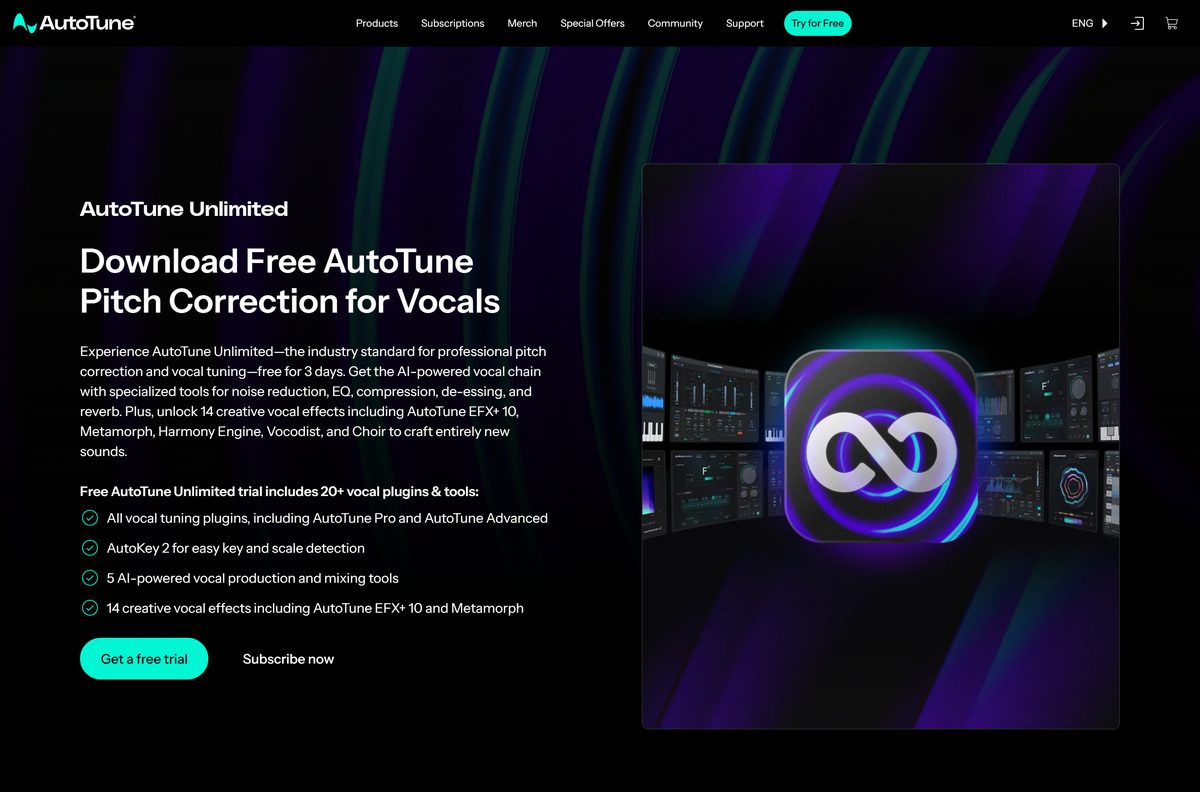
| Try every edition before you pay | AutoTune Unlimited free trial | Free for the trial period |
| Automatic and manual tuning you own outright | AutoTune Pro 11 perpetual licence | One-time payment |
| Every AutoTune plugin and vocal effect | AutoTune Unlimited subscription | Monthly or annual billing |
| You already own a licence | AutoTune Central download manager | Free app |
A Pro 11 purchase also includes a free month of AutoTune Unlimited.
Download Auto-Tune from the official Antares pages
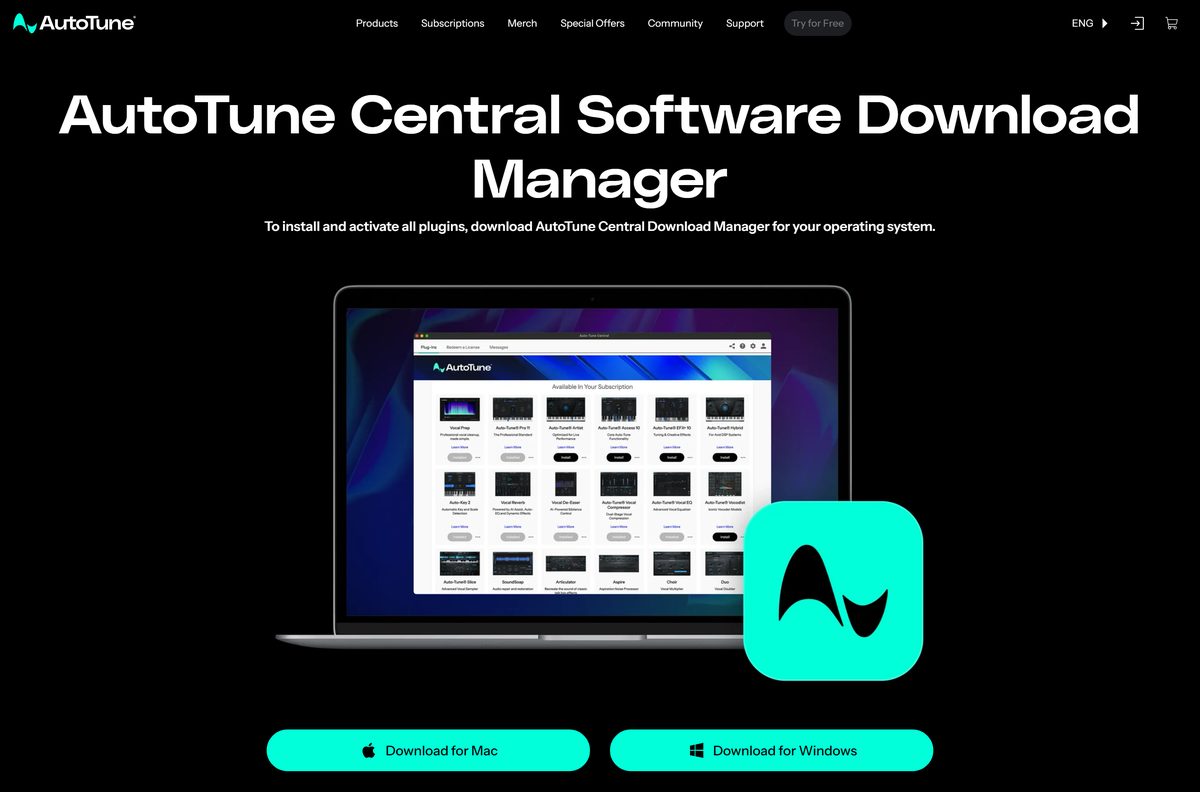
Antares ships no standalone plugin installer. You install AutoTune Central first, and it fetches the plugins your account can use.
- AutoTune Central for Windows — version 2.0.2, x64 installer for Windows 10 and 11
- AutoTune Central for Mac — version 2.0.2, universal disk image for macOS 11 or later
- AutoTune free trial sign-up — unlocks every edition and vocal effect for the trial period
- AutoTune Pro 11 product page — features, release notes and purchase options
Select Download for Windows or the Mac button on the Software Download page. Both files come from Antares’ own storage.
How to install Auto-Tune on Windows 11 and 10
Close your DAW before you start, so it scans the new plugin on its next launch.
- Open the Software Download page and select Download for Windows.
- Run the AutoTune Central setup file and follow the prompts to finish the install.
- Start AutoTune Central and sign in with your Antares account, or create one.
- Start the free trial or confirm the licence on your account if you have not done so.
- Find AutoTune Pro 11, Advanced or AutoTune in the product list and install it.
- Let AutoTune Central activate the plugin once the install finishes.
- Open your DAW and rescan plugins if it does not scan on launch.
- Insert AutoTune on a vocal track as a VST3 plugin, or as AAX in Pro Tools.
Which Auto-Tune download do you need for your Mac?
Open the Apple menu and select About This Mac to read your macOS version, then match a row.
| Your Mac | What runs | Where to start |
|---|---|---|
| Apple Silicon on macOS 14 Sonoma or later | Current plugins, running natively | AutoTune Central for Mac |
| Intel Mac on macOS 14 Sonoma or later | The universal AutoTune Central installer; confirm your DAW on the compatibility list | DAW and OS compatibility |
| Any Mac on macOS 26 Tahoe | AutoTune Pro 11.6 or later | AutoTune Pro 11 page |
| macOS 11 to 13 | AutoTune Central opens, but the current plugins need macOS 14 | DAW and OS compatibility |
On a Mac, open the downloaded disk image and install AutoTune Central from it, then follow the same sign-in and install steps as on Windows.
Is Auto-Tune free?
Auto-Tune is paid software. The free route is a time-limited trial, not a free edition.
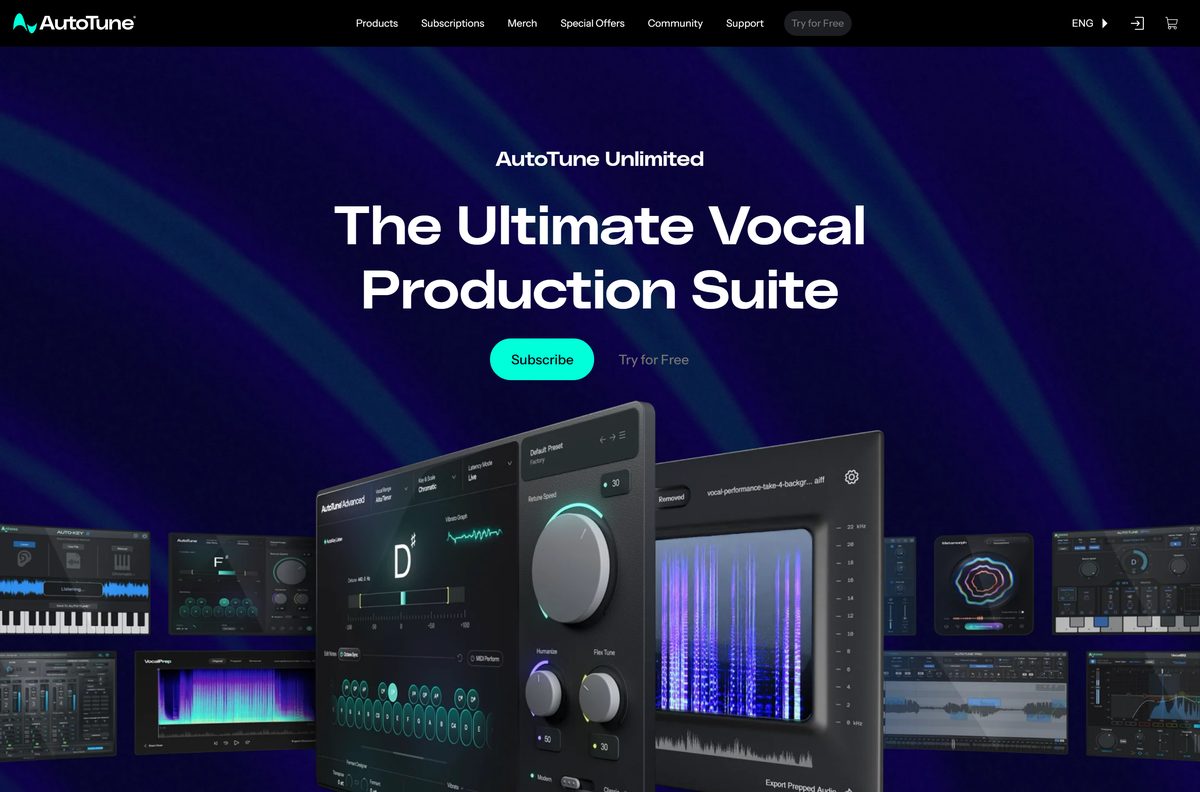
Start the AutoTune Unlimited free trial, then buy Pro 11 outright or keep the subscription. The trial unlocks every AutoTune edition plus the vocal chain and creative effects such as Harmony Engine, Vocodist and Metamorph. Antares offers the trial as 3 days on some sign-ups and 14 days on others, so check the length shown before you start. AutoTune Pro 11 is a one-time payment you keep forever. AutoTune Unlimited is billed monthly, cancel anytime, or annually. The current price appears on the purchase page. A site offering a cracked or ‘full free’ AutoTune is not distributing Antares software.
Compare the subscription and the perpetual licence on the Pro 11 purchase page.
Should you install AutoTune Pro 11 or AutoTune Advanced?
Both are current editions. They differ in how much hands-on editing you get.
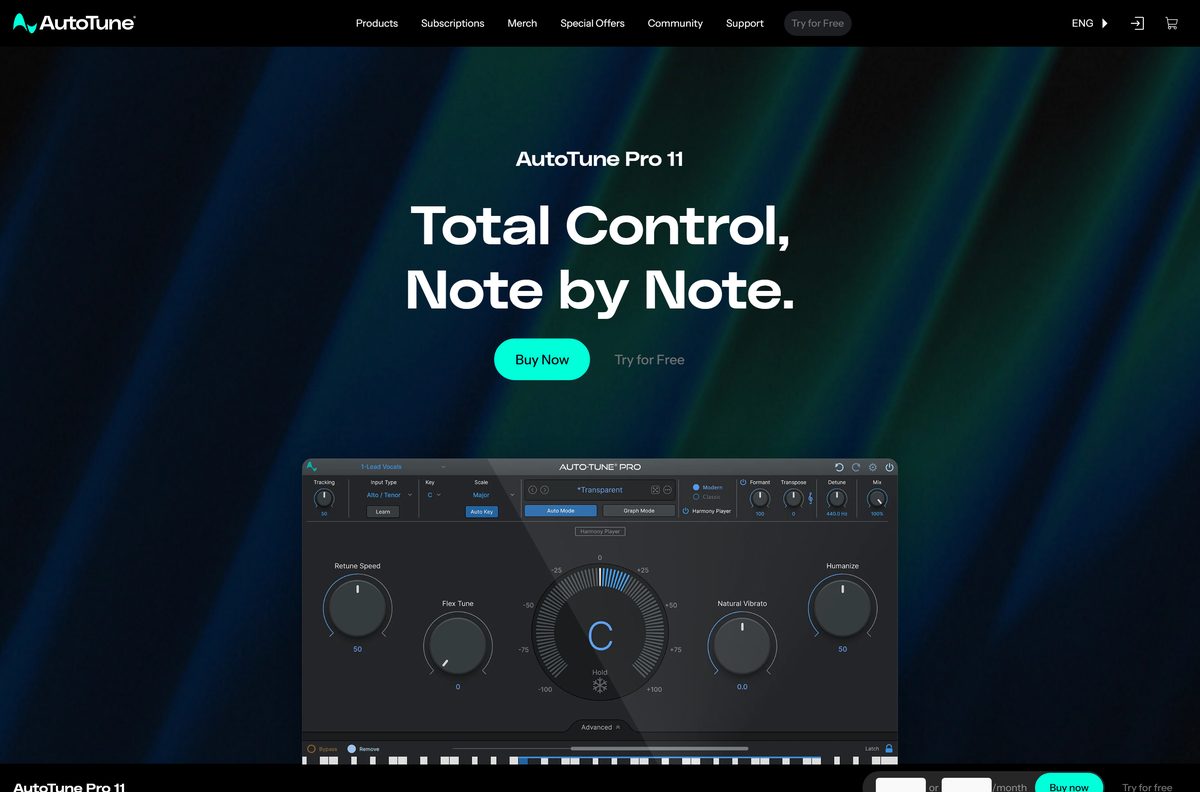
Install AutoTune Pro 11 if you edit vocals note by note, and AutoTune Advanced if you mostly want fast automatic correction. Pro 11 adds Graph Mode for detailed pitch and time editing, the 4-Part Harmony Player and ARA2 support in Logic, Studio One and Cubase or Nuendo. Advanced is the flagship automatic edition, with the DVA vibrato engine that keeps a singer’s natural vibrato and a Live mode for low-latency monitoring while tracking. The Unlimited subscription includes both, so you can install each and decide in your own sessions.
The compare page lists every edition side by side.
Which Auto-Tune plugin format does your DAW need?
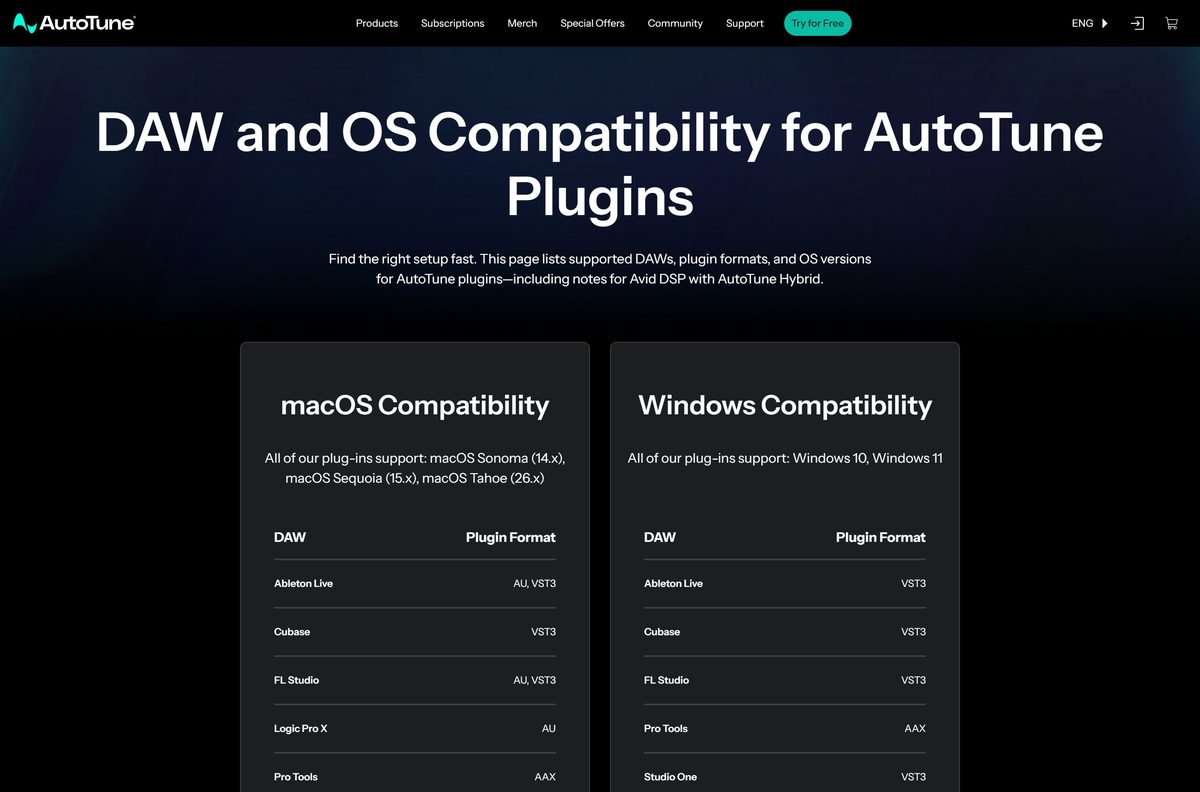
Antares ships VST3, AU and AAX. There is no standalone app, so load AutoTune inside a DAW.
| DAW | Format on Mac | Format on Windows |
|---|---|---|
| Ableton Live | AU or VST3 | VST3 |
| Cubase | VST3 | VST3 |
| FL Studio | AU or VST3 | VST3 |
| Logic Pro | AU | Not available |
| Pro Tools | AAX | AAX |
| Studio One | AU or VST3 | VST3 |
AutoTune Hybrid works only in Pro Tools, in the AAX format. The full list is on the DAW compatibility page.
Fix Auto-Tune not installing or not showing in your DAW
Most problems are a format mismatch or a DAW that has not rescanned its plugins.
AutoTune does not appear in the plugin list
The DAW has not scanned the new plugin, or it looks for a different format.
- Check the table above for the format your DAW loads.
- Open the DAW’s plugin manager and run a rescan.
- Confirm the plugin is enabled rather than hidden or blocked.
- Restart the DAW and search for AutoTune in the plugin browser.
The plugin opens in trial or demo state after you bought it
The licence has not been activated on this computer.
- Open AutoTune Central and sign in with the account that holds the licence.
- Check that the product shows as owned or subscribed.
- Reinstall the plugin from AutoTune Central so it activates again.
- Restart the DAW after activation.
The plugin will not install on your Mac
The Mac runs an older macOS than the plugins support.
- Open the Apple menu and select About This Mac.
- Update to macOS 14 Sonoma or later if you are on macOS 13 or earlier.
- Install AutoTune Pro 11.6 or later if you run macOS 26 Tahoe.
- Run the install from AutoTune Central again.
How to uninstall Auto-Tune from Windows 11 and 10
Remove the plugin before AutoTune Central if you plan to delete both.
- Close your DAW and AutoTune Central.
- Open Settings, select Apps, then Installed apps.
- Type AutoTune in the search box to list the Antares entries.
- Select the three-dot menu next to the plugin and choose Uninstall.
- Repeat for AutoTune Central if you no longer need it.
- Open your DAW and rescan plugins so the entry disappears.
Uninstalling the plugin does not cancel an AutoTune Unlimited subscription. Manage billing from your Antares account.
Frequently asked questions
Is Auto-Tune free to download?
The AutoTune Central download manager is free, and the plugins are free during an AutoTune Unlimited trial. After the trial, AutoTune is paid: a one-time AutoTune Pro 11 licence or a monthly or annual Unlimited subscription.
Where is the official Auto-Tune download page?
Antares hosts it at antarestech.com/software-download, which offers AutoTune Central for Windows and Mac. The free trial starts at antarestech.com/free-download. No other site distributes the Antares plugins.
Does Auto-Tune work on Windows 11?
Yes. Antares supports AutoTune on Windows 10 and Windows 11, and AutoTune Central runs on both. Load the VST3 plugin in most DAWs, or the AAX plugin in Pro Tools.
How big is the Auto-Tune download?
Antares does not publish a size for AutoTune Central or the plugins. AutoTune Central downloads only the editions you select, so the total depends on how many plugins and effects you install.
Is there an Auto-Tune offline installer?
No. Antares distributes the plugins through AutoTune Central, which needs you to sign in before it downloads, installs and activates them. Keep the machine online for the install and activation.
Can you run Auto-Tune on a Mac?
Yes. The current plugins support macOS 14 Sonoma or later, including Sequoia and Tahoe, and run natively on Apple Silicon. Logic Pro loads the AU version, and Pro Tools loads AAX.
Does Auto-Tune support 64-bit and Apple Silicon?
Yes. The Windows installer is a 64-bit x64 build, and the Mac AutoTune Central installer is a universal build. Antares lists Apple Silicon native support for its plugins.
Is it safe to download Auto-Tune?
It is safe from antarestech.com through AutoTune Central. Cracked copies and ‘free full version’ sites are not licensed by Antares, cannot activate through AutoTune Central and receive no updates.
What is the latest Auto-Tune version?
AutoTune Pro 11.6 is the current Pro release. It improves session stability and compatibility and adds support for macOS 26 Tahoe. AutoTune Central updates installed plugins when a new release ships.
How long is the Auto-Tune free trial?
Antares offers the AutoTune Unlimited trial as 3 days on some sign-ups and 14 days on others. The trial covers every AutoTune edition and vocal effect, so check the length shown before you confirm.
Does Auto-Tune work in FL Studio?
Yes. FL Studio loads the VST3 version on Windows, and the AU or VST3 version on a Mac. Rescan plugins in FL Studio after you install AutoTune from AutoTune Central.
Why won’t Auto-Tune show up in my DAW?
The usual cause is a format mismatch or a missing plugin rescan. Check that your DAW loads VST3, AU or AAX as listed, rescan plugins, and confirm the licence is active in AutoTune Central.