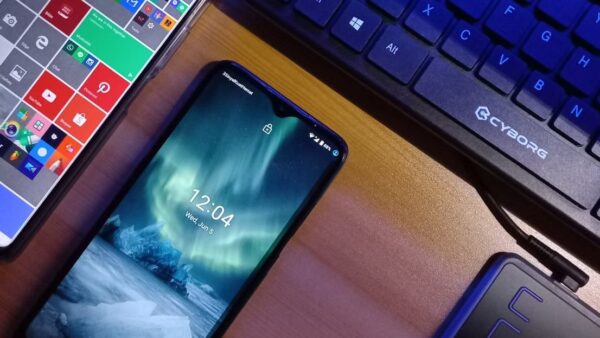
A backlit keyboard that will not light up in Windows 11 is usually switched off at the keyboard: hold Fn and press the key with the backlight icon, or press Fn + Esc first to flip Fn Lock and try again.
If that fails, the cause is a BIOS setting, a short keyboard backlight timeout, automatic brightness, outdated firmware or the laptop simply having no backlight, and each has its own fix below.
Backlit keyboard not working in Windows 11/10
The keyboard backlight on most laptops is run by the laptop's own firmware, not by Windows. That is why the first fixes are keys and BIOS settings rather than Windows settings.
- Find the key with the backlight icon in the top row or on the arrow keys.
- Hold Fn and press that key, then press it again while holding Fn to step through the brightness levels.
- If nothing happens, press the backlight key on its own, without Fn.
- Still dark? Press Fn + Esc (or your laptop's Fn Lock key) to toggle Fn Lock, then repeat steps 2 and 3.
- Cover the light sensor or move to a darker room to rule out automatic brightness turning the light off.
- Restart the laptop fully and press the backlight key again before signing in.
If the backlight still does not respond, check the BIOS settings and updates in the sections below. If the keys do not type at all, the problem is not the backlight, so fix the unresponsive keyboard first.
How to check if your computer has a backlit keyboard
A backlight is hardware. If your model shipped without one, no setting, driver or app can add it, so rule this out before you change anything else.
| Check | What it tells you |
|---|---|
| Look for a backlight icon on a function key, the arrow keys or the space bar | No icon on any key usually means no backlight |
| Open the BIOS and look for a keyboard illumination setting | On Dell laptops, no Keyboard Illumination entry means no backlit hardware |
| Read the Hotkeys chapter of the user manual | ASUS says a manual without backlight hotkeys means the model may not support it |
| Check the exact model's specifications on the maker's support site | Backlighting often varies by configuration within the same model line |
Laptops in one family can differ. HP, for example, sells the same line with and without a backlit keyboard depending on configuration.
Backlit keyboard turn on keys by laptop brand
The backlight key moves between brands and even between models of one brand. Match your laptop to a row and try that combination.
| Laptop | Key to press | Notes |
|---|---|---|
| Dell Latitude, Vostro, Inspiron | Fn + F5, F6, F7 or F10 (the one with the icon) | Cycles Off, Low, High; with Fn Lock on, press the key alone |
| Dell XPS (some models) | Fn + Right arrow | Some high-end XPS and Alienware models have a dedicated backlight key |
| HP laptops | F5 or F4, or Fn + that key | Press again to cycle brightness or turn it off |
| Lenovo ThinkPad, Yoga, IdeaPad | Fn + Space | Adjusts the brightness or turns the backlight on and off |
| ASUS (most models) | Fn + F7 | Repeated presses raise brightness and then turn it off |
| ASUS (some models) | Fn + F4 brighter, Fn + F3 dimmer | Depends on the Function key lock setting |
| ASUS gaming laptops | Fn + Up arrow brighter, Fn + Down arrow dimmer | Armoury Crate also controls lighting |
A Lenovo whose backlight key does nothing may have a wider keyboard fault, so fix the Lenovo keyboard if other keys also misbehave.
Enable or disable keyboard backlight auto brightness in Windows 11
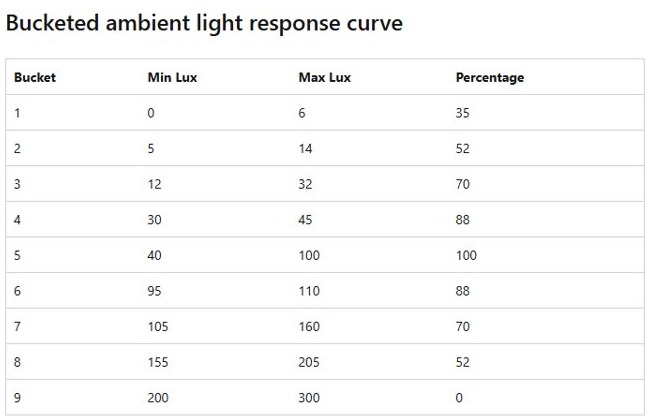
Windows 11 version 25H2 build 26200.7922 or later can adjust the keyboard backlight from the ambient light sensor. In a bright room it sets the backlight to 0%, which looks exactly like a broken backlight.
The setting appears only on laptops that have both a keyboard backlight and an ambient light sensor, and only for simple single-colour backlights.
- Press Windows + I to open Settings.
- Select Bluetooth & devices, then Keyboard.
- Expand Keyboard backlight.
- Turn Change keyboard brightness automatically when lighting changes off to control the light only with the backlight key.
- Turn it back on if you want Windows to dim and brighten the keys with the room light.
Pressing the backlight key while auto brightness is on sets a temporary override. Windows takes control again once the room light changes enough.
Backlit keyboard keeps turning off
The backlight turns off a few seconds after you stop typing
A backlight timeout in the BIOS switches it off when the keyboard is idle.
- On a Dell, shut down fully, power on and tap F2 about once per second at the Dell logo.
- Select Keyboard in the left panel and set Keyboard Backlight Timeout to Always On or a longer interval.
- Select Apply Changes, then Exit.
- On an HP, restart and press F10 repeatedly, open Advanced > Built-in Device Options > Backlit keyboard timeout, choose a longer value or Never, then save and exit.
The backlight goes dark in a bright room or near a window
An ambient light sensor is dimming the keys, either in Windows or in the laptop firmware.
- Turn off Change keyboard brightness automatically when lighting changes in Settings > Bluetooth & devices > Keyboard > Keyboard backlight.
- On a Dell, set Keyboard Illumination with ALS or Ambient Light Sensor to Disabled in the BIOS Keyboard section.
- Press the backlight key to set the level you want.
The backlight is dimmer on battery
Energy saver lowers keyboard brightness, by 30% by default.
- Open Settings > System > Power & battery.
- Expand Energy saver.
- Turn off Lower keyboard brightness when using energy saver.
A timeout of Always On or Never will keep the backlit keyboard always on until you switch it off, but it drains the battery faster.
Backlight keyboard not turning on
The backlight key does nothing at all
The backlight is disabled in the BIOS, so the key has nothing to turn on.
- Shut down the laptop fully, not Sleep or Hibernate.
- Open the BIOS: F2 at the Dell logo, F10 on HP.
- On a Dell, open Keyboard > Keyboard Illumination and choose Dim or Bright instead of Disabled.
- Save the change, exit and press the backlight key once Windows loads.
The backlight works in the BIOS but not in Windows
A Windows driver or a vendor app is intercepting the key.
- Right-click Start and select Device Manager.
- Expand Keyboards, right-click your keyboard and select Update driver.
- Install your maker's hotkey or system driver from its support site; on ASUS laptops reinstall the ASUS System Control Interface driver.
- Reinstall the lighting app your laptop uses: MyASUS and Armoury Crate, Alienware Command Center or OMEN Gaming Hub.
- Restart and test the backlight key.
The backlight stopped working after an update
Firmware and Windows packages are out of step with each other.
- Connect the charger.
- Update the BIOS with your maker's tool: SupportAssist on Dell (Update Software > Start), HP Support Assistant on HP, MyASUS on ASUS.
- Install pending updates in Settings > Windows Update.
- On ASUS, restore the BIOS defaults and, if needed, perform the EC reset that ASUS lists first in its backlight troubleshooting order.
- If the light worked recently, use System Restore to roll back to a restore point from before the change.
An RGB keyboard stays dark or ignores its app
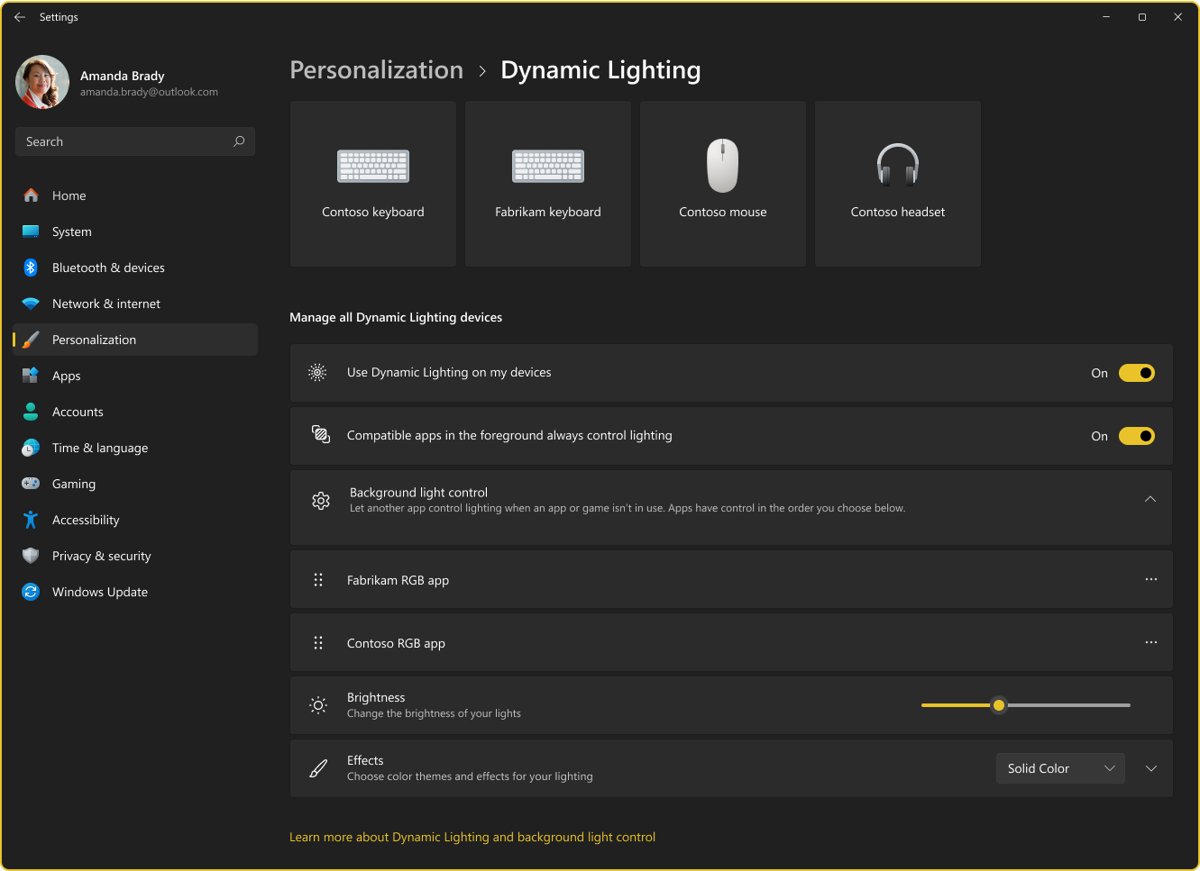
Dynamic Lighting or another lighting app has control of the LEDs.
- Open Settings > Personalization > Dynamic Lighting.
- Check Use Dynamic Lighting on my devices and raise Brightness.
- Expand Background light control and drag the app you want to the top of the list.
- On Alienware, open Alienware Command Center and select Reset to Default in the Lighting section.
If none of these bring the light back and the BIOS still shows the setting, contact the laptop maker's support; the backlight hardware or keyboard cable may need repair.
Backlit keyboard not working HP
HP laptops follow the same pattern, with two HP-specific places to look: the BIOS timeout and HP Support Assistant.
| HP symptom | What to do |
|---|---|
| Pressing F5 or F4 does nothing | Hold Fn and press the backlight key together |
| The light comes on, then goes off after a few seconds | Change Backlit keyboard timeout under Advanced > Built-in Device Options in the BIOS (F10 at startup) |
| The timeout setting is missing from the BIOS | Update the BIOS through HP Support Assistant; on some models the option appears after the update |
| The light still does not work after updates | Restart fully, then contact HP Customer Support |
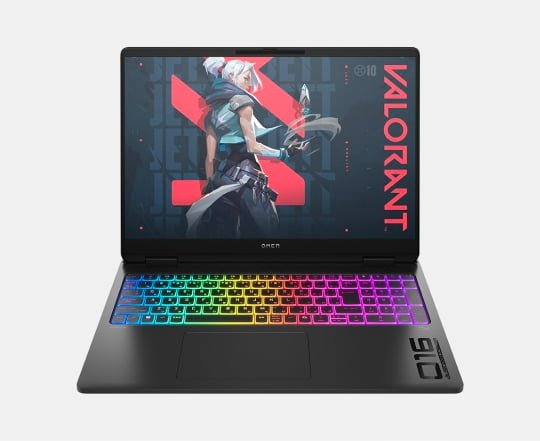
| OMEN keyboard colours or effects are wrong | Open OMEN Gaming Hub and select Lighting, or OMEN Light Studio for RGB effects |
My laptop doesn't have backlit keyboard
Use an external backlit keyboard or a desk lamp angled at the keys if your laptop has no backlight icon and no BIOS illumination setting. A keyboard backlight is built into the hardware, so software, drivers or Windows settings cannot add one to a laptop that shipped without it.
A USB or wireless backlit keyboard works with any Windows 11 laptop. Compatible single-colour external keyboards can also use Windows auto brightness when the laptop has an ambient light sensor.
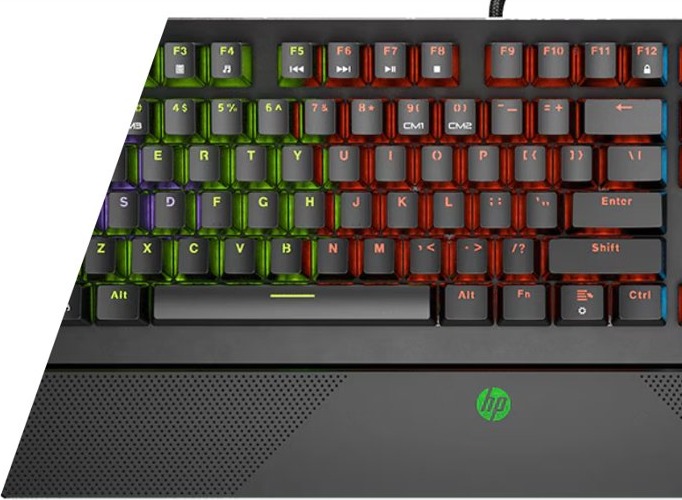
Backlit keyboard not working FAQ
Why did my backlit keyboard stop working?
Most often the backlight was switched off with its key, Fn Lock changed which key press works, or auto brightness turned it to 0% in a bright room. A BIOS change, firmware update or missing hotkey driver can also stop it.
Why does the backlit keyboard turn off?
A backlight timeout in the BIOS switches the keys off after a few idle seconds to save battery. Windows 11 auto brightness and energy saver can also dim or turn it off. Set the timeout to Always On or Never to keep it lit.
Can we turn off backlit keyboard?
Yes. Press the backlight key, with Fn if needed, until the light goes off. On Dell laptops you can also set Keyboard Illumination to Disabled in the BIOS so it stays off every time the laptop starts.
Can I make my keyboard backlit?
No, not on a laptop that shipped without a backlight. The LEDs are part of the keyboard hardware. Connect an external backlit keyboard instead, or light the keys with an adjustable desk lamp.
Why is my keyboard not backlit anymore?
Check whether the backlight was turned off with its key, whether the BIOS timeout is very short, and whether auto brightness is on in Settings > Bluetooth & devices > Keyboard. A BIOS update or BIOS reset may also have changed the illumination setting.
How to fix backlit keyboard not working?
Press Fn with the backlight key, toggle Fn Lock with Fn + Esc and try again, then check the BIOS illumination and timeout settings. Update the BIOS and hotkey drivers if the BIOS shows the setting but the key still does nothing.
Why won't my backlit keyboard light up?
Either the laptop has no backlight, the backlight is disabled in the BIOS, or a driver or lighting app is not passing the key press through. Look for a backlight icon on the keys first, then check the BIOS for a keyboard illumination option.