To delete your YouTube account, sign in to YouTube Studio on a computer, open Settings > Channel > Advanced settings, select Remove YouTube Content and choose I want to permanently delete my content.
That removes the channel but keeps your Google Account, Gmail and Drive. This guide also covers backing up first, hiding the channel instead, deleting the whole Google Account and getting an account back.
YouTube account deletion options
A YouTube account is a channel attached to a Google Account. Pick the row that matches what you want gone.
| What you want | Do this | What stays |
|---|---|---|
| Remove the channel and its videos for good | Delete the channel in YouTube Studio | Your Google Account, Gmail, Drive and Photos |
| Take the channel offline for now | Hide the channel in YouTube settings | Everything; you can restore it later |
| Leave Google completely | Delete the Google Account | Nothing in that account |
| Stop YouTube tracking what you watch | Delete or pause watch history in My Activity | Your channel and account |
What happens when you delete your YouTube account
Closing a YouTube channel permanently deletes its content, including videos, comments, messages, playlists and history. Deleting the Google Account goes further and removes every Google service tied to it.
| Item | Delete channel | Hide channel | Delete Google Account |
|---|---|---|---|
| Uploaded videos | Deleted permanently | Hidden from everyone; set to private when restored | Deleted |
| Comments, messages and playlists | Deleted | Hidden | Deleted |
| Watch and search history | Deleted | Kept, visible only to you | Deleted |
| Channel name, handle and picture | Removed | Visible only to you | Removed |
| Gmail, Drive, Calendar, Photos | Not affected | Not affected | Deleted |
| Channel managers and delegates | No channel left to manage | Lose access while hidden | No channel left to manage |
Before you delete: back up videos, data, and subscriptions
Downloading your data does not delete anything from Google. Run the export first, wait for it to finish, then delete.
- Sign in to your Google Account and open the Google Takeout page.
- Keep YouTube ticked and untick any products you do not need.
- To export only some YouTube data, select the All data included button under it and untick what you do not want, then select Next step.
- Choose a delivery method, such as Send download link via email or Add to Drive.
- Pick One-time archive, a file type (Zip or Tgz) and an archive size, then create the export.
- Wait for the email with the link; most archives are ready the same day, but large ones can take days.
- Download the archive and open it to check your videos are there before you delete anything.
If some videos are missing from the export, the channel may belong to a Brand Account. Switch to that account and run Takeout again.
How to delete your YouTube channel without deleting Google
This removes only the YouTube channel. Your Google Account and its other services keep working.
- Sign in to YouTube Studio on a computer.
- From the left sidebar, select Settings.
- Select Channel, then Advanced settings.
- At the bottom, select Remove YouTube Content, and enter your sign-in details if asked.
- Select I want to permanently delete my content.
- Tick the boxes to confirm you want to delete the channel.
- Select Delete my content.
If you manage more than one channel, switch to the right one in YouTube Studio before you start. Deleting one channel does not delete the others.
How to delete your YouTube account in a browser
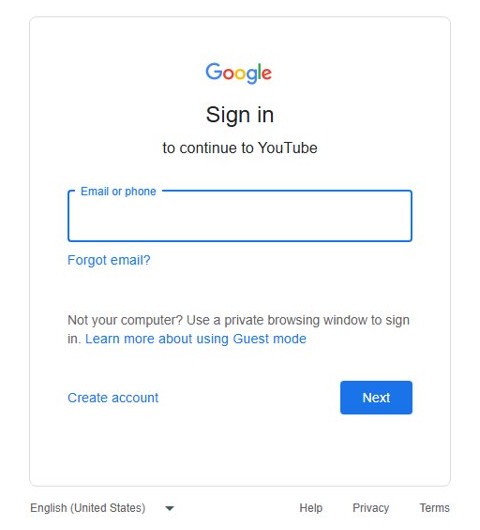
Both deletion routes run in a desktop browser. Use the one that matches how much you want to remove.
| Route | Start here | What it deletes |
|---|---|---|
| Delete the channel | YouTube Studio > Settings > Channel > Advanced settings > Remove YouTube Content | The channel, its videos, comments, messages, playlists and history |
| Delete the Google Account | myaccount.google.com > Data & privacy > More options > Delete your Google Account | All data in the account, including YouTube, Gmail, Drive and Photos |
| Hide the channel | YouTube > Settings > Advanced settings > Hide your channel | Nothing; the channel is only hidden |
How to delete a YouTube account in the YouTube mobile app
You cannot currently delete a YouTube channel on a mobile device. The app can hide the channel, and a phone browser can delete the whole Google Account.
- To hide the channel, open the YouTube app and tap your profile picture.
- Tap Settings > Privacy > Hide your channel, then tap Hide to confirm.
- To delete the channel itself, sign in to YouTube Studio on a computer and use the steps above.
- To delete the whole account from a phone, open myaccount.google.com in the phone's browser.
- Go to Data & privacy, scroll to Your data & privacy options, and select More options > Delete your Google Account.
The hide steps are the same on Android phones, tablets, iPhones and iPads.
How to hide your YouTube channel temporarily
Hiding does not delete the channel. Your videos, playlists and posts vanish from search and from other users, and you can still watch, like and subscribe privately.
- Sign in to YouTube on a computer.
- From the left sidebar, select Settings.
- Select Advanced settings.
- Select Hide your channel.
- Select Hide to confirm.
Anyone with delegated access loses it while the channel is hidden. For Brand Account delegates, you must add them again after you restore the channel.
How to delete the Google account linked to YouTube
Deleting the Google Account deletes the YouTube channel along with emails, files, calendars and photos. You also lose YouTube and Google Play purchases made with that account.
- Download any data you want to keep with Google Takeout.
- Move online banking, social media and app sign-ins that use your Gmail address to a different email.
- Update your recovery email and phone number in case you change your mind.
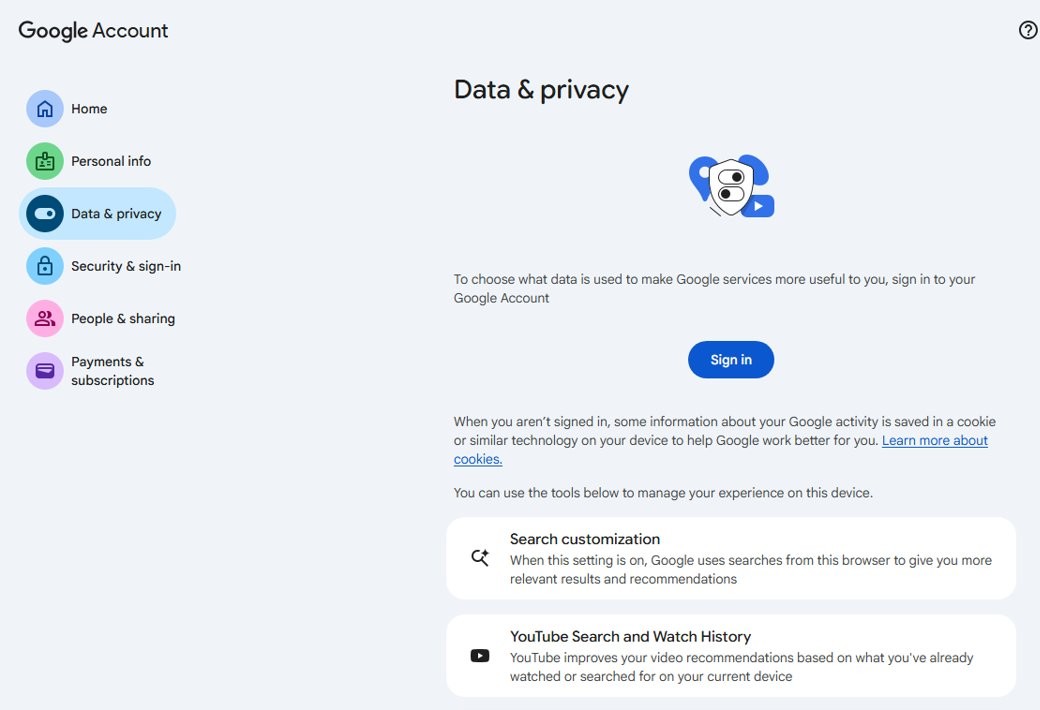
- Go to the Data & privacy section of your Google Account.
- Scroll to Your data & privacy options and select More options > Delete your Google Account.
- Follow the on-screen instructions to finish.
Deleting one Google Account does not delete your other Google Accounts. If you want to keep the account but drop only the address, you can delete just the Gmail service instead.
How to recover a deleted YouTube channel or Google account
A hidden channel comes back in a few clicks. A deleted Google Account may be recoverable only for a limited time after deletion, and YouTube labels channel deletion as permanent.
- For a hidden channel, sign in to YouTube, select Settings > Advanced settings > Restore your channel, then select Restore.
- In the app, tap your profile picture > Settings > Privacy > Restore your channel > Restore.
- After restoring, open YouTube Studio and set your videos back to public; they return as private.
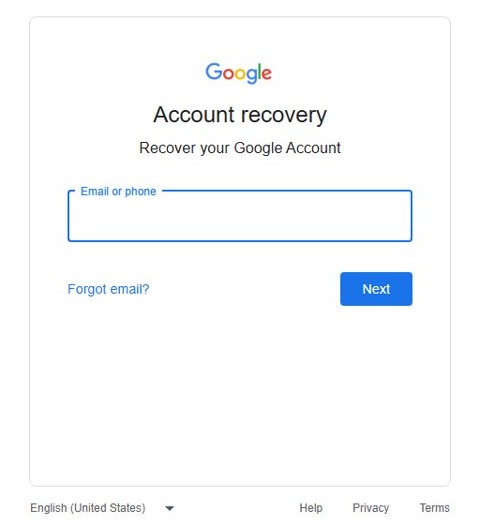
- For a recently deleted Google Account, open Google's account recovery page and follow the steps to recover the account.
- Answer every question as best you can, using a device, browser and location where you usually sign in.
- Once the account is back, create a new password you have not used with this account before.
Wrong guesses do not lock you out of Google account recovery, and there is no limit on attempts. Google never asks for your password or verification codes by email, phone or message.
Erase your watch history
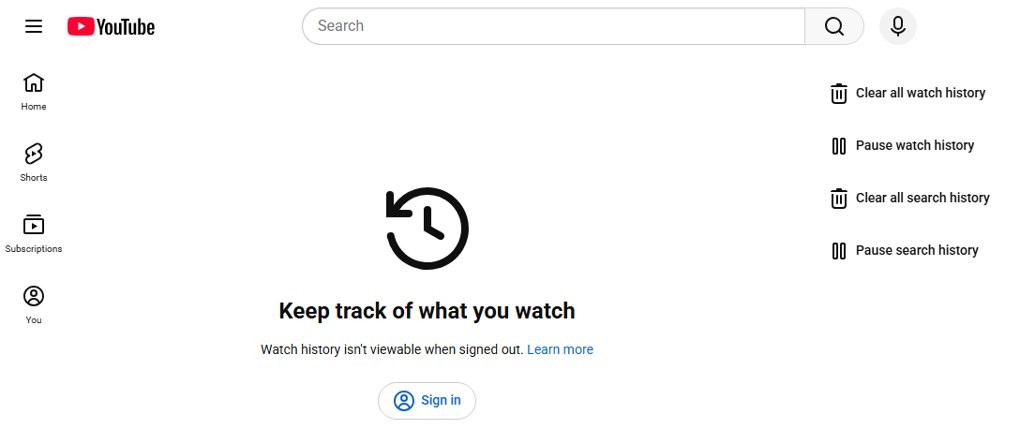
Clearing your YouTube watch history is the lighter option if you only want YouTube to forget what you watched. YouTube stops basing recommendations on deleted history.
- Go to My Activity and sign in to your Google Account.
- Select YouTube History, then Manage history.
- Select the delete icon next to a video to remove it, or select Delete to clear a time range.
- To stop saving history, open the Controls tab and select Turn off.
- To clear it on a schedule, select Auto-delete, choose a time range, select Next and then Confirm.
Using Delete for a time range also deletes your YouTube search history from that range. On a TV or games console, open Settings in the left menu and select Clear watch history.
YouTube delete channel option not showing
No delete option in the YouTube app
YouTube does not currently allow channel deletion on mobile devices.
- Open YouTube Studio in a browser on a computer.
- Select Settings > Channel > Advanced settings.
- Select Remove YouTube Content at the bottom of the page.
Some YouTube videos are missing from the Takeout export
The videos belong to a channel on a Brand Account, not your personal account.
- Switch to the Brand Account in the account menu.
- Open Google Takeout again while signed in as that account.
- Select the YouTube data and create a new export.
Videos are private after restoring a hidden channel
Restoring a hidden channel sets previously public videos to private.
- Open YouTube Studio.
- Find the videos you want public again.
- Change each video's visibility back to public.
YouTube account deletion FAQ
Can I delete my YouTube account without deleting my Google account?
Yes. Delete only the channel from YouTube Studio under Settings > Channel > Advanced settings > Remove YouTube Content. Your Google Account, Gmail, Drive and Photos keep working, and you can still watch YouTube while signed in.
What is the difference between hiding and deleting a YouTube channel?
Hiding is temporary and reversible: your videos, playlists and posts disappear from public view, and you can restore the channel any time. Deleting permanently removes the channel's videos, comments, messages, playlists and history.
Will deleting my YouTube channel remove my YouTube viewing history?
Yes. Closing a YouTube channel permanently deletes its history along with its videos, comments, messages and playlists. To clear only the history and keep the channel, delete it from My Activity under YouTube History instead.
Can I recover a deleted YouTube channel?
Plan as if you cannot. YouTube describes channel deletion as permanent. A hidden channel can be restored from Settings > Advanced settings, and a recently deleted Google Account may be recoverable for a limited time.
What should I download before deleting my YouTube channel or Google account?
Export your videos, playlists, subscriptions and comments with Google Takeout. If you are deleting the whole Google Account, also export Gmail, Drive, Photos and Calendar, because all of that data is lost.
Can I delete my YouTube channel on my phone?
No. YouTube does not currently let you delete a channel on mobile devices. You can hide the channel in the app under Settings > Privacy, or delete the whole Google Account from myaccount.google.com in a phone browser.
Does deleting my Google account cancel my YouTube purchases and subscriptions?
Yes. When the Google Account is deleted, you lose access to subscriptions and content you bought with it on YouTube or Google Play, such as movies, music and TV shows. Deleting only the channel leaves the Google Account in place.