A monitor that goes to sleep randomly is usually obeying a short Windows screen timeout, or it has lost the video signal from a loose cable or a graphics driver that stopped responding.
This guide covers both causes with nine fixes, from the Windows power settings and the graphics driver to cable tests, background apps and a monitor factory reset.
Understanding the problem: why does my monitor go to sleep?
Two different things put a screen to sleep. Windows turns the display off on purpose when its timeout runs out, and the monitor drops into power-saving mode on its own when the signal from the PC stops.
Match what you see on the screen to a row, then start with the fix it points to.
| What you notice | Likely cause | Start with |
|---|---|---|
| The screen goes dark after the same few minutes without input | The Windows screen timeout is short | 1. Adjust power settings |
| The whole PC sleeps, and you must press a key or the power button to wake it | The Windows sleep timer or lid setting | 4. Disable sleep mode |
| The monitor shows a "No signal" message, then its power light changes colour | The video signal dropped: cable, port, adapter or dock | 2. Check cables and connections |
| The screen blanks during games or video and comes back seconds later | The graphics driver stopped responding and restarted | 3. Update graphics drivers |
| It started after a driver or Windows update | A new display driver | 3. Update graphics drivers (roll back) |
| It happens only after the monitor has been on for a long time | Heat inside the monitor or the PC | 5. Check for overheating issues |
| It happens with every PC you connect | The monitor itself or its own power-saving settings | 6. Test the monitor on another device, then 9. Factory reset the monitor |
| It happens only while one app or utility is running | A background app or startup program | 8. Check for background applications |
If the screen goes dark on a laptop the moment you walk away, the cause can be presence sensing rather than a timer. Method 4 shows where to turn it off.
1. Adjust power settings
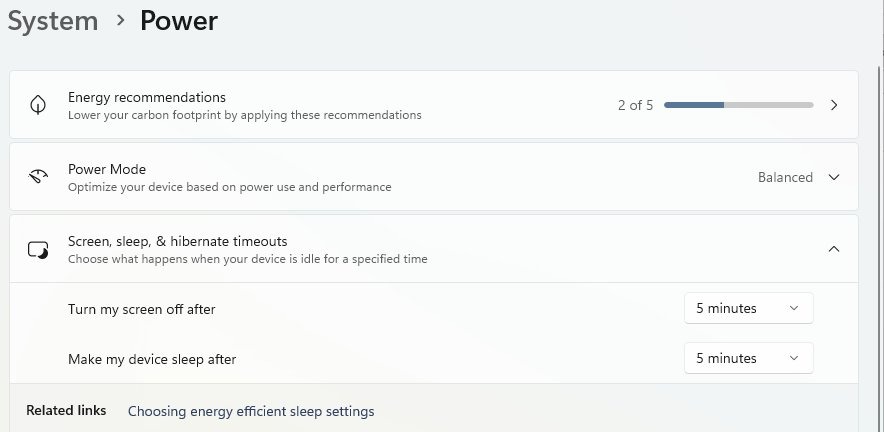
Windows turns the screen off after a set time without keyboard or mouse input. A short value, such as one or two minutes, looks like the monitor sleeping at random while you read or watch something.
- Select Start > Settings > System > Power & battery.
- Select Screen, sleep, & hibernate timeouts to expand it.
- Open the drop-down next to Turn my screen off after and choose a longer time, or Never.
- On a laptop, set the plugged-in and on-battery values separately, because each one applies on its own.
- On Windows 10, open Settings > System > Power & sleep and change the time under Screen instead.
- Leave the PC idle for a little longer than the old timeout to confirm the screen stays on.
You can also set the screen and sleep timers from a script with powercfg /change monitor-timeout-ac 30, where the value is in minutes. Use monitor-timeout-dc for the on-battery value.
On the same page, Power Mode set to Best Power Efficiency limits background activity. It does not shorten the screen timeout, so leave it as it is unless battery life matters more.
2. Check cables and connections
When the cable or port loses contact for a moment, the monitor sees no signal and switches to its power-saving mode. This looks exactly like sleep, but Windows is still running.
- Push the video cable firmly into the monitor and the PC, and tighten any screws on DVI or VGA plugs.
- Disconnect docks, dongles and adapters and connect the monitor directly to the PC, since these accessories can cause conflicts.
- Swap in a different cable. If the problem stops, the old cable was faulty.
- Move the cable to another video output on the PC, such as HDMI, DisplayPort, DVI or VGA.
- On a desktop with a separate graphics card, plug the monitor into the card's ports rather than the motherboard's.
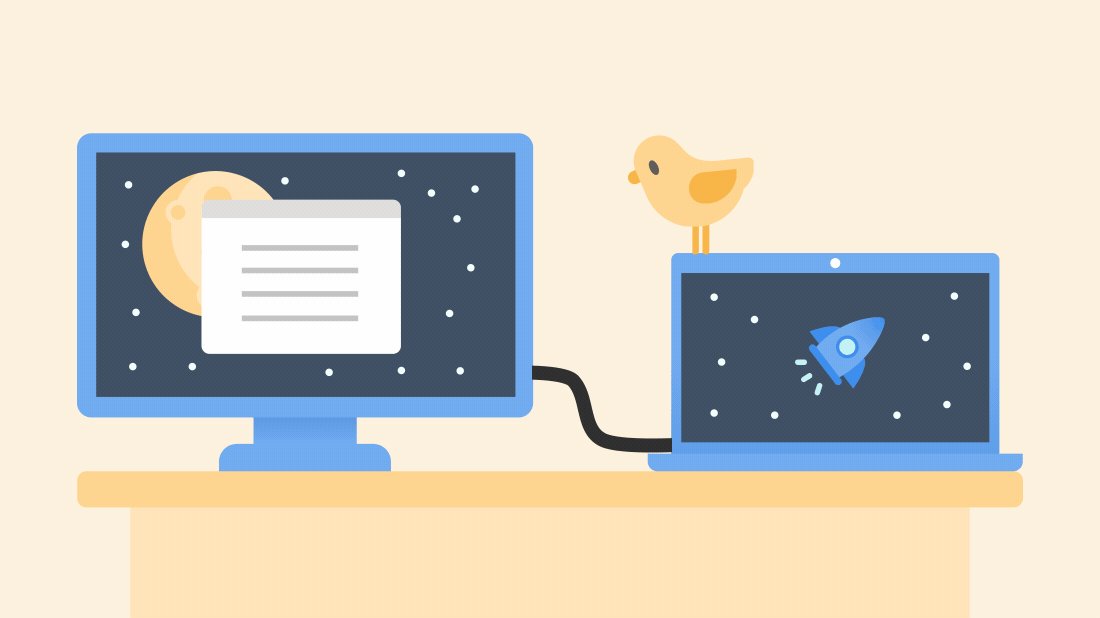
- Press Windows logo key + P and check that the right mode is selected, such as Extend for two screens.
A display splitter duplicates one signal, so it cannot extend the desktop across several monitors. Use a docking station or a USB display adapter instead.
If the screen is a second display that vanishes from Windows altogether, fix the undetected second monitor rather than the sleep settings.
3. Update graphics drivers
A graphics driver that stops responding cuts the signal for a few seconds, and many monitors go to sleep during that gap. Updating the graphics driver fixes a buggy one, and a rollback fixes one that a recent update broke.
- Press Windows logo key + Ctrl + Shift + B to reset the graphics driver. A beep or a screen flicker means it worked.
- Right-click Start and select Device Manager.
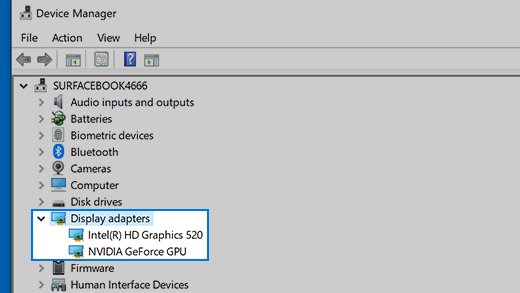
- Expand Display adapters, right-click your graphics adapter and select Update driver.
- Select Search automatically for updated driver software.
- If Windows finds nothing, select Search for updated drivers on Windows update, then install any display driver it offers.
- If the problem began after an update, right-click the adapter, select Properties, open the Driver tab and select Roll Back Driver.
- Restart the PC when prompted.
If Roll Back Driver is greyed out, reinstall instead: right-click the adapter, select Uninstall device, check Attempt to remove the driver for this device, confirm, and restart. Windows then reinstalls a driver.
Intel, NVIDIA and AMD also publish their own drivers on their support sites. Install the one that matches your exact graphics chip.
4. Disable sleep mode
Method 1 only stops the screen turning off. If the whole PC goes to sleep, the sleep timer, the screen saver or presence sensing is doing it.
- Open Settings > System > Power & battery > Screen, sleep, & hibernate timeouts.
- Set Make my device sleep after to a longer time or Never, for both plugged-in and battery power on a laptop.
- On a PC with a presence sensor, open the same page and turn off Automatically turn off my screen when I leave.
- Open Settings > Personalization > Lock screen, then select Screen saver under Related settings.
- In Screen Saver Settings, choose the option that turns the screen saver off from the drop-down list, or raise the Wait value, then select OK.
- On a laptop used with the lid closed, open Control Panel > System and Security > Power Options > Choose what the power buttons do and change When I close the lid.
A blank screen saver looks identical to a sleeping monitor, which is why the screen saver settings are worth checking even when the timeouts look right.
The presence sensing toggle appears only on PCs that have a compatible sensor. Its More options link holds the fine-tuning settings.
5. Check for overheating issues
Monitors and graphics cards protect themselves when they run too hot. A screen that sleeps only after a long session, or only on warm days, points to heat.
- Turn the monitor off and let it cool for 30 minutes, then note whether the next sleep takes longer to arrive.
- Clear the space around the monitor's rear vents and keep it away from heaters and direct sun.
- Remove dust from the PC's intake and exhaust vents, with the PC shut down and unplugged.
- Check that the case fans and the graphics card fans spin when the PC is under load.
- On a laptop, use it on a hard, flat surface so the vents underneath are not blocked.
If the monitor itself feels very hot near the vents and the problem follows it to another PC, contact the manufacturer. Internal power board faults are a warranty repair, not a settings fix.
6. Test the monitor on another device
This one test tells you whether to keep working on Windows or on the monitor. Connecting the monitor to a different system shows which side the problem is on.
| Test | Result | What it means |
|---|---|---|
| Connect the monitor to another PC, laptop or console | It still goes to sleep | The monitor, its settings or its cable is at fault. Go to method 9. |
| Connect the monitor to another PC, laptop or console | It stays on | The problem is in your PC: power settings, driver or apps. |
| Connect a different monitor or a TV to your PC | The new screen also goes dark | Your PC's settings, graphics driver or video port is at fault. |
| Use a different cable between the same two devices | The problem stops | The original cable was faulty. |
Use the same cable type for the test where you can. Switching from HDMI to DisplayPort changes two things at once and muddies the result.
7. Run hardware troubleshooter (Windows only)
Microsoft has retired the old Hardware and Devices and Power troubleshooters, and neither appears in the Get Help troubleshooter list. The built-in tool that still diagnoses power problems is the energy report in powercfg.
Close your apps first, because Microsoft says the report should run while the computer is idle with no open programs or documents.
powercfg /energySearch for Command Prompt, select Run as administrator, and run the command. It observes the system for 60 seconds by default, analyses it for common energy-efficiency problems, and saves an HTML report in the current folder. Add /duration 120 to observe for two minutes.
You should see: An HTML report appears in the folder the command ran from. Open it in a browser and read the errors and warnings about the display, devices and power requests.
8. Check for background applications
Monitor utilities, power managers and other startup programs can turn the display off or fight with Windows over it. A clean boot starts Windows with only Microsoft services, so you can see whether a third-party app is the cause.
- Sign in with an administrator account, search for
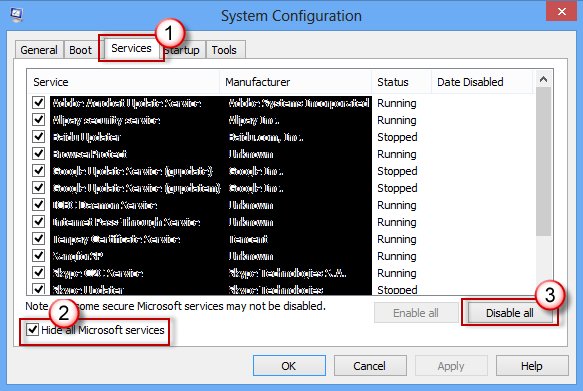
msconfigand open System Configuration. - On the Services tab, select Hide all Microsoft services, then select Disable all and Apply.
- On the Startup tab, open Task Manager from the link on that tab.
- In the Startup apps list, select each Enabled item and select Disable. Note each one you change.
- Close Task Manager, select OK in System Configuration and restart.
- Use the PC normally. If the monitor stops going to sleep, enable the services and apps a few at a time until the problem returns.
To return to normal, open System Configuration, select Normal startup on the General tab, clear Hide all Microsoft services, select Enable all, and turn your startup apps back on in Task Manager.
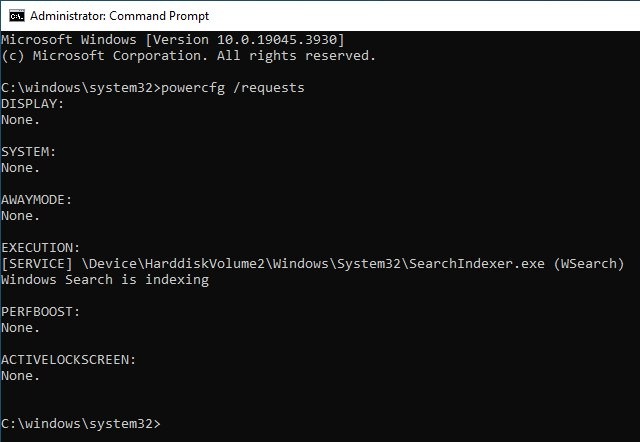
Run powercfg /requests as well. It lists the apps and drivers holding power requests, which shows what is keeping the display awake and what is not.
9. Factory reset the monitor
Monitors keep their own settings for power saving, eco modes and automatic input switching. A factory reset clears any of these that turn the screen off, and it changes nothing in Windows.
- Press the menu button on the monitor to open its on-screen display.
- Look for a power-saving, eco or auto-off setting and turn it off before you reset anything.
- If the monitor has an automatic input source option, set the input to the exact port your PC uses instead.
- Find the reset or factory reset entry the monitor's manual names, and select it.
- Confirm the reset, then switch the monitor off and on.
- Set the brightness and input again, because the reset returns them to their defaults.
Menu names differ between manufacturers. The monitor's manual on the maker's support site lists the exact path for your model.
How to tell if Windows or the monitor is putting the screen to sleep
- When the screen goes dark, move the mouse or press a key once.
- If the picture comes straight back, Windows turned the display off. Recheck methods 1 and 4.
- If the monitor shows No signal or similar before going dark, the signal from the PC dropped. Work through methods 2, 3 and 6.
- If you must press the PC's power button to wake it, the whole PC slept. Change Make my device sleep after in method 4.
- Run
powercfg /requestsin an administrator Command Prompt to see which apps and drivers are holding the display on, if any. - Leave the PC idle for twice your old screen timeout. A screen that stays on confirms the fix held.
Monitor going to sleep and not waking up in Windows 11
The monitor says no signal and goes to sleep while the PC is on
The signal between the graphics card and the monitor dropped.
- Press Windows logo key + Ctrl + Shift + B to reset the graphics driver.
- Press Windows logo key + P, then P again and Enter, to cycle through the display modes.
- Reseat or replace the cable, and remove any adapter or dock.
The monitor started going to sleep after an update
A new display driver or Windows update changed how the graphics adapter behaves.
- Open Device Manager and expand Display adapters.
- Right-click the adapter, select Properties, then Driver > Roll Back Driver.
- Select Start > Settings > Windows Update > Check for updates to install any fix that has followed.
The monitor will not wake up from sleep
The PC is still asleep, or the display did not come back with the driver.
- Press a key, move the mouse, and then press Windows logo key + Ctrl + Shift + B.
- If you see the security screen, open Task Manager and restart Windows Explorer.
- If nothing responds, press and hold the PC's power button for 20 seconds to force a restart.
Monitor going to sleep FAQ
Why does my monitor keep going to sleep while the computer is on?
Either Windows is turning the display off after a short timeout, or the monitor lost the video signal and switched to power saving. A "No signal" message before it goes dark points to the cable, port or graphics driver rather than the timeout.
How do I stop my monitor from going to sleep in Windows 11?
Open Settings > System > Power & battery > Screen, sleep, & hibernate timeouts and set Turn my screen off after to a longer time or Never. Set Make my device sleep after as well if the whole PC is sleeping.
Can a bad HDMI cable make a monitor go to sleep?
Yes. A loose or faulty cable interrupts the signal, and the monitor treats a missing signal as a reason to enter power-saving mode. Swap the cable or try another port to rule it out.
Can a graphics driver make the monitor go to sleep randomly?
Yes. When the graphics driver stops responding, the signal stops for a few seconds and many monitors go to sleep during the gap. Update the driver in Device Manager, or roll it back if the problem started after an update.
Does a screen saver make the monitor look like it is asleep?
A blank screen saver looks the same as a sleeping monitor. Open Settings > Personalization > Lock screen > Screen saver and turn it off or raise the Wait time to rule it out.
How do I wake a monitor that went to sleep?
Move the mouse or press a key first. If the screen stays dark, press Windows logo key + Ctrl + Shift + B to reset the graphics driver; a beep or flicker shows it worked.
Will a factory reset of the monitor delete anything on my PC?
No. A monitor factory reset only returns the monitor's own settings, such as brightness, input and power saving, to their defaults. Windows, your files and your display settings are not touched.