To close all open apps at once in Windows 11 or 10, sign out with Ctrl + Alt + Delete > Sign out, or run one PowerShell line that closes every app window while you stay signed in.
This guide covers both routes, a desktop shortcut that does it in one click, the limits of Alt + F4, taskkill and Resource Monitor, and what to do when an app refuses to close.
The easiest method: sign out, restart, or shut down
Signing out ends every app in your session in one step. Restarting or shutting down does the same and also clears background processes and services.
- Save anything you are working on.
- Press Ctrl + Alt + Delete to open the security screen.
- Select Sign out to close every app and end your session.
- To restart instead, select Start > Power > Restart.
- Sign back in and open only the apps you need.
On an empty desktop, Alt + F4 opens the shutdown prompt, which offers the same sign out, restart and shut down choices.
Which method should you use?
| Your situation | Use this | Why |
|---|---|---|
| You can sign out | Ctrl + Alt + Delete > Sign out | Ends every app in your session in one step |
| You need to stay signed in | PowerShell CloseMainWindow() line |
Closes every app window as if you clicked its X |
| Apps ignore a normal close | PowerShell Stop-Process line |
Ends the processes outright, so unsaved work is lost |
| You do this every day | A desktop shortcut that runs the command | One double-click instead of typing |
| Close all apps and turn the PC off | shutdown /s /f /t 0 |
Forces apps closed, then shuts down immediately |
| Only a few heavy apps matter | Resource Monitor to find them, Task Manager to end them | Targets the apps using the most CPU |
| One app will not close | taskkill /im <name>.exe /f |
Ends that single program by name |
Need to stay signed in? Force-close visible apps with PowerShell
This line finds every process that has a window and sends each one a close message, the same request as clicking its close button. It skips File Explorer, so the taskbar and desktop stay, and it skips the PowerShell window running the command until the end.
Get-Process | Where-Object { $_.MainWindowTitle -ne "" -and $_.ProcessName -ne "explorer" -and $_.Id -ne $PID } | ForEach-Object { $_.CloseMainWindow() }Get-Process lists running processes. Where-Object keeps those with a main window title, leaving out File Explorer and the current PowerShell session ($PID). CloseMainWindow() asks each app to close, so apps with unsaved work can still show a save prompt.
You should see: PowerShell prints True for each app that received the close message. False means the app has no main window or a dialog box is blocking it.
To end apps that ignore the request, replace ForEach-Object { $_.CloseMainWindow() } with Stop-Process. Stop-Process ends the processes without a save prompt, so save your work first.
To open PowerShell, select Start, type PowerShell and select Windows PowerShell.
Command to close all apps at once
From Command Prompt or the Run box (Windows + R), wrap the same line in a powershell call. Single quotes replace the inner double quotes so the command survives Command Prompt.
powershell -NoProfile -Command "Get-Process | Where-Object { $_.MainWindowTitle -ne '' -and $_.ProcessName -ne 'explorer' -and $_.Id -ne $PID } | ForEach-Object { $_.CloseMainWindow() }"-NoProfile skips your PowerShell profile so the command starts faster. -Command runs the quoted text as a PowerShell command, then exits.
You should see: Every open app window closes or shows its save prompt. The Command Prompt window closes as well, because it is also an app window.
To close all open apps on a PC and shut down from Command Prompt in one step, run shutdown /s /f /t 0. The /f switch forces running apps to close without warning, and /t 0 removes the 30-second default delay. Use shutdown /l to sign out immediately instead.
Create a shortcut to close all apps
A desktop shortcut turns the command into a double-click. The shortcut runs PowerShell in a hidden window, so nothing flashes on screen.
- Right-click an empty area of the desktop and select New > Shortcut.
- Paste this as the item location:
powershell -NoProfile -WindowStyle Hidden -Command "Get-Process | Where-Object { $_.MainWindowTitle -ne '' -and $_.ProcessName -ne 'explorer' -and $_.Id -ne $PID } | ForEach-Object { $_.CloseMainWindow() }" - Continue through the wizard and name the shortcut, for example Close all apps.
- Double-click the new shortcut whenever you want every app window closed.
- For a sign-out shortcut instead, use
shutdown /las the item location.
-WindowStyle Hidden is one of the four window styles powershell.exe accepts, along with Normal, Minimized and Maximized.
What not to assume about Alt + F4
Alt + F4 is the fastest key for one window, but it never closes several apps in one press.
| Assumption | What Alt + F4 really does |
|---|---|
| It closes every open app | It closes only the active window. Press it once per window |
| It closes the whole app | It closes the window. An app with several windows or a notification-area icon can keep running |
| It force-closes a frozen app | It sends a normal close request, which a frozen app may not answer |
| It does nothing on the desktop | With no windows open, it opens the shutdown prompt |
| Ctrl + F4 is the same | Ctrl + F4 closes the active document inside an app, not the app itself |
Use Resource Monitor for selected processes
When you only want to close the apps slowing the PC down, Resource Monitor shows which ones use the most CPU. Task Manager then ends them.
- Select Start, type
resmonand select Resource Monitor. - Select the CPU tab. Maximize the window if some columns are hidden.
- Select the Average CPU column header so the arrow points down and the heaviest processes sit at the top.
- Note the names of the apps you want to close.
- Press Ctrl + Shift + Esc to open Task Manager, right-click each of those apps on the Processes tab and select End task.
How to close open apps on Windows with Task Manager
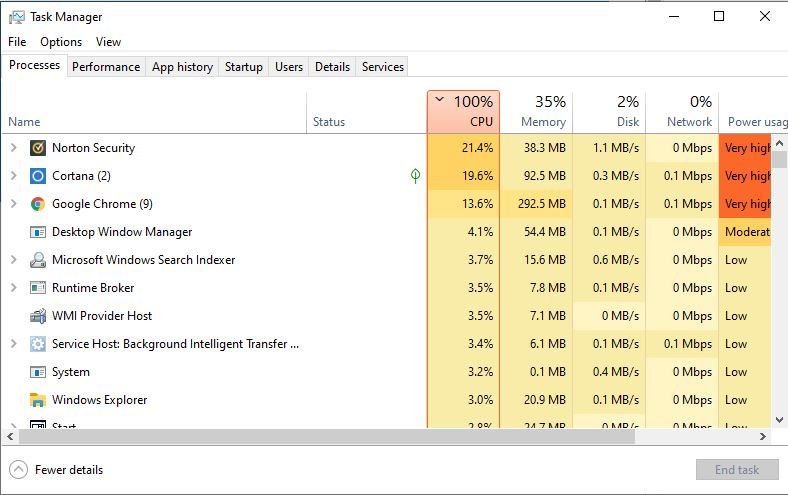
Task Manager closes apps one at a time, which is slower than the command but lets you pick. Windows 11 can also add End task to the taskbar.
- Press Ctrl + Shift + Esc to open Task Manager.
- On the Processes tab, right-click an app you are not using and select End task.
- Repeat for each app you want closed.
- On Windows 11, open Settings > System > Advanced (called For developers on earlier builds) and turn on End Task.
- Right-click an app on the taskbar and select End task to close it without opening Task Manager.
Task Manager is only one option. You can also close a single running app from Task view or its title bar.
Using taskkill: useful for one app, risky as a wildcard
taskkill ends a process by image name or process ID from Command Prompt. It is precise for one app and dangerous as a catch-all.
taskkill /im notepad.exe /f/im names the program file to end, here notepad.exe. /f ends it forcefully. Add /t to end any child processes the app started.
You should see: The app's window disappears and its process no longer appears on Task Manager's Processes tab.
taskkill accepts /im * only when a filter such as /fi "USERNAME eq ..." is applied, and that wildcard ends every matching process, not just app windows. In your own session that includes Windows components such as File Explorer, so use the PowerShell line above to close all apps instead.
Find the image name of an app with the tasklist command, which lists it in the Image Name column.

How to tell if all apps are closed on Windows 11
Run this in PowerShell to list every process that still has a window open.
Get-Process | Where-Object { $_.MainWindowTitle -ne "" } | Select-Object ProcessName, MainWindowTitleThe filter keeps only processes with a main window title, which are the apps you can see on screen.
You should see: Only the PowerShell or Terminal window you are typing in, plus any File Explorer windows, remain in the list.
Problems you may encounter when closing all apps
Unsaved work disappears
Stop-Process, taskkill /f and shutdown /f end apps without giving them a chance to ask about saving.
- Save open documents before running any forced command.
- Use the
CloseMainWindow()version first, which lets apps show their save prompts. - Reopen the app. Some apps offer document recovery after an abnormal exit.
Access is denied
The app is running as administrator or belongs to another user, so a normal PowerShell or Command Prompt window cannot stop it.
- Select Start, type
PowerShell, right-click Windows PowerShell and select Run as administrator. - Run the command again from the elevated window.
- For a process owned by another account, add
-ForcetoStop-Processto skip the confirmation prompt.
The app seems to come back
The app has a background process or is registered to restart, so its window returns.
- Open Task Manager with Ctrl + Shift + Esc and end every remaining process for that app on the Processes tab.
- Restart with
shutdown /rrather thanshutdown /g, because/grestarts registered applications after you sign in. - Turn off the app's background activity in Settings if it keeps relaunching.
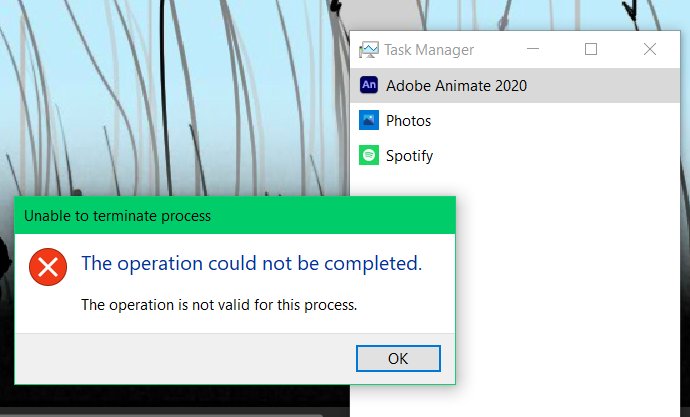
Why won't an app close?
A modal dialog is open or the app has stopped responding, so the close request is ignored.
- Switch to the app with Alt + Tab and answer any open dialog box.
- If it is frozen, end it with
taskkill /im <name>.exe /for End task in Task Manager.
Should I close all apps on my PC?
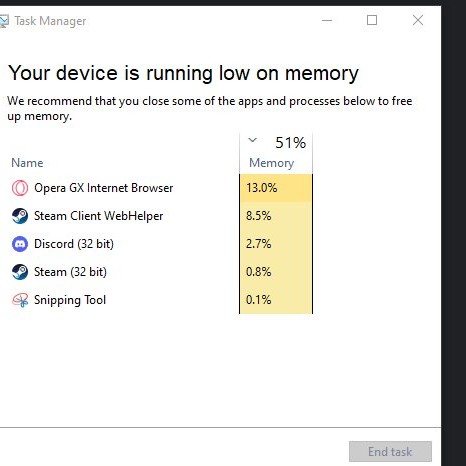
Close the apps you are not using, but you do not need to close everything every time. Microsoft's performance advice is to close apps and tabs you do not need and to restart if the PC is still slow. Closing all apps at once is most useful before a restart, an update or a game that needs every bit of memory.
If the same unused app keeps opening at every sign-in, uninstall apps you never use rather than closing them daily.
Close all open apps on Windows FAQ
How do I close all open apps on Windows 11?
Press Ctrl + Alt + Delete and select Sign out to close every app. To stay signed in, run the PowerShell line that calls CloseMainWindow() on every process with a window. Both work the same way on Windows 10.
Can I close every app in Windows without signing out?
Yes. Run Get-Process filtered to processes with a main window title and pipe them to CloseMainWindow() or Stop-Process. Excluding explorer keeps the taskbar and desktop running while every app window closes.
Does Alt + F4 close all apps at once?
No. Alt + F4 closes only the active window, so you must press it once for each window. With no windows open, it opens the shutdown prompt instead.
What is the safest way to close all open apps?
Save your work, then sign out or run the PowerShell CloseMainWindow() line. CloseMainWindow() sends each app the same request as its close button, so apps with unsaved changes can still ask you to save.
How do I close all open apps on a laptop?
A laptop running Windows 11 or 10 uses the same methods as a desktop PC: sign out from Ctrl + Alt + Delete, or run the PowerShell command. A desktop shortcut that runs the command makes it one double-click.
How do I close all apps and shut down the PC?
Run shutdown /s /f /t 0 from Command Prompt or the Run box. The /f switch forces running apps to close without warning, so save your work before you run it.
Why did an app return after I terminated it?
The app likely has a background process or is registered to restart. End all of its processes in Task Manager, and restart with shutdown /r rather than /g, which reopens registered applications.
How do I open closed apps again?
Open them from the Start menu or the taskbar as usual. Closing an app with any of these methods does not uninstall it or change its settings.
Safest way to close all open apps on Windows 11 and 10
Sign out when you can, and use the PowerShell CloseMainWindow() line or a shortcut to it when you must stay signed in. Signing out needs no commands, and CloseMainWindow() closes every window as if you clicked its X. Keep Stop-Process, taskkill and shutdown /f for apps that ignore a normal close.