Google Chrome stores bookmarks inside your Chrome profile folder, which is %LOCALAPPDATA%\Google\Chrome\User Data\Default on Windows, ~/Library/Application Support/Google/Chrome/Default on a Mac and ~/.config/google-chrome/Default on Linux.
This guide shows how to open that folder on Windows 11, Windows 10 and macOS, how to reveal the hidden AppData folder, how to make a desktop shortcut to it, and when your bookmarks also live in your Google Account.
Where are Chrome bookmarks stored in Windows 11?
Chrome keeps each profile's data, bookmarks included, in a profile folder inside its User Data directory. Your first profile uses the folder named Default.
The Run box opens that folder directly, so you do not have to click through the system folders.
- Close Chrome so it is not writing to the profile while you work.
- Press Windows key + R to open the Run dialog box.
- Type
%LOCALAPPDATA%\Google\Chrome\User Data\Defaultand press Enter. - File Explorer opens the Default profile folder, which holds the bookmarks of your first Chrome profile.
The same path works on Windows 10. %LOCALAPPDATA% expands to C:\Users\<your user name>\AppData\Local.
How to find the Chrome bookmarks location
If you would rather paste a path into File Explorer than use the Run box, the address bar accepts the same location.
- Press Windows key + E to open File Explorer.
- Press Alt + D or Ctrl + L to select the address bar.
- Type
%LOCALAPPDATA%\Google\Chrome\User Dataand press Enter. - Open the Default folder for your first Chrome profile.
- Select Pin to Quick access from the folder's right-click menu if you plan to come back to it.
The User Data folder is the parent of every Chrome profile on the PC. If several people use Chrome on one Windows account, each Chrome user profile keeps its own bookmarks separately.
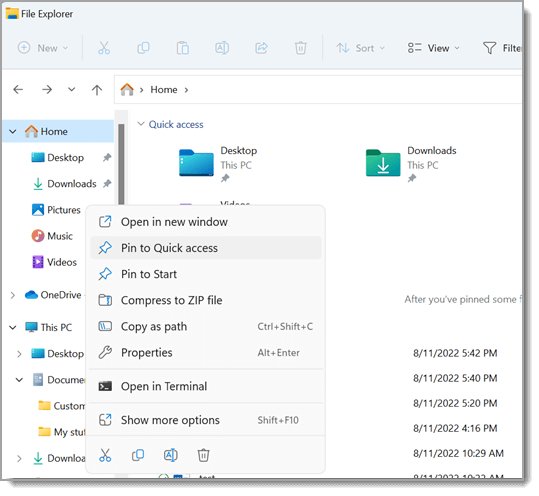
How to find your Google Chrome bookmarks file in Windows 11 and Windows 10 (guide with pictures)
Browsing to the folder by hand takes longer, but it shows you exactly where the profile sits under your Windows user account.
- Select the File Explorer icon on the taskbar.
- Select This PC in the left pane, then open your C: drive.
- Open Users, then the folder with your Windows user name.
- Open AppData. If it is not listed, show hidden items first (next section).
- Open Local, then Google, then Chrome, then User Data.
- Open Default to reach the profile folder that holds your bookmarks.
The full path you just walked is C:\Users\<your user name>\AppData\Local\Google\Chrome\User Data\Default.
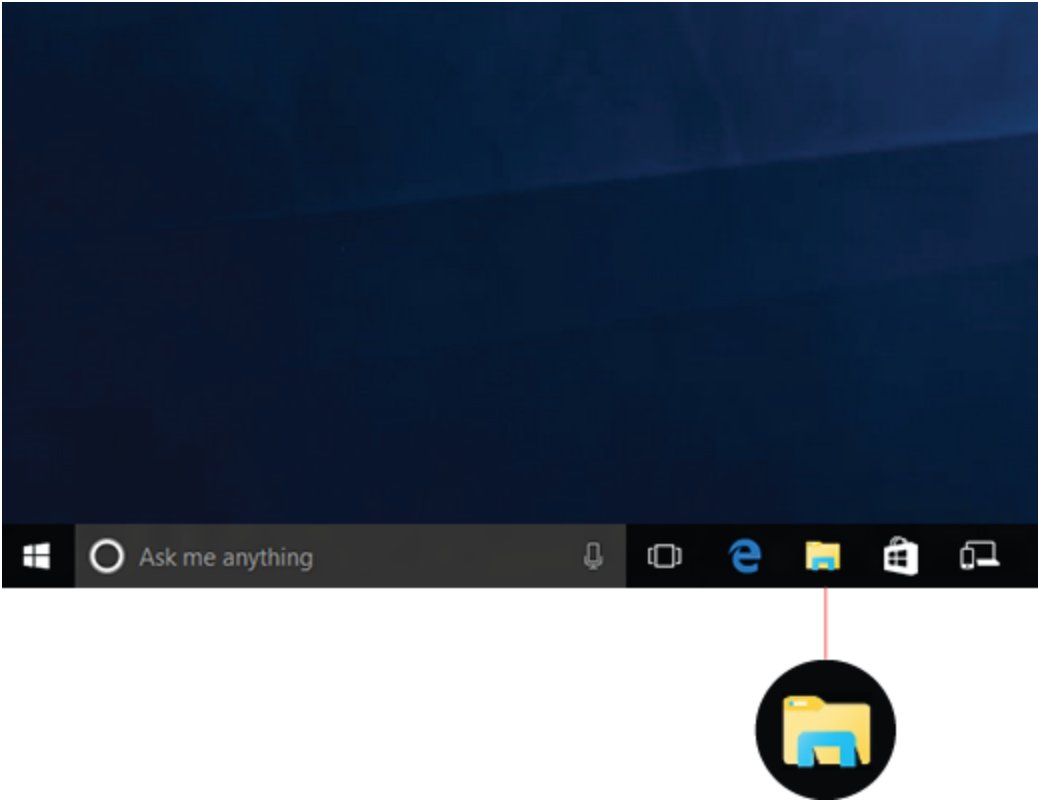
How to show hidden files in Windows 10 and Windows 11
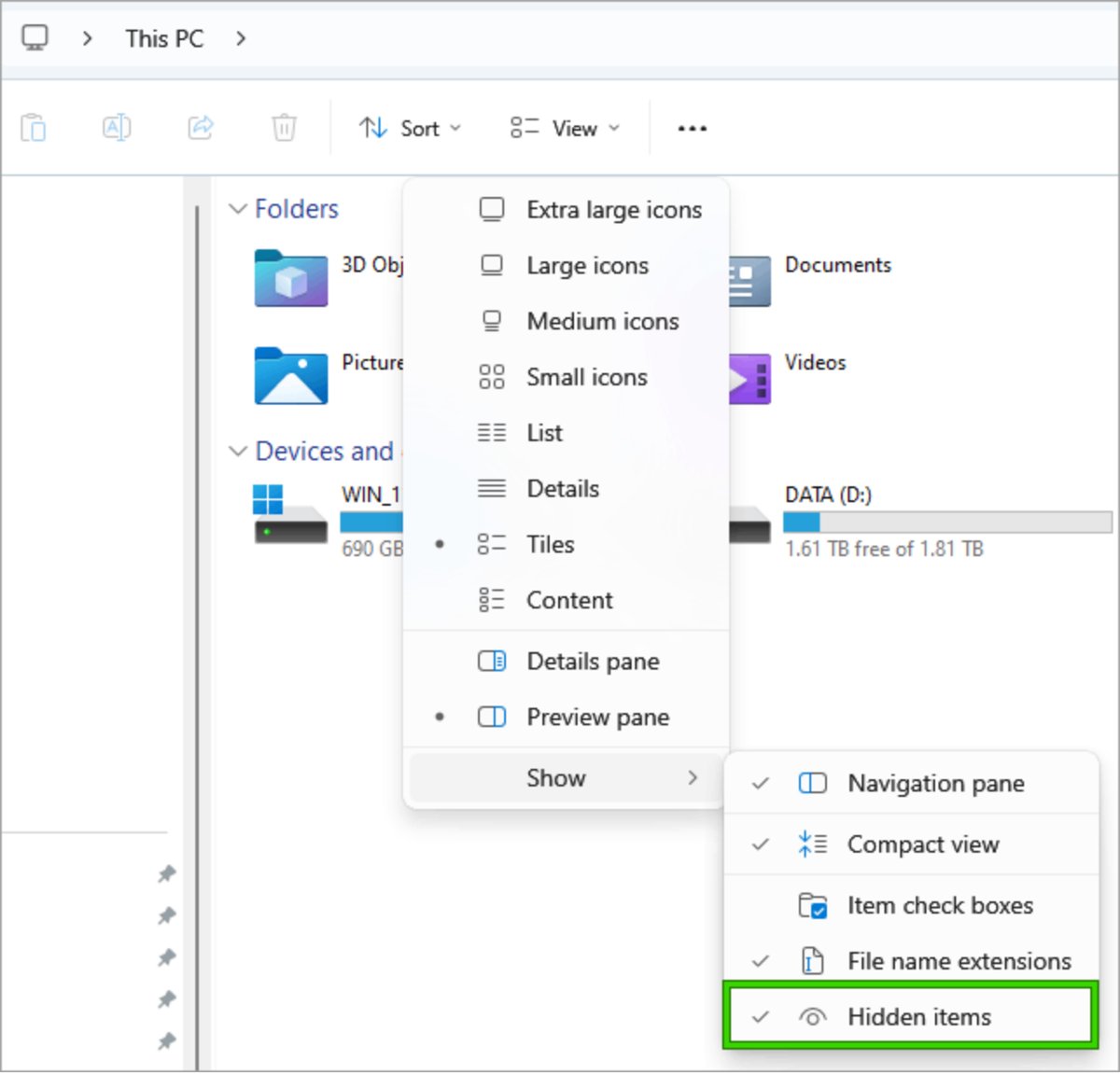
The AppData folder in Windows is hidden, so File Explorer skips it until hidden items are shown. The setting has a different place on each version.
| Windows version | Where the setting is | What to select |
|---|---|---|
| Windows 11 | File Explorer > View > Show | Hidden items |
| Windows 10 | File Explorer > View > Options > Change folder and search options > View tab | Show hidden files, folders, and drives, then OK |
Hidden items stay visible until you clear the same option. The Run box route in the first section works without changing this setting.
How to create a desktop shortcut for the Google Chrome bookmarks or favorite file
A desktop shortcut to the Default folder saves you the path the next time you want to back up or inspect your bookmarks.
- Open
%LOCALAPPDATA%\Google\Chrome\User Datawith Windows key + R. - Right-click the Default folder.
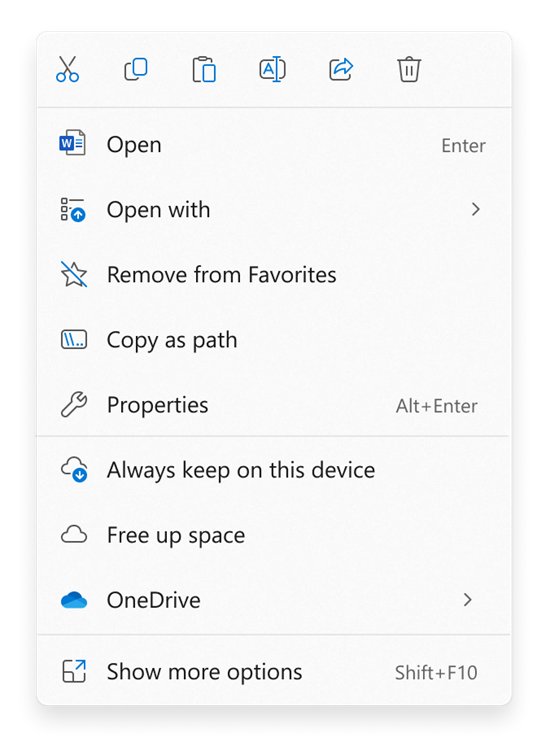
- On Windows 11, select Show more options to reach the full menu.
- Select Create shortcut.
- If the shortcut appears inside User Data instead of on the desktop, drag it onto the desktop.
A shortcut only points at the folder. Deleting the shortcut later leaves your bookmarks untouched.
Where are Google Chrome bookmarks stored on Mac?
On macOS, Chrome keeps its profiles under the Library folder in your home folder, which Finder hides from the sidebar.
- Quit Chrome from the Dock.
- In the Finder, choose Go > Go to Folder.
- Type
~/Library/Application Support/Google/Chrome/Default. - Press Return to open the Default profile folder.
- To browse instead, hold the Option key in the Go menu, choose Library, then open Application Support > Google > Chrome.
The tilde (~) stands for your home folder, so the path works for any Mac user account.
Chrome bookmarks location on Windows, Mac and Linux
| System | Chrome User Data folder | First profile folder |
|---|---|---|
| Windows 11 and Windows 10 | %LOCALAPPDATA%\Google\Chrome\User Data |
...\User Data\Default |
| macOS | ~/Library/Application Support/Google/Chrome |
.../Chrome/Default |
| Linux | ~/.config/google-chrome |
.../google-chrome/Default |
| Android, iPhone and iPad | No folder to browse | Open bookmarks from the Chrome menu |
On Windows, %LOCALAPPDATA% is C:\Users\<your user name>\AppData\Local. On a Mac and on Linux, ~ is your home folder.
Are Chrome bookmarks stored locally?
Yes. Chrome always keeps your bookmarks in the profile folder on the device. Signing in adds a second copy in your Google Account.
| Your Chrome state | Where bookmarks are saved | What it means |
|---|---|---|
| Signed out of Chrome | Only on the device | Losing the PC or deleting the profile loses the bookmarks unless you exported them |
| Signed in with a Google Account | On the device and in your Google Account | Bookmarks appear on every device signed in to the same account |
| Signed in, older bookmarks never moved | Only on the device until you save them | Select Profile > Save x items in Account > Save in account |
| Work PC with Roaming User Profiles | Local profile plus a profile.pb file, by default in %APPDATA%\Google\Chrome |
Your administrator controls this, and Chrome sync is turned off |
To pick what goes to your account, open Chrome, select More > Settings > You and Google, select your account name and choose what to save.
More information on how to find the Google bookmarks location
| Situation | What happens to the bookmarks |
|---|---|
| You use more than one Chrome profile | Each profile keeps its own bookmarks, history and passwords separate from the others |
| You remove a Chrome profile | That profile's bookmarks, history, passwords and settings are erased from the computer |
| You uninstall Chrome on Windows 10 and tick Also delete your browsing data | The local profile data is deleted with Chrome |
You delete the folders in ~/Library/Application Support/Google/Chrome on a Mac |
The local profile information, bookmarks included, is removed |
| You were signed in and saving to your Google Account | A copy can remain on Google's servers after the local data is deleted |
| You reset Chrome settings | Saved bookmarks and passwords are not deleted or changed |
Before you delete a profile, uninstall Chrome or move to a new computer, export the bookmarks to an HTML file so you have a copy outside the profile folder.
How to export Chrome bookmarks to an HTML file
Copying the profile folder is not the supported way to move bookmarks. Chrome's own export creates a file any browser can import.
- Open Chrome on your computer.
- At the top right, select More > Bookmarks and lists > Bookmark Manager.
- At the top, select More > Export Bookmarks.
- Choose a folder, such as Documents, and save the HTML file.
To load the file back into Chrome, select More > Bookmarks and lists > Import bookmarks and settings > Choose file. The same file lets you import Chrome bookmarks into Edge or another browser.
How to open the Chrome Bookmark Manager
You do not need the file to see or edit your bookmarks. The Bookmark Manager shows the same data from inside Chrome.
- Open Chrome on your computer.
- Select More at the top right.
- Select Bookmarks and lists > Bookmark Manager.
- Use the folders on the left, such as the bookmarks bar and Other bookmarks, to find a saved site.
The keyboard shortcut is Ctrl + Shift + O on Windows and Cmd + Option + B on a Mac. Bookmarks you import while Chrome already has bookmarks land in the Other bookmarks folder.
Where are Chrome bookmarks on Android and iPhone?
Chrome on phones and tablets has no profile folder you can browse. Bookmarks are opened from the app menu, and they match your computer when both are signed in to the same Google Account.
- Open the Chrome app.
- Tap More.
- Tap Bookmarks.
- Tap a folder to open it, then tap Back at the top left to change folders.
Chrome bookmarks folder not showing in AppData
AppData does not appear in your user folder
AppData is a hidden folder, and File Explorer hides hidden items by default.
- On Windows 11, select View > Show > Hidden items in File Explorer.
- On Windows 10, select View > Options > Change folder and search options.
- Open the View tab, select Show hidden files, folders, and drives and select OK.
- Or skip browsing and open
%LOCALAPPDATA%\Google\Chrome\User Datafrom Windows key + R.
Create shortcut or Send to is missing from the right-click menu
Windows 11 shows a shorter context menu first.
- Right-click the Default folder.
- Select Show more options to open the full menu.
- Select Create shortcut.
The Library folder is missing in the Mac Finder
macOS hides the Library folder in your home folder.
- In the Finder, open the Go menu.
- Press and hold the Option key.
- Choose Library, then open Application Support > Google > Chrome.
Chrome bookmarks storage FAQ
Where are the Chrome bookmarks stored?
Chrome stores bookmarks in your profile folder. On Windows that is %LOCALAPPDATA%\Google\Chrome\User Data\Default, on a Mac ~/Library/Application Support/Google/Chrome/Default, and on Linux ~/.config/google-chrome/Default. If you sign in to Chrome, a copy is also saved in your Google Account.
Where are Chrome bookmarks stored in Windows 11?
In Windows 11, Chrome keeps your first profile's bookmarks in C:\Users\<your user name>\AppData\Local\Google\Chrome\User Data\Default. Press Windows key + R, paste %LOCALAPPDATA%\Google\Chrome\User Data\Default and press Enter to open it in File Explorer.
Are Chrome bookmarks stored locally?
Yes. Chrome always saves bookmarks in the profile folder on your device. When you are signed out, that local copy is the only one. When you sign in with a Google Account, new bookmarks are also saved to the account and appear on your other signed-in devices.
Where are Google Chrome bookmarks stored on a Mac?
On a Mac, Chrome keeps profiles in ~/Library/Application Support/Google/Chrome, and the first profile is the Default folder. In the Finder, choose Go > Go to Folder, type that path and press Return to open it.
Are Chrome bookmarks deleted when you remove a profile?
Yes. Google states that removing a Chrome profile erases that profile's bookmarks, history, passwords and other settings from the computer. If the profile was signed in and saving to a Google Account, the account copy is not removed by this step.
Does resetting Chrome delete bookmarks?
No. Resetting Chrome settings to default restores the startup page, search engine and similar settings, but your saved bookmarks and passwords are not deleted or changed.
How do you move Chrome bookmarks to a new computer?
Sign in to Chrome with the same Google Account on both computers, or export them. In Chrome, select More > Bookmarks and lists > Bookmark Manager > More > Export Bookmarks, then import the HTML file on the new computer with Import bookmarks and settings.
Can you see Chrome bookmarks on Android as a file?
No. Chrome on Android, iPhone and iPad shows no bookmarks folder you can browse. Open the Chrome app, tap More, then tap Bookmarks. Signing in with the same Google Account shows the bookmarks from your computer too.