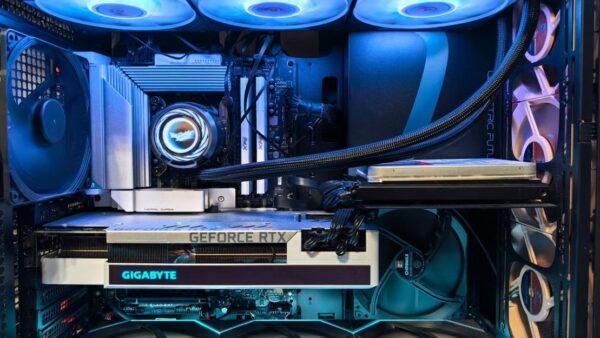
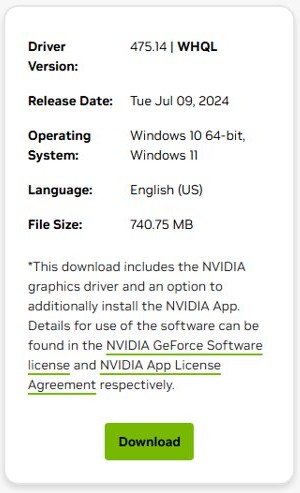
The right driver for almost every GeForce GT 730 on Windows 10 or Windows 11 is NVIDIA's GeForce Security Update Driver 475.14, released on July 9, 2024, which is the final driver for Kepler cards.
This guide shows how to tell which GT 730 you own, which NVIDIA driver fits it, how to install it cleanly, and how to stop Windows Update from swapping it out.
GT 730 driver download for Windows 10 and Windows 11
NVIDIA lists 475.14 for both Windows 10 64-bit and Windows 11, so one download covers both systems.
- Open
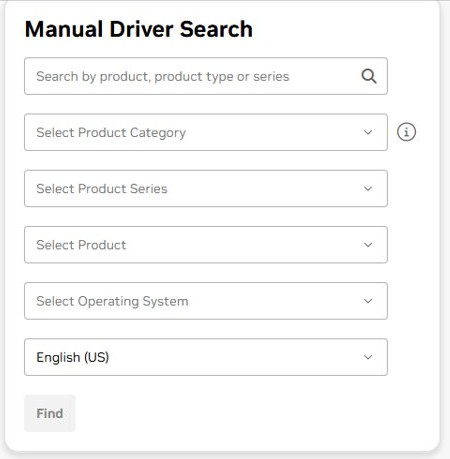
https://www.nvidia.com/en-us/drivers/and go to Manual Driver Search. - Under Select Product Category, choose GeForce.
- Under Select Product Series, choose GeForce 700 Series.
- Under Select Product, choose GeForce GT 730.
- Under Select Operating System, choose Windows 11 or Windows 10 64-bit, then select Find.
- Open GeForce Security Update Driver 475.14 and select Download.
- Run the installer, accept the license and restart Windows when it finishes.
If the installer refuses your card even though Windows names it GT 730, your board is not on NVIDIA's Kepler list. Skip to the identification section before trying anything else.
Background
The GT 730 is a low-power card from NVIDIA's GeForce 700 Series. Most boards use Kepler chips, and NVIDIA ended new Game Ready features for Kepler in October 2021.
| Date | NVIDIA driver event | What it means for a GT 730 |
|---|---|---|
| March 27, 2018 | Game Ready 391.35 for Windows 10 64-bit | Last listed driver that also covers GeForce 400 and 500 Series boards |
| September 20, 2021 | Game Ready 472.12, 'Game Ready for Windows 11' | First GT 730 driver with official Windows 11 launch support |
| October 2021 | Game Ready upgrades limited to Maxwell and newer | No new game optimizations or features for Kepler |
| January 2022 to July 2024 | Security Update Drivers 472.98 to 475.14 | Security fixes only, for Windows 10 64-bit and Windows 11 |
| September 2024 | End of Kepler critical security updates | 475.14 remains the final driver |
Know your GT 730: variants, chips and why identification matters
Board makers sold several GT 730 versions under one name. The memory type changes speed a lot, and the chip decides which NVIDIA driver branch will install.
| Variant | CUDA cores | Memory | Memory speed | Driver to use |
|---|---|---|---|---|
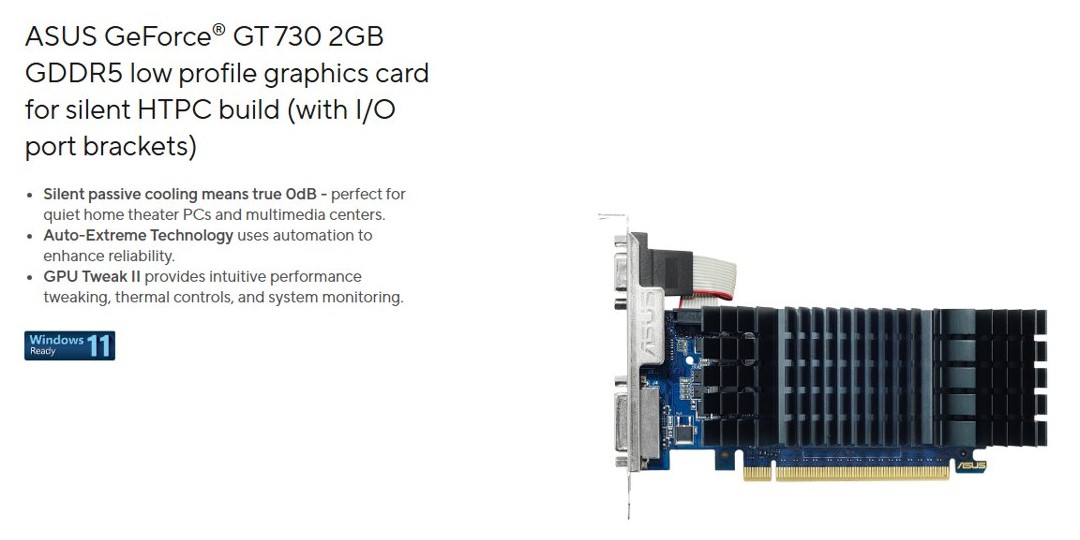
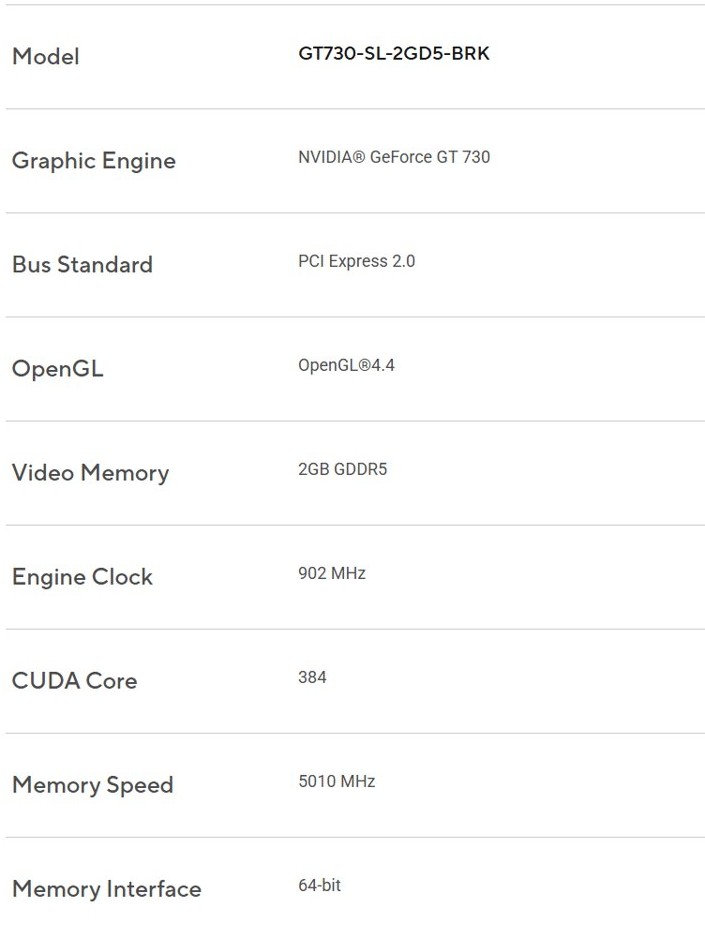
| GT 730 GDDR5, 64-bit (for example ASUS GT730-SL-2GD5-BRK) | 384 | 2 GB GDDR5 | 5010 MHz | 475.14 |
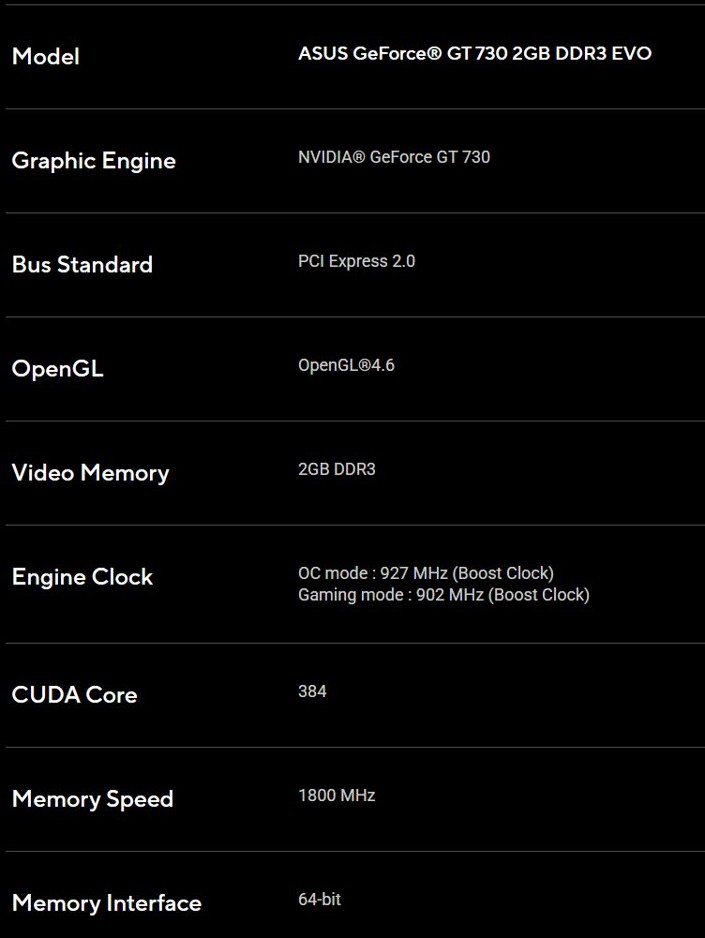
| GT 730 DDR3, 64-bit (for example ASUS GT 730 2GB DDR3 EVO) | 384 | 2 GB DDR3 | 1800 MHz | 475.14 |
| GT 730 with four HDMI ports (ASUS GT730-4H-SL-2GD5) | 384 | 2 GB GDDR5 | 5010 MHz | 475.14 |
| GT 730 that the 475.14 installer refuses | Check the maker's spec page | Check the maker's spec page | Check the maker's spec page | 391.35, Windows 10 64-bit only |
Identification matters because installing the wrong branch fails outright, and the GDDR5 and DDR3 cards perform very differently even though both carry the same name.
How to identify your exact GT 730 variant
Windows reports only the name GT 730, so the card's own model number is the reliable clue.
- Press Win + R, type
dxdiagand press Enter. - Open the Display tab and note the name, the display memory and the driver version.
- Shut down the PC, remove the card and read the model or part number on its sticker or box, such as GT730-SL-2GD5-BRK.
- Search the card maker's own website for that model number and open its Tech Specs or Specification page.
- Note the CUDA Core count, the memory type (DDR3 or GDDR5) and the Memory Interface width.
- Match those values to the variants table above.
A 384-core card with a 64-bit interface is a Kepler GT 730 and takes 475.14. If the spec page lists a different core count or a 128-bit interface, treat it as the older board and use 391.35.
Driver options explained: which path to pick
| Your situation | Driver path | Why |
|---|---|---|
| Kepler GT 730 on Windows 11 or Windows 10 64-bit | NVIDIA 475.14 Security Update Driver | Newest driver NVIDIA lists for the GT 730, with security fixes to July 2024 |
| A game or app needs the last Game Ready build | NVIDIA 472.12 Game Ready Driver | Final Game Ready branch for Kepler, but without the later security fixes |
| The 475.14 installer refuses the card | NVIDIA 391.35 on Windows 10 64-bit | NVIDIA's last listed GT 730 driver that also covers GeForce 400 and 500 boards |
| You only need a working desktop | Windows Update driver | Automatic, but it may be older than NVIDIA's own package |
| Card shipped in a branded desktop | PC maker's support page or NVIDIA 475.14 | OEM drivers are tested on that model, but are often older |
Which option is “best”?
Install NVIDIA's 475.14 Security Update Driver on any Kepler GT 730, on Windows 10 64-bit or Windows 11. It is the last driver NVIDIA published for the card, it carries every Kepler security fix released through July 2024, and it supports the same games as 472.12. Older drivers add nothing for a Kepler card and leave known security issues open.
Recommended drivers and practical rules
| Rule | Detail |
|---|---|
| Download only from NVIDIA or the card maker | Microsoft advises against drivers from any site other than the manufacturer's official one |
| Pick 475.14 for Kepler cards | Released July 9, 2024, for Windows 10 64-bit and Windows 11, about 741 MB |
| Use 391.35 only for refused cards | It is listed for Windows 10 64-bit only, not Windows 11 |
| Do not chase newer NVIDIA drivers | Current Game Ready releases no longer list the GT 730 |
| Keep the installer file | A saved copy lets you reinstall after Windows Update replaces the driver |
| Restart when asked | Restart after the installer finishes and after any Device Manager uninstall |
Step-by-step: how to install the correct GT 730 driver safely
Save your work first, because the screen goes black for a few seconds while the display driver loads.
- Download 475.14 (or 391.35 for a refused card) from NVIDIA's driver page and save it locally.
- Disconnect from the internet so Windows Update cannot install its own driver during the change.
- Right-click Start, open Device Manager and expand Display adapters.
- Right-click NVIDIA GeForce GT 730, select Uninstall device, then confirm with Uninstall.
- Restart the PC, then run the NVIDIA installer you saved.
- Accept the license, finish the setup and restart again.
- Reconnect to the internet and check the driver version in DxDiag.
Tips for Windows Update driver interference
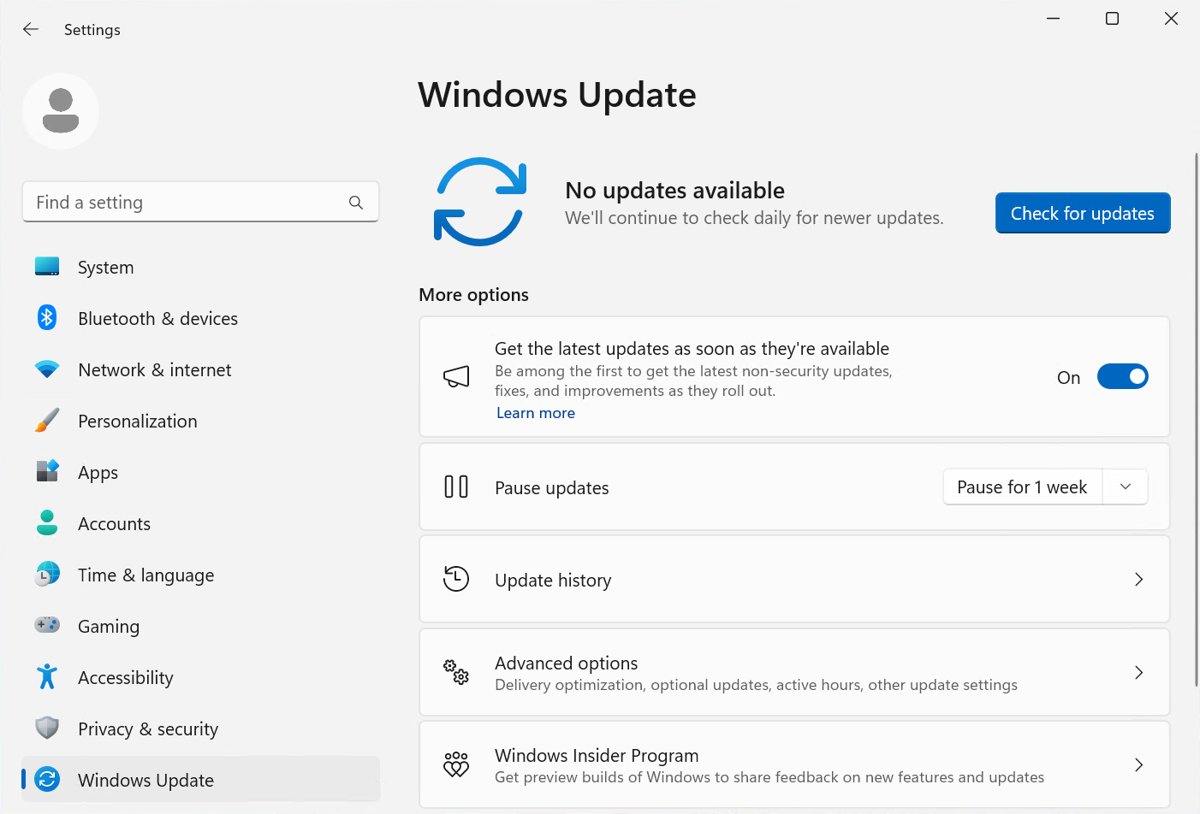
Windows Update installs recommended drivers automatically, and it can swap NVIDIA's package for an older display driver after an update.
- Where the Local Group Policy Editor is available, press Win + R, type
gpedit.mscand press Enter. - Go to Computer Configuration > Administrative Templates > Windows Components > Windows Update.
- Open Do not include drivers with Windows Updates, select Enabled and select OK.
- Reinstall NVIDIA 475.14 so the card runs the driver you chose.
- Leave optional driver offers alone under Settings > Windows Update > Advanced options > Optional updates, because optional drivers never install by themselves.
Microsoft notes that this policy does not cover drivers that a feature update installs to finish the upgrade. Check the driver version after every Windows feature update.
If Windows Update does replace the driver, open the GT 730 in Device Manager, select Properties > Driver > Roll Back Driver, or rerun the saved installer.
Troubleshooting: common GT 730 problems and fixes
The NVIDIA installer will not install on the GT 730
The driver branch does not match the card's chip or the Windows version.
- Confirm the variant with the card's model number and its spec page.
- Use 475.14 for a Kepler card on Windows 10 64-bit or Windows 11.
- Use 391.35 on Windows 10 64-bit if the card is refused by 475.14.
Device Manager shows Code 43 on the GT 730
A driver reported that the device failed, which points to a bad driver install or a hardware fault.
- Uninstall the device in Device Manager and restart.
- Install 475.14 again from the saved file.
- Reseat the card and try another PCIe slot if Code 43 returns.
Display adapters lists Microsoft Basic Display Adapter
No NVIDIA driver is loaded, so Windows uses its generic display driver.
- Download the NVIDIA driver that matches your variant.
- Run the installer and restart the PC.
- Check that NVIDIA GeForce GT 730 now appears under Display adapters.
The driver changes by itself after Windows Update
Windows Update installed a different display driver.
- Select Roll Back Driver on the card's Driver tab, or rerun the saved installer.
- Enable Do not include drivers with Windows Updates where Group Policy is available.
- Recheck the version in DxDiag after the next update.
Advanced: DDU, driver rollback and version choices
Display Driver Uninstaller (DDU) is a third-party tool, not made by NVIDIA or Microsoft. The official way to clear a bad GT 730 driver is Device Manager, which also keeps the previous driver for a quick driver rollback.
- Right-click Start and select Device Manager.
- Expand Display adapters, right-click the GT 730 and select Properties.
- Open the Driver tab and select Roll Back Driver (this needs administrator rights).
- Choose a reason, select Yes and restart when prompted.
- If Roll Back Driver is greyed out, select Uninstall device, restart, and install the version you want from NVIDIA.
Version choice is short: 475.14 for security, 472.12 only if a specific app was tested on the last Game Ready build, and 391.35 only for cards that 475.14 refuses.
Performance and expectations for GT 730 on modern Windows
The GT 730 is an entry card for extra displays, video playback and light older games. The memory type sets most of its speed.
| Factor | GDDR5 GT 730 | DDR3 GT 730 |
|---|---|---|
| Memory speed | 5010 MHz | 1800 MHz |
| Memory bandwidth on a 64-bit bus | About 40 GB/s | About 14 GB/s |
| CUDA cores | 384 | 384 |
| Bus | PCI Express 2.0 | PCI Express 2.0 |
| Maximum digital resolution | 3840 x 2160 | 3840 x 2160 |
| Game optimizations | None after October 2021 | None after October 2021 |
Bandwidth figures are calculated from the memory speed and bus width on the ASUS spec pages. Expect desktop work and video to run well, and modern games to fall below their minimum requirements.
Security and longevity considerations
Treat a GT 730 as a card with no further driver support: keep it on 475.14 and plan a replacement if the PC handles sensitive work or runs current games. NVIDIA ended Kepler critical security updates in September 2024, so any display driver flaw found after 475.14 will not be fixed. NVIDIA lists Windows 11 support without naming versions, so later Windows releases are not guaranteed to keep working with it.
Risks, common mistakes and how to avoid them
| Mistake | What happens | How to avoid it |
|---|---|---|
| Installing the newest GeForce driver | The installer finds no supported card | Use 475.14, the last GT 730 driver |
| Downloading from a driver portal | Risk of altered or bundled software | Use nvidia.com or the card maker's site only |
| Running a third-party driver updater | Wrong branch or unsigned packages | Pick the version yourself from NVIDIA's list |
| Installing 391.35 on Windows 11 | It is listed for Windows 10 64-bit only | Keep 391.35 for Windows 10 PCs with a refused card |
| Leaving Windows Update unchecked | The NVIDIA driver is replaced silently | Check DxDiag after each feature update |
| Assuming every GT 730 is equal | DDR3 cards run far slower than GDDR5 cards | Read the model number before buying or upgrading |
Quick reference checklist: choosing and installing a GT 730 driver
| Stage | Action |
|---|---|
| Identify | Read the card model number and check its spec page for cores, memory type and bus width |
| Choose | 475.14 for Kepler cards; 391.35 on Windows 10 64-bit for refused cards |
| Download | NVIDIA Manual Driver Search: GeForce > GeForce 700 Series > GeForce GT 730 |
| Prepare | Save the installer and disconnect from the internet |
| Install | Uninstall device in Device Manager, restart, run the installer, restart |
| Protect | Enable Do not include drivers with Windows Updates where available |
| Check | Confirm the driver version on the DxDiag Display tab |
How to check GT 730 driver version in Windows
- Press Win + R, type
dxdiagand press Enter. - Open the Display tab and read Driver details on the right.
- Alternatively, open Device Manager, right-click the GT 730 and select Properties > Driver.
- Confirm that NVIDIA is the driver provider and that the date matches the release you installed, such as July 2024 for 475.14.
When to replace rather than fix the driver
Replace the GT 730 when you need a supported, updated driver, current games, or a Windows version NVIDIA does not list; keep it when it only drives extra monitors or video playback. No driver fix can add support NVIDIA stopped shipping in 2024, so a card that still misbehaves on a clean 475.14 install, or keeps throwing Code 43 after a reseat, is cheaper to replace than to keep troubleshooting.
GT 730 driver FAQ
What is the latest driver for the GT 730?
The latest is NVIDIA GeForce Security Update Driver 475.14, released on July 9, 2024, for Windows 10 64-bit and Windows 11. NVIDIA ended Kepler security updates in September 2024, so no newer GT 730 driver is planned.
Does the GT 730 work with Windows 11?
Yes for Kepler GT 730 cards. NVIDIA lists drivers 471.41 through 475.14 for the GT 730 on Windows 11, and 472.12 was its Game Ready release for the Windows 11 launch.
Is there a GT 730 driver for Windows 10 64-bit?
Yes. NVIDIA lists 475.14 for Windows 10 64-bit as the newest GT 730 driver. Cards that 475.14 refuses can use 391.35, which NVIDIA lists for Windows 10 64-bit only.
How do I know if my GT 730 is DDR3 or GDDR5?
Read the model number on the card or box and open the maker's spec page for it. The page lists the memory type and speed: GDDR5 cards run at 5010 MHz, while DDR3 cards run at 1800 MHz.
Can I install the newest GeForce Game Ready driver on a GT 730?
No. NVIDIA stopped adding Kepler cards to Game Ready drivers in October 2021, so current releases do not list the GT 730. Use 475.14 instead.
Why does Windows Update keep changing my GT 730 driver?
Windows Update installs recommended drivers automatically. Where the Local Group Policy Editor is available, enable the Do not include drivers with Windows Updates policy, then reinstall NVIDIA 475.14.
Should I use 472.12 or 475.14 on a GT 730?
Use 475.14. It is the later security branch for Kepler cards, while 472.12 is the last Game Ready release and lacks the security fixes NVIDIA shipped through July 2024.