To install XAMPP on Windows 11 or Windows 10, download the 64-bit installer from apachefriends.org, install it to C:\xampp, and start Apache and MySQL from XAMPP Control Panel.
This guide covers the installer and winget routes, first-time configuration, a localhost test, Apache port conflicts, phpMyAdmin upload limits and the root password.
Install XAMPP on Windows 11 and 10
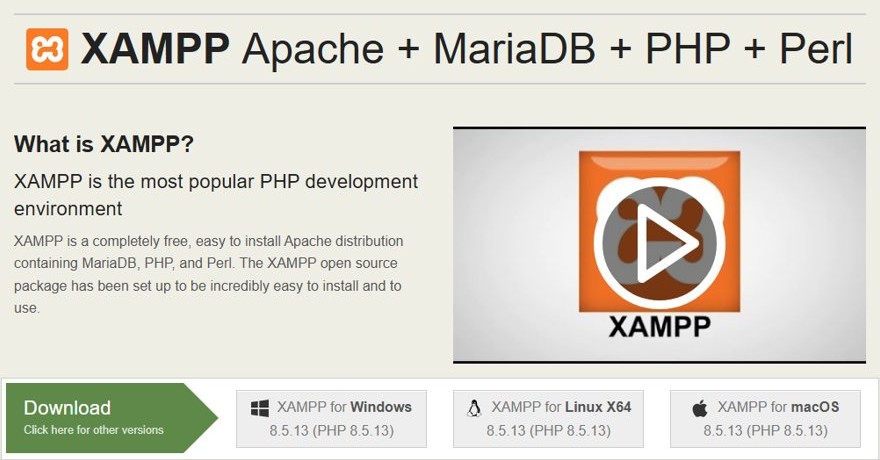
The installer is the simplest route and works the same on Windows 11 and Windows 10. Every current build is 64-bit only.
- Open the download page at
https://www.apachefriends.org/download.htmland pick the Windows build for the PHP branch your project uses: 8.5, 8.4 or 8.3. - Run the downloaded installer and select Yes on the User Account Control prompt.
- On the components screen, keep Apache, MySQL, PHP and phpMyAdmin selected. Clear the extra servers you will not use, such as Mercury, FileZilla or Tomcat.
- Set the installation folder to
C:\xampp. AvoidC:\Program Files, where XAMPP cannot write its own files even for an administrator. - Select Next on the remaining screens and wait for the files to copy.
- Select Finish, then open XAMPP Control Panel from the XAMPP folder in the Start menu.
- Select Start next to Apache and MySQL.
If Windows Defender Firewall asks about Apache or MySQL, allow access on private networks only. XAMPP is a development server, not a public one.
XAMPP installer vs ZIP vs winget on Windows
| Your situation | Use this | Why |
|---|---|---|
| First install on a personal PC | Method 1: From Installer | Adds a Start menu entry and an uninstaller, and sets paths for you |
| You script your PC setup | Method 2: From Command Prompt (winget) | One command, repeatable on every machine |
| You want a portable copy with no registry entries | ZIP or 7zip archive, where offered | Extract to a folder, run setup_xampp.bat, delete the folder to remove it |
| You planned to use Dev Home | Use the installer or winget instead | Microsoft ended Dev Home support as a Windows 11 feature in May 2025 |
Already running XAMPP and only need a newer PHP branch? You can update the PHP version in XAMPP without reinstalling the whole stack.
XAMPP system requirements for Windows 11 and 10
| Requirement | Detail |
|---|---|
| Windows version | Windows 10 or Windows 11, 64-bit. Windows XP and Server 2003 are not supported. |
| Architecture | x64 only. The current Windows builds have no 32-bit download. |
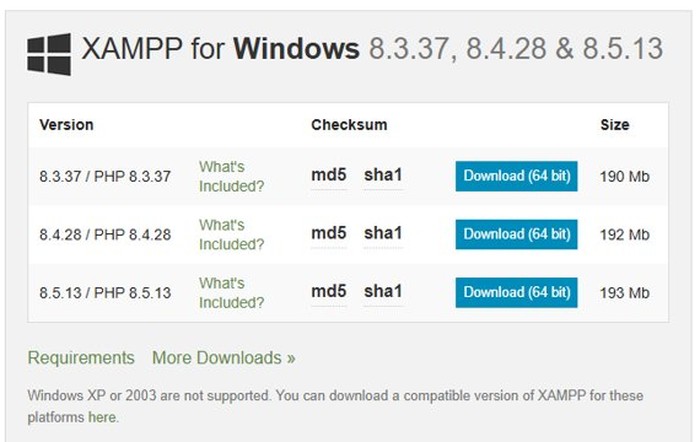
| Download size | About 190 to 193 MB, depending on the PHP branch |
| Account | An administrator account for the install and for running servers as services |
| Runtime | Visual C++ Redistributable for Visual Studio 2015-2022 (x64), which PHP's VS16 and VS17 Windows builds require |
| Free ports | 80 (HTTP), 443 (HTTPS) and 3306 (MySQL/MariaDB) |
| Install folder | A folder you can write to, such as C:\xampp, not C:\Program Files |
Install XAMPP using winget on Windows 11
This is the Command Prompt route, using the Winget package manager built into Windows. Run it in Windows Terminal, Command Prompt or PowerShell 7.
- Right-click Start and select Terminal (Admin) on Windows 11 or Windows PowerShell (Admin) on Windows 10.
- Type
winget search xamppand press Enter to list the XAMPP packages and their IDs. - Note the Id of the XAMPP package for the PHP branch you want.
- Run
winget install --id <Id> -e --source winget, replacing<Id>with the ID from the list. - Type Y if winget asks you to accept the source agreement, then wait for the installer to finish.
- Open XAMPP Control Panel from the Start menu and start Apache and MySQL.
The -e switch forces an exact match on the ID, so winget cannot pick a similarly named package. Packages in the winget repository can trail the newest release on apachefriends.org by a few days.
What is XAMPP and what does it include
XAMPP is a free, open-source Apache distribution from Apache Friends that bundles a web server, a database and PHP for local development.
| Component | Version in current Windows builds | What it does |
|---|---|---|
| Apache HTTP Server | 2.4.71 | Serves your site at http://localhost/ |
| MariaDB (listed as MySQL in the Control Panel) | 10.11.19 | The database server on port 3306 |
| PHP | 8.5.13, 8.4.28 or 8.3.37, one per build | Runs your PHP code |
| phpMyAdmin | 5.2.3 | Browser tool for managing databases |
| OpenSSL | 3.6.5 | HTTPS support for Apache |
| XAMPP Control Panel | 3.2.4 | Starts and stops each server and installs services |
| Perl, Mercury, FileZilla FTP, Tomcat | Optional | Extra servers you can skip during setup |
Configure XAMPP on Windows 11 and 10
These steps turn a fresh install into a working local server that starts when you need it.
- Right-click XAMPP Control Panel in the Start menu and select Run as administrator. Service options need administrator rights.
- Select Start for Apache and MySQL.
- To start Apache and MySQL with Windows, install them as services from the service option beside each module in the Control Panel. You can also run
C:\xampp\apache\apache_installservice.batas administrator. - Put your project files in
C:\xampp\htdocs. A folder namedmyappthere opens athttp://localhost/myapp/. - Use folder names with plain ASCII letters and no spaces to avoid broken URLs.
- Set a password for the database root user, which has none after install (see the phpMyAdmin password section below).
- Restart Apache from the Control Panel after any change to
httpd.conforphp.ini.
Some antivirus tools wrongly flag XAMPP files such as xampp-manager.exe. Check the file came from apachefriends.org and report the false positive to your antivirus vendor rather than turning protection off.
How to test XAMPP on localhost
- Open a browser and go to
http://localhost/orhttp://127.0.0.1/. The XAMPP start page loads when Apache is running. - Open Notepad, type
<?php phpinfo();, and save the file asC:\xampp\htdocs\test.php. - Go to
http://localhost/test.php. A page of PHP settings means PHP is working. - Find Loaded Configuration File on that page. It should read
C:\xampp\php\php.ini; that is the file to edit for PHP settings. - Delete
test.phpwhen you are done, since it exposes your configuration.
Increase phpMyAdmin upload size on XAMPP
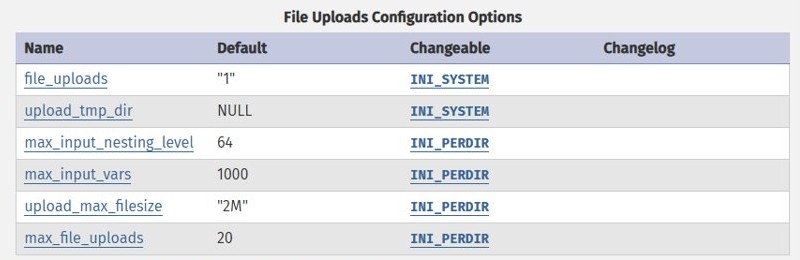
phpMyAdmin's import limit comes from PHP, not from phpMyAdmin. PHP's defaults allow a 2 MB upload, which is too small for most database dumps.
- Select Stop next to Apache in XAMPP Control Panel.
- Open
C:\xampp\php\php.iniin Notepad. - Find
upload_max_filesizeand set it to the largest file you import, for exampleupload_max_filesize = 256M. - Set
post_max_sizehigher than that value, for examplepost_max_size = 300M. - Set
memory_limitabovepost_max_size, for examplememory_limit = 512M. - Raise
max_execution_timeto300so long imports are not cut off at 30 seconds. - Save the file, select Start next to Apache, and reload phpMyAdmin to see the higher import limit.
If the limit does not change, check Loaded Configuration File in phpinfo() to confirm you edited the file PHP actually reads.
Change phpMyAdmin password on XAMPP
phpMyAdmin signs in with the database root account, so changing the root password changes the phpMyAdmin password. Do both steps, or phpMyAdmin shows an access denied error.
- Make sure MySQL is running in XAMPP Control Panel, then select Shell.
- If root has no password yet, run
mysqladmin.exe -u root password "NewPassword", replacingNewPasswordwith your own. - If root already has a password, run
mysqladmin.exe -u root -p password "NewPassword"and type the current password when prompted. - Use double quotation marks around the password on Windows; single quotes become part of the password.
- Open
C:\xampp\phpMyAdmin\config.inc.phpin Notepad. - Find the password setting for the root user and type the new password between its quotation marks.
- Save the file and reload phpMyAdmin in your browser.
How to uninstall XAMPP on Windows 11
- Copy your project folders out of
C:\xampp\htdocsand export any databases you need from phpMyAdmin. - In XAMPP Control Panel, select Stop for every running module.
- Remove the Apache and MySQL services if you installed them, using the same service option in the Control Panel.
- Open Settings > Apps > Installed apps, find XAMPP, and select Uninstall. The XAMPP uninstaller removes its registry entries and services.
- For a ZIP copy, delete the XAMPP folder instead. It leaves no registry entries behind.
Fix Apache not starting on XAMPP
Apache fails to start when another program already holds port 80 or 443. On Windows 10 and 11 the usual culprit is Internet Information Services (IIS).
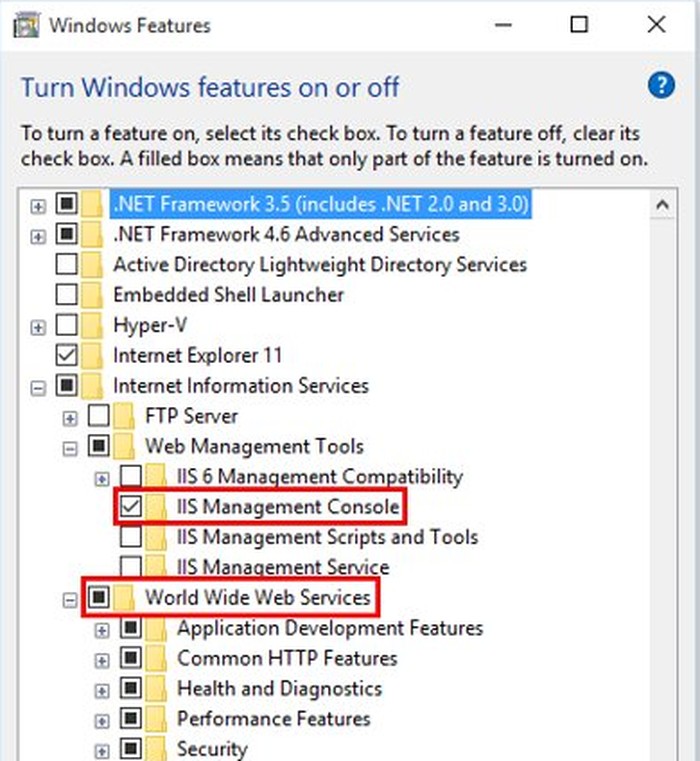
Method 1: Uninstall World Wide Web Services
IIS is installed as a Windows feature and its web server owns port 80.
- Open Control Panel and select Programs and Features.
- Select Turn Windows features on or off.
- Expand Internet Information Services and clear World Wide Web Services.
- Select OK, restart Windows when asked, and start Apache again.
Method 2: Stop World Wide Web Publishing Service
You need IIS installed, but its service grabs ports 80 and 443 at startup.
- Press Win + R, type
services.mscand press Enter. - Double-click World Wide Web Publishing Service.
- Select Stop, then set Startup type to Disabled.
- Select OK and start Apache from XAMPP Control Panel.
Method 3: Change the default Apache TCP/IP port
Another app, such as a second web server, holds port 80 or 443 and you want to keep it.
- Open Command Prompt and run
netstat -ano | findstr :80to see the process ID (PID) on port 80. - Run
tasklist /fi "PID eq 1234", replacing1234with that PID, to name the program. - Open
C:\xampp\apache\conf\httpd.confand changeListen 80toListen 8080, and, if the file has one,ServerName localhost:80toServerName localhost:8080. - If port 443 is also taken, change
Listen 443inC:\xampp\apache\conf\extra\httpd-ssl.confto an unused port such as4433. - Stop and start Apache, then open
http://localhost:8080/.
Two servers can never share one port. If you also run a separate MySQL server, do not start XAMPP's MySQL on port 3306 at the same time.
Fix phpMyAdmin access denied message on XAMPP
Access denied for user root after setting a password
The root password changed, but config.inc.php still holds the old one.
- Open
C:\xampp\phpMyAdmin\config.inc.phpin Notepad. - Enter the current root password in the root password setting.
- Save the file and reload phpMyAdmin.
phpMyAdmin is forbidden from another computer
XAMPP allows phpMyAdmin only from the PC it runs on, through Require local.
- Open phpMyAdmin on the XAMPP PC itself instead.
- Only for a trusted test network: in
C:\xampp\apache\conf\extra\httpd-xampp.conf, changeRequire localtoRequire all grantedin the phpMyAdmin block. - Restart Apache, and switch the line back when you finish.
Is XAMPP safe to use on Windows 11?
XAMPP is safe for local development on your own PC, but never use it as a public or production server. Apache Friends ships it with convenience defaults: the database root user has no password, MySQL listens on the network, and the optional FTP and mail servers use well-known accounts. Set a root password, keep phpMyAdmin on Require local, and allow firewall access on private networks only.
XAMPP on Windows FAQ
Is XAMPP free?
Yes. XAMPP is free and open source, published by the non-profit Apache Friends project. There is no paid edition, and the Windows, Linux and macOS installers are all free to download.
Does XAMPP work on Windows 11?
Yes. Apache Friends lists Windows 10 and Windows 11 among the supported systems, and the same 64-bit installer works on both. Windows XP and Windows Server 2003 are not supported by current releases.
Is there a 32-bit version of XAMPP for Windows?
No. The current XAMPP builds for Windows are 64-bit (x64) only. A PC running 32-bit Windows needs an older release, which ships outdated PHP and is not recommended.
Where should XAMPP be installed on Windows?
Install it to C:\xampp. Folders under C:\Program Files are protected, so XAMPP cannot write to its own configuration and log files there, even from an administrator account.
Does XAMPP use MySQL or MariaDB?
XAMPP ships MariaDB, a drop-in replacement for MySQL. The Control Panel still labels the module MySQL, and the database listens on the usual MySQL port, 3306.
What is the default phpMyAdmin username and password in XAMPP?
The default username is root with no password. Set a password with mysqladmin.exe from the XAMPP Shell, then add the same password to config.inc.php so phpMyAdmin can still sign in.
Can I install XAMPP from Dev Home?
Not any more. Microsoft ended Dev Home support as a Windows 11 feature in May 2025. Use the official installer from apachefriends.org or winget from Command Prompt instead.
Which PHP version of XAMPP should I download?
Pick the build whose PHP branch matches your production server or your app's requirements. Current Windows builds offer PHP 8.5, 8.4 and 8.3, and you can install a different branch later.
Can XAMPP start automatically with Windows?
Yes. Run XAMPP Control Panel as administrator and install Apache and MySQL as Windows services. They then start at boot without opening the Control Panel.
Why does Apache say port 80 is in use?
Another program, usually IIS's World Wide Web Publishing Service, already holds port 80. Stop that service, remove World Wide Web Services, or move Apache to another port such as 8080 in httpd.conf.
Where is php.ini in XAMPP?
The file is C:\xampp\php\php.ini in a default install. Confirm it with the Loaded Configuration File line in phpinfo(), and restart Apache after every change.