To review all of your Twitch account connections, sign in on twitch.tv, click your profile picture, select Settings, then open the Connections tab.
This guide explains each part of that page, how to disconnect apps and extensions, how to cut off all third-party access at once, and what Twitch Support can and cannot fix.
Where to find connections in Twitch settings
The Connections page lives in your account settings on the Twitch website. You can also type twitch.tv/settings/connections into the address bar while signed in.
- Open twitch.tv in a web browser and sign in to the account you want to check.
- Click your profile picture in the top right-hand corner.
- Select Settings from the drop-down menu.
- Select the Connections tab at the top of the settings page.
- Scroll through Recommended Connections, Extensions Connections and Other Connections to see everything linked to the account.
Every app that signs in with your Twitch account and asks for permissions is listed on this page until you disconnect it.
Understanding Twitch account connections
Twitch splits the Connections page into four parts. Each one covers a different kind of access, so read them separately rather than treating the page as one list.
| Section on the Connections page | What it holds | What you can do there |
|---|---|---|
| Recommended Connections | Twitter (now X), YouTube and Steam accounts linked to share your content | Connect an account, or check for the green tick that marks a working link |
| Extensions Connections | Extensions you have connected to your channel | Review and revoke an extension's access |
| Other Connections | Apps and websites you authorized through the Twitch API | Click Disconnect on a row to revoke that app's authorization |
| Developer Applications | Apps you registered yourself as a developer | Register and manage your own Twitch API apps through Twitch Developers |
Other Connections is the section that matters most for security. It lists third-party sites and tools that hold limited access to your account because you approved them at some point.
Why review your account connections?
An app keeps the access you granted until you disconnect it, change your password, or Twitch revokes it. Old approvals pile up quickly if you try many bots, overlays and games.
| Reason | What an unreviewed connection can mean | What reviewing fixes |
|---|---|---|
| Security | A tool you stopped using, or never recognised, still holds a valid token for your account | Disconnecting it invalidates that app's access token |
| Privacy | Linked services can read the account details their permissions allow, such as your email address | You decide which services still see that data |
| Account tidiness | Duplicate or broken links to old social or game accounts, such as one left after you close a Twitter account, stay on your profile | Only the accounts you actually use stay connected |
How to review your connections on Twitch
Work through the page from top to bottom. The whole check takes a few minutes, and nothing changes until you click a button.
- Log in to your Twitch account at twitch.tv.
- Click your profile picture, then select Settings.
- Select the Connections tab.
- Under Recommended Connections, note which of Twitter, YouTube and Steam show a green tick, and ask whether you still want each one linked.
- Under Extensions Connections, check every extension against the ones your channel actually runs.
- Under Other Connections, read each app or website name and look for anything you do not recognise.
- Click Disconnect on any row you no longer use or cannot identify.
If you find an app you never authorized, treat it as a warning sign and work through the sign-out steps further down this page.
How to disconnect an app from Twitch
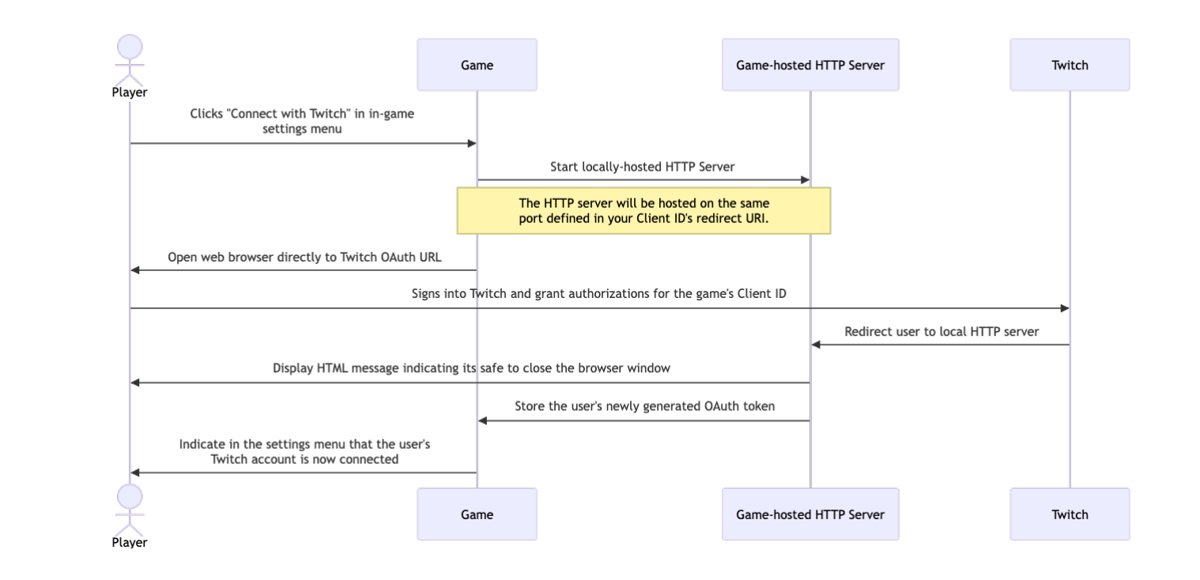
Third-party apps that use the Twitch API, such as chatbots, stream tools and game sites, appear under Other Connections.
- Go to twitch.tv/settings/connections while signed in.
- Scroll down to Other Connections.
- Find the row with the app or website name.
- Click Disconnect on that row.
- Reload the page and check that the row is gone.
Once disconnected, the app's access token stops working and its requests to Twitch fail. The app has to ask for your permission again before it can act on the account.
How to revoke Twitch extension permissions
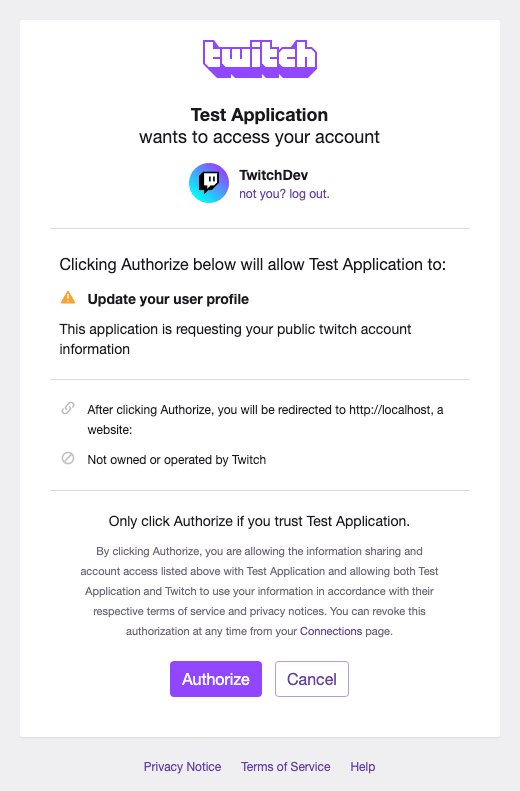
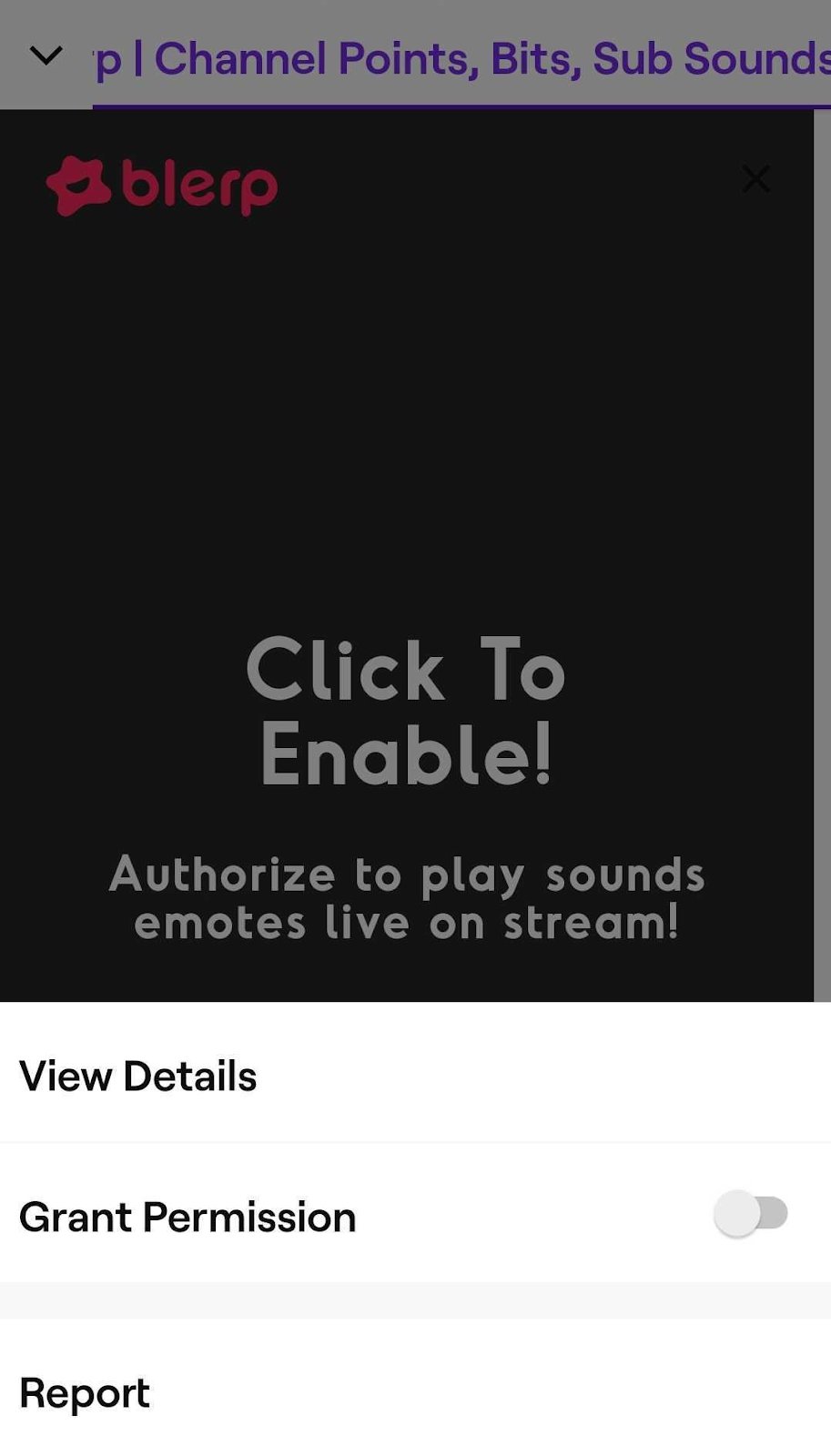
By default, extensions do not see a viewer's Twitch username. Some features, such as leaderboards, need it, and an extension only gets it after you grant permission.
- Open twitch.tv/settings/connections on the Twitch website.
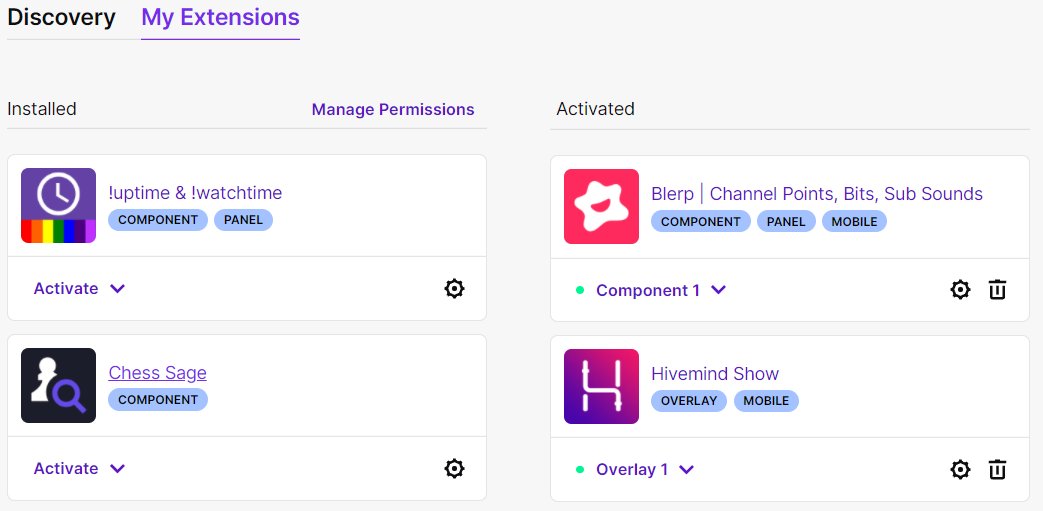
- Find the extension under Extensions Connections.
- Revoke its access from that row.
- On the Twitch mobile app, tap the 3 vertical dots menu icon on an extension to manage that extension's permissions instead.
- If an extension behaves oddly, report it from your video page for overlay extensions, or from your panels for panel extensions.
Configuring an extension is only possible on the Twitch website. Extensions are built by third-party developers, so setup problems go to the developer listed on the extension's details page.
How to connect Steam, YouTube or Twitter to Twitch
Only the services listed under Recommended Connections connect from Twitch's own settings page. Game platforms such as EA and Ubisoft connect from their side instead.
- Open Settings and select the Connections tab.
- Under Recommended Connections, hover over the grayed-out tick icon next to the service until Connect appears.
- Click Connect and sign in to the other account when asked.
- Approve the link on the other service's page.
- Return to Twitch and check for a green tick icon, which shows the connection worked.
For a game platform that is not listed, start the link from that platform's own settings or website. If you activate Twitch on a TV or console, that sign-in is a separate device activation, not a Recommended Connection.
Common connections you might encounter
Most entries on a busy account fall into four groups. Knowing which group an entry belongs to tells you where to manage it.
| Type | Typical examples | Where it shows on Twitch | Who manages it |
|---|---|---|---|
| Social media connections | Twitter (now X), YouTube | Recommended Connections | You, from Twitch settings |
| Game integrations | Steam, game publisher accounts linked for Drops, EA, Ubisoft Connect | Recommended Connections for Steam; others are linked from the publisher's site | Steam from Twitch; other platforms from their own settings and support |
| Streaming software | Broadcast and overlay tools that sign in with your Twitch account | Other Connections | You disconnect; the tool's developer handles bugs |
| Bots and extensions | Chatbots authorized on your channel, panel and overlay extensions | Other Connections for bots, Extensions Connections for extensions | You revoke; the developer supports setup |
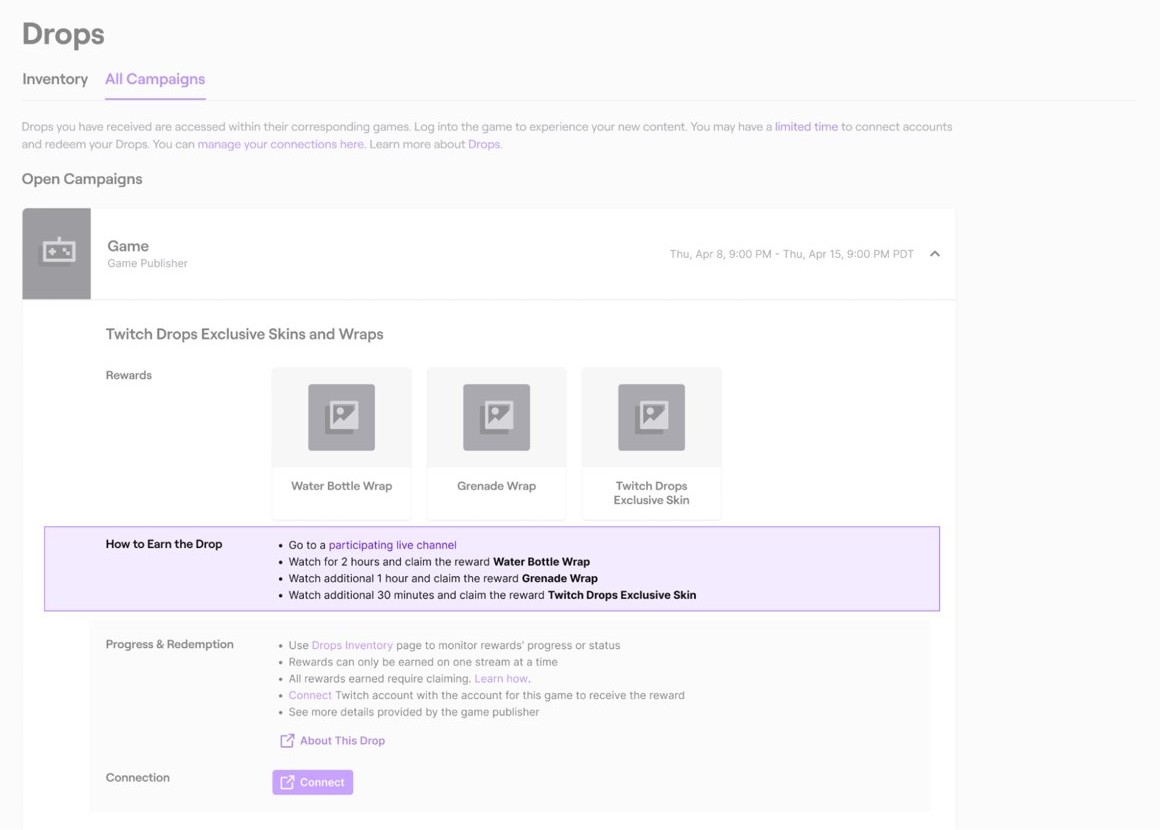
Game publisher accounts linked for rewards often matter when you claim Twitch Drops, so check which game account is linked before disconnecting it.
How to tell if an app still has access to your Twitch account
The Connections page is the record of which apps hold access. An app that no longer appears there no longer holds a valid authorization from you.
- Reload twitch.tv/settings/connections after disconnecting anything.
- Check that the app no longer appears under Other Connections.
- Open the third-party app or site and try an action that needs your Twitch account, such as posting to chat.
- Expect it to ask you to sign in with Twitch again, because its old token is now invalid.
How to sign out of Twitch everywhere, including third-party apps
Use this when you find a connection you never approved, or when you suspect someone else has used your account. It removes access far faster than disconnecting apps one at a time.
- Click your profile picture, select Settings, then select Security and Privacy.
- Under Security, select Sign Out Everywhere to log the account out on every device and in third-party applications.
- Select Change Password, enter your current password, then enter and confirm a new one.
- Set up Two-Factor Authentication if it is not already on.
- Check the Email and Phone Number under Contact and correct anything you did not set.
- Return to the Connections tab and disconnect anything you still do not recognise.
Changing your password also invalidates existing access tokens, so apps you want to keep will ask you to authorize them again.
Best practices for managing connections
| Practice | How to do it on Twitch |
|---|---|
| Regular reviews | Open the Connections tab every few months and after you stop using a bot, overlay or game, and clean up app permissions on social sites at the same time |
| Update permissions | Revoke extension access you no longer need, and disconnect apps that ask for more than their job requires |
| Use a password manager | Store a unique Twitch password so a leak elsewhere cannot open your account |
| Be cautious with third-party apps | Authorize only tools from developers you can identify, and read the permission dialog before you click Authorize |
| Learn Twitch's security features | Turn on Two-Factor Authentication, add a passkey on your own devices, and know where Sign Out Everywhere is |
When you enable Two-Factor Authentication, Twitch signs you out on all devices except the one you used to set it up.
Twitch connection not working or will not connect
A game platform such as EA or Ubisoft is not listed under Recommended Connections
Twitch only offers Twitter, YouTube and Steam from its own settings; other platforms run their own linking.
- Open the game platform's account settings or website.
- Start the Twitch link from there and sign in to Twitch when asked.
- Contact that platform's support team if the link fails, because Twitch Support cannot fix connections it does not manage.
An extension has no Configure button after you install it
The extension's configuration page did not load, or the developer's setup flow needs attention.
- Refresh the page.
- Open your Extensions Manager and click the Settings icon on the extension.
- Contact the developer from the extension's details page if it still does not load.
A third-party app stopped working with your Twitch account
Its access token became invalid after a password change, a disconnect, or a revoke by Twitch.
- Open the app and sign in with Twitch again.
- Read the permissions it requests and click Authorize only if you still want it connected.
- Check that it reappears under Other Connections.
An unknown app appears under Other Connections
Someone authorized it with your account, or you approved it and forgot.
- Click Disconnect on that row.
- Select Sign Out Everywhere under Security and Privacy.
- Change your password and turn on Two-Factor Authentication.
- Contact Twitch Support if you notice other suspicious account activity.
Twitch account connections FAQ
Where are connections on Twitch?
Connections are in your account settings on the Twitch website. Click your profile picture, select Settings, then the Connections tab, or go straight to twitch.tv/settings/connections while signed in.
How do I remove a third-party app from my Twitch account?
Open the Connections tab in Twitch settings, scroll to Other Connections, and click Disconnect on the app's row. The app loses its authorization and must ask for permission again to use your account.
Does changing my Twitch password disconnect apps?
Yes. Changing your Twitch password makes existing access tokens invalid, so third-party apps must ask you to sign in and authorize them again. Apps you want to keep will need that one extra approval.
What does Sign Out Everywhere do on Twitch?
Sign Out Everywhere logs your Twitch account out on every device and in third-party applications. It sits under Security in Security and Privacy settings. Twitch recommends changing your password too if you think the account is compromised.
Can Twitch Support disconnect my EA or Ubisoft account?
No. Twitch Support cannot connect, disconnect or troubleshoot third-party platforms that are not in Recommended Connections. Manage those links from the platform's own settings, and contact its support team if something goes wrong.
Can Twitch extensions see my username?
Not by default. Extensions cannot see a viewer's Twitch username unless the viewer grants that permission, for example to appear on a leaderboard. You can revoke the access later from the Connections page.
Can I manage Twitch extensions on mobile?
You can manage an extension's permissions on mobile through the 3 vertical dots menu icon on the extension. Configuring an extension is only possible on the Twitch website, and not every extension runs on mobile.
Do I need two-factor authentication to connect apps to Twitch?
No, but Twitch requires Two-Factor Authentication for Affiliates and Partners, and it protects every connected service. Your email must be verified first, and enabling it signs you out on other devices.