To set up parental controls with Screen Time for a child in your family, add the child to your Family Sharing group with their own Child Account, then open Settings > Family on your iPhone or iPad, tap the child's name and choose their limits.
This guide covers every Screen Time control for kids in iOS 27, iPadOS 27 and macOS 27, where the older iOS 26 settings live, and how to check your child's activity afterwards.
How to set up Screen Time parental controls for a child
You can do all of this from your own device if you are the Family Sharing organizer or a parent or guardian in the group.
- Make sure your child has their own Child Account in your Family Sharing group, not a shared account.
- Update every family device to iOS 27, iPadOS 27 or macOS 27, then go to Settings > Family and tap Get Started to set up or transfer parental controls.
- In Settings > Family, tap your child's name.
- Tap Screen Time Schedule and Time Allowances to decide when and how long they use apps.
- Tap Apps & Websites to turn on Ask to Buy and choose a website filter.
- Tap Allowed Contacts to choose who your child can message and call.
- Tap Passcode & Management > Lock Screen Time Settings and enter a four-digit passcode your child does not know.
Add yourself or another parent to your child's contacts list. Without that, your child's requests for apps, websites and more time cannot be sent to you for approval.
Create a child Apple Account in Family Sharing
A Child Account is required for children under 13 and available up to 18; the exact ages vary by country or region. The birthday you enter sets the starting age-based restrictions, so enter it correctly.
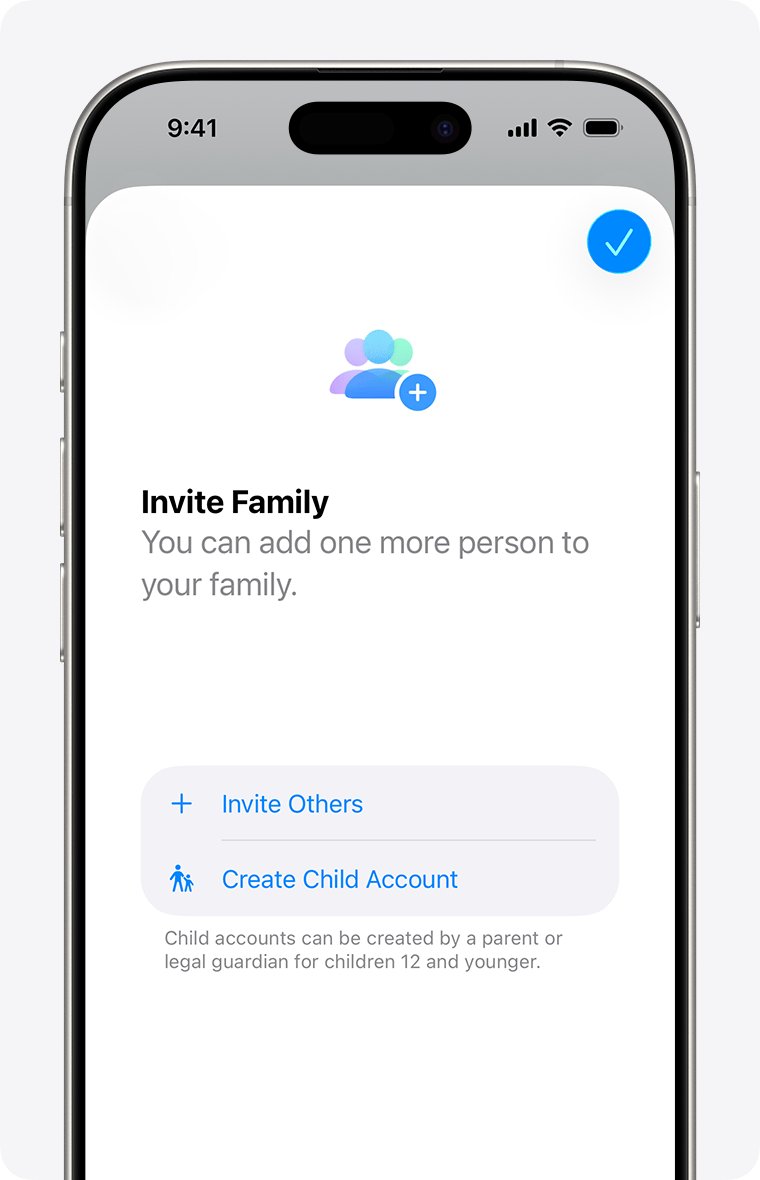
- On the Family Sharing organizer's iPhone or iPad, open Settings and tap Family. If you have no family group yet, follow the prompts to create one first.
- Tap the Add Member button.
- Tap Create Child Account, then tap Continue.
- Enter the child's name and birthday, and confirm you are an adult if asked.
- Use the suggested @icloud.com address, or tap Already have an email address for [child's name]? to use an existing one.
- Create a password your child can remember, choose a phone number for two-factor authentication, and finish the onscreen steps.
On a Mac, the same steps start in Apple menu > System Settings > Family > Add Member. During setup you can also turn on Ask to Buy and share your child's location with the family in Find My.
Screen Time parental settings for kids explained
Every control below sits under Settings > Family > [child's name] on iPhone or iPad, or System Settings > Family on a Mac. Some are on by default for children, and in some regions they cannot be turned off.
| Setting | What it controls | Default for children |
|---|---|---|
| Screen Time Schedule | Which app categories are available in time windows such as Before School, School and After School | Off until you add a schedule |
| Time Allowances | Daily time budget in total and per category, such as Entertainment, Games and Social Media | Age-based starting points you can adjust |
| Always Allowed | Apps and people available even when other apps are paused | FaceTime, Maps, Phone and Messages |
| Apps & Websites | Ask to Buy, Ask to Browse, website filtering, App Store settings, and blocked or allowed apps and sites | Ask to Buy and Ask to Browse on under 13; Limit Adult Websites on under 18 |
| Allowed Contacts | Who your child can reach in Messages, FaceTime and Phone | Set by you |
| Communication Safety | Warnings before viewing or sharing photos and videos with detected nudity, gore or violence | On for children under 18 in many regions |
| Content & Privacy Restrictions | Age ratings for apps, music, books, movies and TV, plus Siri, Game Center and privacy settings | Applied from the child's age |
| Passcode & Management | The Screen Time passcode that locks all of the above | Off until you set one |
How to set Screen Time limits on a child's iPhone or iPad
Schedules decide when apps are available, and Time Allowances decide for how long. Set up allowances first, because schedule windows use those categories.
- Open Settings, tap Family, then tap your child's name.
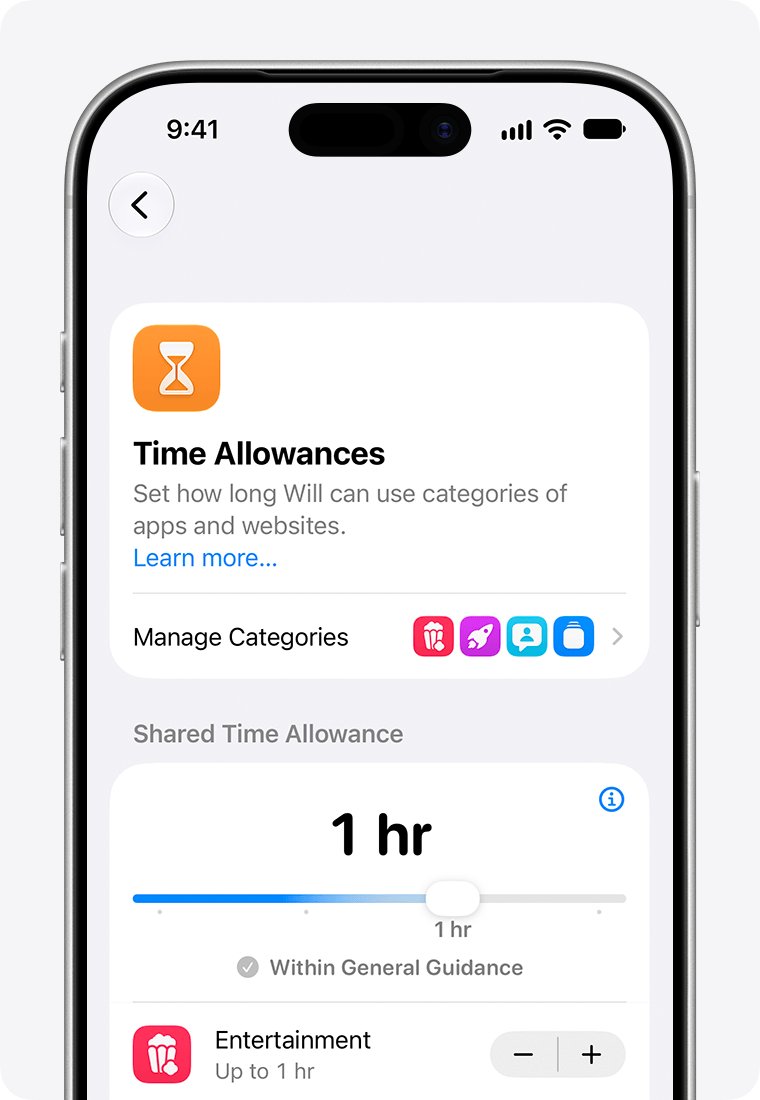
- Tap Time Allowances, tap the Add button and follow the onscreen steps.
- Drag the slider to set the total daily time, then tap a category to set its own limit.
- Turn on Match Screen Time Schedule if the allowances should apply only in certain time windows.
- Go back and tap Screen Time Schedule, then turn on Schedule.
- Tap Add Schedule and select the days it applies to.
- Tap Add Time Window to add a window with its name, times and allowed app categories.
Tap Always Allowed on the same screen to keep important apps and people reachable whatever the schedule says. Use Add Apps, Add People or Specific Contacts to add them.
How to turn on Ask to Buy for a child
With Ask to Buy on, your child sends you a request for every eligible download or in-app purchase, whatever the app's age rating.
- Open Settings, then tap Family.
- Tap your child's name.
- Tap Apps & Websites, enter your Screen Time passcode if asked, then tap Restrictions.
- Tap Ask to Buy, then turn on Require Purchase Approval.
- When a request arrives, open the message, then approve or decline it.
Requests you dismiss or leave for 24 hours expire, and your child has to ask again. You also get no request when your child redownloads their own purchase, installs an update or uses a redemption code.
How to block websites with Screen Time parental controls
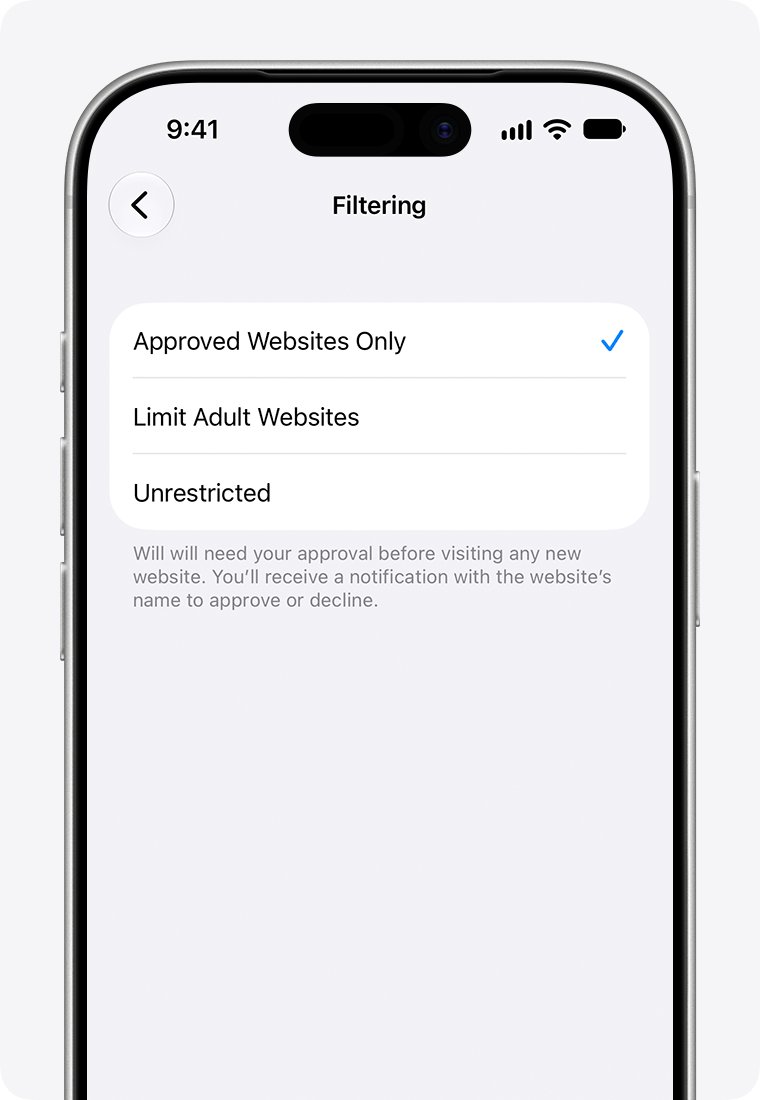
Ask to Browse makes your child request approval for each new website in Safari and other supported browsers. Limit Adult Websites filters adult content but leaves other sites open.
- Open Settings, tap Family, then tap your child's name.
- Tap Apps & Websites and enter your Screen Time passcode if asked.
- Tap Restrictions, then tap Filtering under Websites.
- Choose Limit Adult Websites, or choose Approved Websites Only to use Ask to Browse.
- To block one site or app, go back to Apps & Websites, select it, tap Block Website or Block App, and tap again to confirm.
Blocking an app does not delete it, and deleting apps on a child account is a separate step. A blocked app stays dimmed on the Home Screen, and you can unblock it at any time from the Blocked list.
How to block adult content with Screen Time Content & Privacy Restrictions
- Open Settings, tap Family, then tap your child's name.
- Tap Content & Privacy Restrictions and enter your Screen Time passcode if asked.
- Under Content Restrictions, pick a content type such as apps, music, books, movies or TV shows.
- Choose Don't Allow, Unrated, Allow All or a specific age rating.
- Tap Siri to allow or block categories such as Writing Assistance or Image Creation.
- Scroll to Privacy Restrictions, choose a category such as Accounts or Calendar, and select Allow or Don't Allow.
Game Center options such as Connect with Friends and Private Messaging are under Apps & Websites > Restrictions, in the Game Center section.
How to limit who a child can message with Screen Time
With managed contacts, a message from someone new stays hidden until a parent or guardian approves that person.
- Open Settings, tap Family, then tap your child's name.
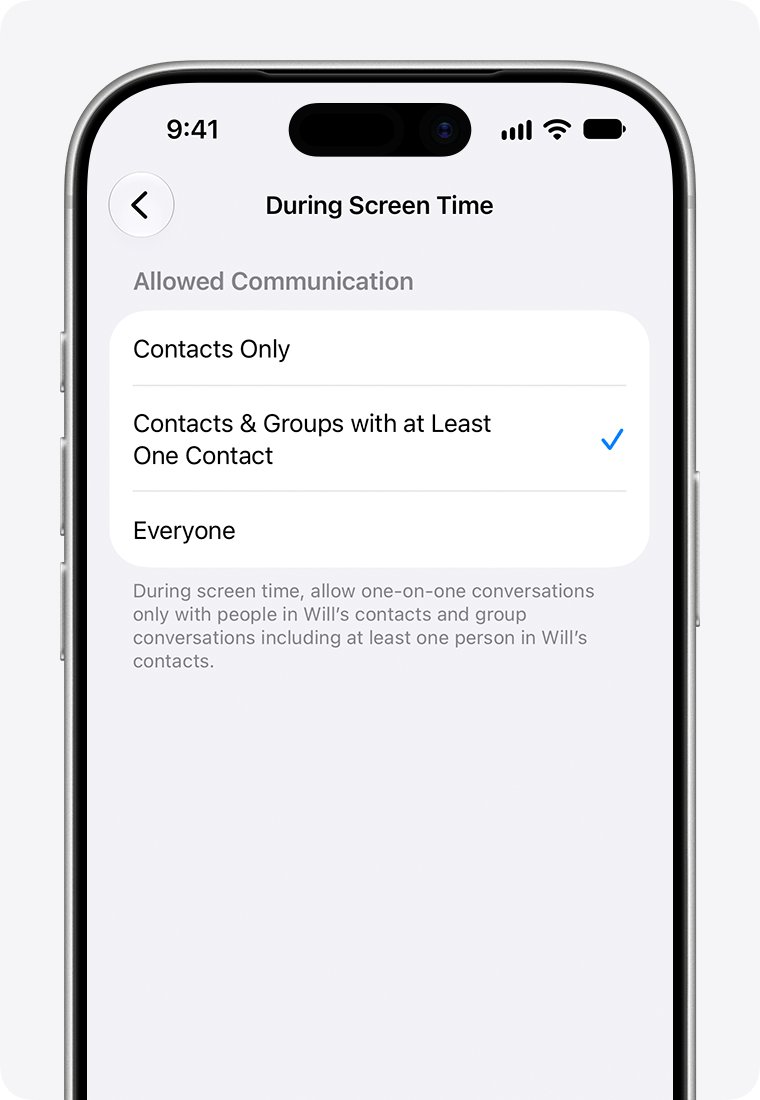
- Tap Allowed Contacts, then tap During Screen Time.
- Choose Contacts Only, Contacts & Groups with at Least One Contact or Everyone.
- Turn on Manage Contacts and choose the contacts you approve.
- Leave Allow Contact Editing off if your child should ask before adding anyone new.
- Go back, tap Communication Safety and turn it on.
How to set a Screen Time passcode on a child's device
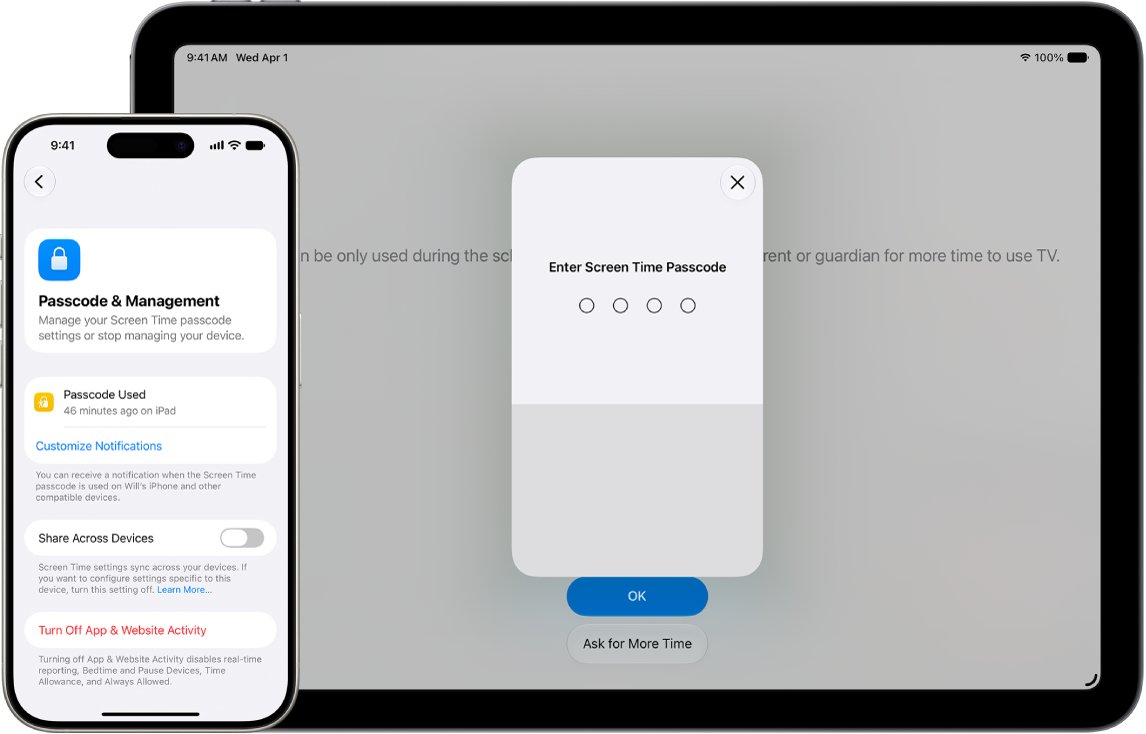
The Screen Time passcode is separate from the passcode your child uses to unlock the device. Without it, your child can change the limits themselves.
- Open Settings, tap Family, then tap your child's name.
- Tap Passcode & Management, then tap Lock Screen Time Settings.
- Enter a four-digit passcode, then enter it again to confirm.
- To check for guessing later, look at Last used below the Screen Time Passcode section.
- To change it, tap Change Screen Time Passcode twice and enter the old and new codes.
Avoid birthdays, phone numbers and patterns such as 1234, but pick one you will remember, since resetting a forgotten Screen Time passcode takes extra steps. Your child can still view their Screen Time activity and settings, but every change needs the passcode.
Where Screen Time parental controls are in iOS 27 and iOS 26
The new parental controls need every device used by a parent, guardian or managed child in the last 90 days to run version 27. Devices that cannot update keep the iOS 26 and earlier Screen Time settings.
| Task | iOS 27 and iPadOS 27 | iOS 26 and earlier |
|---|---|---|
| Open a child's controls | Settings > Family > [child's name] | Settings > Screen Time > [child's name] below Family |
| Set times when apps are off | Screen Time Schedule | Downtime > Scheduled |
| Limit time in apps | Time Allowances | App Limits > Add Limit |
| Choose who your child can contact | Allowed Contacts | Communication Limits |
| Block content and features | Content & Privacy Restrictions and Apps & Websites | Content & Privacy Restrictions |
| See which devices need updating | Settings > Family > View Family Devices | Not available |
To list devices that cannot update, go to Settings > Family > View Family Devices > Legacy Devices. On iOS 26, turn on Block at Downtime so apps cannot be opened once downtime starts.
Parental controls for Mac Screen Time
A Mac uses the same Family settings as an iPhone or iPad. Keep every family device on the latest software so your settings sync across all of them.
- Choose Apple menu > System Settings, then click Family.
- Click your child's name.
- Click Time Allowances or Screen Time Schedule to set limits.
- Click Apps & Websites > Restrictions > Ask to Buy, then turn on Require Purchase Approval.
- Click Passcode & Management > Lock Screen Time Settings and set a four-digit passcode.
If your family also uses a Windows PC, Screen Time does not reach it, so set up parental controls in Windows 11 separately.
How to check your child's Screen Time activity
- Open Settings, tap Family, then tap your child's name.
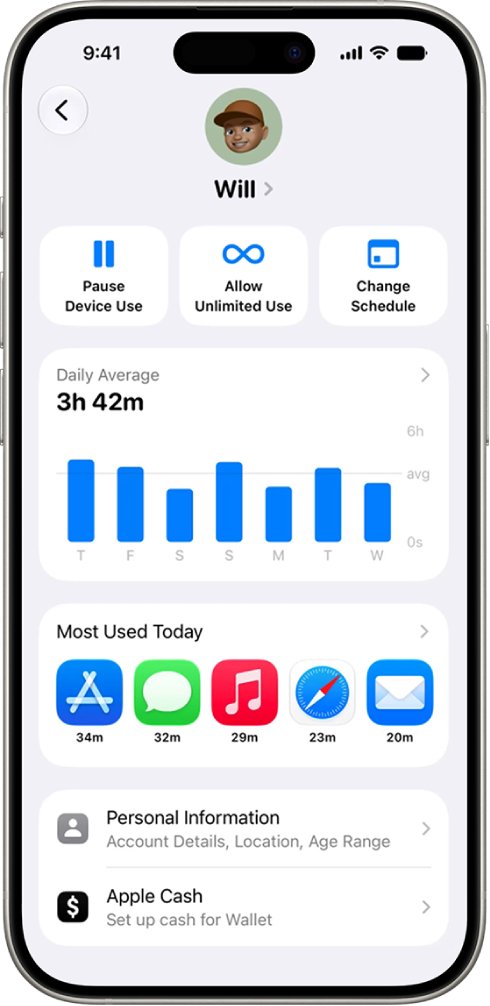
- Read Daily Average for their average daily Screen Time over the past week.
- Read Most Used Today for the apps they used most.
- Tap Daily Average and select Day or Week for more detail.
- Check Pickups and Notifications for how often they pick up the device and how many alerts they get.
If the numbers show use outside the hours you set, check the schedule and confirm the Screen Time passcode is on.
How to pause a child's device or give more Screen Time
- Open Settings, tap Family, then tap your child's name.
- Tap the pause button to pause the device. Most apps and notifications stop until you turn it back on.
- Tap the unlimited button for a trip or special occasion. Time used then does not count toward the Time Allowance.
- Tap the schedule button to change today's Screen Time Schedule.
In iOS 26 and iPadOS 26 and later, your child can also request an exception for an app above the limits you set. You approve or decline it like an Ask to Buy request.
Screen Time parental controls FAQ
How do parents manage screen time for kids on Apple devices?
Parents in a Family Sharing group manage it from their own device. Open Settings > Family, tap the child's name, then set a Screen Time Schedule, Time Allowances, Ask to Buy and allowed contacts, and lock it all with a Screen Time passcode.
Can parental controls see your screen?
Screen Time reports usage rather than showing the screen. Parents see daily average use, the most used apps, pickups and notification counts. Communication Safety checks photos and videos on the device, and Apple does not get access to them.
Is there a Screen Time parental control app?
No separate app is needed. Screen Time is built into Settings on iPhone and iPad and into System Settings on a Mac, and parental controls live under Family once your child has a Child Account in your Family Sharing group.
How do I set parental controls for Mac Screen Time?
Choose Apple menu > System Settings > Family, click your child's name, then set Time Allowances, a Screen Time Schedule, Ask to Buy and a Screen Time passcode. Keep every family device updated so the settings sync.
Can I block websites with Screen Time?
Yes. Go to Settings > Family > [child's name] > Apps & Websites > Restrictions > Filtering and choose Limit Adult Websites or Approved Websites Only. You can also block a single website from the Apps & Websites list.
Does Screen Time work on an Android phone?
No. Screen Time is part of iOS, iPadOS, macOS, watchOS and visionOS, so it only manages Apple devices signed in with your child's Apple Account. An Android phone needs its own parental control settings.
Why should parents limit screen time?
Limits help set screen-free times and places, and Apple points families to American Academy of Pediatrics guidance on doing that. Screen Distance, on by default for many child accounts, also helps lower a child's risk of myopia and eyestrain.
Can my child turn off Screen Time limits?
Not if you set a Screen Time passcode they do not know. Without the passcode, a child can change their own settings. With it, they can still view their activity, but every change asks for the code.