To change the alarm sound on iPhone 15, open the Clock app, tap Alarms, tap the alarm time, tap Sound and pick a ringtone, song or vibration, then save the alarm.
This guide also covers the sleep schedule wake up alarm, custom alarm sounds made in GarageBand, tones from the iTunes Store, and what to check when the new sound does not play.
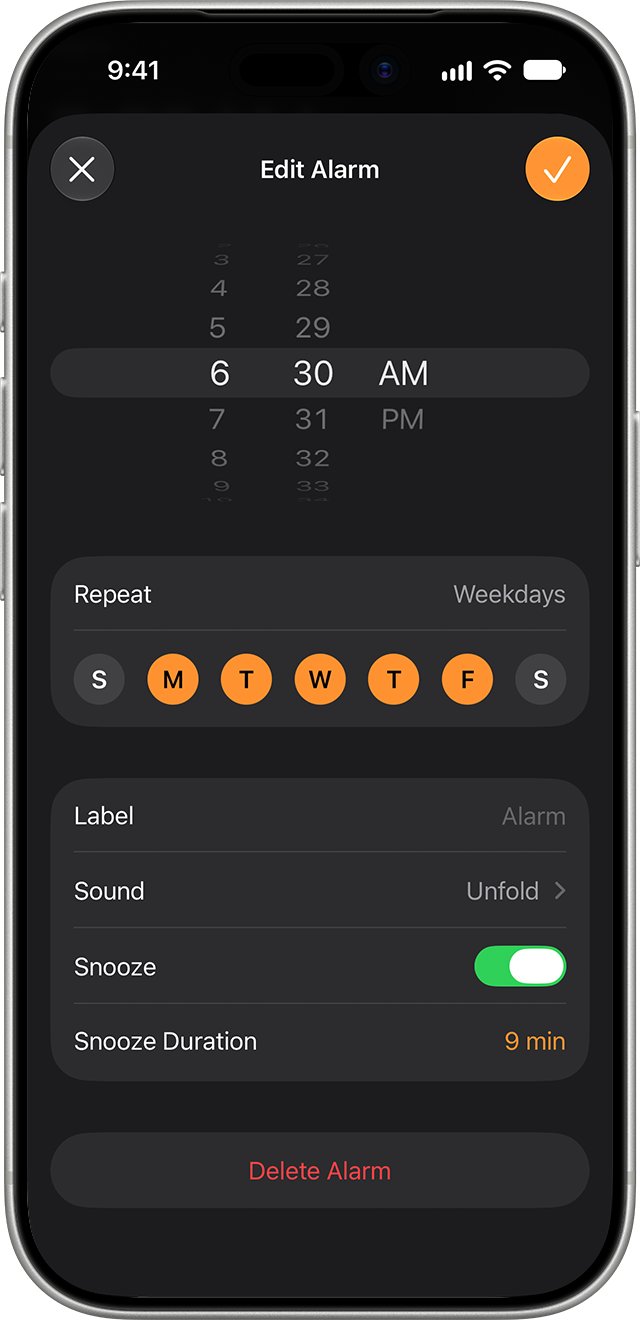
Step by step tutorial: changing alarm sound on iPhone 15
The steps are the same on iPhone 15, iPhone 15 Plus, iPhone 15 Pro and iPhone 15 Pro Max, and on later iOS versions. Each alarm keeps its own sound, so repeat the steps for every alarm you want to change.
- Open the Clock app on your iPhone 15.
- Tap the Alarms tab at the bottom of the screen.
- Tap the alarm time you want to change, or tap Edit and then tap the alarm time.
- Tap Sound.
- Tap a ringtone to hear a preview, or choose a song or a vibration instead.
- Tap the back arrow to return to the alarm screen.
- Tap the save button to keep the new alarm sound.
To create a new alarm with a different sound, tap the add button on the Alarms tab, set the time, tap Sound and choose the tone before you save it.
How to set a song as alarm sound on iPhone 15
The alarm Sound screen accepts a song from your music library as well as the built-in ringtones and vibrations.
- Open Clock, tap Alarms, then tap the alarm time.
- Tap Sound.
- In the songs section at the top of the list, tap the option to pick a song.
- Browse or search your music library and tap the song you want.
- Tap the back arrow, then tap the save button.
Pick a song that starts loud enough to wake you. A track with a long, quiet intro can play for some time before you notice it.
How to set different alarm sounds for weekdays and weekends on iPhone
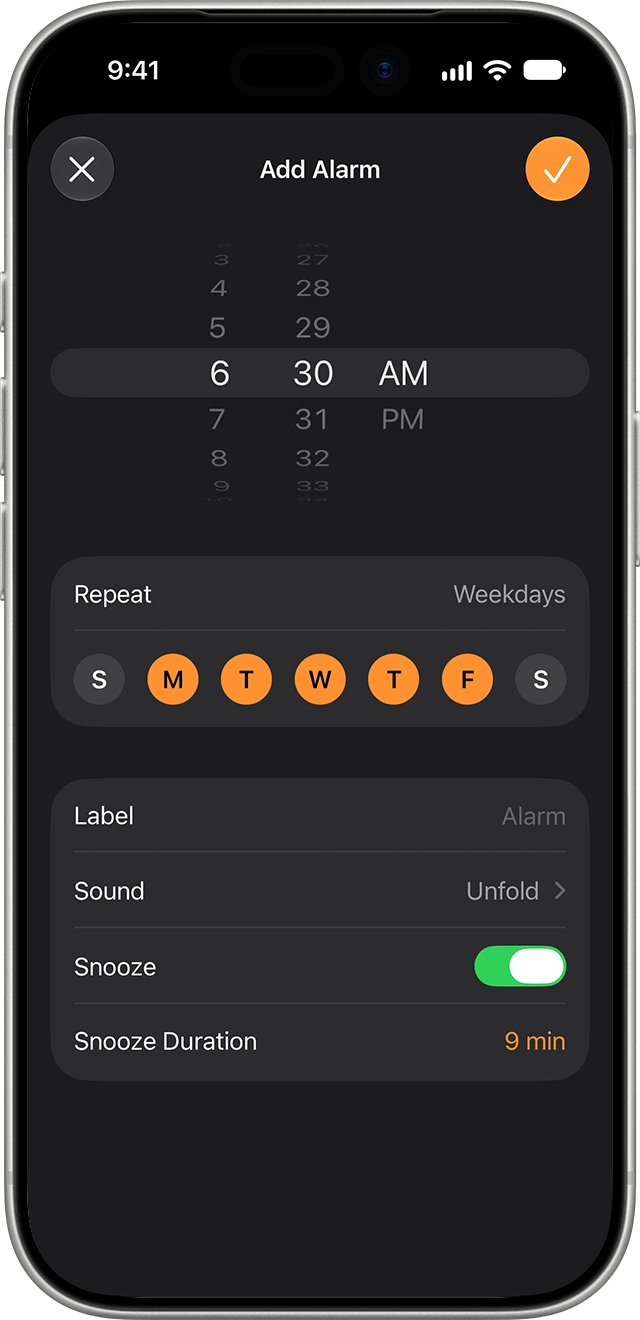
One alarm has one sound, but it can repeat on chosen days. Two alarms, each with its own Repeat days and Sound, give you a different tone on weekdays and weekends.
- Open Clock, tap Alarms, then tap the add button.
- Set the weekday wake-up time, tap Repeat and select Monday to Friday.
- Tap Label and name it, for example "Weekdays".
- Tap Sound, choose a tone, then save the alarm.
- Tap the add button again and set the weekend time.
- Tap Repeat and select Saturday and Sunday, then label it "Weekends".
- Tap Sound, choose a different tone, then save the alarm.
How to change the wake up alarm sound on iPhone
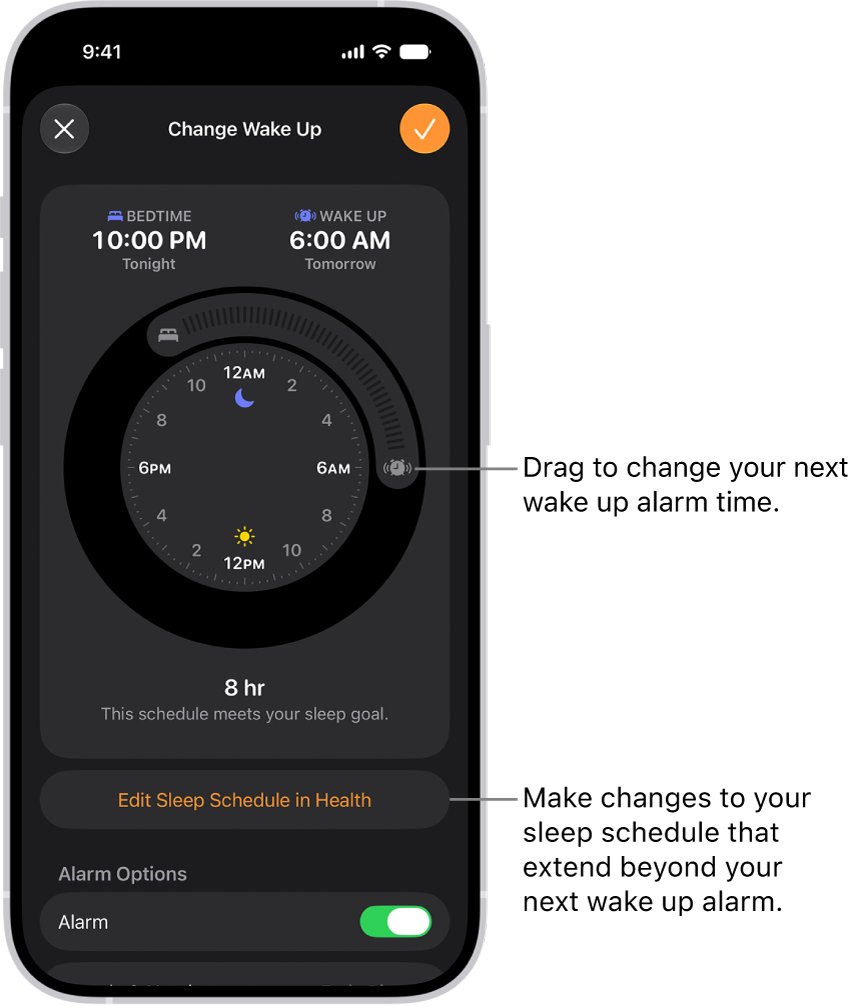
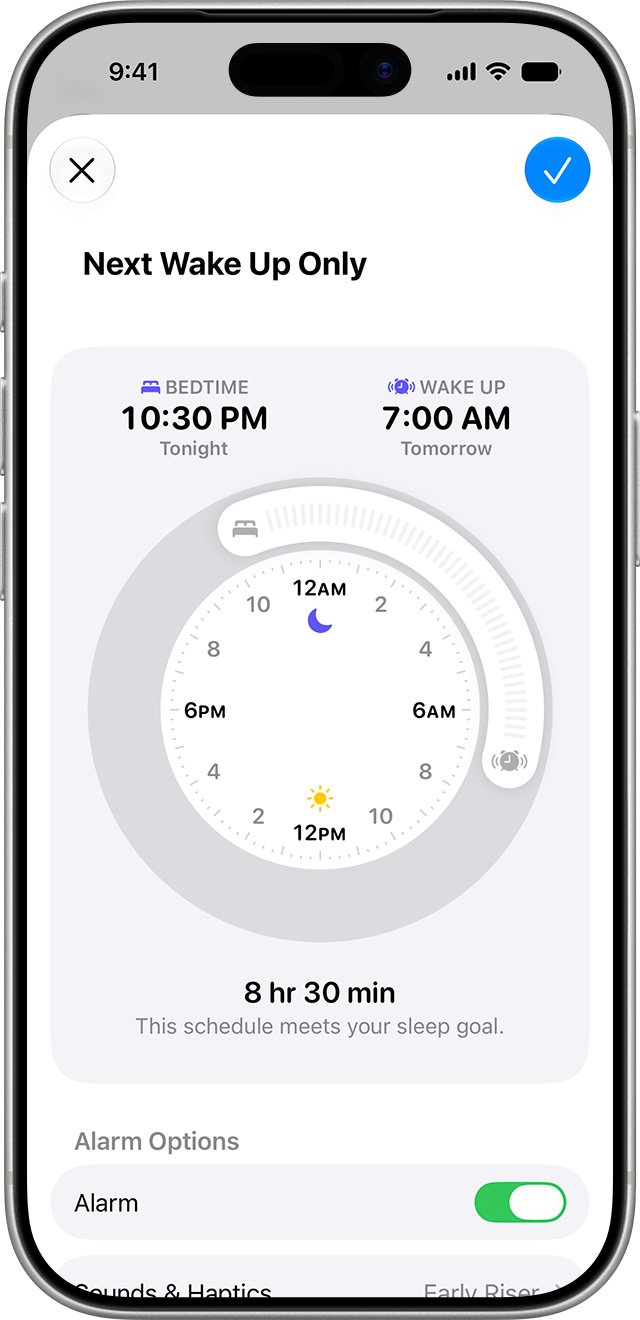
The wake up alarm from a Health sleep schedule is separate from the alarms you add in Clock. Its sound lives under Alarm Options, and it offers a vibration or a ringtone rather than a song.
- Open the Clock app and tap Alarms.
- Tap Change next to the sleep schedule alarm at the top.
- Scroll down to Alarm Options and make sure the alarm is turned on.
- Tap Sounds & Haptics and choose a ringtone or vibration.
- Drag the Alarm volume slider to the level you want.
- Tap the done button, then tap Change This Schedule to keep the new sound every day.
Change Next Alarm Only applies the sound to tomorrow's alarm and then the schedule returns to its old settings.
How to make a new alarm sound on iPhone with GarageBand
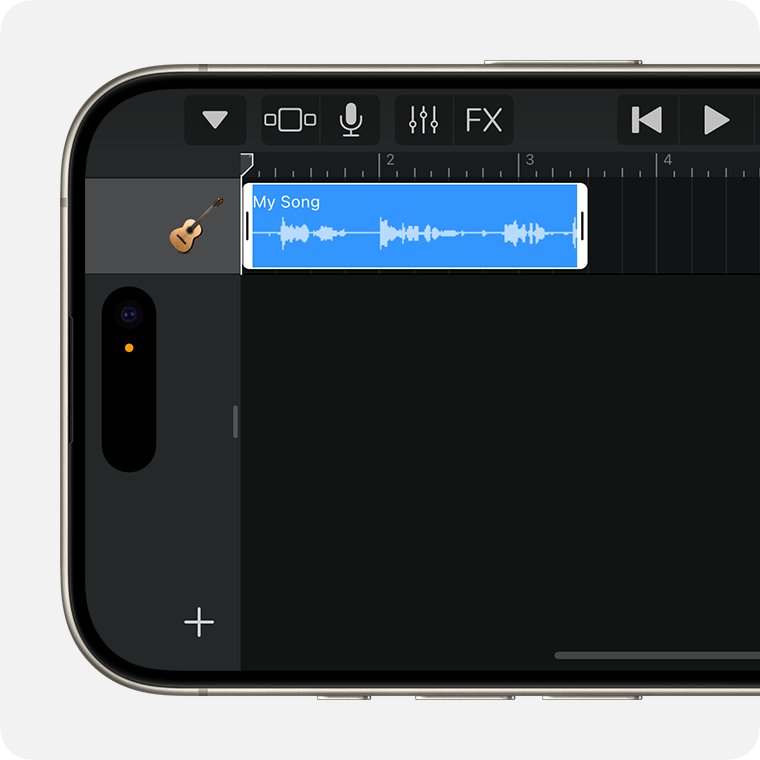
Apple's free GarageBand app can export any song you create in it as a ringtone. Ringtones can be up to 30 seconds long, and GarageBand offers to shorten a longer one for you.
- Open GarageBand and go to the My Songs browser.
- Touch and hold the song you want to use, tap Share, then tap Ringtone.
- Type a new name in the Export Ringtone dialog if you want one.
- Tap Export; if the song is longer than 30 seconds, tap Continue to let GarageBand shorten it.
- Tap OK or Done when the export finishes.
- Open Clock, edit the alarm, tap Sound and select the new ringtone from the ringtones list.
GarageBand also offers Use sound as > Standard Ringtone, which changes your call ringtone, not your alarm. Set the alarm sound separately in Clock.
How to buy new alarm sounds on iPhone in the iTunes Store
The iTunes Store sells ringtones and alert tones that you can use for Clock alarms. Purchased tones appear in the same list as the built-in ringtones.
- Open the iTunes Store app and tap Tones.
- Browse by category, or tap Search to find a song or artist.
- Tap a tone to play a preview.
- Tap the price to buy the tone.
- Open Clock, edit the alarm, tap Sound and select the tone you bought.
Tones bought on another device can be downloaded again: go to Settings > Sounds & Haptics, tap any item below Ringtone and tap Download All Purchased Tones.
How to change default alarm sound on iPhone
iPhone has no single default alarm sound setting. Each alarm stores its own sound, and the sound settings in Settings control calls and alerts, not Clock alarms.
| Sound you want to change | Where to change it | Affects alarms? |
|---|---|---|
| A Clock alarm's tone | Clock > Alarms > tap the alarm > Sound | Yes, that alarm only |
| Sleep schedule wake up alarm | Clock > Alarms > Change > Alarm Options > Sounds & Haptics | Yes, the wake up alarm only |
| Alarm volume | Settings > Sounds & Haptics > Alarms and Timers | Yes, all alarms and timers |
| Call ringtone | Settings > Sounds & Haptics > Ringtone | No |
| Text tone and other alerts | Settings > Sounds & Haptics > Text Tone, Calendar Alerts and others | No |
To use one sound for every alarm, edit each alarm in the list and pick the same tone. The volume is shared, so change the alarm volume on iPhone once under Alarms and Timers.
Pros of changing the alarm sound on iPhone 15
| Benefit | Why it helps |
|---|---|
| Easier to recognise | A tone that differs from other phones in the room tells you it is your alarm |
| A sound that actually wakes you | You can move from a gentle tone to a louder one if you sleep through the default |
| A sound per routine | Each alarm keeps its own tone, so a medicine reminder can sound different from a wake-up alarm |
| Your own music | A song or a GarageBand ringtone can replace the built-in tones |
| No extra cost | The built-in ringtones and songs already in your library cost nothing to use |
Cons of changing the alarm sound on iPhone 15
| Drawback | What to do about it |
|---|---|
| A quiet song may not wake you | Pick a track that starts loud, or raise the slider under Alarms and Timers |
| Choosing None leaves only vibration | In StandBy, alarm haptics are off, so an alarm with None gives no alert at all |
| Every alarm must be changed one by one | Edit each alarm in the Alarms tab |
| The wake up alarm cannot use a song | It offers a vibration or ringtone; a GarageBand ringtone is one way around it |
| Store tones cost money | Make a free ringtone in GarageBand instead |
Why won't my iPhone 15 change my alarm sound
The alarm still plays the old tone
The sound was picked but the alarm was not saved, or a different alarm was edited.
- Open Clock > Alarms and tap the alarm that rang.
- Tap Sound and select the tone again.
- Tap the back arrow, then tap the save button before you leave the screen.
- Set a test alarm two minutes ahead to hear the new tone.
The morning alarm ignores the new sound
The morning alarm is the sleep schedule wake up alarm, which has its own sound setting.
- Open Clock > Alarms and tap Change next to the sleep schedule alarm.
- Under Alarm Options, tap Sounds & Haptics and choose a ringtone.
- Save with Change This Schedule so the change sticks after tomorrow.
The alarm only vibrates after changing the sound
The alarm's sound is set to None.
- Open Clock > Alarms, tap Edit, then tap the alarm.
- Tap Sound and choose a ringtone or song.
- Save the alarm, then test it with a two-minute alarm.
A tone you bought is missing from the Sound list
The tone was bought on another device and has not been downloaded to this iPhone.
- Go to Settings > Sounds & Haptics and tap any item below Ringtone.
- Tap Download All Purchased Tones.
- Return to Clock, edit the alarm and select the tone under Sound.
The new sound plays, but too quietly
Alarms match the ringtone volume by default, so a low ringer means a quiet alarm.
- Go to Settings > Sounds & Haptics.
- Under Alarms and Timers, turn off Match Ringtone Volume.
- Drag the slider to the right; if the alarm is still silent, work through the iPhone alarm sound fixes.
iPhone 15 alarm sound FAQ
How do I change the alarm sound on my iPhone?
Open the Clock app, tap Alarms, tap the alarm time, tap Sound and pick a ringtone, song or vibration. Then tap the back arrow and save the alarm. Each alarm keeps its own sound, so repeat this for every alarm you want to change.
How do I change the alarm sound on iPhone 13, iPhone 14 or iPhone 16?
The steps are the same as on iPhone 15 because the alarm sound is set in the Clock app, not by model. Open Clock, tap Alarms, tap the alarm, tap Sound, choose a tone and save. The sleep schedule wake up alarm is set under Change > Alarm Options.
Can I use a song from my music library as an alarm sound?
Yes. Edit the alarm in Clock, tap Sound, choose the option to pick a song and select a track from your library. Regular Clock alarms accept songs. The sleep schedule wake up alarm offers only ringtones and vibrations, so export a GarageBand ringtone if you want custom audio there.
Will my alarm still sound if my iPhone is on silent mode?
Yes. A Clock alarm sounds even when Silent mode is on through the Action button, the Ring/Silent switch or Control Center. Do Not Disturb on iPhone and other Focus modes do not stop alarms either.
Can I set a different alarm sound for weekdays and weekends?
Yes, with two alarms. Create one alarm that repeats Monday to Friday with one tone, and a second alarm that repeats Saturday and Sunday with another. Each alarm stores its own Repeat days and Sound, so the right tone plays on each day.
Is there a way to make the alarm sound fade in gradually?
The Clock app's alarm options are Repeat, Label, Sound, Snooze and Snooze Duration, with no fade-in control. To get a gentler start, pick a ringtone or song that begins softly, or lower the slider under Alarms and Timers in Settings > Sounds & Haptics.
What happens if I ignore or snooze the alarm?
With Snooze turned on for the alarm, tapping Snooze pauses it and it sounds again after the Snooze Duration you chose in the alarm's settings. If Snooze is off, no Snooze button appears and you can only stop the alarm.
Can I change the default alarm sound on iPhone?
No single setting changes the sound for every alarm. Each alarm stores its own sound, so edit each one in Clock > Alarms > Sound. The Ringtone setting in Sounds & Haptics changes calls only, not alarms.
How do I make a new alarm sound on iPhone?
Create or open a song in GarageBand, then touch and hold it in My Songs, tap Share and tap Ringtone. GarageBand exports up to 30 seconds. Then edit your alarm in Clock, tap Sound and select the new ringtone.
How do I increase the alarm sound on iPhone?
Go to Settings > Sounds & Haptics, turn off Match Ringtone Volume under Alarms and Timers, and drag the slider to the right. Turn on Change with Buttons if you want the volume buttons to adjust the alarm volume too.