To hard reset a Samsung phone, switch it off, plug it into a computer with a USB cable, hold Volume Up and Side until the Samsung logo appears, then select Wipe data/factory reset and Factory data reset in the recovery menu.
This guide covers the button combination for every Galaxy layout, the Settings and PC routes, the backup and Google account step to do first, and what to try when the reset will not start or finish.
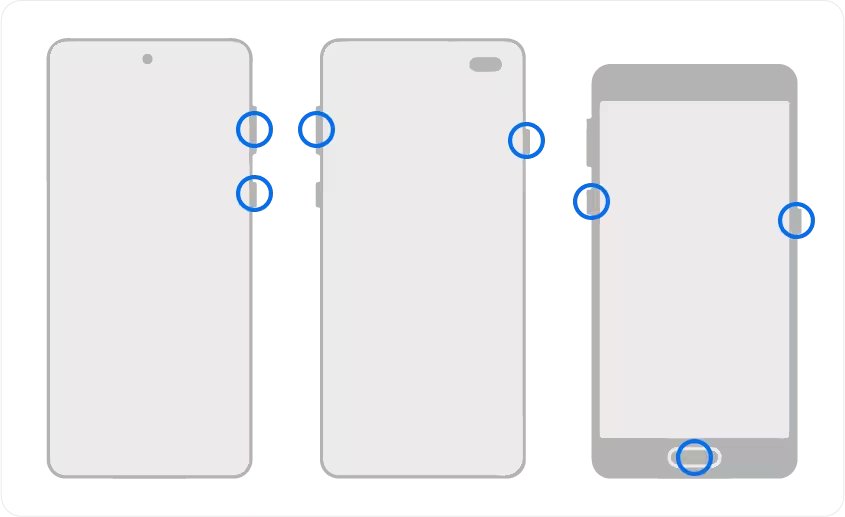
How to hard reset a Samsung phone (step by step)
Samsung calls this a factory reset, a hard reset or a master reset; all three names mean the same full wipe. The button route below works even when the screen is locked or Android will not load.
- Switch the phone off. A locked phone asks for the PIN, password or pattern before it powers down; if you do not know it, let the battery run out.
- Plug the phone into a computer with a USB cable. Samsung lists this step for its current phones before the recovery menu will open.
- Press and hold Volume Up and Side together until the phone vibrates and the Samsung logo appears, then release both buttons.
- Press Volume Down until Wipe data/factory reset (or Delete all user data) is highlighted, then press Side to select it.
- Highlight Factory data reset (or Yes – delete all user data) and press Side to confirm.
- Wait for Data wipe complete at the bottom of the screen, then press Side to select Reboot system now.
- Wait a few minutes while the phone restarts into the setup screens, then sign in with the Google account that was on the phone if it asks.
Phones with a Bixby key or a physical Home button use a different combination, listed in the model table further down.
Which Samsung reset method should you use?
Every route except a force restart erases the phone, so match your situation to a row before you press anything.
| Your situation | Use this | Why |
|---|---|---|
| Phone works and you know the PIN | Settings > General management > Reset > Factory data reset | Signs out of your accounts cleanly, so setup does not ask to verify the old Google account |
| Phone is locked, frozen on the logo or will not start Android | Recovery menu with Volume Up and Side | Runs before Android loads and does not need the screen lock |
| Phone is lost, stolen or with someone else | Samsung Find Erase data from a PC browser | Sends the wipe over the internet through your Samsung account |
| No Samsung account was ever added | Google Find Hub from a PC browser | Uses the Google account signed in on the phone |
| Phone is frozen but you want to keep your data | Force restart with Volume Down and Side | Restarts the phone without deleting anything |
| Phone is slow or apps crash | Safe mode, then Wipe cache partition | Rules out a bad app or stale cache before you wipe everything |
Before you start: two things that save a lot of pain
A hard reset cannot be undone, and a phone that still holds your Google account will ask for it after a reset started outside Settings. Do these two jobs while you can still unlock the phone.
- Back up anything you still need with your Samsung account, your Google Account or Smart Switch on a computer; photos and videos can also go to a microSD card.
- Decrypt an encrypted microSD card first: search Settings for Decrypt SD card and follow the prompts.
- Open Settings > Accounts and backup > Manage accounts.
- Tap your Google account, tap the three-dot More options icon, then tap Remove account.
- Tap Remove account again to confirm, and repeat for any other Google account on the phone.
- Charge the phone and connect it to Wi-Fi; Samsung needs a network to sign the phone out of your Samsung account.
Removing the Google account matters most if you are selling or giving the phone away. If you keep the phone, you can skip it, as long as you know that account's email and password.
How to hard reset Samsung phone with buttons on every model
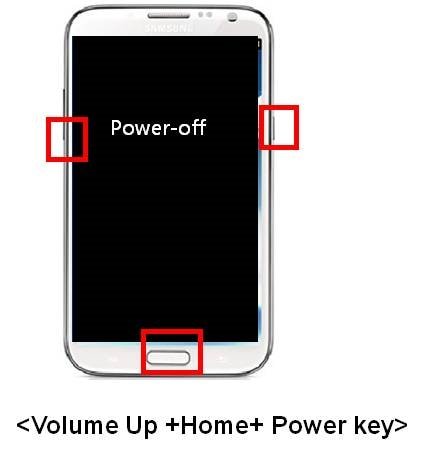
The recovery menu opens with a different key combination depending on whether the phone has a Bixby key or a physical Home button. Start with the phone switched off in every case.
| Your phone | Examples | Hold these buttons | When to let go |
|---|---|---|---|
| No Home button and no Bixby key | Galaxy S20 and later, Note10, Note20, Fold, Z Flip, recent Galaxy A models such as the A05 and A06 | Volume Up + Side, with the phone connected to a computer by USB | When it vibrates and the Samsung logo appears |
| Separate Power and Bixby keys | Galaxy S8, S9, S10 and S10+ | Volume Up + Bixby + Power | When it vibrates and the Samsung logo appears |
| Physical Home button | Galaxy S6, S7 and older models | Volume Up + Home + Power | Release Power at the first vibration, the rest when the menu appears |
Inside the menu, Volume Up and Volume Down move the highlight and the Power or Side key selects. The touchscreen does nothing here. Galaxy tablets use their own combination, covered in the steps to factory reset a Samsung tablet.
Alternative ways to reset a Samsung phone
Samsung lists three ways to factory reset a phone: the Settings menu, the buttons and its Find service. The lighter resets below keep your data and are worth trying first when the phone is only misbehaving.
| Reset | What it erases | Use it when |
|---|---|---|
| Force restart (Volume Down + Side) | Nothing | The screen is frozen or unresponsive |
| Safe mode | Nothing; it only pauses third-party apps | You suspect a downloaded app is causing crashes |
| Wipe cache partition in the recovery menu | Temporary system cache | The phone is slow or stutters after an update |
| Reset all settings | System settings only; apps, data and accounts stay | A setting change broke something and you cannot find it |
| Factory data reset in Settings | Everything | The phone works and you want a clean start |
| Samsung Find or Google Find Hub erase | Everything, from a browser | The phone is out of reach |
Force restart first (no data loss)
A force restart is the soft reset many people mean when they search for a Samsung reset. It clears a frozen screen and leaves every app, photo and message in place.
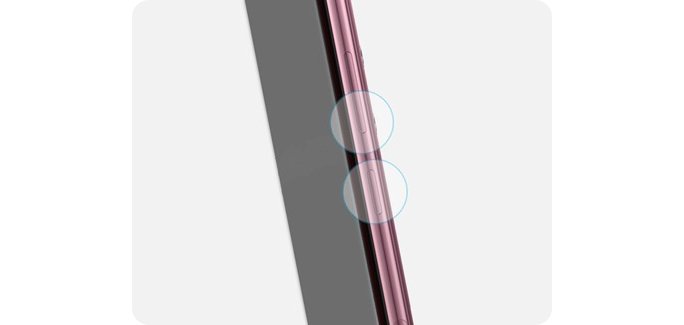
- Press and hold Volume Down and Side at the same time.
- Keep holding for about 10 seconds, until the screen goes black.
- Release the buttons when the Samsung logo appears and the phone vibrates.
- Wait for the lock screen, then unlock the phone as normal.
On older phones with a separate Power key, hold Power and Volume Down for more than 7 seconds instead. If the phone keeps freezing, Samsung suggests freeing storage, installing updates and testing in Safe mode before a factory reset.
Factory reset through Settings on a Samsung phone
Use this route whenever the phone still unlocks. It needs your screen lock and, if one is signed in, your Samsung account password.
- Open Settings and tap General management.
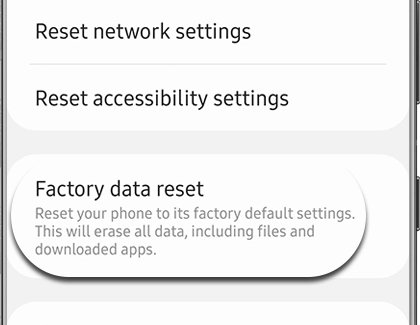
- Tap Reset, then tap Factory data reset.
- Read the list of what will be removed, scroll down and tap Reset.
- Enter your PIN, password or pattern when asked.
- Tap Delete all.
- Enter your Samsung account password if the phone asks for it.
- Wait for the phone to restart on the setup screen.
Older Android versions put the same option under Backup and reset, or under About phone > Advanced > Reset. If you cannot find it, search Settings for factory data reset.
How to hard reset Samsung phone using PC or laptop
A computer can wipe a Samsung phone remotely through a browser. This only works if a Samsung account was on the phone and Allow this phone to be found was switched on under Settings > Security and privacy > Lost device protection before you needed it.
- Make sure the phone is switched on and connected to Wi-Fi or mobile data.
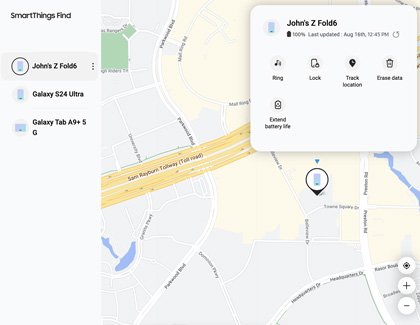
- On the PC or laptop, open a browser and go to samsungfind.samsung.com.
- Sign in with the Samsung account that is on the phone.
- Select the phone in your device list, then select Erase data.
- Sign in to your Samsung account again if prompted.
- Read the warning and select Erase. Any microSD card in the phone is erased too.
No Samsung account on the phone? Google Find Hub at google.com/android/find can erase it instead, provided the phone has power, is online, is signed in to a Google Account, has Find Hub turned on and is visible on Google Play. The same Samsung service can also locate a lost Galaxy phone before you decide to wipe it.
Clear the cache partition instead
Wiping the cache partition removes temporary system files from the recovery menu. Samsung offers it as a fix for a slow or misbehaving phone, before you reach for a full reset.
- Switch the phone off.
- Hold the recovery combination for your model, such as Volume Up + Side on phones without a Home button.
- Release the buttons when the phone vibrates and the Samsung logo appears.
- Press Volume Down until Wipe cache partition is highlighted, then press Side.
- Highlight Yes and press Side to confirm.
- Select the reboot option and let the phone restart.
Do not pick Wipe data/factory reset by mistake; it sits next to the cache option and erases the phone. For a lighter clean that never leaves Android, open Settings > Battery and device care and tap Optimise now.
What happens after a hard reset on a Samsung phone
A finished hard reset looks exactly like a new phone being switched on for the first time.
- Look for the language or welcome screen after the restart; that is the first setup screen of a wiped phone.
- Connect to Wi-Fi when setup asks.
- Sign in with the Google account that was last on the phone if setup shows a verification screen.
- Choose whether to restore a backup from your Samsung account, Google Account or Smart Switch.
- Open Settings after setup and check that your old apps, photos and accounts are gone or restored as you chose.
What a hard reset actually does to your Samsung phone
| On the phone | After a hard reset |
|---|---|
| Photos, videos, messages and contacts stored on the phone | Deleted, unless you backed them up |
| Apps from the Play Store and Galaxy Store | Removed; download them again after signing in |
| Custom settings, wallpapers and Wi-Fi networks | Back to factory defaults |
| Screen lock PIN, pattern or password | Removed |
| Google account | Setup asks for it after any reset not started from Settings (Factory Reset Protection) |
| Samsung account | Signed out; a Settings reset asks for its password first |
| microSD card | Erased by a Samsung Find remote erase; remove the card before other resets if you want it untouched |
A soft reset is different: it only switches the phone off and on, closes open apps and clears memory, and leaves your data alone.
What a hard reset will and will not fix
| Problem | Will a hard reset fix it? | Try this first |
|---|---|---|
| Forgotten screen lock | Yes; the lock is removed with your data | A recent lock change: some One UI versions accept the previous lock |
| Slow phone or apps that keep crashing | Often, if software is the cause | Safe mode, then Wipe cache partition |
| Frozen or unresponsive screen | Rarely needed | Force restart with Volume Down + Side |
| Selling or giving the phone away | Yes, it removes your data | Remove your Google account first |
| Google account verification after a reset | No; Factory Reset Protection survives a reset | The last Google account's email and password |
| Cracked screen, failing battery or water damage | No; these are hardware faults | A Samsung service centre |
Samsung hard reset still not working?
Samsung phone will not enter Recovery mode
Recent Galaxy phones only open the menu while connected to a computer, and holding the buttons past the logo boots Android instead.
- Switch the phone off completely.
- Connect it to a computer with a USB cable.
- Hold Volume Up and Side, and let go the moment the Samsung logo appears.
- Use the Bixby or Home button combination instead if your phone has one of those keys.
Hard reset Samsung phone when locked: it asks for the PIN to switch off
A locked Galaxy asks for the screen lock before it will power down.
- Leave the phone until the battery runs out and it switches itself off.
- Connect it to a computer with a USB cable.
- Hold the recovery combination for your model as the phone powers back up, or erase it from samsungfind.samsung.com instead.
Samsung phone asks for a Google account after the hard reset
Factory Reset Protection asks for the last Google account after any reset that did not start in Settings.
- Enter the email and password of the Google account that was last on the phone.
- On Android 9 and later, use the previous screen lock if setup offers that option.
- Recover a forgotten password through Google account recovery, then try again later.
- Take the phone and its proof of purchase to a Samsung service centre if you still cannot verify.
Remote erase from a PC never reaches the phone
The phone is off or offline, or Lost device protection was never switched on.
- Switch the phone on and connect it to Wi-Fi or mobile data.
- Check that you signed in with the same Samsung account that is on the phone.
- Try Google Find Hub at google.com/android/find instead.
- Use the recovery buttons if you have the phone in your hand.
A phone you cannot unlock at all still has two extra routes, the previous screen lock and a Samsung service centre, when you factory reset a Samsung phone without the password.
Samsung phone hard reset FAQ
How do I hard reset a Samsung phone when it is locked?
Switch it off, or let the battery run out if it asks for the PIN, then connect it to a computer by USB. Hold Volume Up and Side, choose Wipe data/factory reset, then Factory data reset. The recovery menu does not ask for the screen lock.
How do I hard reset a Samsung phone manually with the buttons?
Power the phone off, hold Volume Up and Side until the Samsung logo appears, and release. Move with the volume keys to Wipe data/factory reset, press Side, confirm Factory data reset, then select Reboot system now when the wipe completes.
How do I hard reset a Samsung Galaxy A05 or A06?
These Galaxy A phones have no Home button, so they use the same combination as current S-series phones. Switch the phone off, connect it to a computer by USB, hold Volume Up and Side until the logo appears, then choose Wipe data/factory reset.
How do I hard reset a Samsung phone using a PC or laptop?
Open samsungfind.samsung.com in the computer's browser, sign in with the Samsung account on the phone, select the phone and choose Erase data. The phone must be switched on, online and set to Allow this phone to be found.
Is there a Samsung phone hard reset tool for PC?
Samsung's own reset routes are the Settings menu, the phone's buttons and its Samsung Find website. A computer helps in two ways: it runs the Samsung Find erase in a browser, and recent phones need a USB connection to it before the recovery menu opens.
Can I hard reset a Samsung phone without the password?
Yes. The recovery menu and a Samsung Find remote erase both skip the screen lock PIN, pattern or password. After the reset, setup still asks for the Google account that was last signed in on the phone.
Can I hard reset a Samsung phone without the Google account email?
You can run the reset, but you cannot finish setup without verifying the last Google account. Recover the email through Google account recovery, or take the phone and proof of purchase to a Samsung service centre.
Does a hard reset delete everything on a Samsung phone?
Yes. It removes your photos, messages, contacts, downloaded apps and settings stored on the phone. Data you backed up to a Samsung account, Google Account or Smart Switch can be restored during setup.
What is the difference between a hard reset and a factory reset?
On a Samsung phone there is none: Samsung and Google both use hard reset as another name for a factory reset. A soft reset is the different one, because it only restarts the phone and keeps your data.
How long does a hard reset take on a Samsung phone?
Samsung says the reset itself takes a few minutes. The phone then restarts into the setup screens, and restoring a large backup during setup takes longer.
Why will my Samsung phone not enter Recovery mode?
On recent Galaxy phones the usual cause is a missing USB connection to a computer. Holding the buttons too long is the other: release them as soon as the Samsung logo appears, or the phone boots into Android.
Best way to hard reset a Samsung phone
Use Settings > General management > Reset > Factory data reset when the phone unlocks, and the Volume Up + Side recovery menu, with the phone connected to a computer by USB, when it does not. The Settings route signs out of your accounts so setup goes smoothly, while the recovery menu works on a locked or crashing phone. Back up and note your Google account first, because no reset brings your data back or skips the Google check.