Most “Your connection is not private” warnings clear once you set the computer clock to the correct date and time, sign in to the Wi-Fi login page, or clear the site's cookies and cached files.
This guide walks through ten fixes for Chrome, Microsoft Edge and Firefox in the order that solves the most cases, explains the error codes, and shows when the fault sits with the website instead of your device.
1. Check your date and time settings
Every HTTPS certificate is valid only between two dates, so a browser that thinks it is the wrong day treats a good certificate as expired or not yet valid.
A clock that is off by days or years is the classic cause of the NET::ERR_CERT_DATE_INVALID code, and it affects Chrome, Edge and Firefox at once.
- Select Start > Settings > Time & language > Date & time.
- Turn Set time automatically to On.
- Turn Set time zone automatically to On, or pick the right zone from the Time zone drop-down if automatic detection is off.
- If automatic time is unavailable, turn Set time automatically off, select Change next to Set the date and time, enter the correct date and time, and select Change.
- Close every browser window, reopen the browser and load the site again.
If the clock drifts again after a restart, the motherboard's clock battery can be failing; the manufacturer of the PC is the right contact for that.
2. Check internet connection and network settings
Hotel, airport and café Wi-Fi often intercepts the first HTTPS page you open to show its own sign-in page, and the browser reports that interception as a privacy error.
- Open a new tab and go to a plain public site that does not hold your account, so the network's sign-in page has a chance to appear.
- Complete the Wi-Fi sign-in or accept the network's terms, then reload the site that showed the warning.
- If you are at home, restart the modem and router, wait for the connection to come back, and try again.
- Switch to a different network, such as a phone hotspot, and load the same address.
- If the site loads on the other network, contact the network owner or your internet provider, because something on the first network is interfering with secure connections.
A warning on a work or school network can come from an inspection proxy; only that organisation's IT team can fix its certificates. On your own Windows PC, when secure sites fail on every network, you can reset network settings in Windows to reinstall the adapters and restore networking defaults.
3. Clear browser cache and cookies
Stale cookies and cached files can keep a broken session alive after the site's certificate has been fixed. Clear them, and expect to sign in to websites again afterwards.
- Chrome: select More (three dots) > Delete browsing data, choose All time, tick Cookies and other site data and Cached images and files, then select Delete data.
- Edge: select Settings and more > Settings > Privacy, search, and services, then select Clear browsing data > Choose what to clear.
- In Edge, pick All time under Time range, tick Cookies and other site data and Cached images and files, and select Clear now.
- Firefox: open the browser's settings, go to the privacy section and clear cookies, site data and cached web content.
- Restart the browser and reload the page.
In Chrome you can also type “Delete browsing data” in the address bar and select the action chip to jump straight to the dialog. If Edge sync is on, clearing data there removes it from your other synced devices too. When only one site is affected, Firefox also lets you delete cookies for a single site and keep the rest signed in.
4. Open the site in an Incognito or InPrivate window
A private window starts with no cookies, no cache and, by default, no extensions, so it isolates the browser profile from the network and the site.
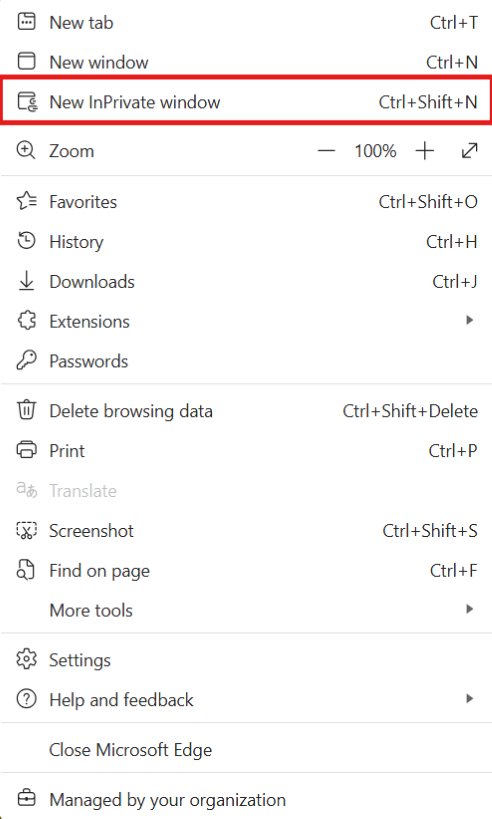
- Chrome: press Ctrl + Shift + N on Windows (⌘ + Shift + N on a Mac), or select More > New Incognito window.
- Edge: select Settings and more > New InPrivate window.
- Firefox: open a new private window from the main menu.
- Type the full site address into the private window and press Enter.
- If the site opens without a warning, go to fix 5 and fix 3, because an extension or stored data is the cause. If the warning appears here too, move to fix 6.
5. Disable browser extensions
Security, VPN, proxy and content-filter extensions can sit between the browser and the site. Turning them all off for a test tells you whether one of them breaks the certificate check.
- Chrome: select More > Extensions > Manage extensions and turn off the toggle on every extension.
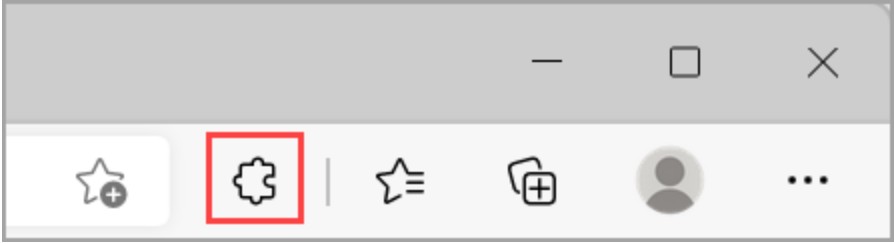
- Edge: select Extensions to the right of the address bar, then Manage extensions, and turn off the toggle next to each extension.
- Firefox: open the add-ons manager from the main menu and disable each extension.
- Reload the site. If the warning is gone, turn the extensions back on one at a time and reload after each.
- Remove the extension that brings the warning back, or check its developer's page for an update.
6. Update your browser and operating system
Browsers and operating systems ship updated lists of trusted certificate authorities and security fixes. An old build can reject a certificate that current builds accept.
- Chrome: select More > Help > About Google Chrome, then select Relaunch if an update is waiting. No Relaunch button means Chrome is current.
- Edge: select Settings and more > Help and feedback > About Microsoft Edge (or open
edge://settings/help), then select Download and install or Restart if offered. - Firefox: open the main menu, go to Help and open the About Firefox window, which checks for and downloads updates.
- Windows 11: select Start > Settings > Windows Update and check for updates.
- Windows 10: select Start > Settings > Update & Security > Windows Update and check for updates.
- Install what is offered, restart the computer and try the site again.
7. Check your antivirus or firewall software
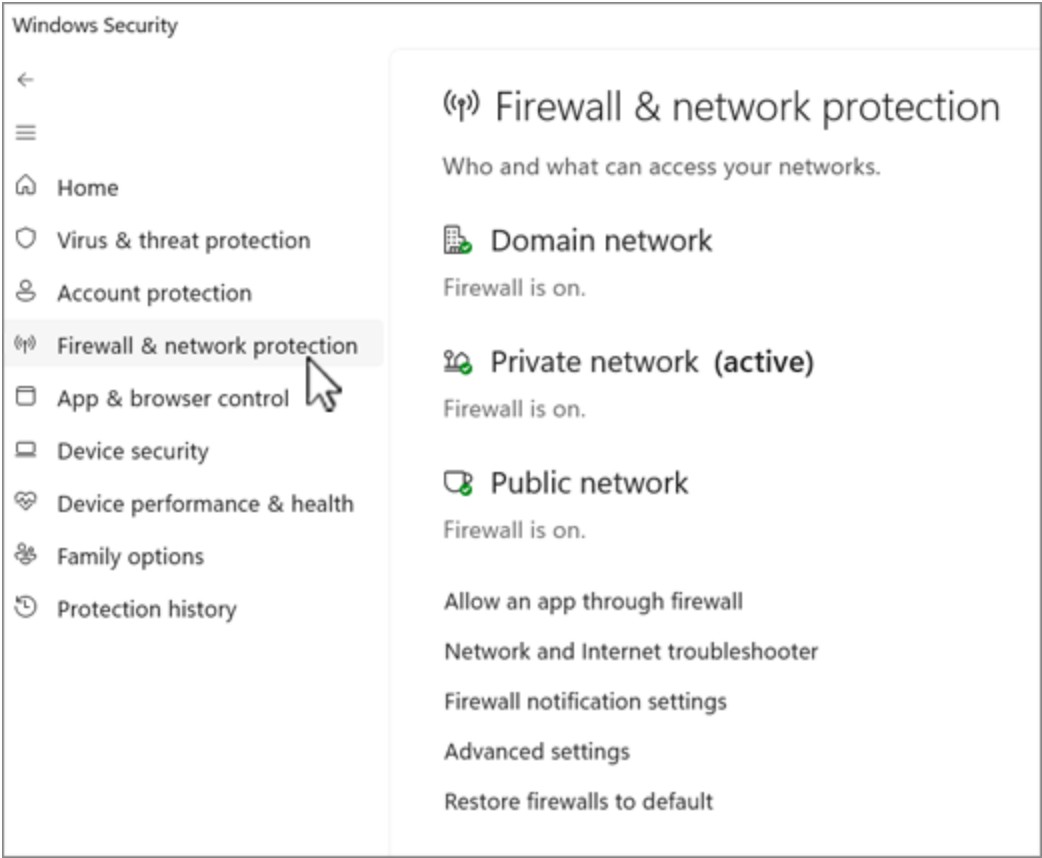
Some security suites inspect HTTPS traffic by inserting their own certificate. When that component is out of date or broken, every secure site can show a privacy warning.
- Open your security app and install any pending program and definition updates.
- Look in the app's web protection settings for a blocked-sites or quarantine list, and check whether the browser or the site appears there.
- Restart the computer after the update so the new components load.
- If every HTTPS site still fails only while that app is installed, contact the vendor's support with the error code shown on the warning page.
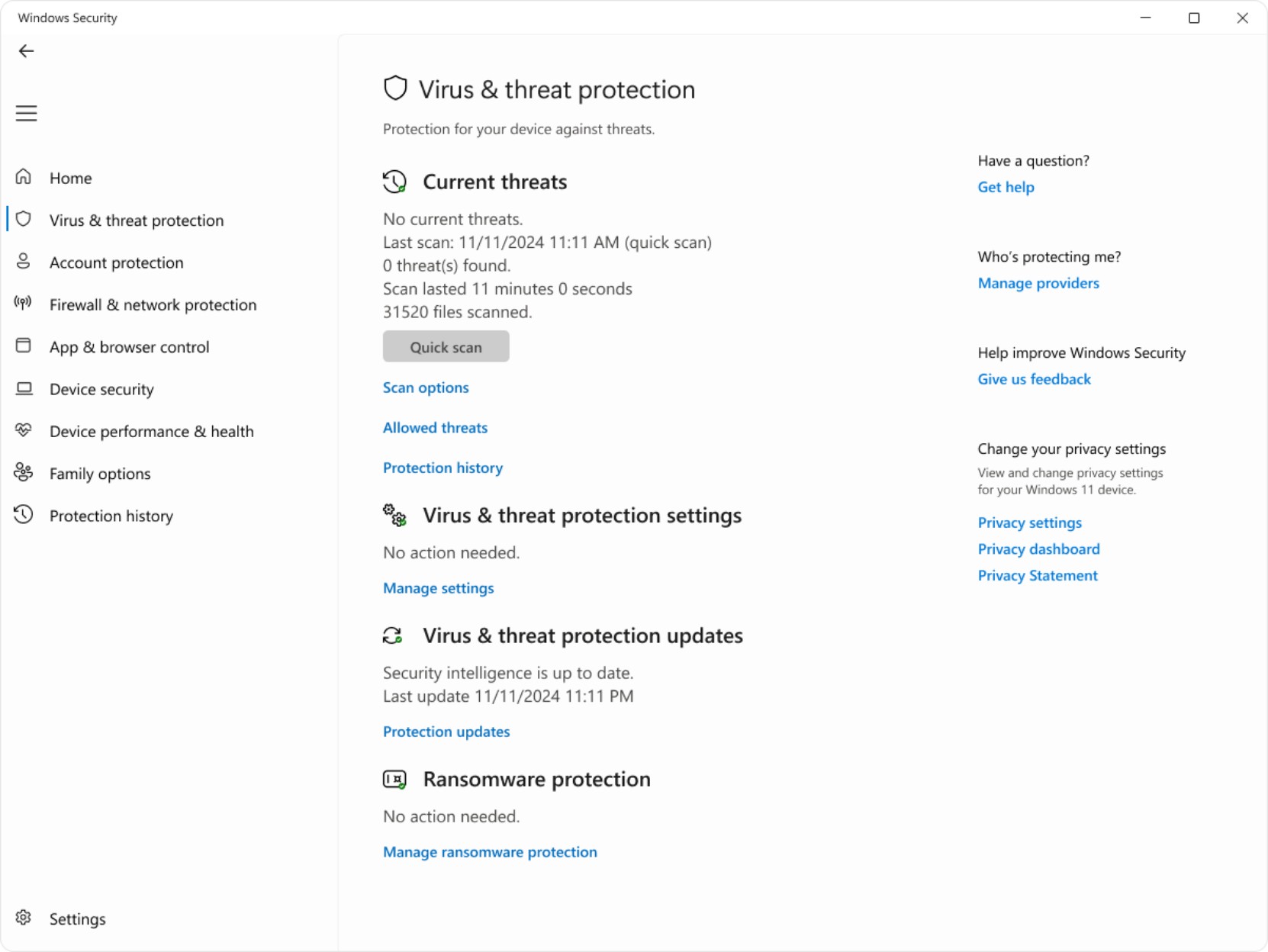
- Run a full scan with Windows Security or your own antivirus, because malware can also intercept secure connections.
Keep the protection running while you troubleshoot; an up-to-date security app should not break valid certificates.
8. Reset browser settings
A reset clears changed settings, such as a proxy or a hijacked search engine, that an unwanted program left behind. Bookmarks and saved passwords stay in place.
- Chrome: select More > Settings > Reset settings > Restore settings to their original defaults > Reset settings.
- After a Chrome reset, turn back on only the extensions you trust from More > Extensions > Manage extensions.
- Edge: close Edge, then select Start > Settings > Apps > Installed apps.
- Select Microsoft Edge, choose Modify, select Yes at the permission prompt, and select Repair.
- Reopen the browser and load the site again.
Edge Repair keeps your browser data and settings. If Modify is missing, your organisation manages Edge and its administrator handles repairs.
9. Try the site in another browser or on another device
Testing the same address elsewhere splits the problem in two: your computer, or the site and network.
| What you see | What it points to | What to do |
|---|---|---|
| Warning in one browser only | That browser's profile, extensions or settings | Repeat fixes 3, 5 and 8 in that browser |
| Warning in every browser on this PC | The clock, security software or Windows itself | Repeat fixes 1, 6 and 7 |
| Warning on every device on this network | The Wi-Fi network, router or provider | Repeat fix 2 or switch networks |
| Warning on every device and network | The website's certificate | Go to fix 10 |
10. Contact the website administrator or wait
When the warning follows a single site across devices and networks, the certificate on the server is expired, issued for a different name, or not trusted. Nothing on your PC can repair it.
- Note the error code shown on the warning page, for example NET::ERR_CERT_DATE_INVALID.
- Find the site's contact address, support page or official social account from a source you already trust.
- Send the address you opened, the error code, the date, and the browsers you tested.
- Leave sign-ins and payments on that site alone until the certificate is fixed.
- Check back later; site owners usually renew a lapsed certificate quickly once they notice.
If you run the site yourself and the certificate was issued for the wrong host name, you need to fix the common name mismatch on the server before visitors stop seeing the warning.
What does “your connection is not private” mean?
The browser could not confirm that the HTTPS certificate belongs to the site you typed and was issued by an authority it trusts. Until that check passes, the browser will not treat the connection as secure.
The code printed under the message narrows the cause down.
| Error code | Usual cause | Fixes to start with |
|---|---|---|
| NET::ERR_CERT_DATE_INVALID | Wrong computer clock, or an expired certificate on the site | 1, then 10 |
| NET::ERR_CERT_AUTHORITY_INVALID | Certificate not issued by a trusted authority, or traffic intercepted by a network or security app | 2, 7, then 10 |
| NET::ERR_CERT_COMMON_NAME_INVALID | Certificate issued for a different host name than the address you opened | Check the URL, then 10 |
| ERR_SSL_VERSION_OR_CIPHER_MISMATCH | Site uses an outdated protocol or cipher the browser no longer accepts | 6, then 10 |
An untrusted issuer often traces back to a network or security app, so certificate authority errors usually clear once that interception stops. A cipher mismatch error is different: an outdated browser can trigger it, but most often the site still runs an old protocol.
How to check if a site's connection is secure in Chrome and Edge
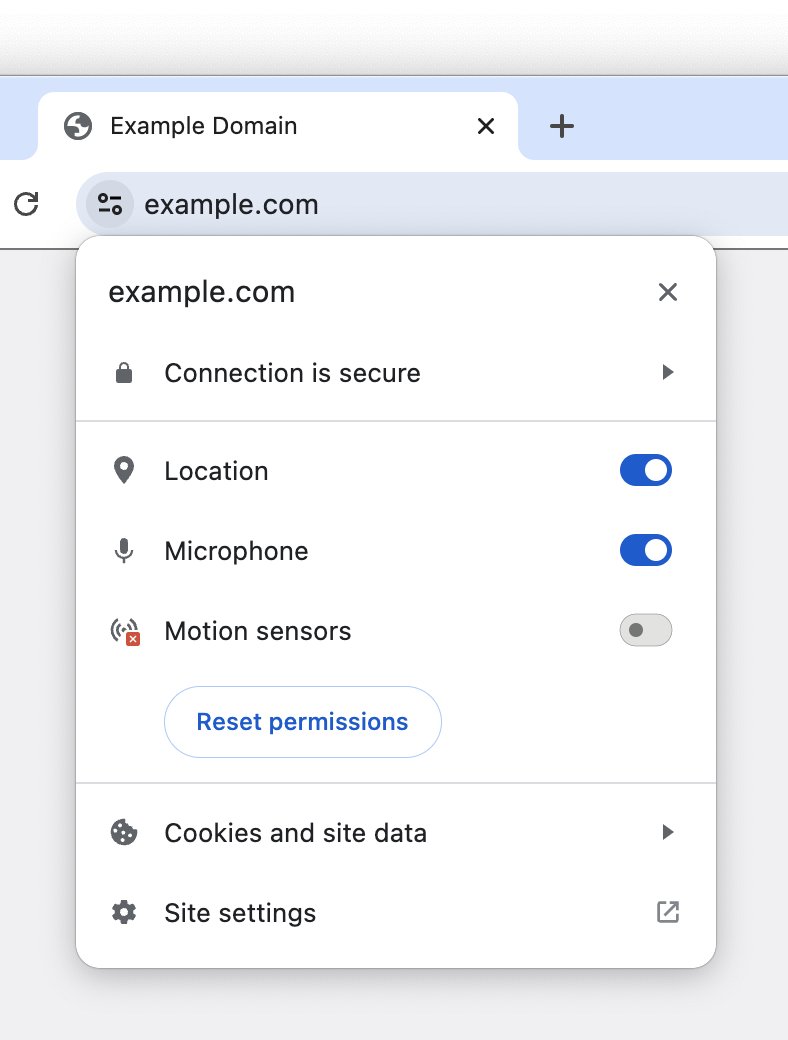
Once the warning is gone, the address bar shows whether the browser now trusts the certificate.
- Load the site and look at the icon to the left of the web address.
- In Chrome, the default icon means secure, while Not secure or Dangerous means the connection is still not trusted.
- In Edge, look for the padlock; a Not secure label or a warning triangle means the connection is still not private.
- Select the icon to see whether the connection is secure and which authority issued the certificate.
- Confirm the address in the bar is the exact site you meant to visit before you sign in.
Your connection is not private error on all websites
The warning appears on every HTTPS site
Something on the device breaks every certificate check: the clock, security software, or malware.
- Correct the date, time and time zone as shown in fix 1.
- Update your security app and restart the PC, as in fix 7.
- Run a full malware scan, then reset the browser as in fix 8.
The warning appears on one website only
The site's own certificate is the likely problem.
- Check the spelling of the address and reload the page.
- Open the same address on another device and another network.
- If it fails everywhere, contact the site owner as in fix 10.
The warning appears only on public Wi-Fi
The network is holding your traffic until you complete its sign-in page.
- Open a plain public site in a new tab to trigger the sign-in page.
- Complete the sign-in, then reload the original site.
- If no sign-in page appears, use a phone hotspot instead for anything that needs a password.
The warning disappears in Incognito or InPrivate
An extension or stored site data in your main profile is interfering.
- Turn off every extension and reload, as in fix 5.
- Clear cookies and cached files for all time, as in fix 3.
- Turn extensions back on one at a time to find the one that brings the warning back.
Additional tips and precautions
The warning page offers a way to continue to the site anyway. That only hides the warning; the connection stays unprotected and anyone on the network may be able to read or change what you send.
Never enter a password, card number or personal details on a page that showed this warning, and only continue past it on a device or internal site you control and recognise. Microsoft's own guidance for sites with invalid, expired or self-signed certificates is to avoid entering personal information or avoid the site altogether, because the data can be intercepted.
Keep automatic time, browser updates and Windows updates turned on so the most common causes do not come back.
Your connection is not private error FAQ
Is it safe to proceed when it says your connection is not private?
Not for anything sensitive. Continuing past the warning sends your data over a connection the browser could not verify, so an attacker on the network could read or change it. Only continue on a site or device you control.
Why does my computer say your connection is not private on every site?
When every HTTPS site fails, the cause is on your device. A wrong date and time is the most common reason, followed by outdated or misbehaving security software and malware that intercepts secure traffic.
Can a wrong date and time cause a privacy error?
Yes. Certificates are valid only between two dates, so a clock set to the wrong day makes valid certificates look expired or not yet valid. Turn on Set time automatically in Windows Date & time settings and reload.
Why does public Wi-Fi show your connection is not private?
Many public networks redirect your first secure request to a sign-in page, and the browser reports that redirect as a privacy error. Open a plain site in a new tab, complete the network sign-in, then reload.
Does clearing cookies fix your connection is not private?
Sometimes. Clearing cookies and cached files removes stale data that can keep a broken session alive after a site fixes its certificate. It will not help when the site's certificate itself is expired or wrong.
Can an antivirus cause your connection is not private?
Yes. Some security apps inspect HTTPS traffic with their own certificate, and an outdated or broken component makes every secure site fail. Update the app, restart the PC and contact the vendor if it continues.
How do I fix your connection is not private in Microsoft Edge?
Edge uses the same fixes as Chrome: correct the clock, sign in to the Wi-Fi page, clear cookies and cached files, turn off extensions and update Edge from About Microsoft Edge. Repair Edge from Installed apps if it persists.
What does NET::ERR_CERT_DATE_INVALID mean?
It means the certificate's dates do not match the date your computer reports. Either the computer clock is wrong, or the site's certificate has expired and its owner needs to renew it.