To format cells in Excel on iPad, select the cells, tap the Home tab, and choose a format such as Font, Font Color or Number Format; the change applies the moment you tap it.
This guide covers fonts and colors, number, date and text formats, decimals, leading zeros, column width, Format Painter, table styles, sorting, date-based highlighting and the reasons formatting buttons stay greyed out.
Step-by-step guide on how to format cells in Excel on iPad
Every formatting command in the Excel app for iPad starts from a selection. Select first, then pick the format on the ribbon.
- Open the Excel app on your iPad and tap the workbook you want to edit.
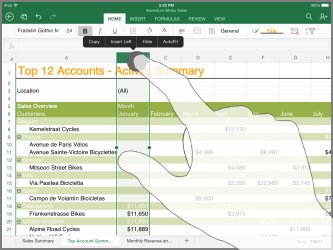
- Tap a cell to select it. To select a range, tap the first cell and drag the selection handle across the other cells.
- To select a whole column or row, tap its heading letter or number.
- Tap the Home tab at the top of the screen if it is not already open.
- Tap the Font box to pick a font, or the Font Size box to pick a size.
- Tap Font Color to change the text color.
- Tap Number Format and choose a format such as Currency, Percentage, Date or Time for numbers.
- Tap any other cell to close the menu. The formatting stays on the selected cells.
Excel saves the workbook automatically as you work, so there is no save step. With a hardware keyboard attached, press ⌘ + B, ⌘ + I or ⌘ + U for bold, italic and underline.
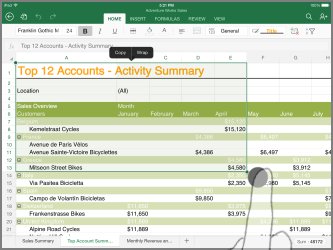
How to format cells in Excel for numbers on iPad
A number format changes how a value looks, not the value itself. A cell holding 0.25 still holds 0.25 when it is shown as 25%.
- Select the cells that hold the numbers.
- On the Home tab, tap Number Format.
- Tap the format you want, for example Number, Currency, Accounting or Percentage.
- For Currency or Accounting, tap the currency symbol to use.
- Tap Increase Decimal or Decrease Decimal to set how many decimal places show.
- To go back to the default look, tap Number Format again and choose General.
The table below shows what each built-in number format does, so you can pick the right one before you tap.
Excel number formats explained for iPad users
| Number format | What it shows | Typical use |
|---|---|---|
| General | The default format Excel applies when you type a number | Mixed data, quick entry |
| Number | Digits with a set number of decimal places and an optional thousands separator | Quantities, measurements |
| Currency | A currency symbol next to the number | Prices, invoices |
| Accounting | Currency symbols and decimal points lined up in a column | Ledgers, budgets |
| Date | A date serial number as a date, such as 12/14/13 or Saturday, December 14, 2013 | Due dates, schedules |
| Time | A date serial number as a time of day | Shift times, logs |
| Percentage | The value multiplied by 100 with a % sign | Rates, growth, scores |
| Fraction | The value as a fraction | Measurements in inches, recipes |
| Scientific | The value in exponential notation, such as 1.2E+05 | Very large or very small numbers |
| Text | The entry exactly as typed, with no automatic conversion | ZIP codes, IDs, phone numbers, leading zeros |
Custom format codes are created in Excel for Windows or Mac. Microsoft states that Excel for the web cannot create them, and a workbook that already uses one keeps that format when you open it on iPad.
How to format cells in Excel to show 0.33
A formula such as =1/3 returns 0.333333 and more. Set two decimal places to show 0.33 while Excel keeps the full value for later calculations.
- Select the cell or cells that show the long decimal.
- On the Home tab, tap Number Format and choose Number.
- Tap Decrease Decimal until the cell shows two places, for example 0.33.
- Tap Increase Decimal if you remove one place too many.
- To show the same value as 33%, choose Percentage in Number Format instead.
Rounding by format only changes the display. If a total must use 0.33 exactly, wrap the formula in ROUND, for example =ROUND(1/3,2).
How to format cells in Excel to start with 0
Excel treats 00123 as the number 123 and drops the zeros. Apply the Text format before you type, and Excel keeps the entry exactly as entered.
- Select the empty cells or the whole column that will hold the codes.
- On the Home tab, tap Number Format.
- Tap Text.
- Tap a cell and type the value with its leading zero, such as 00123.
- Tap Return on the keyboard. The zeros stay, and the entry sits on the left of the cell like other text.
Changing a cell to Text after typing does not bring back zeros Excel already dropped. Type those entries again once the Text format is set.
How to format cells in Excel for date on iPad
- Select the cells that hold dates.
- On the Home tab, tap Number Format.
- Tap Date, then tap the date style you want, such as a short date (12/14/13) or a long date (Saturday, December 14, 2013).
- Tap Time instead if the cells hold times of day.
- Check one cell: the formula bar still shows the underlying date, while the cell shows the new style.
If a date appears as a five-digit number, the cell is set to General or Number; choose Date to show it as a date again.
How to format cells in Excel to change color on iPad
Text color and cell background are two separate commands. Use both when a header row needs dark fill with light text.
- Select the cells to color.
- On the Home tab, tap Font Color and pick a color for the text.
- For a background color, tap the light bulb near the top-right corner of the screen to open Tell Me.
- Type fill color and tap the command in the results.
- Pick the background color from the palette.
- Tap another cell to see the result without the selection highlight.
Pick colors with strong contrast, such as dark text on a light fill. Pale text on a pale fill is hard to read on an iPad screen in daylight.
How to format cells in Excel to fit text on iPad
Long text spills into the next cell or gets cut off when the column is too narrow. Widen the column to fit, or wrap the text onto several lines.
- Double-tap the column heading letter to AutoFit the column to its longest entry.
- To set the width yourself, tap the column heading and drag its edge left or right.
- Do the same on a row number to change row height.
- To keep the column width and wrap long text instead, select the cells and tap the light bulb to open Tell Me.
- Type wrap text and tap the command. The text now breaks onto extra lines inside each cell.
AutoFit works on whole columns, so select several column headings first to fit them all in one step.
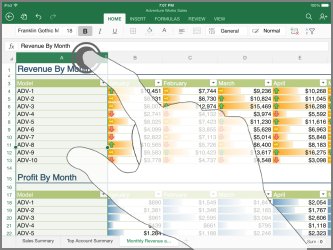
How to use Format Painter in Excel on iPad
Format Painter copies every format from one cell to another: font, color, fill, borders and number format.
- Select the cell or range that already has the formatting you want.
- On the Home tab, tap Format Painter.
- Select the cell or range to copy the formatting to. Excel applies it straight away.
- Keep selecting other ranges to paint the same formatting onto them.
- Tap Format Painter again to stop.
Microsoft introduced Format Painter for Excel on iPad and Android tablets in 2021, starting with iOS version 2.51. Update the Excel app from the App Store if the button is missing.
Format cells shortcut in Excel on iPad
These shortcuts work in Excel for iPad with a Magic Keyboard, Smart Keyboard or any Bluetooth keyboard.
| Action | Shortcut |
|---|---|
| Bold the selected text | ⌘ + B |
| Italicize the selected text | ⌘ + I |
| Underline the selected text | ⌘ + U |
| Apply an outline border | ⌘ + Option + 0 |
| Remove the outline border | ⌘ + Option + Hyphen (-) |
| Undo the last change | ⌘ + Z |
| Redo | ⌘ + Y or ⌘ + Shift + Z |
| Copy, cut or paste a selection | ⌘ + C, ⌘ + X, ⌘ + V |
Excel for iPad has no shortcut for the Format Cells dialog or for number formats, which the Excel shortcut keys on Windows open with Ctrl + 1. Use Number Format on the Home tab for those.
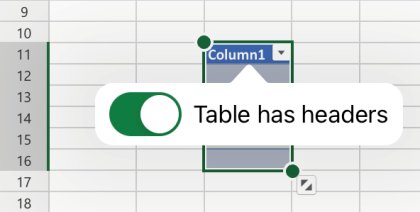
How to format cells as a table in Excel on iPad
Turning a range into a table applies banded rows and header formatting in one step, and the style updates as you add rows.
- Tap any cell inside the range you want to convert.
- Tap Insert > Table.
- The Table tab opens. Tap Table Styles.
- Tap the style you want. Excel applies it to the whole table.
- To add a row or column, tap inside the table, then on the Table tab tap Insert and choose where it goes.
Avoid merged or split cells inside a table. They break sorting and make the sheet hard to read with a screen reader.
How to format cells in Excel alphabetically on iPad
Putting cells in A-to-Z order is a sort, not a format. The sort moves whole rows, so names stay with their data.
- Tap a cell in the column you want to sort by.
- Tap the Data tab.
- Tap Sort Ascending for A to Z, or the descending option for Z to A.
- Check the first rows to confirm the header row stayed at the top.
How to format cells in Excel based on dates
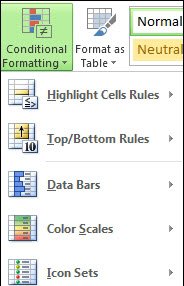
Excel on iPad displays conditional formatting rules, and Microsoft's mobile feature list confirms viewing them on iOS. Build or edit the rule in Excel for the web or the desktop app, then open the workbook on your iPad.
- Open the workbook in Excel for the web or Excel for Windows or Mac.
- Select the cells that hold the dates.
- Go to Home > Conditional Formatting > Highlight Cell Rules.
- Choose A Date Occurring, then pick a period such as Yesterday, Today or Next Week.
- Pick the fill or text color for matching cells and select OK.
- Open the same workbook in Excel on your iPad. The highlighted dates show there and update as the dates change.
To remove the rule later, select the cells in Excel for the web and go to Home > Conditional Formatting > Clear Rules > Clear Rules from Selected Cells.
Tips for formatting cells in Excel on iPad
| Tip | Why it helps |
|---|---|
| Tap a column heading before formatting | The format covers the whole column, including rows you add later |
| Use Tell Me (the light bulb) for any command you cannot find | Typing wrap text, borders or fill color jumps straight to the command |
| Set Text format before typing IDs and ZIP codes | Leading zeros survive and long codes do not turn into scientific notation |
| Use Format Painter instead of repeating steps | One tap copies font, color, borders and number format together |
| Turn finished ranges into a table | Table styles keep banded rows consistent as data grows |
| Connect a keyboard for heavy formatting | ⌘ + B, ⌘ + Option + 0 and ⌘ + Z are faster than ribbon taps |
| Keep merged cells out of data ranges | Merged cells block sorting and confuse screen readers |
| Zoom in with two fingers before selecting small cells | A wider view makes the selection handles easier to drag |
How to remove cell formatting in Excel on iPad
- To reverse a change you just made, press ⌘ + Z on a connected keyboard. Press ⌘ + Y to redo it.
- To strip a number, currency or date format, select the cells, tap Number Format and choose General.
- To remove an outline border, select the cells and press ⌘ + Option + Hyphen (-).
- To reset font or color, select the cells and pick the workbook's original font in Font and its original color in Font Color.
- To change a table's look, tap inside the table, open the Table tab, tap Table Styles and choose a lighter style.
Why is format cells greyed out in Excel on iPad
Every formatting button is greyed out
Editing needs a qualifying Microsoft 365 subscription on iPads larger than 10.1 inches, so the file opens view-only without one.
- Open the account area of the Excel app and check which account is signed in.
- Sign in with the Microsoft account or work account that holds your Microsoft 365 subscription.
- Close and reopen the workbook.
- If your plan is Microsoft 365 Business Basic, Office 365 E1 or a similar web-only plan, editing works only on screens up to 10.9 inches; use Excel for the web or ask your admin about a plan with desktop apps.
Excel is not letting me format cells on one sheet
The worksheet is protected, and the protection does not allow formatting.
- Open the workbook in Excel for Windows or Mac.
- Go to Review > Unprotect Sheet and enter the password if asked.
- To keep the sheet protected but allow formatting, protect it again and tick Format cells in the list of allowed actions.
- Reopen the workbook on your iPad and try the format again.
Why won't my cells format in Excel? Numbers ignore the new format
The numbers are stored as text, so number, currency and date formats have nothing to act on. Text-stored numbers sit on the left of the cell, often with a small green triangle.
- Select the cells and tap Number Format > General or Number.
- Double-tap each cell and tap Return to re-enter the value, or type it again.
- Apply the format you wanted. Right-aligned values confirm Excel now reads them as numbers.
Format Painter or another command is missing
The Excel app is out of date.
- Open the App Store on your iPad.
- Tap your account picture and scroll to the list of pending updates.
- Tap Update next to Microsoft Excel.
- Reopen the workbook and check the Home tab again.
If cells stay locked after you unprotect the workbook on your computer, they usually carry their own lock setting; you can lock or unlock specific cells from the desktop app before protecting the sheet again.
Excel on iPad cell formatting FAQ
Can I undo formatting changes in Excel on iPad?
Yes. Press ⌘ + Z on a connected keyboard to undo the last formatting change, and ⌘ + Y or ⌘ + Shift + Z to redo it. To remove a number format later, select the cells and choose General from Number Format on the Home tab.
How do I format multiple sheets at once?
Group the sheets in Excel for Windows by holding Ctrl and selecting each sheet tab; any change on one grouped sheet then applies to the same cells on the others. On iPad, format one sheet and copy the look to the others with Format Painter.
Can I use custom fonts in Excel on iPad?
Excel lists the fonts available to it in the Font box on the Home tab. iPadOS lets you install extra fonts from apps in the App Store and manage them in Settings > General > Fonts, for apps that support installed fonts.
What if I want to format cells conditionally?
Create the conditional formatting rule in Excel for the web or the desktop app with Home > Conditional Formatting, then open the workbook on iPad. Microsoft lists viewing conditional formatting as supported in Excel for iOS, and the highlights update with the data.
How do I save my formatted document?
Excel on iPad saves changes automatically while you work, including formatting. To keep a separate version, tap File > Save a Copy, choose a location, enter a name and tap Save a Copy.
How do I format cells in Excel for text?
Select the cells, tap Number Format on the Home tab and choose Text. Excel then stores the entry exactly as typed, which keeps leading zeros in ZIP codes and stops long ID numbers from changing to scientific notation.
How do I use Format Cells in Excel?
In Excel for Windows, select the cells and press Ctrl + 1 to open Format Cells, then pick a category on the Number tab. Excel for iPad has no Format Cells shortcut, so use Font, Font Color and Number Format on the Home tab instead.
Do I need Microsoft 365 to format cells in Excel on iPad?
Only on larger iPads. Microsoft requires a qualifying Microsoft 365 subscription to edit on devices with screens larger than 10.1 inches, which includes most current iPad models. Smaller screens can create and edit files with the free app.
How do I format cells in Excel so all words fit?
Double-tap the column heading to AutoFit the column to its longest entry. To keep the column narrow, open Tell Me with the light bulb, type wrap text and tap the command so the words break onto extra lines inside the cell.