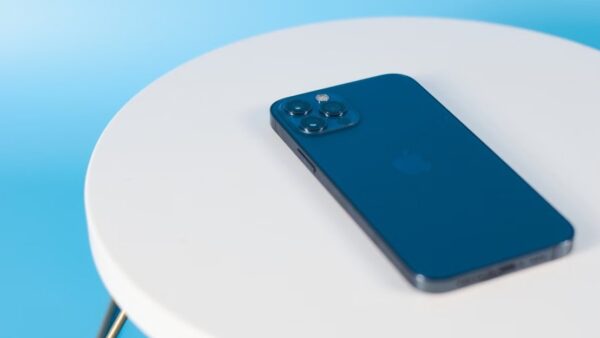
To activate eSIM on a T-Mobile postpaid account, turn off SIM Protection, connect the phone to Wi-Fi, and then scan the T-Mobile QR code or accept the carrier plan prompt the phone shows.
This guide covers the QR code route, the T-Life and T-Mobile.com route, iPhone eSIM Quick Transfer, how to test the line afterwards, and the errors that stop activation.
How to activate a T-Mobile eSIM on a postpaid line
This is the shortest route for a postpaid line that already exists on your account. It works on iPhone and on eSIM-capable Android phones.
- Sign in to the T-Life app or T-Mobile.com with your T-Mobile ID and turn off SIM Protection for the line.
- Connect the phone to a working Wi-Fi network.
- Update the phone to its latest software version.
- On iPhone, open Settings > Cellular and tap Add eSIM, or scan the T-Mobile QR code with the Camera app.
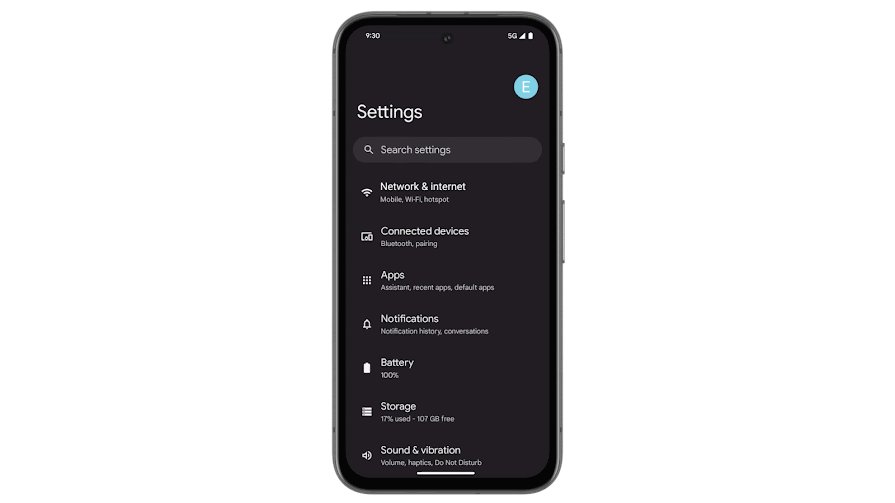
- On a Pixel, open Settings > Network & internet > SIMs > Add SIM > Set up an eSIM and choose T-Mobile.
- Follow the prompts until the plan installs, then make a test call.
Turn SIM Protection back on once the new eSIM makes calls, so nobody else can move your number.
Why activate eSIM on T-Mobile postpaid?
| Reason | What it means on T-Mobile postpaid |
|---|---|
| No waiting for a card | T-Mobile describes eSIM as a SIM card gone digital that you download over Wi-Fi and connect in minutes. |
| Some phones have no SIM tray | US Pixel 10 models (except Pixel 10 Pro Fold) and Apple's eSIM-only iPhone models accept only eSIM. |
| Two lines on one phone | Pixel 3a and later can run one physical SIM plus one eSIM; Pixel 7 and later can hold two eSIM profiles if the carrier allows it. |
| Phone-to-phone moves | iPhones on iOS 18.4 or later can move an eSIM to a new iPhone with eSIM Quick Transfer, with no store visit. |
| Nothing to lose or damage | There is no card to swap, so moving to a new phone happens in software. |
T-Mobile eSIM requirements for a postpaid account
| Requirement | Why it matters |
|---|---|
| An eSIM-capable phone | iPhone XS, XS Max, XR or later, or an eSIM-capable Android phone such as Pixel 3a or later. |
| An unlocked phone if it was not bought from T-Mobile | T-Mobile's eSIM troubleshooting lists an unlocked device as the first check for phones bought elsewhere. |
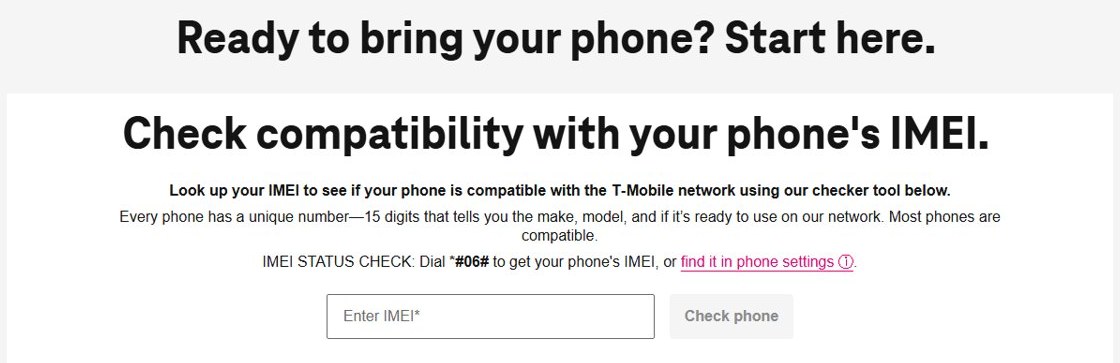
| A compatible device | Phones from other carriers can be checked with T-Mobile's IMEI compatibility checker before you start. |
| SIM Protection turned off | Moving a number to a new eSIM with SIM Protection on returns an error. Only the Primary Account Holder can remove it. |
| Working Wi-Fi | The eSIM profile downloads over the internet, and T-Mobile asks you to confirm the Wi-Fi connection works. |
| Latest software | Both Apple and Android troubleshooting start with updating the phone. |
| T-Life app (optional) | T-Life needs Android 11 or iOS 17 or later and a T-Mobile ID sign-in. |
If an Authorized User manages the line, ask the Primary Account Holder to turn off SIM Protection first.
Activation paths: choose the one that matches your setup
| Your situation | Use this path | Why |
|---|---|---|
| T-Mobile gave you an eSIM QR code | Method 1: QR code | The code carries the eSIM profile for that line. |
| You requested the eSIM in T-Life or on T-Mobile.com | Method 2: T-Mobile app or my T-Mobile | The phone receives the plan as a carrier prompt, with no code to scan. |
| New iPhone, old iPhone still in hand | eSIM Quick Transfer | The number moves over Bluetooth from the old iPhone, physical SIM or eSIM. |
| Switching between iPhone and Android, or the old phone is gone | T-Mobile's Other devices steps or Method 2 | Quick Transfer works only iPhone to iPhone with the old phone nearby, so moving from Android to iPhone needs the carrier steps. |
| New prepaid account, not postpaid | T-Mobile Prepaid eSIM app | Postpaid steps do not apply to new prepaid activations. |
Method 1: Activate eSIM using a T-Mobile QR code (most common)
Use this when T-Mobile hands you a QR code in a store, by email, or on screen. Keep the code on a second screen or printed so the phone can scan it.
- Turn off SIM Protection for the line in T-Life or on T-Mobile.com.
- Connect the phone to Wi-Fi.
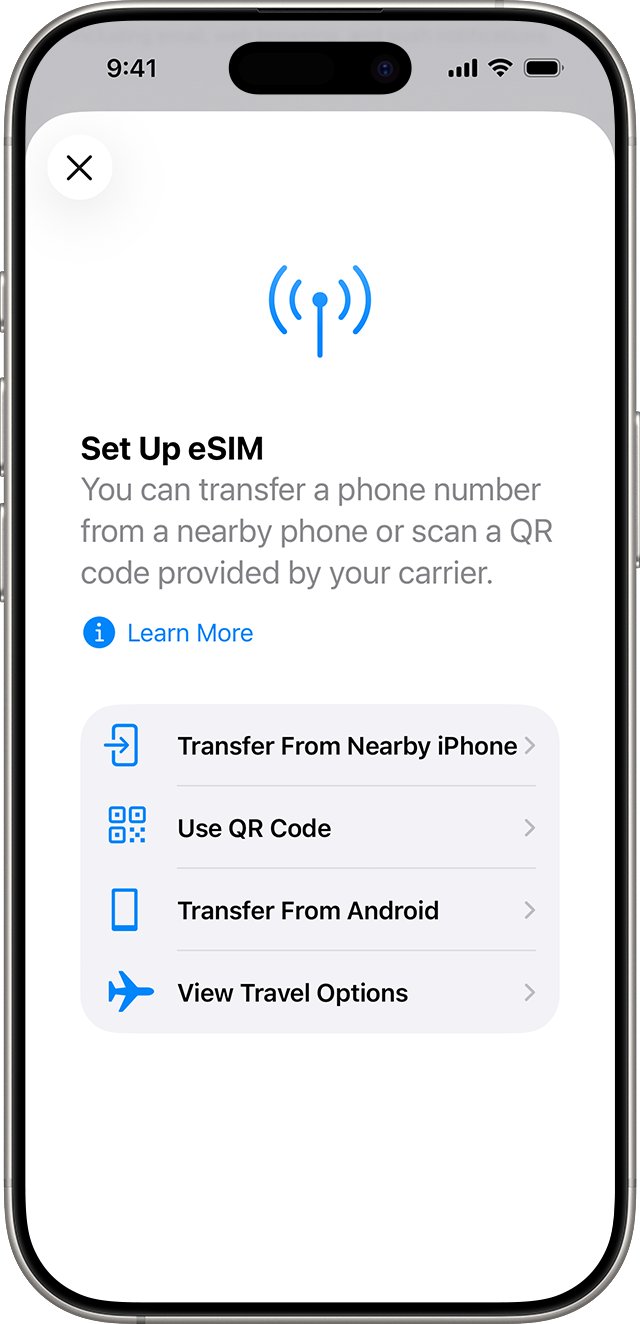
- iPhone during setup: on the Set Up Cellular screen, tap Use QR Code and scan the code.
- iPhone after setup: open the Camera app, scan the code, and tap the Cellular Plan Detected notification.
- iPhone with the code in an email or browser (iOS 17.4 or later): touch and hold the code, then tap Add eSIM.
- On iPhone, tap Continue, then Add Cellular Plan, and enter the confirmation number if T-Mobile gave you one.
- On a Pixel, go to Settings > Network & internet > SIMs > Add SIM > Set up an eSIM and follow the T-Mobile prompts.
- When setup finishes on a Pixel, tap Settings, then Get started > Next > Done for SIM preferences.
If the camera will not read the code, iPhone also accepts the details by hand: Settings > Cellular > Add Cellular Plan > Enter Details Manually.
Method 2: Activate eSIM from the T-Mobile app or my T-Mobile
T-Life has replaced the old T-Mobile app, and My T-Mobile is now your account on T-Mobile.com. Both sign in with the same T-Mobile ID.
- Install T-Life on the phone, open it, and sign in with your T-Mobile ID.
- Turn off SIM Protection for the line you are moving to eSIM.
- Request the eSIM for that line in T-Life or on T-Mobile.com, following the on-screen prompts.
- On iPhone, tap the Carrier Cellular Plan Ready to Be Installed notification when it appears.
- If the notification is gone, open Settings, tap the same item, and tap Continue at the bottom.
- On a Pixel, go to Settings > Network & internet > SIMs > Add SIM > Set up an eSIM and pick T-Mobile.
- Make a call to confirm the line is live.
If the new eSIM replaces a physical SIM, remove the card and restart the phone.
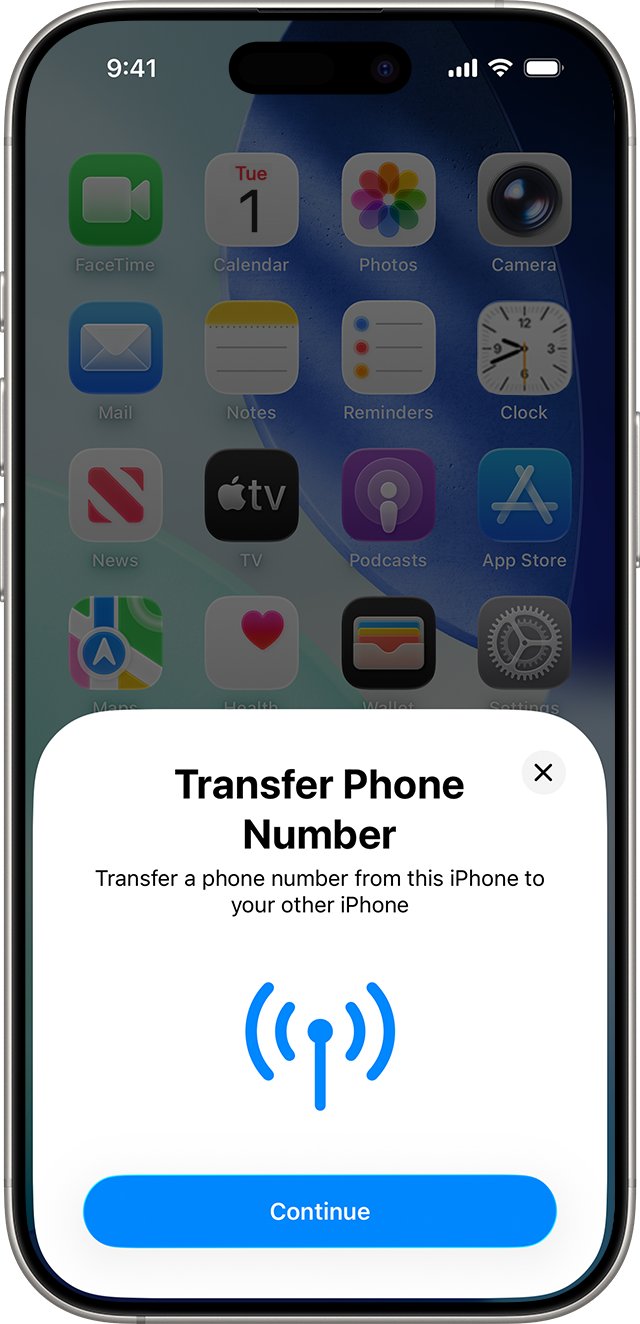
How to transfer a T-Mobile eSIM to a new iPhone with eSIM Quick Transfer
Quick Transfer moves a physical SIM or an eSIM from your old iPhone to the new one as part of an iPhone-to-iPhone data transfer. Both iPhones need iOS 18.4 or later.
- Turn off SIM Protection for the line in T-Life or on T-Mobile.com.
- Sign in to both iPhones with the same Apple Account, unlock the old one with its passcode, and turn on Bluetooth on both.
- During setup on the new iPhone, follow the prompts to transfer your SIM or eSIM.
- After setup, open Settings > Cellular and tap Set Up Cellular or Add eSIM.
- Choose the number to move; if none appear, tap Transfer From Nearby iPhone.
- On the old iPhone, tap Transfer, or enter the verification code shown on the new iPhone.
- If a Finish Setting Up Your Carrier's Cellular Plan banner appears, tap it and complete T-Mobile's page.
The old SIM stops working once the new plan activates. On iOS 26 or later, you can move more than one number in one pass.
After activation: verify everything actually works
- Turn off Wi-Fi so the test uses the T-Mobile network.
- Make a phone call and confirm the other person hears you.
- Send a text message and a picture message to another phone.
- Open a web page on cellular data.
- On a Pixel with two SIMs, open Settings > Network & internet > SIMs and tap each network to set call, text and data preferences.
- Run the Troubleshoot this device check in T-Life's Manage tab if anything fails.
Turn SIM Protection back on once every test passes.
Troubleshooting when activation fails
Error 519: This number has SIM Protection on
SIM Protection blocks the number from moving to a new SIM or eSIM.
- Ask the Primary Account Holder to sign in to T-Life or T-Mobile.com.
- Turn off SIM Protection for the line.
- Start the eSIM activation again from the beginning.
If your phone won't show the eSIM option
The phone does not support eSIM, runs old software, or is locked to another carrier.
- Check the model: iPhone XS, XS Max, XR or later, or Pixel 3a or later.
- Update the phone to the latest software.
- If the phone came from another carrier, ask that carrier to unlock it.
- Check the IMEI in T-Mobile's compatibility checker.
iPhone/iPad eSIM installed, but calls/text/data don't work
A leftover physical SIM, a stale network session, or settings that need an update.
- Remove the physical SIM if you are not using it.
- Restart the device.
- Open a web page so any carrier settings update can load.
- Run the T-Life Troubleshoot this device check and follow its recommendations, such as turning on Wi-Fi Calling.
Unable to Transfer Phone Number
The number could not move from the old phone or line.
- Confirm SIM Protection is off for that line.
- For iPhone transfers that stall during setup, keep both iPhones nearby with Bluetooth on and the old one passcode protected.
- Retry the transfer once, then contact T-Mobile if the same error returns.
Android phone shows an error during eSIM setup
No working internet, old software, or a locked phone.
- Connect to Wi-Fi and open a web page to confirm the internet works.
- Update the phone software.
- Restart the phone and try again.
- Note the exact error text and follow the steps T-Mobile lists for it.
Edge cases that catch people
| Situation | What to know |
|---|---|
| Replacing a phone vs. adding an additional line | Replacing a phone moves your existing number to a new eSIM. Adding a line creates a new number on the account, so its eSIM is a separate activation. |
| Number transfer issues (porting or switching lines) | A number coming from another carrier must finish porting before the eSIM works. Contact T-Mobile if the transfer stalls. |
| Lock status and financing quirks | T-Mobile unlocks an eligible device automatically within two business days if it supports remote unlock. A phone locked to another carrier will not take a T-Mobile eSIM. |
| Traveling immediately after activation | Test calls, texts and data at home first, while you still have Wi-Fi and can reach T-Mobile easily. |
| Apple Watch or other cellular watch | The paired phone must be on the same account, and the line's E911 and usage addresses must be correct. |
| Authorized User on the account | An Authorized User can add SIM Protection, but only the Primary Account Holder can remove it. |
eSIM vs. SIM card on T-Mobile postpaid
| Point | eSIM | Physical SIM card |
|---|---|---|
| How you get it | Downloaded over Wi-Fi | Ordered online or picked up in a T-Mobile store |
| Time to service | Minutes, once the profile downloads | After the card arrives and is inserted |
| Moving to a new phone | Quick Transfer, QR code or carrier prompt | Move the card to the new phone |
| Phones that accept it | All eSIM-capable phones, including eSIM-only models | Phones with a SIM tray |
| Two lines on one phone | Pixel 7 and later can hold two eSIM profiles | One card plus an eSIM on dual-SIM phones |
T-Mobile eSIM activation FAQ
How long does it take to activate eSIM on T-Mobile postpaid?
Activation usually takes minutes once the phone is on Wi-Fi and SIM Protection is off. T-Mobile describes eSIM as something you download over Wi-Fi and connect to the network in minutes. A number still porting from another carrier can take longer.
Can I activate eSIM on a new phone if I still have the old phone with the physical SIM?
Yes. On iPhone, eSIM Quick Transfer moves a physical SIM or eSIM from the old iPhone when both run iOS 18.4 or later, sit nearby with Bluetooth on, and use the same Apple Account. The old SIM stops working after the move.
What if I made a mistake and scanned the QR code on the wrong line?
Contact T-Mobile before you try again, because each eSIM profile is tied to one line on the account. Deleting the profile from the phone does not fix the account side. T-Mobile support can correct which line the eSIM belongs to.
Do I need Wi-Fi to activate eSIM?
Yes, in practice. T-Mobile says the eSIM downloads over Wi-Fi, and its troubleshooting asks you to confirm the Wi-Fi connection works. Apple recommends Wi-Fi or a hotspot, though some eSIM-only iPhones can activate without it in certain regions.
Will eSIM work on both iPhone and iPad?
Yes. T-Mobile supports eSIM on iPhone XS and later and on cellular iPad models, and it publishes separate eSIM activation steps and error fixes for iPad. Each device gets its own eSIM, so an iPad needs its own line on the account.
Why does my T-Mobile eSIM activation say SIM Protection is on?
Error 519 means SIM Protection is blocking the number from moving to a new SIM or eSIM. The Primary Account Holder must turn it off in T-Life or on T-Mobile.com. Turn it back on after the new eSIM works.
Can I switch my T-Mobile physical SIM to an eSIM on the same phone?
Yes, if the phone supports eSIM. Request the eSIM in T-Life or on T-Mobile.com, or use the QR code T-Mobile provides. After the plan installs, remove the physical SIM card and restart the phone.