To enable Meta AI on WhatsApp, tap the multicolored Meta AI circle on the Chats tab, accept the terms if asked, and send your first prompt; there is no separate switch to turn on.
This guide covers the steps on Android, iPhone and desktop, the search bar and group chat routes, AI images, privacy, deleting AI chats and what to do when Meta AI is not showing.
Steps to enable Meta AI on WhatsApp
Meta AI is an optional service inside WhatsApp. It becomes active the first time you open a chat with it and accept Meta's AI Terms of Service.
- Open WhatsApp and go to the Chats tab.
- Tap the Meta AI icon, a multicolored oval ring. Some accounts see a blue and purple circle or a pink and purple oval instead.
- If prompted, read and accept the terms.
- Select a suggested prompt or type your own.
- Tap the Send button. Meta AI replies in its own chat, which now sits in your chat list.
On WhatsApp for Windows, Mac and WhatsApp Web, the steps are the same: click the Meta AI icon on the Chats tab, accept the terms and send a prompt.
Prerequisites for enabling Meta AI on WhatsApp
| Requirement | Detail |
|---|---|
| A country where Meta AI is live | Meta AI is only available in limited countries and rolls out gradually, so you may not have it even if others in your country do |
| A supported device language | You can chat in any language, but in some countries access needs a device set to a supported language such as English |
| The latest WhatsApp version | WhatsApp recommends keeping the app updated from the Google Play Store or Apple App Store |
| Acceptance of Meta's AI terms | Meta uses AI chats under Meta's Privacy Policy; using the feature means agreeing to Meta's AI Terms of Service |
| A supported app | Steps are published for WhatsApp on Android, iOS, Web and the WhatsApp desktop app for Windows and Mac |
If the icon is missing, update WhatsApp to the latest version first, then check again.
Understanding Meta AI
Meta AI through WhatsApp is an optional service from Meta that can answer questions, teach you something or help come up with ideas. Meta, WhatsApp's parent company, provides the generative AI; WhatsApp builds the ways to reach it inside the app.
| Question | Answer |
|---|---|
| Who makes it? | Meta provides the AI technology and is responsible for its privacy and safety guardrails |
| What can it read? | Only messages that mention @Meta AI, or that people choose to share with it; Meta cannot read your other personal chats |
| Are personal chats still encrypted? | Yes. Personal messages and calls stay end-to-end encrypted |
| Is it a person? | No. Its replies are generated by AI and might not be accurate or appropriate |
| What does Meta receive? | Your prompts, the messages you share, feedback, and device, connection and usage information |
Benefits of Meta AI integration on WhatsApp
| What you can do | Where you do it |
|---|---|
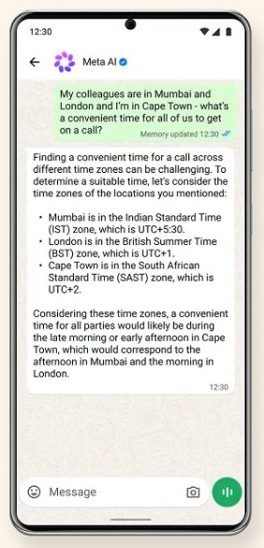
| Ask questions and get recommendations | The Meta AI chat or the search bar |
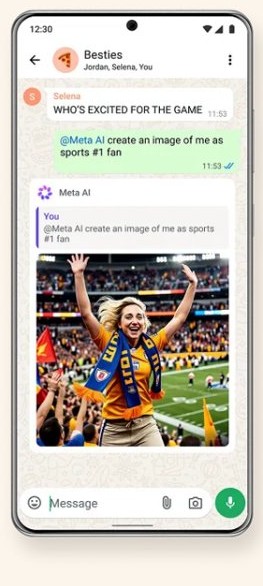
| Chat with Meta AI alongside friends | Existing group chats, by mentioning @Meta AI |
| Forward a message to ask about it | Any individual or group chat |
| Create AI-generated images | The Meta AI chat, or AI images inside any chat |
| Edit your own photos | Add backgrounds, remove objects or turn photos into illustrations |
| Make AI stickers, profile photos, group icons and call backgrounds | The matching WhatsApp feature menus |
| Summarize unread messages | Where available; this runs on Private Processing, so Meta cannot read the shared messages |
How to ask Meta AI in the WhatsApp search bar
The search bar at the top of Chats searches your chats and also offers questions for Meta AI. Content from your personal chats stays on your device unless you send a prompt.
- Tap the search field at the top of your Chats.
- Tap a suggested prompt, or type your own and tap Ask.
- As you type, check the recommendations listed under Ask Meta AI and tap one if it fits.
- If prompted, read and accept the terms. They appear only if you have never used Meta AI.
- Continue the conversation in the Meta AI chat that opens.
How to use Meta AI in WhatsApp group chat
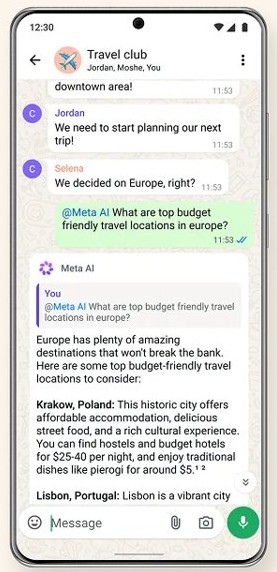
Meta AI works inside existing group chats. Meta can read only the group messages that mention @Meta AI, not the rest of the conversation.
- Open the group chat.
- Type @Meta AI in the message field.
- Write your question after the mention.
- Tap the Send button. The reply appears in the group for every member to see.
How to forward a message to Meta AI on WhatsApp
- Tap and hold the message in an individual or group chat. On desktop, hover over it.
- Tap Forward (on iPhone, tap Forward and then the forward arrow).
- Search for Meta AI and select it.
- If prompted, tap Continue.
- Type your prompt in the message field and tap Send.
Customizing your experience with Meta AI
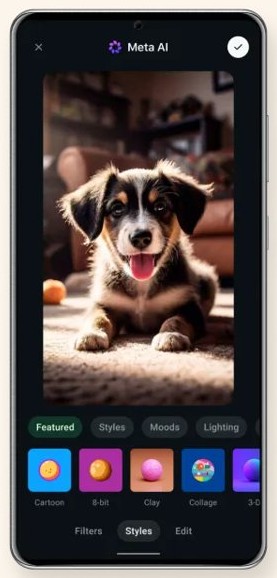
Meta AI also creates and edits images inside your chats. AI image creation supports English, Arabic, French, German, Hindi, Indonesian, Italian, Portuguese, Spanish, Tagalog, Thai and Vietnamese.
- Open an individual or group chat.
- Tap the attach icon (the paperclip on Android), then AI images.
- Tap New image and describe the image, or tap Use photo to edit one of your own.
- Tap Edit to add, remove or change parts of the image, Restyle to apply a style, or Animate to animate it.
- Tap the Send button to share the image, or tap and hold it and choose Save photo.
In the Meta AI chat itself, describe the image you want in the message field and send it; the generated image appears in the chat.
How to delete Meta AI chats on WhatsApp
Deleting the chat removes it from your phone. The reset commands also delete Meta AI's copy of the messages and information you shared. A deleted chat cannot be restored.
- To clear Meta AI's copy of one chat, open the chat with Meta AI, type
/reset-aiand send it. - To clear every individual and group chat you have used Meta AI in, type
/reset-all-aisin the Meta AI chat and send it. - To remove the chat from your device, tap and hold the chat with Meta AI in the Chats tab.
- Tap the trash can icon, then Delete chat.
Reset commands do not work in Incognito chats with Meta AI, because those messages are not saved or stored.
Can you turn off Meta AI on WhatsApp?
WhatsApp's help center describes Meta AI as optional and lists no setting that removes it, so the way to keep it off is simply not to open a chat with it or mention @Meta AI. Only you or a group participant can start a conversation with Meta AI; Meta and WhatsApp cannot start one. If you have already used it, the /reset-ai and /reset-all-ais commands delete Meta AI's copy of what you shared.
Meta AI not showing on WhatsApp
No Meta AI circle on the Chats tab
Meta AI is rolling out gradually in limited countries, so your account may not have it yet.
- Update WhatsApp from the Google Play Store or Apple App Store.
- Check the WhatsApp Help Center for availability news; there is no way to request early access.
Friends in your country have Meta AI but you do not
Access varies by account and, in some countries, by device language.
- Check that your phone's language is one WhatsApp lists, such as English.
- Keep the app updated so the feature arrives as soon as it is enabled.
Incognito chat with Meta AI is missing
Incognito chats are only available on certain devices so far.
- Keep WhatsApp updated on that device.
- Use the normal Meta AI chat and the reset commands in the meantime.
AI images option does not create images
AI image creation supports only certain languages.
- Write the image prompt in a supported language such as English or Spanish.
- Try again from the Meta AI chat.
Potential challenges and considerations
| Consideration | What it means for you |
|---|---|
| Accuracy | Replies are AI-generated and might not be accurate or appropriate; Meta AI may cite internet sources you can view and report |
| Data use | Meta may use your prompts, shared messages and feedback to improve AI quality |
| Linked Meta accounts | In some countries, Meta AI may use information from accounts in your Meta Account, such as Facebook or Instagram |
| Uneven availability | Features and access points differ by region, device and test group |
| Third-party AI agents | Chats with third-party agents run through a Meta service and are not considered end-to-end encrypted |
| Time spent | Meta AI is not a human; WhatsApp advises taking breaks from long chats |
Best practices for using Meta AI on WhatsApp
| Practice | Why |
|---|---|
| Do not send information you want Meta to keep from its AI | What you send may be used to answer you or to improve Meta's models |
| Check important answers against the source | Meta AI can be wrong, and it shows links it used where available |
| Use an Incognito chat for private questions where offered | Incognito chats are not visible to Meta or WhatsApp and disappear when you exit |
| Mention @Meta AI only when you want it in a group | Meta reads only the group messages that mention it |
| Reset chats you no longer need | /reset-ai and /reset-all-ais delete Meta AI's copy of your messages |
| Give feedback on poor replies | WhatsApp passes feedback to Meta to improve responses |
Meta AI on WhatsApp FAQ
How do I activate Meta AI on WhatsApp?
Tap the multicolored Meta AI circle on the Chats tab, accept the terms if asked and send a prompt. There is no separate setting to switch on; the chat appears once you start it.
Why don't I have Meta AI on WhatsApp?
Meta AI is only available in limited countries and rolls out gradually, so some accounts get it before others in the same country. Keep WhatsApp updated, and check that your device language is supported.
Is Meta AI on WhatsApp free?
WhatsApp's help pages describe Meta AI as an optional service and list no charge to chat with it. WhatsApp also notes that you can choose to buy a subscription through the app.
Can Meta AI read my WhatsApp chats?
No. Meta can read only messages that mention @Meta AI or that you choose to share with it. Your other personal messages and calls stay end-to-end encrypted.
How do I use Meta AI in a WhatsApp group?
Open the group, type @Meta AI, write your question and send it. Every member sees the reply, and Meta reads only the messages that mention it.
How do I remove Meta AI from WhatsApp?
WhatsApp lists no setting that removes Meta AI. You can delete the Meta AI chat from the Chats tab and send /reset-all-ais to delete Meta AI's copy of everything you shared.
Does Meta AI work on WhatsApp Web and desktop?
Yes. WhatsApp publishes Meta AI steps for Web, Windows and Mac as well as Android and iOS. Click the Meta AI icon on the Chats tab to start.
What languages does Meta AI on WhatsApp support?
You can chat with Meta AI in any language, but in some countries access requires a device set to a listed language such as English, Japanese, Korean, Polish or Turkish.