To drop a pin in Google Maps, touch and hold an unlabeled spot on the map in the Android or iPhone app, or click the spot on the map in a browser on your computer.
This guide covers dropping a pin on each device, reading its coordinates, saving, labeling, sharing and removing it, and getting directions to it.
How to drop a pin in Google Maps on desktop and mobile
A red pin marks the exact spot, even where there is no address or business. The gesture differs by device.
| Device | Drop the pin | Then |
|---|---|---|
| Android phone or tablet | Touch and hold an area of the map that isn't labeled | Tap the panel at the bottom to open the dropped pin |
| iPhone or iPad | Touch and hold an area of the map that isn't labeled | Tap the place sheet at the bottom to see coordinates and actions |
| Computer (browser) | Click the spot on the map | Click the coordinates in the info box at the bottom to open the pin in the left panel |
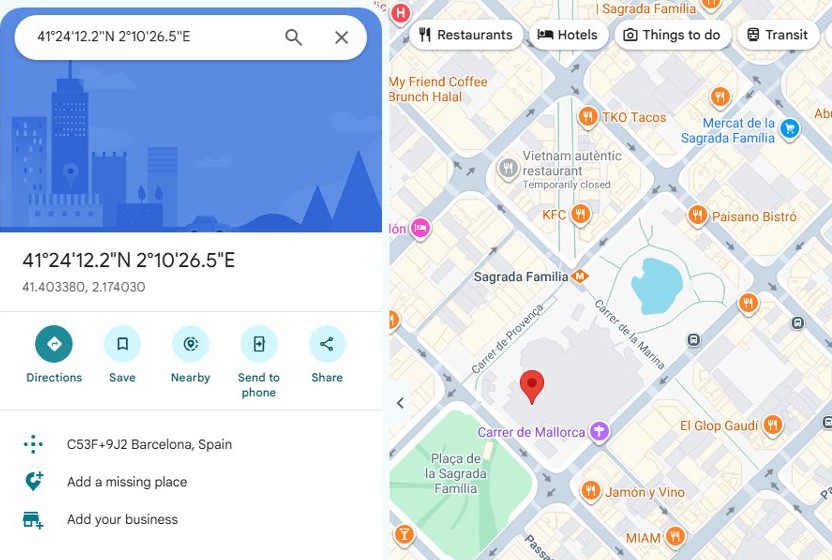
| Any device, exact spot known | Type the coordinates into the search box | Google Maps drops a pin at that latitude and longitude |
Dropping a pin on Google Maps – desktop
Google Maps runs in any desktop browser, so the same steps work on Windows, Mac and Chromebook.
- Open maps.google.com in your browser and sign in if you want to save the pin later.
- Zoom in until you can see the exact spot you want.
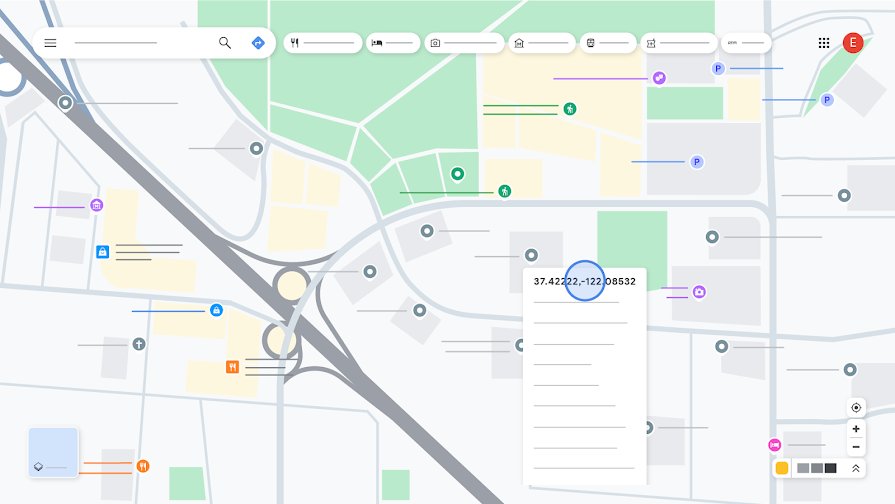
- Click the spot on the map; a small info box appears at the bottom.
- Click the coordinates in that info box.
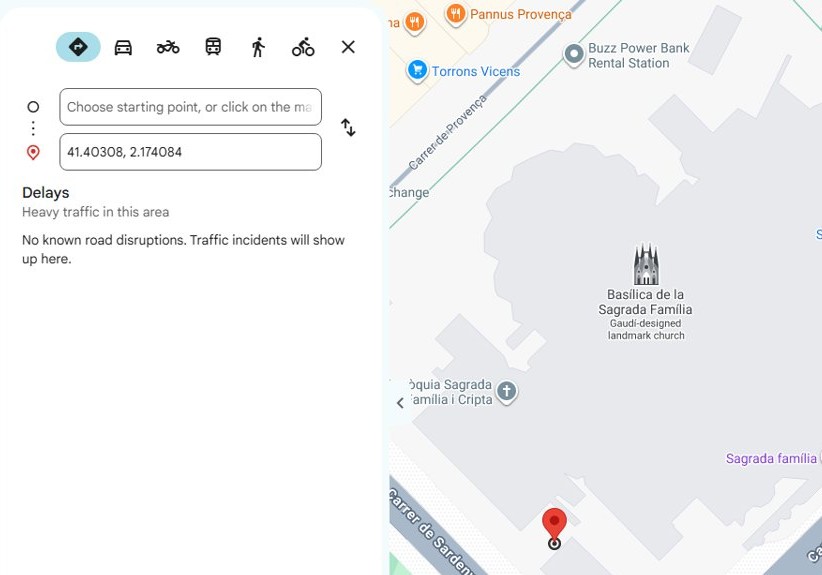
- Read the dropped pin details in the left panel, including its coordinates and Plus Code.
- Use the buttons in the panel to save the spot, get directions or copy its details.
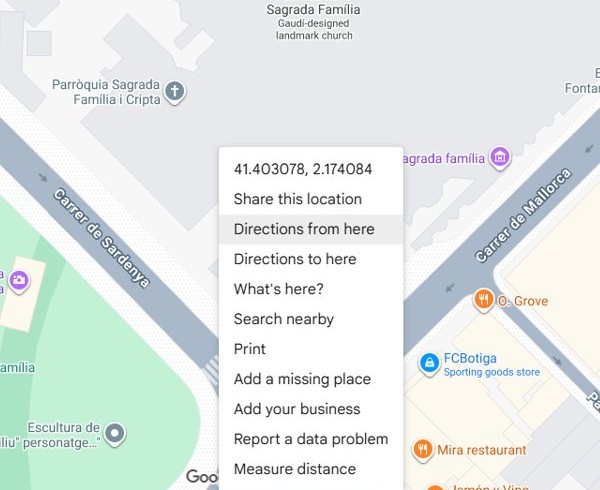
Right-clicking the spot also works when you only need the numbers: the coordinates sit at the top of the pop-up menu, and clicking them copies them.
Dropping a pin on Google Maps – mobile
The Google Maps app uses the same gesture on Android, iPhone and iPad. Hold on a blank part of the map, because touching a labeled business opens that business instead.
- Open the Google Maps app.
- Pinch to zoom in on the spot you want.
- Touch and hold an area of the map that isn't labeled until a red pin appears.
- Lift your finger; a panel for the dropped pin opens at the bottom.
- Tap the panel to see the coordinates and the Directions, Save, Label and other buttons.
How to get coordinates from a dropped pin in Google Maps
- On Android, drop the pin and read the coordinates in the search box at the top.
- On iPhone or iPad, drop the pin and read the coordinates in the place sheet at the bottom.
- On a computer, right-click the spot and read the latitude and longitude at the top of the pop-up.
- On a computer, click the coordinates in that pop-up to copy them.
- Paste the copied coordinates into a message, a note or another mapping app.
Coordinates come in decimal degrees, latitude first. The same right-click menu on a computer also lets you measure distance in Google Maps from the pin to another spot.
How to drop a pin by entering coordinates in Google Maps
Typing coordinates is the most precise way to drop a pin, for example for a trailhead or a gate with no address.
- Open Google Maps on your computer, or the Google Maps app on your phone.
- Tap or click the search box.
- Type the coordinates with latitude first, for example 41.40338, 2.17403.
- Press Enter or tap the search key.
- Check that the pin lands where you expect, then save or share it.
Google Maps coordinates format for dropping a pin
Google Maps accepts three formats. A wrong separator or a swapped order is the usual reason a pin lands in the sea.
| Format | Example | Rule |
|---|---|---|
| Decimal degrees (DD) | 41.40338, 2.17403 | Use a point for decimals and a comma between the two numbers |
| Degrees, minutes, seconds (DMS) | 41°24'12.2"N 2°10'26.5"E | Add N/S and E/W letters |
| Degrees and decimal minutes (DMM) | 41 24.2028, 2 10.4418 | Keep latitude before longitude |
| Wrong | 41,40338, 2,17403 | Commas as decimal marks are not accepted |
| Valid ranges | Latitude -90 to 90; longitude -180 to 180 | Numbers outside these ranges are refused |
How to save a dropped pin in Google Maps
A dropped pin is not kept in your account until you save it to a list. Sign in to your Google Account first, or create a Google account if you do not have one.
- Drop the pin, or search for its coordinates.
- On a phone, tap the pin's name or address at the bottom of the screen.
- Tap or click Save.
- Pick an existing list, or tap New list to make one.
- Tap Done on a phone.
- Find the pin later under You > Your lists on a phone, or Saved at the top left on a computer.
How to label a dropped pin in Google Maps
A label gives the pin a private name, such as "Parking spot" or "Campsite", that only you see and can search for.
- In the Google Maps app, touch and hold the spot to drop a pin.
- At the bottom, tap the name of the place.
- Tap Label.
- Type a name and tap Add label.
- On a computer, search for the spot or its coordinates and choose Add a label.
- To rename it later, open You > Labeled on a phone or Saved > Labeled on a computer and edit the label.
How to share a dropped pin location in Google Maps
The person receiving the pin only needs the coordinates or the Plus Code, which open the same spot in Google Maps.
- Drop the pin on the spot you want to share.
- On a phone, tap the panel at the bottom; on a computer, click the coordinates in the info box.
- Tap or click the Plus Code to copy it, or copy the coordinates.
- Paste the code or coordinates into a text, email or chat app and send it.
- To share several pins at once, save them to a list, open the list under You and tap the Share icon.
- Choose Invite collaborators instead if others should add places to that list.
How to get directions to a dropped pin in Google Maps
- On a phone, drop the pin, then tap Directions at the bottom left.
- Choose your mode of transport, such as driving, transit or walking.
- On a computer, click Directions, then click the spot on the map to set it as the start or destination.
- Select Add destination to add more stops; a route can hold up to 9 stops, including the final destination.
- Click a route to see the turn-by-turn directions.
On a computer you can also print Google Maps directions once the route to the pin is set.
How to remove a dropped pin in Google Maps
A dropped pin you never saved is not stored in your account. A saved pin or a label stays in your lists until you remove it.
- To remove a saved pin on a phone, tap You, open the list that holds it, tap More and then Edit list.
- Tap Remove next to the pin.
- On a computer, click Saved, open the list, click More > Edit list, then click Remove next to the pin.
- To remove a label on a phone, tap You > Labeled, tap More beside it and choose Remove label.
- Tap Undo right away if you removed the wrong one.
Google Maps drop pin not working
Touch and hold opens a business instead of dropping a pin
The spot you held has a label on the map.
- Zoom in further so there is space between labels.
- Touch and hold a blank part of the map next to the label.
- Or type the spot's coordinates into the search box.
Pin from coordinates lands in the wrong place
The numbers use commas as decimal marks, are in the wrong order or are out of range.
- Put latitude first and longitude second.
- Use points for decimals and one comma between the two numbers.
- Check latitude is between -90 and 90 and longitude between -180 and 180.
An address shows its pin in the wrong spot
Google Maps has the wrong location for that address.
- On a computer, search for the address.
- Click Suggest an edit, then Wrong pin location or address.
- Correct the details and click Submit.
Additional tips for using pins
| Tip | How |
|---|---|
| Mark where you parked | Drop a pin at the car and label it "Parking" so it shows in search |
| Plan a trip | Save each pin to one list, then share the list with travel companions |
| Meet someone at a spot with no address | Send the Plus Code; it works without a street address |
| Get precise numbers | Right-click on a computer to copy coordinates in one click |
| Return to a pin quickly | Search for its label name in the search box |
| Route through several pins | Add each as a stop with Add destination, up to 9 stops |
Google Maps dropped pin FAQ
How do I drop a pin on Google Maps on a computer?
Open Google Maps in a browser, click the spot on the map, then click the coordinates in the info box at the bottom. The left panel opens with the dropped pin's coordinates, Plus Code and buttons to save it or get directions.
How do I drop a pin on Google Maps on iPhone?
Open the Google Maps app and touch and hold an area of the map that isn't labeled. A red pin appears, and the place sheet at the bottom shows its coordinates along with Directions, Save and Label options.
How do I send a dropped pin to someone?
Drop the pin, open its panel and tap the Plus Code or coordinates to copy them. Paste them into a text, email or chat app. The recipient can open the exact spot by searching for that code in Google Maps.
Can I drop multiple pins in Google Maps?
Save each spot to a list as you drop it, and every saved pin stays available under your lists. For a route through several pins, add each one as a stop in Directions, which allows up to 9 stops.
How do I name a dropped pin in Google Maps?
Drop the pin, tap the place name at the bottom and tap Label, then type a name. The label is private to your Google Account, and you can search for it later like any other place.
How do I find the coordinates of a dropped pin?
On Android the coordinates appear in the search box, and on iPhone they appear in the place sheet. On a computer, right-click the spot and the latitude and longitude show at the top of the pop-up menu.
Why can't I drop a pin on Google Maps?
Touching a labeled business or place opens that place instead of dropping a pin. Zoom in and touch and hold a blank part of the map, or type the spot's coordinates into the search box.
How do I delete a saved pin in Google Maps?
Open You on a phone or Saved on a computer, open the list that holds the pin, choose More and then Edit list, and select Remove next to the pin. A pin you never saved is not stored in your account.