You can turn off Safelinks protection only on a personal Outlook.com account with Microsoft 365 Family or Personal, under Settings > Subscription > Security; on a work or school account only an admin controls it, and in both cases it is safer to leave it on.
This guide explains what Safelinks protection in Outlook does, how it checks links, how to turn it off where that is possible, the narrower options admins have, the problems it can cause and how to read the original link.
Can you turn off Safelinks protection in Outlook?
Whether you can switch it off depends on the account that receives the mail. Find your account type in the first column.
| Your account | Can you turn it off? | Where | Should you? |
|---|---|---|---|
| Outlook.com, Hotmail, Live or MSN address with Microsoft 365 Family or Personal | Yes | outlook.live.com > Settings > Subscription > Security > Advanced Security toggle | No. Microsoft advises against clicking through its warning pages, and the toggle removes the check entirely |
| Work or school account in an organization with Defender for Office 365 | No, not as a user | Only an admin can change Safe Links policies in the Microsoft Defender portal | Ask the admin for a per-URL exception instead |
| Gmail or Yahoo Mail connected to Outlook or Outlook.com | Nothing to turn off | These third-party accounts are not covered by Outlook.com advanced security | Not applicable |
| Free Outlook.com account without a subscription | Nothing to turn off | Free accounts get spam and malware filtering, not Safelinks | Not applicable |
Safelinks protection Outlook
Safelinks is Microsoft's link scanning for email. In business tenants it is part of Microsoft Defender for Office 365; for home users it comes with Microsoft 365 Family and Personal on Outlook.com.
| Question | Answer |
|---|---|
| What it does | Scans links in incoming email, rewrites them and checks them again at the moment you click |
| What a rewritten link looks like | It starts with a data center prefix such as https://nam01.safelinks.protection.outlook.com |
| Where it works in business tenants | Email messages, Microsoft Teams chats and channels, and supported Office apps such as Word, Excel and PowerPoint |
| Where it does not work | Mail-enabled public folders, RTF (TNEF) messages and S/MIME signed messages; only HTTP, HTTPS and FTP links are handled |
| Default in business tenants | No default Safe Links policy exists, but the Built-in protection preset security policy covers every licensed recipient |
| Default for home users | On automatically for Microsoft 365 Family and Personal subscribers with @outlook.com, @hotmail.com, @live.com and @msn.com addresses |
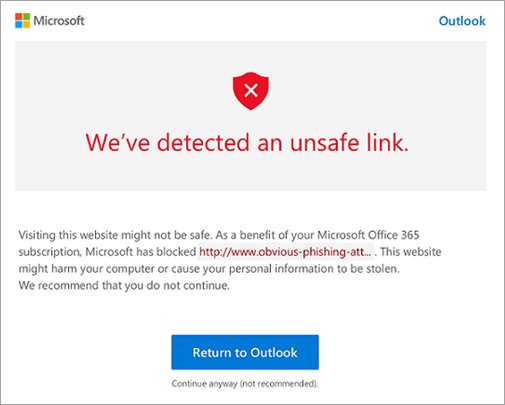
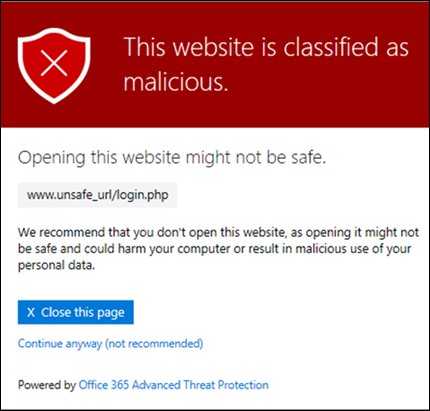
| What happens on a bad link | A warning page opens instead of the site, such as a malicious website or phishing attempt warning |
How does Outlook Safelinks work?
Safelinks runs on top of the normal anti-spam and anti-malware filters. The check happens twice: before delivery and again when you click.
| Stage | What Safelinks does |
|---|---|
| Mail flow | The message passes Microsoft 365 filtering, and URLs are scanned before the message reaches the inbox |
| Rewriting | Scanned URLs are wrapped with the safelinks.protection.outlook.com prefix, per recipient, including links added in replies and manual forwards |
| Time of click | The wrapped link is checked against a list of known malicious URLs before the site opens |
| Unknown links | URLs without a valid reputation are detonated in the background, and links to files can be scanned in real time |
| No rewriting | If an admin turns rewriting off, supported Outlook apps call the Safe Links API at click time instead |
| Result | A safe link opens the site; a bad one opens a warning page |
Because the check happens at click time, a link that was clean on delivery and turned malicious later is still caught when it is wrapped.
How to turn off Outlook SafeLinks?
This toggle exists only for Outlook.com mailboxes covered by a Microsoft 365 Family or Personal subscription. It is shown here so you know where it is, not as a recommendation.
- Sign in at outlook.live.com with your Outlook.com account.
- Select Settings.
- Select Subscription > Security.
- Under Advanced Security, use the toggle to turn off Safelinks.
- Open a message that arrives after the change. Links in messages you already received keep their Safelinks format.
To get the protection back, return to the same page and turn the toggle on again. The change only affects future messages.
Can I disable this Safelinks feature?
On a work or school account, no user setting exists. These are the admin options in the Microsoft Defender portal, from narrowest to broadest.
| Admin option | What it changes | Microsoft's position |
|---|---|---|
| Allow this URL after reporting it as clean | That URL is not scanned or wrapped in mail flow or at click time | The supported way to fix a false positive |
| Do not rewrite the following URLs list | Listed URLs are not wrapped during mail flow but can still be blocked at click | Suggested for common internal URLs |
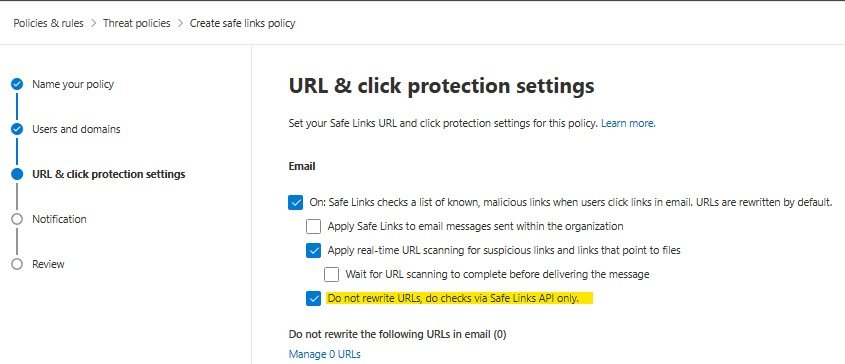
| Do not rewrite URLs, do checks via SafeLinks API only | No wrapping; URLs are still scanned before delivery and at click in supported Outlook apps | Leaves users of unsupported email clients exposed to links that turn bad later |
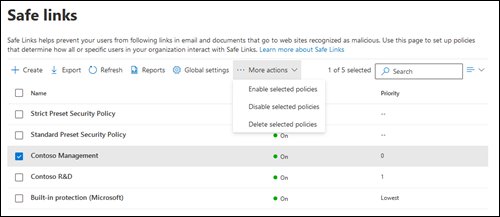
| Turn off a custom Safe Links policy | That policy stops applying; Built-in protection or a preset policy can still cover the users | Custom policies can be turned on or off; preset ones are managed separately |
| Add exclusions to Built-in protection | Excluded recipients lose built-in Safe Links and Safe Attachments | Labelled Add exclusions (not recommended) in the portal |
How to stop Safe Links rewriting specific URLs in Outlook
Admins with the Organization Management or Security Administrator role can add trusted URLs to a custom policy. Allow up to 6 hours for a policy change to apply.
- Open the Microsoft Defender portal at https://security.microsoft.com/safelinksv2, or go to Email & collaboration > Policies & rules > Threat policies > Safe Links.
- Select the custom policy and select Edit in the URL & click protection section, or select Create to start a new policy.
- Under Do not rewrite the following URLs in email, select Manage (nn) URLs.
- In the Manage URLs to not rewrite flyout, select Add URLs.
- Enter each URL, press Enter, and select Save.
- Select Done, then save the policy.
Use *.contoso.com/* to cover a domain, its subdomains and paths; contoso.com alone covers only that address. Leave out http:// or https:// to cover both. Teams and Office web apps ignore this list.
Safelinks protection Outlook blocking a safe link
When Safe Links blocks a link you trust, reporting it as clean creates an allow entry that also stops click-time blocking.
- In the Microsoft Defender portal, go to Actions & submissions > Submissions, or open https://security.microsoft.com/reportsubmission.
- Select the URLs tab, then select Submit to Microsoft for analysis.
- Check that URL is the submission type and enter the full URL.
- Under Why are you submitting this URL to Microsoft?, select I've confirmed it's clean and select Next.
- Select Allow this URL and choose Remove allow entry after; the default is 45 days after last used date.
- Add an optional note and select Submit.
Users without admin rights should send the blocked link to their IT team rather than turning to a different email client to get around the warning.
Does this Safe Link feature create any problem?
Safelinks is mostly invisible, but a few side effects are documented by Microsoft.
| Side effect | Why it happens |
|---|---|
| Links look long and include safelinks.protection.outlook.com | The link is wrapped so it can be checked at click time |
| Forwarded mail still carries wrapped links | Rewriting applies to manual forwards and replies, per recipient |
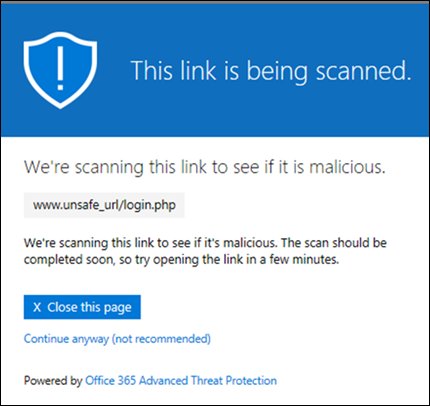
| A short scan-in-progress page appears | The link is still being scanned; wait a moment and try again |
| Messages arrive a little later | Wait for URL scanning to complete before delivering the message holds mail until links are checked |
| Sites opened from Teams ask you to sign in again | Sites that need SameSite=Strict cookies treat the Safe Links redirect as a cross-site request |
| Another link-wrapping service breaks scanning | Wrapping links before Defender for Office 365 can stop Safe Links processing them |
If Outlook links open in Edge instead of your chosen browser, that is a separate Outlook setting; you can make Outlook links open in your default browser without touching Safelinks.
Safelinks protection Outlook decode: see the original URL
There is no need to decode a wrapped link by hand. Outlook shows the original address.
- Open the message in Outlook.
- Hover the pointer over the link without clicking it.
- Read the original URL in the pop-up that appears; it indicates the link was scanned by Safe Links.
- To see the wrapped safelinks.protection.outlook.com address itself, view the message source.
Outlook Safelinks not working
Safelinks protection Outlook not working after turning it off on Outlook.com
The toggle only changes messages that arrive afterwards.
- Check that the toggle under Settings > Subscription > Security shows the state you set.
- Look at a message received after the change; older messages keep the Safelinks link format.
Safe Links policy change not taking effect
Policy updates take time to reach mailboxes.
- Allow up to 6 hours for a new or updated Safe Links policy.
- Allow up to 24 hours for a Teams protection change.
- Check that the user is not covered by the Standard or Strict preset policy, which is applied before custom policies.
URL on the do-not-rewrite list is still blocked
The list stops wrapping, not click-time blocking.
- Report the URL on the Submissions page as I've confirmed it's clean.
- Select Allow this URL to add a Tenant Allow/Block List entry.
Links in Gmail or Yahoo mail are not protected in Outlook
Outlook.com advanced security covers Outlook.com mailboxes only.
- Check the account address ends in @outlook.com, @hotmail.com, @live.com or @msn.com; only those mailboxes get Safelinks.
- Hover over links in Gmail or Yahoo messages to read the real address before clicking.
Clicked link opened with no Safe Links check in classic Outlook
If classic Outlook fails to read the Safe Links policy, the user is sent straight to the link.
- Report the link and the time you clicked it to the admin.
- Ask the admin to check which Safe Links policy applies to the mailbox in the Microsoft Defender portal.
Outlook Safelinks FAQ
What is Outlook Safelinks?
Outlook Safelinks is Microsoft's link protection for email. It scans links in messages, rewrites them with a safelinks.protection.outlook.com address and checks each one again when you click, opening a warning page instead of a known phishing or malware site.
How does Outlook Safelinks work?
Links are scanned before the message is delivered, wrapped with a Safe Links address, and checked against a list of known malicious URLs at the moment of the click. Unknown links can be detonated in the background, and links to files can be scanned in real time.
How do I disable Safelinks protection in Outlook?
On a personal Outlook.com account with Microsoft 365 Family or Personal, go to outlook.live.com > Settings > Subscription > Security and use the Advanced Security toggle. On a work or school account, only an admin can change Safe Links policies.
What is Safelinks protection?
Safelinks protection is the time-of-click URL checking in Microsoft Defender for Office 365. It covers email, Microsoft Teams and supported Office apps, and works in addition to the normal anti-spam and anti-malware filters.
What is Microsoft Safelinks?
Microsoft Safelinks is the same feature across two products: Safe Links in Defender for Office 365 for businesses, and Safelinks in Outlook.com for Microsoft 365 Family and Personal subscribers. Both rewrite links and block known bad sites at click time.
How do I turn off Outlook Safelinks on a work account?
You cannot do it yourself. An admin can add the URL to a do-not-rewrite list, report it as clean with Allow this URL, or change the Safe Links policy in the Microsoft Defender portal. Asking for a per-URL exception is safer than removing protection.
Is safelinks.protection.outlook.com safe?
Yes. A link that starts with an address such as nam01.safelinks.protection.outlook.com is a Microsoft wrapper around the original URL. Hover over it in Outlook to see where it actually goes before clicking.