To alphabetize in Word, select the list, go to Home > Sort, set Sort by to Paragraphs and Text, choose Ascending and select OK.
This guide covers simple, bulleted and numbered lists, Z to A order, sorting by last name, tables, numbers and dates, Word for the web and mobile, and fixes when the sort goes wrong.
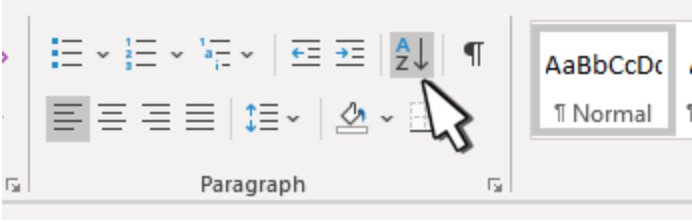
How to alphabetize a simple list in Word
Word treats each line that ends with a press of Enter as one paragraph, and the Sort command on the Home tab of the Word ribbon reorders those paragraphs. These steps work in Word for Microsoft 365, Word 2024, 2021, 2019 and 2016 on Windows.
- Select the list you want to sort.
- Go to Home > Sort in the Paragraph group.
- In the Sort Text box, set Sort by to Paragraphs and Type to Text.
- Choose Ascending for A to Z order.
- Select OK.
On a Mac the steps are the same: select the list, click Sort on the Home tab, choose Paragraphs, Text and Ascending, then click OK.
What you can alphabetize in Microsoft Word
The same Sort command handles plain lists, list formatting and tables. What changes is what you select first and which options you set.
| Content | What to select | Where to sort |
|---|---|---|
| Plain list, one item per line | Every line of the list | Home > Sort |
| Bulleted or numbered list | All list items, not the heading above them | Home > Sort |
| Whole paragraphs | The paragraphs to reorder | Home > Sort, Sort by Paragraphs |
| Names, words split by a space or comma | The list, then Options to set the separator | Home > Sort, Sort by a field |
| Table rows | The table | Layout > Sort, next to Table Design |
| Numbers and dates | The list or table | Sort, with Type set to Number or Date |
How to alphabetize a bulleted or numbered list
Bullets and numbers are list formatting, not text, so they do not affect the sort. A numbered list renumbers itself in the new order.
- Select every item in the bulleted or numbered list.
- Leave out any heading or intro line above the list.
- Go to Home > Sort.
- Set Sort by to Paragraphs and Type to Text.
- Choose Ascending and select OK.
- Check that the numbers now run 1, 2, 3 from the top of the sorted list.
How to sort from Z to A in Word
Reverse alphabetical order uses the same dialog box. Only the direction changes.
- Select the list.
- Go to Home > Sort.
- Set Sort by to Paragraphs and Type to Text.
- Choose Descending for Z to A order.
- Select OK.
How to alphabetize by last name in Word
A plain sort reads each line from the first character, so a list of First Last names sorts by first name. Tell Word that each name has fields separated by a space, then sort on the field that holds the last name.
This works when every line has the same pattern, such as one first name and one last name.
- Select the list of names.
- Go to Home > Sort and select Options.
- Under Separate fields at, select Other, click in the box next to it and press the Spacebar once.
- Select OK to return to the Sort Text box.
- In Sort by, choose the second field, which holds the last names, and set Type to Text.
- Choose Ascending and select OK.
For names with middle names or initials, rewrite each line as Last Name, First Name and sort by Paragraphs instead. Another option is a two-column table with first names and last names in separate columns, sorted by the last-name column.
How to alphabetize a table in Word
Table sorting moves whole rows, so every cell in a row stays with its neighbours. Word sorts on up to three columns in one pass.
- Click in the table or select it, so the Table Design and Layout tabs appear.
- Next to Table Design, go to Layout > Sort.
- Under My list has, choose Header row if the first row holds column titles.
- Under Sort by, choose the column name or number to sort on.
- Set Type to Text, Number or Date to match that column.
- Choose Ascending or Descending.
- Add a second or third column under Then by to break ties, then select OK.
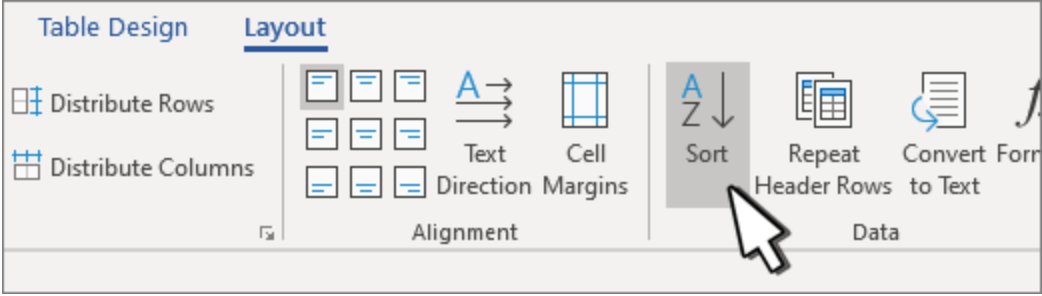
How to sort numbers and dates in Word
The Type setting decides how Word reads each item. Set it to match the data, or numbers and dates sort as plain text.
- Select the list or the table that holds the numbers or dates.
- Go to Home > Sort, or Layout > Sort for a table.
- In Sort by, choose the paragraphs or the column that holds the values.
- Set Type to Number for numbers or Date for dates.
- Choose Ascending for smallest or oldest first, or Descending for largest or newest first.
- Select OK.
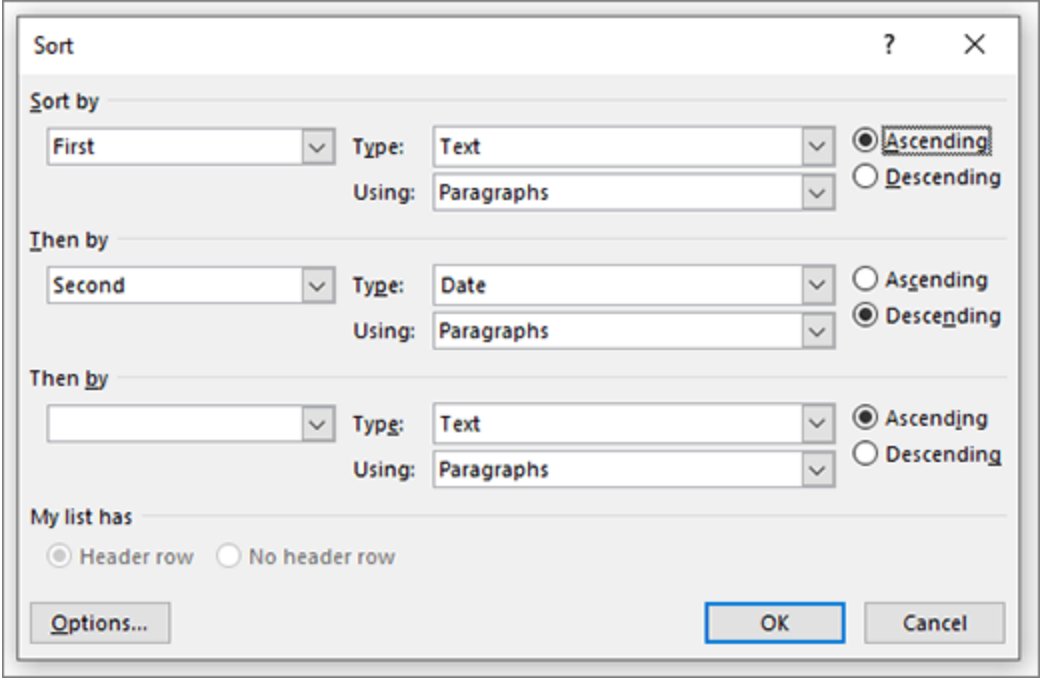
How to alphabetize paragraphs in Word
Whole paragraphs sort the same way as short list items. Word uses the first word of each paragraph to decide its place, and the rest of the paragraph moves with it.
- Make sure each block you want to move is one paragraph, with no blank lines inside it.
- Select all the paragraphs to sort.
- Go to Home > Sort.
- Set Sort by to Paragraphs and Type to Text.
- Choose Ascending or Descending and select OK.
Blank lines between paragraphs are empty paragraphs, so they sort to the top. Delete them before sorting, or remove them from the top afterwards.
How to alphabetize only part of a document
Word sorts only what you select. Anything outside the selection stays exactly where it is.
- Click at the start of the first item you want sorted.
- Hold Shift and click at the end of the last item.
- Go to Home > Sort.
- Set Sort by, Type and the order, then select OK.
- Scroll above and below the selection to check that the rest of the document has not moved.
How to alphabetize in Word for the web
Word for the web can create bulleted and numbered lists, but it cannot sort lists alphabetically. Tables are the exception: the web app can sort a table in either direction.
- To sort a list, select Open in Word to open the document in the desktop app.
- Follow the Windows steps for a simple list in the desktop app, then save.
- To sort a table in the web app with the classic ribbon, select the table, then Table Layout.
- In the Data section, select Sort Table Ascending or Sort Table Descending.
- With the single line ribbon, select the table, open the Table tab and use the dropdown next to Sort.
If you work in Google Docs instead, you can alphabetize a list in Google Docs with a different set of steps.
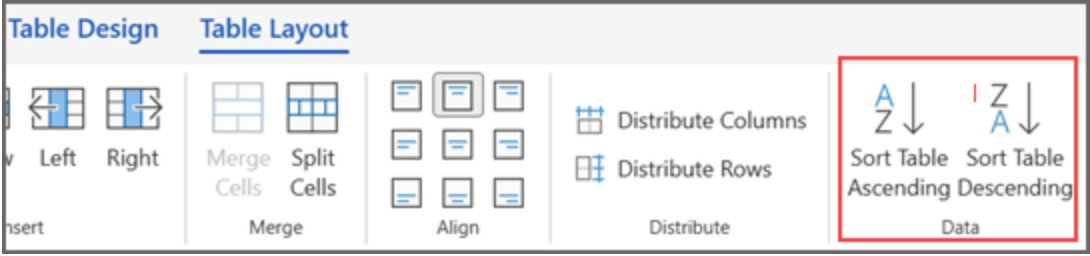
Can you alphabetize in the Word mobile app?
Sort in Word for Windows or Mac instead of the phone app. Microsoft's sort instructions cover Word for Windows, Mac and the web only, and there is no documented Sort command in Word for iPhone or Android. Open the file in the desktop app, or sort a table in Word for the web, then reopen it on your phone.
When to use Word vs. Excel for alphabetizing
| Your situation | Use this | Why |
|---|---|---|
| A short list or a few table rows inside a document | Word | Home > Sort or Layout > Sort does it without leaving the document |
| Sorting on more than three columns | Excel | Word's table sort stops at three levels; Excel sorts by up to 64 columns |
| A custom order such as High, Medium, Low | Excel | Excel can sort by a custom list instead of A to Z |
| Sorting by cell colour, font colour or icon | Excel | Word sorts text, numbers and dates only |
| Names, dates and numbers you will sort again and again | Excel, then paste the result into Word | Keeps each value in its own cell, so every re-sort is reliable |
Tips for better sorting in Word
| Tip | Why it helps |
|---|---|
| Put each item on its own line with Enter, not Shift + Enter | Word sorts paragraphs, so a line break inside one paragraph keeps lines together |
| Remove blank lines before you sort | Empty paragraphs jump to the top of an ascending sort |
| Leave the heading out of the selection, or choose Header row | Stops the title from being sorted into the list |
| Keep the same pattern on every line | Field sorting by last name needs the same number of words per line |
| Match Type to the data | Numbers and dates sort correctly only as Number or Date |
| Turn Case sensitive on only when you need it | It is off by default, so capitals and lowercase letters sort together |
Word alphabetizing shortcuts and faster workflows
Word has no default keyboard shortcut for Sort, but you can put the command one click away and use keyboard shortcuts around it.
- Right-click Sort on the Home tab and select Add to Quick Access Toolbar for one-click access.
- Press Ctrl + A to select the whole document when it is nothing but the list.
- Press Alt, H to open the Home tab from the keyboard.
- Press Alt + Shift + Up arrow or Alt + Shift + Down arrow to move one item by hand after the sort.
- Press Ctrl + Z straight away if the result is wrong.
On a Mac, move a selected paragraph with Control + Shift + Up arrow or Control + Shift + Down arrow.
How to undo a sort in Word
A sort is a single action, so one undo from the keyboard puts the whole list back in its original order.
- Press Ctrl + Z right after the sort, before you type anything else.
- Check that the list is back in its original order.
- If you saved and closed the file, there is no undo history, so reopen a copy you kept or re-sort.
For long lists you may want the original order later, so make a copy of the Word document before you sort.
Common alphabetizing problems and how to fix them
The Sort button is grayed out
The file is open in Protected View, a read-only mode where most editing functions are disabled, or you are in Word for the web.
- Select Enable Editing on the yellow Message Bar if it is showing.
- In Word for the web, select Open in Word and sort in the desktop app.
- Select the list again and go to Home > Sort.
Word sorted the heading with the list
The heading was part of the selection and was treated as a list item.
- Press Ctrl + Z to undo the sort.
- Select only the list items, or choose Header row under My list has.
- Sort again.
The first row of my table moved into the data
My list has was set to no header row, so the column titles were sorted as data.
- Press Ctrl + Z.
- Go to Layout > Sort and choose Header row under My list has.
- Select OK.
Names are sorting by first name instead of last name
Word sorts each line from its first character unless you sort on a field.
- Go to Home > Sort > Options.
- Under Separate fields at, choose Other and type a space.
- Choose the last-name field in Sort by and select OK.
Numbers are sorting incorrectly
Type is set to Text, so Word compares the numbers character by character.
- Select the list or table again.
- Open Sort and set Type to Number.
- Select OK.
Capital letters are affecting the order
Case sensitive is turned on in Options.
- Go to Home > Sort > Options.
- Clear Case sensitive under Sort options.
- Select OK twice.
Alphabetize in Word FAQ
How do I put a list in alphabetical order in Word?
Select the list, go to Home > Sort, set Sort by to Paragraphs and Type to Text, choose Ascending and select OK. Word reorders the lines from A to Z. Choose Descending instead for Z to A order.
Where is the Sort button in Word?
Sort is on the Home tab, in the Paragraph group, on Windows and Mac. Word for the web has no Sort command for lists. For tables, select the table and use Sort on the Layout tab next to Table Design.
How do I alphabetize by last name in Word?
Select the names, go to Home > Sort > Options, set Separate fields at to Other and type a space. Then choose the field holding the last names in Sort by, set Type to Text and select OK.
How do I alphabetize a list without the heading in Word?
Select only the list items before you open Sort, leaving the heading out. In a table, choose Header row under My list has so Word keeps the first row in place while it sorts the rest.
Can you sort a list in Word for the web?
No. Word for the web can create bulleted and numbered lists but cannot sort them alphabetically. Select Open in Word to sort in the desktop app. Word for the web can sort tables in ascending or descending order.
Can Word sort a table by more than one column?
Yes. In Layout > Sort, choose the first column under Sort by and add up to two more under Then by. Word breaks ties using the second and third columns, for up to three levels in one sort.
Is there a keyboard shortcut to alphabetize in Word?
Word has no default shortcut for Sort. Right-click Sort on the Home tab and select Add to Quick Access Toolbar for one-click access, and use Alt, H to reach the Home tab from the keyboard.
How do I undo alphabetizing in Word?
Press Ctrl + Z immediately after the sort. The whole list returns to its original order in one step. Once the file is closed, undo history is gone, so keep a copy of the document if you may need the old order.