When the Facebook app stops loading on iPad after an update, force close it, restart the iPad, then install any pending Facebook and iPadOS updates before you offload or reinstall the app.
This guide covers each fix in order, plus network checks, the Safari fallback, login problems and how to report the bug to Facebook.
How to fix the Facebook app not loading on iPad
Work through these steps in order and open Facebook after each one to see whether it loads.
- Swipe up from the bottom edge of the screen and hold, then swipe up on the Facebook window to close it.
- Open Facebook again from the Home Screen or App Library.
- If it still won't load, restart the iPad: press and hold either volume button and the top button, drag the slider, wait 30 seconds, then hold the top button until the Apple logo appears.
- Open the App Store, tap your profile picture, tap App Updates and tap Update next to Facebook.
- Open Settings > General > Software Update and install any iPadOS update shown.
- If Facebook still shows a blank screen, offload the app or delete it and download it again.
Why won't Facebook open on my iPad after an update?
An app update and an iPadOS update can arrive at different times. Match what you see to the likely cause and jump to that fix.
| What you see | Likely cause | Fix to try |
|---|---|---|
| Facebook opens to a white or blank screen | The app is frozen in the background since the update | Force close and reopen Facebook on iPad |
| Facebook closes as soon as it opens | Damaged app files or an update that did not finish | Offload or reinstall Facebook on iPad |
| Feed spins and never loads | No internet connection, a VPN, or cellular data off for Facebook | Facebook not loading on iPad Wi-Fi or cellular data |
| Works on Wi-Fi only | Cellular data is turned off for the Facebook app | Facebook not loading on iPad Wi-Fi or cellular data |
| Other apps also misbehave | iPadOS needs a restart or a newer release | Restart iPad when Facebook won't load |
| The iPad is nearly out of storage | Not enough free space for the app to run or update | Offload or reinstall Facebook on iPad |
| Facebook asks you to log in and fails | A password or code problem, not a loading bug | Can't log into Facebook on iPad |
Force close and reopen Facebook on iPad
Closing the app clears a frozen session that survived the update. Apple lists this as the first fix when an app stops responding or won't open.
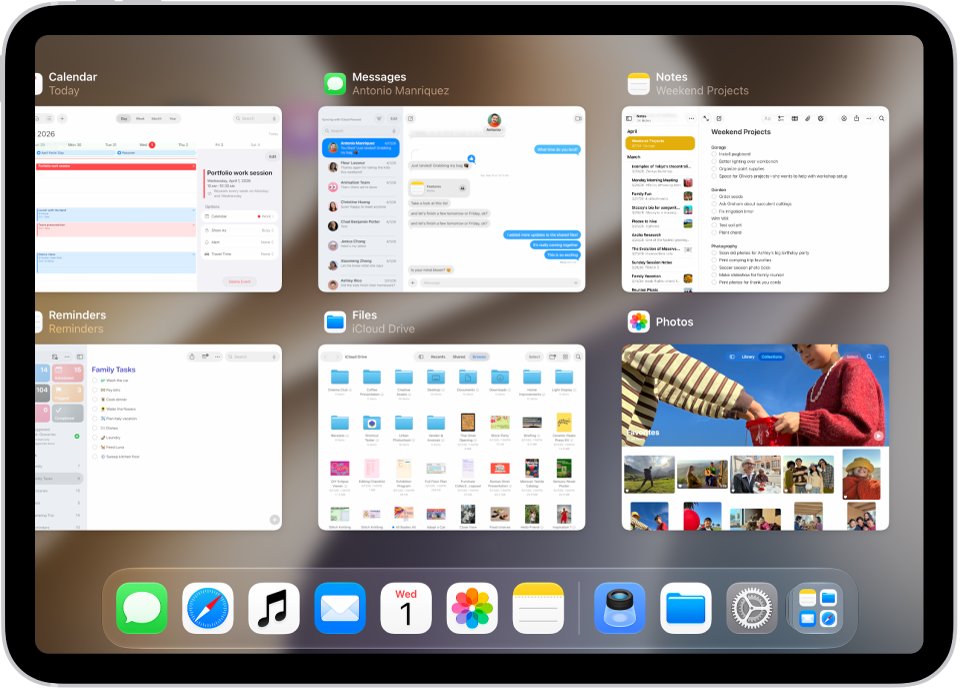
- Swipe up from the bottom edge of the screen and hold, then release to open the app switcher.
- Find the Facebook window and swipe up on it to close it.
- If Facebook is open in a window, tap the window controls at the top of the window, then tap the close button.
- Tap Facebook on the Home Screen, in App Library or in the Dock to open it again.
- Wait for the feed to load before you tap anything.
On an iPad with a Home button, double-click the Home button to open the app switcher instead.
Restart iPad when Facebook won't load
A restart clears memory and background processes that a fresh update can leave in a bad state.
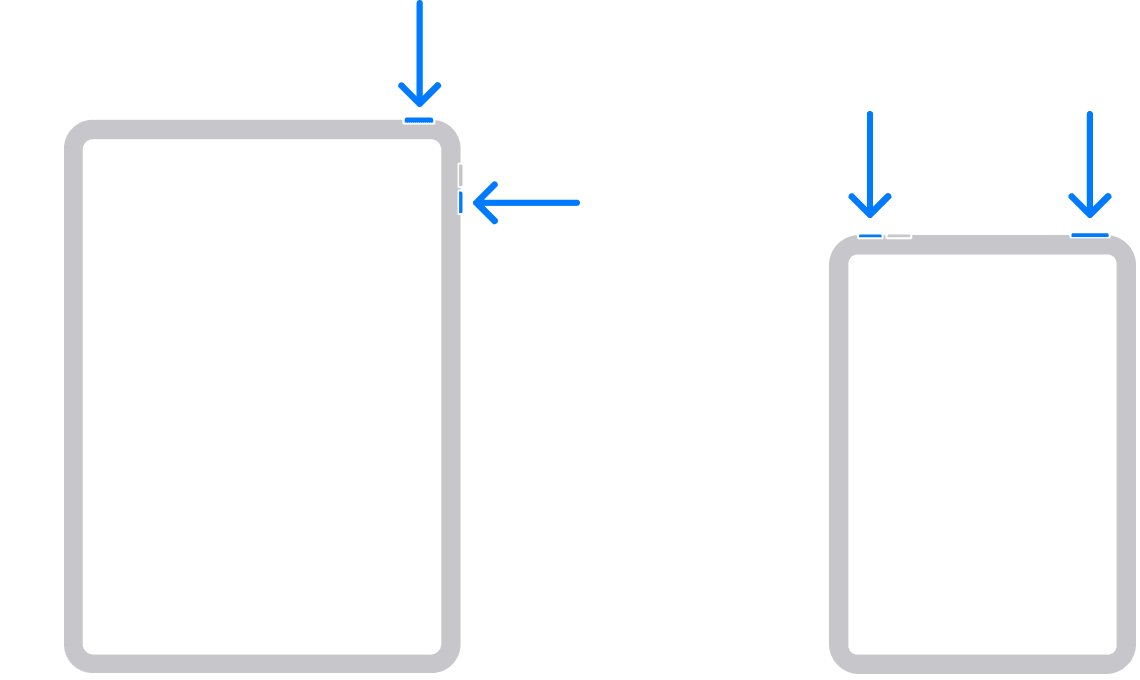
- On an iPad without a Home button, press and hold either volume button and the top button until the power off slider appears.
- On an iPad with a Home button, press and hold the top button until the slider appears.
- Drag the slider, then wait 30 seconds for the iPad to turn off.
- Press and hold the top button until you see the Apple logo.
- Unlock the iPad and open Facebook.
In iPadOS 18 and later you can also open Control Center, press and hold the Power button in the top-right corner and drag the slider. If the iPad itself is frozen, force restart the iPad instead.
Update the Facebook app and iPadOS on iPad
Facebook regularly ships builds that fix crashes. If the problem started with an iPadOS update, the next Facebook release or a newer iPadOS release usually carries the fix.
- Open the App Store app.
- Tap your profile picture at the top right.
- Tap App Updates, then tap Update next to Facebook, or tap Update All.
- Plug the iPad into power and connect to Wi-Fi.
- Open Settings > General > Software Update.
- If an update is listed, tap Download and Install and follow the onscreen instructions.
App Store apps update automatically by default. To check that setting, open Settings > Apps > App Store and look at App Updates.
Offload or reinstall Facebook on iPad
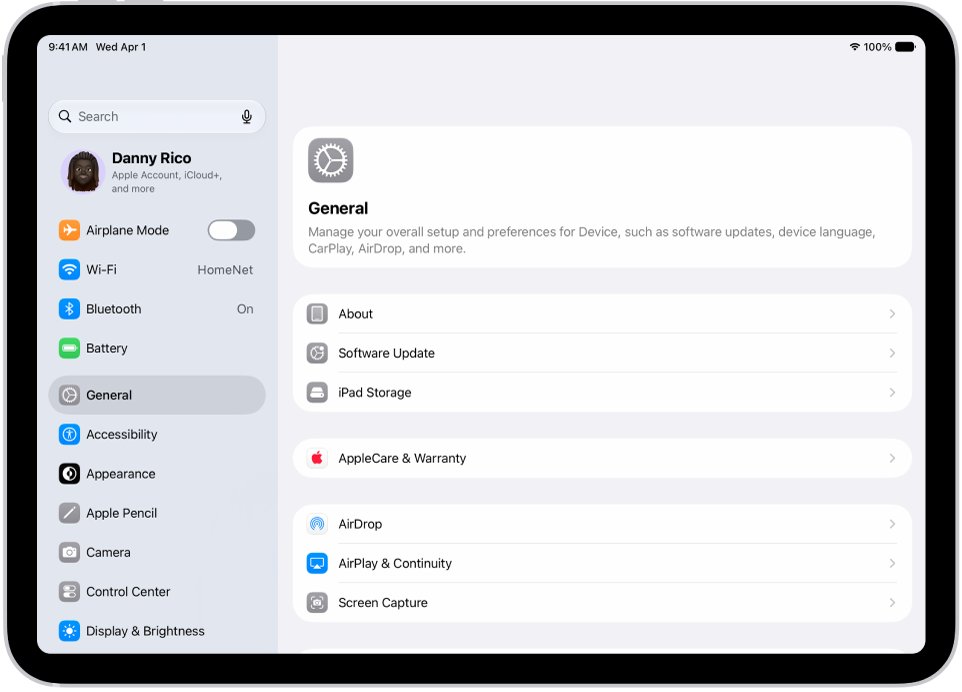
Offloading removes the app but keeps its documents and data, so it is the gentler option. Deleting removes the app and its data from the iPad; your posts and photos stay on your Facebook account, but you have to log in again.
- Open Settings > General > iPad Storage.
- Check the free space shown at the top of the screen.
- Tap Facebook in the app list, then tap Offload App and confirm.
- Tap the Facebook icon, which now shows a cloud symbol, to download the app again.
- If offloading does not help, touch and hold Facebook on the Home Screen, tap Remove App, tap Delete App, then tap Delete.
- Open the App Store, tap your profile picture, tap Apps & Purchase History > Your Apps, find Facebook and tap the download button.
- Open Facebook and log in.
If the iPad is nearly full, delete large videos or unused apps first so the reinstall has room.
Facebook not loading on iPad Wi-Fi or cellular data
If the feed spins but never fills, the app may have no working connection. Open a website in Safari to test the iPad's connection first; if Safari says it cannot connect to the server, fix the connection before you troubleshoot Facebook.
- Open Settings > Wi-Fi, make sure Wi-Fi is on and look for the blue checkmark next to your network.
- Make sure Airplane Mode is off.
- On a Wi-Fi + Cellular iPad, open Settings > Cellular Data, scroll to the app list and turn on Facebook.
- In Settings > Cellular Data > Cellular Data Options, turn off Low Data Mode if it is on.
- If you use a VPN or security app, uninstall it, restart the iPad and test Facebook again.
- Restart your router and modem by unplugging them and plugging them back in.
- As a last network step, open Settings > General > Transfer or Reset iPad > Reset > Reset Network Settings.
Reset Network Settings removes all saved Wi-Fi networks and passwords, cellular settings, and VPN and APN settings, so have your Wi-Fi password ready.
Use Facebook in Safari on iPad
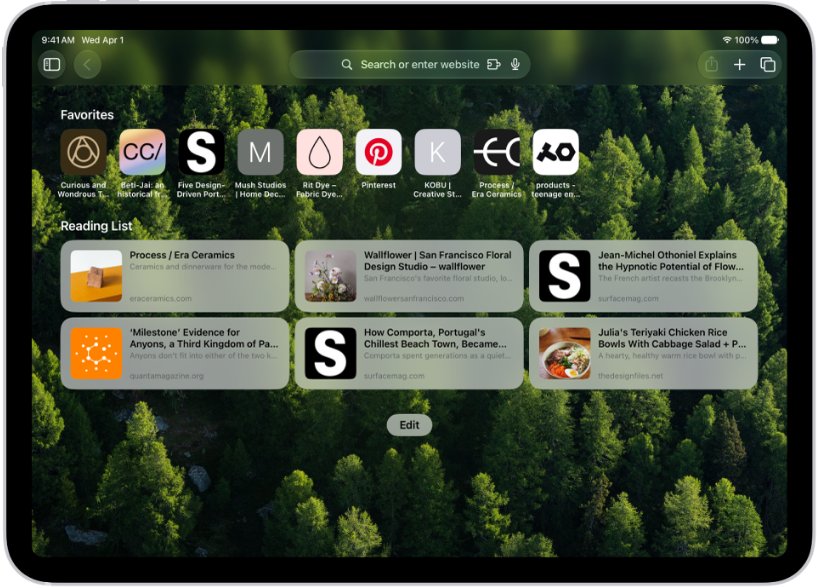
Facebook's website works in Safari while you sort out the app. If the site loads in Safari, your account and connection are fine and the problem sits in the app.
- Open Safari and go to facebook.com.
- Log in with the same email or mobile number and password you use in the app.
- If Facebook is not loading in Safari either, open Settings > Apps > Safari.
- Tap Advanced > Website Data, then tap Remove All Website Data and Remove Now.
- Reload facebook.com and log in again.
Removing website data signs you out of other websites too. If the button is gray, check the web content restrictions in Screen Time.
Can't log into Facebook on iPad
If the app loads but rejects your login, the problem is the account, not the update. Facebook's account recovery steps are the same in the app and in Safari.
- On the Facebook login screen, tap the option to reset your password and enter your email or mobile number.
- If the code does not arrive, check your spam or junk folder.
- Make sure the iPad or your phone has a signal, wait a few minutes, then request a new code.
- Enter the new password in the app on iPad.
- If you think someone else changed your details, go to facebook.com/hacked on a device you have used to log in to Facebook before.
If you no longer have the email or phone number on the account, recover a Facebook account you can't log in to through Facebook's identity checks.
How to report a problem with the Facebook app on iPad
If the app still fails after a reinstall, report the bug to Facebook so the fix lands in a future update. A short description and a screenshot help Facebook find the problem.
- Tap Menu in the bottom right of Facebook.
- Scroll to the bottom, tap Help & support, then tap Report a problem.
- Tap Continue to report.
- Below Choose feature, select the part of Facebook that is not working.
- Tap What went wrong? and describe the problem and the steps that cause it.
- Tap Take screenshot to attach an image, then tap Send in the top right.
If the app will not open far enough to reach the menu, log in to Facebook on a computer, click your profile picture, select Help & support and then Report a problem.
How to install Facebook on iPad
Use this if you deleted Facebook or are setting up a new iPad. You need an internet connection and an Apple Account to use the App Store.
- Open the App Store app on your iPad.
- Tap Search and type Facebook.
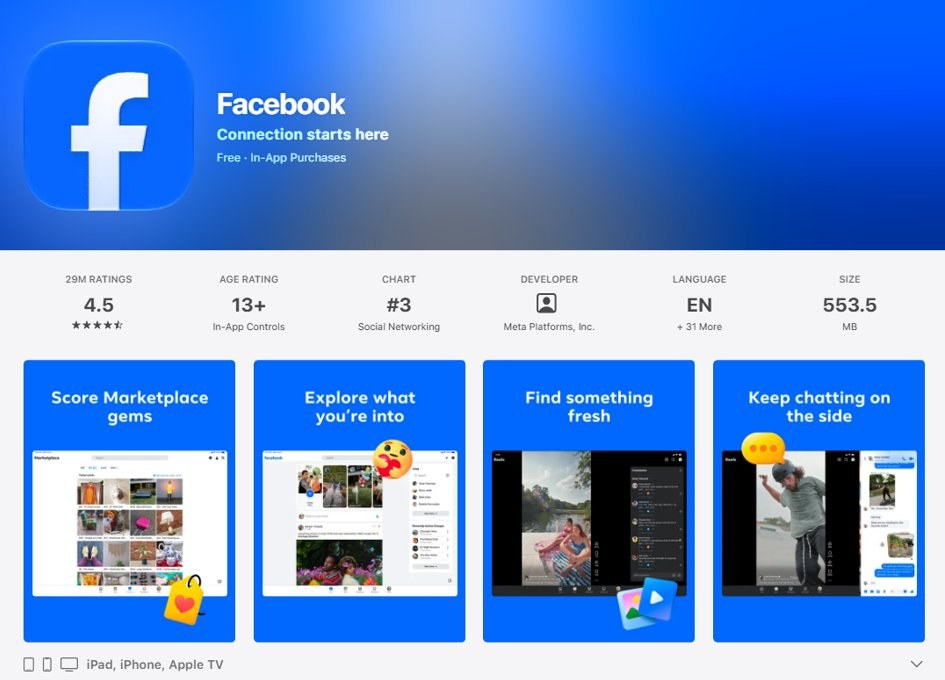
- Tap the Facebook app from Meta Platforms, Inc. and check the Compatibility details.
- Tap Get, or tap the download button if you installed Facebook before.
- Confirm with Face ID, Touch ID or your passcode if asked.
- Open Facebook from the Home Screen or the Recently Added category in App Library and log in.
If the latest iPadOS update also scrambled other apps, you can fix broken iPad app layouts with the same update-and-restart approach.
Facebook on iPad problems
Facebook won't open on iPad or closes straight away
The app is frozen or its files were damaged during the update.
- Close Facebook from the app switcher and open it again.
- Restart the iPad.
- Update Facebook in the App Store.
- Delete Facebook, then download it again from Apps & Purchase History.
Facebook feed not loading on iPad
The app has no working connection, or a VPN is blocking it.
- Open a website in Safari to confirm the iPad is online.
- Turn on cellular data for Facebook in Settings > Cellular Data on a cellular iPad.
- Uninstall any VPN or security app and restart the iPad.
- Try a different Wi-Fi network to rule out your router.
Facebook not loading properly after an iPadOS update
The installed Facebook build may not yet match the new iPadOS release.
- Install the latest Facebook update from the App Store.
- Check Settings > General > Software Update for a follow-up iPadOS release.
- Use facebook.com in Safari until a fixed app version arrives.
- Report the problem from Help & support > Report a problem.
Facebook page not loading but the rest of the app works
A single feature or page is failing, which Facebook fixes on its side.
- Close and reopen Facebook, then open the page again.
- Open the same page on facebook.com in Safari.
- If it fails there too, report it with Report a problem and choose the feature that broke.
Facebook app on iPad FAQ
Why won't Facebook open on my iPad?
Facebook usually won't open on iPad because the app froze in the background, an update did not finish, or the iPad is low on storage. Close the app from the app switcher, restart the iPad, update Facebook, and reinstall it if it still fails.
Why is Facebook not loading properly?
Facebook loads partially when the connection is weak, a VPN interferes, or the installed app build has a bug. Test another website in Safari, remove any VPN, then update the Facebook app. If facebook.com works in Safari, the problem is in the app.
Why isn't Facebook loading on iPad Wi-Fi?
If Facebook fails only on one Wi-Fi network, the router or network is the likely cause. Restart the router and modem, try another network, and reset network settings on the iPad only after the simpler checks fail.
Why is my Facebook page not loading?
A single page that fails while the rest of Facebook works is usually a problem on Facebook's side. Close and reopen the app, open the page on facebook.com in Safari, and report it through Help & support > Report a problem if it still fails.
Can't log into Facebook on iPad. What should I do?
Reset your password from the Facebook login screen and check your spam folder for the code. If codes do not arrive, check your signal and request a new code after a few minutes. If you think the account was taken over, visit facebook.com/hacked to get the hacked account back.
How do I install Facebook on iPad?
Open the App Store, tap Search, type Facebook and choose the app from Meta Platforms, Inc. Tap Get, confirm with Face ID, Touch ID or your passcode, then open Facebook from the Home Screen and log in.
How do I download Facebook on iPad again after deleting it?
Open the App Store, tap your profile picture, then tap Apps & Purchase History and Your Apps. Find Facebook in the list and tap the download button. You can download it again for free with the same Apple Account.
How do I put Facebook on my iPad Home Screen?
Download Facebook from the App Store, and it appears in the Recently Added category in App Library. Open it from there or from the Home Screen, and log in with your email or mobile number and password.
Does deleting the Facebook app delete my account?
No. Deleting the app removes it and its stored data from the iPad only. Your Facebook account, posts and photos stay on Facebook, and you log in again after you reinstall the app.