Your Square Enix ID is the account name of your Square Enix account, and you can see it at the top of the Square Enix Account Management System page after you log in with your registered email address.
This guide covers where the ID is used, how to recover a forgotten ID or password, what you can and cannot change, one-time password setup, and the login errors that stop people at the sign-in screen.
What is my Square Enix ID? All you need to know
The Square Enix ID is the name your account is known by across Square Enix services. It is separate from the email address registered to the account, and you cannot change it once the account exists.
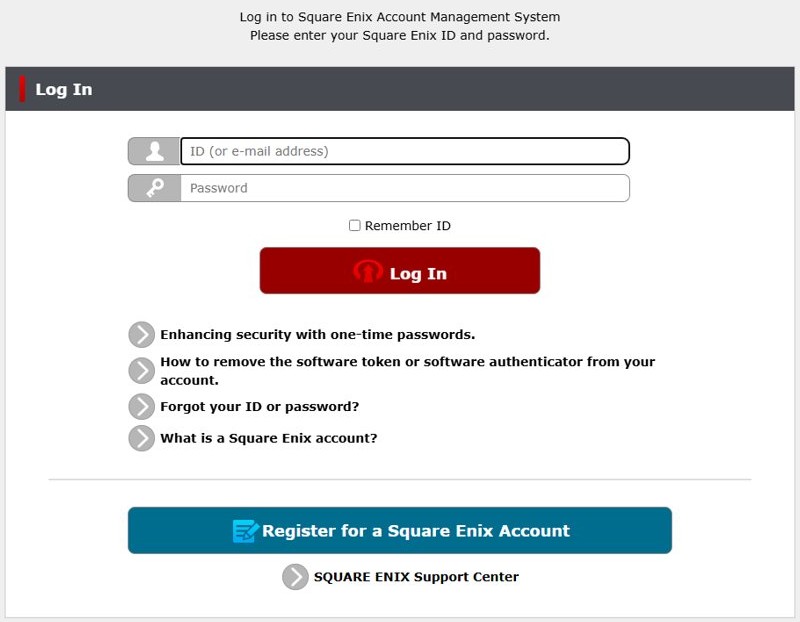
If you have lost track of it, the quickest route is to sign in with your email address instead of the ID.
- Open
https://secure.square-enix.com/in a web browser. - Type the email address registered to your Square Enix account in the ID field, using the exact capitalisation you registered with.
- Enter your password, plus a one-time password if your account uses one.
- Select Log In.
- Read your Square Enix ID at the top of the Account Management System page.
The email check is case sensitive. If the capitalisation differs from the registered address, Square Enix sends a message saying the address is not associated with a Square Enix account.
What is a Square Enix ID used for?
One Square Enix ID and password sign you in to the game, the subscription site and the account site. The table lists where each login happens.
| Service | What you sign in with | What to know |
|---|---|---|
| Final Fantasy XIV launcher | Square Enix ID, password, one-time password if set | Steam-version service accounts must start the game from the Steam Library |
| Mog Station | The same Square Enix ID and password | Uses the same login as the game |
| Square Enix Account Management System | Square Enix ID or registered email, password | Login page is secure.square-enix.com |
| Square Enix Online Store | The SQUARE ENIX Account option on the login page | Sign in through the Square Enix Members site first |
| Authenticator apps | Your Square Enix account ID as the account name | Used when you enter the setup key by hand |
The Steam and standard Windows versions of Final Fantasy XIV cannot share one service account, and expansions must be registered on the same platform as the base game.
Forgot Square Enix ID: how to recover it
Square Enix offers a self-service recovery link on the login page. If the email-login route above did not work, use it next.
- Open the Square Enix Account Management System at
https://secure.square-enix.com/. - Select Forgot your ID or password? below the Log In button.
- Follow the onscreen instructions to recover your Square Enix ID, your password, or both.
- Check the inbox of your registered email address for the message Square Enix sends.
- If you no longer have access to the registered email address, contact the Square Enix Support Center through the Additional Assistance button on its support articles.
How to reset Square Enix account password
A password reset also lifts an automatic login restriction, so this is the same process you follow after a suspicious-activity warning.
- Open
https://secure.square-enix.com/account/app/svc/reminderin a web browser. - Type your registered email address in the E-Mail Address box.
- Type it again in the Retype E-Mail Address box.
- Select Send.
- Open the email from Square Enix and use the security code it contains to set a new password.
- Sign in again with your Square Enix ID and the new password.
How to change Square Enix account email address
The email address, password and home address can be changed by you. The Square Enix ID itself, your first and last name, date of birth and country or region are fixed once the account is created.
- Log in to the Square Enix Account Management System.
- Under Account, select Account Information.
- Enter your registered date of birth if the page asks for it.
- Select Update Account Information.
- Choose Update e-mail address, Update password or Update detailed information, then follow the on-screen instructions.
The same menu holds Cancel SQUARE ENIX Account if you want to close the account.
Can you change your Square Enix ID or name?
You cannot change the ID. Name and date-of-birth corrections are possible only through support and only in specific cases.
| Detail | Can you change it yourself? | Route |
|---|---|---|
| Square Enix ID | No | Fixed when the account is created |
| Email address | Yes | Account Information > Update Account Information |
| Password | Yes | Update password, or the reset page if you are locked out |
| Home address | Yes | Update detailed information |
| First and last name | No | Support request with ID, only for a registration mistake or a legal name change |
| Date of birth | No | Support request with ID, only if it was registered incorrectly |
| Country or region | No | Fixed when the account is created |
Support accepts a copy of a passport, photo driver's license, ID card or birth certificate. The request must come from the account holder, and the name cannot be moved to another person, even a family member.
How to log into the Square Enix Store with Square Enix ID
The Online Store uses the Square Enix Members site as its front door, so you sign in there first with the same login as Final Fantasy XIV.
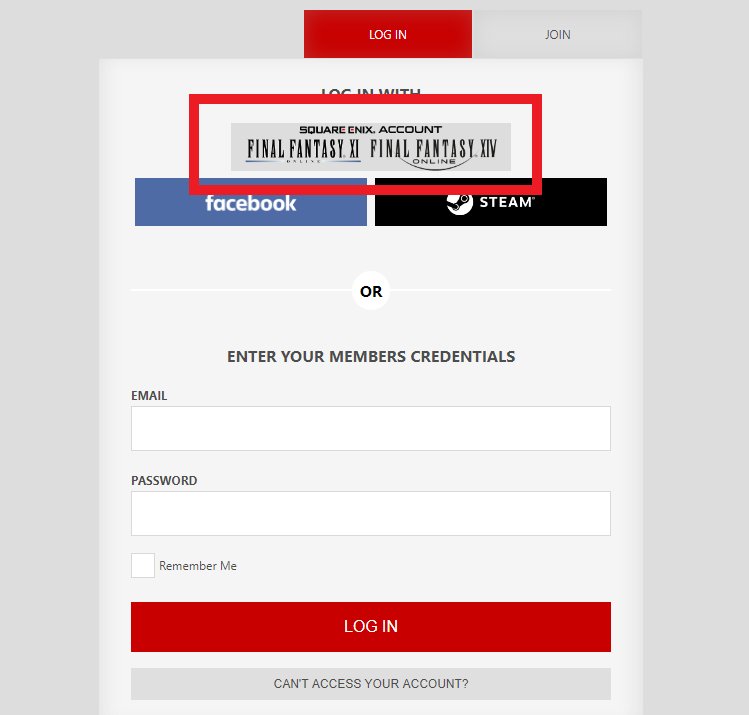
- Go to
https://na.square-enix.comand select LOG IN in the top right corner. - Choose the SQUARE ENIX Account option, above the Facebook and Steam options.
- Sign in with your Square Enix ID and password.
- Fill in a username and nickname if the site asks, then save.
- Select Store at the top of the page, then select LOG IN on the store page.
- Answer Yes to retrieve past purchases if you had an older store account, or No if you did not.
You are signed in when the Members menu bar shows your avatar or a default silhouette, and the store shows a My Account menu.
Square Enix one-time password and security token options
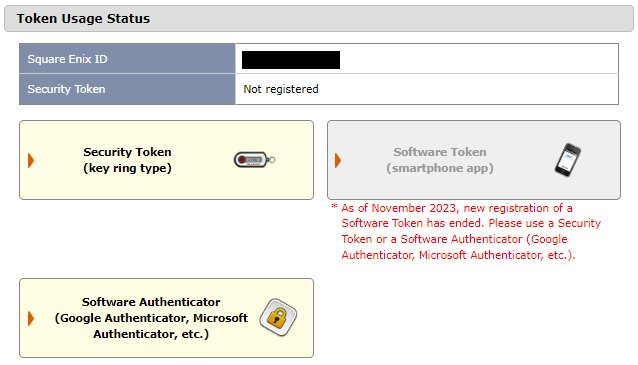
A one-time password is a six-digit code you enter after your Square Enix ID and password. Accounts with one active stop receiving automatic login restrictions.
| Option | Cost | Code lifetime | Status |
|---|---|---|---|
| Software authenticator (Google Authenticator, Microsoft Authenticator) | Free app on iPhone or Android | New six-digit code shown in the app | Recommended for new setups |
| Square Enix Security Token (key ring type) | $14.99 USD | Changes every 30 seconds | Available; one user per token, cannot be reused after removal |
| Square Enix Software Token app | Free | Expires after 60 seconds | New registrations closed in November 2023 |
How to add Google Authenticator to Square Enix account
You need your Square Enix account and an iPhone or Android phone with the Google Authenticator app or Microsoft Authenticator installed. Remove any existing security token or software token first, because only one method can be registered.
- Log in to the Square Enix Account Management System.
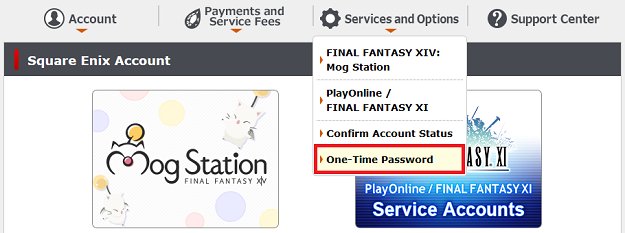
- Open Services and Options and select One-Time Password.
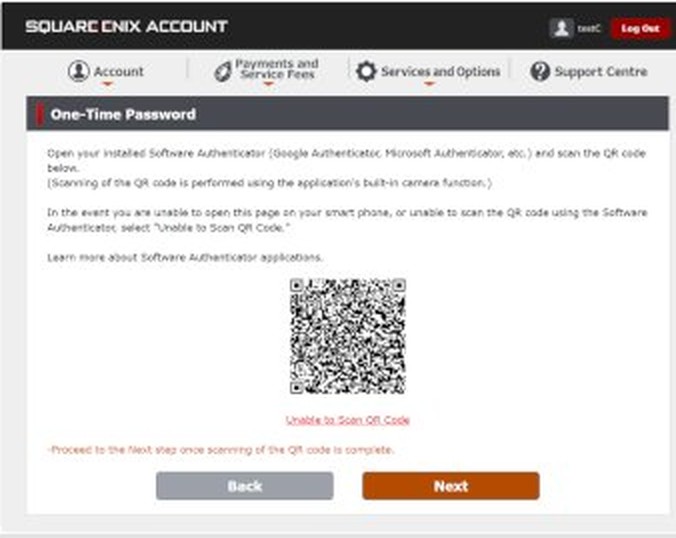
- At the bottom of the page, select Software Authenticator (Google Authenticator, Microsoft Authenticator, etc.) and follow the prompts to the QR code page.
- In Google Authenticator or Microsoft Authenticator, choose Scan a QR Code and scan the code on screen.
- Select Next on the Square Enix page.
- Enter the six-digit code from the app to finish registration.
If the camera cannot read the code, select Unable to Scan QR Code and enter the setup key by hand, with your Square Enix account ID as the account name.
How to remove authenticator from Square Enix account
Remove the authenticator before you change or upgrade phones, then register it again on the new device.
- Log in to the Square Enix Account Management System with your current one-time password.
- Open Services and Options and select One-Time Password.
- At the bottom of the page, select Software Authenticator (Google Authenticator, Microsoft Authenticator, etc.).
- Follow the on-screen instructions to remove it.
- Write down the Emergency Removal Password shown on the Account Management System main page, so you can remove the authenticator yourself if the phone is ever lost.
If you cannot sign in to see the Emergency Removal Password, only the account holder can ask the Square Enix Support Center to remove the authenticator.
Can't log in to Square Enix account
"ID or password is incorrect"
The Square Enix ID or password does not match the account.
- Sign in with your registered email address instead of the ID.
- Type the email with the exact capitalisation you registered.
- Reset the password from
https://secure.square-enix.com/account/app/svc/reminderif it still fails.
"The password entered is invalid, please enter a valid password"
The one-time password was entered too late, or the token is out of sync.
- Generate a fresh code on your token or app.
- Enter it straight away, within the 30-second window for a key ring token.
- Contact the Square Enix Support Center if a physical token keeps failing, as it may be out of sync.
Login access temporarily suspended after suspicious activity
An automatic login restriction triggered by a new device, a new IP address, a long gap since your last login, or a VPN.
- Follow the instructions in the email sent to your registered address.
- Reset the account password to log in again.
- Add a software authenticator or security token to stop future restrictions.
Square Enix Store keeps refreshing or signs you out
A browser problem with the Members or store login.
- Try a different web browser.
- Use Microsoft Edge, which Square Enix recommends for this login.
- Sign in through the SQUARE ENIX Account option again.
Final Fantasy XIV says you have no subscription or game time
The game was started from the wrong launcher for your service account.
- Launch a Steam-version account from your Steam Library.
- Launch a standard Windows account from the standalone launcher on the Final Fantasy XIV site.
Login fails during maintenance
The Square Enix account or the game is under scheduled maintenance.
- Check the Square Enix account news page or the Final Fantasy XIV Lodestone for maintenance notices.
- Try again once the maintenance window ends.
Square Enix ID FAQ
Is my Square Enix ID my email address?
No. The Square Enix ID is the account name, and the email address is a separate detail registered to it. You can still sign in with the registered email, and the ID then shows at the top of the account page.
Can I change my Square Enix ID?
No. Once a Square Enix account is created, the ID, first and last name, date of birth and country or region cannot be updated. You can change the email address, password and home address yourself.
Is the Square Enix ID the same for Final Fantasy XIV and the Mog Station?
Yes. Final Fantasy XIV, the Mog Station and the Square Enix Account Management System all use the same Square Enix ID and password. The Square Enix Online Store also accepts that login through its SQUARE ENIX Account option.
Where is the Square Enix account login page?
The Square Enix Account Management System is at secure.square-enix.com. Sign in there with your Square Enix ID or registered email address, your password, and a one-time password if your account uses one.
What do I do if I forgot my Square Enix ID?
Log in with your registered email address to see the ID, or select Forgot your ID or password? below the Log In button. If you have lost access to the registered email, contact the Square Enix Support Center.
How much is a Square Enix security token?
The key ring type Square Enix Security Token costs $14.99 USD from the Square Enix Store. A software authenticator such as Google Authenticator or Microsoft Authenticator is free and works on iPhone and Android.
Can I use Google Authenticator with a Square Enix account?
Yes. Square Enix supports software authenticators such as Google Authenticator and Microsoft Authenticator. Register one from Services and Options, then One-Time Password, in the Account Management System.
Why was my Square Enix account login restricted?
Square Enix restricts logins automatically after unusual activity, such as a new device, a new IP address, a long gap since the last login, or a VPN. It does not mean the account was hacked. Reset the password to sign in again.
Can I change the name or date of birth on my Square Enix account?
Not yourself. Square Enix support may correct a name or date of birth that was registered incorrectly, or a legal name change, after you send a copy of a passport, photo driver's license, ID card or birth certificate.