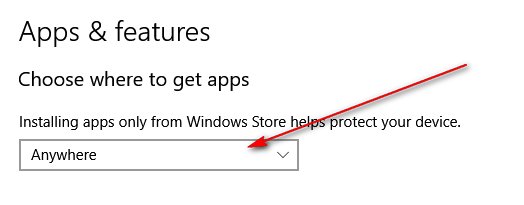
To change app recommendation settings in Windows 10, open Start > Settings > Apps > Apps & features and pick an option under Choose where to get apps.
This guide explains each option, how to turn recommendations off, where the setting lives in Windows 11, how to quiet app notifications and Windows tips, and what to do when the setting is missing.
How to change app recommendation settings in Windows 10
App recommendations are the prompts Windows shows when you install an app from outside the Microsoft Store. The Choose where to get apps setting decides whether you see them, get a warning, or can install from the Store only.
- Select Start, then select Settings.
- Select Apps.
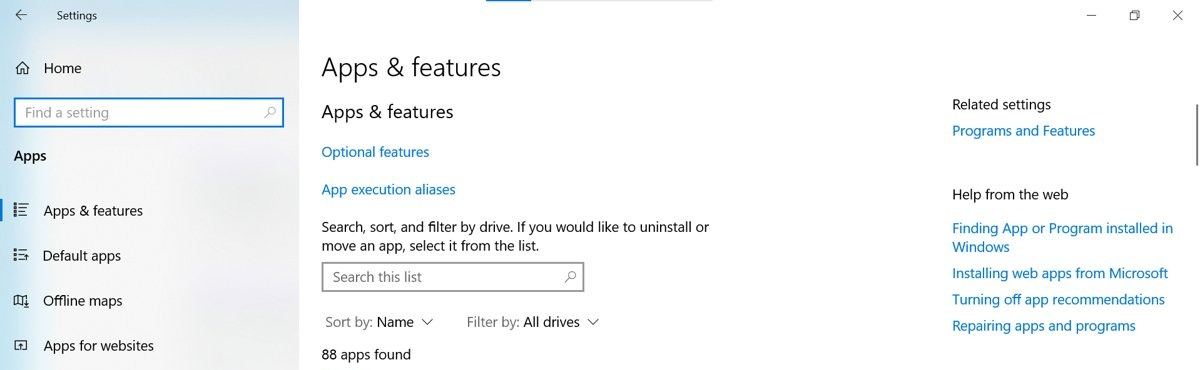
- Select Apps & features in the left pane.
- Find Choose where to get apps at the top of the page.
- Open the drop-down menu and select the option you want.
- Close Settings and run the app installer again.
The option names vary between Windows 10 versions. The next section explains what each one does.
Choose where to get apps options in Windows 10 explained
Microsoft recommends installing apps only from the Microsoft Store to help protect your PC and keep it running smoothly. Each option trades some of that protection for freedom to install desktop apps from other sources.
| Option | What happens when you install an app from outside the Store | Recommendations shown? |
|---|---|---|
| Anywhere (Allow apps from anywhere on some versions) | The app installs with no prompt | No |
| Turn off app recommendations (some Windows 10 versions) | The app installs without a suggestion to use the Store | No |
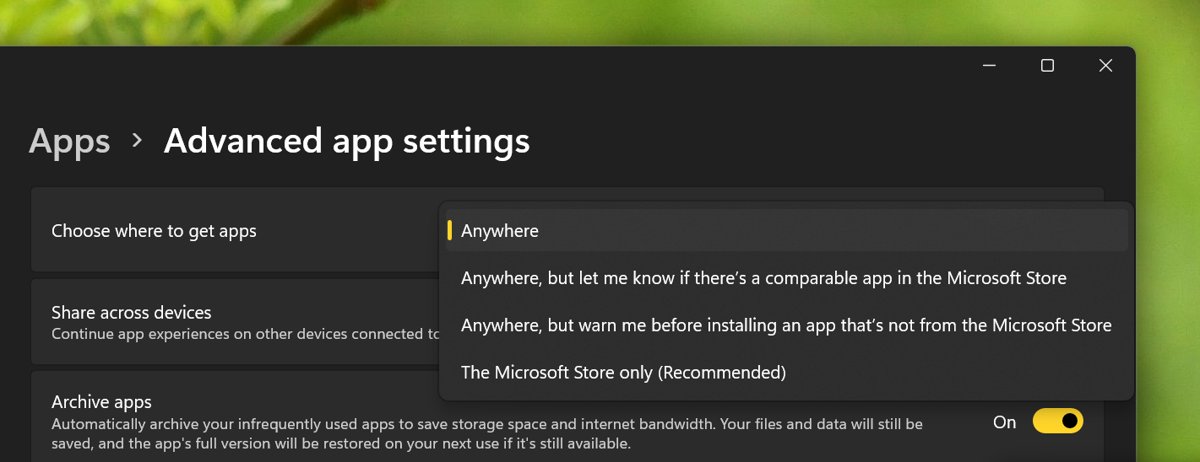
| Anywhere, but let me know if there's a comparable app in the Microsoft Store | Windows points out a similar Store app before you continue | Yes |
| Anywhere, but warn me before installing an app that's not from the Microsoft Store | Windows warns you first, without suggesting a Store app | No |
| The Microsoft Store only (Recommended) | Apps from other sources are blocked; only Store apps install | No |
How to turn off app recommendations in Windows 10
To stop the Store suggestions but keep installing desktop apps freely, pick an option that allows apps from anywhere.
- Open Start > Settings > Apps > Apps & features.
- Open the Choose where to get apps drop-down.
- Select Anywhere or Allow apps from anywhere, whichever your version lists. On versions that list it, Turn off app recommendations also works.
- Run the installer you downloaded from the developer's own website again.
To keep a safety prompt without the Store suggestion, select Anywhere, but warn me before installing an app that's not from the Microsoft Store instead.
Where is app recommendation settings in Windows 11 and Windows 10
Windows 11 moved the setting out of the installed apps list into its own page, which is the most common reason people cannot find it after upgrading.
| Windows version | Path | Setting name |
|---|---|---|
| Windows 10 | Start > Settings > Apps > Apps & features | Choose where to get apps |
| Windows 11 | Start > Settings > Apps > Advanced app settings | Choose where to get apps |
Change app recommendation settings in Windows 11
- Select Start, then select Settings.
- Select Apps, then select Advanced app settings.
- Next to Choose where to get apps, open the drop-down menu.
- Select Anywhere, but let me know if there's a comparable app in the Microsoft Store to see recommendations.
- Select Anywhere to stop seeing app recommendations.
Windows 11 also offers Anywhere, but warn me before installing an app that's not from the Microsoft Store and The Microsoft Store only (Recommended), with the same behaviour as in Windows 10.
How to turn off app notifications in Windows 10
If the recommendations you want gone are pop-ups from apps rather than install prompts, change them in the Windows notification settings.
- Open Start > Settings > System.
- Select Notifications & actions.
- To silence every app, turn off Get notifications from apps and other senders.
- To silence one app, find it under Get notifications from these senders.
- Turn that app's switch off, or select the app to change how its notifications appear.
How to turn off tips and suggestions in Windows 11
Windows 11 shows tips, suggested content and personalised recommendations in several places. Each one has its own switch.
- Open Start > Settings > System > Notifications.
- Expand Additional settings and clear Get tips and suggestions when using Windows.
- Clear Show the Windows welcome experience after updates and when signed in to show what's new and suggested as well, if you want.
- Go to Privacy & security > Recommendations & offers and turn off Show me suggested content in the Settings app.
- In Privacy & security > Personalized offers, turn off Get personalized tips, ads, and recommendations based on my Windows activity.
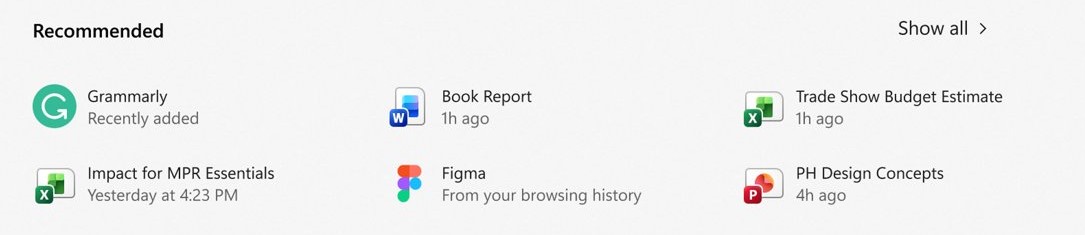
To trim suggestions in the Start menu itself, open Start settings by right-clicking the bottom of the Start menu, and turn off the providers you do not want in Recommended.
Tips for changing app recommendation settings in Windows 10
| Tip | Why it matters |
|---|---|
| Pick the warning option rather than plain Anywhere on a shared PC | Other users get a prompt before installing an app from outside the Store |
| Use The Microsoft Store only on a child's or relative's PC | Only Store apps can install, which blocks unknown downloads |
| Download desktop apps only from the developer's official website | Allowing apps from anywhere removes the Store's checks |
| Switch back after a one-off install if you prefer Store only | The same drop-down returns the PC to Store-only installs |
| Silence noisy apps under Notifications & actions instead | App pop-ups and install recommendations are separate settings |
How to see your Choose where to get apps setting in Windows 10
- Open Start > Settings > Apps > Apps & features.
- Read the option shown in the Choose where to get apps drop-down; that is the active setting.
- Run an installer from outside the Store. With Anywhere, it starts with no Store prompt; with the recommendation option, Windows suggests a comparable Store app first.
How to reset app recommendation settings in Windows 10
There is no reset button for this setting. Pick the option you want again, or choose Microsoft's recommended option.
- Open Start > Settings > Apps > Apps & features.
- Open the Choose where to get apps drop-down.
- Select The Microsoft Store only (Recommended) for Microsoft's recommended setting, or the recommendation option to see Store suggestions again.
App recommendation settings not showing in Windows 10
Can't find app recommendation settings
The PC runs Windows 11, where the setting moved to Advanced app settings.
- Select Start, then select Settings.
- On Windows 11, select Apps > Advanced app settings.
- On Windows 10, select Apps > Apps & features and look at the top of the page.
Only Microsoft Store apps can be installed
Windows 10 in S mode runs only apps from Microsoft Store.
- Open Settings > Update & Security > Activation.
- Under Switch to Windows 10 Home or Switch to Windows 10 Pro, select Go to the Store. Do not use the link under Upgrade your edition of Windows.
- On the Switch out of S mode page in Microsoft Store, select Get and confirm.
- Note that switching out of S mode is free but one-way; you cannot turn S mode back on.
Windows 10 app recommendation settings FAQ
Why would I want to change app recommendation settings?
Change them to stop Windows suggesting Store apps when you install desktop software, to get a warning before outside installs, or to lock a PC to Microsoft Store apps only for extra protection.
Can I turn off recommendations for specific apps?
No. Choose where to get apps applies to every app you install from outside the Microsoft Store. You can, however, turn off notifications for individual apps under Settings > System > Notifications & actions.
Will changing these settings improve system performance?
No, the setting only controls where apps can come from and which prompt you see. Microsoft recommends Store-only installs to help keep a PC protected and running smoothly, so fewer unknown apps is the indirect benefit.
How do I revert to the default settings?
Open Settings > Apps > Apps & features and select the option you want under Choose where to get apps. Microsoft's recommended choice is The Microsoft Store only (Recommended).
Are there other customization options in the Settings app?
Yes. Settings also controls notifications, Start, display resolution and scaling, default apps, privacy and network options such as custom DNS servers.
Where is app recommendation settings?
In Windows 10 it is under Settings > Apps > Apps & features > Choose where to get apps. In Windows 11 it is under Settings > Apps > Advanced app settings > Choose where to get apps.
Why can't I find app recommendation settings?
Usually because the PC runs Windows 11, which moved it to Advanced app settings. In S mode, Windows runs only Microsoft Store apps until you switch out of S mode.
How do I change app recommendation settings on an HP laptop?
Use the same Windows steps as on any PC. Open Settings > Apps > Apps & features on Windows 10, or Settings > Apps > Advanced app settings on Windows 11, then pick an option under Choose where to get apps.
How do I turn off app recommendation settings in Windows 11?
Open Settings > Apps > Advanced app settings, then select Anywhere next to Choose where to get apps. Windows stops suggesting comparable Microsoft Store apps when you install other software.