No, an iPhone 5s can't update to iOS 14.5, because Apple released iOS 14 only for iPhone 6s and later; the newest software for an iPhone 5s is iOS 12.5.8, installed from Settings > General > Software Update.
This guide covers that update, updating from a Mac or Windows PC, restoring an iPhone 5s, and what to do when the update will not install.
How to update iPhone 5s to iOS 12.5.8 in Settings
Apple released iOS 12.5.8 for iPhone 5s on 26 January 2026. An update keeps your data and settings, but back up the iPhone to iCloud or iTunes first in case the install fails.
- Back up the iPhone 5s to iCloud or to your computer.
- Plug the iPhone into power and connect to a Wi-Fi network.
- Open Settings and tap General.
- Tap Software Update to see the installed iOS version and any available update.
- Tap Download and Install if an update is listed, then follow the onscreen instructions.
- Enter your passcode when asked and leave the iPhone on power until it restarts.
If the screen says your software is up to date and shows iOS 12.5.8, the iPhone 5s already has the last update Apple offers for it.
Can iPhone 5s update to iOS 14 or iOS 15?
No. Apple's iOS 13 release dropped the iPhone 5s, and iOS 14 arrived as a free update for iPhone 6s and later only. The iPhone 5s stays on the iOS 12 line.
| iOS version | Available for iPhone 5s? | Oldest iPhone that can run it |
|---|---|---|
| iOS 12 (latest iOS 12.5.8) | Yes | iPhone 5s |
| iOS 13 | No | iPhone 6s and iPhone SE (1st generation) |
| iOS 14, including iOS 14.5 | No | iPhone 6s |
| iOS 15 | No | iPhone 6s and iPhone SE (1st generation) |
| iOS 16 | No | iPhone 8 and iPhone SE (2nd generation) |
| iOS 17 | No | iPhone XS |
There is no Apple-supported way to install iOS 14.5 on an iPhone 5s. To run apps that need iOS 14 or later, you need a newer iPhone, and you can move your data to a new iPhone once you have one.
iPhone 5s last update and iOS version by older iPhone model
| iPhone model | Last iOS line | Latest release listed by Apple |
|---|---|---|
| iPhone 5 | iOS 10 | iOS 10.3.4 |
| iPhone 5s | iOS 12 | iOS 12.5.8 (26 January 2026) |
| iPhone 6 and iPhone 6 Plus | iOS 12 | iOS 12.5.8 (26 January 2026) |
| iPhone 6s, iPhone 7 and iPhone SE (1st generation) | iOS 15 | iOS 15.8.8 (11 May 2026) |
Apple lists no published CVE entries for iOS 12.5.8, so the release notes do not say what it changes. Install it anyway, because it is the newest software Apple ships for the iPhone 5s.
iPhone 5s model number and how to identify it
Check the model before you look for an update, because an iPhone 6s looks similar but can run iOS 15.
| Detail | iPhone 5s |
|---|---|
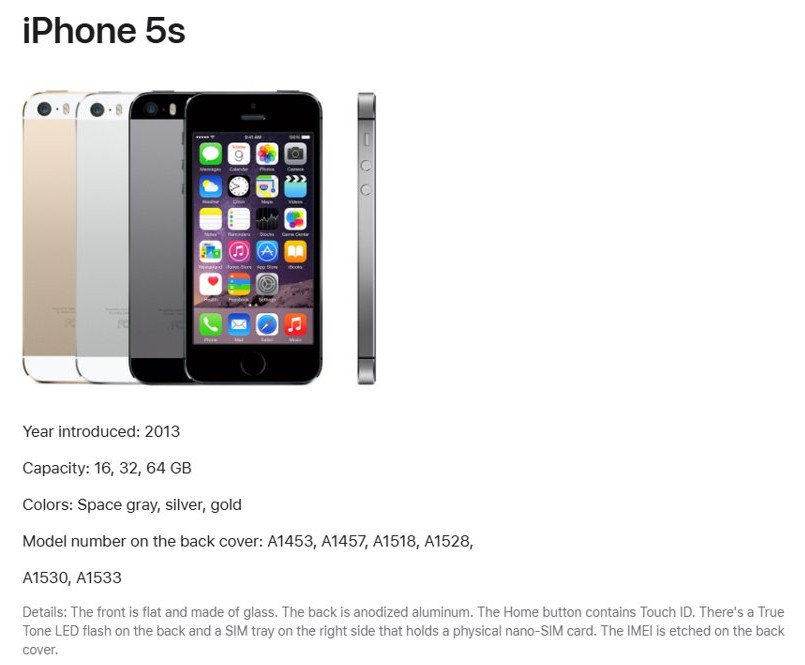
| Model numbers on the back cover | A1453, A1457, A1518, A1528, A1530, A1533 |
| Year introduced | 2013 |
| Capacity | 16, 32 or 64 GB |
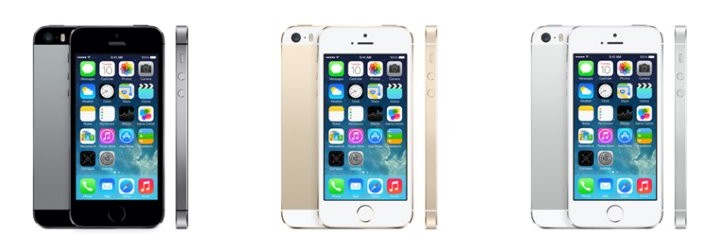
| Colors | Space gray, silver, gold |
| Physical details | Flat glass front, anodized aluminum back, Touch ID in the Home button, True Tone LED flash, nano-SIM tray on the right side |
You can also open Settings > General > About to see the model and the installed iOS version.
Update iPhone 5s from a Mac with the Finder
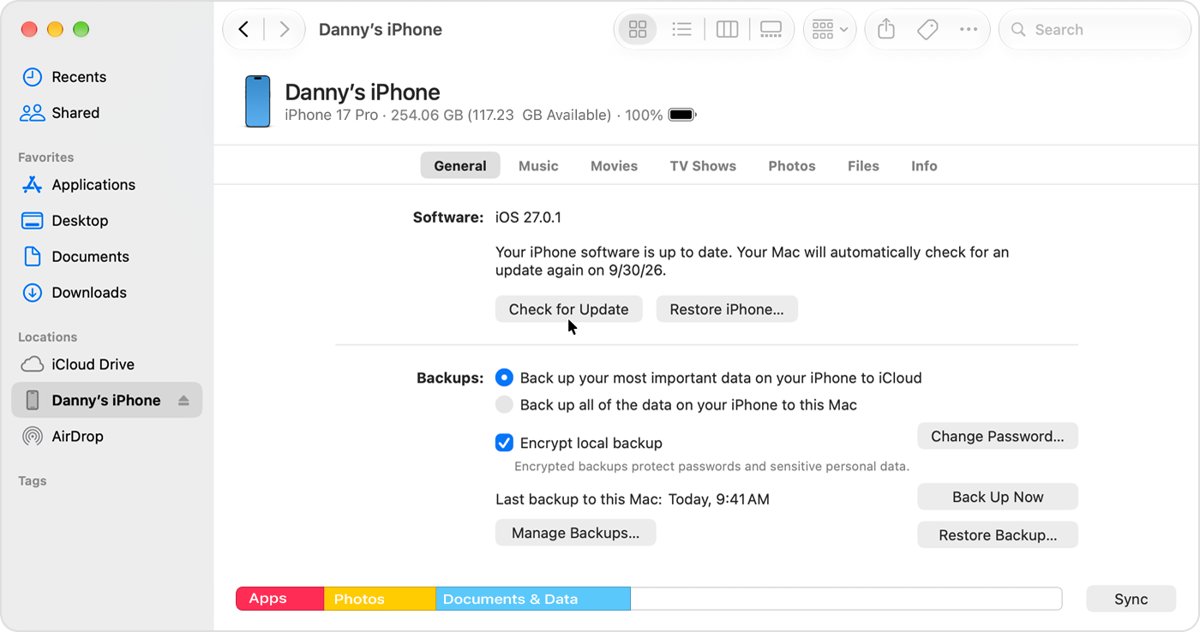
Use this on a Mac with macOS Catalina or later when the update does not appear on the iPhone itself.
- Back up the iPhone 5s to iCloud or to the Mac.
- Open a Finder window on the Mac.
- Connect the iPhone 5s to the Mac with a USB cable.
- Select the iPhone in the Finder sidebar.
- Click General, then click Check for Update.
- Click Download and Update and follow the onscreen instructions.
- Enter your passcode on the iPhone when asked.
If the Mac uses Personal Hotspot from the iPhone you are updating, connect the Mac to a different Wi-Fi or Ethernet network first.
Update iPhone 5s from a computer with iTunes
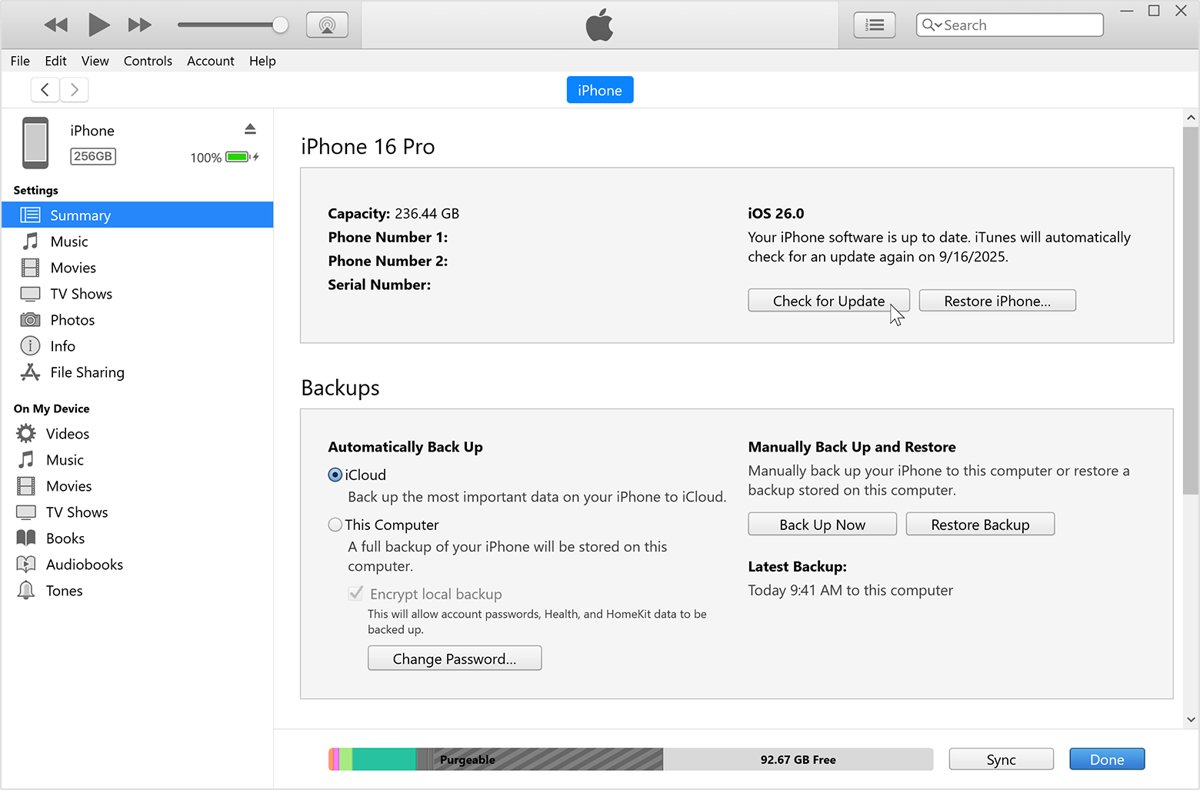
Use iTunes on a Windows PC or on a Mac with macOS Mojave or earlier.
- Open iTunes on the computer.
- Connect the iPhone 5s with a USB cable.
- Click the device button in the iTunes toolbar.
- Click the Summary tab.
- Click Check for Update, then click Download and Update.
- Follow the onscreen instructions and enter your passcode if asked.
Update iPhone 5s on Windows with the Apple Devices app
- Connect the iPhone 5s to the Windows PC with a USB cable.
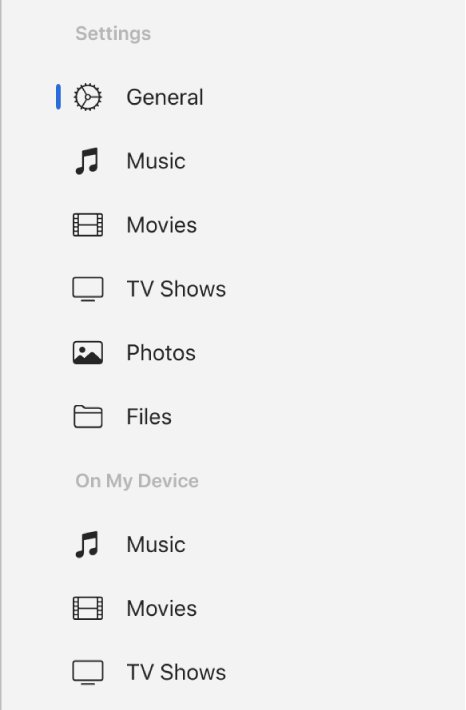
- Open the Apple Devices app and select the iPhone in the sidebar.
- Select General in the sidebar.
- Select Check for Update if the Update button is not shown yet.
- Select Update and wait for the iPhone to restart.
How to restore iPhone 5s with recovery mode
Restore when the iPhone 5s shows the Apple logo for several minutes with no progress bar, shows the Connect to computer screen, or the computer does not recognize it. Restore reinstalls iOS and erases all data, so try an update first.
- Update the Mac, or install the latest Apple Devices app on a Windows PC.
- Connect the iPhone 5s to the computer with a USB cable.
- Open the Finder on the Mac, or the Apple Devices app on the PC.
- Press and hold the Home button and the top (or side) button at the same time.
- Keep holding both buttons until the Connect to computer screen appears.
- Choose Update when the computer offers Update or Restore. Choose Restore only if the update fails.
- Wait for the computer to download the software, then set up the iPhone.
If the download takes more than 15 minutes, the iPhone may leave the Connect to computer screen. Let the download finish, then put the iPhone into recovery mode again.
Which iOS version is my iPhone 5s running?
- Open Settings.
- Tap General, then tap About.
- Read the number next to Software Version.
- Open General > Software Update to see whether a newer version is waiting.
On an iPhone 5s, 12.5.8 is the highest number you will see. A different 12.5 number means an update is still available.
Turn on automatic updates on iPhone 5s
On iOS 12, automatic updates install wirelessly and notify you before the update happens.
- Open Settings and tap General.
- Tap Software Update.
- Tap Automatic Updates.
- Turn on Automatic Updates.
iPhone 5s software update not working
iPhone 5s says it is up to date but iOS 14.5 never appears
iOS 14 is not available for the iPhone 5s, so Software Update never offers it.
- Open Settings > General > About and confirm the model is an iPhone 5s.
- Check that Software Version reads 12.5.8.
- If it does, no further iOS update exists for this iPhone.
Not enough storage to download the iPhone 5s update
The update needs free space on the iPhone to download and install.
- Tap Continue if a message asks to remove apps temporarily; they reinstall after the update.
- Or open Settings > General > iPhone Storage and enable Offload Unused Apps.
- Delete apps or media you no longer need, then try Software Update again.
"Unable to Check for Update" or "Unable to Download" on iPhone 5s
The iPhone cannot reach Apple's update server, often because of the network, a VPN or a proxy.
- Connect to a Wi-Fi network instead of cellular data.
- Turn off any VPN or proxy on the iPhone.
- Try the update again on the same network, then on a different one.
- If it still fails, update with the Finder, iTunes or the Apple Devices app.
iPhone 5s update stuck or will not finish
The install was interrupted or the downloaded update is damaged.
- Keep the iPhone connected to power while it installs.
- Open Settings > General > iPhone Storage, select the update, and delete it.
- Go back to Software Update and download it again.
- If the iPhone is stuck on the Apple logo, use iPhone recovery mode from a computer.
Computer does not see the iPhone 5s
The computer software is out of date, or the iPhone is stuck in a state the computer cannot read.
- Update the Mac, or install the latest Apple Devices app or update iTunes on the Windows PC.
- Reconnect the iPhone with the USB cable and open the Finder, iTunes or the Apple Devices app again.
- If the iPhone still does not appear, put it into recovery mode and choose Update.
iPhone 5s iOS update FAQ
How do I update my iPhone 5s to iOS 15?
You can't. iOS 15 runs on iPhone 6s and iPhone SE (1st generation) and later, and the iPhone 5s is not on the list. The newest version an iPhone 5s can install is iOS 12.5.8, from Settings > General > Software Update.
What is the last update for iPhone 5s?
The last update for iPhone 5s is iOS 12.5.8, released on 26 January 2026. Apple released it for iPhone 5s, iPhone 6, iPhone 6 Plus, iPad Air, iPad mini 2, iPad mini 3 and iPod touch (6th generation).
Is iPhone 5s still supported?
Apple still shipped iOS 12.5.8 for the iPhone 5s in January 2026, but the phone cannot run iOS 13 or later. Apps that require iOS 13 or newer will not install, so newer features and many current apps are out of reach.
Can I update an iPhone 5s from a computer?
Yes. Connect the iPhone 5s to a Mac and use the Finder, use iTunes on Windows or macOS Mojave, or use the Apple Devices app on Windows. Choose Check for Update, then Download and Update. The computer installs the same iOS 12.5.8.
Does iPhone 5s support 5G?
No. The iPhone 5s supports LTE, 3G networks such as UMTS/HSPA+ and GSM/EDGE, depending on the model number. It has no 5G radio, and no software update can add 5G.
Can iPhone 5 be updated?
Yes, but only to iOS 10.3.4. An iPhone 5 needs that update for accurate GPS and for the App Store, iCloud, email and web browsing. If it was not updated before 3 November 2019, back it up and restore it with a Mac or PC.
How do I update my iPhone 5 to iOS 12?
You can't. iOS 12 starts at the iPhone 5s, so the iPhone 5 stops at iOS 10.3.4. Install iOS 10.3.4 from Settings > General > Software Update, or from a computer if the wireless update no longer works.
How do I update my iPhone 5c to iOS 14?
You can't. iOS 14 was released only for iPhone 6s and later, and the iPhone 5c is not even on the iOS 12 compatibility list. Check Settings > General > Software Update for the latest version your iPhone 5c accepts.
How do I update iPhone 6s to iOS 16 or iOS 17?
You can't. iOS 16 starts at the iPhone 8 and iOS 17 at the iPhone XS. An iPhone 6s stays on iOS 15, and you can update an iPhone 6s to iOS 15 from Settings, where the latest release is iOS 15.8.8.
Does updating iPhone 5s erase my data?
No. Updating iOS keeps your data and settings. Restoring in recovery mode is different: Restore reinstalls iOS and erases everything, so back up first and choose Update before Restore when the computer offers both.