To change the view in File Explorer on Windows 11, select View on the command bar and pick a layout such as Details or Large icons; to change where it opens, set Open File Explorer to in Options.
This guide covers both defaults, the view keyboard shortcuts, the Show options that change what every folder displays, File Explorer Home settings and the default app that opens your files.
Changing default view in File Explorer Windows 11
Windows 11 has two things people call the default view: the layout of the files in a folder, and the page File Explorer opens on. These steps change both.
- Press Windows key + E to open File Explorer.
- Open the folder whose layout you want to change.
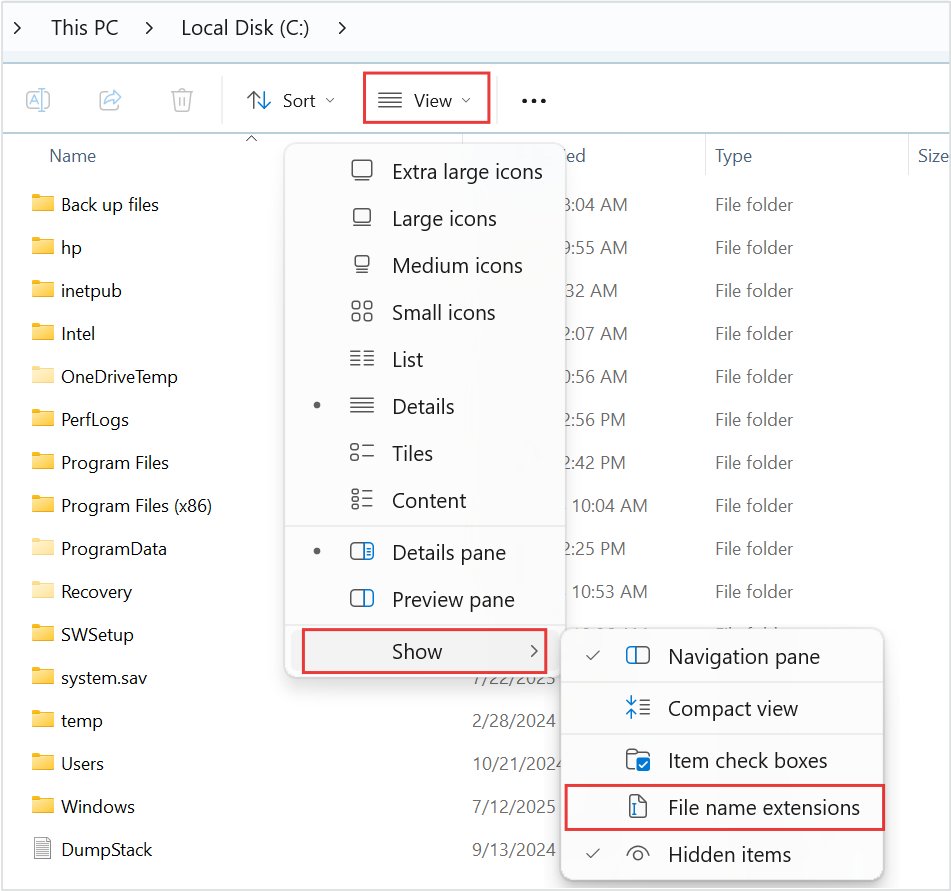
- Select View on the command bar.
- Choose a layout, such as Details, List or Large icons.
- Select View > Compact view if you want less space between files.
- To change the start page, select See more (the three dots), then Options.
- On the General tab, set Open File Explorer to to This PC or Home, then select Apply and OK.
You can also open File Explorer on Windows 11 from the taskbar or the Start menu before you start.
File Explorer default view: Home or This PC
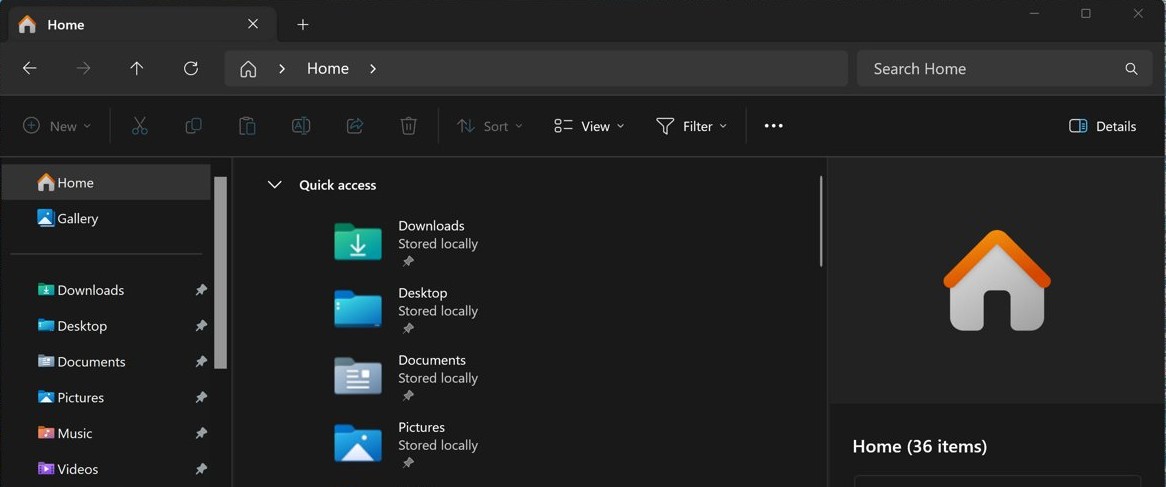
Since Windows 11 version 22H2, File Explorer opens to Home, which used to be called Quick access. Pick the start page that matches how you work.
| What you want first | Open File Explorer to | What you see |
|---|---|---|
| Recent and pinned files, including Office.com files | Home | Quick access folders, favorites and recent files |
| Fast search across your PC and the cloud | Home | Search from Home returns results from both |
| Drives, USB sticks and network locations | This PC | Drives and network locations only |
| A thorough search of everything on the PC | This PC | Search from This PC is slower but goes deeper |
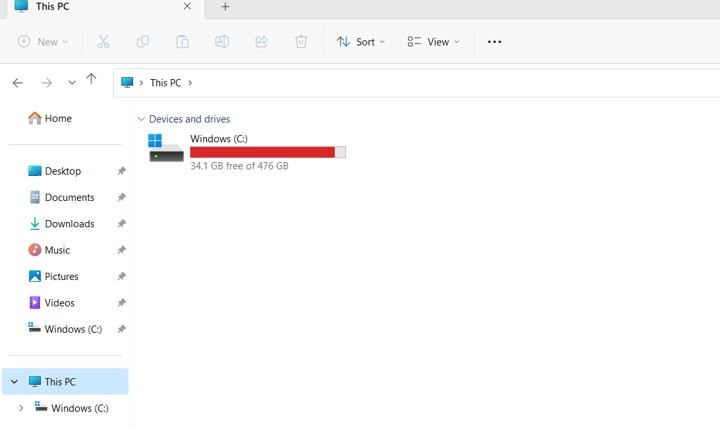
Desktop, Documents, Downloads, Pictures, Music and Videos no longer show under This PC in version 22H2 and later. They sit in Quick access on Home and in the navigation pane instead.
How to change Windows Explorer default view to This PC
Microsoft recommends Home, but This PC is one setting away. The change applies to every new File Explorer window.
- Open File Explorer.
- Select See more (the three dots) on the command bar.
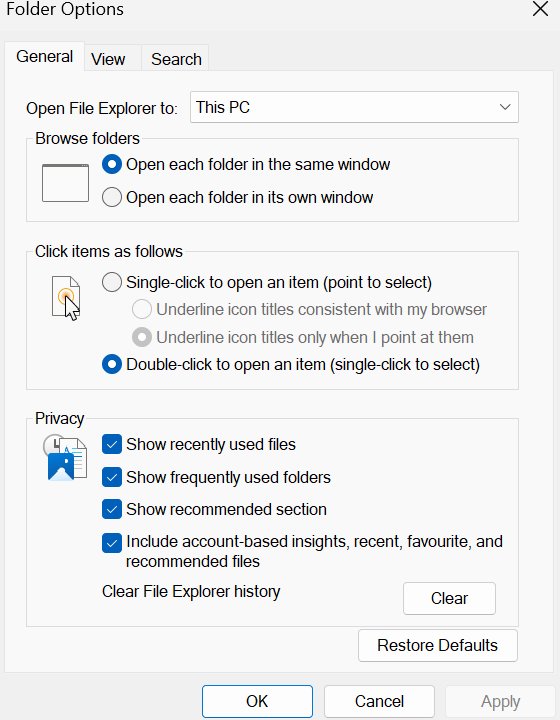
- Select Options to open Folder Options.
- On the General tab, open the Open File Explorer to list.
- Select This PC.
- Select Apply, then OK.
To go back, repeat the steps and choose Home in the same list.
File Explorer view shortcuts in Windows 11
Keyboard shortcuts switch the layout of the open folder without the View menu.
| Press | What it does |
|---|---|
| Ctrl + Shift + 2 | Switches to Large icons |
| Ctrl + Shift + 6 | Switches to Details |
| Ctrl + Shift + 1 to 9 | Steps through the other view styles |
| Ctrl + mouse scroll wheel | Makes file and folder icons bigger or smaller |
| Ctrl + Plus (+) on the numeric keypad | Resizes every column in Details to fit its text |
| Alt + P | Shows or hides the preview pane |
| Alt + Shift + P | Shows or hides the details pane |
| Windows key + E | Opens a new File Explorer window |
How to set default file view options in File Explorer
The Show menu changes what File Explorer displays in every folder, not just the open one. Turn on extensions before you change a file type or extension.
- Open File Explorer from the taskbar.
- Select View > Show.
- Select File name extensions to show endings such as .docx and .jpg.
- Select Hidden items to show hidden files and folders.
- Select Item check boxes to add a check box next to each file for selecting.
- Select Navigation pane if the left pane is missing.
- Select Details pane or Preview pane to show file details or a preview on the right.
Select the same item again to turn it off.
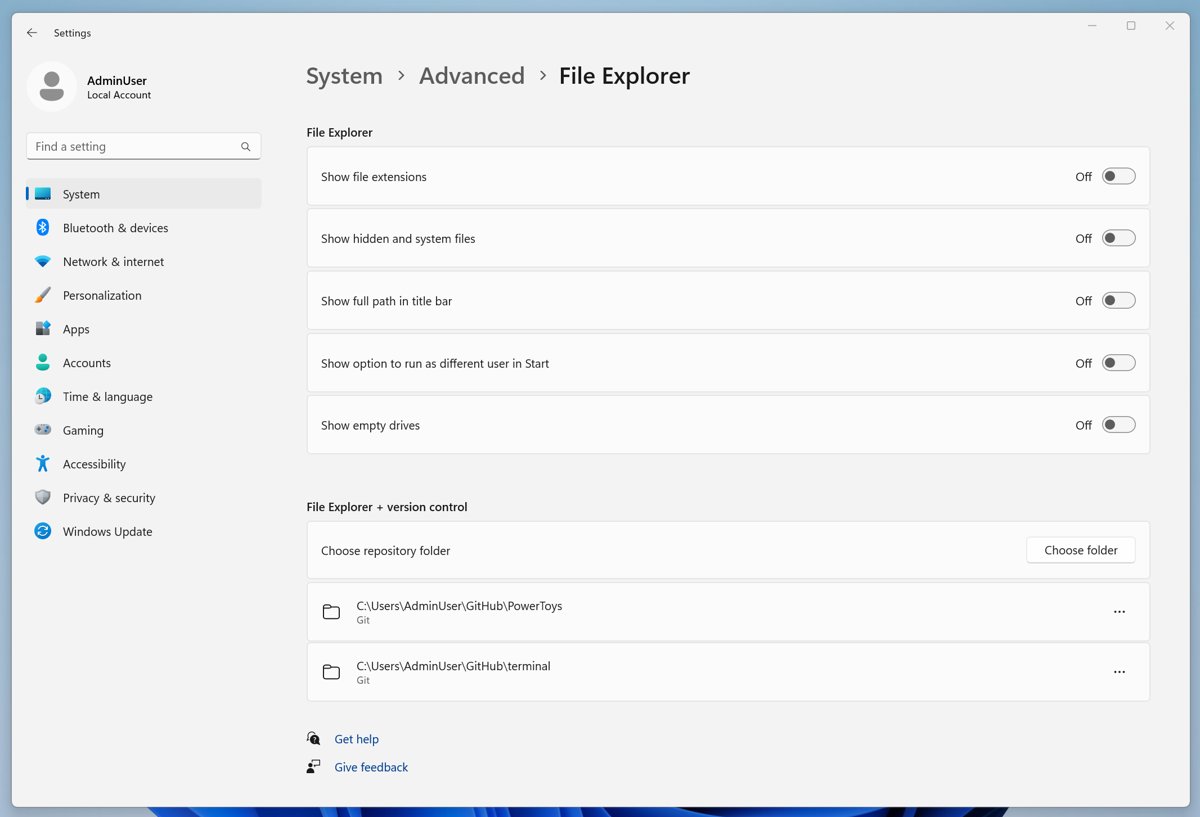
File Explorer settings in Windows 11 Settings app
Windows 11 also puts some File Explorer view options in Settings. In version 25H2 and later, the old For developers page is now Advanced.
- Open Settings and select System > Advanced.
- Expand File Explorer.
- Turn on Show file extensions to show extensions in every folder.
- Turn on Show hidden and system files to see hidden and protected files.
- Turn on Show full path in title bar to see the folder path at the top of the window.
- Turn on Show empty drives to list drives with nothing on them.
On a work or school PC, these toggles can be greyed out by your organization's policy.
How to change what File Explorer Home shows
If you keep Home as the default view, you can still control what appears on it.
- Select See more > Options in File Explorer.
- On the General tab, find Privacy.
- Clear Include account-based insights, recent, favorite, and recommended files to keep Microsoft365.com files off Home.
- Select Apply, then OK.
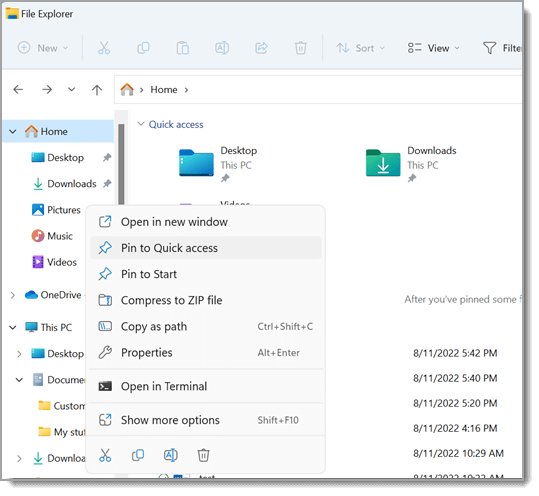
- To pin a folder to Home, right-click it and select Pin to Quick access.
- To remove one, right-click it and select Unpin from Quick access.
How to change default file viewer in Windows 11
Some people searching for the default view want the default app that opens a file, such as the default PDF or photo viewer. That lives in Settings, not File Explorer.
- Open Settings and select Apps > Default apps.
- In the search bar, type the file extension, such as .pdf or .jpg.
- Select the result for that extension.
- Choose the app you want to open files of that type.
- To change several types at once, select the app under Set defaults for applications and pick each file type.
How to check File Explorer opens to This PC
A fresh window shows whether the start page setting took.
- Close every File Explorer window.
- Press Windows key + E.
- Look at the main pane: This PC lists your drives and network locations.
- If Home still opens, repeat the Open File Explorer to steps and select Apply before OK.
File Explorer view options missing in Windows 11
Why can't I find the Options menu?
Windows 11 replaced the ribbon's Options button with the See more menu.
- Select See more, the three dots at the end of the command bar.
- Select Options at the bottom of the menu.
Navigation pane is missing
The left pane was hidden from the Show menu.
- Select View on the command bar.
- Select Show, then Navigation pane.
Documents, Downloads and Pictures are missing from This PC
Windows 11 version 22H2 moved the known folders to Quick access.
- Select Home in the navigation pane.
- Select the Up arrow to the left of the address bar to see all six known folders.
- Right-click the folder you want back and select Pin to Quick access.
Settings toggles for File Explorer are greyed out
An organization policy controls them on a managed PC.
- Use View > Show in File Explorer for the same options.
- Ask your IT administrator if the File Explorer options are locked there too.
Tips for changing default view in File Explorer Windows 11
A few habits make a custom view easier to keep.
| Tip | Why it helps |
|---|---|
| Use Details for folders full of documents | Columns show the date and size of each file at a glance |
| Use Large icons for photo folders | Thumbnails are big enough to tell pictures apart |
| Turn on Compact view on small screens | Less space between files fits more on the screen |
| Learn Ctrl + Shift + 6 and Ctrl + Shift + 2 | You can switch between Details and Large icons without menus |
| Pick This PC if you mostly use USB drives | Drives and network locations appear first |
| Keep Home if you work from Office.com files | Recent and favorite cloud files show on the start page |
The File Explorer basics in Windows 11, such as tabs and search, work the same in every view.
File Explorer default view FAQ
How do I change the default view in File Explorer?
Open the folder, select View on the command bar and pick a layout such as Details, List or Large icons. To change the page File Explorer opens on, select See more, then Options, and set Open File Explorer to This PC or Home.
How do I change Windows Explorer default view to This PC?
Select See more (the three dots) in File Explorer, then Options. On the General tab, set Open File Explorer to This PC, then select Apply and OK. New windows then open on your drives instead of Home.
Why can't I find the Options menu in File Explorer?
Windows 11 moved it into the See more menu, shown as three dots at the end of the command bar. Select See more, then Options, to open Folder Options.
How do I set a default file view for every folder?
Use View > Show to turn on file name extensions, hidden items, item check boxes or the navigation pane; those apply in every folder. Settings > System > Advanced has the same extension and hidden file switches.
How do I make icons bigger in File Explorer?
Hold Ctrl and turn the mouse scroll wheel, or press Ctrl + Shift + 2 for Large icons. You can also select View on the command bar and choose a larger icon size from the list of layouts.
How do I reduce the space between files in File Explorer?
Select View on the command bar, then Compact view. The setting tightens the spacing between files and folders so more items fit on the screen, which helps most on laptops and small displays.
Is there a way to quickly access File Explorer?
Yes. Press Windows key + E to open a new File Explorer window from anywhere. You can also select File Explorer on the taskbar or in the Start menu.
How do I change the default file viewer in Windows 11?
Open Settings > Apps > Default apps, type the file extension such as .pdf or .jpg in the search bar, select it and choose the app you want. That changes the default PDF viewer or photo viewer for those files.
How do I set the default view back to Home?
Select See more, then Options in File Explorer. On the General tab, set Open File Explorer to Home, then select Apply and OK. Home is the start page Windows 11 uses out of the box.