Most MacBook owners do not need a screen protector, and anything you stick on the display must be no thicker than about 0.1 mm, because Apple builds the gap between the screen and keyboard to very tight tolerances.
This guide covers what Apple says about covers on a MacBook display, how matte, clear and privacy protectors compare, how to fit one safely on a MacBook Air, MacBook Pro or MacBook Neo, and how to keep the screen clean without one.
Should I put a screen protector on my MacBook?
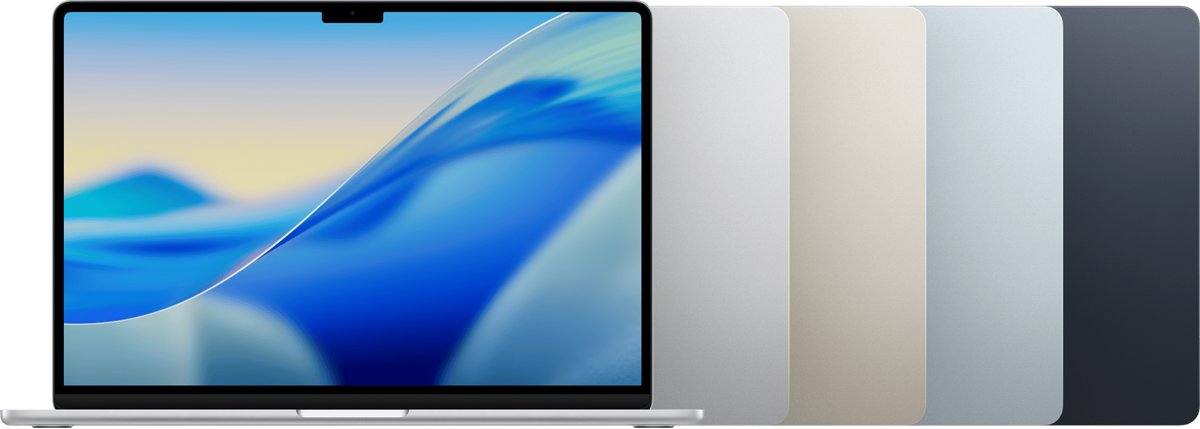
Skip the screen protector on a MacBook unless you have a specific need such as privacy in public or glare under office lights, and if you do use one, pick a film no thicker than a sheet of printer paper (0.1 mm) or a removable filter you take off before closing the lid. Apple warns that closing a Mac laptop with a cover on the display area might damage the screen, because the clearance between the display and the keyboard is designed to very tight tolerances. A MacBook screen faces the keyboard when closed, so it is not exposed to keys and pockets the way a phone screen is.
The main risk to a MacBook display is not scratches from daily use. It is pressure on the glass when something sits between the screen and the keys as the lid shuts.
Does Apple recommend screen protectors for MacBook?
Apple does not publish a screen protector recommendation for MacBook. Its guidance on anything placed on the display comes from its camera cover article, and the same physics applies to a film over the whole screen.
| Apple guidance | What it means for a screen protector |
|---|---|
| Closing a Mac laptop with a camera cover on it might damage the display | Any layer between the screen and keyboard adds pressure when the lid shuts |
| The display-to-keyboard clearance is designed to very tight tolerances | There is almost no spare room for a thick tempered glass protector |
| A cover should be no thicker than an average piece of printer paper (0.1 mm) | Use 0.1 mm as the ceiling for any film that stays on when the lid closes |
| Remove a cover thicker than 0.1 mm before closing the computer | Thicker privacy or anti-glare filters must come off every time you close the lid |
| Avoid covers that leave adhesive residue | Prefer films that peel off cleanly, so removal does not mean scrubbing the screen |
| Covering the camera might stop automatic brightness and True Tone from working | Keep any protector clear of the camera housing at the top of the display |
MacBook matte, clear and privacy screen protector types
Each type solves a different problem, and each one has to pass the same 0.1 mm test before you can close the lid with it on.
| Your situation | Type to consider | What to check before buying |
|---|---|---|
| You only want to keep the screen free of scratches and smudges | No protector, or a thin clear film | Thickness at or under 0.1 mm and clean removal |
| Overhead lights or windows reflect on the screen | Matte (anti-glare) film, or a nano-texture MacBook Pro instead | Thickness, and whether it stays on when the lid is closed |
| People sit beside you on trains, planes or in open offices | Removable privacy filter (magnetic or clip-on) | Take it off before closing the lid if it is thicker than 0.1 mm |
| Your MacBook Pro has the nano-texture display | No protector | A film covers the nano-texture glass you paid for |
Closing a MacBook with a screen protector or camera cover
The camera sits in the display bezel or notch at the top of the screen, which is the part that meets the keyboard area when the lid shuts.
| What is on the display | Safe to close the lid? | Why |
|---|---|---|
| Nothing | Yes | This is how Apple designs the display and keyboard gap |
| Film 0.1 mm thick or thinner, no raised edges | Within Apple's camera cover limit | It is no thicker than a sheet of printer paper |
| Tempered glass protector | No, unless its stated thickness is 0.1 mm or less | Glass adds more thickness than a thin film, and Apple sets 0.1 mm as the limit |
| Magnetic or clip-on privacy filter | No, remove it first | The filter and any tabs or magnets sit between the screen and keys |
| Plastic camera slider | Only if 0.1 mm or thinner | Apple says to remove thicker covers before closing the computer |

How to find your MacBook model and screen size for a screen protector
Screen protectors are cut for a specific model and display size, and MacBook models that look alike, such as the MacBook Air and MacBook Pro, use different screen sizes.
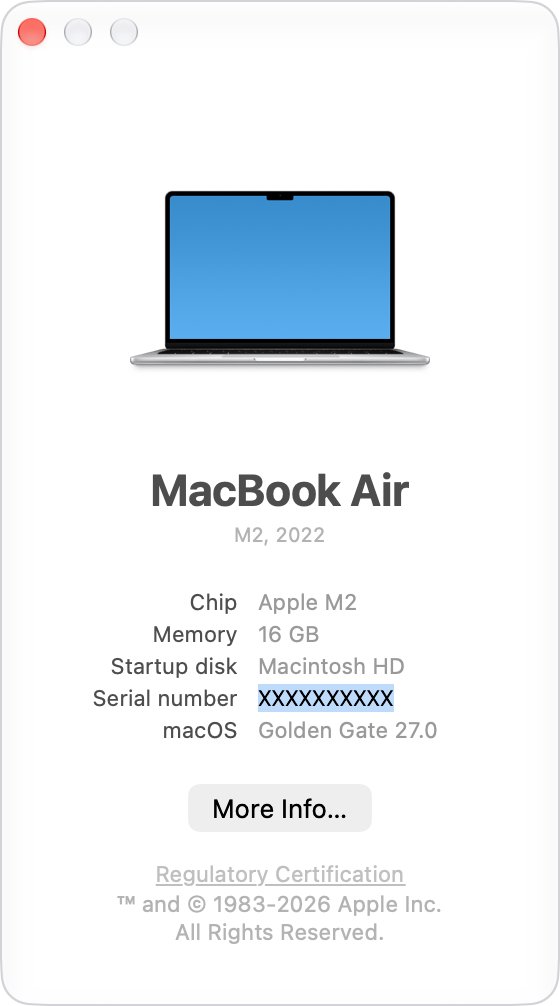
- Click the Apple menu in the top-left corner of the screen.
- Choose About This Mac.
- Read the model name at the top, for example MacBook Air (15-inch, M5), which includes the screen size.
- Note the full name, including the chip and year, because a protector cut for an older model can sit over the camera notch.
- Compare that name with the model list on the protector's packaging or product page before buying.
Current display sizes include the 13.0-inch MacBook Neo, the 13.6-inch MacBook Air and the 14.2-inch MacBook Pro, so a "13-inch" protector is not a safe guess.
How to apply a screen protector on a MacBook Pro or MacBook Air
Fit the protector with the Mac shut down and the display clean, so dust is not trapped under the film.
- Choose Apple menu > Shut Down, then unplug the power adapter and any cables.
- Dampen a soft, lint-free cloth with water only and wipe the screen.
- Let the display dry, then remove any remaining dust with a dry, soft, lint-free cloth.
- Hold the protector over the display and line it up with the camera notch or bezel before you peel the backing.
- Lay the film down from the top edge, keeping it clear of the camera so automatic brightness and True Tone keep working.
- Smooth out bubbles from the centre towards the edges with the cloth.
- Lower the lid slowly; if you feel resistance before it closes, open it and remove the protector.
Phone protectors have the same alignment problem at the top edge, where a badly cut one can cover the iPhone front speaker or camera.
How to tell if a MacBook screen protector is too thick
- Check the thickness on the packaging or product page, and treat anything over 0.1 mm as too thick to leave on with the lid closed.
- Compare an edge of the protector with a sheet of standard printer paper; if it is clearly thicker, take it off before closing the Mac.
- Close the lid slowly and watch the hinge side; the lid should sit flat without a gap at the front edge.
- Open System Settings > Displays and confirm Automatically adjust brightness and True Tone still behave as before.
- Open FaceTime or Photo Booth and confirm the camera image is clear, with no film edge or haze over the lens.
If the lid will not sit flat, or the brightness stops adjusting after you fit the protector, remove it.
Nano-texture MacBook Pro display and screen protectors
MacBook Pro is one of the Apple products that can be ordered with a nano-texture display, which is Apple's own answer to glare. MacBook Air and MacBook Neo use a standard Liquid Retina display.
| Question | Nano-texture MacBook Pro |
|---|---|
| Which MacBook has it? | MacBook Pro, as a configuration option |
| What comes in the box? | A polishing cloth, included only with the nano-texture option |
| What should you clean it with? | A clean Apple Polishing Cloth, another microfiber cloth made for electronic displays, or a cotton and elastane or spandex fabric |
| Hard-to-remove smudges | Moisten the cloth with 70 percent isopropyl alcohol, for infrequent cleaning only |
| Does a matte protector make sense? | No; the glass already reduces glare, and a film hides that surface |
How to clean a MacBook screen without a screen protector
A clean, bare display is what Apple's own care instructions assume. These steps apply to MacBook, MacBook Air and MacBook Pro with a standard display.
- Choose Apple menu > Shut Down and unplug the power adapter.
- Dampen a soft, lint-free cloth with water only; never spray liquid directly on the computer.
- Wipe the screen gently, without excessive rubbing.
- For stubborn smudges or fingerprints, moisten the cloth with a 70 percent isopropyl alcohol solution and wipe again.
- Keep moisture out of every opening, and avoid aerosol sprays, solvents, abrasives and cleaners with hydrogen peroxide.
- Do not use paper towels or abrasive cloths, which can scratch the coating.
Wipe the keyboard and palm rest the same way, because grit on the keys is what touches the screen when the lid is closed.
Does AppleCare cover MacBook screen damage?
A screen protector is often bought as insurance. On a Mac, AppleCare plans are the official route for display repairs.
| Coverage | Applies to MacBook screens? |
|---|---|
| Apple limited warranty (one year on most products) | Defects in materials or workmanship, not accidents |
| AppleCare+ or AppleCare One for Mac | Unlimited incidents of accidental damage, such as drops and spills |
| Each accidental damage repair | Charged a service fee plus tax under the plan |
| Damage from closing the lid on a cover | Accidental damage, so it needs an AppleCare plan; it is not a defect |
| Buying a plan after purchase | Possible for 60 days after a new Apple purchase, through Settings on the Mac |
Check the current fee for your model in AppleCare Service Fees and Deductibles before you decide whether a protector or a plan is the better buy.
MacBook screen protector FAQ
Should I put a screen protector on my MacBook?
Usually not. Apple builds the gap between a MacBook display and keyboard to very tight tolerances, and a cover can damage the screen when the lid closes. Use one only for privacy or glare, and keep it at 0.1 mm or thinner or remove it before closing.
Should I use a screen protector on a MacBook?
Only if you have a specific reason, such as a privacy filter for public places. A MacBook screen faces the keyboard when closed, so everyday scratches are rare. Clean the screen with a water-dampened lint-free cloth instead.
Does Apple recommend screen protectors?
Apple does not recommend a screen protector for MacBook. Its camera cover guidance says anything on the display should be no thicker than printer paper (0.1 mm), and thicker covers should be removed before you close the computer, to avoid damaging the display.
Is a MacBook privacy screen protector safe to use?
Yes, if it meets Apple's thickness limit or you take it off before closing the lid. Apple says anything thicker than 0.1 mm should be removed before you close the computer. Check the filter's stated thickness, and remove magnetic or clip-on filters first if it is thicker.
Can I put a matte screen protector on a MacBook Pro?
You can, as long as the film is 0.1 mm or thinner and stays clear of the camera. If glare is the problem and you are buying a new MacBook Pro, the nano-texture display option reduces glare without any film.
Do I need a screen protector for a MacBook Air?
No. The MacBook Air display is protected by the closed lid, and Apple's care advice is to clean it with a soft, lint-free cloth dampened with water. A protector adds clearance risk without fixing a common problem.
Does the MacBook Neo need a screen protector?
No more than a MacBook Air does. The MacBook Neo has a 13.0-inch Liquid Retina display that closes against the keyboard like other MacBook models, so the same 0.1 mm rule applies to anything you stick on it.
Can a screen protector stop True Tone working on a Mac?
Yes, if it covers the camera area. Apple says covering the built-in camera might interfere with the ambient light sensor, which stops automatic brightness and True Tone from working. Keep the film clear of the camera notch or bezel.