No, a McAfee virus alert that pops up in Safari or Calendar on your iPad is a scam, not a real warning, and you should close it without tapping its buttons.
This guide shows how to tell a fake alert from a genuine McAfee app notice, how to remove the pop-ups, calendar events and notifications, and what to do if you already tapped, called or paid.
How to close a McAfee virus alert pop-up on iPad
Apple says pop-ups that warn about viruses or security problems are usually fraudulent ads. Leave the page without touching anything inside the alert.
- Do not tap Scan now, Remove virus, OK or any close button inside the alert, because some scam ads use fake close buttons.
- Do not call any phone number shown in the alert.
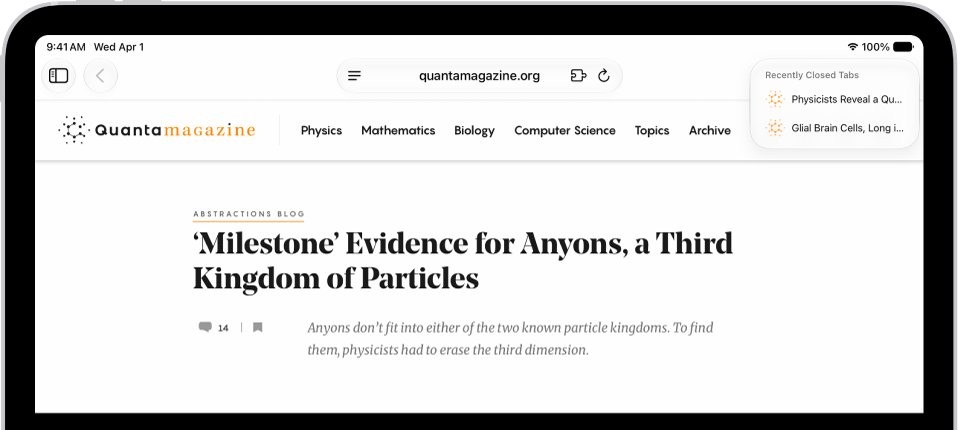
- Tap the top of the Safari screen to show the Search field if it is hidden.
- Type a different website address or search term and go there, or close the whole tab instead.
- Open Settings > Apps > Safari and turn on Block Pop-ups and Fraudulent Website Warning.
- Reopen Safari and carry on browsing; a one-off alert needs nothing more.
If the alert comes back as a calendar event or a notification, use the matching section below. Those are the two places a Safari scam can leave something behind.
McAfee virus alert on iPad: real or fake?
McAfee does publish a real app for iPhone and iPad, so the question is where the alert appears. Match what you see to a row.
| What you see | Real or fake | What to do |
|---|---|---|
| A full-screen McAfee warning inside a Safari page, often with a countdown or a sound | Fake: a scam ad on a website | Close the tab and block pop-ups |
| A claim that your iPad has a number of viruses, with a Scan or Clean button | Fake: the McAfee App Store listing does not describe a virus scanner | Do not tap the button; leave the page |
| A phone number to call McAfee or Apple support | Fake: a phony support scheme | Do not call; close the page |
| A McAfee subscription renewal or expiry warning in Safari | Fake unless you bought McAfee and see it in the app itself | Check your subscription inside the McAfee app, never through the pop-up |
| A Calendar event titled with a McAfee virus warning and a link | Fake: calendar spam from a subscription or invitation | Delete the event and unsubscribe |
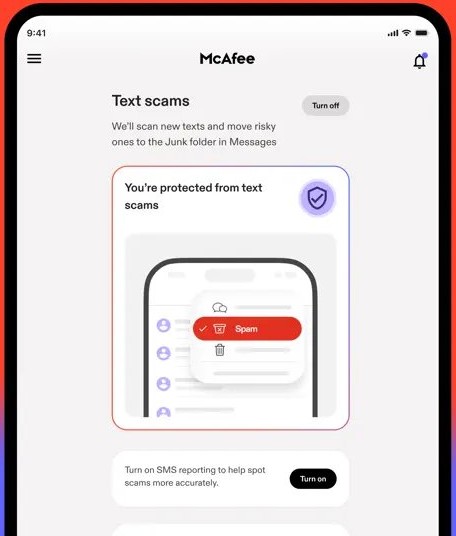
| A notice inside the McAfee app you installed from the App Store | Real: an alert from the app itself | Read it in the app and follow its own guidance |
| An email saying your McAfee protection has a virus or expired | Treat as phishing until you check the account yourself | Open the McAfee app or type the company's address yourself |
One rule settles almost every case: if you never installed the McAfee app, no message from McAfee can be about your iPad.
How to block McAfee pop-ups in Safari on iPad
Two Safari switches stop most scam pop-ups and warn you before a known fake site loads.
- Open the Settings app on your iPad.
- Tap Apps, then tap Safari.
- Turn on Block Pop-ups.
- Turn on Fraudulent Website Warning.
- Close Settings and reopen Safari.
Some scam pages show the alert inside the page rather than in a new window. Pop-up blocking cannot stop those, so leave the site whenever one appears.
Clear Safari history to remove McAfee virus alert on iPad
If the alert reappears each time you open Safari, the scam page is still in an open tab or in saved website data. Clearing it removes the page Safari keeps returning to.
- In Safari, close every tab that shows the McAfee alert.
- Open Settings > Apps > Safari.
- Scroll down and tap Clear History and Website Data.
- Choose the timeframe to clear, then tap Clear History.
- To keep your history instead, tap Advanced > Website Data > Remove All Website Data, then tap Remove Now.
Clearing history does not change your saved AutoFill information. If the button is gray, there is no data to clear or Screen Time web content restrictions are on.
Remove McAfee virus alert events from iPad Calendar
Apple lists unwanted Calendar invitations and subscriptions as a common scam route. A fake McAfee warning that shows up as an event comes from a spam calendar you subscribed to or an invitation you received.
- Open the Calendar app and tap the McAfee warning event.
- Tap Delete Event, then tap Delete Event again; for an invitation from an unknown sender, tap Report Junk, then Delete and Report Junk.
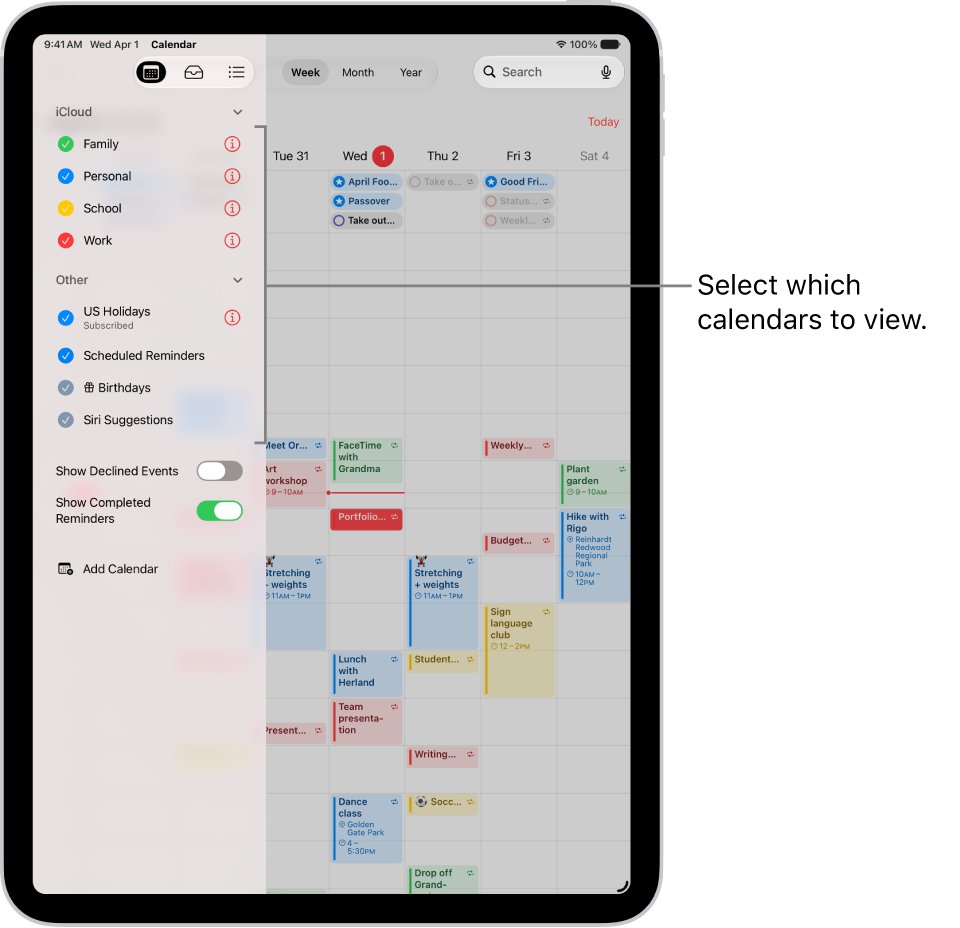
- Tap the Calendars button to see every calendar on the iPad.
- Tap the info button next to any calendar you do not recognise.
- Tap Unsubscribe or Delete Calendar, then tap it again to confirm.
Subscriptions added to iCloud appear on every device signed in to the same Apple Account, so unsubscribing once clears the spam from your iPhone and Mac too.
How to stop McAfee virus alert notifications on iPad
An alert that appears on the Lock Screen or in Notification Center comes from an app or website you once allowed to send notifications. Turning that permission off stops it.
- Swipe down to open Notification Center and note which app or site name sits on the McAfee alert.
- Open Settings and tap Notifications.
- Under Notification Style, tap the app or web app that sent the alert.
- Turn off Allow Notifications.
- If the sender is the genuine McAfee app, adjust its alerts inside the app instead of turning them all off.
Remove an unknown profile from iPad
Apple warns that some downloads ask to install configuration profiles that can then control your device. A scam page that pushed a profile can keep sending you to fake warnings.
- Open Settings > General > VPN & Device Management.
- If no profiles are listed, none are installed and you can stop here.
- Tap a profile you did not install on purpose.
- Tap Delete Profile and follow the onscreen instructions.
- Restart your iPad.
Deleting a profile also removes its settings, apps and data. On an iPad from work or school, ask the administrator before you delete anything.
How to uninstall McAfee from iPad
Remove any app you installed because an alert told you to. Delete the genuine McAfee app too if you no longer want its alerts.
- Cancel any McAfee or other in-app subscription you do not need, because deleting an app does not cancel it.
- Touch and hold the app icon on the Home Screen.
- Tap Remove App.
- Tap Delete App, then tap Delete to confirm.
- If you cannot find the app, use Spotlight to search for it.
Update iPad software to block scam pop-ups
Apple says many software updates include security improvements that help control pop-ups. Keep the iPad on the latest iPadOS.
- Back up your iPad with iCloud or your computer.
- Plug the iPad into power and connect to Wi-Fi.
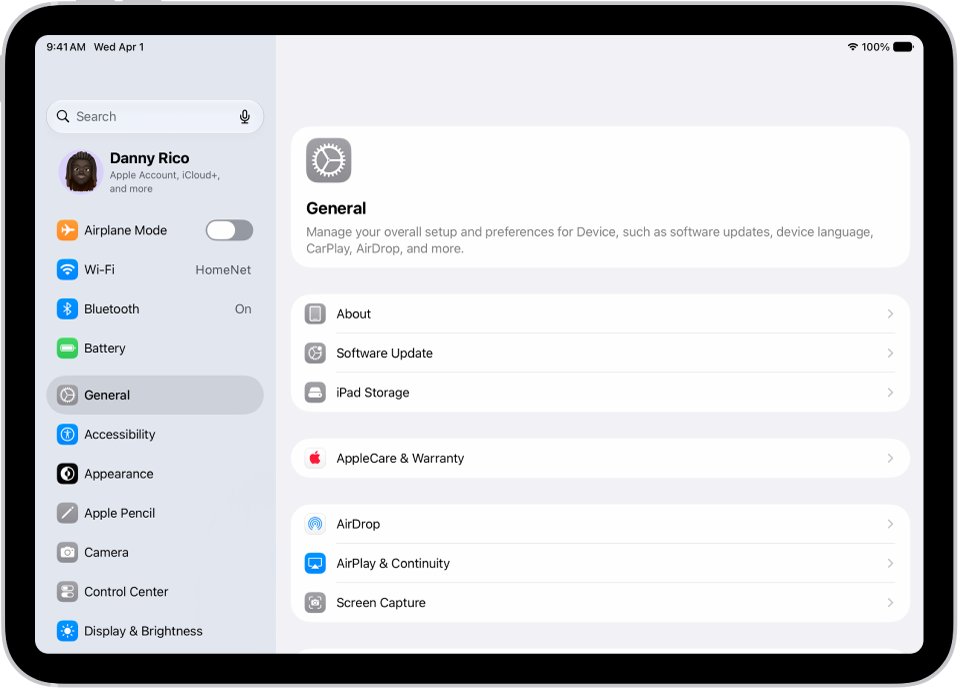
- Open Settings and tap General.
- Tap Software Update to see the installed version and any available update.
- Tap Download and Install and follow the onscreen instructions.
How to report a McAfee virus alert scam
Reporting does not remove the alert, but it helps take scam pages and messages down.
- Take a screenshot of the alert, including the web address if it is visible.
- If the alert or message pretends to come from Apple, email the screenshot to [email protected].
- For a scam text in Messages, tap Report Junk under the message.
- For a scam calendar invitation, use Report Junk on the event.
- In the U.S., report scam calls and fraud to the Federal Trade Commission at reportfraud.ftc.gov.
McAfee app for iPad: what it does
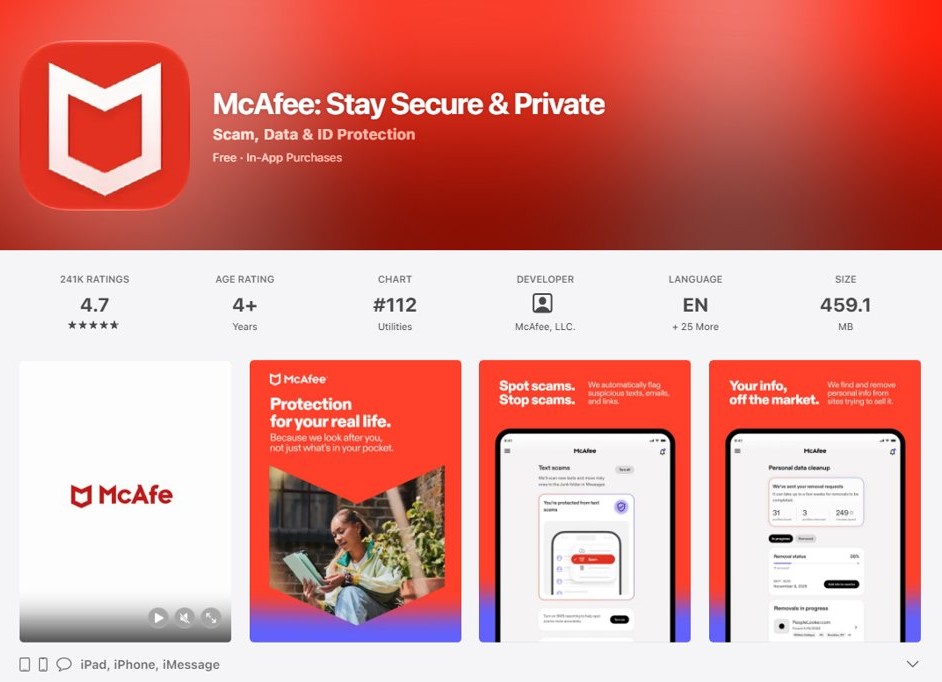
McAfee is a legitimate security company, which is exactly why scammers borrow its name. Its App Store app for iPad is published by McAfee, LLC and needs iPadOS 17 or later.
| Feature in the App Store listing | What it does | Relevance to a Safari virus alert |
|---|---|---|
| Scam detection | Flags risky messages and suspicious emails | Shown inside the McAfee app, not as a Safari page |
| Safe browsing | Blocks malicious websites | Can stop a scam page from loading |
| Wi-Fi scan | Checks networks for security risks | Unrelated to pop-ups |
| Smart Scan | Checks the device and your personal information for issues | Not described as a virus scan |
| Identity monitoring | Sends alerts about exposed personal details | Alerts arrive from the installed app only |
| VPN | Encrypts your connection | Unrelated to pop-ups |
The listing does not describe virus or malware scanning on iPad. A web page claiming McAfee has just scanned your iPad and found viruses is describing something the app does not do.
McAfee critical virus alert keeps popping up on iPad
The alert returns every time you open Safari
The scam page is still open in a tab or saved in website data.
- Close every tab that shows the alert.
- Clear history and website data in Settings > Apps > Safari.
- Turn on Block Pop-ups and Fraudulent Website Warning.
The alert appears outside Safari, on the Lock Screen
A calendar subscription, an event invitation or a notification permission is delivering it.
- Delete the event and unsubscribe from the unknown calendar in the Calendar app.
- Turn off Allow Notifications for the sender in Settings > Notifications.
- Check Settings > General > VPN & Device Management for an unknown profile.
You tapped the link or installed something from the alert
The page sent you to an app, a profile or a payment page.
- Delete any app you installed from the alert.
- Delete any profile you did not set up.
- Cancel any subscription the app started, then restart the iPad.
You called the number or paid for a fix
You reached a phony support operation, not McAfee or Apple.
- Hang up and do not call the number again.
- Call your bank using the number on your card and report the charge.
- Report the scam at reportfraud.ftc.gov in the U.S., or to local law enforcement.
You entered your Apple Account password on the page
The scammer may now have your sign-in details.
- Change your Apple Account password straight away.
- Make sure two-factor authentication is turned on.
- Never share a verification code or approve a sign-in you did not start.
McAfee virus alert on iPad FAQ
What is a McAfee alert?
A genuine McAfee alert is a notice from McAfee software you installed, such as a flagged message or a blocked website. A McAfee alert that appears inside a Safari page on an iPad without the app installed is a scam ad using the company's name.
Does McAfee send fake virus alerts?
No. The fake alerts come from scam websites and ads that copy McAfee's name and logo. Apple warns that pop-ups claiming your device has viruses are usually fraudulent ads designed to get money or personal details.
How do I remove a McAfee fake virus alert from my iPad?
Close the Safari tab without tapping the alert, then clear history and website data in Settings > Apps > Safari. If the alert shows up in Calendar, delete the event and unsubscribe from the unknown calendar.
How do I stop the McAfee critical virus alert?
Turn on Block Pop-ups and Fraudulent Website Warning in Settings > Apps > Safari, and close the page that shows it. If it still appears on the Lock Screen, turn off notifications for the sender in Settings > Notifications.
Why am I getting alerts from McAfee?
If you never installed McAfee, the alerts come from a website, a spam calendar or a notification permission you granted by mistake. If you did install the McAfee app, its real alerts appear inside the app and in its notifications.
What does a McAfee alert mean on email?
An email claiming your McAfee subscription expired or found a virus is a common phishing message. Do not tap its links; open the McAfee app or type the company's website address yourself to check your account.
Why am I getting McAfee virus warnings on my iPad?
Most often a website you visited loaded a scam ad, or you once subscribed to a spam calendar. Clearing Safari website data and removing unknown calendars stops the warnings in most cases.
Is it safe to tap Cancel on a McAfee virus pop-up?
No. Apple notes that some pop-ups have fake close buttons. Type a new address in the Safari Search field or close the whole tab instead of tapping any button inside the alert.