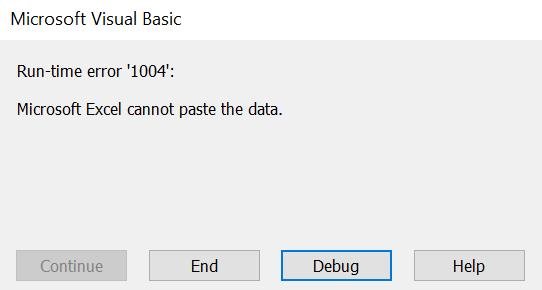
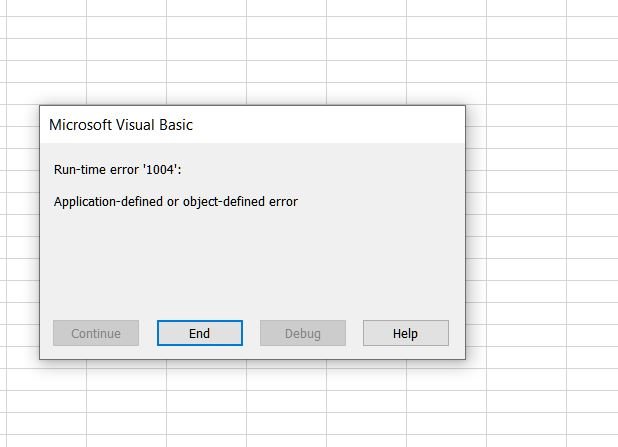
To fix runtime error 1004 in an Excel VBA macro, select Debug in the error box, look at the highlighted line, and correct the Excel object call that line makes.
This guide covers what error 1004 means, each documented cause (Select on an inactive sheet, Worksheet.Copy across Excel instances, Validation.Add with table references, failed query refreshes, protected sheets, blocked macros and Solver), and how to trap the error in code.
Fix runtime error 1004 in Excel
Error 1004 comes from Excel, not from the VBA language. The fix always sits in the line that talks to a workbook, sheet, range, chart or connection.
- When the run-time error box appears, select Debug.
- Look at the line highlighted in yellow in the Visual Basic Editor. That is the call Excel refused.
- Read the text after
Run-time error '1004':and match it to a row in the messages table below. - Correct that line: qualify the sheet, activate it before
Select, replace a structured table reference, or unprotect the sheet. - Select the green play button under the Debug menu to run the corrected code.
If the macro never starts and Excel says it cannot run the macro, the cause is macro security rather than the code. The Trust Center section below fixes that case.
Excel VBA run-time error 1004 on Range Select
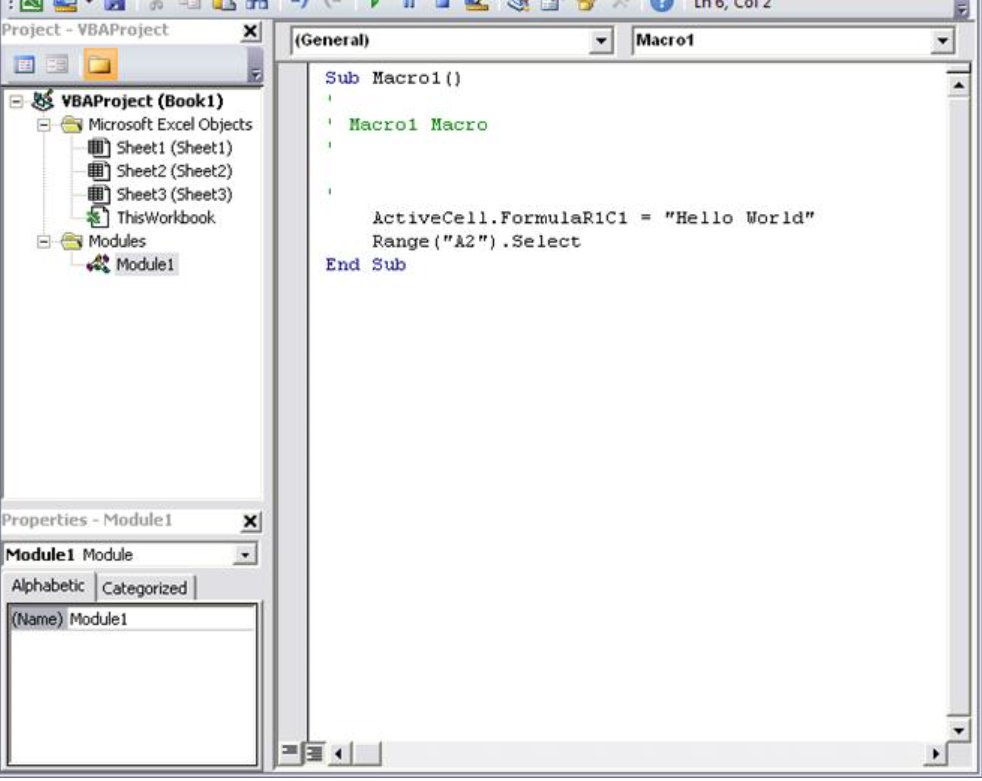
Select works only on the active worksheet. A recorded macro that runs Range("A1").Select from a module fails whenever a different sheet is in front.
Microsoft's VBA reference notes that you usually do not need to select cells before changing them. Write to the range through its sheet instead.
With Worksheets("Sheet1")
    .Range("A1") = "Name"
    .Range("B1") = "Address"
    .Range("A1:B1").Font.Bold = True
End With
Fills and formats Sheet1 without activating or selecting it, so the code works whichever sheet the user has open.
You should see: The labels appear in bold on Sheet1 and the macro finishes without a Select call.
If the code must keep Select, activate the sheet on the line before it, for example Worksheets("Sheet2").Select followed by Worksheets("Sheet2").Rows(1).Select.
Copy method of Worksheet class failed error 1004 in Excel VBA
Worksheet.Copy needs the source and the destination in the same Excel.Application instance. Across two instances Excel raises error 1004 with "No such interface supported" or "Copy method of Worksheet class failed".
- Check how the destination workbook was opened. A workbook opened through a second Excel.Application object lives in a separate instance.
- Open the destination with
Workbooks.Openfrom the same macro instead, so both workbooks share one instance. - Copy with an explicit position, for example
Worksheets("Sheet1").Copy After:=Worksheets("Sheet3"). - To copy into a brand-new workbook, call
Worksheets("Sheet1").Copywith no argument. The new workbook becomes the active workbook. - Save and close the copy with
ActiveWorkbook.SaveAsandActiveWorkbook.Close SaveChanges:=False.
Create a new Excel template and add sheets from it in VBA
When a sheet copy keeps failing, insert a fresh sheet from a template instead. Worksheets.Add accepts a template path in its Type argument.
- Build one sheet with the layout, formulas and formatting the macro should reproduce.
- Save that workbook as an Excel template (.xltx) in a folder the macro can reach.
- In the macro, add a sheet from it:
Worksheets.Add Type:="C:\Templates\Report.xltx". - Place it at the end with
After:=Worksheets(Worksheets.Count). Without Before or After, Excel inserts it before the active sheet. - Rename the new sheet with
ActiveSheet.Name = "Report", because the added sheet becomes the active sheet.
Excel VBA error 1004 on Validation.Add with a table reference
Validation.Add cannot take a structured table reference such as =Table1[Category] in Formula1 or Formula2. Passing one raises error 1004 with the generic "Application-defined or object-defined error" text, even though the same reference works in a cell formula.
The Data Validation dialog has the same limit when you add a drop-down list by hand.
- On the Formulas tab, select Define Name.
- Name it
CategoryListand point it at=Table1[Category]. - In the macro, clear the old rule with
Range("D2").Validation.Delete. - Add the list with
Range("D2").Validation.Add Type:=xlValidateList, AlertStyle:=xlValidAlertStop, Formula1:="=CategoryList". - Keep Formula1 under 255 characters, the documented maximum.
- If a defined name is not an option, pass
"=INDIRECT(""Table1[Category]"")"instead. That rule rejects every value once the table or column is renamed.
A defined name follows the table when it is renamed, and the list grows as rows are added.
How to remove a drop-down list in Excel
Removing an old list rule is also the first half of rebuilding one in VBA. Microsoft's own Validation.Add example deletes the existing rule before adding the new one.
- Select the cell with the drop-down list. Hold Ctrl and click to select several cells.
- Select Data > Data Validation.
- On the Settings tab, select Clear All.
- Select OK.
- To find every list on the sheet first, press Ctrl + G, select Special, choose Data Validation, then All.
- In a macro, remove a list with
Worksheets("Sheet1").Range("D2").Validation.Delete.
Excel VBA run-time error 1004 on WorkbookConnection Refresh
When a Power Query table fails to evaluate, WorkbookConnection.Refresh raises error 1004 with only the generic description. The query's own message is dropped.
- Find the table that the failing connection loads on the sheet.
- Replace the connection refresh with
lo.QueryTable.Refresh BackgroundQuery:=Falsefor that table. - Put
On Error Resume Nextbefore the call andDebug.Print lo.Name & ": " & Err.Descriptionafter it. - Open the Immediate window and read the query error, which starts with text such as
[Expression.Error]. - Fix the failing step in the query, then restore
On Error GoTo 0.
Two related traps: with background refresh on, Refresh returns before it finishes and errors never reach your code. With Application.DisplayAlerts = False, the refresh fails with an Insufficient Connection Information exception instead of asking for details.
Fix error 1004 on a protected worksheet in Excel VBA
Sheet protection applies to macros as well as to people unless UserInterfaceOnly is set. A macro that writes to locked cells is blocked the same way you lock cells in Excel against users.
- Remove protection at the start of the macro:
Worksheets("Sheet1").Unprotect Password:="YourPassword". - Make the changes the macro needs.
- Protect the sheet again:
Worksheets("Sheet1").Protect Password:="YourPassword". - To skip the unprotect step, protect with
UserInterfaceOnly:=True, which locks the interface but not macros. - Run that Protect line from the
Workbook_Openevent. Earlier Excel versions drop UserInterfaceOnly when the workbook is saved and reopened, so applying it on open keeps it in force.
The password is case-sensitive. If you forget it, the sheet cannot be unprotected.
Cannot run the macro error 1004 in Excel
When Excel says it cannot run the macro, the code is usually fine and macro security stopped it. Leave macros disabled by default and trust only the files you know.
Microsoft also blocks macros in files from the internet by default, and clearing that Mark of the Web macro block is a separate step.
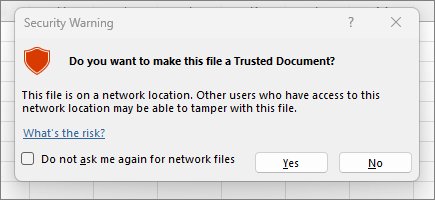
- If a security warning shows when the workbook opens, select Enable Content.
- In the Security Warning dialog, select Yes to make the document trusted.
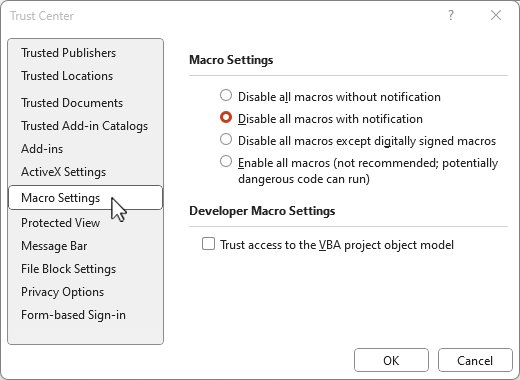
- For a permanent setup, select File > Options > Trust Center > Trust Center Settings.
- Select Macro Settings and keep Disable VBA macros with notification, the default.
- Select Trusted Locations and add the folder that holds your macro workbooks, so the Trust Center does not check them.
- Select OK and reopen the workbook.
If the Trust Center options are greyed out, a work or school policy controls them, and only the IT administrator can change them.
Trust access to the VBA project object model in Excel
Code that reads or writes ThisWorkbook.VBProject is denied by default. The setting is per user and per app, so turning it on in Excel does not change Word.
- Select File > Options.
- Select Trust Center, then Trust Center Settings.
- Select Macro Settings.
- Select the Trust access to the VBA project object model check box.
- Select OK twice and run the macro again.
Turn it on only for code you trust. The default block exists to stop programs from writing self-replicating macro code.
Runtime error 1004 Excel Solver macro fix
Solver VBA functions such as SolverOk and SolverSolve work only after the Solver add-in is enabled and referenced in the project.
- Select File > Options > Add-Ins.
- In the Manage box, select Excel Add-ins, then Go.
- Select Solver Add-in and select OK. Solver then appears in the Analysis group on the Data tab.
- In the Visual Basic Editor, with a module open, select Tools > References.
- Select Solver under Available References. If it is missing, select Browse and open
Solver.xlamfrom the Office Library\SOLVER folder. - Select OK and run the macro again.
Launch Excel in Safe Mode
Safe Mode starts Excel without add-ins and customizations. If error 1004 appears as soon as Excel opens, this tells you whether an add-in is behind it.
- Press Windows + R to open Run.
- Type
excel /safeand select OK. - Alternatively, hold Ctrl, double-click the Excel shortcut, and select Yes when asked about Safe Mode.
- If the error is gone, select File > Options > Add-Ins.
- In the Manage box, choose Disabled Items and select Go to review anything Excel turned off.
- Exit and restart Excel normally to leave Safe Mode.
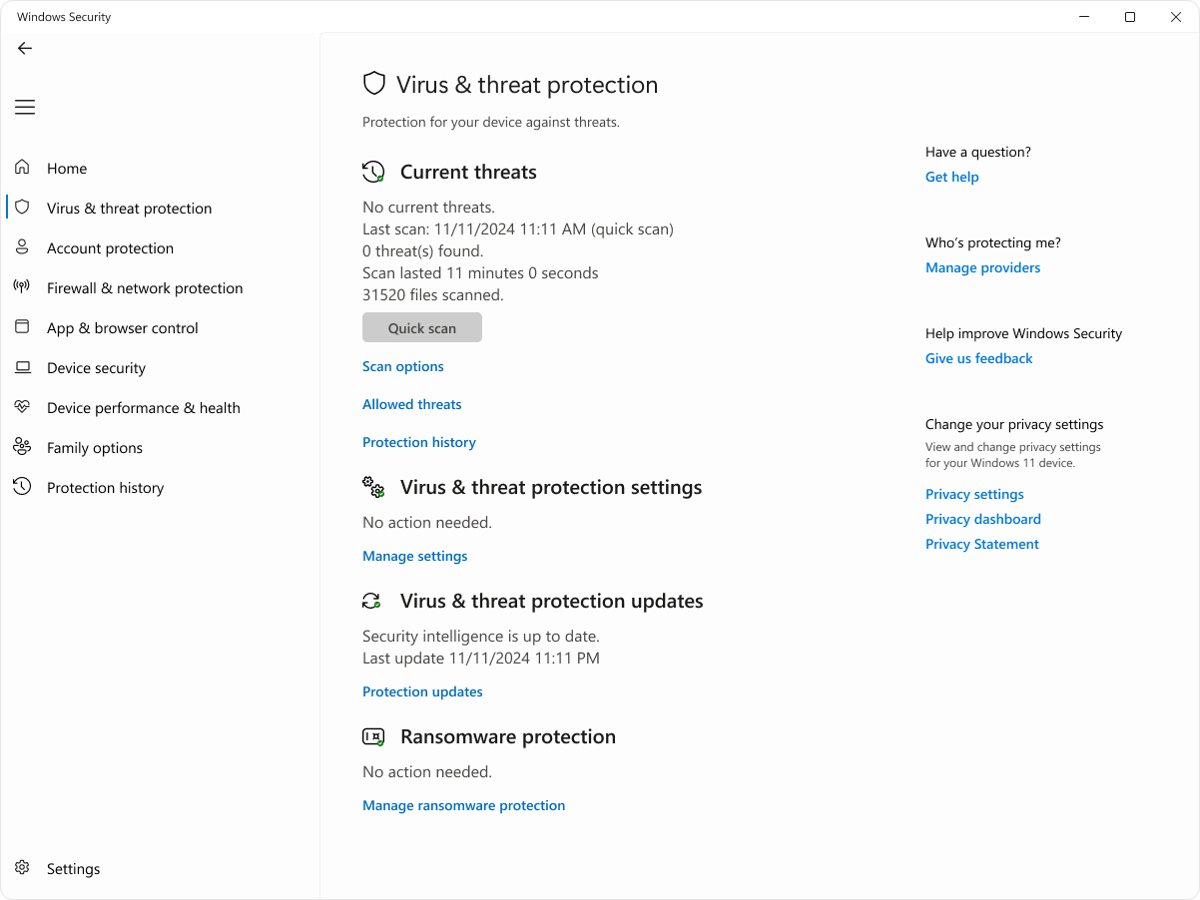
Run a virus scan on an Excel macro workbook with Windows Security
Scan a workbook from an unknown sender before you enable its macros. Office already checks macro workbooks with compatible antivirus software when they open, and a custom scan lets you check the file yourself first.
- Open the Windows Security app.
- Select Virus & threat protection.
- Under Current threats, select Scan options.
- Choose Custom scan and start it.
- Pick the folder that holds the workbook and wait for the result.
- Run a Full scan instead if you already enabled macros in a file you now doubt.
How to handle error 1004 in Excel VBA with an error handler
Without an On Error statement, every run-time error is fatal: the message shows and the macro stops. A handler lets the macro report error 1004 and exit cleanly.
Sub CopyReportSheet()
    On Error GoTo Handler
    Worksheets("Sheet1").Copy After:=Worksheets(Worksheets.Count)
    Exit Sub
Handler:
    If Err.Number = 1004 Then
        MsgBox "Excel refused the call: " & Err.Description & " (" & Err.Source & ")"
    Else
        MsgBox "Error " & Err.Number & ": " & Err.Description
    End If
End Sub
On Error GoTo Handler sends any run-time error to the Handler label. Exit Sub keeps the handler from running when nothing fails. Err.Number, Err.Description and Err.Source name the error, its text and the object that raised it.
You should see: Instead of the run-time error box, a message names the refused call and the macro ends without the Debug prompt.
Use On Error Resume Next only where you test Err.Number straight after each object call. Otherwise the macro carries on past the failure silently. On Error GoTo 0 switches the handler off again.
How to find the line that throws error 1004 in Excel VBA
In a long macro, the highlighted line is sometimes only where a bad value finally reached Excel. Step through the code to see where that value came from.
- Run the macro and select Debug when error 1004 appears.
- Note the yellow line, then select the green play button to confirm the same line fails again.
- Set a breakpoint a few lines above it from the Debug menu.
- Add a watch on the sheet, range or variable the failing line uses, also from the Debug menu.
- Run the macro again and step through it line by line, watching which value changes before the failure.
- Fix the line that sets the wrong sheet, range or argument, and the error box no longer appears.
What is runtime error 1004 in Excel?
Run-time error 1004 is the number Excel's object model returns when a VBA call into Excel fails. VBA has no message of its own for it, so the text is often the generic "Application-defined or object-defined error".
| Question | Answer |
|---|---|
| Who raises it | Excel, through objects such as Range, Worksheet, Validation and WorkbookConnection, not the VBA language itself |
| Generic text | "Application-defined or object-defined error", shown when the error does not map to a Visual Basic error |
| Specific text | Some methods add detail, such as "Copy method of Worksheet class failed" or "No such interface supported" |
| Syntax or run-time? | Run-time: the code compiles and looks correct, then fails when VBA executes the line |
| Where to look | The line Debug highlights, and the Err.Source property, which names the application or object that raised it |
Excel VBA run-time error 1004 messages and causes
The first four rows are documented error 1004 triggers. The last three are documented Excel blocks that stop a macro at run time and are fixed the same way.
| What the line does | Why Excel refuses it | Fix |
|---|---|---|
Range(...).Select on a sheet that is not active |
Select works only on the active worksheet | Activate the sheet first, or write to the range without selecting it |
Worksheet.Copy into a workbook in another Excel instance |
Source and destination must share one Excel.Application | Open both workbooks in one instance, or add the sheet from a template |
Validation.Add with =Table1[Category] |
Formula1 and Formula2 cannot hold structured table references | Point a defined name at the column and pass the name |
WorkbookConnection.Refresh on a Power Query table |
The query failed and only the generic text is returned | Refresh the QueryTable with background refresh off to read the real error |
| Writing to locked cells on a protected sheet | Protection covers macros unless UserInterfaceOnly is True | Unprotect, change and protect again, or protect with UserInterfaceOnly |
Calling SolverOk or SolverSolve |
The Solver add-in is not enabled or referenced | Enable Solver and add it under Tools > References |
Reading ThisWorkbook.VBProject |
Access to the VBA project object model is denied by default | Turn on Trust access to the VBA project object model |
Runtime error 1004 Excel VBA FAQ
What is runtime error 1004 in Excel?
It is the error Excel returns when a VBA macro asks it to do something it cannot do, such as selecting a range on an inactive sheet or copying a sheet into another Excel instance. The description is often "Application-defined or object-defined error".
What is VBA error 1004?
Error 1004 is not a VBA language error. VBA passes it through from Excel's object model, which is why the VBA help topic only calls it an application-defined or object-defined error. Err.Source names the object that raised it.
How do I fix error 1004 in Excel VBA?
Select Debug in the error box, read the highlighted line, and correct the call it makes. Typical fixes are activating a sheet before Select, keeping a sheet copy in one Excel instance, or replacing a structured table reference in Validation.Add.
Is visual basic runtime error 1004 in Excel the same as Excel VBA error 1004?
Yes. The box shows the Visual Basic name because the Visual Basic Editor runs the macro, but the error number and its cause come from Excel. The same fixes apply whichever name you search for.
What should I check when an Excel Solver macro fails?
Check that the Solver add-in is enabled under File > Options > Add-Ins, and that Solver is ticked under Tools > References in the Visual Basic Editor. Solver VBA functions do not work until both are done.
Does Excel Safe Mode fix runtime error 1004?
No. Safe Mode starts Excel without add-ins and customizations, so it shows whether an add-in causes the error. It does not change your macro code. Exit and restart Excel to return to normal mode.
Can On Error Resume Next hide error 1004?
Yes. It continues with the next statement after the failing line, so the macro carries on silently. Test Err.Number right after each Excel call, or use On Error GoTo with a handler that reports Err.Description.
Why does Validation.Add give error 1004 with a table column?
Formula1 and Formula2 cannot contain a structured reference such as =Table1[Category]. Define a name that refers to the table column and pass that name, for example =CategoryList, as Formula1 instead.
Does error 1004 mean the workbook has a virus?
No. Error 1004 means Excel refused an object call in the macro. A Microsoft Defender virus scan is still worth running on a workbook from an unknown sender before you enable its macros, because macros can carry malicious code.