To factory reset a Nest thermostat, remove it from your Google Home or Nest app, then open Settings on the thermostat and choose Factory Reset (Nest Thermostat and Nest Learning Thermostat 4th gen) or Reset > All Settings (Nest Thermostat E and Nest Learning Thermostat 3rd gen or earlier).
This guide covers each model, the partial resets and restarts that fix smaller problems, what to save before you erase anything, and what to do when the thermostat still misbehaves afterwards.
How to factory reset Google Nest thermostat
A factory reset erases your personal settings and returns the thermostat to its default state. The steps below work on every current Nest model; only the name of the final menu item changes.
- On the thermostat, open Settings > Equipment and write down the wire setup, the heating type and the safety temperature.
- In the Google Home app, tap Home > All devices, then touch and hold the thermostat.
- Tap Settings > Remove device > Remove. If you set it up in the Nest app instead, remove it there.
- On the thermostat, open Settings.
- Choose Factory Reset on a Nest Thermostat or Nest Learning Thermostat (4th gen). On a Nest Thermostat E or Nest Learning Thermostat (3rd gen or earlier), choose Reset > All Settings.
- Confirm the prompts and wait while the thermostat resets and restarts.
When it turns back on, the thermostat shows its first-time setup questions. Answer them only if you are keeping it; otherwise leave it at that screen for the next owner.
Which reset do you actually need?
Google separates a restart, which keeps every setting, from a reset, which erases some or all of the thermostat's information. Pick the smallest option that solves your problem.
| Your situation | Use this | What it erases |
|---|---|---|
| Screen is stuck, frozen or the thermostat acts oddly | Restart | Nothing; all settings stay |
| Thermostat is frozen and the menu will not respond | Manual restart (battery pull or press-and-hold) | Nothing saved, but unsaved changes can be lost |
| Temperature schedule no longer fits your routine | Reset > Schedule (E and 3rd gen or earlier) | The whole schedule and every learned or set temperature |
| You moved the thermostat or remodeled the house | Reset > Home/Away (E and 3rd gen or earlier) | What it learned about when you are home or away |
| New router or Wi-Fi password | Reset > Network, where available | Saved Wi-Fi network and credentials |
| Selling the house, giving the thermostat away or starting over | Factory Reset or Reset > All Settings | All personal settings; it returns to factory defaults |
Why you might need to reset a Nest thermostat
Most problems need only a restart. A full factory reset is for the moments when the thermostat's stored information is the problem, or when someone else will use it next.
| Reason | Why a reset helps |
|---|---|
| You are moving out and leaving the thermostat behind | It removes your personal information so the new owners start fresh |
| You are selling or giving the thermostat away | The next owner can set it up and add it to their own account |
| The learned schedule keeps choosing the wrong temperatures | A Schedule reset clears every learned setpoint so a new schedule can form |
| The thermostat was moved to a different room | A Home/Away reset makes it relearn when the house is occupied |
| The thermostat will not connect to your new Wi-Fi | A Network reset clears the old credentials before you reconnect |
| It froze and a normal restart did not fix it | A manual restart, then a factory reset if the fault returns |
If you are handing over other gear at the same time, factory reset the Android phone or wipe the iPhone the same way: remove it from your accounts first, then erase it.
What to do before you factory reset
A reset does not touch the wires behind the thermostat, but the setup that follows asks about them. Save that information while the thermostat still shows it.
- Open Settings > Equipment on the thermostat and write down which wires are connected.
- Note your heating system type and safety temperature from the same settings.
- Remove the thermostat from your account in the app you first set it up with, either the Google Home app or the Nest app.
- If the thermostat is not listed in that app, check the other one before you reset.
Nest Temperature Sensors linked to your account stay linked after the thermostat reset, so you do not need to pair them again.
How to factory reset a Nest thermostat (4th generation)
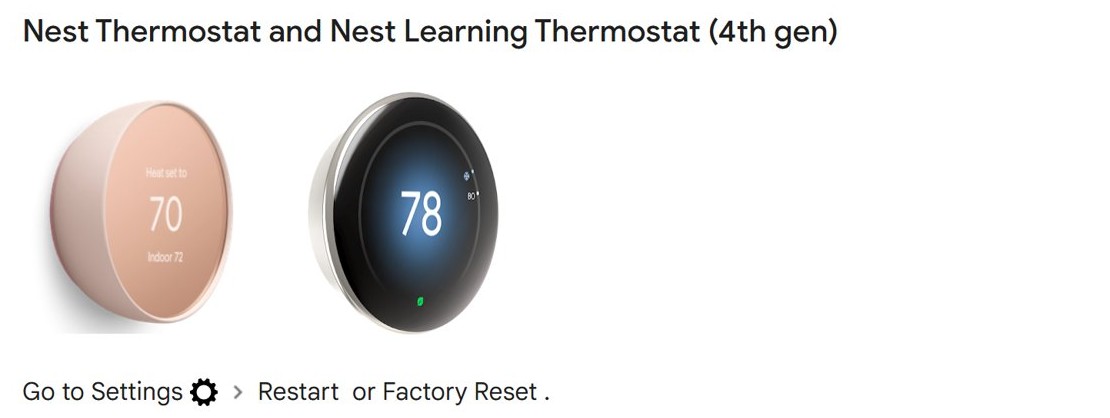
These steps cover the Nest Learning Thermostat (4th gen) and the Nest Thermostat. Both put Restart and Factory Reset directly in the Settings menu.
- Remove the thermostat from your home in the Google Home app.
- On the thermostat, open Settings.
- Select Factory Reset.
- Confirm the first prompt, then confirm again when the thermostat asks you to.
- Wait a few moments while it resets and restarts on the setup screen.
To keep your settings but stop controlling the thermostat from your account, use Settings > Account > Disconnect instead. That removes it from the Home app without erasing its configuration.
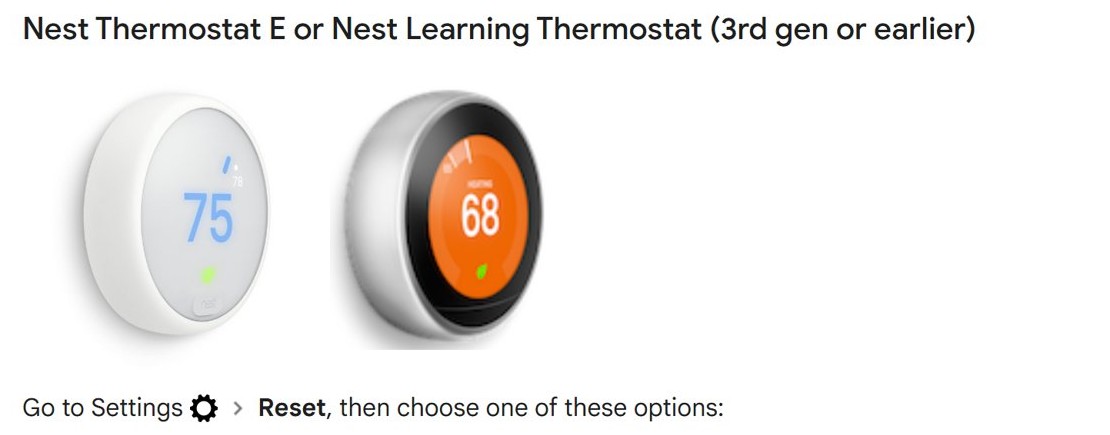
How to factory reset a Nest Learning Thermostat (3rd gen and earlier)
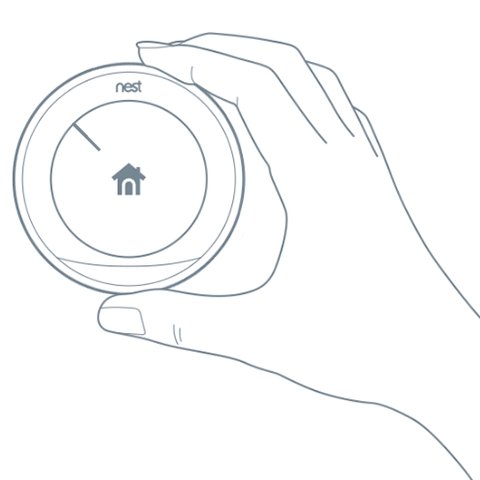
These steps cover the Nest Learning Thermostat (3rd gen or earlier) and the Nest Thermostat E. You control both by turning the ring like a dial to highlight an option and pressing it like a button to choose.
- Remove the thermostat from your account in the Google Home app or Nest app.
- Press the ring, turn it to highlight Settings, and press to select.
- Turn the ring to Reset and press to select.
- Choose All Settings.
- Confirm the erase warning and wait for the thermostat to restart.
The same Reset menu holds Restart, Schedule, Home/Away, Account connection and Network. Account connection and Network are not available on every model.
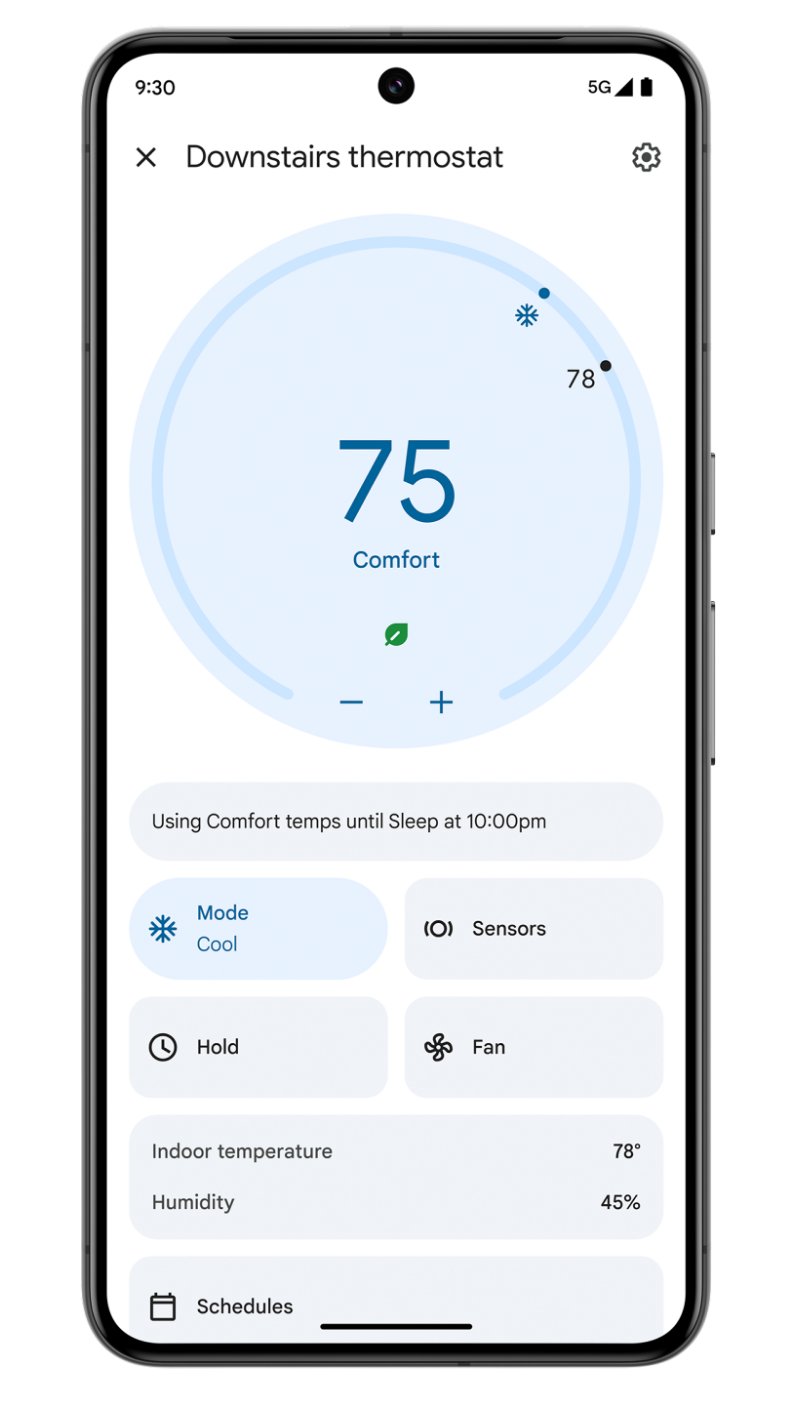
How to remove Nest thermostat from Google Home app
Google asks you to remove the thermostat from your account before an All Settings reset. Skip this and the thermostat can stay listed as offline in the Google Home app on your phone.
- Open the Google Home app.
- Tap Home, then All devices.
- Touch and hold the thermostat.
- Tap Settings, then Remove device.
- Tap Remove to confirm.
- In the Nest app instead, tap the home, tap Settings, select the thermostat, choose Remove with the product name, select it again at the bottom, and confirm.
How to restart Nest thermostat
A restart is the first thing to try when the thermostat is stuck, offline or not working properly. It keeps every setting, like restarting a phone.
- On the thermostat, open Settings.
- On a Nest Thermostat or Nest Learning Thermostat (4th gen), select Restart.
- On a Nest Thermostat E or Nest Learning Thermostat (3rd gen or earlier), select Reset > Restart.
- Confirm, then wait for the thermostat to turn back on.
How to reset Nest thermostat manually
Use a manual restart only when the thermostat is frozen and the menu does not respond. It does not erase your settings, but you can lose changes that were not saved yet.
| Model | Manual restart steps |
|---|---|
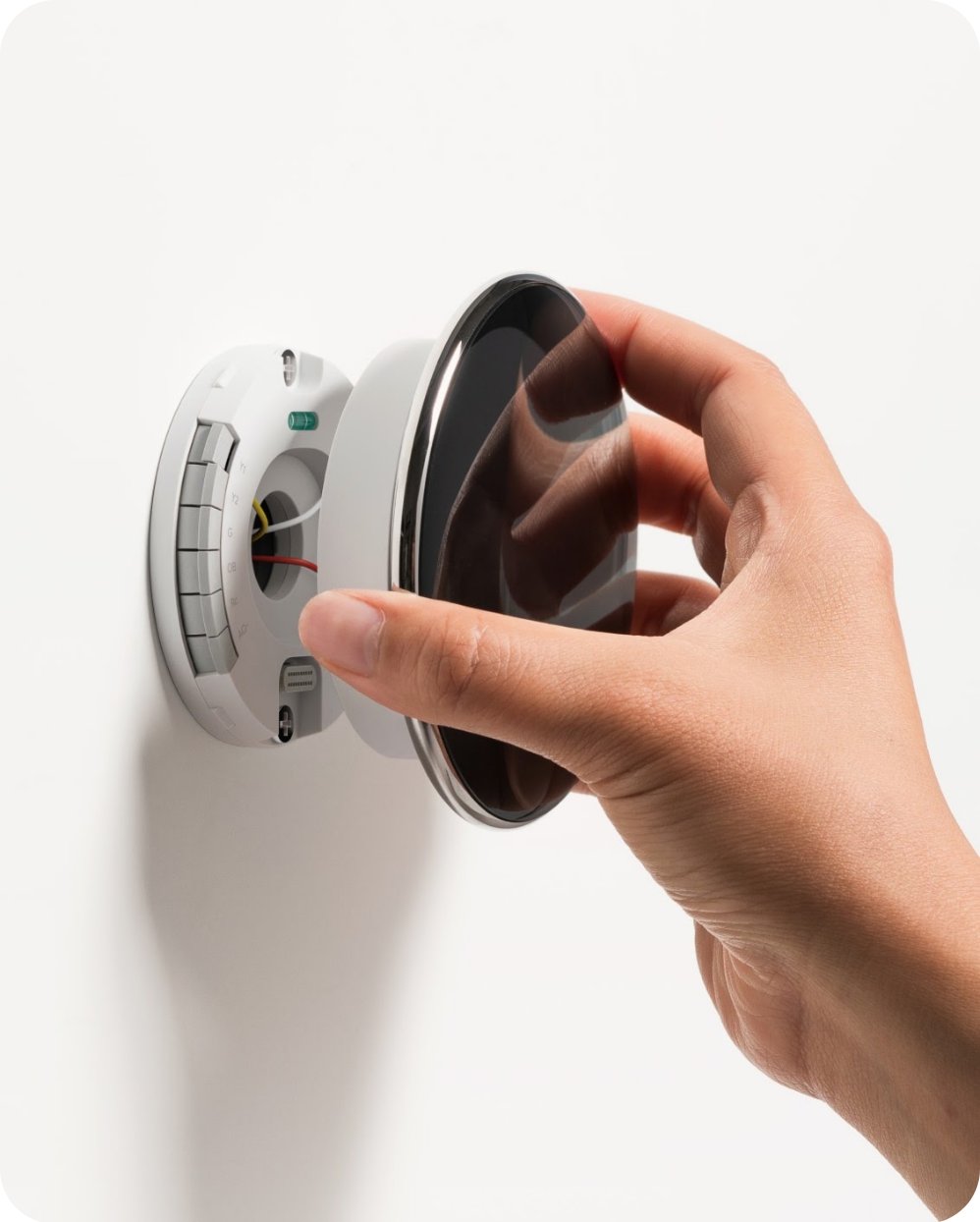
| Nest Thermostat | Take the thermostat off its base, remove both AAA batteries, put them back in, then press the thermostat onto the base until it clicks into place |
| Nest Thermostat E | Press the thermostat down until the screen turns off (about 10 seconds), then press and release the ring to turn it back on |
| Nest Learning Thermostat | Press the thermostat down until the screen turns off (about 10 seconds), then press and release the ring to turn it back on |
A manual restart is not a factory reset. Once the thermostat responds again, use the Settings menu if you still need to erase it.
Alternative reset methods
The Nest Thermostat E and Nest Learning Thermostat (3rd gen or earlier) can erase one part of their memory instead of everything. Each option sits under Settings > Reset.
| Reset option | What it does | What happens next |
|---|---|---|
| Schedule | Clears the entire temperature schedule and every learned or set temperature | Create a new schedule or let the thermostat learn one; on a Nest Thermostat E with Auto-Schedule off, you can choose an empty or Basic Schedule |
| Home/Away | Forgets when you are usually home or away | It relearns its new location in a few days; phone location helps |
| Account connection | Unlinks the thermostat from your account | It stays in the app as offline until you remove it there |
| Network | Erases the saved Wi-Fi network and credentials | Reconnect from Settings > Network > your Wi-Fi network |
| All Settings | Restores factory defaults | Set it up and add it to the app again, as on first install |
Leaving the thermostat for new owners? Google suggests resetting the schedule as well, so the new household's schedule is learned from scratch.
How to set up Nest thermostat after factory reset
A successful factory reset ends on the setup questions. The thermostat then needs time to learn about you before its schedule and energy-saving features return.
- Check that the thermostat shows its first-time setup screen rather than your old temperature.
- Answer the setup questions: language, temperature unit, your heating and cooling equipment, and account.
- Use the wiring notes you saved to answer the equipment questions.
- Connect the thermostat to your Wi-Fi network.
- On a Nest Thermostat E or Nest Learning Thermostat, connect it to the Nest app with an entry key. On a Nest Thermostat or Nest Learning Thermostat (4th gen), add it to your home in the Google Home app.
- On an E or 3rd gen model, confirm learning is on at Settings > Nest Sense > Auto-Schedule.
Still not working after the reset?
The thermostat is frozen and will not open Settings
The software has locked up, so the menu cannot start a restart or reset.
- Do a manual restart: battery pull on the Nest Thermostat, or press down for about 10 seconds on the E and Learning models.
- When the screen responds, open Settings and run Restart again.
- If it freezes again, run a factory reset from the menu.
The thermostat still shows as offline in the app
It was reset or unlinked without being removed from your account.
- In the Google Home app, tap Home > All devices and touch and hold the thermostat.
- Tap Settings > Remove device > Remove.
- If it is not there, look in the Nest app, the app it was first set up with.
- Add the thermostat to your home again.
Nest thermostat will not connect to Wi-Fi after the reset
A Network or full reset erases the saved Wi-Fi credentials.
- Open Settings > Network on the thermostat.
- Select your Wi-Fi network and enter its password.
- Restart the thermostat if it still reports no connection.
The schedule is gone or the temperatures feel wrong
A Schedule or full reset clears every learned setpoint, and learning starts again.
- Check Settings > Nest Sense > Auto-Schedule on an E or 3rd gen model and turn it on.
- Change the temperature normally for a few days so the thermostat learns your preferences.
- If you prefer a fixed schedule, create one in the app instead.
Nest thermostat keeps restarting or shows a No power alert
A reset does not change the wiring or power supply, so a power fault survives it.
- Note any help code on the screen, such as E298, E448 or M20.
- Open Google's article for the No power alert with that code in the Google Home and Nest Help Center.
- Run Google's online thermostat troubleshooter if no code appears.
Nest thermostat factory reset FAQ
How do I factory reset my Nest thermostat 3rd gen?
Remove it from your account in the app first. On the thermostat, press the ring, open Settings, choose Reset, then All Settings, and confirm. The thermostat restarts on its setup screen with factory default settings.
How do I factory reset a Google Nest thermostat?
On a Nest Thermostat or Nest Learning Thermostat (4th gen), open Settings and select Factory Reset, then confirm. Remove it from the Google Home app before you start so it does not stay listed as an offline device.
How do I reset my Nest thermostat manually?
On a Nest Thermostat, take it off its base, remove and reinsert both AAA batteries, and press it back on until it clicks. On a Nest Thermostat E or Learning Thermostat, press it down for about 10 seconds until the screen goes off.
How do I restart my Nest thermostat?
Open Settings on the thermostat and select Restart on a Nest Thermostat or 4th gen model, or Reset then Restart on an E or 3rd gen model. A restart keeps every setting and fixes many freezes and connection problems.
Will a factory reset delete my Nest account?
No. A factory reset erases the thermostat's own settings, not your Google or Nest account. Remove the thermostat from the app separately, because a reset alone can leave it listed as offline in your account.
How long does a Nest thermostat factory reset take?
Google says the thermostat takes a few moments to reset and restart. Setting it up again takes longer, and the learning models need a few days before the schedule and energy-saving features are back.
Does resetting my Nest thermostat affect my HVAC wiring?
No. A reset is a software change and leaves the wires untouched. Write down the wire setup from Settings, Equipment before you reset, because setup asks about your equipment again afterwards.
Can I reset a Nest thermostat without removing it from the wall?
Yes. Restart and factory reset both run from the Settings menu on the thermostat itself. Only the manual restart on a Nest Thermostat means taking it off its base to remove the batteries.
What is the difference between restart and factory reset on a Nest?
A restart turns the thermostat off and on and keeps all your settings. A factory reset erases your personal settings and returns it to factory defaults, so you must set it up and add it to the app again.
Quick summary
Restart first; factory reset only when you are moving, selling or starting over, and remove the thermostat from the Google Home or Nest app before you choose Factory Reset or Reset > All Settings. A restart keeps your settings and fixes most freezes, while a full reset wipes the schedule and setup, and skipping the app removal leaves an offline device stuck in your account.