When an iPhone 13 screen turns green, first open Settings > Accessibility > Display & Text Size > Color Filters and turn the filter off, because a color tint set there turns the whole screen one color.
If the green stays with every display setting off and after a reset of all settings, the OLED display itself is faulty and needs a screen replacement; this guide covers both routes and what to do when the screen goes dark.
How to fix iPhone 13 green screen
Start with the settings that change the color of the whole display. Each step takes under a minute and none of them deletes data.
- Open Settings > Accessibility > Display & Text Size.
- Tap Color Filters and turn Color Filters off.
- Go back to Settings > Display & Brightness and turn True Tone off to test the color.
- Tap Night Shift on the same screen and turn off Scheduled.
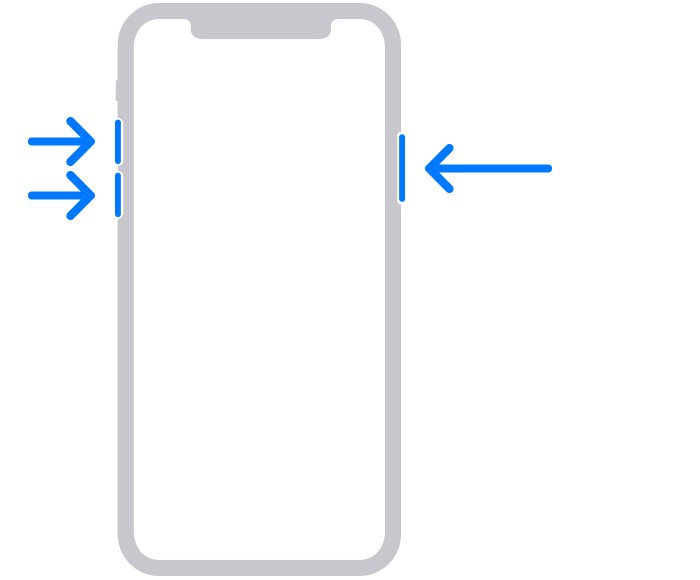
- Force restart the iPhone 13: press and release volume up, press and release volume down, then hold the side button until the Apple logo appears.
- Open Settings > General > Software Update and install any update.
- If the screen is still green, open Settings > General > Transfer or Reset iPhone > Reset and tap Reset All Settings.
- If the tint survives all of this, contact Apple for a display repair.
Reset All Settings returns every setting to its default, including network, location and privacy settings and Apple Pay cards, but deletes no data or media.
Why is my iPhone 13 screen green?
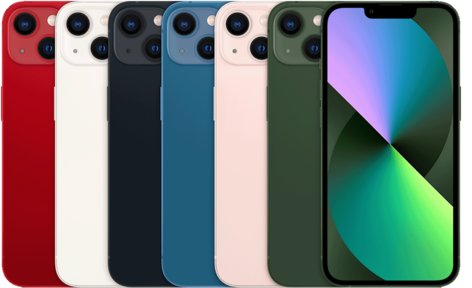
The iPhone 13 uses a 6.1-inch Super Retina XDR OLED display. A green screen comes from either a setting that tints the image or a fault in that display panel, and the clues below tell them apart.
| Cause | What you see | Fix |
|---|---|---|
| Color Filters set to Color Tint | An even green wash over the whole screen, adjustable with a slider | Turn off Color Filters in Display & Text Size |
| Accessibility Shortcut turned a filter on | The tint appeared after a triple-click of the side button | Triple-click the side button again, or remove Color Filters from the shortcut |
| True Tone adapting to the room light | Colors shift slightly with the lighting, not a solid green | Turn True Tone off to compare |
| A setting changed by an update or a profile | Green remains with every filter off | Reset All Settings |
| Display hardware fault | Green tint, green lines or patches that stay after a reset, often after a drop or pressure on the screen | Screen replacement by Apple or an Apple Authorized Service Provider |
| A previously replaced, nongenuine display | Parts and Service History shows the display as Unknown | Have the display checked by Apple |
How to turn off Color Filters on iPhone 13
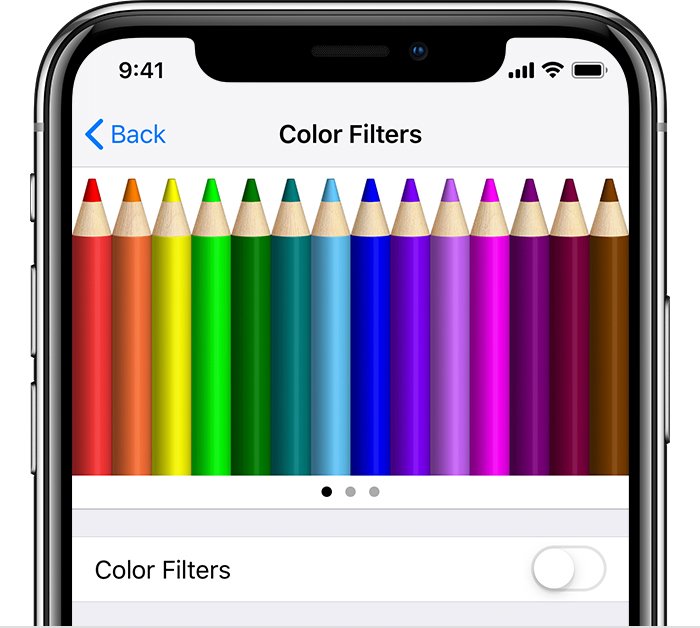
Color Filters can view the entire screen in grayscale, adjust colors for color vision deficiencies, or tint the screen a color of your choosing. A green Color Tint is the most common settings cause of a green screen.
- Open the Settings app.
- Tap Accessibility, then tap Display & Text Size.
- Tap Color Filters.
- Turn off the Color Filters switch.
- Go back to Accessibility and tap Accessibility Shortcut.
- Tap Color Filters to remove its checkmark so a triple-click of the side button cannot switch it on again.
If you need a filter for color vision, keep it on and drag the intensity or hue slider instead. The colored pencils on that screen show how the filter changes each color.
iPhone 13 True Tone and Night Shift settings
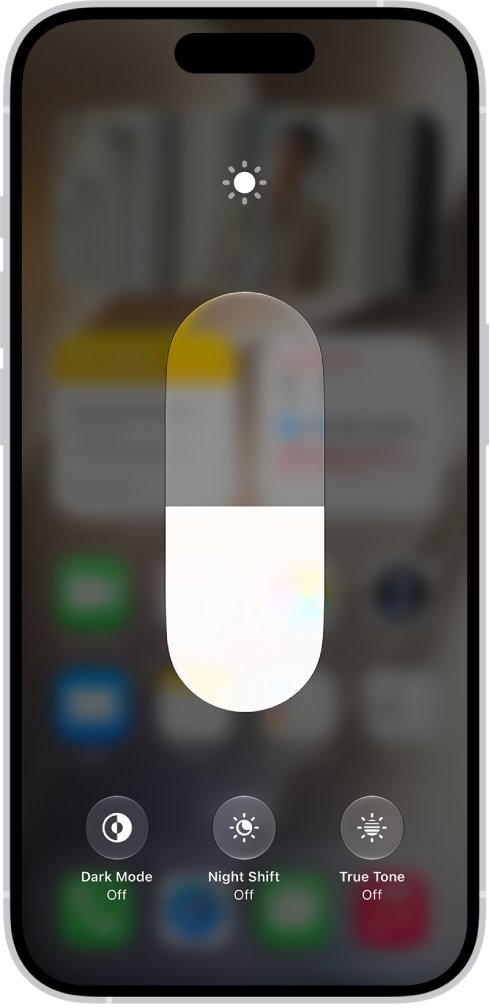
True Tone adapts the color and intensity of the display to the light around you, and Night Shift moves colors to the warmer end of the spectrum. Neither should turn the screen green, but turning them off gives you a neutral screen to judge.
- Open Settings and tap Display & Brightness.
- Turn True Tone off.
- Tap Night Shift and turn off Scheduled.
- Open Control Center, touch and hold the brightness control, and tap the Night Shift button if it is lit.
- Drag the Color Temperature slider back to the middle if you plan to use Night Shift later.
- Look at a white page, such as a blank note, to judge the color.
You can also open Control Center, touch and hold the brightness control, and tap the True Tone or Night Shift button to switch them quickly.
How to reset all settings on iPhone 13
Reset All Settings clears any display, accessibility or system setting you cannot find by hand. Your photos, messages and apps stay on the phone.
- Back up the iPhone 13 to iCloud or a computer, so you can bring your settings back if the reset does not help.
- Open Settings and tap General.
- Tap Transfer or Reset iPhone, then tap Reset.
- Tap Reset All Settings, not Erase All Content and Settings.
- Enter your passcode and confirm.
- When the iPhone restarts, reconnect to Wi-Fi and check the screen color.
Erase All Content and Settings removes all your content, so it is never needed for a green tint. If the display has stopped working and you still need to erase the phone, a broken-screen factory reset runs from a computer instead.
How to check iPhone 13 display parts and service history
A secondhand or previously repaired iPhone 13 can carry a replacement screen. iOS 15.2 and later record whether the display is a genuine Apple part on iPhone 12 models and later.
- Open Settings and tap General.
- Tap About.
- Scroll to Parts and Service History; it appears only if the iPhone has been repaired.
- Read the label next to Display: Genuine, Unknown or Used.
- If it says Unknown, the part is nongenuine or not working as expected, so book a display check with Apple.

How to replace screen on iPhone 13
A green tint that survives the steps above is a display hardware fault, and the fix is a new screen. You have three official routes.
| Your situation | Use this | Why |
|---|---|---|
| You want Apple to do the work in person | Genius Bar appointment at an Apple Store | Technicians inspect the phone and explain the options before repairing it |
| No Apple Store nearby | Apple Authorized Service Provider | Same genuine parts; the provider sets its own fee and gives its own estimate |
| You prefer not to travel | Apple mail-in repair | Apple sends a prepaid box and you ship the phone without an appointment |
| You have experience repairing electronics | Self Service Repair | Genuine parts, tools and the repair manual for out-of-warranty repairs, if a manual is listed for your model |
| The phone is under AppleCare or the one-year warranty | Start the request at Apple Support | Apple inspects the phone and sets the final fee after the inspection |
Apple's screen repair page lists an estimated out-of-warranty price once you choose iPhone 13 and your model. The final fee is set after inspection and can include tax and shipping.
iPhone 13 screen won't turn on or stopped working
iPhone 13 screen is black but the phone rings or vibrates
The phone is running but the display is frozen or has failed.
- Press and quickly release volume up.
- Press and quickly release volume down.
- Hold the side button until the Apple logo appears, which can take longer than 10 seconds.
- If the screen stays black while the phone still rings, book a display repair.
iPhone 13 won't turn on
The battery is flat or the phone is frozen.
- Force restart with volume up, volume down and a long press of the side button.
- If nothing appears, charge the iPhone for one hour and try again.
- If a low-charge battery icon appears, check the cable and adapter, then charge for 30 minutes or until it starts.
- If it still will not turn on, contact Apple for service.
iPhone 13 screen not responding to touch
iOS has frozen or the touch layer of the display is damaged.
- Force restart the iPhone with the side and volume buttons.
- Install any waiting update in Settings > General > Software Update once the screen responds.
Green lines or green patches on the iPhone 13 screen
Lines or patches that stay put, unlike an even tint, point to a damaged display panel.
- Turn off Color Filters and True Tone to rule out settings.
- Restart the iPhone and check whether the lines are still there afterwards.
- Back up the iPhone while the screen is still readable.
- Book a screen repair with Apple or an Apple Authorized Service Provider.
If the colors look normal and only touch fails, you can fix an unresponsive iPhone touch screen starting with the same forced restart.
iPhone 13 green screen FAQ
Why is my iPhone 13 screen green?
A green screen comes from either the Color Filters setting, which can tint the whole display any color, or a fault in the OLED display. Turn off Color Filters in Settings > Accessibility > Display & Text Size first; if the green stays after Reset All Settings, the screen needs repair.
How do I fix my iPhone 13 screen?
Turn off Color Filters and True Tone, force restart the phone, install any iOS update and then use Reset All Settings. If the screen is still discolored, cracked or showing lines, book a screen replacement with Apple or an Apple Authorized Service Provider.
How do I turn the screen on on iPhone 13?
Press the side button to wake the screen. If the iPhone screen stays black, force restart it by pressing volume up, then volume down, then holding the side button until the Apple logo appears.
Why won't my iPhone 13 turn on?
The battery is usually flat or the phone has frozen. Force restart it, then charge it for one hour if nothing happens. If you see a low-charge icon, charge it for 30 minutes, and contact Apple for service if it still does not start.
How do I change the screen on iPhone 13?
Book a repair at an Apple Store, with an Apple Authorized Service Provider, or by Apple mail-in service. Experienced repairers can also use Apple's Self Service Repair, which supplies genuine parts, tools and a repair manual for out-of-warranty work.
How do I replace the screen on an iPhone 13 Pro?
The iPhone 13 Pro uses the same Apple repair routes as the iPhone 13: an Apple Store, an Apple Authorized Service Provider, mail-in repair or Self Service Repair. Choose iPhone 13 and the Pro model on Apple's screen repair page to see the estimated price.
Does Reset All Settings delete photos on iPhone 13?
No. Reset All Settings returns settings such as network, location, privacy and the keyboard dictionary to their defaults and removes Apple Pay cards, but no data or media are deleted. Erase All Content and Settings is the option that removes your content.