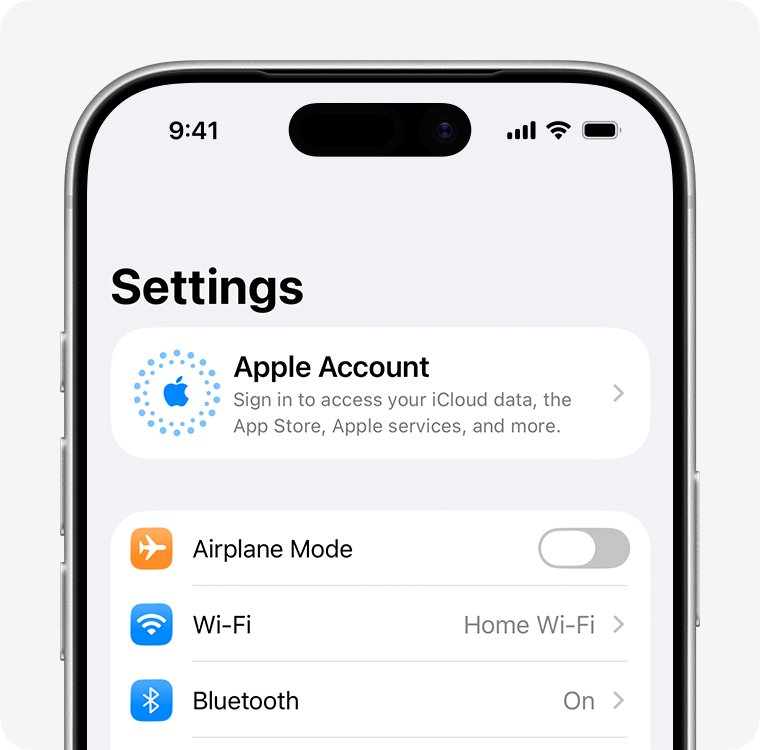
When an Apple Watch keeps saying to sign in to iCloud, sign in to your Apple Account on the paired iPhone first, then open the Apple Watch app, tap General > Apple Account and sign in there.
This guide covers why the prompt returns, what to do after an Apple Account password change, how to check which account the watch uses, and when to unpair and pair again.
How to stop Apple Watch asking to sign in to iCloud
Apple Watch takes its Apple Account from the paired iPhone. If the iPhone is signed in, the watch is signed in automatically, so the fix starts on the phone.
- On the paired iPhone, open Settings and tap your name at the top.
- If you see a sign-in or password prompt, enter your Apple Account password and any verification code.
- Open the Apple Watch app on the iPhone and tap My Watch.
- Tap General, then tap Apple Account.
- Sign in with the same Apple Account the iPhone uses.
- Keep the watch close to the iPhone for a few minutes so the change syncs.
If the prompt comes back, restart both devices and check for software updates, as shown below.
Why does my Apple Watch keep asking me to sign in to iCloud?
Match what happened before the prompt started to a row.
| What happened | Likely cause | Fix |
|---|---|---|
| The prompt appeared after setup | The Apple Account step was skipped during pairing | Sign in from the Apple Watch app: General > Apple Account |
| You recently changed your Apple Account password | Remove Other Devices signed the watch out | Sign in again with the new password |
| The iPhone also shows an Apple Account alert | The iPhone itself needs you to sign in or agree to something | Clear the alert in iPhone Settings > your name |
| You see a locked or disabled account message | The account locked for security reasons | Reset your password or request access |
| Sign-in spins or cannot reach the server | An Apple service outage or a network problem | Check Apple's System Status page and try another network |
| The prompt survives restarts and updates | Pairing data on the watch is out of step | Unpair and pair the watch again |
Sign in to Apple Account in the Apple Watch app on iPhone
Apple notes that if you are not asked for your Apple Account password during setup, you can sign in later from the Apple Watch app. A watch left signed out keeps reminding you.
- Unlock the paired iPhone and open the Apple Watch app.
- Tap My Watch at the bottom of the screen.
- Tap General, then tap Apple Account.
- Enter your Apple Account email address or phone number and your password.
- Enter the six-digit verification code if one is sent to a trusted device or number.
- Wait for the sign-in to finish before you close the app.
On cellular models, Apple says certain features that need a cellular phone number do not work until you sign in to iCloud.
Apple Watch Apple Account must match the paired iPhone
The watch signs in with the Apple Account on its paired iPhone. A watch set up for a family member, or a phone signed in to a different account, can leave the two out of step.
- On the iPhone, open Settings, tap your name and note the email address or phone number shown.
- If the iPhone is not signed in, tap Apple Account at the top and choose Sign in Manually or Use Another Apple Device.
- On the watch, open Settings and tap your name to see the account it uses.
- If the two accounts differ, sign in to the correct account in the Apple Watch app under General > Apple Account.
- If you no longer recognise the email address the watch asks for, it may be an old Apple Account email still tied to the device.
Apple Watch asking for Apple Account password after a password change
When you change your Apple Account password, Apple asks whether other devices stay signed in. Choosing Remove Other Devices signs out the watch, so it asks you to sign in again.
- Make sure the paired iPhone is signed in with the new password in Settings > your name.
- Open the Apple Watch app and tap My Watch > General > Apple Account.
- Sign in with the new password.
- Next time you change the password, tap Keep All Devices Signed In if you trust every device on the account.
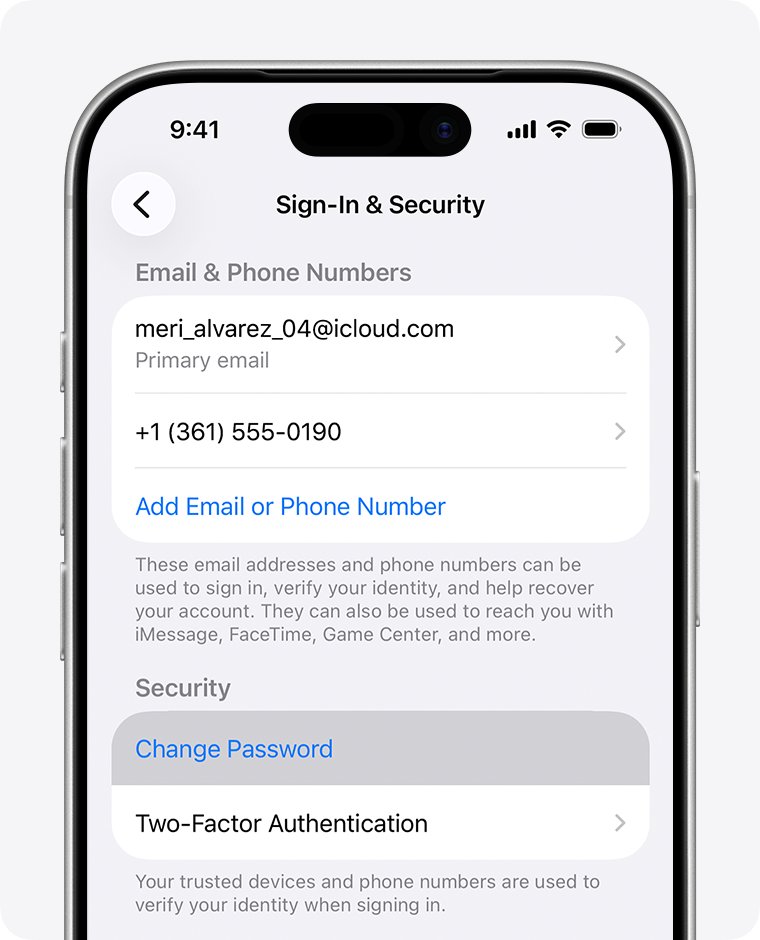
You can change the password on the watch itself in Settings > your name > Sign-In & Security > Change Password. Stolen Device Protection on the iPhone blocks this on the watch.
Restart Apple Watch and iPhone to clear the iCloud sign-in prompt
Apple recommends restarting both devices when something is not working right. Do the watch and the phone, not just one.
- Take the watch off its charger, because it cannot restart while charging.
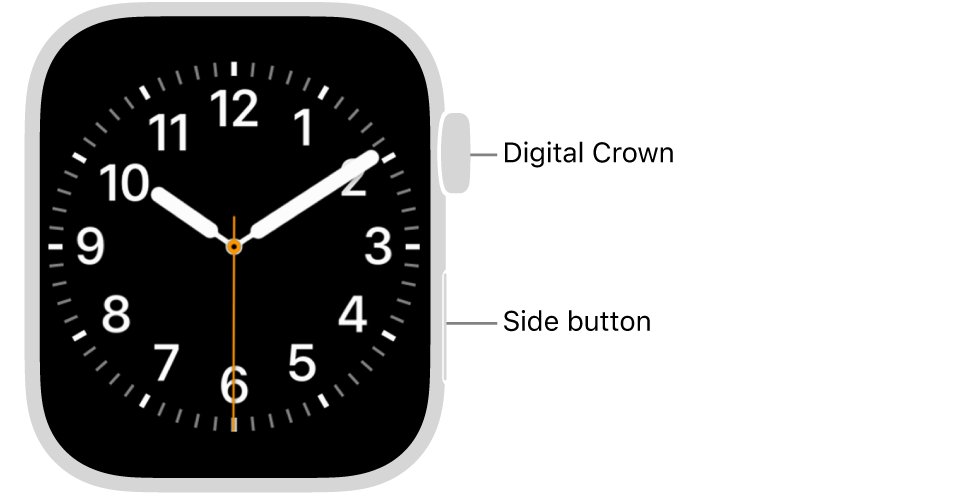
- Press and hold the side button until the sliders appear, tap the power button, then drag the Power Off slider to the right.
- On the iPhone, go to Settings > General > Shut Down and drag the slider.
- Turn the iPhone back on by holding the side or top button until the Apple logo appears.
- Turn the watch back on by holding the side button until the Apple logo appears.
- If the watch will not turn off, hold the side button and Digital Crown together for at least 10 seconds to force a restart.
Update watchOS and iOS to fix Apple Watch iCloud sign-in
Account features on the watch rely on the iPhone, so both should run current software.
- Update the iPhone to the latest version of iOS.
- Open the Apple Watch app and tap My Watch.
- Go to General > Software Update.
- Tap Download and Install if an update is available.
- Or, on the watch, open Settings, tap General, then tap Software Update.
How to check which Apple Account is on Apple Watch
Once the prompt stops, confirm the watch is listed on the right account.
- On the watch, open Settings and tap your name. Your name and account details should appear instead of a sign-in prompt.
- Tap Sign-In & Security to see the email addresses and phone numbers on the account.
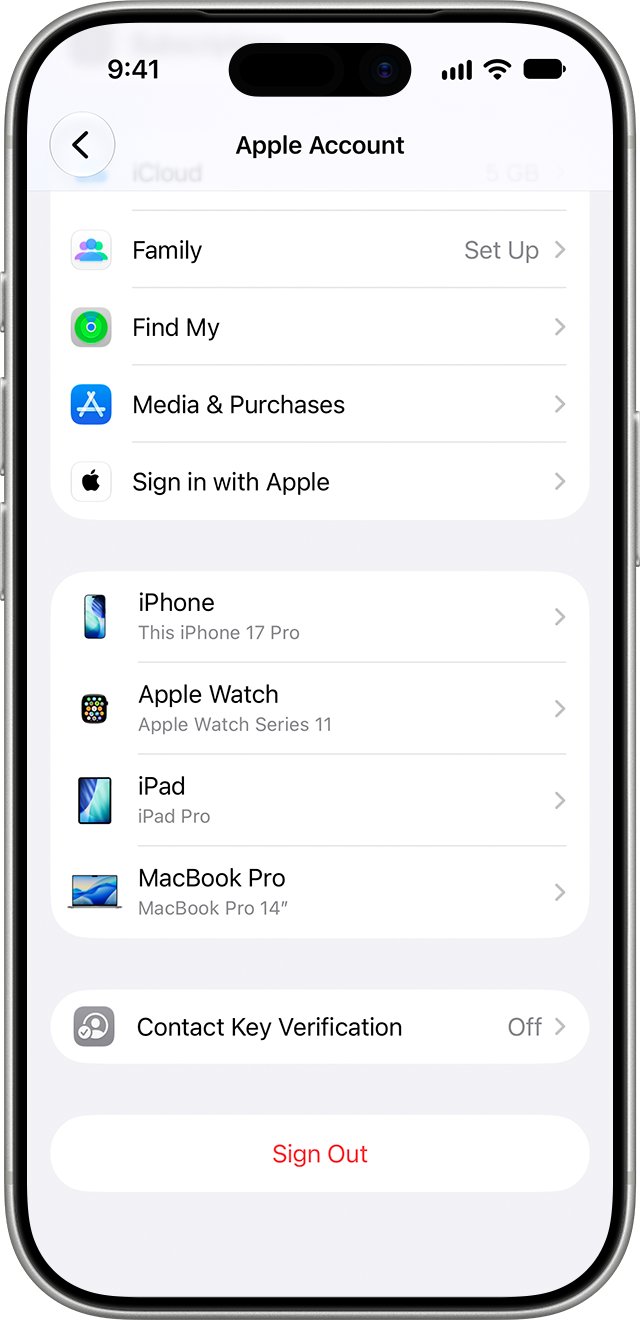
- On the iPhone, open Settings, tap your name and scroll down to the device list.
- Tap your Apple Watch in the list to view its details.
- If the watch is missing from the list, it is not signed in yet. Repeat the Apple Watch app sign-in.
You can also see the device list on the web at account.apple.com under Devices.
Unpair and pair Apple Watch again to fix iCloud sign-in
Use this only when every step above fails. Unpairing erases the watch and removes Activation Lock, then setup lets you sign in to your Apple Account again.
- Open the Apple Watch app on the iPhone and tap My Watch, then All Watches.
- Tap the info button next to your watch, then tap Unpair Apple Watch.
- On a cellular watch, choose to keep your plan if you will pair it with the same iPhone.
- Hold the watch near the unlocked iPhone and tap Continue when the setup message appears.
- Restore from a backup when asked, and enter your Apple Account password at the sign-in step.
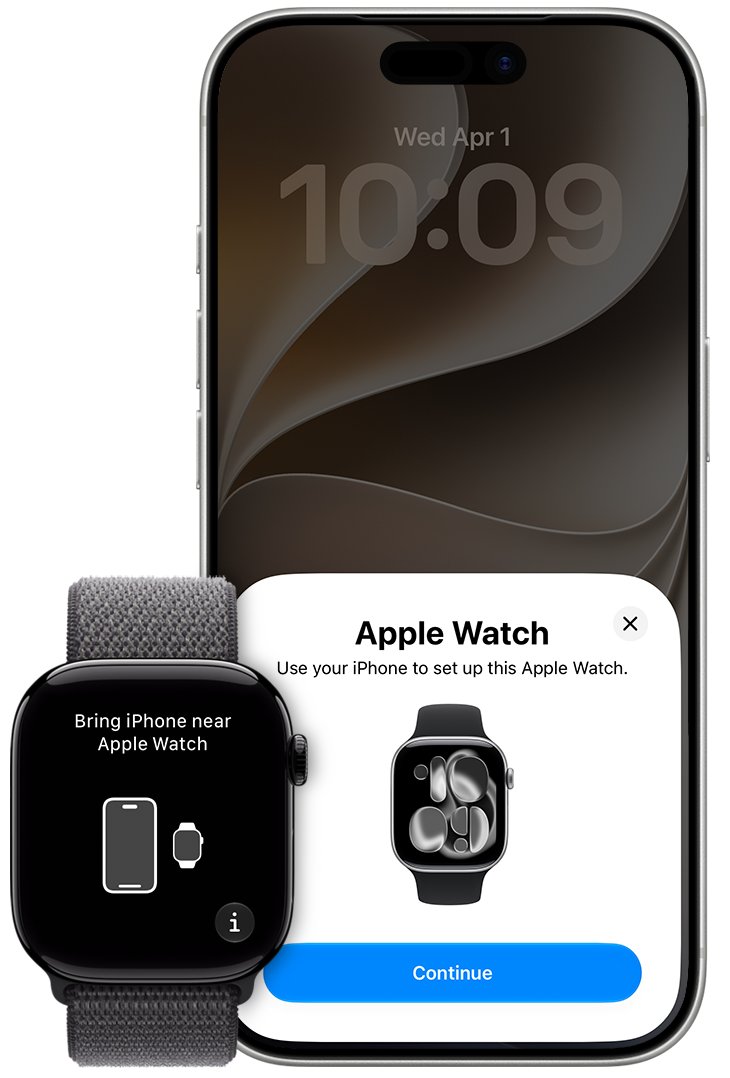
Apple Watch iCloud sign-in not working
Apple Account is locked, not active or disabled
The account can lock automatically when a password is entered wrongly too many times.
- Reset your Apple Account password from the iPhone.
- If the alert offers Request Access, tap it.
- Sign in on the watch again once the account is unlocked.
Sign-in spins or can't connect to the server
An Apple service outage, or a network problem.
- Check Apple's System Status page for an outage in your country or region.
- If there is no outage, connect the iPhone to another Wi-Fi or cellular network.
- Try the sign-in again later.
Forgot the Apple Account password
You cannot sign in on the watch without it.
- Reset the password from a trusted device, such as the paired iPhone.
- If you do not have the phone, sign in to iCloud another way and reset it.
- Sign in on the watch with the new password.
Asked to agree to an update to your Apple Account
The prompt returns until you agree, if you chose to review it later.
- Agree to the update right from the prompt on your iPhone or watch.
- If you tap to review it later, expect the prompt to return until you agree.
- If you were asked about a region you do not live in, change your Apple Account country or region.
Activation Lock screen appears on the watch
The watch is linked to an Apple Account, possibly a previous owner's.
- Enter the email address and password for that Apple Account.
- If the watch was previously owned, contact the previous owner to remove Activation Lock.
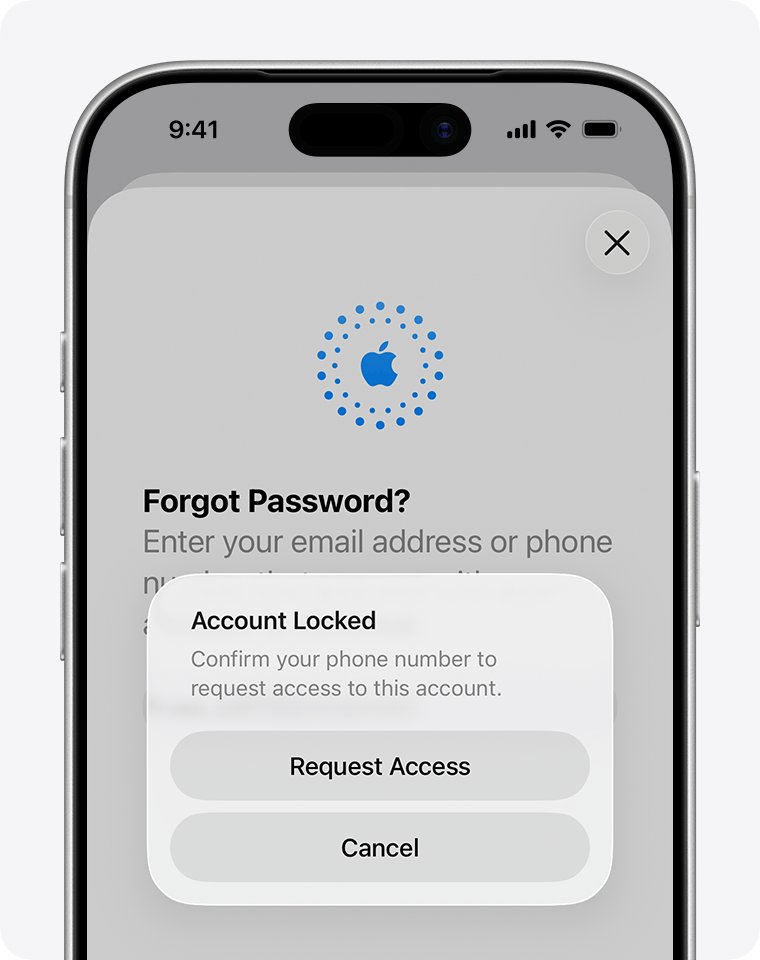
Apple Watch iCloud sign-in FAQ
How do I sign in to iCloud on my Apple Watch?
Open the Apple Watch app on the paired iPhone, tap My Watch, tap General, then tap Apple Account and sign in. If the iPhone is already signed in, the watch usually signs in to the same account automatically.
Why does my Apple Watch keep asking for my Apple ID password?
The watch is signed out, often after a password change with Remove Other Devices, or after setup skipped the Apple Account step. Sign in again from the Apple Watch app under General > Apple Account.
Can I sign in to iCloud directly on Apple Watch?
Apple Watch uses the Apple Account from its paired iPhone. Sign in on the iPhone, then use the Apple Watch app on the iPhone to sign in the watch.
Does changing my Apple Account password sign out my Apple Watch?
Only if you choose Remove Other Devices when you change it. Tap Keep All Devices Signed In to leave the watch signed in.
What happens if I don't sign in to iCloud on Apple Watch?
The watch keeps reminding you, and on cellular models some features that need a cellular phone number do not work until you sign in to iCloud.
How do I see which Apple Account my Apple Watch uses?
Open Settings on the watch and tap your name. On the iPhone, open Settings, tap your name and scroll to the device list to see the watch.
Will unpairing my Apple Watch delete my data?
Unpairing erases the watch and removes Activation Lock. When you pair again, you can restore from a backup, then sign in to your Apple Account during setup.