When the Mac menu bar does not show all icons, it has run out of room, so remove icons you rarely use with Command-drag and turn on Scale to fit below built-in camera for apps whose menus run under the notch.
This guide also covers the Allow in the Menu Bar list in macOS Tahoe, where an app's icon can be turned off, and where the same settings live on older macOS versions.
How to show hidden menu bar icons on Mac
The app menus on the left and the status menus on the right share one strip. When the active app has a long row of menus, there is less room for icons on the right.
- Click the desktop or the Finder icon in the Dock so Finder, with its short set of menus, becomes the active app.
- Check whether the missing icons now appear on the right of the menu bar.
- Press and hold Command, then drag any icon you rarely use out of the menu bar to remove it.
- Choose Apple menu > System Settings, then click Menu Bar in the sidebar.
- Under Allow in the Menu Bar, turn on the app whose icon is missing.
Removing a status icon does not uninstall anything. You can add it back from Menu Bar settings or from Control Center at any time.
Why is my Mac menu bar not showing all icons?
Match what you see to a row, then use the section for that fix.
| What you notice | Likely cause | Fix |
|---|---|---|
| Icons return when Finder is the active app | The current app's menus take up the space | Remove icons you do not need, or shorten the clock |
| Menus or icons sit under the notch on a MacBook | Items fall behind the camera housing | Turn on Scale to fit below built-in camera for that app |
| One app's icon never appears, even with space free | The app is turned off under Allow in the Menu Bar | Turn the app on in System Settings > Menu Bar |
| Wi-Fi, Bluetooth, Sound or Battery icon is missing | The control is not set to show in the menu bar | Select it under Menu Bar Controls, or Show in Menu Bar on older macOS |
| Icons only appear when something is active | The item is set to Show When Active | Change it to Always Show |
| Too many icons on a small screen | The display resolution leaves little width | Choose a resolution with more space in Displays |
| The whole menu bar is missing | Automatically hide and show the menu bar is on | Set it to Never |

Menu bar icons hidden behind the notch on MacBook Pro and MacBook Air
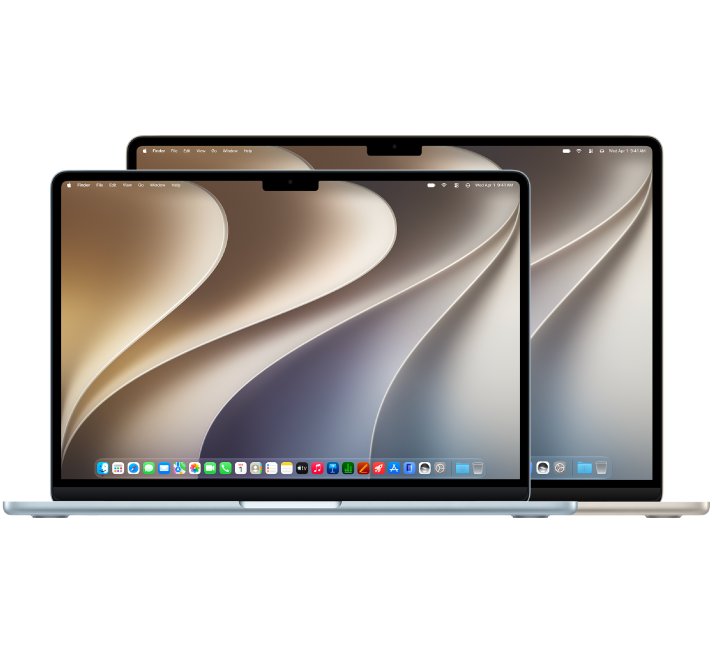
MacBook Air with Liquid Retina display and MacBook Pro with Liquid Retina XDR display have a camera housing in the top of the screen. Apple says menu bar items can appear blocked or hidden behind it.
The fix is per app. It moves the menu bar and windows below the camera while that app is open.
- Quit the app whose menus run into the notch.
- Click the Finder icon in the Dock, then click Applications in the Finder sidebar.
- Select the app, then choose File > Get Info, or press Command-I.
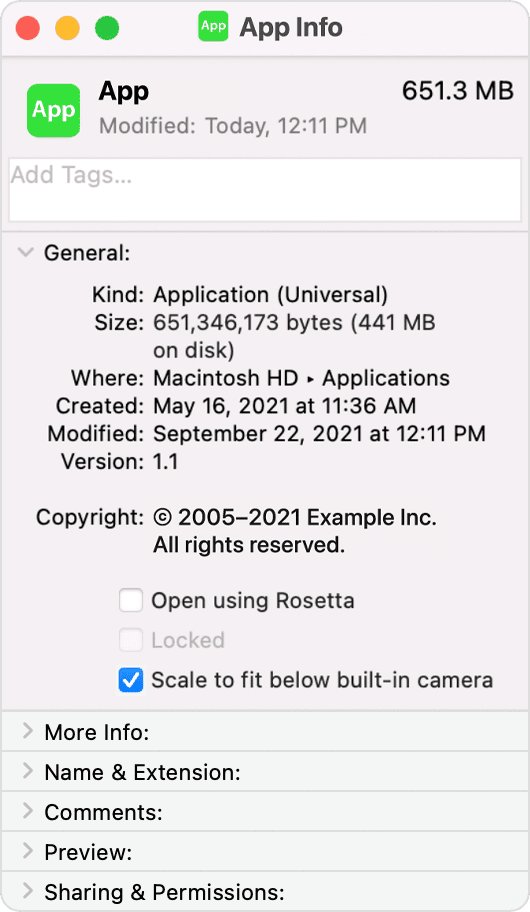
- In the Info window, select Scale to fit below built-in camera.
- Open the app again and check the right side of the menu bar.
While a scaled app is open, all apps that share the same space also appear below the camera until you quit it. If the option is missing, the developer has already updated the app for the camera housing.
How to remove and rearrange menu bar icons on Mac
Every icon you remove frees space for the ones you need. Rearranging lets you keep the icons you use most next to each other.
- To move an icon, press and hold Command while you drag it to a new position in the menu bar.
- To remove an icon quickly, press and hold Command while you drag it out of the menu bar.
- To remove an icon you added from System Settings, choose Apple menu > System Settings, click Menu Bar and deselect it.
- To remove an icon you added from Control Center, click Control Center in the menu bar, click Edit Controls, then drag the item off the menu bar.
- Quit menu bar apps you do not use from their own icon menu, or turn them off under Allow in the Menu Bar.
Allow in the Menu Bar setting on macOS Tahoe
In macOS Tahoe and later, Menu Bar settings list the apps that provide menu bar items. An app that is turned off here shows no icon, however much space is free.
- Choose Apple menu > System Settings.
- Click Menu Bar in the sidebar. You may need to scroll down.
- Scroll to Allow in the Menu Bar.
- Turn on each app whose icon you want to see.
- Turn off apps whose icons you never use, to save space for the rest.
Where to show Wi-Fi, Bluetooth and battery icons in the Mac menu bar
Apple moved the status icon options between macOS versions. Use the row for your version.
| macOS version | Where the setting is | What to choose |
|---|---|---|
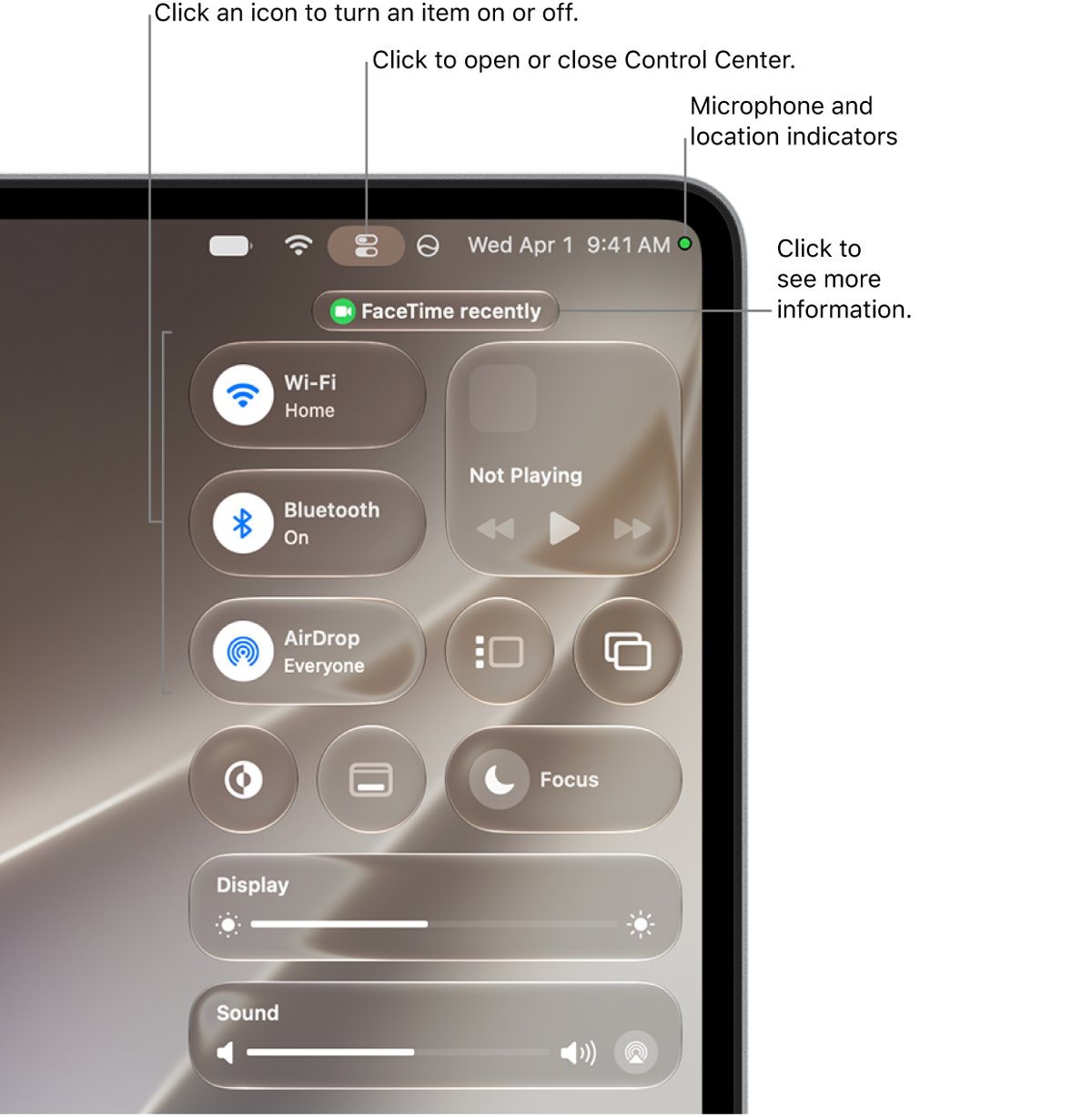
| macOS Tahoe 26 and later | System Settings > Menu Bar > Menu Bar Controls | Select Wi-Fi, Bluetooth, Battery, Spotlight, Siri, Time Machine, VPN or Weather. For Focus, Screen Mirroring, Display, Sound and Now Playing, choose Always Show or Show When Active |
| macOS Ventura 13 to macOS Sequoia 15 | System Settings > Control Center | Choose Show in Menu Bar, Show When Active or Don't Show in Menu Bar for each module |
| Any recent version | Control Center in the menu bar > Edit Controls | Drag a control from the Controls Gallery or Control Center to the menu bar |
In Control Center you can also Control-click an item and choose Copy to Menu Bar or Add to Menu Bar to keep it handy.
Change Mac display resolution for more menu bar space
A smaller-looking resolution makes text and objects smaller, which leaves more width for menus and icons. It suits a small laptop screen with many menu bar apps.
- Choose Apple menu > System Settings, then click Displays in the sidebar.
- Move the pointer over the resolution thumbnails to see each size.
- Click a thumbnail that gives more space on screen.
- Control-click the thumbnails and choose Show List if you prefer to pick from a list.
- Click Default later if text becomes too small to read.
Apple notes that a scaled resolution may affect performance and that some app windows may not fit entirely on the screen.
How to shorten the Mac menu bar clock
The clock is always in the menu bar and cannot be removed, but a shorter format gives icons more room.
- Open System Settings and click Menu Bar in the sidebar.
- Go to Menu Bar Controls, then click Clock Options.
- Set Show date to When Space Allows or Never.
- Turn off Show the day of the week.
- Turn off Display the time with seconds, or set Style to analog for the smallest clock.
How to see which apps add icons to the Mac menu bar
Before you decide what to remove, list every app that can put an icon there.
- Open System Settings and click Menu Bar in the sidebar.
- Read the list under Allow in the Menu Bar. Every app there can add an icon.
- Read Menu Bar Controls to see which system icons are selected.
- Make Finder the active app and count the icons on the right of the menu bar.
- Switch to the app you use most and check that the icons you need are still visible.
Menu bar on Mac not showing or icons missing
Menu bar not showing at all
The menu bar is set to hide automatically.
- Move the pointer to the top of the screen to show it.
- Open System Settings > Menu Bar.
- Set Automatically hide and show the menu bar to Never.
Why does my menu bar keep disappearing in full screen?
The hide option is set to Always or In Full Screen Only.
- Open System Settings > Menu Bar.
- Change Automatically hide and show the menu bar to Never or On Desktop Only.
- If it still hides, try the other ways to stop the menu bar from disappearing.
Menu bar icons missing on an external display
The menu bar or the active app is on another display.
- Click a window on the external display to make it active.
- Set the menu bar to show on all screens if it only appears on one.
- Remove icons you do not need if the external display is narrow.
An app's menu bar icon disappeared
The app quit, or it is turned off in Menu Bar settings.
- Open the app again from Applications.
- Turn it on under Allow in the Menu Bar in System Settings > Menu Bar.
- Check the app's own settings for an option to show its menu bar icon.
Menu bar clock is dimmed
A Focus is active and the Focus status menu is not shown.
- Open System Settings > Menu Bar.
- Select Focus, then choose Always Show or Show When Active.
Mac menu bar icons FAQ
Why is my menu bar not showing all icons on Mac?
The menu bar has limited width, and the active app's menus share it with status icons. On MacBooks with a notch, items can also sit behind the camera housing. Remove unused icons and turn on Scale to fit below built-in camera for crowded apps.
How do I show the menu bar on Mac?
Move the pointer to the top of the screen. To keep it visible, open System Settings, click Menu Bar and set Automatically hide and show the menu bar to Never.
Why does my menu bar keep disappearing?
Automatically hide and show the menu bar is set to Always or In Full Screen Only. Change it to Never or On Desktop Only in System Settings > Menu Bar.
Where is my menu bar located on Mac?
The menu bar runs along the top of the screen. The Apple menu and app menus are on the left, and status menus, Control Center and the clock are on the right.
How do I add an icon to the Mac menu bar?
Open System Settings, click Menu Bar and select the control. Or click Control Center, click Edit Controls and drag an item to the menu bar.
How do I rearrange menu bar icons on Mac?
Press and hold the Command key while you drag an icon to a new position. Dragging it out of the menu bar while holding Command removes it.
Can I remove the clock from the Mac menu bar?
No. The clock is always shown in the menu bar. You can make it shorter in Clock Options by hiding the date, the day of the week and seconds, or by choosing an analog style.
How do I find the menu bar settings on older macOS?
On macOS Ventura, Sonoma and Sequoia, the status icon options are in System Settings > Control Center. Each module has a pop-up menu with Show in Menu Bar.