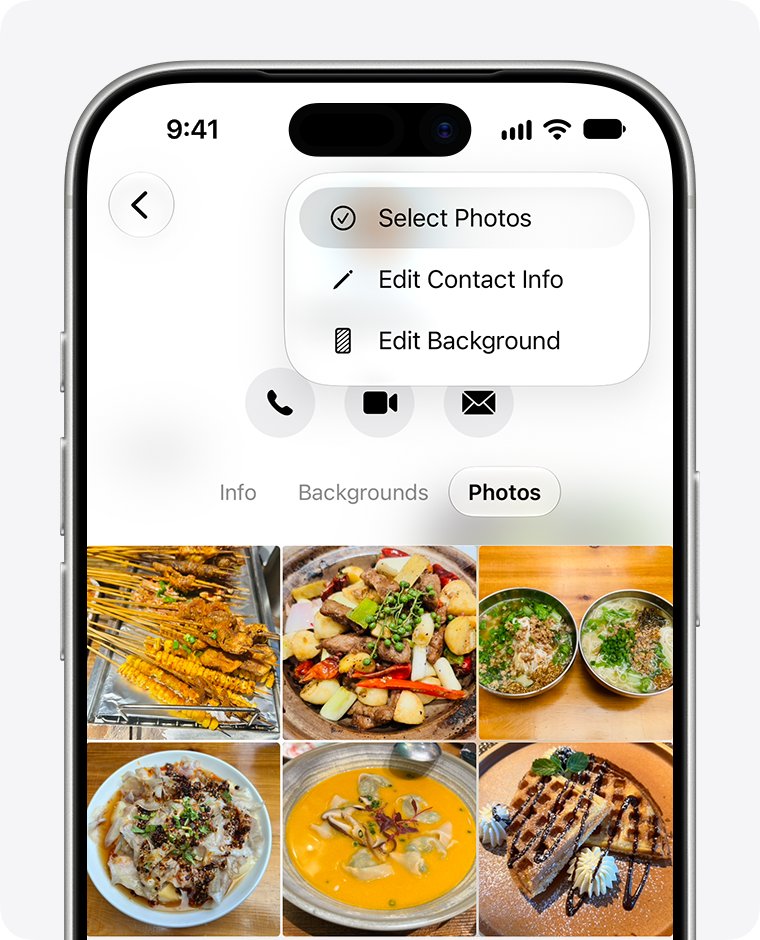
The Photos tab in Messages on iPhone 17 Pro lives in the conversation details, so open a conversation, tap the contact icon at the top, then swipe left to reach Photos.
This guide covers where the tab sits in iOS 26, why it can vanish for a contact, how to bring back the Photos button in the plus menu, and how to recover pictures that Messages deleted.
Where is the Photos tab in Messages on iPhone 17 Pro
Many people look for the tab inside the Contacts app or in the conversation list. In iOS 26 the tab sits on the details screen of each individual conversation, not on the main Messages screen.
- Open the Messages app on your iPhone 17 Pro.
- Tap the conversation whose pictures you want to see.
- Tap the contact or group icon at the very top of the conversation.
- Swipe left on the details screen until the category tabs appear.
- Tap Photos to see every image and video shared in that conversation.
- Tap Links, Documents, Locations or Wallet to browse the other shared items.
The details screen is per conversation. A thread with one contact and a group thread that includes the same contact each keep their own Photos list.
Why is the Photos tab missing in Messages on iPhone
Apple states that a category only appears when the conversation holds at least one item of that type. Match what you see to a row, then use the section it points to.
| What you see | Likely cause | What to do |
|---|---|---|
| Photos tab missing in one conversation only | No photos or videos were received in that thread | Send or receive a photo there, then reopen the details screen |
| Photos tab missing in every conversation | Old attachments were removed by the Keep Messages setting, or the app needs a restart | Set Keep Messages to Forever, then force restart the iPhone |
| Photos tab appeared before, now gone after deleting messages | The attachments went to Recently Deleted | Recover the conversation from Recently Deleted within 30 days |
| Photos tab gone on a new or restored iPhone | Messages in iCloud is off, so old threads did not sync | Turn on Use on this iPhone under iCloud > Messages |
| Photos button missing after tapping the plus icon | The Photos app was dragged to another page of the menu | Swipe the plus menu pages and drag Photos back |
| Shared photos missing from the Photos app | The sender is not in your contacts, or Shared with You is off | Add the sender as a contact and turn Shared with You back on |
iPhone 17 photo button missing in Messages
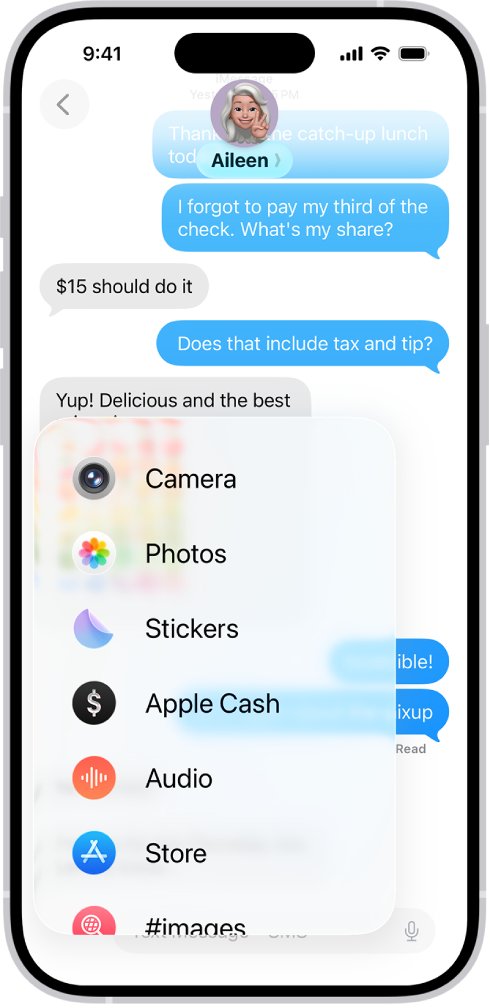
The plus button in a conversation opens the list of iMessage apps, and Photos is one of them. Apps in that list can be rearranged and moved to another page, which makes the Photos button look like it disappeared.
- Open Messages and tap any conversation.
- Tap the plus button to the left of the text field.
- Swipe up or down through the pages of the menu and look for Photos.
- Touch and hold the Photos icon until it shrinks a little.
- Drag it to the top of the first page, then lift your finger.
- Tap Photos to confirm it opens your recent photos and videos.
To move an icon to a different page, drag it to the top or bottom edge of the menu and wait a moment for the new page to appear.
How to send photos in Messages on iPhone 17 Pro
If you only need to attach a picture, the plus menu is the direct route. Sending one photo also creates the Photos tab in a conversation that never had one.
- Open a conversation in Messages.
- Tap the plus button, then tap Photos.
- Swipe up to search, browse all photos, or change albums.
- Tap each image or video you want to send.
- Add a comment if you want, then tap the send arrow.
To take a new picture instead, tap Camera in the same menu. Turn on Send Low Quality Photo Previews in Settings > Apps > Messages if images are slow to arrive over a weak connection.
iPhone Keep Messages setting deleting photos
Keep Messages removes whole conversations, including every attachment, once they pass the age you choose. If it is set to 30 days, older photos disappear from the Photos tab on schedule.
- Open the Settings app.
- Tap Apps, then tap Messages.
- Scroll down to Message History and tap Keep Messages.
- Choose Forever so attachments stay in your conversations.
Changing the setting stops future removals. It does not bring back attachments that were already removed, so check Recently Deleted next.
Recently deleted photos in Messages on iPhone 17
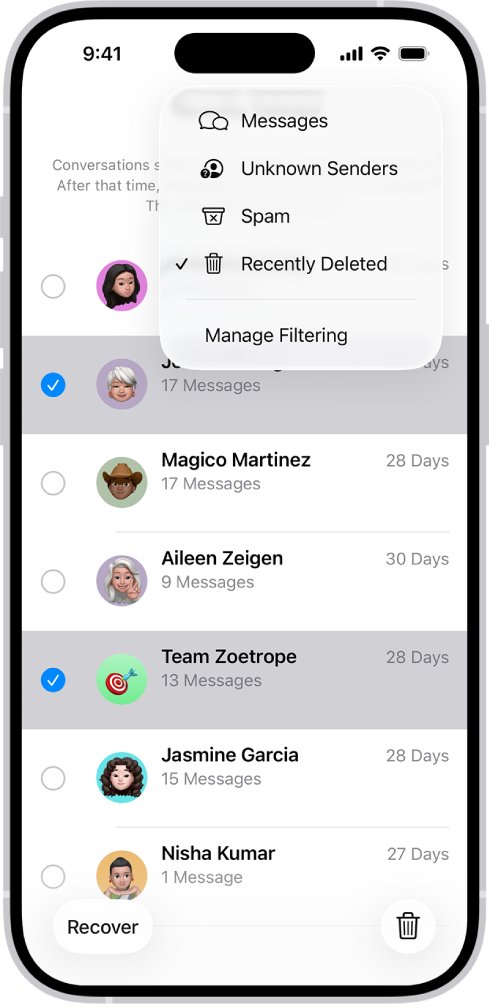
Messages and attachments you delete stay in the Recently Deleted folder for up to 30 days. Recovering deleted messages from there also brings their photos back to the details screen.
- Open Messages and go to the conversation list.
- Tap the menu button at the top of the list, then tap Recently Deleted.
- Select the conversations whose photos you want back.
- Tap Recover, then tap Recover Messages.
- Open the conversation and check the Photos tab on its details screen.
Messages removed with Undo Send are deleted permanently, and audio messages that expired before being saved cannot be recovered.
Messages in iCloud photos missing on iPhone
Messages in iCloud keeps your full message history, attachments included, in sync across devices signed in to the same Apple Account, so you can view your messages on iCloud from another device too. If it is off on the iPhone 17 Pro, older threads and their photos may never arrive from your previous phone.
- Connect the iPhone to Wi-Fi or cellular data.
- Open Settings and tap your name at the top.
- Tap iCloud, then tap Messages. If it is not listed, tap See All under Saved to iCloud.
- Turn on Use on this iPhone.
- Leave the iPhone connected and open Messages after the sync finishes.
With Messages in iCloud on, deleting a photo on one device deletes it on every device that uses the same setting. Messages in iCloud also counts against your iCloud storage.
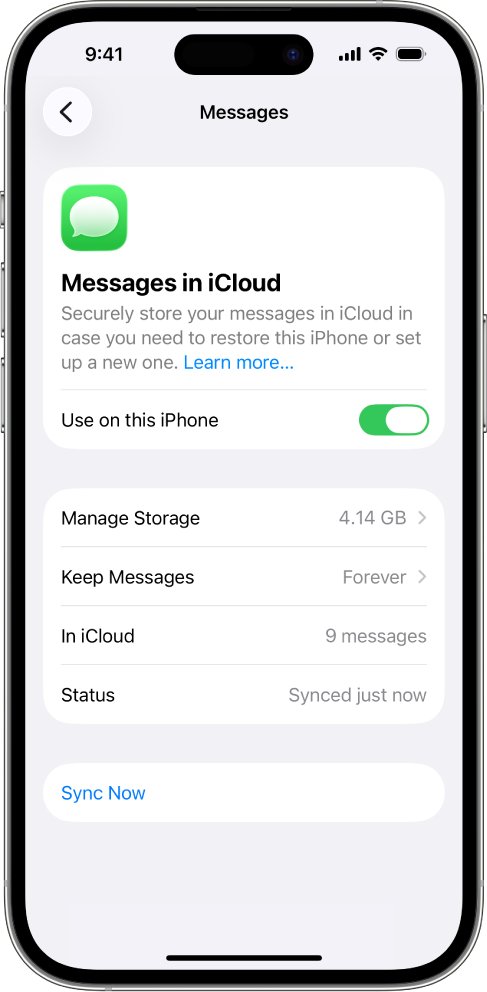
Photos shared in Messages missing from the iPhone Photos app
Photos that people send you also show in the Shared with You section of Photos. That section only shows content from senders saved in your contacts, and a per-conversation switch can hide it.
- Open the conversation in Messages and tap the contact icon at the top.
- Tap Info and turn on Shared with You for that conversation.
- Open Settings, tap Apps, then tap Messages.
- Tap Shared with You and turn on Automatic Sharing and the switch for Photos.
- Add the sender to Contacts if they are not saved yet.
These switches control the Photos app section only. The Photos tab in the Messages details screen does not depend on them.
How to delete photos in Messages on iPhone 17
The Photos tab is also where you clear many attachments at once. Deleted items go to Recently Deleted first, so you can undo a mistake for 30 days.
- Open the conversation and tap the contact or group icon at the top.
- Tap Photos.
- To narrow the list, tap the filter button at the bottom left and choose Screenshots, Videos or Photos.
- Tap Edit, then tap Select.
- Tap each attachment you want to remove, tap the delete button, then confirm.
Deleting affects only your iPhone and your other devices signed in to the same Apple Account. The other person keeps their copy.
How to tell if the Messages Photos tab is back on iPhone
- Open a conversation where you know photos were exchanged.
- Tap the contact icon at the top and swipe left.
- Look for Photos next to Links and Documents; it should list thumbnails.
- Tap a thumbnail and check it opens the full picture.
- Open the plus menu in the same conversation and check Photos is on the first page.
iPhone 17 Pro photos missing in Messages after the iOS 26.1 update
Photos missing on iPhone Messages details screen in every conversation
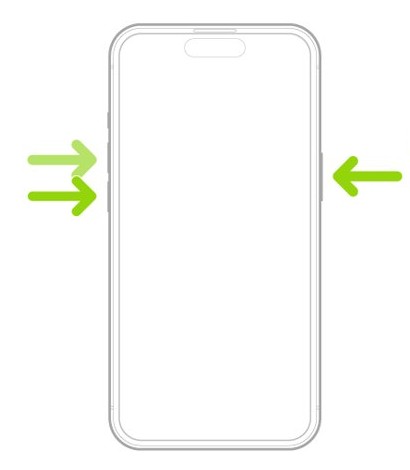
Messages may not have refreshed after the update.
- Press and quickly release the volume up button.
- Press and quickly release the volume down button.
- Press and hold the side button until the Apple logo appears, then release it.
- Open Settings > General > Software Update and tap Download and Install if a newer iOS 26 release is listed.
- Reopen the conversation details and check the Photos tab.
Photos icon missing on iPhone Home Screen
The Photos app was removed from the Home Screen, but it stays in App Library.
- Swipe left past all your Home Screen pages to reach App Library.
- Tap the search field and type Photos.
- Touch and hold the Photos icon until the icons jiggle and it moves to the Home Screen, then lift your finger.
Missing pictures on iPhone in a conversation that had them
The conversation or attachments were deleted, or Keep Messages removed them.
- Check Recently Deleted in Messages and recover the conversation.
- Set Settings > Apps > Messages > Keep Messages to Forever.
- Turn on Messages in iCloud so attachments sync from your other Apple devices.
Photos from one person never show up
Their messages may be filtered to Unknown Senders.
- In the conversation list, tap the filter button at the top right, then tap Unknown Senders.
- Open the sender's message and tap Mark as Known.
- Ask them to resend the photo, then check the conversation details.
If the iPhone also feels sluggish after the update, work through the fixes for an iPhone slow after iOS 26 before you erase anything. When pictures fail to leave your phone at all, the problem is sending, so fix photos not sending in iMessage instead.
iPhone 17 Messages Photos tab FAQ
How do I delete photos on iPhone 17 in Messages?
Open the conversation, tap the contact icon at the top, then tap Photos. Tap Edit, tap Select, choose the pictures and tap the delete button. They stay in Recently Deleted for 30 days before they are removed for good.
Where are recently deleted photos on iPhone 17 in Messages?
In the Messages conversation list, tap the menu button at the top and choose Recently Deleted. Deleted conversations and attachments stay there for up to 30 days. Select a conversation and tap Recover to bring its photos back.
Why are photos missing on my iPhone in Messages?
A conversation shows the Photos category only when it holds at least one photo or video. Pictures also vanish when Keep Messages removes old conversations, when you delete them, or when Messages in iCloud is off on a new iPhone.
Where is the photo button in Messages on iPhone 17?
Tap the plus button beside the text field in any conversation, then tap Photos. If it is not on the first page, swipe through the menu, touch and hold Photos, and drag it back to the top.
Why is the Photos icon missing on my iPhone?
The icon was most likely removed from the Home Screen. The app stays in App Library, so swipe left past your last Home Screen page, search for Photos, then touch and hold it to move it back.
Does turning off Shared with You remove the Photos tab in Messages?
No. Shared with You controls whether photos people send you also appear in the Photos app and other apps. The Photos tab on a conversation's details screen stays, as long as the conversation contains photos or videos.
Is the Photos tab removed in iOS 26?
No. Apple's iOS 26 guide still lists Photos, Links, Documents, Locations and Wallet on a conversation's details screen. Tap the contact icon at the top of the conversation and swipe left to reach them.