The ms-settings:display error means Windows cannot hand the Display settings link to the Settings app, so re-registering Settings with PowerShell and repairing system files with DISM and SFC fixes it on most PCs.
This guide covers why the message appears after you choose Display settings, how to test the Settings app, each repair from PowerShell to a new user account, and the SystemSettings.exe suspended problem in Windows 11 and Windows 10.
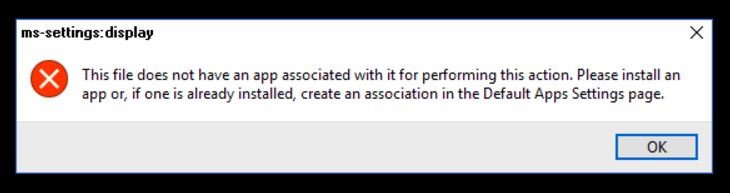
MS-settings:display – this file does not have an app associated with it for performing this action
Every Settings page opens through an ms-settings: link, and the Settings app is the only handler for it. When that app is damaged or unregistered, the desktop's Display settings item shows this message instead.
- Save your work and select Start > Power > Restart to rule out a one-off glitch.
- Search for PowerShell, right-click Windows PowerShell and select Run as administrator, then select Yes.
- Paste
$p = (Get-AppxPackage -Name '*immersivecontrolpanel*').InstallLocationand press Enter. - Paste
Add-AppxPackage -Path ($p + '\AppxManifest.xml') -Register -DisableDevelopmentModeand press Enter. - Restart the PC.
- Right-click the desktop and select Display settings again.
If the same message appears, run DISM and SFC as shown below, because damaged Windows files can stop the Settings app from registering.
Why ms-settings:display has no app associated with it
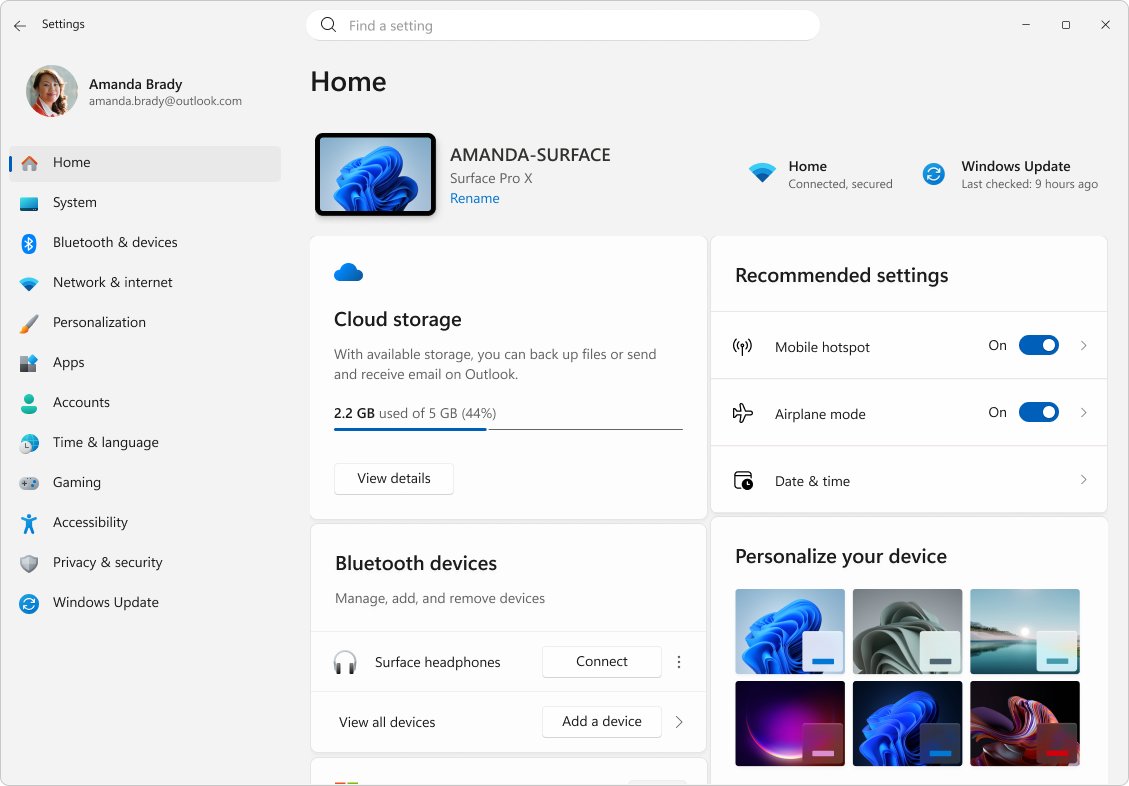
Match what you see to a row. The Settings app's package is named windows.immersivecontrolpanel, and its program file is SystemSettings.exe.
| What you see | Likely cause | Fix to try |
|---|---|---|
| Display settings, Personalize and Windows + I all fail | The Settings app package is unregistered or damaged | Re-register Settings in PowerShell |
| Only some ms-settings: links fail after an update or crash | Corrupted Windows system files | Run DISM, then sfc /scannow |
| Settings never opens on a work or school PC | The Prohibit access to Control Panel and PC settings policy blocks SystemSettings.exe | Ask the administrator, or turn the policy off on your own PC |
| Settings opens but lands on its front page, not Display | A Settings Page Visibility policy hides the Display page | Remove display from the policy's hide list |
| The error happens in one account only | A damaged user profile | Test in a new user account |
| The error appears when you open a file, not Settings | A file type has no default app | Choose an app for that file type |
The last row is a different problem: when a document or picture shows the same wording, fix the file association error from Default apps instead.
How to open display settings with ms-settings:display from Run
This test shows whether only the desktop shortcut is broken or the whole Settings app. It also gets you to the Display page while you repair the menu item.
- Press Windows key + R to open the Run dialog.
- Type
ms-settings:displayand press Enter. - If System > Display opens, the Settings app works and only the desktop menu link failed: restart the PC and try the menu again.
- If the same error appears, press Windows key + I to test the Settings front page.
- If Windows key + I also does nothing, the Settings app itself needs the PowerShell and DISM repairs below.
If the Run dialog route works, you can also open Display settings in other ways until the desktop menu item is fixed.
Re-register the Settings app with PowerShell to fix ms-settings errors
Microsoft documents Add-AppxPackage -Register -DisableDevelopmentMode for an installed app package that is disabled or corrupted. Pointed at the Settings package, it rebuilds the registration that handles ms-settings: links.
Run both lines in the same PowerShell window, one after the other.
$p = (Get-AppxPackage -Name '*immersivecontrolpanel*').InstallLocation
Add-AppxPackage -Path ($p + '\AppxManifest.xml') -Register -DisableDevelopmentMode
The first line finds the install folder of the Settings app package (windows.immersivecontrolpanel). The second line registers that package again from its manifest file for your account.
You should see: PowerShell returns to the prompt without red error text. After a restart, ms-settings:display opens System > Display.
If the first line returns nothing, the package is missing for your account, so continue with DISM and SFC.
Run DISM and SFC to fix ms-settings file system error
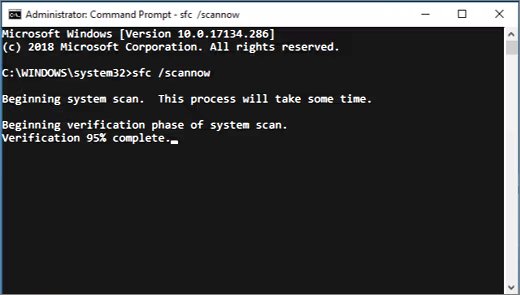
DISM downloads healthy copies of Windows components, and System File Checker uses them to replace damaged system files. Microsoft says to run DISM first.
DISM.exe /Online /Cleanup-image /Restorehealth
sfc /scannow
Run both in Command Prompt opened with Run as administrator. DISM repairs the component store from Windows Update, then sfc /scannow scans every protected system file and replaces corrupted ones. Keep the window open until verification reaches 100%.
You should see: SFC ends with "Windows Resource Protection did not find any integrity violations" or "Windows Resource Protection found corrupt files and successfully repaired them." Restart, then test ms-settings:display.
If SFC says it could not fix some files, open the log that System File Checker writes to see which ones failed.
Turn off Prohibit access to Control Panel and PC settings in Group Policy
This policy stops Control.exe and SystemSettings.exe from starting, so no Settings page opens. On a work or school PC, an administrator sets it, and only they should change it.
- Press Windows key + R, type
gpedit.mscand press Enter (Windows Pro, Enterprise and Education only). - Go to User Configuration > Administrative Templates > Control Panel.
- Double-click Prohibit access to Control Panel and PC settings.
- Select Not Configured or Disabled, then select OK.
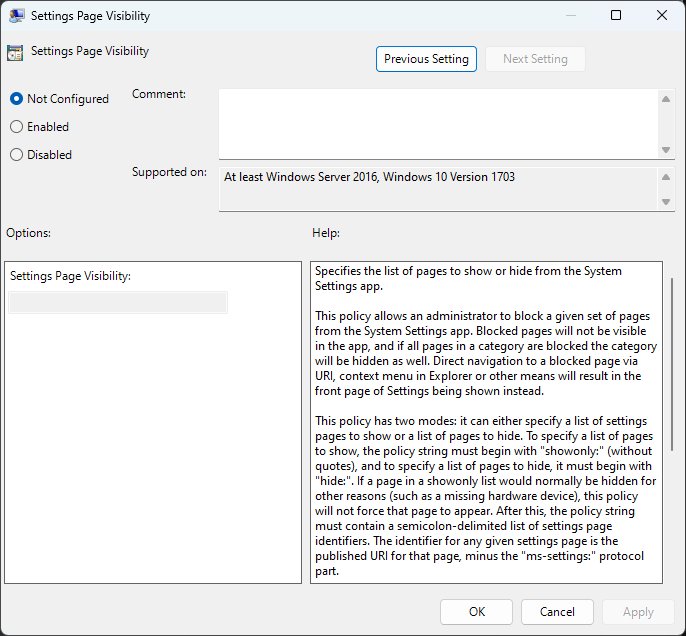
- In the same folder, open Settings Page Visibility and check that its text does not hide display.
- Under Computer Configuration > Administrative Templates > Control Panel, check Settings Page Visibility as well, then restart.
When a Settings Page Visibility policy hides a page, Microsoft says the ms-settings link opens the Settings front page instead of showing an error.
Test ms-settings:display in a new user account
If Settings works in a fresh account, your old profile is damaged. Microsoft's fix is to move your files into a new profile. This route needs a Settings app that opens, even if Display does not.
- Open Settings > Accounts > Other users and select Add account.
- Select I don't have this person's sign-in information, then Add a user without a Microsoft account, and finish the prompts.
- Make the new account an administrator under Accounts > Other users.
- Sign out, sign in to the new account and press Windows key + R, then run
ms-settings:display. - If Display opens there, copy your files from C:\Users\<Old_Username> to C:\Users\<New_Username> in File Explorer.
- Restart the PC and keep using the new account.
Apps you installed may need to be set up again in the new profile, and Microsoft Store apps need you to sign in again.
How to tell if ms-settings:display works again
- Right-click the desktop and select Display settings: System > Display should open with no dialog.
- Press Windows key + R, run
ms-settings:display, and confirm the same page opens. - Press Windows key + I and confirm the Settings front page opens.
- On the Display page, open the Display resolution list to check the page responds.
SystemSettings.exe suspended; stopped interacting with Windows 11
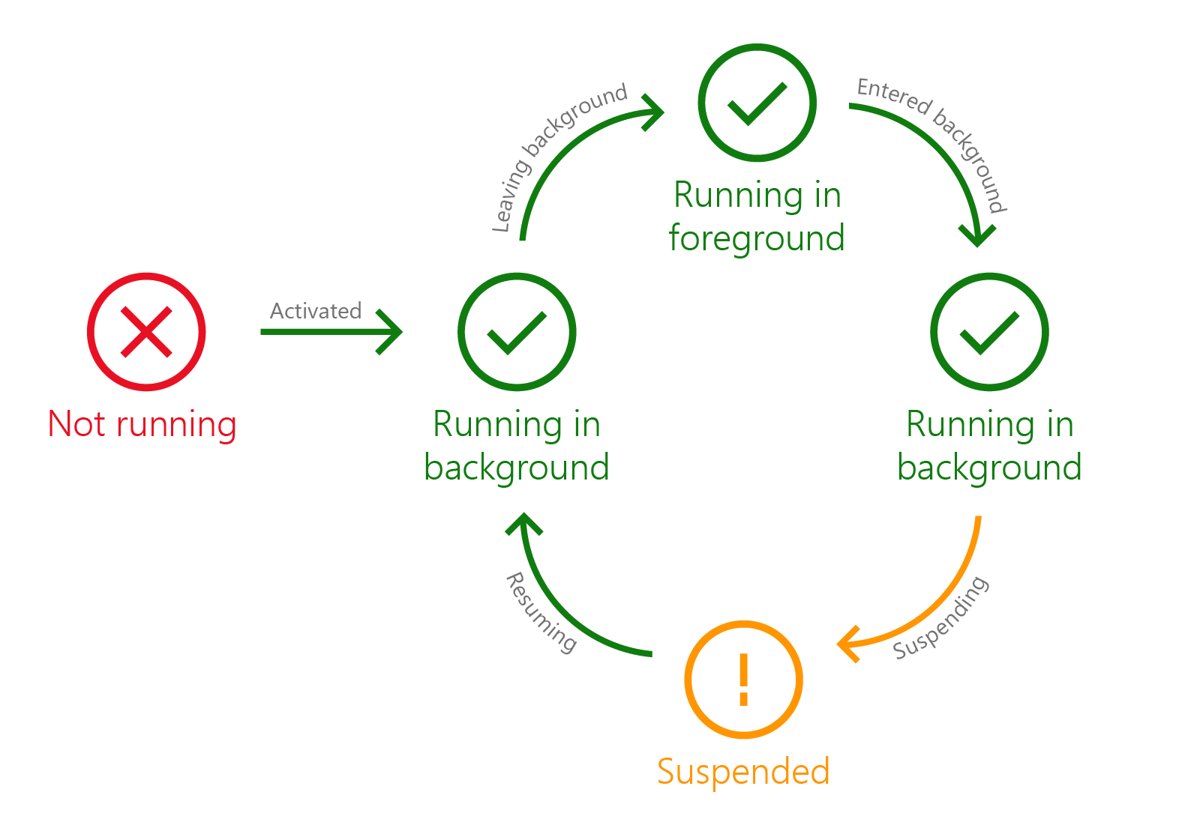
Settings is a Windows app, and Windows suspends such apps shortly after you minimise them or switch away. A suspended status for SystemSettings.exe in Task Manager is normal; a window that never responds is not.
SystemSettings.exe shows as suspended in Task Manager
Windows pauses the Settings app while it is in the background to save power and memory.
- Select the Settings window on the taskbar to bring it to the front.
- Wait a few seconds for Windows to resume it.
- Leave it alone if it responds: no fix is needed.
Settings stopped interacting with Windows and will not respond
The app hung while loading a page, often Display or Graphics.
- Right-click Start and select Task Manager.
- On the Processes tab, right-click Settings and select End task.
- Press Windows key + I to open Settings again.
- If it hangs again on the same page, re-register Settings in PowerShell and run DISM and SFC.
The taskbar and desktop freeze along with Settings
Windows Explorer is stuck as well.
- Press Ctrl + Shift + Esc to open Task Manager.
- Find Windows Explorer on the Processes tab, right-click it and select Restart.
- Open Settings again once the taskbar returns.
You can also restart Explorer from Command Prompt when Task Manager will not open.
MS Settings not working or Windows cannot find ms-settings
These are related messages from the same Settings app. Find yours and apply the fix under it.
Windows cannot find 'ms-settings:'
The Settings package is missing or not registered for this account.
- Run the two PowerShell lines that re-register the Settings app.
- If PowerShell finds no package, run
DISM.exe /Online /Cleanup-image /Restorehealthandsfc /scannowas administrator. - Restart and run
ms-settings:from the Run dialog to test the front page.
Settings opens and closes straight away
A damaged Settings app or system file.
- Restart the PC from Start > Power > Restart.
- Run DISM and then SFC from an administrator Command Prompt.
- Re-register the Settings app in PowerShell and restart again.
ms-settings:display opens the Settings home page instead
The Display page is hidden by a Settings Page Visibility policy.
- Open
gpedit.mscand go to Administrative Templates > Control Panel under both User Configuration and Computer Configuration. - Open Settings Page Visibility and remove display from a hide: list, or set the policy to Not Configured.
- Restart the PC.
Display settings is missing from the desktop right-click menu
The Disable Display Control Panel policy hides it.
- Open
gpedit.mscand look under User Configuration > Administrative Templates > Control Panel for the Disable Display Control Panel setting set to Enabled. - Set it to Not Configured, then restart.
- On a managed PC, ask the administrator instead.
Every repair fails and Settings still will not open
Windows itself is too damaged for in-place repairs.
- Back up your files to an external drive or OneDrive.
- Use Reset this PC with Keep my files to reinstall Windows without losing files.
- Reinstall your apps afterwards.
MS-settings:display error FAQ
How do you fix This file does not have an app associated with it for performing this action?
For ms-settings links, re-register the Settings app with Add-AppxPackage in PowerShell, then run DISM and sfc /scannow and restart. For a document or picture, choose a default app for that file type in Settings > Apps > Default apps instead.
Why is MS Settings not working?
The Settings app package can become unregistered or damaged after a failed update, a crash or a cleanup tool. A Group Policy can also block SystemSettings.exe. Re-registering the package and repairing system files fixes the first case; the policy needs an administrator.
How to fix ms settings display?
Press Windows key + R and run ms-settings:display to test it. If it fails, re-register the Settings app in an administrator PowerShell window, run DISM and SFC, and restart before trying Display settings again from the desktop.
Why is ms settings not opening?
Settings fails to open when its package is damaged, when system files are corrupted, or when the Prohibit access to Control Panel and PC settings policy is on. Check Group Policy first on a work PC, then repair the app on a home PC.
What does windows cannot find ms-settings mean?
It means no registered app answers ms-settings: links for your account. The Settings app package is missing or broken. Re-register it in PowerShell, and run DISM and SFC if PowerShell cannot find the package.
What is the ms-settings file system error in Windows 11?
A file system error when opening Settings points to damaged Windows files rather than a missing app. Run DISM.exe /Online /Cleanup-image /Restorehealth and then sfc /scannow from an administrator Command Prompt, then restart.
Is it safe to end SystemSettings.exe in Task Manager?
Yes. SystemSettings.exe is the Settings app, and ending it only closes the Settings window. Unsaved changes on the open page are lost, but Windows settings already applied stay in place, and Settings opens normally next time.
Can I change display resolution without the Settings app?
Display resolution lives on the Settings Display page in Windows 11 and Windows 10. Windows key + P still switches between PC screen only, Duplicate, Extend and Second screen only, while you repair the Settings app.