Most Amazon Fire Stick problems clear after a restart: unplug the stick from power for 60 seconds, plug it back in, and check that the TV input matches the HDMI port it uses.
If that fails, the fix depends on the symptom: a dead remote, no picture, a frozen logo screen, Wi-Fi errors, crashing apps, failed updates or no sound, each covered below with Amazon's own steps.
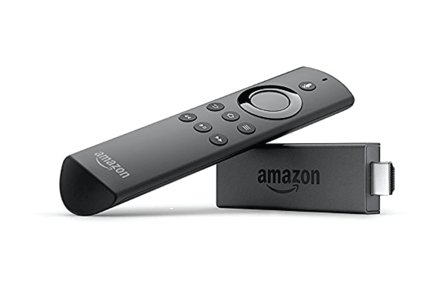
Quick troubleshooting steps for a Fire Stick that's not working
Work through these in order. Each step rules out one of the causes Amazon lists for a stick that will not start or respond.
- Replace the batteries in the remote with fresh AAA alkaline batteries.
- Plug the Fire Stick into a wall outlet with the power cable and adapter that came in the box.
- Unplug the power cord, wait 60 seconds, and plug it back in.
- Press the Source or Input button on the TV remote and pick the HDMI port the Fire Stick is plugged into.
- Unplug the Fire Stick from any HDMI hub or receiver and plug it straight into the TV.
- If the picture is frozen, press and hold Select and Play/Pause together for about 5 seconds to force a restart.
If the Home screen comes back and the remote responds, the stick is working again. If not, find your symptom in the table below.
Common Amazon Fire Stick problems & what they mean
Match what you see on the TV to a row, then jump to the fix for that cause.
| What you see | What it usually means | Fix to try first |
|---|---|---|
| Remote does nothing | Flat batteries, or the remote is no longer paired | New batteries, then hold Home for 10 seconds |
| Volume, power or mute buttons fail | The wrong TV brand is set under Equipment Control | Settings > Equipment Control > Manage Equipment > TV |
| Black, white or blank screen | HDMI cable, port, hub or wrong TV input | Reseat the stick, change the HDMI port, check the input |
| Stuck on the Amazon or Fire TV logo | Not enough power or an HDMI problem during startup | Use the original adapter and leave it on for 25 minutes |
| Keeps turning on and off | Weak power source or outdated software | Another wall outlet, then Check for System Update |
| "Unable to Connect" or buffering | Wi-Fi signal or router problem | Network Diagnostics, then restart the modem and router |
| An app crashes or will not open | Corrupt app cache or an old app version | Clear Cache and Clear Data, then reinstall |
| Update fails | No internet or under 500 MB free storage | Test the network and free up storage |
| Device Recovery Mode screen | A critical error the stick could not resolve | Choose restart, then factory reset if it returns |
| Stick is hot to the touch | Normal warming, or a heat source nearby | Unplug it for a few minutes and move it away from heat |
How to restart a Fire Stick
Amazon's first fix for almost every Fire TV fault is a restart. There are three ways to do it, depending on whether the screen and remote respond.
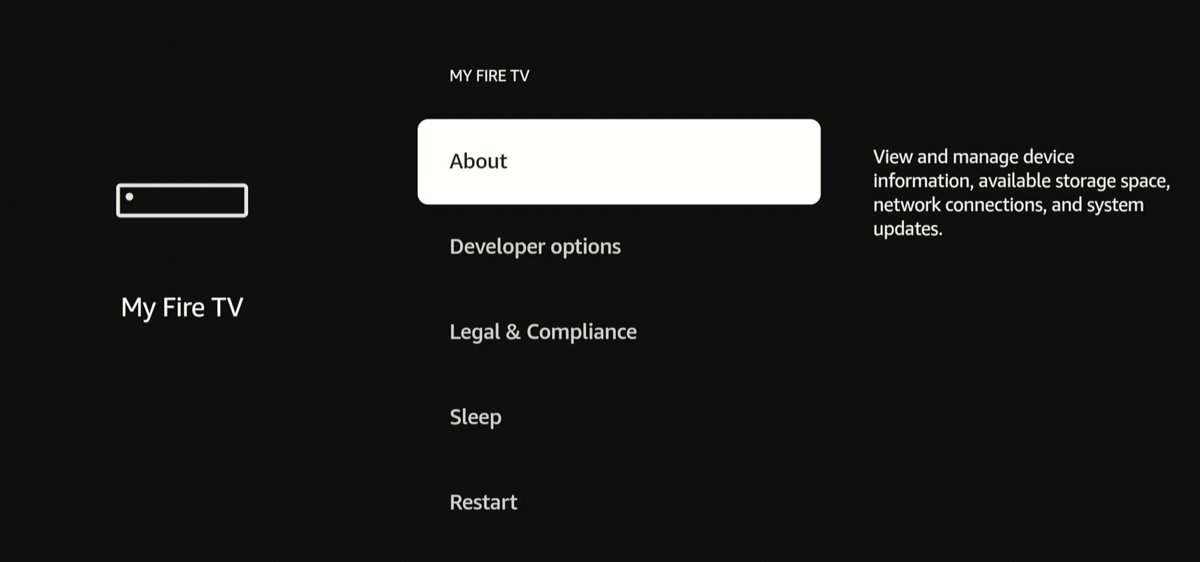
- If the menus respond, go to Settings from the Fire TV menu.
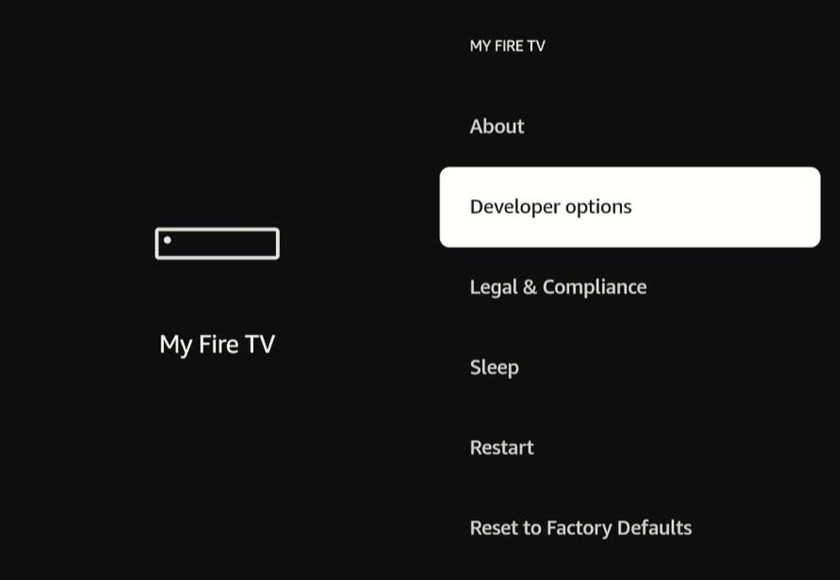
- Select My Fire TV, then select Restart.
- If the screen is frozen, press and hold Select and Play/Pause on the remote together for about 5 seconds.
- If the remote does not respond at all, unplug the power cord from the Fire Stick or the wall outlet.
- Wait at least 60 seconds, then plug it back in and wait for the Home screen.
Fixing remote and power issues
Remote and power faults look alike: in both cases nothing happens when you press a button. Start with the symptom that matches.
Fire Stick remote not working at all
The batteries are flat or the remote has lost its pairing.
- Fit fresh AAA alkaline batteries.
- Restart the Fire Stick and wait for the "Cannot detect your remote" message.
- Press and hold the Home button for 10 seconds to pair it again.
- If it still fails, reset the Fire TV remote: unplug the stick for 60 seconds, then hold Left, Menu and Back together for 12 seconds.
- Release the buttons, wait five seconds, and remove the batteries.
- Plug the stick back in, wait for the remote detection message, refit the batteries and press Home.
Fire Stick remote not pairing
The remote is out of range or the pairing window was missed.
- Bring the remote within 10 feet (3 m) of the Fire Stick.
- Restart the Fire Stick by unplugging it.
- When the Home screen appears, hold Home for 10 seconds.
- Watch for the LED to blink blue, which shows the remote paired.
Volume, power or mute buttons not working on the Fire Stick remote
The remote is set up for a different TV brand.
- Go to Settings from the Fire TV menu.
- Select Equipment Control, then Manage Equipment, then TV.
- Check that the TV brand shown under Change TV matches your TV.
- If it does not, select Change TV and follow the on-screen instructions.
Fire Stick won't turn on
The stick is not getting enough power, or the TV is on the wrong input.
- Use the power cable and adapter included with the Fire Stick, plugged into a wall outlet.
- Unplug the power cord for several seconds, then plug it back in.
- Press Source or Input on the TV remote and select the HDMI port the stick uses.
- Use a high-speed HDMI cable and connect the stick directly to the TV, not through a hub.
Fire Stick keeps restarting
An unstable power source or outdated software.
- Unplug the power cable for several seconds, then plug it back in.
- Connect the power cable to a different wall outlet.
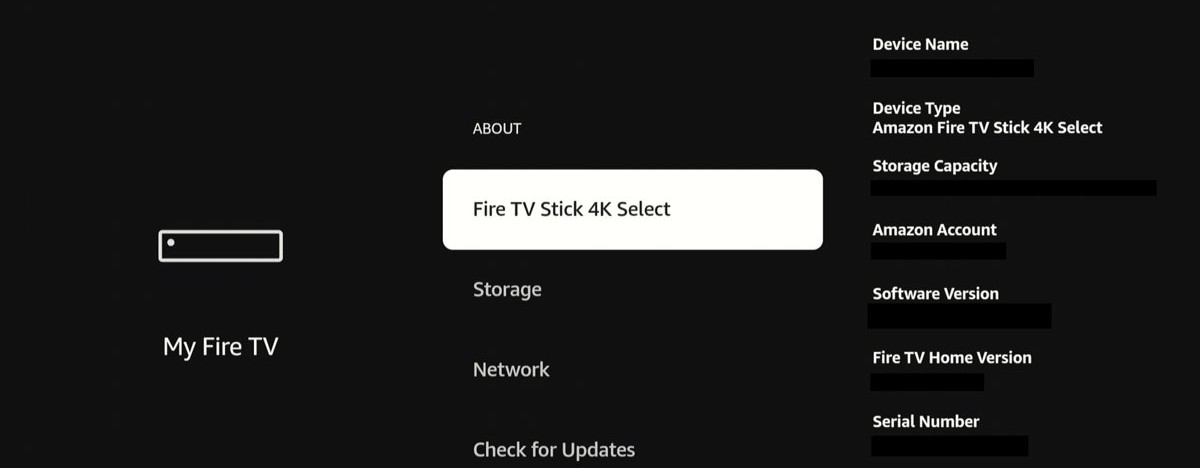
- If you can reach the menus, go to Settings > My Fire TV (or Device & Software) > About > Check for System Update.
- Try a different HDMI port on the TV.
A new remote needs pairing before it works. The steps are the same as for the original, and the Fire Stick remote pairing steps cover each remote model.
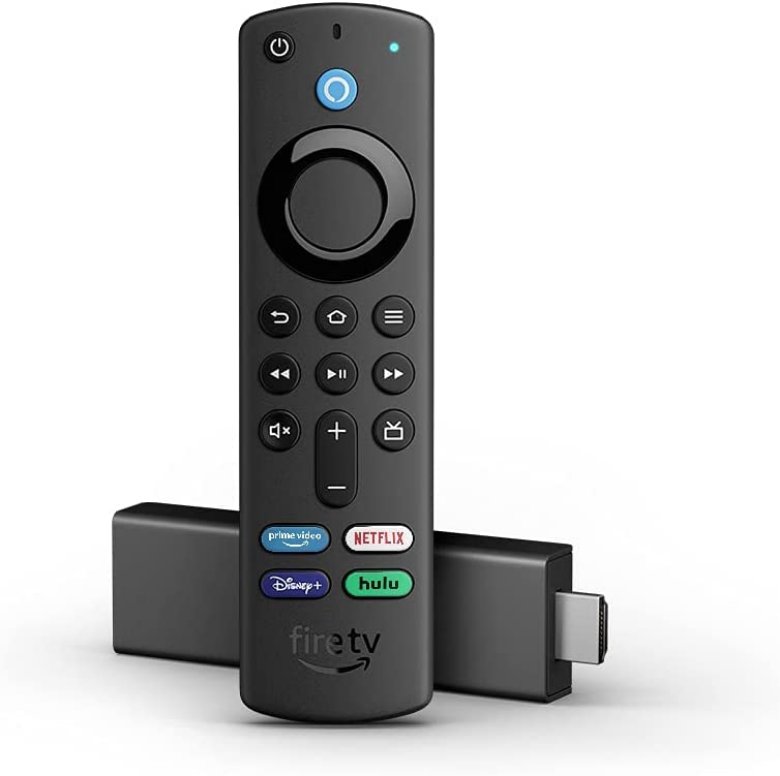
Fire Stick remote light colors and what they mean
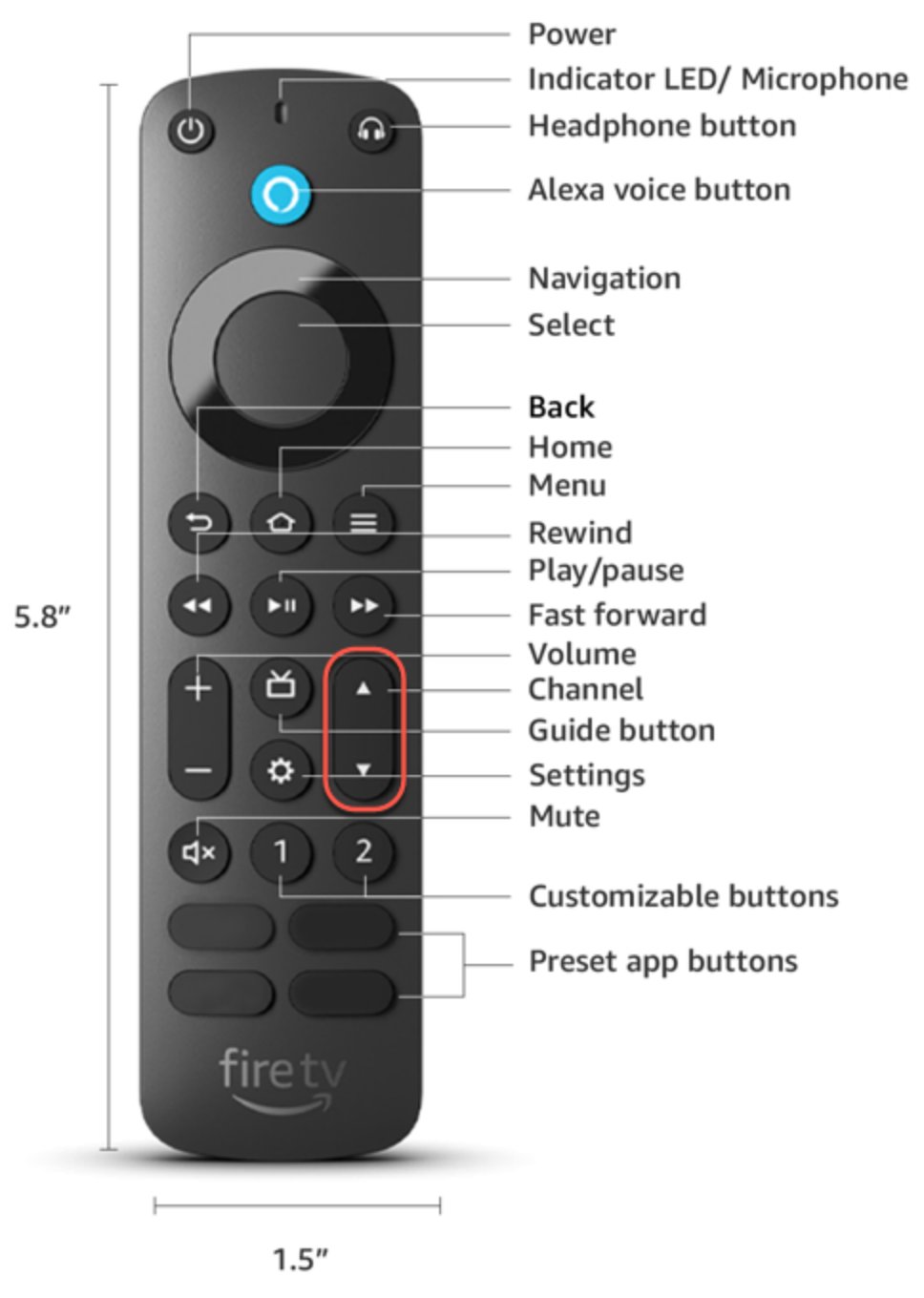
Compatible remotes have a troubleshooting mode. Press the Alexa Voice button first: if the LED at the top flashes, the mode is available. Press Rewind and Right together for three seconds, then press Menu; the LED turns green. Press any button and read the color.
| LED color | Meaning | What to do |
|---|---|---|
| Red, blinking slowly | Low battery | Replace the batteries with AAA alkaline batteries |
| Red, blinking fast | A problem with the remote | Reset the Fire TV remote |
| Orange | The remote is not paired | Restart the stick, then hold Home for 10 seconds |
| White | The Fire Stick may be off | Make sure the stick is on, then restart it |
| Blue | No issue with the remote | Restart the Fire Stick |
To leave troubleshooting mode, press Play/Pause and Up together for three seconds, press Menu, then remove and refit the batteries.
Fire Stick not connecting to Wi-Fi
Wi-Fi faults show up as an "Unable to Connect" message, constant buffering, or apps that will not load content.
"Unable to Connect" message on the Fire Stick
The stick has lost its connection to the router.
- Select Network Diagnostics from the error message.
- Check the Wi-Fi connection status and follow the on-screen recommendations.
- Unplug the Fire Stick from power, wait 10 seconds, and plug it back in.
- Go to Settings > Network, select Wi-Fi, and turn it off and back on.
Fire Stick keeps buffering or the network name is missing
Saved network details are stale, or the router needs a restart.
- Go to Settings > Network and find your network name.
- Press the Menu button, then Select to forget the network.
- Select the network again and enter the Wi-Fi password.
- Unplug the modem and router, wait 1 minute, plug in the modem, wait about a minute, then plug in the router.
- Move the Fire Stick and router closer together if you can.
If phones and laptops on the same network are offline too, the problem is the internet connection, not the Fire Stick. To test the stick's own connection at any time, open Settings, select Network and press Play/Pause.
Fire Stick black screen or no signal on TV
A short flicker or black screen when a 4K Ultra HD stream starts or stops is normal. A screen that stays blank or frozen needs these steps.
Fire Stick black screen, white screen or no signal
An HDMI connection, cable, hub or input problem.
- Restart the Fire Stick.
- Check that any A/V receiver or soundbar in the chain is on the correct input, or connect the stick straight to the TV.
- Unplug the stick from the HDMI port and plug it back in.
- Replace the HDMI cable or hub, and use a High-Speed HDMI cable for 4K Ultra HD.
- Match the TV's Source or Input setting to the HDMI port the stick uses.
- Go to Settings > Display & Sounds and turn HDMI-CEC Device Control off and then on again.
Fire Stick stuck on Amazon logo or frozen screen
The stick is short of power or cannot complete the HDMI handshake.
- Use the power cord or adapter included with the stick.
- Leave the stick turned on for 25 minutes, or until the screen changes.
- Try the stick with and without any HDMI adapter or extender.
- Try a different HDMI port, and confirm in the TV manual that the TV is HDCP-compliant.
- Try a different TV if one is available.
Resolving software, update, and loading issues
When the stick starts but apps, updates or sound misbehave, the fault is usually in software rather than hardware.
Fire Stick apps crashing or not loading
Corrupt app cache or data, or an out-of-date app.
- Restart the Fire Stick from Settings, or unplug it for one minute.
- Go to Settings > Applications > Manage Installed Applications.
- Select the app, then select Clear Cache, and then Clear Data.
- Sign back in to the app, because clearing data signs you out.
- If it still crashes, uninstall and reinstall the app to get the latest version.
Low storage message on the Fire Stick
App caches and installed apps have filled the internal storage.
- Go to Settings > Applications > Manage Installed Applications.
- Select Clear all Application Caches, and then Confirm.
- Uninstall apps you no longer use to free more space.
Fire Stick update failed or will not complete
No internet connection, or less than 500 MB of free storage.
- Go to Settings > Network and press Play/Pause to test the connection.
- Restart the modem or router if the test fails.
- Unplug the Fire Stick, wait one minute, and plug it back in.
- Go to Settings > My Fire TV (or Device & Software) > About > Storage and check for at least 500 MB free.
- Return to About and select Check for System Update.
Fire Stick no sound
An audio output setting or connection fault.
- Go to Settings > Display & Sounds.
- Select Audio and Video Diagnostics, then Troubleshoot Audio/Video Issues.
- Select No Audio when prompted and follow the recommendations.
- Restart the Fire Stick if the sound does not return.
The Audio and Video Diagnostics tool is not on every Fire TV device. If it is missing, restart the stick and check the receiver or soundbar input.
Advanced fixes: Factory reset & hardware checks
Check the hardware first, because a reset cannot fix a bad cable or adapter. A factory reset removes your account information and all downloaded content, including in-app purchases.
- Check the hardware: original power adapter in a wall outlet, a high-speed HDMI cable, a different HDMI port, and if possible a different TV.
- Safely eject any expandable storage connected to the stick.
- To reset with the remote, press and hold Back and the right side of the navigation circle together for 10 seconds.
- To reset from the menus, go to Settings, select My Fire TV, and then select Reset to Factory Defaults.
- Choose to continue on the TV screen, or wait and the reset starts automatically after several seconds.
- Pair the remote when the on-screen instructions appear, then sign in to your Amazon account again.
After the reset the stick starts as new, so you go through the Fire Stick setup steps again: Wi-Fi, account, and apps.
Fire Stick device recovery mode: what to do
The stick enters Device Recovery Mode when it hits a critical error it cannot resolve. Recovery mode is not available on every Fire TV device.
- Select the option to restart the device.
- If the recovery screen returns after the restart, select the option to reset the device to factory settings.
- If the paired remote does not work on this screen, reset another Fire TV remote by holding Left, Menu and Back for 12 seconds.
- Bring that remote within 10 feet (3 m) of the stick and, within 10 seconds, short-press Right, Back and Play/Pause in that order.
- If no remote works, unplug the stick for three seconds and try again after it powers on.
When to contact Amazon Customer Service or replace your Fire Stick
Contact Amazon when the stick still fails after a restart, the hardware checks and a factory reset. New and Certified Refurbished Amazon devices are covered by a limited warranty, and Amazon provides service or a replacement under its warranty guidelines.
| Fire TV Stick model | Amazon warranty |
|---|---|
| Fire TV Stick 4K Max (1st and 2nd Generation) | One-year limited warranty |
| Fire TV Stick 4K Plus | One-year limited warranty |
| Fire TV Stick 4K (1st and 2nd Generation) | One-year limited warranty |
| Fire TV Stick (1st Generation) and Basic Edition | One-year limited warranty |
| Fire TV Stick 4K (3rd Generation) and 4K Select | 90-day limited warranty |
| Fire TV Stick (2nd Generation or later) | 90-day limited warranty |
| Fire TV Stick HD (1st and 2nd Generation) | 90-day limited warranty |
| Fire TV Stick Lite | 90-day limited warranty |
| Fire TV remotes bought separately | 90-day limited warranty |
Stop using the stick and contact Amazon if the stick, its power adapter or its cable appears damaged; Amazon's safety guidance says to discontinue use immediately. A stick bought from another retailer follows that retailer's return policy.
Amazon Fire Stick not working FAQ
Why does my Fire Stick keep losing signal?
A weak or unstable Wi-Fi connection is the usual cause. Restart the stick and router, forget and rejoin the network under Settings > Network, and move the stick and router closer. If it is the HDMI picture that drops, reseat the stick, replace the cable and try another HDMI port.
Can a Fire Stick overheat?
A Fire Stick can get hot during normal use. Amazon says to unplug it and let it cool for a few minutes if it is hot to the touch, and to keep it away from heaters, vents and direct sunlight. Its rated operating range is 0 to 35°C.
Why won't my Fire Stick remote pair?
The remote is usually too far away, has flat batteries, or missed the pairing window. Fit new AAA batteries, bring it within 10 feet of the stick, restart the stick and hold Home for 10 seconds. If that fails, reset the remote with Left, Menu and Back for 12 seconds.
Do Fire Sticks need regular updates?
Yes, but they install them without your help. Fire TV devices and paired accessories download software updates automatically when they are online. To check by hand, go to Settings > My Fire TV or Device & Software > About > Check for System Update.
Can I use a Fire Stick on any TV?
A Fire Stick needs a TV with a free HDMI port. Amazon's troubleshooting steps also ask you to confirm that the TV is HDCP-compliant, which the video-cable section of the TV manual states. For 4K Ultra HD titles, Amazon recommends a High-Speed HDMI cable.
Does a factory reset delete everything on a Fire Stick?
Yes. A factory reset removes your account information and all downloaded content, including in-app purchases. After the reset you pair the remote again, sign in to your Amazon account, reinstall your apps and set up the Fire Stick parental controls PIN again if you used one.
How do I reset my Fire Stick without the remote?
Unplug the stick from power for 60 seconds to restart it, which fixes many faults. To reach the menus without the remote, use the Fire TV app on a phone as a remote. On the Device Recovery Mode screen you can also pair a different Fire TV remote.
Why is my Fire Stick stuck on the Amazon logo?
The stick is usually short of power or has an HDMI problem. Use the original adapter in a wall outlet, leave it on for 25 minutes, try a different HDMI port or cable, and remove any extender. If it stays stuck, factory reset the stick.
How long is the Fire Stick warranty?
It depends on the model. Fire TV Stick 4K Max, 4K Plus and the older 4K models carry a one-year limited warranty. Fire TV Stick HD, Lite, the 4K (3rd Generation) and the Fire TV Stick (2nd Generation or later) carry a 90-day limited warranty.